Category: Kubernetes

  • Three Ways to Run Apache Kafka in the Public Cloud

    Three Ways to Run Apache Kafka in the Public Cloud

    Yes, people are doing things besides generative AI. You’ve still got other problems to solve, systems to connect, and data to analyze. Apache Kafka remains a very popular product for event and data processing, and I was thinking about how someone might use it in the cloud right now. I think there are three major options, and one of them (built-in managed service) is now offered by Google Cloud. So we’ll take that for a spin.

    Option 1: Run it yourself on (managed) infrastructure

    Many companies choose to run Apache Kafka themselves on bare metal, virtual machines, or Kubernetes clusters. It’s easy to find stories about companies like Netflix, Pinterest, and Cloudflare running their own Apache Kafka instances. Same goes for big (and small) enterprises that choose to setup and operate dedicated Apache Kafka environments.

    Why do this? It’s the usual reasons why people decide to manage their own infrastructure! Kafka has a lot of configurability, and experienced folks may like the flexibility and cost profile of running Apache Kafka themselves. Pick your infrastructure, tune every setting, and upgrade on your timetable. On the downside, self-managed Apache Kafka can result in a higher total cost of ownership, requires specialized skills in-house, and could distract you from other high-priority work.

    If you want to go that route, I see a few choices.

    There’s no shame in going this route! It’s actually very useful to know how to run software like Apache Kafka yourself, even if you decide to switch to a managed service later.

    Option 2: Use a built-in managed service

    You might want Apache Kafka, but not want to run Apache Kafka. I’m with you. Many folks, including those at big web companies and classic enterprises, depend on managed services instead of running the software themselves.

    Why do this? You’d sign up for this option when you want the API, but not the ops. It may be more elastic and cost-effective than self-managed hosting. Or, it might cost more from a licensing perspective, but provide more flexibility on total cost of ownership. On the downside, you might not have full access to every raw configuration option, and may pay for features or vendor-dictated architecture choices you wouldn’t have made yourself.

    AWS offers an Amazon Managed Streaming for Apache Kafka product. Microsoft doesn’t offer a managed Kafka product, but does provide a subset of the Apache Kafka API in front of their Azure Event Hubs product. Oracle cloud offers self-managed infrastructure with a provisioning assist, but also appears to have a compatible interface on their Streaming service.

    Google Cloud didn’t offer any native service until just a couple of months ago. The Apache Kafka for BigQuery product is now in preview and looks pretty interesting. It’s available in a global set of regions, and provides a fully-managed set of brokers that run in a VPC within a tenant project. Let’s try it out.

    Set up prerequisites

    First, I needed to enable the API within Google Cloud. This gave me the ability to use the service. Note that this is NOT FREE while in preview, so recognize that you’ll incur changes.

    Next, I wanted a dedicated service account for accessing the Kafka service from client applications. The service supports OAuth and SASL_PLAIN with service account keys. The latter is appropriate for testing, so I chose that.

    I created a new service account named seroter-bq-kafka and gave it the roles/managedkafka.client role. I also created a JSON private key and saved it to my local machine.

    That’s it. Now I was ready to get going with the cluster.

    Provision the cluster and topic

    I went into the Apache Kafka for BigQuery dashboard in the Google Cloud console—I could have also used the CLI which has the full set of control plane commands—to spin up a new cluster. I get very few choices, and that’s not a bad thing. You give the CPU and RAM capacity for the cluster, and Google Cloud creates the right shape for the brokers, and creates a highly available architecture. You’ll also see that I choose the VPC for the cluster, but that’s about it. Pretty nice!

    In about twenty minutes, my cluster was ready. Using the console or CLI, I could see the details of my cluster.

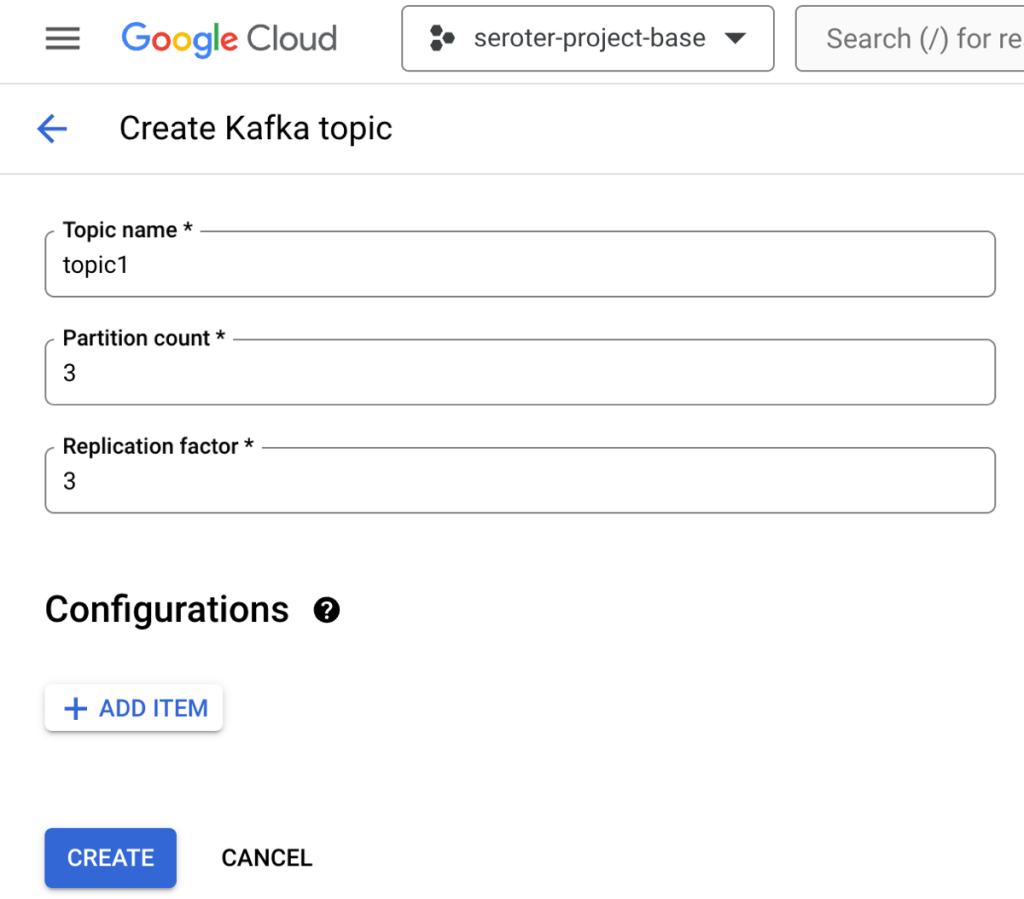
    Topics are a core part of Apache Kafka represent the resource you publish and subscribe to. I could create a topic via the UI or CLI. I created a topic called “topic1”.

    Build the producer and consumer apps

    I wanted two client apps. One to publish new messages to Apache Kafka, and another to consume messages. I chose Node.js and JavaScript as the language for the app. There are a handful of libraries for interacting with Apache Kafka, and I chose the mature kafkajs.

    Let’s start with the consuming app. I need (a) the cluster’s bootstrap server URL and (b) the encoded client credentials. We access the cluster through the bootstrap URL and it’s accessible via the CLI or the cluster details (see above). The client credentials for SASL_PLAIN authentication consists of the base64 encoded service account key JSON file.

    My index.js file defines a Kafka object with the client ID (which identifies our consumer), the bootstrap server URL, and SASL credentials. Then I define a consumer with a consumer group ID and subscribe to the “topic1” we created earlier. I process and log each message before appending to an array variable. There’s an HTTP GET endpoint that returns the array. See the whole index.js below, and the GitHub repo here.

    const express = require('express');
    const { Kafka, logLevel } = require('kafkajs');
    const app = express();
    const port = 8080;
    
    const kafka = new Kafka({
      clientId: 'seroter-consumer',
      brokers: ['bootstrap.seroter-kafka.us-west1.managedkafka.seroter-project-base.cloud.goog:9092'],
      ssl: {
        rejectUnauthorized: false
      },
      logLevel: logLevel.DEBUG,
      sasl: {
        mechanism: 'plain', // scram-sha-256 or scram-sha-512
        username: 'seroter-bq-kafka@seroter-project-base.iam.gserviceaccount.com',
        password: 'tybgIC ... pp4Fg=='
      },
    });
    
    const consumer = kafka.consumer({ groupId: 'message-retrieval-group' });
    
    //create variable that holds an array of "messages" that are strings
    let messages = [];
    
    async function run() {
      await consumer.connect();
      //provide topic name when subscribing
      await consumer.subscribe({ topic: 'topic1', fromBeginning: true }); 
    
      await consumer.run({
        eachMessage: async ({ topic, partition, message }) => {
          console.log(`################# Received message: ${message.value.toString()} from topic: ${topic}`);
          //add message to local array
          messages.push(message.value.toString());
        },
      });
    }
    
    app.get('/consume', (req, res) => {
        //return the array of messages consumed thus far
        res.send(messages);
    });
    
    run().catch(console.error);
    
    app.listen(port, () => {
      console.log(`App listening at http://localhost:${port}`);
    });
    

    Now we switch gears and go through the producer app that publishes to Apache Kafka.

    This app starts off almost identically to the consumer app. There’s a Kafka object with a client ID (different for the producer) and the same pointer to the bootstrap server URL and credentials. I’ve got an HTTP GET endpoint that takes the querystring parameters and publishes the key and value content to the request payload. The code is below, and the GitHub repo is here.

    const express = require('express');
    const { Kafka, logLevel } = require('kafkajs');
    const app = express();
    const port = 8080; // Use a different port than the consumer app
    
    const kafka = new Kafka({
        clientId: 'seroter-publisher',
        brokers: ['bootstrap.seroter-kafka.us-west1.managedkafka.seroter-project-base.cloud.goog:9092'],
        ssl: {
          rejectUnauthorized: false
        },
        logLevel: logLevel.DEBUG,
        sasl: {
          mechanism: 'plain', // scram-sha-256 or scram-sha-512
          username: 'seroter-bq-kafka@seroter-project-base.iam.gserviceaccount.com',
          password: 'tybgIC ... pp4Fg=='
        },
      });
    
    const producer = kafka.producer();
    
    app.get('/publish', async (req, res) => {
      try {
        await producer.connect();
    
        const _key = req.query.key; // Extract key from querystring
        console.log('key is ' + _key);
        const _value = req.query.value // Extract value from querystring
        console.log('value is ' + _value);
    
        const message = {
          key: _key, // Optional key for partitioning
          value: _value
        };
    
        await producer.send({
          topic: 'topic1', // Replace with your topic name
          messages: [message]
        });
    
        res.status(200).json({ message: 'Message sent successfully' });
    
      } catch (error) {
        console.error('Error sending message:', error);
        res.status(500).json({ error: 'Failed to send message' });
      }
    });
    
    app.listen(port, () => {
      console.log(`Producer listening at http://localhost:${port}`);
    });


    Next up, containerizing both apps so that I could deploy to a runtime.

    I used Google Cloud Artifact Registry as my container store, and created a Docker image from source code using Cloud Native buildpacks. It took one command for each app:

    gcloud builds submit --pack image=gcr.io/seroter-project-base/seroter-kafka-consumer
    gcloud builds submit --pack image=gcr.io/seroter-project-base/seroter-kafka-publisher

    Now we had everything needed to deploy and test our client apps.

    Deploy apps to Cloud Run and test it out

    I chose Google Cloud Run because I like nice things. It’s still one of the best two or three ways to host apps in the cloud. We also make it much easier now to connect to a VPC, which is what I need. Instead of creating some tunnel out of my cluster, I’d rather access it more securely.

    Here’s how I configured the consuming app. I first picked my container image and a target location.

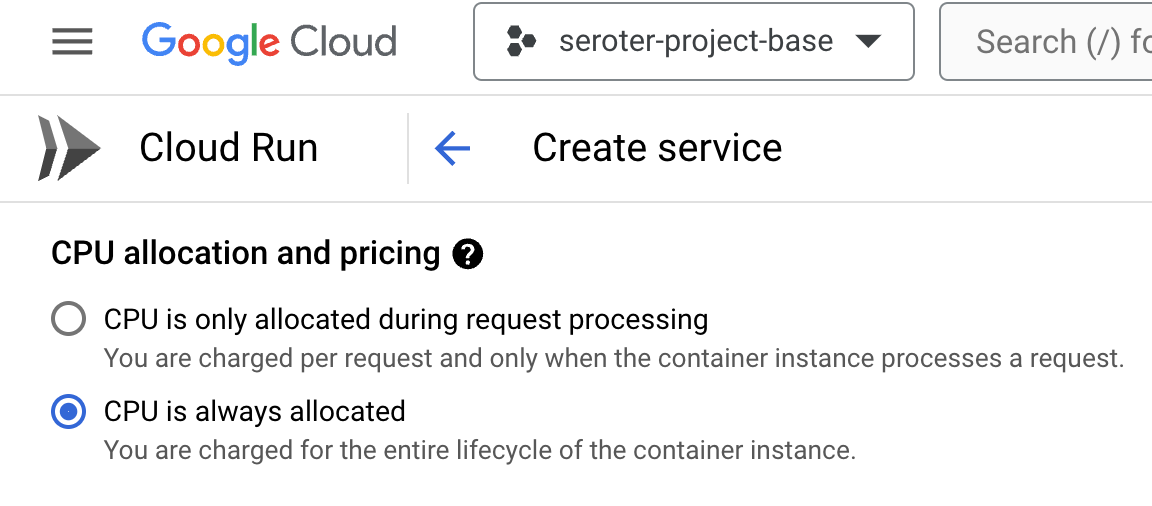
    Then I chose to use always-on CPU for the consumer, as I had connection issues when I had a purely ephemeral container.
    The last setting was the VPC egress that made it possible for this instance to talk to the Apache Kafka cluster.

    About three seconds later, I had a running Cloud Run instance ready to consume.

    I ran through a similar deployment process for the publisher app, except I kept the true “scale to zero” setting turned on since it doesn’t matter if the publisher app comes and goes.

    With all apps deployed, I fired up the browser and issued a pair of requests to the “publish” endpoint.

    I checked the consumer app’s logs and saw that messages were successfully retrieved.

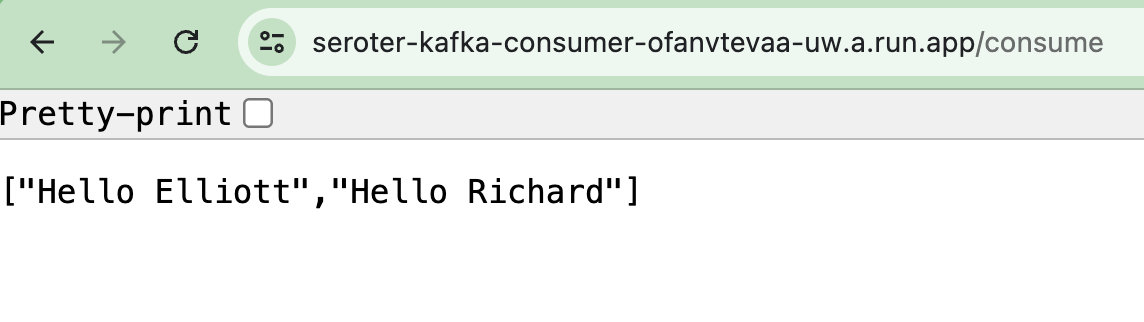
    Sending a request to the GET endpoint on the consumer app returns the pair of messages I sent from the publisher app.
    Sweet! We proved that we could send messages to the Apache Kafka cluster, and retrieve them. I get all the benefits of Apache Kafka, integrated into Google Cloud, with none of the operational toil.

    Read more in the docs about this preview service.

    Option 3: Use a managed provider on your cloud(s) of choice

    The final way you might choose to run Apache Kafka in the cloud is to use a SaaS product designed to work on different infrastructures.

    The team at Confluent does much of the work on open source Apache Kafka and offers a managed product via Confluent Cloud. It’s performant, feature-rich, and runs in AWS, Azure, and Google Cloud. Another option is Redpanda, who offer a managed cloud service that they operate on their infrastructure in AWS or Google Cloud.

    Why do this? Choosing a “best of breed” type of managed service is going to give you excellent feature coverage and operational benefits. These platforms are typically operated by experts and finely tuned for performance and scale. Are there any downside? These platforms aren’t free, and don’t always have all the native integrations into their target cloud (logging, data services, identity, etc) that a built-in service does. And you won’t have all the configurability or infrastructure choice that you’d have running it yourself.

    Wrap up

    It’s a great time to run Apache Kafka in the cloud. You can go full DIY or take advantage of managed services. As always, there are tradeoffs with each. You might even use a mix of products and approaches for different stages (dev/test/prod) and departments within your company. Are there any options I missed? Let me know!

  • How do you back up and restore your (stateful) Kubernetes workloads? Here’s a new cloud-native option.

    How do you back up and restore your (stateful) Kubernetes workloads? Here’s a new cloud-native option.

    The idea of “backup and restore” in a complex distributed system is bit weird. Is it really even possible? Can you snapshot all the components of an entire system at a single point in time, inclusive of all the side effects in downstream systems? I dunno. But you need to at least have a good recovery story for each of your major stateful components! While Kubernetes started out as a terrific orchestrator for stateless containers, it’s also matured as a runtime for stateful workloads. Lots of folks are now using Kubernetes to run databases, event processors, ML models. and even “legacy” apps that maintain local state. Until now, public cloud users have only had DIY or 3rd party options when it comes to backing up their Kubernetes clusters, but not any more. Google Cloud just shipped a new built-in Backup for Google Kubernetes Engine (GKE) feature, and I wanted to try it out.

    What Backup for GKE does

    Basically, it captures the resources—at the cluster or namespace level—and persistent volumes within a given cluster at a specific point in time. It does not back up cluster configurations themselves (e.g. node pool size, machine types, enabled cluster features). For that, you’d like likely have an infrastructure-as-code approach for stamping out clusters (using something like Terraform), and use Backup for GKE to restore the state of your running app. This diagram from the official docs shows the architecture:

    Architecture of Backup for GKE

    A Kubernetes cluster backup comes from a “backup plan” that defines the scope of a given backup. With these, you choose a cluster to back up, which namespaces you want backed up, and a schedule (if any). To restore a backup into an existing cluster, you execute a pre-defined “restore plan.” All of this is part of a fully managed Google Cloud service, so you’re not stuck operating any of the backup machinery.

    Setting up Backup for GKE on a new cluster

    Backup for GKE works with existing clusters (see Appendix A below), but I wanted to try it out on a fresh cluster first.

    I started with a GKE standard cluster. First, I made sure to choose a Kubernetes version that supported the Backup feature. Right now, that’s Kubernetes 1.24 or higher.

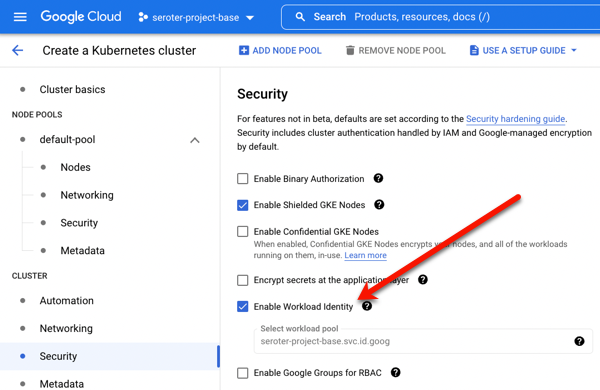
    I also turned on two features at the cluster-level. The first was Workload Identity. This security feature enforces more granular, workload-specific permissions to access other Google Cloud services.

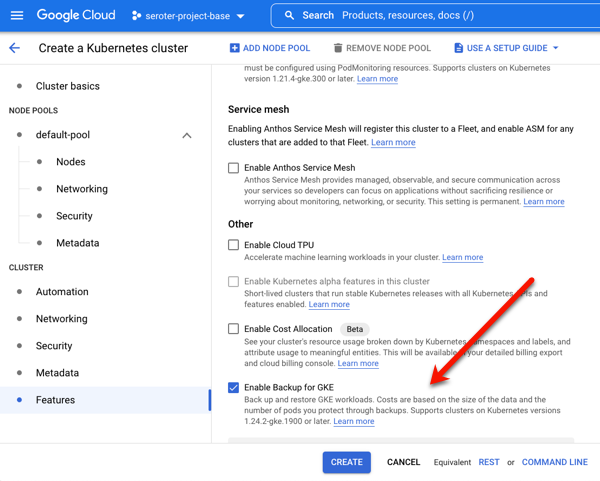
    The second and final feature to enable is Backup for GKE. This injects the agent into the cluster and connects it to the control plane.

    Deploying a stateful app to Kubernetes

    Once my cluster was up and running, I wanted to deploy a simple web application to it. What’s the app? I created a poorly-written Go app that has a web form to collect support tickets. After you submit a ticket, I route it to Google Cloud Pub/Sub, write an entry into a directory, and then take the result of the cloud request and jam the identifier into a file on another directory. What does this app prove? Two things. First, it should flex Workload Identity by successfully publishing to Pub/Sub. And second, I wanted to observe how stateful backups worked, so I’m writing files to two directories, one that can be backed by a persistent volume, and one backed by a local (node) volume.

    I built and containerized the app automatically by using a Cloud Buildpack within a Cloud Build manifest, and invoking a single command:

    gcloud builds submit --config cloudbuild.yaml
    

    I then logged into my just-created GKE cluster and created a new namespace to hold my application and specific permissions.

    kubectl create ns demos
    

    To light up Workload Identity, you create a local service account in a namespace and map it to an existing Google Cloud IAM account that has the permissions the application should have. I created a Kubernetes service account:

    kubectl create serviceaccount webapp-sa --namespace demos
    

    And then I annotated the service account with the mapping to an IAM account (demo-container-app-user) which triggers the impersonation at runtime:

    kubectl annotate serviceaccount webapp-sa --namespace demos iam.gke.io/gcp-service-account=demo-container-app-user@seroter-project-base.iam.gserviceaccount.com
    

    Sweet. Finally, there’s the Kubernetes deployment YAML that points to my app container, service account, and the two volumes used by my app. At the top is my definition of the persistent volume, and then the deployment itself.

    apiVersion: v1
    kind: PersistentVolumeClaim
    metadata:
      name: pvc-output
    spec:
      accessModes:
        - ReadWriteOnce
      resources:
        requests:
          storage: 5Gi
      storageClassName: standard-rwo
    ---
    apiVersion: apps/v1
    kind: Deployment
    metadata:
      name: go-pubsub-publisher-deployment
    spec:
      selector:
        matchLabels:
          app: go-pubsub-publisher
      template:
        metadata:
          labels:
            app: go-pubsub-publisher
        spec:
          containers:
          - name: go-pubsub-publisher
            image: gcr.io/seroter-project-base/go-pubsub-publisher:34749b85-afbb-4b59-98cc-4d5d790eb325
            volumeMounts:
              - mountPath: /logs
                name: log-volume
              - mountPath: /acks
                name: pvc-output-volume
            resources:
              requests:
                memory: "64Mi"
                cpu: "300m"
              limits:
                memory: "128Mi"
                cpu: "500m"
            ports:
            - containerPort: 8080
          serviceAccountName: webapp-sa
          securityContext:
            runAsUser: 1000
            runAsGroup: 3000
            fsGroup: 2000
          volumes:
            - name: log-volume
              emptyDir: {}
            - name: pvc-output-volume
              persistentVolumeClaim:
                claimName: pvc-output
    

    I applied the above manifest (and a services definition) to my GKE cluster with the following command:

    kubectl apply -f k8s/. -n demos
    

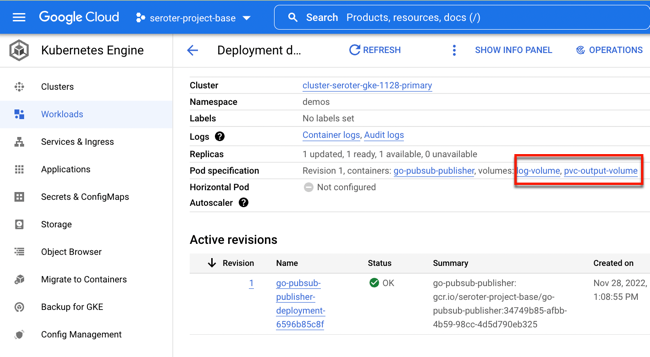
    A moment afterwards, I saw a deployment and service. The deployment showed two associated volumes, including the auto-created persistent disk based on my declarative request.

    Let’s triple check that. I got the name of the pod and got a shell into the running container. See below that both directories show up, and my app isn’t aware of which one is from a persistent volume and which is not.

    I pulled up the web page for the app, and entered a few new “support tickets” into the system. The Pub/Sub UI lets me pull messages from a topic subscription, and we see my submitted tickets there.

    The next thing to check is the container’s volumes. Sure enough, I saw the contents of each message written to the local directory (/logs) and the message IDs written to the persistent directory (/acks).

    Running a backup and restore

    Let’s back that thing up.

    Backup plans are tied to a cluster. You can see here that my primary cluster (with our deployed app) and new secondary cluster (empty) have zero plans.

    I clicked the “create a backup plan” button at the top of this page, and got asked for some initial plan details.

    That all seemed straightforward. Then it got real. My next options included the ability to back up ALL the namespaces of the cluster, specific ones, or “protected” (more customized) configs. I just chose our “demos” namespace for backup. Also note that I could choose to back up persistent volume data and control encryption.

    Next, I was asked to choose the frequency of backups. This is defined in the form of a CRON expression. I could back up every few minutes, once a month, or every year. If I leave this “schedule” empty, this becomes an on-demand backup plan.

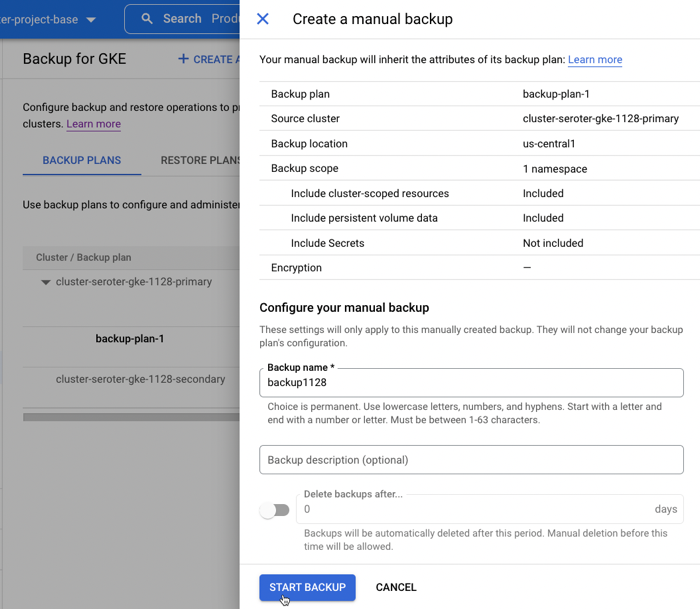
    After reviewing all my settings, I saved the backup plan. Then I manually kicked off a backup by providing the name and retention period for the backup.

    To do anything with this backup, I need a “restore plan.” I clicked the button to create a new restore plan, and was asked to connect it to a backup plan, and a target cluster.

    Next, I had the choice of restoring some, or all, namespaces. In real life, you might back up everything, and then selectively restore. I like that you’re asked about conflict handling, which determines what happens if the target cluster already has the specified namespace in there. There are also a handful of flexible options for restoring volume data, ranging from creating new volumes, to re-using existing, to not restoring anything.

    After that, I was asked about cluster-scoped resources. It pre-loaded a few API groups and Object kinds to restore, and offered me the option to overwrite any existing resources.

    Finally, I got asked for any substitution rules to swap backed up values for different ones. With that, I finished my restore plan and had everything I needed to test my backup.

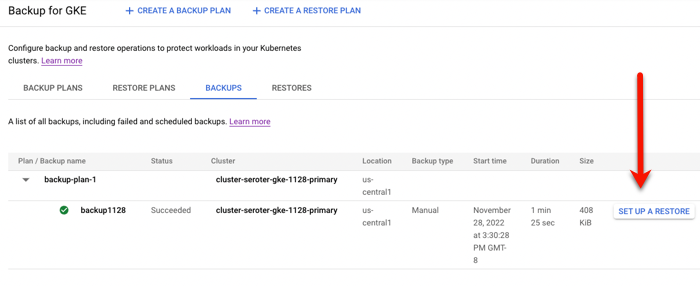
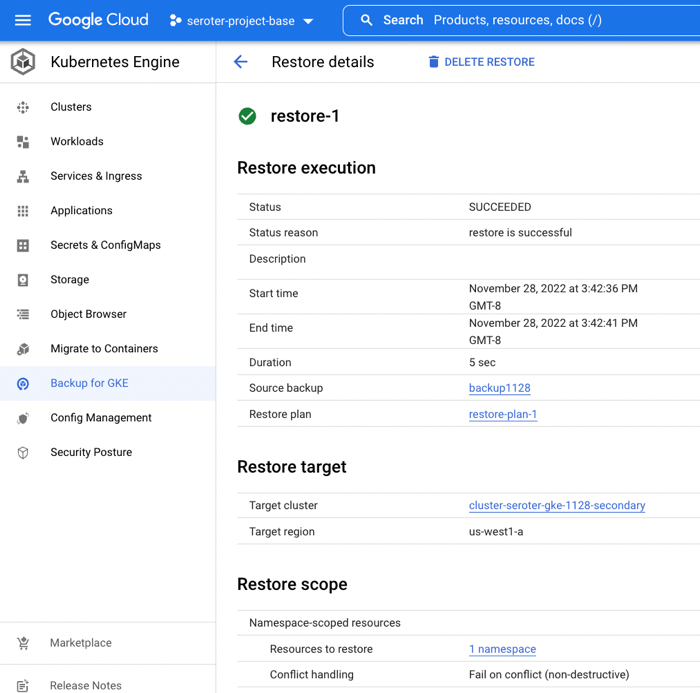
    I set up a restore, which basically just involved choosing a restore plan (which is connected to a backup, and target cluster). In just a few moments, I saw a “succeeded” message and it looked like it worked.

    When I checked out the GKE “workloads” view, I saw both the original and “restored” deployment running.

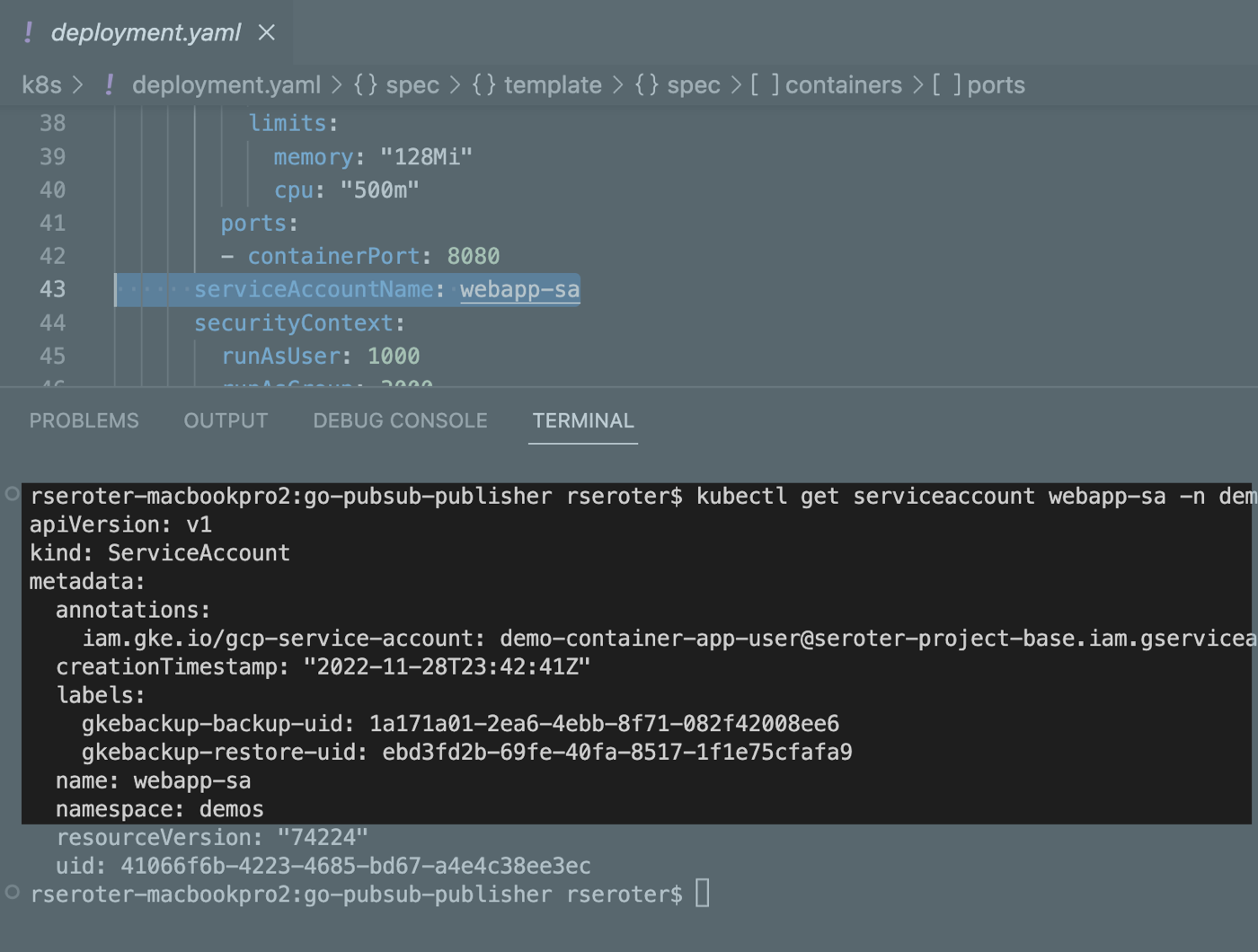
    I logged into the “secondary” GKE cluster and saw my custom namespace and workload. I also checked, and saw that my custom service account (and Workload Identity-ready annotation) came over in the restore action.

    Next, I grabbed a shell into the container to check my stateful data. What did I find? The “local” volume from the original container (“logs”) was empty. Which makes sense. That wasn’t backed by a persistent disk. The “acks” directory, on the other hand, was backed up, and shows up intact as part of the restore.

    To test out my “restored” app instance, I submitted a new ticket, saw it show up in Pub/Sub (it just worked, as Workload Identity was in place), and also saw the new log file, and updated “ids.txt” file.

    Pretty cool! With Backup for GKE, you don’t deal with the installation, patching, or management of your backup infrastructure, and get a fairly sophisticated mechanism for resilience in your distributed system.

    To learn more about this, check out the useful documentation, and these two videos: Introduction to Backup for GKE, and How to enable GKE Backup.

    Appendix A: Setting up Backup for GKE on an an existing cluster

    Backup for GKE doesn’t only work with new clusters. You can add it to most existing GKE clusters. And these clusters can act as either sources or targets!

    First, let’s talk about GKE Autopilot clusters. These are basically hyper-automated GKE standard clusters that incorporate all of Google’s security and scalability best practices. An Autopilot cluster doesn’t yet expose “Backup for GKE” feature at creation time, but you apply if after the fact. You also need to ensure you’re on Kubernetes 1.24 or higher. Workload Identity is enabled by default, so there’s nothing you need to do there.

    But let’s talk about an existing GKE standard cluster. If you provision one from scratch, the default security option is to use a service account for the node pool identity. What this means is that any workloads in the cluster will have the same permissions as that account.

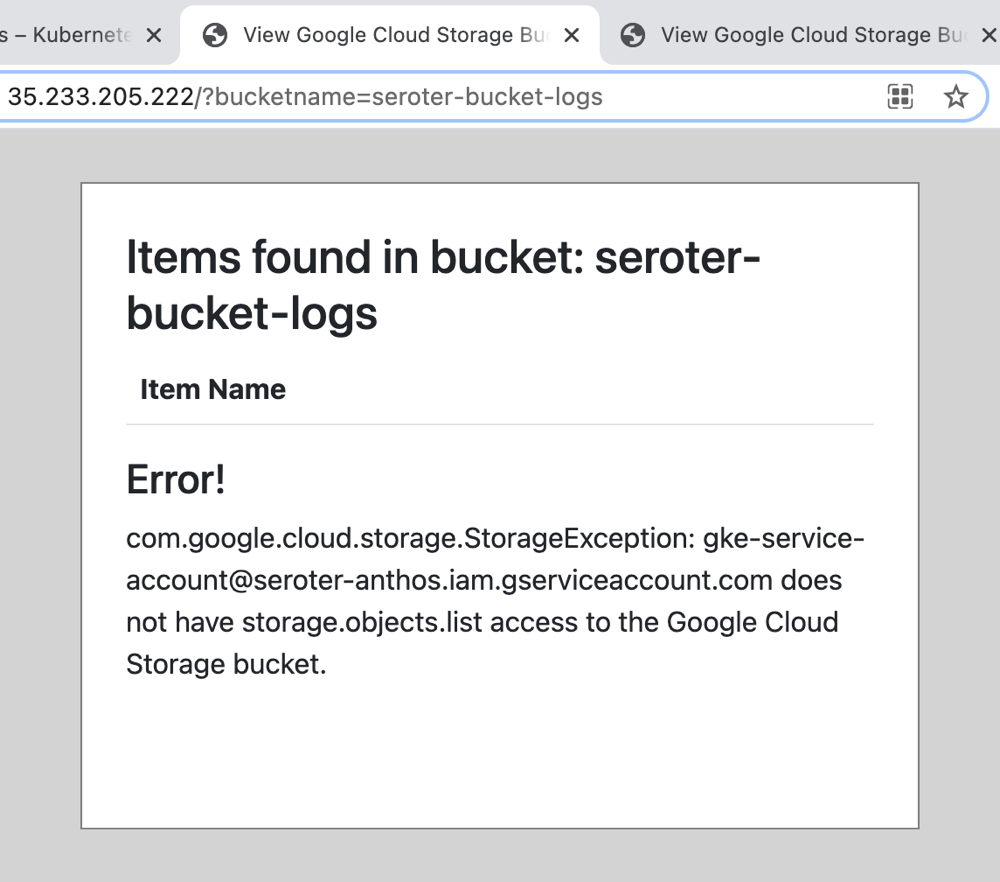
    If I provision a cluster (cluster #1) like so, the app from above does not work. Why? The “default compute service account” doesn’t have permission to write to a Pub/Sub topic. A second security option is to use a specific service account with the minimum set of permissions needed for the node’s workloads. If I provision cluster #2 and choose a service account with rights to publish to Pub/Sub, my app does work.

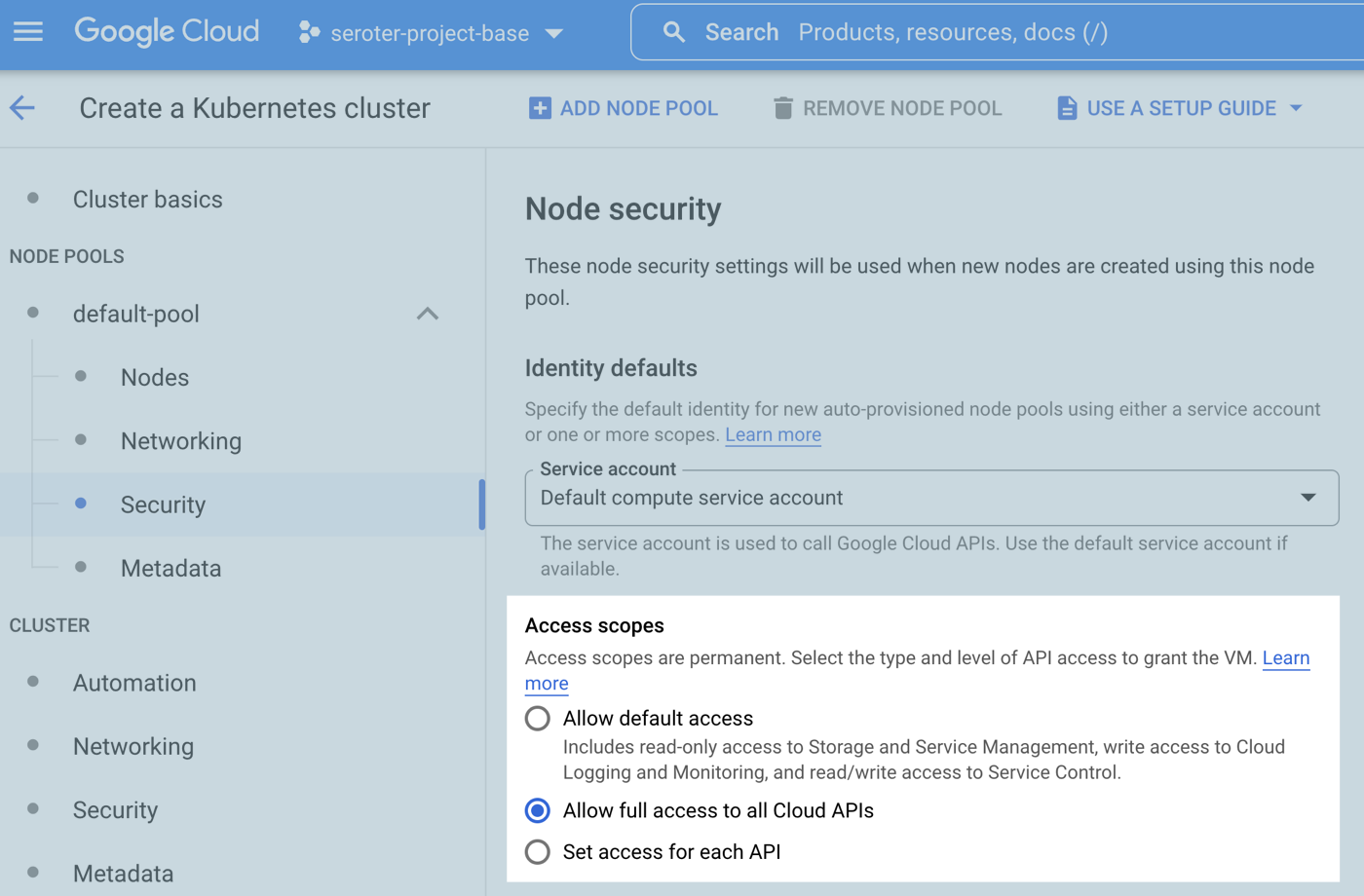
    The third security option relates to the access scopes for the cluster. This is a legacy method for authorization. The default setting is “allow default access” which offers a limited set of OAuth-based permissions. If I build a GKE cluster (cluster #3) with a default service account and “allow full access to all cloud APIs” then my app above does work because it has wide-ranging access to all the cloud APIs.

    For a GKE standard cluster configured in either of the three ways above, I cannot install Backup for GKE. Why? I have to first enable Workload Identity. Once I edited the three clusters’ settings to enable Workload Identity, my app behaved the same way (not work, work, work)! That surprised me. I expected it to stop using the cluster credentials and require a Workload Identity assignment. What went wrong? For an existing cluster, turning on Workload Identity alone doesn’t trigger the necessary changes for existing node pools. Any new node pools would have everything enabled, but you have to explicitly turn on the GKE Metadata Server for any existing node pools.

    This GKE Metadata Server is automatically turned on for any new node pools when you enable Workload Identity, and if you choose to install Workload Identity on a new cluster, it’s also automatically enabled for the first node pool. I didn’t totally understand all this until I tried out a few scenarios!

    Once you’re running a supported version of Kubernetes and have Workload Identity enabled on a cluster, you can enroll it in Backup for GKE.

  • Continuously deploy your apps AND data? Let’s try to use Liquibase for BigQuery changes.

    Continuously deploy your apps AND data? Let’s try to use Liquibase for BigQuery changes.

    Want to constantly deploy updates to your web app through the use of automation? Not everyone does it, but it’s a mostly solved problem with mature patterns and tools that make it possible. Automated deployments of databases, app services, and data warehouses? Also possible, but not something I personally see done as often. Let’s change that!

    Last month, I was tweeting about Liquibase, and their CTO and co-founder pointed out to me that Google Cloud contributed a BigQuery extension. Given that Liquibase is a well-known tool for automating database changes, I figured it was time to dig in and see how it worked, especially for a fully managed data warehouse like BigQuery. Specifically, I wanted to prove out four things:

    1. Use the Liquibase CLI locally to add columns to a BigQuery table. This is an easy way to get started!
    2. Use the Liquibase Docker image to add columns to a BigQuery table. See how to deploy changes through a Docker container, which makes later automation easier.
    3. Use the Liquibase Docker image within Cloud Build to automate deployment of a BigQuery table change. Bring in continuous integration (and general automation service) Google Cloud Build to invoke the Liquibase container to push BigQuery changes.
    4. Use Cloud Build and Cloud Deploy to automate the build and deployment of the app to GKE along with a BigQuery table change. This feels like the ideal state, where Cloud Build does app packaging, and then hands off to Cloud Deploy to push BigQuery changes (using the Docker image) and the web app through dev/test/prod.

    I learned a lot of new things by performing this exercise! I’ll share all my code and lessons learned about Docker, Kubernetes, init containers, and Liquibase throughout this post.

    Scenario #1 – Use Liquibase CLI

    The concepts behind Liquibase are fairly straightforward: define a connection string to your data source, and create a configuration file that represents the desired change to your database. A Liquibase-driven change isn’t oriented adding data itself to a database (although, it can), but for making structural changes like adding tables, creating views, and adding foreign key constraints. Liquibase also does things like change tracking, change locks, and assistance with rollbacks.

    While it directly integrates with Java platforms like Spring Boot, you can also use it standalone via a CLI or Docker image.

    I downloaded the CLI installer for my Mac, which added the bits to a local directory. And then I checked to see if I could access the liquibase CLI from the console.

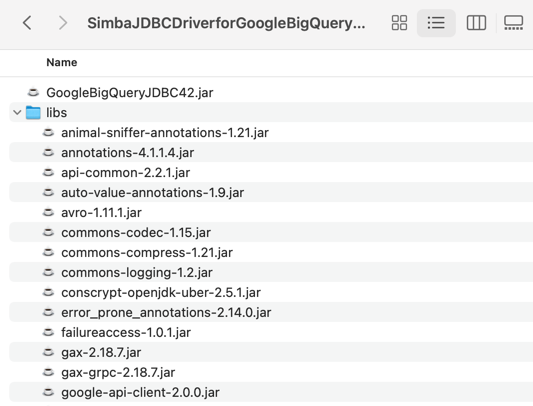
    Next, I downloaded the BigQuery JDBC driver which is what Liquibase uses to connect to my BigQuery. The downloaded package includes the JDBC driver along with a “lib” folder containing a bunch of dependencies.

    I added *all* of those files—the GoogleBigQueryJDBC42.jar file and everything in the “lib” folder—to the “lib” folder included in the liquibase install directory.

    Next, I grabbed the latest BigQuery extension for Liquibase and installed that single JAR file into the same “lib” folder in the local liquibase directory. That’s it for getting the CLI properly loaded.

    What about BigQuery itself? Anything to do there? Not really. When experimenting, I got “dataset not found” from Liquibase when using a specific region like “us-west1” so I created a dataset the wider “US” region and everything worked fine.

    I added a simple table to this dataset and started it off with two columns.

    Now I was ready to trigger some BigQuery changes! I had a local folder (doesn’t need to be where the CLI was installed) with two files: liquibase.properties, and changelog.yaml. The properties file (details here) includes the database connection string, among other key attributes. I turned on verbose logging, which was very helpful in finding obscure issues with my setup! Also, I want to use environmental credentials (saved locally, or available within a cloud instance by default) versus entering creds in the file, so the OAuthType is set to “3”.

    #point to where the file is containing the changelog to execute
    changelogFile: changelog.yaml
    #identify which driver to use for connectivity
    driver: com.simba.googlebigquery.jdbc.Driver
    #set the connection string for bigquery
    url: jdbc:bigquery://https://googleapis.com/bigquery/v2:443;ProjectId=seroter-project-base;DefaultDataset=employee_dataset;OAuthType=3;
    #log all the things
    logLevel: 0
    #if not using the "hub" features
    liquibase.hub.mode=off
    

    Next I created the actual change log. There are lots of things you can do here, and change files can be authored in JSON, XML, SQL, or YAML. I chose YAML, because I know how to have a good time. The BigQuery driver supports most of the Liquibase commands, and I chose the one to add a new column to my table.

    databaseChangeLog:
      - changeSet:
          id: addColumn-example1
          author: rseroter
          changes:
            - addColumn:
                tableName: names_1
                columns:
                - column:
                    name: location
                    type: STRING
    

    Once you get all the setup in place, the actual Liquibase stuff is fairly simple! To execute this change, I jumped into the CLI, navigated to the folder holding the properties file and change log, and issued a single command.

    liquibase --changeLogFile=changelog.yaml update

    Assuming you have all the authentication and authorization settings correct and files defined and formatted in the right way, the command should complete successfully. In BigQuery, I saw that my table had a new column.

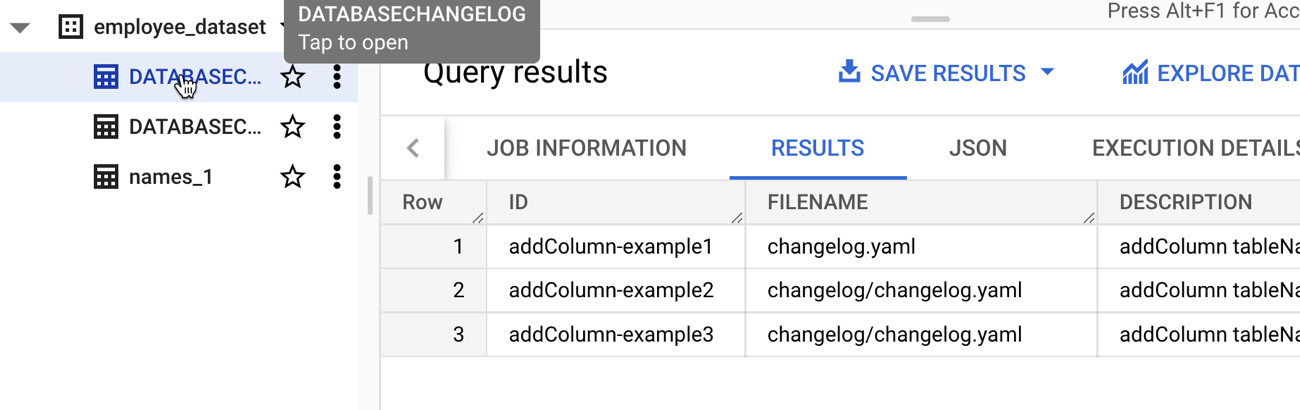
    Note that this command is idempotent. I can execute it again and again with no errors or side effects. After I executed the command, I saw two new tables added to my dataset. If I had set the “liquibaseSchemaName” property in the properties file, I could have put these tables into a different dataset of my choosing. What are they for? The DATABASECHANGELOGLOCK table is used to create a “lock” on the database change so that only one process at a time can make updates. The DATABASECHANGELOG table stores details of what was done, when. Be aware that each changeset itself is unique, so if I tried to run a new change (add a different column) with the same changeset id (above, set to “addColumn-example1”), I’d get an error.

    That’s it for the CLI example. Not too bad!

    Scenario #2 – Use Liquibase Docker image

    The CLI is cool, but maybe you want an even more portable way to trigger a database change? Liquibase offers a Docker image that has the CLI and necessary bits loaded up for you.

    To test this out, I fired up an instance of the Google Cloud Shell—this is an dev environment that you can access within our Console or standalone. From here, I created a local directory (lq) and added folders for “changelog” and “lib.” I uploaded all the BigQuery JDBC JAR files, as well as the Liquibase BigQuery driver JAR file.

    I also uploaded the liquibase.properties file and changelog.yaml file to the “changelog” folder in my Cloud Shell. I opened the changelog.yaml file in the editor, and updated the changeset identifier and set a new column name.

    All that’s left is to start the Docker container. Note that you might find it easier to create a new Docker image based on the base Liquibase image with all the extra JAR files embedded within it instead of schlepping the JARs all over the place. In my case here, I wanted to keep it all separate. To ensure that the Liquibase Docker container “sees” all my config files and JAR files, I needed to mount volumes when I started the container. The first volume mount maps from my local “changelog” directory to the “/liquibase/changelog” directory in the container. The second maps from the local “lib” directory to the right spot in the container. And by mounting all those JARs into the container’s “lib” directory—while also setting the “–include-system-classpath” flag to ensure it loads everything it finds there—the container has everything it needs. Here’s the whole Docker command:

    docker run --rm -v /home/richard/lq/changelog:/liquibase/changelog -v /home/richard/lq/lib:/liquibase/lib liquibase/liquibase --include-system-classpath=true --changeLogFile=changelog/changelog.yaml --defaultsFile=/liquibase/changelog/liquibase.properties update
    

    After 30 seconds or so, I saw the new column added to my BigQuery table.

    To be honest, this doesn’t feel like it’s that much simpler than just using the CLI, but, by learning how to use the container mechanism, I could now embed this database change process into a container-native cloud build tool.

    Scenario #3 – Automate using Cloud Build

    Those first two scenarios are helpful for learning how to do declarative changes to your database. Now it’s time to do something more automated and sustainable. In this scenario, I tried using Google Cloud Build to automate the deployment of my database changes.

    Cloud Build runs each “step” of the build process in a container. These steps can do all sorts of things, ranging from compiling your code, running tests, pushing to artifact storage, or deploy a workload. Since it can honestly run any container, we could also use the Liquibase container image as a “step” of the build. Let’s see how it works.

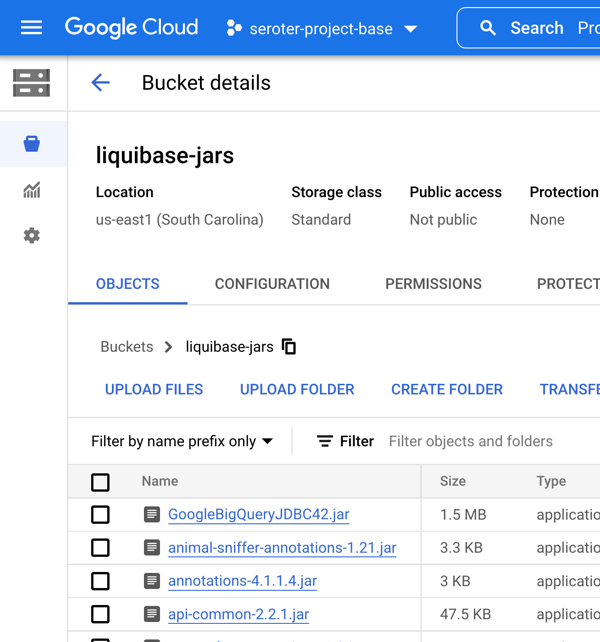
    My first challenge related to getting all those JDBC and driver JAR files into Cloud Build! How could the Docker container “see” them? To start, I put all the JAR files and config files (updated with a new column named “title”) into Google Cloud Storage buckets. This gave me easy, anywhere access to the files.

    Then, I decided to take advantage of Cloud Build’s built-in volume for sharing data between the independent build steps. This way, I could retrieve the files, store them, and then the Liquibase container could see them on the shared volume. In real life, you’d probably grab the config files from a Git repo, and the JAR files from a bucket. We’ll do that in the next scenario! Be aware that there’s also a project out there for mounting Cloud Storage buckets as volumes, but I didn’t feel like trying to do that. Here’s my complete Cloud Build manifest:

    steps: 
    - id: "Get Liquibase Jar files"
      name: 'gcr.io/cloud-builders/gsutil'
      dir: 'lib'
      args: ['cp', 'gs://liquibase-jars/*.jar', '/workspace/lib']
    - id: "Get Liquibase config files"
      name: 'gcr.io/cloud-builders/gsutil'
      dir: 'changelog'
      args: ['cp', 'gs://liquibase-configs/*.*', '/workspace/changelog']
    - id: "Update BQ"
      name: 'gcr.io/cloud-builders/docker'
      args: [ "run", "--network=cloudbuild", "--rm", "--volume", "/workspace/changelog:/liquibase/changelog", "--volume", "/workspace/lib:/liquibase/lib", "liquibase/liquibase", "--include-system-classpath=true", "--changeLogFile=changelog/changelog.yaml", "--defaultsFile=/liquibase/changelog/liquibase.properties", "update" ]
    

    The first “step” uses a container that’s pre-loaded with the Cloud Storage CLI. I executed the “copy” command and put all the JAR files into the built-in “workspace” volume. The second step does something similar by grabbing all the “config” files and dropping them into another folder within the “workspace” volume.

    Then the “big” step executed a virtually identical Docker “run” command as in scenario #2. I pointed to the “workspace” directories for the mounted volumes. Note the “–network” flag which is a magic command for using default credentials.

    I jumped into the Google Cloud Console and created a new Cloud Build trigger. Since I’m not (yet) using a git repo for configs, but I have to pick SOMETHING when building a trigger, I chose a random repo of mine. I chose an “inline” Cloud Build definition and pasted in the YAML above.

    That’s it. I saved the trigger, ensured the “Cloud Build” account had appropriate permissions to update BigQuery, and “ran” the Cloud Build job.

    I saw the new column in my BigQuery table as a result and if I looked at the “change table” managed by Liquibase, I saw each of the three change we did so far.

    Scenario #4 – Automate using Cloud Build and Cloud Deploy

    So far so good. But it doesn’t feel “done” yet. What I really want is to take a web application that writes to BigQuery, and deploy that, along with BigQuery changes, in one automated process. And I want to use the “right” tools, so I should use Cloud Build to package the app, and Google Cloud Deploy to push the app to GKE.

    I first built a new web app using Node.js. This very simple app asks you to enter the name of an employee, and it adds that employee to a BigQuery table. I’m seeking seed funding for this app now if you want to invest. The heart of this app’s functionality is in its router:

    router.post('/', async function(req, res, next) {
        console.log('called post - creating row for ' + req.body.inputname)
    
        const row = [
            {empid: uuidv4(), fullname: req.body.inputname}
          ];
    
        // Insert data into a table
        await bigquery
        .dataset('employee_dataset')
        .table('names_1')
        .insert(row);
        console.log(`Inserted 1 rows`);
    
    
        res.render('index', { title: 'Employee Entry Form' });
      });
    

    Before defining our Cloud Build process that packages the app, I wanted to create all the Cloud Deploy artifacts. These artifacts consist of a set of Kubernetes deployment files, a Skaffold configuration, and finally, a pipeline definition. The Kubernetes deployments get associated to a profile (dev/prod) in the Skaffold file, and the pipeline definition identifies the target GKE clusters.

    Let’s look at the Kubernetes deployment file for the “dev” environment. To execute the Liquibase container before deploying my Node.js application, I decided to use Kubernetes init containers. These run (and finish) before the actual container you care about. But I had the same challenge as with Cloud Build. How do I pass the config files and JAR files to the Liquibase container? Fortunately, Kubernetes offers up Volumes as well. Basically, the below deployment file does the following things:

    • Create an empty volume called “workspace.”
    • Runs an init container that executes a script to create the “changelog” and “lib” folders in the workspace volume. For whatever reason, the Cloud Storage CLI wouldn’t do it automatically for me, so I added this distinct step.
    • Runs an init container that git clones the latest config files from my GitHub project (no longer using Cloud Storage) and stashes them in the “changelog” directory in the workspace volume.
    • Runs a third init container to retrieve the JAR files from Cloud Storage and stuff them into the “lib” directory in the workspace volume.
    • Runs a final init container that mounts each directory to the right place in the container (using subpath references), and runs the “liquibase update” command.
    • Runs the application container holding our web app.
    apiVersion: apps/v1
    kind: Deployment
    metadata:
      name: db-ci-deployment-dev
    spec:
      replicas: 1
      selector:
        matchLabels:
          app: web-data-app-dev
      template:
        metadata:
          labels:
            app: web-data-app-dev
        spec:
          volumes:
          - name: workspace
            emptyDir: {}
          initContainers:
            - name: create-folders
              image: alpine
              command:
              - /bin/sh
              - -c
              - |
                cd liquibase
                mkdir changelog
                mkdir lib
                ls
                echo "folders created"
              volumeMounts:
              - name: workspace
                mountPath: /liquibase
                readOnly: false      
            - name: preload-changelog
              image: bitnami/git
              command:
              - /bin/sh
              - -c
              - |
                git clone https://github.com/rseroter/web-data-app.git
                cp web-data-app/db_config/* liquibase/changelog
                cd liquibase/changelog
                ls
              volumeMounts:
              - name: workspace
                mountPath: /liquibase
                readOnly: false
            - name: preload-jars
              image: gcr.io/google.com/cloudsdktool/cloud-sdk
              command: ["gsutil"]
              args: ['cp', 'gs://liquibase-jars/*', '/liquibase/lib/']
              volumeMounts:
              - name: workspace
                mountPath: /liquibase
                readOnly: false
            - name: run-lq
              image: liquibase/liquibase
              command: ["liquibase"]
              args: ['update', '--include-system-classpath=true', '--changeLogFile=/changelog/changelog.yaml', '--defaultsFile=/liquibase/changelog/liquibase.properties']
              volumeMounts:
              - name: workspace
                mountPath: /liquibase/changelog
                subPath: changelog
                readOnly: false
              - name: workspace
                mountPath: /liquibase/lib
                subPath: lib
                readOnly: false
          containers:
          - name: web-data-app-dev
            image: web-data-app
            env:
            - name: PORT
              value: "3000"
            ports:
              - containerPort: 3000
            volumeMounts:
            - name: workspace
              mountPath: /liquibase
    

    The only difference between the “dev” and “prod” deployments is that I named the running containers something different. Each deployment also has a corresponding “service.yaml” file that exposes the container with a public endpoint.

    Ok, so we have configs. That’s the hard part, and took me the longest to figure out! The rest is straightforward.

    I defined a skaffold.yaml file which Cloud Deploy uses to render right assets for each environment.

    apiVersion: skaffold/v2beta16
    kind: Config
    metadata:
     name: web-data-app-config
    profiles:
     - name: prod
       deploy:
         kubectl:
           manifests:
             - deployment-prod.yaml
             - service-prod.yaml
     - name: dev
       deploy:
         kubectl:
           manifests:
             - deployment-dev.yaml
             - service-dev.yaml
    

    Skaffold is a cool tool for local development, but I won’t go into it here. The only other asset we need for Cloud Deploy is the actual pipeline definition! Here, I’m pointing to my two Google Kubernetes Engine clusters (with platform-wide access scopes) that represent dev and prod environments.

    apiVersion: deploy.cloud.google.com/v1
    kind: DeliveryPipeline
    metadata:
     name: data-app-pipeline
    description: application pipeline for app and BQ changes
    serialPipeline:
     stages:
     - targetId: devenv
       profiles:
       - dev
     - targetId: prodenv
       profiles:
       - prod
    ---
    
    apiVersion: deploy.cloud.google.com/v1
    kind: Target
    metadata:
     name: devenv
    description: development GKE cluster
    gke:
     cluster: projects/seroter-project-base/locations/us-central1-c/clusters/cluster-seroter-gke-1110
    
    ---
    
    apiVersion: deploy.cloud.google.com/v1
    kind: Target
    metadata:
     name: prodenv
    description: production GKE cluster
    gke:
     cluster: projects/seroter-project-base/locations/us-central1-c/clusters/cluster-seroter-gke-1117
    

    I then ran the single command to deploy that pipeline (which doesn’t yet care about the Skaffold and Kubernetes files):

    gcloud deploy apply --file=clouddeploy.yaml --region=us-central1 --project=seroter-project-base
    

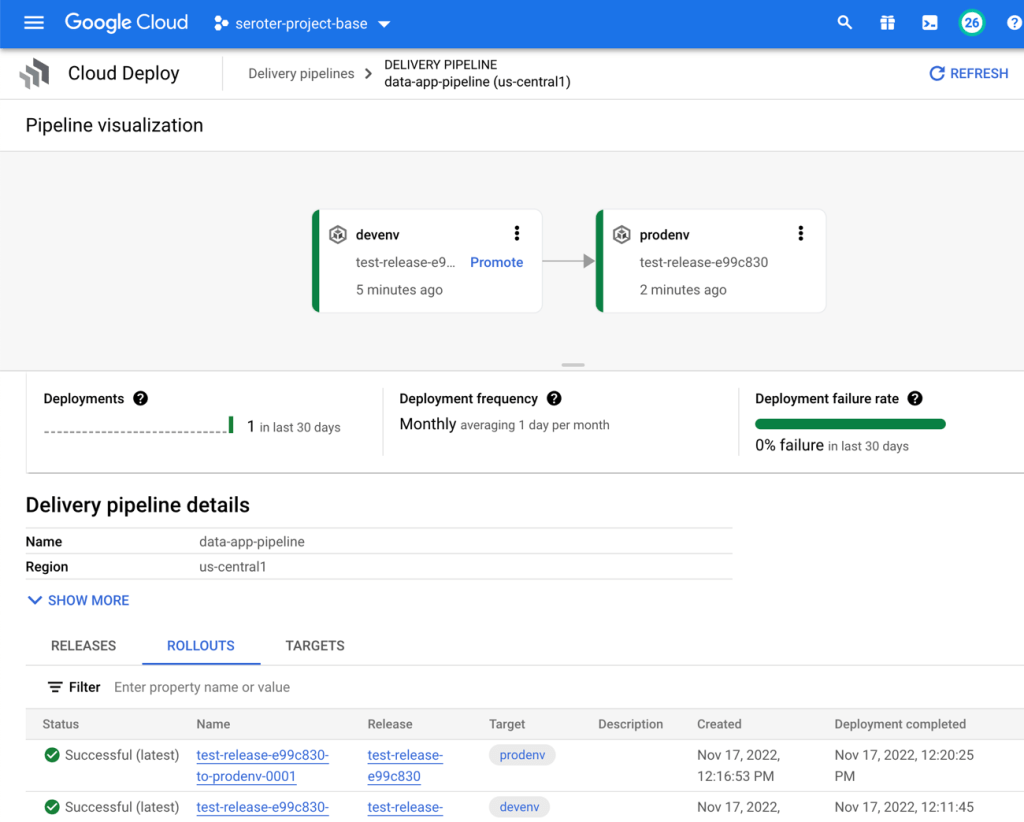
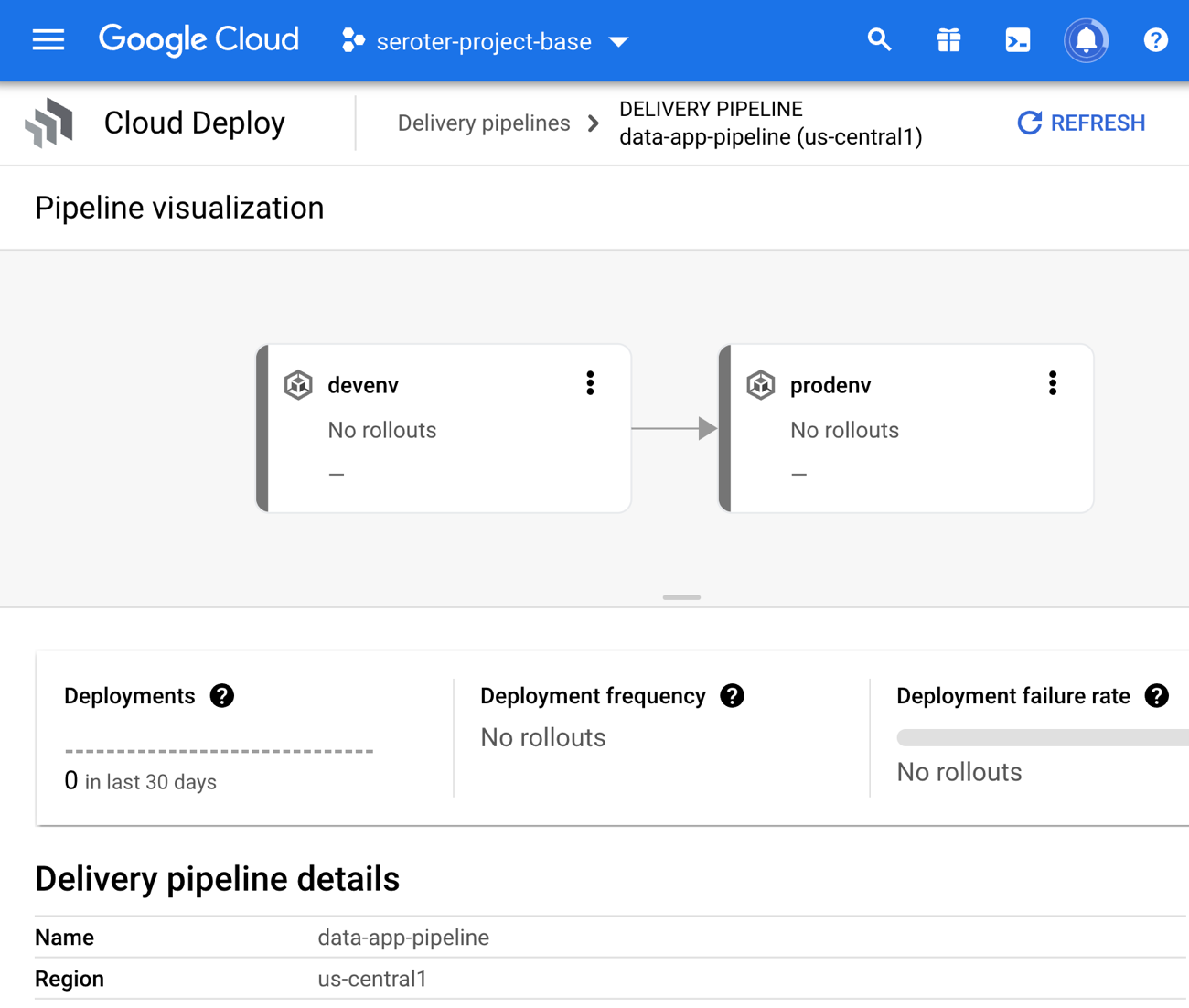
    In the Cloud Console, I saw a visual representation of my jazzy new pipeline.

    The last step is to create the Cloud Build definition which builds my Node.js app, stashes it into Google Cloud Artifact Registry, and then triggers a Cloud Deploy “release.” You can see that I point to the Skaffold file, which in turns knows where the latest Kubernetes deployment/service YAML files are at. Note that I use a substitution value here with –images where the “web-data-app” value in each Kubernetes deployment file gets swapped out with the newly generated image identifier.

    steps:
      - name: 'gcr.io/k8s-skaffold/pack'
        id: Build Node app
        entrypoint: 'pack'
        args: ['build', '--builder=gcr.io/buildpacks/builder', '--publish', 'gcr.io/$PROJECT_ID/web-data-app:$COMMIT_SHA']
      - name: gcr.io/google.com/cloudsdktool/cloud-sdk
        id: Create Cloud Deploy release
        args: 
            [
              "deploy", "releases", "create", "test-release-$SHORT_SHA",
              "--delivery-pipeline", "data-app-pipeline",
              "--region", "us-central1",
              "--images", "web-data-app=gcr.io/$PROJECT_ID/web-data-app:$COMMIT_SHA",
              "--skaffold-file", "deploy_config/skaffold.yaml"
            ]
        entrypoint: gcloud
    

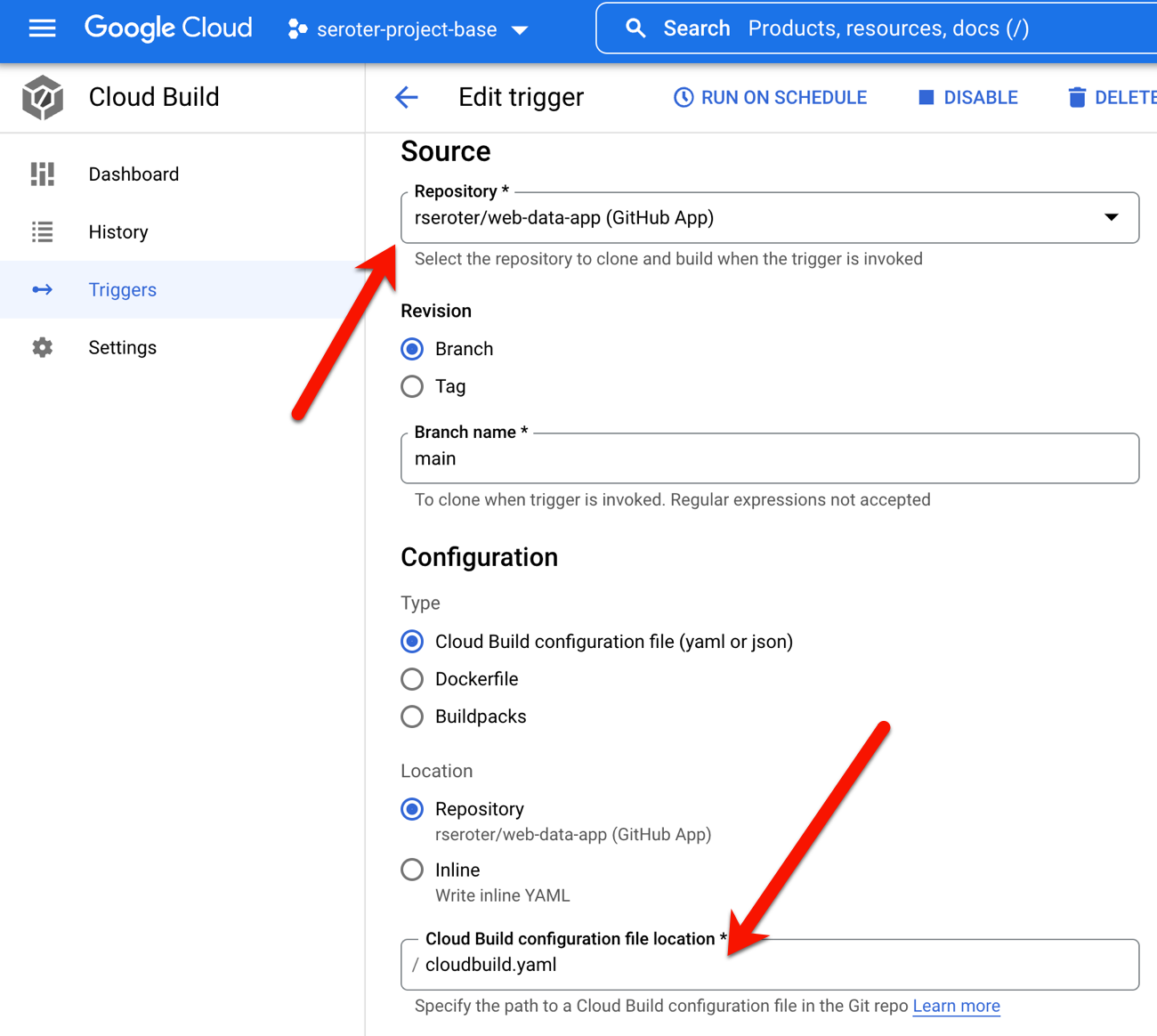
    To make all this magic work, I went into Google Cloud Build to set up my new trigger. It points at my GitHub repo and refers to the cloudbuild.yaml file there.

    I ran my trigger manually (I could also set it to run on every check-in) to build my app and initiate a release in Cloud Deploy. The first part ran quickly and successfully.

    The result? It worked! My “dev” GKE cluster got a new workload and service endpoint, and my BigQuery table got a new column.

    When I went back into Cloud Deploy, I “promoted” this release to production and it ran the production-aligned files and popped a workload into the other GKE cluster. And it didn’t make any BigQuery changes, because we already did on the previous run. In reality, you would probably have different BigQuery tables or datasets for each environment!

    Wrap up

    Did you make it this far? You’re amazing. It might be time to shift from just shipping the easy stuff through automation to shipping ALL the stuff via automation. Software like Liquibase definition gets you further along in the journey, and it’s good to see Google Cloud make it easier.

  • Using the new Google Cloud Config Controller to provision and manage cloud services via the Kubernetes Resource Model

    Using the new Google Cloud Config Controller to provision and manage cloud services via the Kubernetes Resource Model

    When it comes to building and managing cloud resources—VMs, clusters, user roles, databases—most people seem to use a combination of tools. The recent JetBrains developer ecosystem survey highlighted that Terraform is popular for infrastructure provisioning, and Ansible is popular for keeping infrastructure in a desired state. Both are great tools, full stop. Recently, I’ve seen folks look at the Kubernetes API as a single option for both activities. Kubernetes is purpose-built to take a declared state of a resource, implement that state, and continuously reconcile to ensure the resource stay in that state. While we apply this Kubernetes Resource Model to containers today, it’s conceptually valid for most anything.

    18 months ago, Google Cloud shipped a Config Connector that offered custom resource definitions (CRDs) for Google Cloud services, and controllers to provision and manage those services. Install this into a Kubernetes cluster, send resource definitions to that cluster, and watch your services hydrate. Stand up and manage 60-ish Google Cloud services as if they were Kubernetes resources. It’s super cool and useful. But maybe you don’t want 3rd party CRDs and controllers running in a shared cluster, and don’t want to manage a dedicated cluster just to host them. Reasonable. So we created a new managed service: Config Controller. In this post, I’ll look at manually configuring a GKE cluster, and then show you how to use the new Config Controller to provision and configure services via automation. And, if you’re a serverless fan or someone who doesn’t care at ALL about Kubernetes, you’ll see that you can still use this declarative model to build and manage cloud services you depend on.

    But first off, let’s look at configuring clusters and extending the Kubernetes API to provision services. To start with, it’s easy to stand up a GKE cluster in Google Cloud. It can be one-click or fifty, depending on what you want. You can use the CLI, API, Google Cloud Console, Terraform modules, and more.

    Building and managing one of something isn’t THAT hard. Dealing with fleets of things is harder. That’s why Google Anthos exists. It’s got a subsystem called Anthos Config Management (ACM). In addition to embedding the above-mentioned Config Connector, this system includes an ability to synchronize configurations across clusters (Config Sync), and apply policies to clusters based on Open Policy Agent Gatekeeper (Policy Controller). All these declarative configs and policies are stored in a git repo. We recently made it possible to use ACM as a standalone service for GKE clusters. So you might build up a cluster that looks like this:

    What this looks like in real life is that there’s a “Config Management” tab on the GKE view in the Console. When you choose that, you register a cluster with a fleet. A fleet shares a configuration source, so all the registered clusters are identically configured.

    Once I registered my GKE cluster, I chose a GitHub repo that held my default configurations and policies.

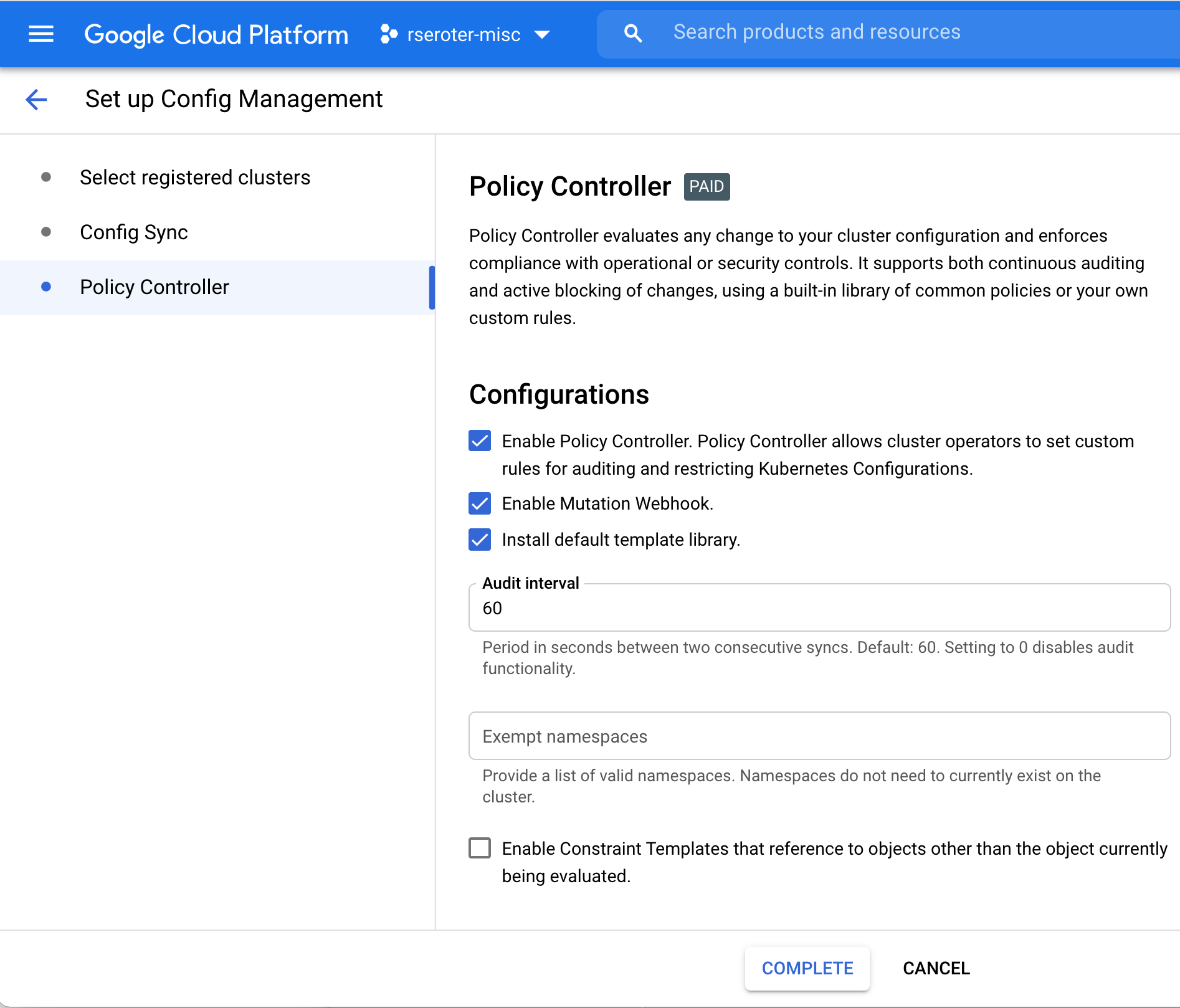
    Finally, I configured Policy Controller on this GKE cluster. This comes with a few dozen Google-provided constraint templates you can use to apply cluster constraints. Or bring your own. My repo above includes a constraint that limits how much CPU and memory a pod can have in a specific namespace.

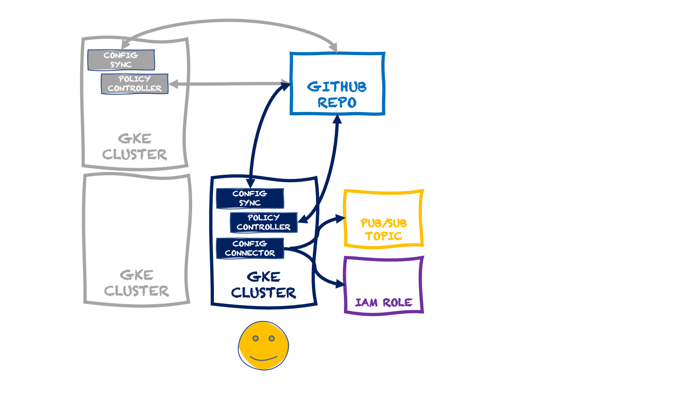
    At this point, I have a single cluster with policy guardrails and applied configurations. I also have the option of adding the Config Connector to a cluster directly. In that scenario, a cluster might look like this:

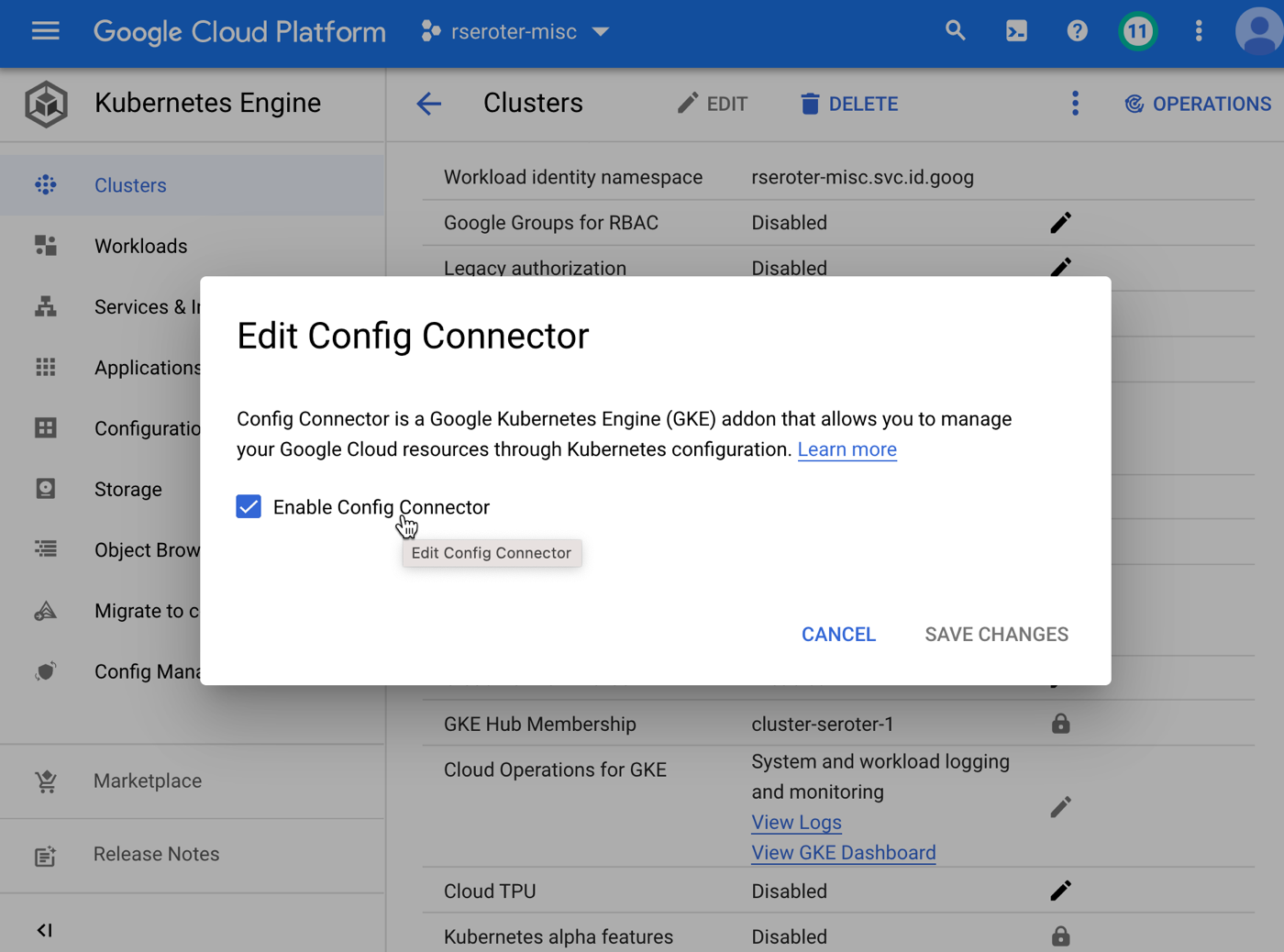
    In that diagram, the GKE cluster not only has the GKE Config Management capabilities turned on (Config Sync and Policy Controller), but we’ve also added the Config Connector. You can add that feature during cluster provisioning, or after the fact, as I show below.

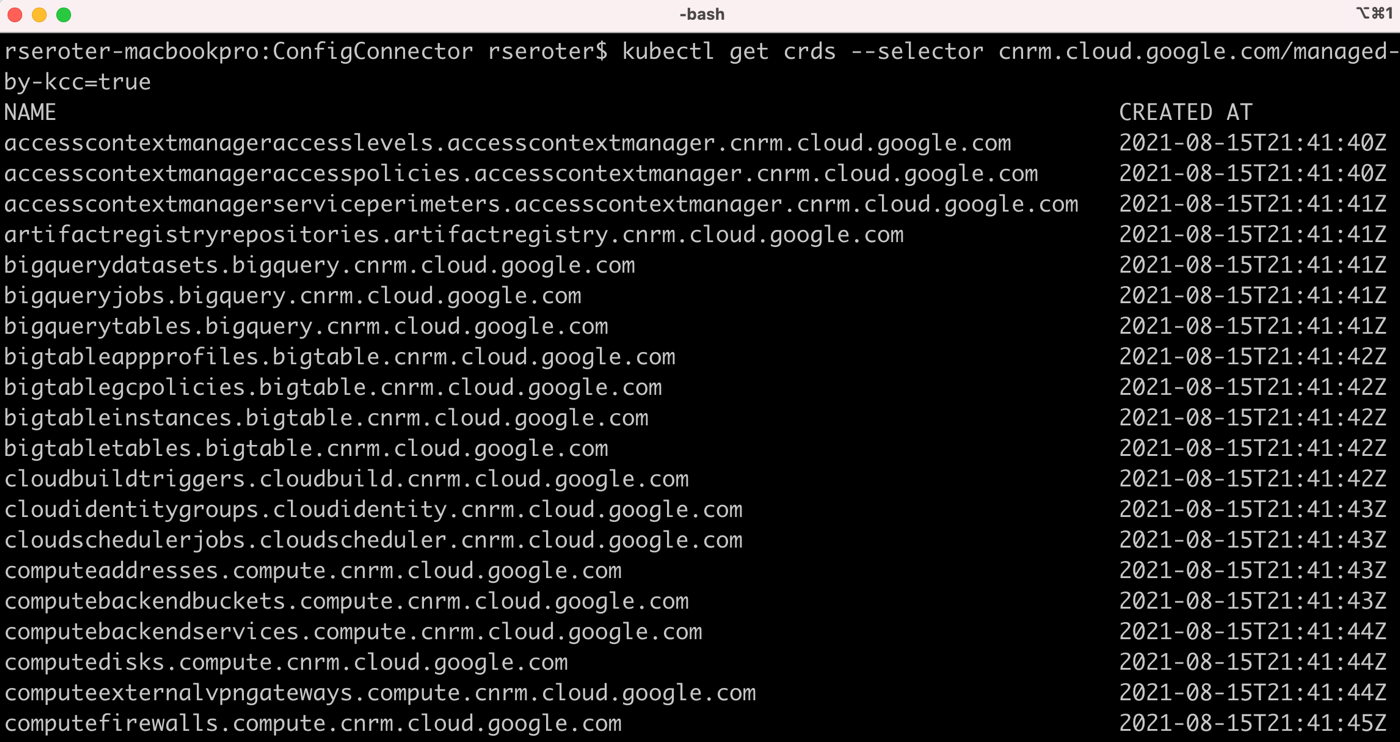
    Once you create an identity for the Config Connector to use, and annotate a Kubernetes namespace that holds the created resources, you’re good to go. I see all the cloud services we can create and manage by logging into my cluster and issuing this command:

    kubectl get crds --selector cnrm.cloud.google.com/managed-by-kcc=true

    Now, I can create instances of all sorts of Google Cloud managed services—BigQuery jobs, VMs, networks, Dataflow jobs, IAM policies, Memorystore Redis instances, Spanner databases, and more. Whether your app uses containers or functions, this capability is super useful. To create the resource I want, I write a bit of YAML. I could export an existing cloud service instance to get its representative YAML, write it from scratch, or generate it from the Cloud Code tooling. I did the latter, and produced this YAML for a managed Redis instance via Memorystore:

    apiVersion: redis.cnrm.cloud.google.com/v1beta1
    kind: RedisInstance
    metadata:
      labels:
        label: "seroter-demo-instance"
      name: redisinstance-managed
    spec:
      displayName: Redis Instance Managed
      region: us-central1
      tier: BASIC
      memorySizeGb: 16
    

    With a single command, I apply this resource definition to my cluster.

    kubectl apply -f redis-test.yaml -n config-connector

    When I query Kubernetes for “redisinstances” it knows what that means, and when I look to see if I really have one, I see it show up in the Google Cloud Console.

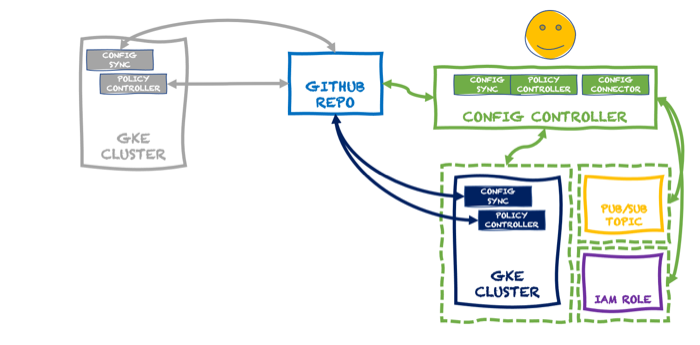
    You could stop here. We have a fully-loaded cluster that synchronizes configurations and policies, and can create/manage Google Cloud services. But the last thing is different from the first two. Configs and policies create a secure and consistent cluster. The Config Connector is a feature that uses the Kubernetes control plane for other purposes. In reality, what you want is something like this:

    Here, we have a dedicated KRM server thanks to the managed Config Controller. With this, I can spin up and manage cloud services, including GKE clusters themselves, without running a dedicated cluster or stashing extra bits inside an existing cluster. It takes just a single command to spin up this service (which creates a managed GKE instance):

    gcloud alpha anthos config controller create seroter-cc-instance \
    --location=us-central1

    A few minutes later, I see a cluster in the GKE console, and can query for any Config Controller instances using:

    gcloud alpha anthos config controller list --location=us-central1

    Now if I log into that service instance, and send in the following YAML, Config Controller provisions (and manages) a Pub/Sub topic for me.

    apiVersion: pubsub.cnrm.cloud.google.com/v1beta1
    kind: PubSubTopic
    metadata:
      labels:
        label: "seroter-demo"
      name: cc-topic-1
    

    Super cool. But wait, there’s more. This declarative model shouldn’t FORCE you to know about Kubernetes. What if I want to GitOps-ify my services so that anyone could create cloud services by checking a configuration into a git repo versus kubectl apply commands? This is what makes this interesting to any developer, whether they use Kubernetes or not. Let’s try it.

    I have a GitHub repo with a flattened structure. The Config Sync component within the Config Controller service will read from this repo, and and work with the Config Connector to instantiate and manage any service instances I declare. To set this up, all I do is activate Config Sync and tell it about my repo. This is the file that I send to the Config Controller to do that:

    # config-management.yaml
    
    apiVersion: configmanagement.gke.io/v1
    kind: ConfigManagement
    metadata:
      name: config-management
    spec:
      #you can find your server name in the GKE console
      clusterName: krmapihost-seroter-cc-instance
      #not using an ACM structure, but just a flat one
      sourceFormat: unstructured
      git:
        policyDir: /
        syncBranch: main
        #no service account needed since there's no read permissions required
        secretType: none
        syncRepo: https://github.com/rseroter/anthos-seroter-config-repo-cc
    

    Note: this demo would have been easier if I had used Google Cloud’s Source Repositories instead of GitHub. But I figured most people would use GitHub, so I should too. The Config Controller is a private GKE cluster, which is safe and secure, but also doesn’t have outbound access. It can reach our Source Repos, but I had to add an outbound VPC firewall rule for 443, and then provision a NAT gateway so that the traffic could flow.

    With all this in place, as soon as I check in a configuration, the Config Controller reads it and acts upon it. Devs just need to know YAML and git. They don’t have to know ANY Kubernetes to provision managed cloud services!

    Here’s the definition for a custom IAM role.

    apiVersion: iam.cnrm.cloud.google.com/v1beta1
    kind: IAMCustomRole
    metadata:
      name: iamcustomstoragerole
      namespace: config-control
    spec:
      title: Storage Custom Role
      description: This role only contains two permissions - read and update
      permissions:
        - storage.buckets.list
        - storage.buckets.get
      stage: GA
    

    When I add that to my repo, I almost immediately see a new role show up in my account. And if I mess with that role directly by removing or adding permissions, I see Config Controller detect that configuration drift and return the IAM role back to the desired state.

    This concept gets even more powerful when you look at the blueprints we’re creating. Stamp out projects, landing zones, and GKE clusters with best practices applied. Imagine using the Config Controller to provision all your GKE clusters and prevent drift. If someone went into your cluster and removed Config Sync or turned off Workload Identity, you’d be confident knowing that Config Controller would reset those properties in short order. Useful!

    In this brave new world, you can can keep Kubernetes clusters in sync and secured by storing configurations and policies in a git repo. And you can leverage that same git repo to store declarative definitions of cloud services, and ask the KRM-powered Config Controller to instantiate and manage those services. To me, this makes managing an at-scale cloud environment look much more straightforward.

  • What’s the most configurable Kubernetes service in the cloud? Does it matter?

    What’s the most configurable Kubernetes service in the cloud? Does it matter?

    Configurability matters. Whether it’s in our code editors, database engine, or compute runtimes, we want the option—even if we don’t regularly use it—to shape software to our needs. When it comes to using that software as a service, we also look for configurations related to quality attributes—think availability, resilience, security, and manageability.

    For something like Kubernetes—a hyper-configurable platform on its own—you want a cloud service that makes this powerful software more resilient and cheaper to operate. This blog post focuses on configurability of each major Kubernetes service in the public cloud. I’ll make that judgement based on the provisioning options offered by each cloud.

    Disclaimer: I work for Google Cloud, so obviously I’ll have some biases. That said, I’ve used AWS for over a decade, was an Azure MVP for years, and can be mostly fair when comparing products and services. Please call out any mistakes I make!

    Google Kubernetes Engine (GKE)

    GKE was the first Kubernetes service available in the public cloud. It’s got a lot of features to explore. Let’s check it out.

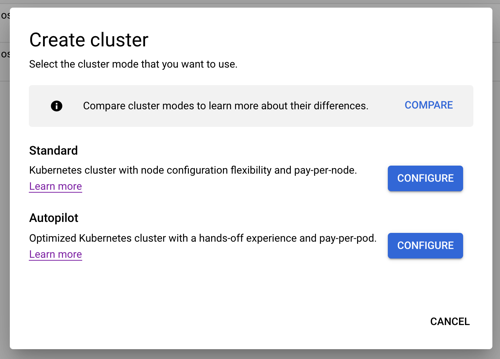
    When creating a cluster, we’re immediately presented with two choices: standard cluster, or Autopilot cluster. The difference? A standard cluster gives the user full control of cluster configuration, and ownership of day-2 responsibilities like upgrades. An Autopilot cluster—which is still a GKE cluster—has a default configuration based on Google best practices, and all day-2 activities are managed by Google Cloud. This is ideal for developers who want the Kubernetes API but none of the management. For this evaluation, let’s consider the standard cluster type.

    If the thought of all these configurations feels intimidating, you’ll like that GKE offers a “my first cluster” button which spins up a small instance with a default configuration. Also, this first “create cluster” tab has a “create” button at the bottom that provisions a regular (3-node) cluster without requiring you to enter or change any configuration values. Basically, you can get started with GKE in three clicks.

    With that said, let’s look at the full set of provisioning configurations. On the left side of the “create a Kubernetes cluster” experience, you see the list of configuration categories.

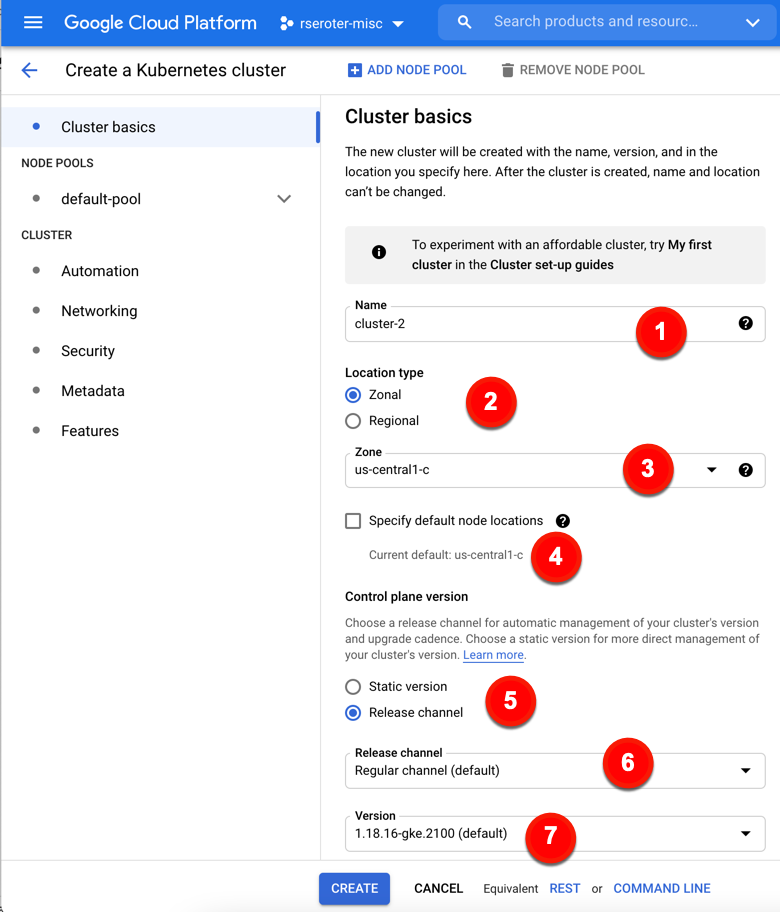
    How about we look at the specific configurations. On the cluster basics tab, we have seven configuration decisions to make (or keep, if you just want to accept default values). These configurations include:

    1. Name. Naming is hard. These are 40 characters long, and permanent.

    2. Location type. Where do you want your control plane and nodes? Zonal clusters only live in a chosen zone, while Regional clusters spread the control plane and workers across zones in a region.

    3. Zone/Region. For zonal clusters, you pick a zone, for regional clusters, you pick a region.

    4. Specify default node locations. Choose which zone(s) to deploy to.

    5. Control plane version. GKE provisions and offers management of control plane AND worker nodes. Here, you choose whether you want to pick a static Kubernetes version and handle upgrades yourself, or a “release channel” where Google Cloud manages the upgrade cadence.

    6. Release channel. If you chose release channel vs static, you get a configuration choice of which channel. Options include “rapid” (get Kubernetes versions right away), “regular” (get Kubernetes versions after a period of qualification), and “stable” (longer validation period).

    7. Version. Whether choosing “static” or “release channel”, you configure which version you want to start with.

    You see in the picture that I can click “Create” here and be done. But I want to explore all the possible configurations at my disposal with GKE.

    My next (optional) set of configurations relates to node pools. A GKE cluster must have at least one node pool, which consists of an identical group of nodes. A cluster can have many node pools. You might want a separate pool for Windows nodes, or a bigger machine type, or faster storage.

    In this batch of configurations, we have:

    8. Add node pool. Here you have a choice on whether to stick with a single default node pool, or add others. You can add and remove node pools after cluster creation.

    9. Name. More naming.

    10. Number of nodes. By default there are three. Any fewer than three and you can have downtime during upgrades. Max of 1000 allowed here. Note that you get this number of nodes deployed PER location. 3 nodes x 3 locations = 9 nodes total.

    11. Enable autoscaling. Cluster autoscaling is cool. It works on a per-node-pool basis.

    12. Specify node locations. Where do you want the nodes? If you have a regional cluster, this is where you choose which AZs you want.

    13. Enable auto-upgrade. It’s grayed-out below because this is automatically selected for any “release channel” clusters. GKE upgrades worker nodes automatically in that case. If you chose a static version, then you have the option of selecting auto-upgrades.

    14. Enable auto-repair. If a worker node isn’t healthy, auto-repair kicks in to fix or replace the node. Like the previous configuration, this one is automatically applied for “release channel’ clusters.

    15. Max surge. Surge updates is about letting you control how many nodes GKE can upgrade at a given time, and how disruptive an upgrade may be. The “max surge” configuration determines how many additional nodes GKE adds to the node pool during upgrades.

    16. Max unavailable. This configuration refers to how many nodes can be simultaneously unavailable during an upgrade.

    Once again, you could stop here, and build your cluster. I WANT MORE CONFIGURATION. Let’s keep going. What if I want to configure the nodes themselves? That’s the next available tab.

    For node configurations, you can configure:

    17. Image type. This refers to the base OS which includes Google’s container-optimized OS, Ubuntu, and Windows Server.

    18. Machine family. GKE runs on virtual machines. Here is where you choose which type of underlying VM you want, including general purpose, compute-optimized, memory-optimized or GPU-based.

    19. Series. Some machine families have sub-options for specific VMs.

    20. Machine type. Here are the specific VM sizes you want, with combinations of CPU and memory.

    21. Boot disk type. This is where you choose a standard or SSD persistent disk.

    22. Boot disk size. Choose how big of a boot disk you want. Max size is 65,536 GB.

    23. Enable customer-managed encryption for boot disk. You can encrypt the boot disk with your own key.

    24. Local SSD disks. How many attached disks do you want? Enter here. Max of 24.

    25. Enable preemptible nodes. Choose to use cheaper compute instances that only live for up to 24 hours.

    26. Maximum pods per node. Limit how many pods you want on a given node, which has networking implications.

    27. Network tags. This represents firewall rules applied to nodes.

    Security. Let’s talk about it. You have a handful of possible configurations to secure your GKE node pools.

    Node pool security configurations include:

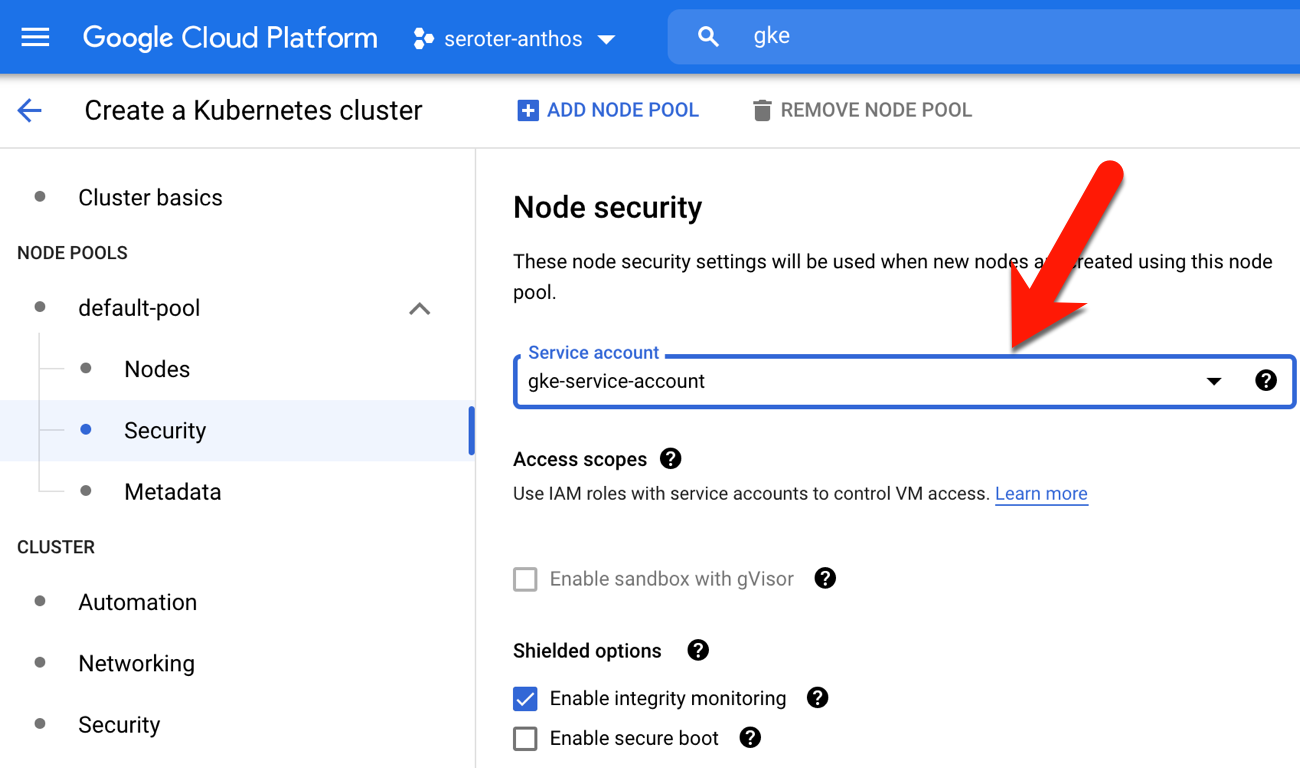
    28. Service account. By default, containers running on this VM call Google Cloud APIs using this account. You may want a unique service account, and/or least-privilege one.

    29. Access scopes. Control the type of level of API access to grant the underlying VM.

    30. Enable sandbox with gVisor. This isn’t enabled for the default node pool, but for others, you can choose the extra level of isolation for pods on the node.

    31. Enable integrity monitoring. Part of the “Shielded node” functionality, this configuration lets you monitor and verify boot integrity.

    32. Enable secure boot. Use this configuration setting for additional protection from boot-level and kernel-level malware.

    Our last set of options for each node pool relates to metadata. Specifically:

    33. Kubernetes labels. These get applied to every node in the pool and can be used with selectors to place pods.

    34. Node taints. These also apply to every node in the pool and help control what gets scheduled.

    35. GCE instance metadata. This attaches info to the GCE instances

    That’s the end of the node pool configurations. Now we have the option of cluster-wide configurations. First up are settings based on automation.

    These cluster automation configurations include:

    36. Enable Maintenance Window. If you want maintenance activities to happen during certain times or days, you can set up a schedule.

    37. Maintenance exclusions. Define up to three windows where updates won’t happen.

    38. Enable Notifications. GKE can publish upgrade notifications to a Google Cloud Pub/Sub topic.

    39. Enable Vertical Pod Autoscaling. With this configured, your cluster will rightsize CPU and memory based on usage.

    40. Enable node auto-provisioning. GKE can create/manage entire node pools on your behalf versus just nodes within a pool.

    41. Autoscaling profile. Choose when to remove underutilized nodes.

    The next set of cluster-level options refer to Networking. Those configurations include:

    42. Network. Choose the network the GKE cluster is a member of.

    43. Node subnet. Apply a subnet.

    44. Public cluster / Private cluster. If you want only private IPs for your cluster, choose a private cluster.

    45. Enable VPC-native traffic routing. Applies alias IP for more secure integration with Google Cloud services.

    46. Automatically create secondary ranges. Disabled here because my chosen subnet doesn’t have available user-managed secondary ranges. If it did, I’d have a choice of letting GKE manage those ranges.

    47. Port address range. Pods in the clusters are assigned IPs from this range.

    48. Maximum pods per node. Has network implications.

    49. Service address range. Any cluster services will be assigned an IP address from this range.

    50. Enable intranode visibility. Pod-to-pod traffic because visible to the GCP networking fabric so that you could do flow logging, and more.

    51. Enable NodeLocal DNSCache. Improve perf by running a DNS caching agent on nodes.

    52. Enable HTTP load balancing. This installs a controller that applies configs to the Google Cloud Load Balancer.

    53. Enable subsetting for L4 internal load balancers. Internal LBs use a subset of nodes as backends to improve perf.

    54. Enable control plane authorized networks. Block untrusted, non-GCP sources from accessing the Kubernetes master.

    55. Enable Kubernetes Network Policy. This API lets you define which pods can access each other.

    GKE also offers a lot of (optional) cluster-level security options.

    The cluster security configurations include:

    56. Enable Binary Authorization. If you want a secure software supply chain, you might want to apply this configuration and ensure that only trusted images get deployed to GKE.

    57. Enable Shielded GKE Nodes. This provides cryptographic identity for nodes joining a cluster.

    58. Enable Confidential GKE Nodes. Encrypt the memory of your running nodes.

    59. Enable Application-level Secrets Encryption. Protect secrets in etcd using a key stored in Cloud KMS.

    60. Enable Workload Identity. Map Kubernetes service accounts to IAM accounts so that your workload doesn’t need to store creds. I wrote about it recently.

    61. Enable Google Groups for RBAC. Grant roles to members of a Workspace group.

    62. Enable legacy authorization. Prevents full Kubernetes RBAC from being used in cluster.

    63. Enable basic authentication. This is a deprecated way to authenticate to a cluster. Don’t use it.

    64. Issue a client certificate. Skip this too. This creates a specific cert for cluster access, and doesn’t automatically rotate.

    It’s useful to have cluster metadata so that you can tag clusters by environment, and more.

    The couple of metadata configurations are:

    65. Description. Free text box to describe your cluster.

    66. Labels. Add individual labels that can help you categorize.

    We made it to the end! The last set of GKE configurations relate to features that you want to add to the cluster.

    These feature-based configurations include:

    67. Enable Cloud Run for Anthos. Throw Knative into your GKE cluster.

    68. Enable Cloud Operations for GKE. A no-brainer. Send logs and metrics to the Cloud Ops service in Google Cloud.

    69. Select logging and monitoring type. If you select #68, you can choose the level of logging (e.g. workload logging, system logging).

    70. Enable Cloud TPU. Great for ML use cases within the cluster.

    71. Enable Kubernetes alpha features in this cluster. Enabled if you are NOT using release channels. These are short lived clusters with everything new lit up.

    72. Enable GKE usage metering. See usage broken down by namespace and label. Good for chargebacks.

    73. Enable Istio. Throw Istio into your cluster. Lots of folks do it!

    74. Enable Application Manager. Helps you do some GitOps style deployments.

    75. Enable Compute Engine Persistent Disk CSI Driver. This is now the standard way to get volume claims for persistent storage.

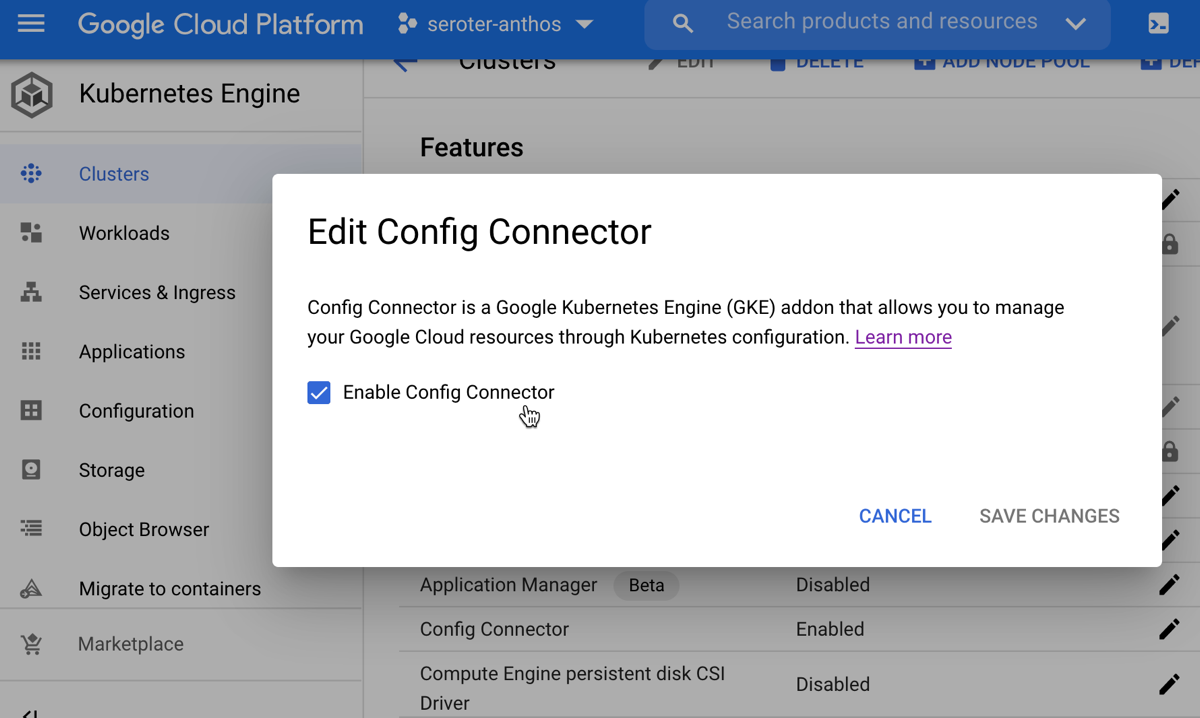
    76. Enable Config Connector. If you have Workload Identity enabled, you can set this configuration. It adds custom resources and controllers to your cluster that let you create and manage 60+ Google Cloud services as if they were Kubernetes resources.

    FINAL TALLY. Getting started: 3 clicks. Total configurations available: 76.

    Azure Kubernetes Service (AKS)

    Let’s turn our attention to Microsoft Azure. They’ve had a Kubernetes service for quite a while.

    When creating an AKS cluster, I’m presented with an initial set of cluster properties. Two of them (resource group, and cluster name) are required before I can “review and create” and then create the cluster. Still, it’s a simple way to get started with just five clicks.

    The first tab of the provisioning experience focuses on “basic” configurations.

    These configurations include:

    1. Subscription. Set which of your Azure subscriptions to use for this cluster.

    2. Resource group. Decide which existing (or create a new) resource group to associate with this cluster.

    3. Kubernetes cluster name. Give your cluster a name.

    4. Region. Choose where in the world you want you cluster.

    5. Availability zones. For regions with availability zones, you can choose how to stripe the cluster across those.

    6. Kubernetes version. Pick a specific version of Kubernetes for the AKS cluster.

    7. Node size. Here you choose the VM family and instance type for your cluster.

    8. Node count. Pick how many nodes make up the primary node pool.

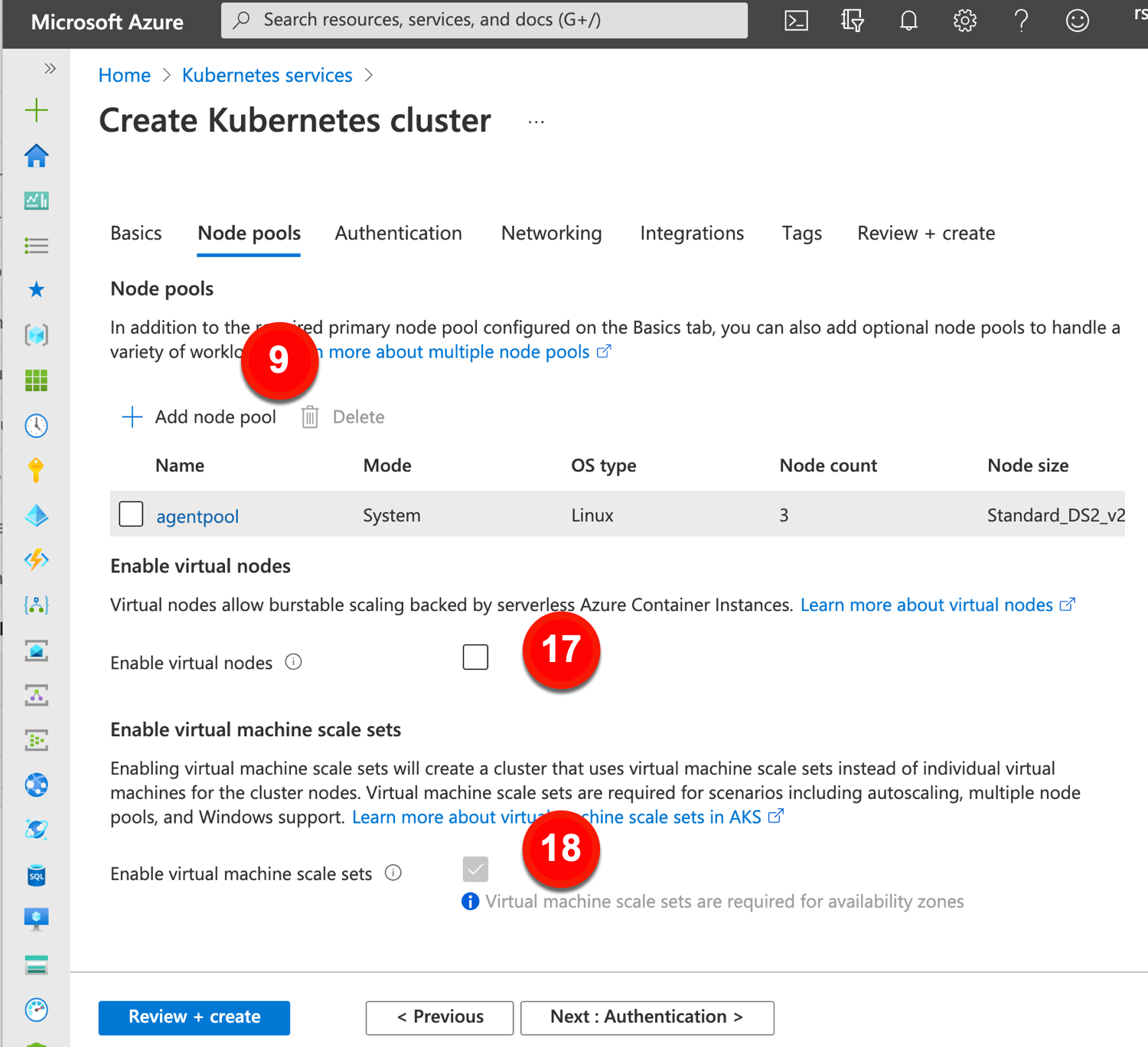
    Now let’s explore the options for a given node pool. AKS offers a handful of settings, including ones that fly out into another tab. These include:

    9. Add node pool. You can stick with the default node pool, or add more.

    10. Node pool name. Give each node pool a unique name.

    11. Mode. A “system” node pool is meant for running system pods. This is what the default node pool will always be set to. User node pools make sense for your workloads.

    12. OS type. Choose Linux or Windows, although system node pools must be Linux.

    13. Availability zones. Select the AZs for this particular node pool. You can change from the default set on the “basic” tab.

    14. Node size. Keep or change the default VM type for the cluster.

    15. Node count. Choose how many nodes to have in this pool.

    16. Max pods per node. Impacts network setup (e.g. how many IP addresses are needed for each pool).

    17. Enable virtual nodes. For bursty scenarios, this AKS features deploys containers to nodes backed by their “serverless” Azure Container Instances platform.

    18. Enable virtual machine scale sets. Chosen by default if you use multiple AZs for a cluster. Plays a part in how AKS autoscales.

    The next set of cluster-wide configurations for AKS relate to security.

    These configurations include:

    19. Authentication method. This determines how an AKS cluster interacts with other Azure sources like load balancers and container registries. The user has two choices here.

    20. Role-based access control. This enables RBAC in the cluster.

    21. AKS-managed Azure Active Directory. This configures Kubernetes RBAC using Azure AD group membership.

    22. Encryption type. Cluster disks are encrypted at rest by default with Microsoft-managed keys. You can keep that setting, or change to a customer-managed key.

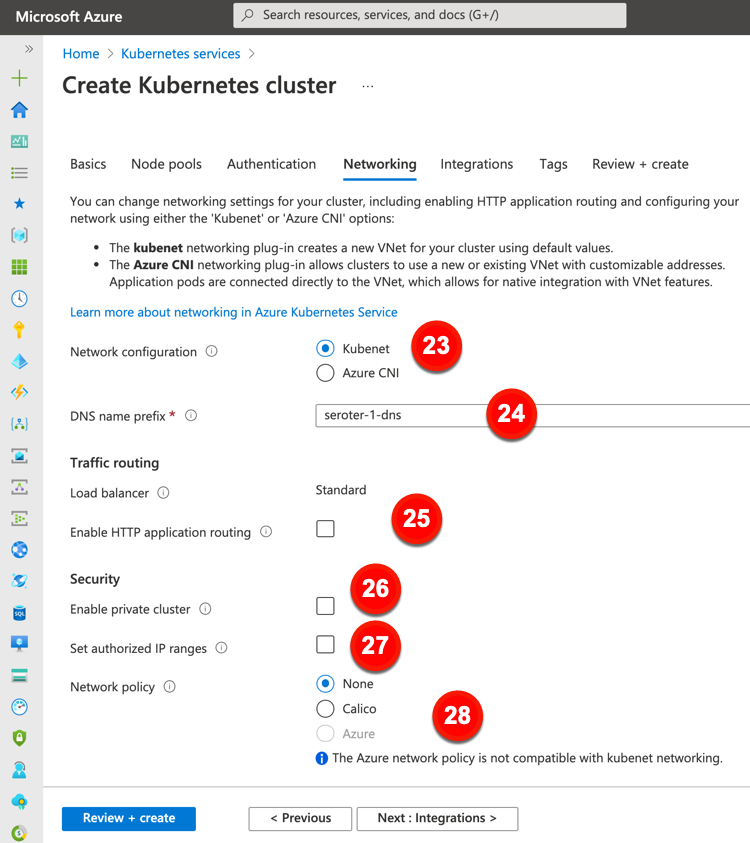
    Now, we’ll take a gander at the network-related configurations offered by Azure. These configurations include:

    23. Network configuration. The default option here is a virtual network and subnet created for you. You can also use CNI to get a new or existing virtual network/subnet with user-defined address ranges.

    24. DNS name prefix. This is the prefix used with the hosted API server’s FQDDN.

    25. Enable HTTP application routing. The previous “Load balancer” configuration is fixed for every cluster created in the Azure Portal. This setting is about creating publicly accessible DNS names for app endpoints.

    26. Enable private cluster. This ensures that network traffic between the API server and node pools remains on a private network.

    27. Set authorized IP ranges. Choose the IP ranges that can access the API server.

    28. Network policy. Define rules for ingress and egress traffic between pods in a cluster. You can choose none, Calico, or Azure’s network policies.

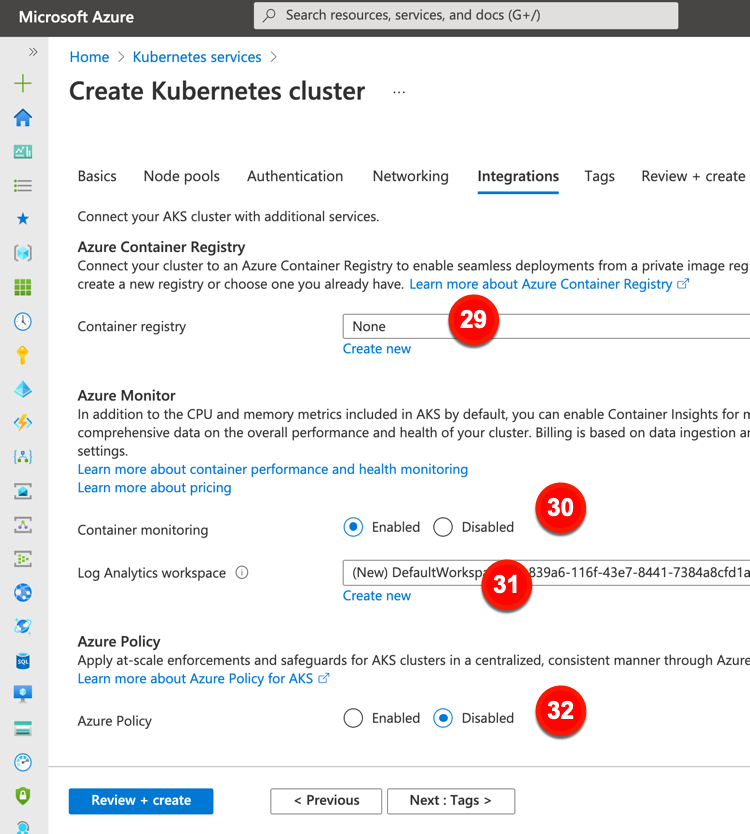
    The final major configuration category is “integrations.” This offers a few options to connect AKS clusters to other Azure services.

    These “integration” configurations include:

    29. Container registry. Point to, or create, an Azure Container Registry instance.

    30. Container monitoring. Decide whether you want workload metrics fed to Azure’s analytics suite.

    31. Log Analytics workspace. Create a new one, or point to an existing one, to store monitoring data.

    32. Azure Policy. Choose to apply an admission controller (via Gatekeeper) to enforce policies in the cluster.

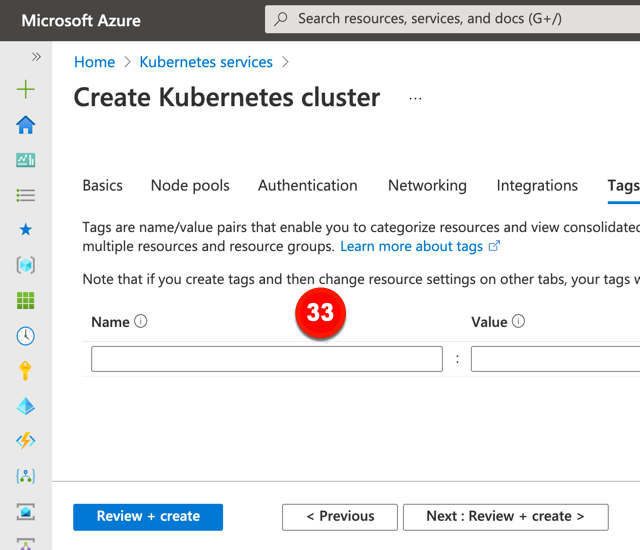
    The last tab for AKS configuration relates to tagging. This can be useful for grouping and categorizing resources for chargebacks.

    FINAL TALLY. Getting started: 5 clicks. Total configurations available: 33.

    Amazon Elastic Kubernetes Service (EKS)

    AWS is a go-to for many folks running Kubernetes, and they shipped a managed service for Kubernetes a few years back. EKS looks different from GKE or AKS. The provisioning experience is fairly simplistic, and doesn’t provision the worker nodes. That’s something you do yourself later, and then you see a series of configurations for node pools after you provision them. It also offers post-provisioning options for installing things like autoscalers, versus making that part of the provisioning.

    Getting started with EKS means entering some basic info about your Kubernetes cluster.

    These configurations include:

    1. Name. Provide a unique name for your cluster.

    2. Kubernetes version. Pick a specific version of Kubernetes for your cluster.

    3. Cluster Service Role. This is the AWS IAM role that lets the Kubernetes control plan manage related resources (e.g. load balancers).

    4. Secrets encryption. This gives you a way to encrypt the secrets in the cluster.

    5. Tags. Add up to 50 tags for the cluster.

    After these basic settings, we click through some networking settings for the cluster. Note that EKS doesn’t provision the node pools (workers) themselves, so all these settings are cluster related.

    The networking configurations include:

    6. Select VPC. Choose which VPC to use for the cluster. This is not optional.

    7. Select subnets. Choose the VPC subnet for your cluster. Also, not optional.

    8. Security groups. Choose one or more security groups that apply to worker node subnets.

    9. Configure Kubernetes Service IP address range. Set the range that cluster services use for IPv4 addresses.

    10. Cluster endpoint access. Decide if you want a public cluster endpoint accessible outside the VPC (including worker access), a mix of public and private, or private only.

    11. Advanced settings. Here’s where you set source IPs for the public access endpoint.

    12. Amazon VPC CNI version. Choose which version of the add-on you want for CNI.

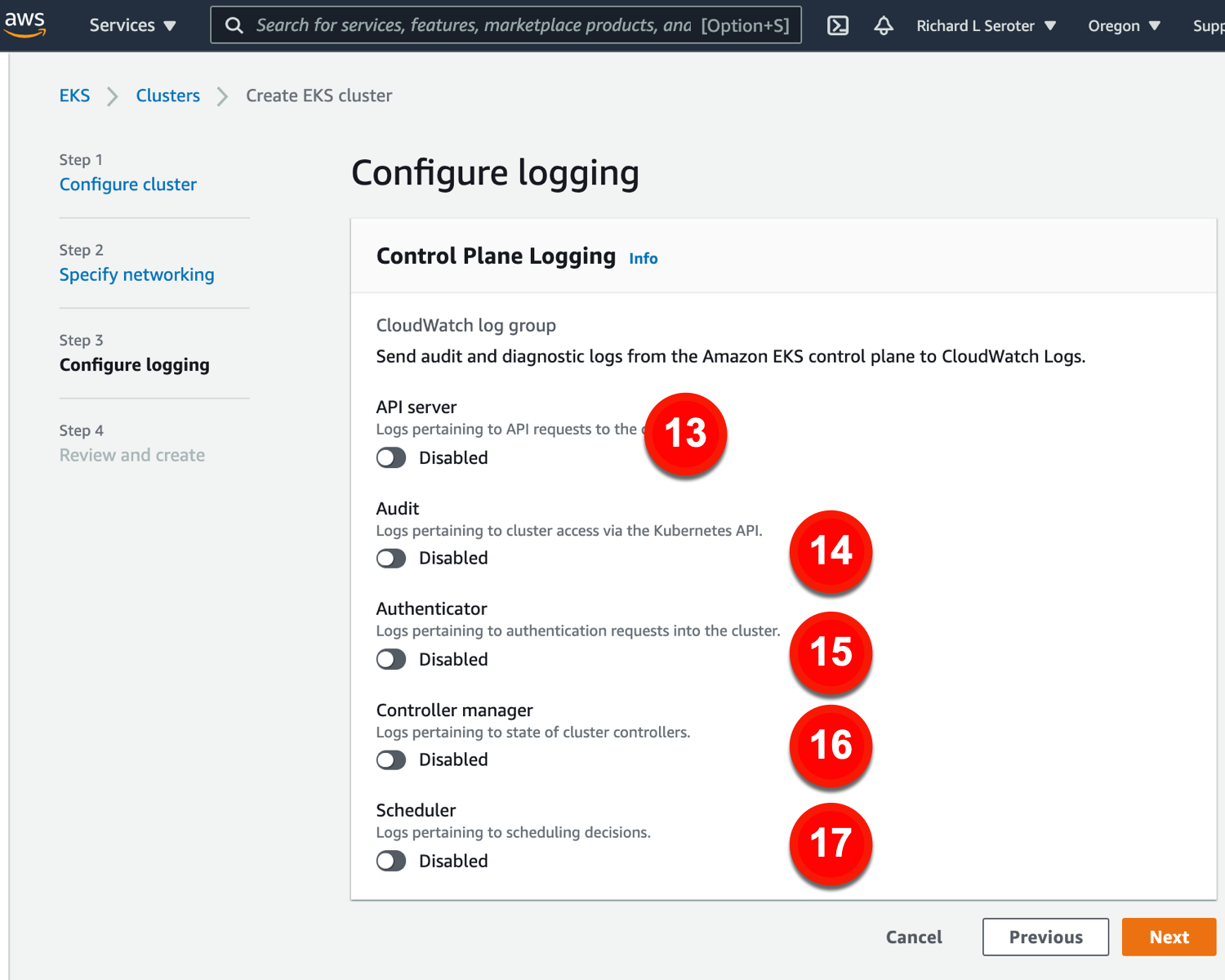
    The last major configuration view for provisioning a cluster relates to logging.

    The logging configurations include:

    13. API server. Log info for API requests.

    14. Audit. Grab logs about cluster access.

    15. Authenticator. Get lots for authentication requests.

    16. Controller manager. Store logs for cluster controllers.

    17. Scheduler. Get logs for scheduling decisions.

    We have 17 configurations available in the provisioning experience. I really wanted to stop here (versus being forced to create and pay for a cluster to access the other configuration settings), but to be fair, let’s look at post-provisioning configurations of EKS, too.

    After creating an EKS cluster, we see that new configurations become available. Specifically, configurations for a given node pool.

    The node group configurations include:

    18. Name. This is the name for the node group.

    19. Node IAM role. This is the role used by the nodes to access AWS services. If you don’t have a valid role, you need to create one here.

    20. Use launch template. If you want a specific launch template, you can choose that here.

    21. Kubernetes labels. Apply labels to the node group.

    22. Tags. Add AWS tags to the node group.

    Next we set up compute and scaling configs. These configs include:

    23. AMI type. Pick the machine image you want for your nodes.

    24. Capacity type. Choose on-demand or spot instances.

    25. Instance type. Choose among dozens of VM instance types to host the nodes.

    26. Disk size. Pick the size of attached EBS volumes.

    27. Minimum size. Set the smallest size a cluster can be.

    28. Maximum size. Set the largest size a cluster can be.

    29. Desired size. Set the desired number of nodes to start with.

    Our final set of node group settings relate to networking. The configurations you have access to here include:

    30. Subnets. Choose which subnets for your nodes.

    31. Allow remote access to nodes. This ensures you can access nodes after creation.

    32. SSH keypair. Choose (or create) a key pair for remote access to nodes.

    33. Allow remote access from. This lets you restrict access to source IP ranges.

    FINAL TALLY. Getting started: 7 clicks (just cluster control plane, not nodes). Total configurations available: 33.

    Wrap Up

    GKE does indeed stand out here. GKE has fewest steps required to get a cluster up and running. If I want a full suite of configuration options, GKE has the most. If I want a fully managed cluster without any day-2 activities, GKE is the only one that has that, via GKE Autopilot.

    Does it matter that GKE is the most configurable Kubernetes service in the public cloud? I think it does. Both AKS and EKS have a fine set of configurations. But comparing AKS or EKS to GKE, it’s clear how much more control GKE offers for cluster sizing, scaling, security, and automation. While I might not set most of these configurations on a regular basis, I can shape the platform to a wide variety of workloads and use cases when I need to. That ensures that Kubernetes can run a wide variety of things, and I’m not stuck using specialized platforms for each workload.

    As you look to bring your Kubernetes platform to the cloud, keep an eye on the quality attributes you need, and who can satisfy them the best!

  • Want secure access to (cloud) services from your Kubernetes-based app? GKE Workload Identity is the answer.

    Want secure access to (cloud) services from your Kubernetes-based app? GKE Workload Identity is the answer.

    My name is Richard, and I like to run as admin. There, I said it. You should rarely listen to me for good security advice since I’m now (always?) a pretend developer who does things that are easy, not necessarily right. But identity management is something I wanted to learn more about in 2021, so now I’m actually trying. Specifically, I’m exploring the best ways for my applications to securely access cloud services. In this post, I’ll introduce you to GKE Workload Identity, and why it seems like a terrific way to do the right thing.

    First, let’s review some of your options for providing access to distributed components—think databases, storage, message queues, and the like—from your application.

    • Store credentials in application variables. This is terrible. Which means I’ve done it before myself. Never do this, for roughly 500 different reasons.
    • Store credentials in property files. This is also kinda awful. First, you tend to leak your secrets often because of this. Second, it might as well be in the code itself, as you still have to change, check in, do a build, and do a deploy to make the config change.
    • Store credentials in environment variables. Not great. Yes, it’s out of your code and config, so that’s better. But I see at least three problems. First, it’s likely not encrypted. Second, you’re still exporting creds from somewhere and storing them here. Third, there’s no version history or easy management (although clouds offer some help here). Pass.
    • Store credentials in a secret store. Better. At least this is out of your code, and in a purpose-built structure for securely storing sensitive data. This might be something robust like Vault, or something more basic like Kubernetes Secrets. The downside is still that you are replicating credentials outside the Identity Management system.
    • Use identity federation. Here we go. How about my app runs under an account that has the access it needs to a given service? This way, we’re not extracting and stashing credentials. Seems like the ideal choice.

    So, if identity federation is a great option, what’s the hard part? Well, if my app is running in Kubernetes, how do I run my workload with the right identity? Maybe through … Workload Identity? Basically, Workload Identity lets you map a Kubernetes service account to a given Google Cloud service account (there are similar types of things for EKS in AWS, and AKS in Azure). At no point does my app need to store or even reference any credentials. To experiment, I created a basic Spring Boot web app that uses Spring Cloud GCP to talk to Cloud Storage and retrieve all the files in a given bucket.

    package com.seroter.gcpbucketreader;
    
    import java.util.ArrayList;
    import java.util.Iterator;
    import java.util.List;
    
    import com.google.api.gax.paging.Page;
    import com.google.cloud.storage.Blob;
    import com.google.cloud.storage.Storage;
    
    import org.springframework.beans.factory.annotation.Autowired;
    import org.springframework.boot.SpringApplication;
    import org.springframework.boot.autoconfigure.SpringBootApplication;
    import org.springframework.stereotype.Controller;
    import org.springframework.ui.Model;
    import org.springframework.web.bind.annotation.GetMapping;
    import org.springframework.web.bind.annotation.RequestParam;
    
    @Controller
    @SpringBootApplication
    public class GcpBucketReaderApplication {
    
    	public static void main(String[] args) {
    		SpringApplication.run(GcpBucketReaderApplication.class, args);
    	}
    
    	//initiate auto-configuration magic that pulls in the right credentials at runtime
    	@Autowired(required=false)
    	private Storage storage;
    
    	@GetMapping("/")
    	public String bucketList(@RequestParam(name="bucketname", required=false, defaultValue="seroter-bucket-logs") String bucketname, Model model) {
    
    		List<String> blobNames = new ArrayList<String>();
    
    		try {
    
    			//get the objects in the bucket
    			Page<Blob> blobs = storage.list(bucketname);
    			Iterator<Blob> blobIterator = blobs.iterateAll().iterator();
    
    			//stash bucket names in an array
    			while(blobIterator.hasNext()) {
    				Blob b = blobIterator.next();
    				blobNames.add(b.getName());
    			}
    		}
    		//if anything goes wrong, catch the generic error and add to view model
    		catch (Exception e) {
    			model.addAttribute("errorMessage", e.toString());
    		}
    
    		//throw other values into the view model
    		model.addAttribute("bucketname", bucketname);
    		model.addAttribute("bucketitems", blobNames);
    
    		return "bucketviewer";
    	}
    }
    

    I built and containerized this app using Cloud Build and Cloud Buildpacks. It only takes a few lines of YAML and one command (gcloud builds submit --config cloudbuild.yaml .) to initiate the magic.

    steps:
    # use Buildpacks to create a container image
    - name: 'gcr.io/k8s-skaffold/pack'
      entrypoint: 'pack'
      args: ['build', '--builder=gcr.io/buildpacks/builder', '--publish', 'us-west1-docker.pkg.dev/seroter-anthos/seroter-images/boot-bucketreader:$COMMIT_SHA']
    

    In a few moments, I had a container image in Artifact Registry to use for testing.

    Then I loaded up a Cloud Storage bucket with a couple of nonsense files.

    Let’s play through a few scenarios to get a better sense of what Workload Identity is all about.

    Scenario #1 – Cluster runs as the default service account

    Without Workload Identity, a pod in GKE assumes the identity of the service account associated with the cluster’s node pool.

    When creating a GKE cluster, you choose a service account for a given node pool. All the nodes runs as this account.

    I built a cluster using the default service account, which can basically do everything in my Google Cloud account. That’s fun for me, but rarely something you should ever do.

    From within the GKE console, I went ahead and deployed an instance of our container to this cluster. Later, I’ll use Kubernetes YAML files to deploy pods and expose services, but the GUI is fun to use for basic scenarios.

    Then, I created a service to route traffic to my pods.

    Once I had a public endpoint to ping, I sent a request to the page and provided the bucket name as a querystring parameter.

    That worked, as expected. Since the pod runs as a super-user, it had full permission to Cloud Storage, and every bucket inside. While that’s a fun party trick, there aren’t many cases where the workloads in a cluster should have access to EVERYTHING.

    Scenario #2 – Cluster runs as a least privilege service account

    Let’s do the opposite and see what happens. This time, I started by creating a new Google Cloud service account that only had “read” permissions to the Artifact Registry (so that it could pull container images) and Kubernetes cluster administration rights.

    Then, I built another GKE cluster, but this time, chose this limited account as the node pool’s service account.

    After building the cluster, I went ahead and deployed the same container image to the new cluster. Then I added a service to make these pods accessible, and called up the web page.

    As expected, the attempt to read my Storage bucket failed, This least privilege account didn’t have rights to Cloud Storage.

    This is a more secure setup, but now I need a way for this app to securely call the Cloud Storage service. Enter Workload Identity.

    Scenario #3 – Cluster has Workload Identity configured with a mapped service account

    I created yet another cluster. This time, I chose the least privilege account, and also chose to install Workload Identity. How does this work? When my app ran before, it used (via the Spring Cloud libraries) the Compute Engine metadata server to get a token to authenticate with Cloud Storage. When I configure Workload Identity, those requests to the metadata server get routed to the GKE metadata server. This server runs on each cluster node, mimics the Compute Engine metadata server, and gives me a token for whatever service account the pod has access to.

    If I deploy my app now, it still won’t work. Why? I haven’t actually mapped a service account to the namespace my pod gets deployed into!

    I created the namespace, created a Kubernetes service account, created a Google Cloud storage account, mapped the two together, and annotated our service account. Let’s go step by step.

    First, I created the namespace to hold my app.

    kubectl create namespace blog-demos

    Next, I created a Kubernetes service account (“sa-storageapp”) that’s local to the cluster, and namespace.

    kubectl create serviceaccount --namespace blog-demos sa-storageapp

    After that, I created a new Google Cloud service account named gke-storagereader.

    gcloud iam service-accounts create gke-storagereader

    Now we’re ready for some account mapping. First, I made the Kubernetes service account a member of my Google Cloud storage account.

    gcloud iam service-accounts add-iam-policy-binding \
      --role roles/iam.workloadIdentityUser \
      --member "serviceAccount:seroter-anthos.svc.id.goog[blog-demos/sa-storageapp]" \
      gke-storagereader@seroter-anthos.iam.gserviceaccount.com
    

    Now, to give the Google Cloud service account the permission it needs to talk to Cloud Storage.

    gcloud projects add-iam-policy-binding seroter-anthos \
        --member="serviceAccount:gke-storagereader@seroter-anthos.iam.gserviceaccount.com" \
        --role="roles/storage.objectViewer"
    

    The final step? I had to add an annotation to the Kubernetes service account that links to the Google Cloud service account.

    kubectl annotate serviceaccount \
      --namespace blog-demos \
      sa-storageapp \
      iam.gke.io/gcp-service-account=gke-storagereader@seroter-anthos.iam.gserviceaccount.com
    

    Done! All that’s left is to deploy my Spring Boot application.

    First I set my local Kubernetes context to the target namespace in the cluster.

    kubectl config set-context --current --namespace=blog-demos

    In my Kubernetes deployment YAML, I pointed to my container image, and provided a service account name to associate with the deployment.

    apiVersion: apps/v1
    kind: Deployment
    metadata:
      name: boot-bucketreader
    spec:
      replicas: 1
      selector:
        matchLabels:
          app: boot-bucketreader
      template:
        metadata:
          labels:
            app: boot-bucketreader
        spec:
          serviceAccountName: sa-storageapp
          containers:
          - name: server
            image: us-west1-docker.pkg.dev/seroter-anthos/seroter-images/boot-bucketreader:latest
            ports:
            - containerPort: 8080
    

    I then deployed a YAML file to create a routable service, and pinged my application. Sure enough, I now had access to Cloud Storage.

    Wrap

    Thanks to Workload Identity for GKE, I created a cluster that had restricted permissions, and selectively gave permission to specific workloads. I could get even more fine-grained by tightening up the permissions on the GCP service account to only access a specific bucket (or database, or whatever). Or have different workloads with different permissions, all in the same cluster.

    To me, this is the cleanest, most dev-friendly way to do access management in a Kubernetes cluster. And we’re bringing this functionality to GKE clusters that run anywhere, via Anthos.

    What about you? Any other ways you really like doing access management for Kubernetes-based applications?

  • How GitOps and the KRM make multi-cloud less scary.

    How GitOps and the KRM make multi-cloud less scary.

    I’m seeing the usual blitz of articles that predict what’s going to happen this year in tech. I’m not smart enough to make 2021 predictions, but one thing that seems certain is that most every company is deploying more software to more places more often. Can we agree on that? Companies large and small are creating and buying lots of software. They’re starting to do more continuous integration and continuous delivery to get that software out the door faster. And yes, most companies are running that software in multiple places—including multiple public clouds.

    So we have an emerging management problem, no? How do I create and maintain software systems made up of many types of components—virtual machines, containers, functions, managed services, network configurations—while using different clouds? And arguably the trickiest part isn’t building the system itself, but learning and working within each cloud’s tenancy hierarchy, identity system, administration tools, and API model.

    Most likely, you’ll use a mix of different build orchestration tools and configuration management tools based on each technology and cloud you’re working with. Can we unify all of this without forcing a lowest-common-denominator model that keeps you from using each cloud’s unique stuff? I think so. In this post, I’ll show an example of how to provision and manage infrastructure, apps, and managed services in a consistent way, on any cloud. As a teaser for what we’re building here, see that we’ve got a GitHub repo of configurations, and 1st party cloud managed services deployed and configured in Azure and GCP as a result.

    Before we start, let’s define a few things. GitOps—a term coined by Alexis and championed by the smart folks at Weaveworks—is about declarative definitions of infrastructure, stored in a git repo, and constantly applied to the environment so that you remain in the desired state.

    Next, let’s talk about the Kubernetes Resource Model (KRM). In Kubernetes, you define resources (built in, or custom) and the system uses controllers to create and manage those resources. It treats configurations as data without forcing you to specify *how* to achieve your desired state. Kubernetes does that for you. And this model is extendable to more than just containers!

    The final thing I want you to know about is Google Cloud Anthos. That’s what’s tying all this KRM and GitOps stuff together. Basically, it’s a platform designed to create and manage distributed Kubernetes clusters that are consistent, connected, and application ready. There are four capabilities you need to know to grok this KRM/GitOps scenario we’re building:

    1. Anthos clusters and the cloud control plane. That sounds like the title of a terrible children’s book. For tech folks, it’s a big deal. Anthos deploys GKE clusters to GCP, AWS, Azure (in preview), vSphere, and bare metal environments. These clusters are then visible to (and configured by) a control plane in GCP. And you can attach any existing compliant Kubernetes cluster to this control plane as well.
    2. Config Connector. This is a KRM component that lets you manage Google Cloud services as if they were Kubernetes resources—think BigQuery, Compute Engine, Cloud DNS, and Cloud Spanner. The other hyperscale clouds liked this idea, and followed our lead by shipping their own flavors of this (Azure version, AWS version).
    3. Environs. These are logical groupings of clusters. It doesn’t matter where the clusters physically are, and which provider they run on. An environ treats them all as one virtual unit, and lets you apply the same configurations to them, and join them all to the same service mesh. Environs are a fundamental aspect of how Anthos works.
    4. Config Sync. This Google Cloud components takes git-stored configurations and constantly applies them to a cluster or group of clusters. These configs could define resources, policies, reference data, and more.

    Now we’re ready. What are we building? I’m going to provision two Anthos clusters in GCP, then attach an Azure AKS cluster to that Anthos environ, apply a consistent configuration to these clusters, install the GCP Config Connector and Azure Service Operators into one cluster, and use Config Sync to deploy cloud managed services and apps to both clouds. Why? Once I have this in place, I have a single way to create managed services or deploy apps to multiple clouds, and keep all these clusters identically configured. Developers have less to learn, operators have less to do. GitOps and KRM, FTW!

    Step 1: Create and Attach Clusters

    I started by creating two GKE clusters in GCP. I can do this via the Console, CLI, Terraform, and more. Once I created these clusters (in different regions, but same GCP project), I registered both to the Anthos control plane. In GCP, the “project” (here, seroter-anthos) is also the environ.

    Next, I created a new AKS cluster via the Azure Portal.

    In 2020, our Anthos team added the ability to attach existing clusters an an Anthos environ. Before doing anything else, I created a new minimum-permission GCP service account that the AKS cluster would use, and exported the JSON service account key to my local machine.

    From the GCP Console, I followed the option to “Add clusters to environ” where I provided a name, and got back a single command to execute against my AKS cluster. After logging into my AKS cluster, I ran that command—which installs the Connect agent—and saw that the AKS cluster connected successfully to Anthos.

    I also created a service account in my AKS cluster, bound it to the cluster-admin role, and grabbed the password (token) so that GCP could log into that cluster. At this point, I can see the AKS cluster as part of my environ.

    You know what’s pretty awesome? Once this AKS cluster is connected, I can view all sorts of information about cluster nodes, workloads, services, and configurations. And, I can even deploy workloads to AKS via the GCP Console. Wild.

    But I digress. Let’s keep going.

    Step 2: Instantiate a Git Repo

    GitOps requires … a git repo. I decided to use GitHub, but any reachable git repository works. I created the repo via GitHub, opened it locally, and initialized the proper structure using the nomos CLI. What does a structured repo look like and why does the structure matter? Anthos Config Management uses this repo to figure out the clusters and namespaces for a given configuration. The clusterregistry directory contains ClusterSelectors that let me scope configs to a given cluster or set of clusters. The cluster directory holds any configs that you want applied to entire clusters versus individual namespaces. And the namespaces directory holds configs that apply to a specific namespace.

    Now, I don’t want all my things deployed to all the clusters. I want some namespaces that span all clusters, and others that only sit in one cluster. To do this, I need ClusterSelectors. This lets me define labels that apply to clusters so that I can control what goes where.

    For example, here’s my cluster definition for the AKS cluster (notice the “name” matches the name I gave it in Anthos) that applies an arbitrary label called “cloud” with a value of “azure.”

    kind: Cluster
    apiVersion: clusterregistry.k8s.io/v1alpha1
    metadata:
      name: aks-cluster-1
      labels:
        environment: prod
        cloud: azure
    

    And here’s the corresponding ClusterSelector. If my namespace references this ClusterSelector, it’ll only apply to clusters that match the label “cloud: azure.”

    kind: ClusterSelector
    apiVersion: configmanagement.gke.io/v1
    metadata:
        name: selector-cloud-azure
    spec:
        selector:
            matchLabels:
                cloud: azure
    

    After creating all the cluster definitions and ClusterSelectors, I committed and published the changes. You can see my full repo here.

    Step 3: Install Anthos Config Management

    The Anthos Config Management (ACM) subsystem lets you do a variety of things such as synchronize configurations across clusters, apply declarative policies, and manage a hierarchy of namespaces.

    Enabling and installing ACM on GKE clusters and attached clusters is straightforward. First, we need credentials to talk to our git repo. One option is to use an SSH keypair. I generated a new keypair, and added the public key to my GitHub account. Then, I created a secret in each Kubernetes cluster that references the private key value.

    kubectl create ns config-management-system && \
    kubectl create secret generic git-creds \
      --namespace=config-management-system \
      --from-file=ssh="[/path/to/KEYPAIR-PRIVATE-KEY-FILENAME]"
    

    With that done, I went through the GCP Console (or you can do this via CLI) to add ACM to each cluster. I chose to use SSH as the authentication mechanism, and then pointed to my GitHub repo.

    After walking through the GKE clusters, I could see that ACM was installed and configured. Then I installed ACM on the AKS cluster too, all from the GCP Console.

    With that, the foundation of my multi-cloud platform was all set up.

    Step 4: Install Config Connector and Azure Service Operator

    As mentioned earlier, the Config Connector helps you treat GCP managed services like Kubernetes resources. I only wanted the Config Connector on a single GKE cluster, so I went to gke-cluster-2 in the GCP Console and “enabled” Workload Identity and the Config Connector features. Workload Identity connects Kubernetes service accounts to GCP identities. It’s pretty cool. I created a new service account (“seroter-cc”) that Config Connector would use to create managed services.

    To confirm installation, I ran a “kubectl get crds” command to see all the custom resources added by the Config Connector.

    There’s only one step to configure the Config Connector itself. I created a single configuration that referenced the service account and GCP project used by Config Connector.

    # configconnector.yaml
    apiVersion: core.cnrm.cloud.google.com/v1beta1
    kind: ConfigConnector
    metadata:
      # the name is restricted to ensure that there is only one
      # ConfigConnector instance installed in your cluster
      name: configconnector.core.cnrm.cloud.google.com
    spec:
     mode: cluster
     googleServiceAccount: "seroter-cc@seroter-anthos.iam.gserviceaccount.com"
    

    I ran “kubectl apply -f configconnector.yaml” for the configuration, and was all set.

    Since I also wanted to provision Microsoft Azure services using the same GitOps + KRM mechanism, I installed the Azure Service Operators. This involved installing a cert manager, installing Helm, creating an Azure Service Principal (that has rights to create services), and then installing the operator.

    Step 5: Check-In Configs to Deploy Managed Services and Applications

    The examples for the Config Connector and Azure Service Operator talk about running “kubectl apply” for each service you want to create. But I want GitOps! So, that means setting up git directories that hold the configurations, and relying on ACM (and Config Sync) to “apply” these configurations on the target clusters.

    I created five namespace directories in my git repo. The everywhere-apps namespace applies to every cluster. The gcp-apps namespace should only live on GCP. The azure-apps namespace only runs on Azure clusters. And the gcp-connector and azure-connector namespaces should only live on the cluster where the Config Connector and Azure Service Operator live. I wanted something like this:

    How do I create configurations that make that above image possible? Easy. Each “namespace” directory in the repo has a namespace.yaml file. This file provides the name of the namespace, and optionally, annotations. The annotation for the gcp-connector namespace used the ClusterSelector that only applied to gke-cluster-2. I also added a second annotation that told the Config Connector which GCP project hosted the generated managed services.

    apiVersion: v1
    kind: Namespace
    metadata:
      name: gcp-connector
      annotations:
        configmanagement.gke.io/cluster-selector: selector-specialrole-connectorhost
        cnrm.cloud.google.com/project-id: seroter-anthos
    

    I added namespace.yaml files for each other namespace, with ClusterSelector annotations on all but the everywhere-apps namespace, since that one runs everywhere.

    Now, I needed the actual resource configurations for my cloud managed services. In GCP, I wanted to create a Cloud Storage bucket. With this “configuration as data” approach, we just define the resource, and ask Anthos to instantiate and manage it. The Cloud Storage configuration looks like this:

      apiVersion: storage.cnrm.cloud.google.com/v1beta1
      kind: StorageBucket
      metadata:
        annotations:
          cnrm.cloud.google.com/project-id : seroter-anthos
          #configmanagement.gke.io/namespace-selector: config-supported
        name: seroter-config-bucket
      spec:
        lifecycleRule:
          - action:
              type: Delete
            condition:
              age: 7
        uniformBucketLevelAccess: true
    

    The Azure example really shows the value of this model. Instead of programmatically sequencing the necessary objects—first create a resource group, then a storage account, then a storage blob—I just need to define those three resources, and Kubernetes reconciles each resource until it succeeds. The Storage Blob resource looks like:

    apiVersion: azure.microsoft.com/v1alpha1
    kind: BlobContainer
    metadata:
      name: blobcontainer-sample
    spec:
      location: westus
      resourcegroup: resourcegroup-operators
      accountname: seroterstorageaccount
      # accessLevel - Specifies whether data in the container may be accessed publicly and the level of access.
      # Possible values include: 'Container', 'Blob', 'None'
      accesslevel: Container
    

    The image below shows my managed-service-related configs. I checked all these configurations into GitHub.

    A few seconds later, I saw that Anthos was processing the new configurations.

    Ok, it’s the moment of truth. First, I checked Cloud Storage and saw my brand new bucket, provisioned by Anthos.

    Switching over to the Azure Portal, I navigated to Storage area and saw my new account and blob container.

    How cool is that? Now i just have to drop resource definitions into my GitHub repository, and Anthos spins up the service in GCP or Azure. And if I delete that resource manually, Anthos re-creates it automatically. I don’t have to learn each API or manage code that provisions services.

    Finally, we can also deploy applications this way. Imagine using a CI pipeline to populate a Kubernetes deployment template (using kpt, or something else) and dropping it into a git repo. Then, we use the Kubernetes resource model to deploy the application container. In the gcp-apps directory, I added Kubernetes deployment and service YAML files that reference a basic app I containerized.

    As you might expect, once the repo synced to the correct clusters, Anthos created a deployment and service that resulted in a routable endpoint. While there are tradeoffs for deploying apps this way, there are some compelling benefits.

    Step 6: “Move” App Between Clouds by Moving Configs in GitHub

    This last step is basically my way of trolling the people who complain that multi-cloud apps are hard. What if I want to take the above app from GCP and move it to Azure? Does it require a four week consulting project and sacrificing a chicken? No. I just have to copy the Kubernetes deploy and service YAML files to the azure-apps directory.

    After committing my changes to GitHub, ACM fired up and deleted the app from GCP, and inflated it on Azure, including an Azure Load Balancer instance to get a routable endpoint. I can see all of that from within the GCP Console.

    Now, in real life, apps aren’t so easily portable. There are probably sticky connections to databases, and other services. But if you have this sort of platform in place, it’s definitely easier.

    Thanks to deep support for GitOps and the KRM, Anthos makes it possible to manage infrastructure, apps, and managed services in a consistent way, on any cloud. Whether you use Anthos or not, take a look at GitOps and the KRM and start asking your preferred vendors when they’re going to adopt this paradigm!

  • Four reasons that Google Cloud Run is better than traditional FaaS offerings

    Has the “serverless revolution stalled”? I dunno. I like serverless. Taught a popular course about it. But I reviewed and published an article written by Bernard Brode that made that argument, and it sparked a lot of discussion. If we can agree that serverless computing means building an architecture out of managed services that scale to zero—we’re not strictly talking about function-as-a-service—that’s a start. Has this serverless model crossed the chasm from early adopters to an early majority? I don’t think so. And the data shows that usage of FaaS—still a fundamental part of most people’s serverless architecture—has flattened a bit. Why is that? I’m no expert, but I wonder if some of the inherent friction of the 1st generation FaaS gets in the way.

    We’re seeing a new generation of serverless computing that removes that friction and may restart the serverless revolution. I’m talking here about Google Cloud Run. Based on the Knative project, it’s a fully managed service that scales container-based apps to zero. To me, it takes the best attributes from three different computing paradigms:

    ParadigmBest Attributes
    Platform-as-a-Service– focus on the app, not underlying infrastructure
    – auto-wire networking components to expose your endpoint
    Container-as-a-Service– use portable app packages
    – develop and test locally
    Function-as-a-Service– improve efficiency by scaling to zero
    – trigger action based on events

    Each of those above paradigms has standalone value. By all means, use any of them if they suit your needs. Right now, I’m interested in what it will take for large companies to adopt serverless computing more aggressively. I think it requires “fixing” some of the flaws of FaaS, and there are four reasons Cloud Run is positioned to do so.

    1. It doesn’t require rearchitecting your systems

    First-generation serverless doesn’t permit cheating. No, you have to actually refactor or rebuild your system to run this way. That’s different than all the previous paradigms. IaaS? You could take existing bare metal workloads and run them unchanged in a cloud VM platform. PaaS? It catered to 12-factor apps, but you could still run many existing things there. CaaS? You can containerize a lot of things without touching the source code. FaaS? Nope. Nothing in your data center “just works” in a FaaS platform.

    While that’s probably a good thing from a purity perspective—stop shifting your debt from one abstraction to another without paying it down!—it’s impractical. Simultaneously, we’re asking staff at large companies to: redesign teams for agile, introduce product management, put apps on CI pipelines, upgrade their programming language/framework, introduce new databases, decouple apps into microservices, learn cloud and edge models, AND keep all the existing things up and running. It’s a lot. The companies I talk to are looking for ways to get incremental benefits for many workloads, and don’t have the time or people to rebuild many things at once.

    This is where Cloud Run is better than FaaS. It hosts containers that respond to web requests or event-based triggers. You can write functions, or, containerize a complete app—Migrate for Anthos makes it easy. Your app’s entry point doesn’t have to conform to a specific method signature, and there are no annotations or code changes required to operate in Cloud Run. Take an existing custom-built app written in any language, or packaged (or no source-code-available) software and run it. You don’t have to decompose your existing API into a series of functions, or break down your web app into a dozen components. You might WANT to, but you don’t HAVE to. I think that’s powerful, and significantly lowers the barrier to entry.

    2. It runs anywhere

    Lock-in concerns are overrated. Everything is lock-in. You have to decide whether you’re getting unique value from the coupling. If so, go for it. A pristine serverless architecture consists of managed services with code (FaaS) in the gaps. The sticky part is all those managed services, not the snippets of code running in the FaaS. Just making a FaaS portable doesn’t give you all the benefits of serverless.

    That said, I don’t need all the aspects of serverless to get some of the benefits. Replacing poorly utilized virtual machines with high-density nodes hosting scale-to-zero workloads is great. Improving delivery velocity by having an auto-wired app deployment experience versus ticket-defined networking is great. I think it’s naive to believe that most folks can skip from traditional software development directly to fully serverless architectures. There’s a learning and adoption curve. And one step on the journey is defining more distributed services, and introducing managed services. Cloud Run offers a terrific best-of-both-worlds model that makes the journey less jarring. And uniquely, it’s not only available on a single cloud.

    Cloud Run is great on Google Cloud. Given the option, you should use it there. It’s fully managed and elastic, and integrates with all types of GCP-only managed services, security features, and global networking. But you won’t only use Google Cloud in your company. Or Azure. Or AWS. Or Cloudflare. Cloud Run for Anthos puts this same runtime most anywhere. Use it in your data center. Use it in your colocation or partner facility. Use it at the edge. Soon, use it on AWS or Azure. Get one developer-facing surface for apps running on a variety of hosts.

    A portable Faas, based on open source software, is powerful. And I believe, necessary, to break into mainstream adoption within the enterprise. Bring the platform to the people!

    3. It makes the underlying container as invisible, or visible, as you want

    Cloud Run uses containers. On one hand, it’s a packaging mechanism, just like a ZIP file for AWS Lambda. On the other, it’s a way to bring apps written in any language, using any libraries, to a modern runtime. There’s no “supported languages” page on the website for Cloud Run. It’s irrelevant.

    Now, I personally don’t like dealing with containers. I want to write code, and see that code running somewhere. Building containers is an intermediary step that should involve as little effort as possible. Fortunately, tools like Cloud Code make that a reality for me. I can use Visual Studio Code to sling some code, and then have it automatically containerized during deployment. Thanks Cloud Buildpacks! If I choose to, I can use Cloud Run while being blissfully unaware that there are containers involved.

    That said, maybe I want to know about the container. My software may depend on specific app server settings, file system directories, or running processes. During live debugging, I may like knowing I can tunnel into the container and troubleshoot in sophisticated ways.

    Cloud Run lets you choose how much you want to care about the container image and running container itself. That’s a flexibility that’s appealing.

    4. It supports advanced use cases

    Cloud Run is great for lots of scenarios. Do server-side streaming with gRPC. Build or migrate web apps or APIs that take advantage of our new API Gateway. Coordinate apps in Cloud Run with other serverless compute using the new Cloud Workflows. Trigger your Cloud Run apps based on events occurring anywhere within Google Cloud. Host existing apps that need a graceful shutdown before scaling to zero. Allocate more horsepower to new or existing apps by assigning up to 4 CPUs and 4GB of RAM, and defining concurrency settings. Decide if your app should always have an idle instance (no cold starts) and how many instances it should scale up to. Route traffic to a specific port that your app listens on, even if it’s not port 80.

    If you use Cloud Run for Anthos (in GCP or on other infrastructure), you have access to underlying Kubernetes attributes. Create private services. Participate in the service mesh. Use secrets. Reference ConfigMaps. Turn on Workload Identity to secure access to GCP services. Even take advantage of GPUs in the cluster.

    Cloud Run isn’t for every workload, of course. It’s not for background jobs. I wouldn’t run a persistent database. It’s ideal for web-based apps, new or old, that don’t store local state.

    Give Cloud Run a look. It’s a fast-growing service, and it’s free to try out with our forever-free services on GCP. 2 million requests a month before we charge you anything! See if you agree that this is what the next generation of serverless compute should look like.

  • Let’s compare the CLI experiences offered by AWS, Microsoft Azure, and Google Cloud Platform

    Let’s compare the CLI experiences offered by AWS, Microsoft Azure, and Google Cloud Platform

    Real developers use the CLI, or so I’m told. That probably explains why I mostly use the portal experiences of the major cloud providers. But judging from the portal experiences offered by most clouds, they prefer you use the CLI too. So let’s look at the CLIs.

    Specifically, I evaluated the cloud CLIs with an eye on five different areas:

    1. API surface and patterns. How much of the cloud was exposed via CLI, and is there a consistent way to interact with each service?
    2. Authentication. How do users identify themselves to the CLI, and can you maintain different user profiles?
    3. Creating and viewing services. What does it feel like to provision instances, and then browse those provisioned instances?
    4. CLI sweeteners. Are there things the CLI offers to make using it more delightful?
    5. Utilities. Does the CLI offer additional tooling that helps developers build or test their software?

    Let’s dig in.

    Disclaimer: I work for Google Cloud, so obviously I’ll have some biases. That said, I’ve used AWS for over a decade, was an Azure MVP for years, and can be mostly fair when comparing products and services. Please call out any mistakes I make!

    AWS

    You have a few ways to install the AWS CLI. You can use a Docker image, or install directly on your machine. If you’re installing directly, you can download from AWS, or use your favorite package manager. AWS warns you that third party repos may not be up to date. I went ahead and installed the CLI on my Mac using Homebrew.

    API surface and patterns

    As you’d expect, the AWS CLI has wide coverage. Really wide. I think there’s an API in there to retrieve the name of Andy Jassy’s favorite jungle cat. The EC2 commands alone could fill a book. The documentation is comprehensive, with detailed summaries of parameters, and example invocations.

    The command patterns are relatively consistent, with some disparities between older services and newer ones. Most service commands look like:

    aws [service name] [action] [parameters]

    Most “actions” start with create, delete, describe, get, list, or update.

    For example:

    aws elasticache create-cache-cluster --engine redis
    aws kinesis describe-stream --stream-name seroter-stream
    aws kinesis describe-stream --stream-name seroter-stream
    aws qldb delete-ledger --name seroterledger
    aws sqs list-queues

    S3 is one of the original AWS services, and its API is different. It uses commands like cp, ls, and rm. Some services have modify commands, others use update. For the most part, it’s intuitive, but I’d imagine most people can’t guess the commands.

    Authentication

    There isn’t one way to authenticate to the AWS CLI. You might use SSO, an external file, or inline access key and ID, like I do below.

    The CLI supports “profiles” which seems important when you may have different access to default values based on what you’re working on.

    Creating and viewing service instances

    By default, everything the CLI does occurs in the region of the active profile. You can override the default region by passing in a region flag to each command. See below that I created a new SQS queue without providing a region, and it dropped it into my default one (us-west-2). By explicitly passing in a target region, I created the second queue elsewhere.

    The AWS Console shows you resources for a selected region. I don’t see obvious ways to get an all-up view. A few services, like S3, aren’t bound by region, and you see all resources at once. The CLI behaves the same. I can’t view all my SQS queues, or databases, or whatever, from around the world. I can “list” the items, region by region. Deletion behaves the same. I can’t delete the above SQS queue without providing a region flag, even though the URL is region-specific.

    Overall, it’s fast and straightforward to provision, update, and list AWS services using the CLI. Just keep the region-by-region perspective in mind!

    CLI sweeteners

    The AWS CLI gives you control over the output format. I set the default for my profile to json, but you can also do yaml, text, and table. You can toggle this on a request by request basis.

    You can also take advantage of command completion. This is handy, given how tricky it may be to guess the exact syntax of a command. Similarly, I really like you can be prompted for parameters. Instead of guessing, or creating giant strings, you can go parameter by parameter in a guided manner.

    The AWS CLI also offers select opportunities to interact with the resources themselves. I can send and receive SQS messages. Or put an item directly into a DynamoDB table. There are a handful of services that let you create/update/delete data in the resource, but many are focused solely on the lifecycle of the resource itself.

    Finally, I don’t see a way to self-update from within the CLI itself. It looks like you rely on your package manager or re-download to refresh it. If I’m wrong, tell me!

    Utilities

    It doesn’t look like the CLI ships with other tools that developers might use to build apps for AWS.

    Microsoft Azure

    The Microsoft Azure CLI also has broad coverage and is well documented. There’s no shortage of examples, and it clearly explains how to use each command.

    Like AWS, Microsoft offers their CLI in a Docker image. They also offer direct downloads, or access via a package manager. I grabbed mine from Homebrew.

    API surface and patterns

    The CLI supports almost every major Azure service. Some, like Logic Apps or Blockchain, only show up in their experimental sandbox.

    Commands follow a particular syntax:

    az [service name] [object] create | list | delete | update [parameters]

    Let’s look at a few examples:

    az ad app create --display-name my-ad-app
    az cosmosdb list --resource-group group1
    az postgres db show --name mydb --resource-group group1 --server-name myserver
    az service bus queue delete --name myqueue --namespace-name mynamespace --resource-group group1

    I haven’t observed much inconsistency in the CLI commands. They all seem to follow the same basic patterns.

    Authentication

    Logging into the CLI is easy. You can simply do az login as I did below—this opens a browser window and has you sign into your Azure account to retrieve a token—or you can pass in credentials. Those credentials may be a username/password, service principal with a secret, or service principal with a client certificate.

    Once you log in, you see all your Azure subscriptions. You can parse the JSON to see which one is active, and will be used as the default. If you wish to change the default, you can use az account set --subscription [name] to pick a different one.

    There doesn’t appear to be a way to create different local profiles.

    Creating and viewing service instances

    It seems that most everything you create in Azure goes into a resource group. While a resource group has a “location” property, that’s related to the metadata, not a restriction on what gets deployed into it. You can set a default resource group (az configure --defaults group=[name]) or provide the relevant input parameter on each request.

    Unlike other clouds, Azure has a lot of nesting. You have a root account, then a subscription, and then a resource group. And most resources also have parent-child relationships you must define before you can actually build the thing you want.

    For example, if you want a service bus queue, you first create a namespace. You can’t create both at the same time. It’s two calls. Want a storage blob to upload videos into? Create a storage account first. A web application to run your .NET app? Provision a plan. Serverless function? Create a plan. This doesn’t apply to everything, but just be aware that there are often multiple steps involved.

    The creation activity itself is fairly simple. Here are commands to create Service Bus namespace and then a queue

    az servicebus namespace create --resource-group mydemos --name seroter-demos --location westus
    az servicebus queue create --resource-group mydemos --namespace-name seroter-demos --name myqueue

    Like with AWS, some Azure assets get grouped by region. With Service Bus, namespaces are associated to a geo. I don’t see a way to query all queues, regardless of region. But for the many that aren’t, you get a view of all resources across the globe. After I created a couple Redis caches in my resource group, a simple az redis list --resource-group mydemos showed me caches in two different parts of the US.

    Depending on how you use resource groups—maybe per app or per project, or even by team—just be aware that the CLI doesn’t retrieve results across resource groups. I’m not sure the best strategy for viewing subscription-wide resources other than the Azure Portal.

    CLI sweeteners

    The Azure CLI has some handy things to make it easier to use.

    There’s a find function for figuring out commands. There’s output formatting to json, tables, or yaml. You’ll also find a useful interactive mode to get auto-completion, command examples, and more. Finally, I like that the Azure CLI supports self-upgrade. Why leave the CLI if you don’t have to?

    Utilities

    I noticed a few things in this CLI that help developers. First, there’s an az rest command that lets you call Azure service endpoints with authentication headers taken care of for you. That’s a useful tool for calling secured endpoints.

    Azure offers a wide array of extensions to the CLI. These aren’t shipped as part of the CLI itself, but you can easily bolt them on. And you can create your own. This is a fluid list, but az extension list-available shows you what’s in the pool right now. As of this writing, there are extensions for preview AKS capabilities, managing Azure DevOps, working with DataBricks, using Azure LogicApps, querying the Azure Resource Graph, and more.

    Google Cloud Platform

    I’ve only recently started seriously using the GCP CLI. What’s struck me most about the gcloud tool is that it feels more like a system—dare I say, platform—than just a CLI. We’ll talk more about that in a bit.

    Like with other clouds, you can use the SDK/CLI within a supported Docker image, package manager, or direct download. I did a direct download, since this is also a self-updating CLI, so I didn’t want to create a zombie scenario with my package manager.

    API surface and patterns

    The gcloud CLI has great coverage for the full breadth of GCP. I can’t see any missing services, including things launched two weeks ago. There is a subset of services/commands available in the alpha or beta channels, and are fully integrated into the experience. Each command is well documented, with descriptions of parameters, and example calls.

    CLI commands follow a consistent pattern:

    gcloud [service] create | delete | describe | list | update [parameters]

    Let’s see some examples:

    gcloud bigtable instances create seroterdb --display-name=seroterdb --cluster=serotercluster --cluster-zone=us-east1-a
    gcloud pubsub topics describe serotertopic
    gcloud run services update --memory=1Gi
    gcloud spanner instances delete myspanner

    All the GCP services I’ve come across follow the same patterns. It’s also logical enough that I even guessed a few without looking anything up.

    Authentication

    A gcloud auth login command triggers a web-based authorization flow.

    Once I’m authenticated, I set up a profile. It’s possible to start with this process, and it triggers the authorization flow. Invoking the gcloud init command lets me create a new profile/configuration, or update an existing one. A profile includes things like which account you’re using, the “project” (top level wrapper beneath an account) you’re using, and a default region to work in. It’s a guided processes in the CLI, which is nice.

    And it’s a small thing, but I like that when it asks me for a default region, it actually SHOWS ME ALL THE REGION CODES. For the other clouds, I end up jumping back to their portals or docs to see the available values.

    Creating and viewing service instances

    As mentioned above, everything in GCP goes into Projects. There’s no regional affinity to projects. They’re used for billing purposes and managing permissions. This is also the scope for most CLI commands.

    Provisioning resources is straightforward. There isn’t the nesting you find in Azure, so you can get to the point a little faster. For instance, provisioning a new PubSub topic looks like this:

    gcloud pubsub topics create richard-topic

    It’s quick and painless. PubSub doesn’t have regional homing—it’s a global service, like others in GCP—so let’s see what happens if I create something more geo-aware. I created two Spanner instances, each in different regions.

    gcloud spanner instances create seroter-db1 --config=regional-us-east1 --description=ordersdb --nodes=1
    gcloud spanner instances create seroter-db2 --config=regional-us-west1 --description=productsdb --nodes=1

    It takes seconds to provision, and then querying with gcloud spanner instances list gives me all Spanner database instances, regardless of region. And I can use a handy “filter” parameter on any command to winnow down the results.

    The default CLI commands don’t pull resources from across projects, but there is a new command that does enable searching across projects and organizations (if you have permission). Also note that Cloud Storage (gsutil) and Big Query (bq) use separate CLIs that aren’t part of gcloud directly.

    CLI sweeteners

    I used one of the “sweeteners” before: filter. It uses a simple expression language to return a subset of results. You’ll find other useful flags for sorting and limiting results. Like with other cloud CLIs, gcloud lets you return results as json, table, csv, yaml, and other formats.

    There’s also a full interactive shell with suggestions, auto-completion, and more. That’s useful as you’re learning the CLI.

    gcloud has a lot of commands for interacting with the services themselves. You can publish to a PubSub topic, execute a SQL statement against a Spanner database, or deploy and call a serverless Function. It doesn’t apply everywhere, but I like that it’s there for many services.

    The GCP CLI also self-updates. We’ll talk about it more in the section below.

    Utilities

    A few paragraphs ago, I said that the gcloud CLI felt more like a system. I say that, because it brings a lot of components with it. When I type in gcloud components list, I see all the options:

    We’ve got the core SDK and other GCP CLIs for Big Query, but also a potpourri of other handy tools. You’ve got Kubernetes development tools like minikube, Skaffold, Kind, kpt, and kubectl. And you get a stash of local emulators for cloud services like Bigtable, Firestore, Spanner, PubSub and Spanner.

    I can install any or all of these, and upgrade them all from here. A gcloud components update command update all of them, and, shows me a nice change log.

    There are other smaller utility functions included in gcloud. I like that I have commands to configure Docker to work with Google Container Registry, Or fetch Kubernetes cluster credentials and put them into my active profile. And print my identity token to inject into the auth headers of calls to secure endpoints.

    Wrap

    To some extent, each CLI reflects the ethos of their cloud. The AWS CLI is dense, powerful, and occasionally inconsistent. The Azure CLI is rich, easy to get started with, and 15% more complicated than it should be. And the Google Cloud CLI is clean, integrated, and evolving. All of these are great. You should use them and explore their mystery and wonder.

  • I’m looking forward these 8 sessions at Google Cloud Next ’20 OnAir (Week 7)

    I’m looking forward these 8 sessions at Google Cloud Next ’20 OnAir (Week 7)

    It’s here. After six weeks of OTHER topics, we’re up to week seven of Google Cloud Next OnAir, which is all about my area: app modernization. The “app modernization” bucket in Google Cloud covers lots of cool stuff including Cloud Code, Cloud Build, Cloud Run, GKE, Anthos, Cloud Operations, and more. It basically addresses the end-to-end pipeline of modern apps. I recently sketched it out like this:

    I think this the biggest week of Next, with over fifty breakout sessions. I like that most of the breakouts so far have been ~20 minutes, meaning you can log in, set playback speed to 1.5x, and chomp through lots of topic quickly. 

    Here are eight of the sessions I’m looking forward to most:

    1. Ship Faster, Spend Less By Going Multi-Cloud with Anthos. This is the “keynote” for the week. We’re calling out a few product announcements, highlighting some new customers, and saying keynote-y things. You’ll like it.
    2. GKE Turns 5: What’s New? All Kubernetes aren’t the same. GKE stands apart, and the team continues solving customer problems in new ways. This should be a great look back, and look ahead.
    3. Cloud Run: What’s New? To me, Cloud Run has the best characteristics of PaaS, combined with the the event-driven, scale-to-zero of serverless functions. This is the best place I know of to run custom-built apps in the Google Cloud (or anywhere, with Anthos).
    4. Modernize Legacy Java Apps Using Anthos. Whoever figures out how to unlock value from existing (Java) apps faster, wins. Here’s what Google Cloud is doing to help customers improve their Java apps and run them on a great host.
    5. Running Anthos on Bare Metal and at the Edge with Major League Baseball (MLB). Baseball’s back, my Slam Diego Padres are fun again, and Anthos is part of the action. Good story here.
    6. Getting Started with AnthosAnthos Deep Dive: Part OneAnthos Deep Dive: Part Two. Am I cheating by making three sessions into one entry? Fine, you caught me. But this three part trilogy is a great way to grok Anthos and understand its value.
    7. Develop for Cloud Run in the IDE with Cloud Code. Cloud Code extends your IDE to support Google Cloud, and Cloud Run is great. Combine the two, and you’ve got some good stuff.
    8. Event-Driven Microservices with Cloud Run. You’re going to enjoy this one, and seeing what’s now possible.

    I’m looking forward to this week. We’re sharing lots of fun progress, and demonstrating some fresh perspectives on what app modernization should look like. Enjoy watching!