It’s here. After six weeks of OTHER topics, we’re up to week seven of Google Cloud Next OnAir, which is all about my area: app modernization. The “app modernization” bucket in Google Cloud covers lots of cool stuff including Cloud Code, Cloud Build, Cloud Run, GKE, Anthos, Cloud Operations, and more. It basically addresses the end-to-end pipeline of modern apps. I recently sketched it out like this:
I think this the biggest week of Next, with over fifty breakout sessions. I like that most of the breakouts so far have been ~20 minutes, meaning you can log in, set playback speed to 1.5x, and chomp through lots of topic quickly.
Here are eight of the sessions I’m looking forward to most:
GKE Turns 5: What’s New? All Kubernetes aren’t the same. GKE stands apart, and the team continues solving customer problems in new ways. This should be a great look back, and look ahead.
Cloud Run: What’s New? To me, Cloud Run has the best characteristics of PaaS, combined with the the event-driven, scale-to-zero of serverless functions. This is the best place I know of to run custom-built apps in the Google Cloud (or anywhere, with Anthos).
Modernize Legacy Java Apps Using Anthos. Whoever figures out how to unlock value from existing (Java) apps faster, wins. Here’s what Google Cloud is doing to help customers improve their Java apps and run them on a great host.
I’m looking forward to this week. We’re sharing lots of fun progress, and demonstrating some fresh perspectives on what app modernization should look like. Enjoy watching!
Week five content is available on August 11, and week six material is binge-able on August 18. Week five is all about Data Analytics and the focus of week six is Data Management and Databases.
Data Modernization: McKesson Story. Modernize your infrastructure and apps, but please, don’t forget your databases! This looks like a good talk by a company that can’t afford to get it wrong.
It was hard to just pick a few talks! Check those out, and stay tuned for a final look at the last three weeks of this summer extravaganza.
I feel silly admitting that I barely understand what happens in the climactic scene of the 80s movie Trading Places. It has something to do with short-selling commodities—in this case, concentrated orange juice. Let’s talk about commodities, which Investopedia defines as:
a basic good used in commerce that is interchangeable with other goods of the same type. Commodities are most often used as inputs in the production of other goods or services. The quality of a given commodity may differ slightly, but it is essentially uniform across producers.
Our industry has rushed to declare Kubernetes a commodity, but is it? It is now a basic good used as input to other goods and services. But is uniform across producers? It seems to me that the Kubernetes API is commoditized and consistent, but the platform experience isn’t. Your Kubernetes experience isn’t uniform across Google Kubernetes Engine (GKE), AWS Elastic Kubernetes Service (EKS), Azure Kubernetes Service (AKS), VMware PKS, Red Hat OpenShift, Minikube, and 130+ other options. No, there are real distinctions that can impact your team’s chance of success adopting it. As you’re choosing a Kubernetes product to use, pay upfront attention to provisioning, upgrades, scaling/repair, ingress, software deployment, and logging/monitoring.
I work for Google Cloud, so obviously I’ll have some biases. That said, I’ve used AWS for over a decade, was an Azure MVP for years, and can be mostly fair when comparing products and services.
1. Provisioning
Kubernetes is a complex distributed system with lots of moving parts. Multi-cluster has won out as a deployment strategy (versus one giant mega cluster segmented by namespace), which means you’ll provision Kubernetes clusters with some regularity.
What do you have to do? How long does it take? What options are available? Those answers matter!
Kubernetes offerings don’t have identical answers to these questions:
Do you want clusters in a specific geography?
Should clusters get deployed in an HA fashion across zones?
Can you build a tiny cluster (small machine, single node) and a giant cluster?
Can you specify the redundancy of the master nodes? Is there redundancy?
Do you need to choose a specific Kubernetes version?
Are worker nodes provisioned during cluster build, or do you build separately and attach to the cluster?
Will you want persistent storage for workloads?
Are there “special” computing needs, including large CPU/memory nodes, GPUs, or TPUs?
Are you running Windows containers in the cluster?
As you can imagine, since GKE is the original managed Kubernetes, there’s lots of options for you when building clusters. Or, you can do a one-click install of a “starter” cluster, which is pretty great.
2. Upgrades
You got a cluster running? Cool! Day 2 is usually where the real action’s at. Let’s talk about upgrades, which are a fact of life for clusters. What gets upgraded? Namely the version of Kubernetes, and the configuration/OS of the nodes themselves. The level of cluster management amongst the various providers is not uniform.
GKE supports automated upgrades of everything in the cluster, or you can trigger it manually. Either way, you don’t do any of the upgrade work yourself. Release channels are pretty cool, too. DigitalOcean looks somewhat similar to GKE, from an upgrade perspective. AKS offers manually triggered upgrades. AWS offers kinda automated or extremely manual (i.e. creating new node groups or using Cloud Formation), depending on whether you used managed or unmanaged worker nodes.
3. Scaling / Repairs
Given how many containers you can run on a good-sized cluster, you may not have to scale your cluster TOO often. But, you may also decide to act in a “cloudy” way, and purposely start small and scale up as needed.
Like with most any infrastructure platform, you’ll expect to scale Kubernetes environments (minus local dev environments) both vertically and horizontally. Minimally, demand that your Kubernetes provider can scale clusters via manual commands. Increasingly, auto-scaling of the cluster is table-stakes. And don’t forget scaling of the pods (workloads) themselves. You won’t find it everywhere, but GKE does support horizontal pod autoscaling and vertical pod autoscaling too.
Also, consider how your Kubernetes platform handles the act of scaling. It’s not just about scaling the nodes or pods. It’s how well the entire system swells to absorb the increasing demand. For instance, Bayer Crop Science worked with Google Cloud to run a 15,000 node cluster in GKE. For that to work, the control planes, load balancers, logging infrastructure, storage, and much more had to “just work.” Understand those points in your on-premises or cloud environment that will feel the strain.
Finally, figure out what you want to happen when something goes wrong with the cluster. Does the system detect a down worker and repair/replace it? Most Kubernetes offerings support this pretty well, but do dig into it!
4. Ingress
I’m not a networking person. I get the gist, and can do stuff, but I quickly fall into the pit of despair. Kubernetes networking is powerful, but not simple. How do containers, pods, and clusters interact? What about user traffic in and out of the cluster? We could talk about service meshes and all that fun, but let’s zero in on ingress. Ingress is about exposing “HTTP and HTTPS routes from outside the cluster to services within the cluster.” Basically, it’s a Layer 7 front door for your Kubernetes services.
If you’re using Kubernetes on-premises, you’ll have some sort of load balancer configuration setup available, maybe even to use with an ingress controller. Hopefully! In the public cloud, major providers offer up their load-balancer-as-a-service whenever you expose a service of type “LoadBalancer.” But, you get a distinct load balancer and IP for each service. When you use an ingress controller, you get a single route into the cluster (still load balanced, most likely) and the traffic is routed to the correct pod from there. Microsoft, Amazon, and Google all document their way to use ingress controllers with their managed Kubernetes.
Make sure you investigate the network integrations and automation that comes with your Kubernetes product. There are super basic configurations (that you’ll often find in local dev tools) all the way to support for Istio meshes and ingress controllers.
5. Software Deployment
How do you get software into your Kubernetes environment? This is where the commoditization of the Kubernetes API comes in handy! Many software products know how to deploy containers to a Kubernetes environment.
Two areas come to mind here. First, deploying packaged software. You can use Helm to deploy software to most any Kubernetes environment. But let’s talk about marketplaces. Some self-managed software products deliver some form of a marketplace, and a few public clouds do. AWS has the AWS Marketplace for Containers. DigitalOcean has a nice little marketplace for Kubernetes apps. In the Google Cloud Marketplace, you can filter by Kubernetes apps, and see what you can deploy on GKE, or in Anthos environments. I didn’t notice a way in the Azure marketplace to find or deploy Kubernetes-targeted software.
The second area of software deployment I think about relates to CI/CD systems for custom apps. Here, you have a choice of 3rd party best-of-breed tools, or whatever your Kubernetes provider bakes in. AWS CodePipeline or CodeDeploy can deploy apps to ECS (not EKS, it seems). Azure Pipelines looks like it deploys apps directly to AKS. Google Cloud Build makes it easy to deploy apps to GKE, App Engine, Functions, and more.
When thinking about software deployment, you could also consider the app platforms that run atop a Kubernetes foundation, like Knative and in the future, Cloud Foundry. These technologies can shield you from some of the deployment and configuration muck that’s required to build a container, deploy it, and wire it up for routing.
6. Logging/Monitoring
Finally, take a look at what you need from a logging and monitoring perspective. Most any Kubernetes system will deliver some basic metrics about resource consumption—think CPU, memory, disk usage—and maybe some Kubernetes-specific metrics. From what I can tell, the big 3 public clouds integrate their Kubernetes services with their managed monitoring solutions. For example, you get visibility into all sorts of GKE metrics when clusters are configured to use Cloud Operations.
Then there’s the question of logging. Do you need a lot of logs, or is it ok if logs rotate often? DigitalOcean rotates logs when they reach 10MB in size. What kind of logs get stored? Can you analyze logs from many clusters? As always, not every Kubernetes behaves the same!
Plenty of other factors may come into play—things like pricing model, tenancy structure, 3rd party software integration, troubleshooting tools, and support community come to mind—when choosing a Kubernetes product to use, so don’t get lulled into a false sense of commoditization!
Google Cloud’s 9-week conference is underway. Already lots of fun announcements and useful sessions in this free event. I wrote a post about what I was looking forward to watching during weeks one and two, and I’m now thinking about the upcoming weeks three and four. The theme for week three is “infrastructure” and week four’s topic is “security.”
For week three (starting July 28), I’m looking forward to watching (besides the keynote):
Like every other tech vendor, Google’s grand conference plans for 2020 changed. Instead of an in-person mega-event for cloud aficionados, we’re doing a (free!) nine week digital event called Google Cloud Next OnAir. Each week, starting July 14th, you get on-demand breakout sessions about a given theme. And there are ongoing demo sessions, learning opportunities, and 1:1s with Google Experts. Every couple weeks, I’ll highlight a few talks I’m looking forward to.
Before sharing my week one and week two picks, a few words on why you should care about this event. More than any other company, Google defines what’s “next” for customers and competitors alike. Don’t believe me? I researched a few of the tech inflection points of the last dozen years and Google’s fingerprints are all over them! If I’m wrong with any of this, don’t hesitate to correct me in the comments.
In 2008, Google launched Google App Engine (GAE), the first mainstream platform-as-a-service offering that introduced a compute model that obfuscated infrastructure. GAE (and Heroku) sparked an explosion of other products like Azure Web Apps, Cloud Foundry, AWS Elastic Beanstalk and others. I’m also fairly certain that the ideas behind PaaS led to the serverless+FaaS movement as well.
Google created Go and released the new language in 2009. It remains popular with developers, but has really taken off with platform builders. A wide range of open-source projects use Go, including Docker, Kubernetes, Terraform, Prometheus, Hugo, InfluxDB, Jaeger, CockroachDB, NATS, Cloud Foundry, etcd, and many more. It seems to be the language of distributed systems and the cloud.
Today, we think of data processing and AI/ML when we think of cloud computing, but that wasn’t always the case. Google had the first cloud-based data warehouse (BigQuery, in 2010) and AI/ML as a service by a cloud provider (Translate API, in 2011). And don’t forget Spanner, the distributed SQL database unveiled by Google in 2012 that inspired a host of other database vendors. We take for granted that every major public cloud now offers data warehouses, AI/ML services, and planet-scale databases. Seems like Google set the pace.
Keep going? Ok. The components emerging as the heart of the modern platform? Looks like container orchestration, service mesh, and serverless runtime. The CNCF 2019 survey shows that Kubernetes, Istio, and Knative play leading roles. All of those projects started at Google, and the industry picked up on each one. While, we were first to offer a managed Kubernetes service (GKE in 2015), now you find everyone offering one. Istio and Knative are also popping up all over. And our successful effort to embed all those technologies into a software-driven managed platform (Anthos, in 2019) may turn out to be the preferred model vs. a hyperconverged stack of software plus infrastructure.
Obviously, additional vendors and contributors have moved our industry forward over the past dozen years: Docker with approachable containerization, Amazon with AWS Lambda, social coding with GitHub, infrastructure-as-code from companies like HashiCorp, microservice and chaos engineering ideas from the likes of Netflix, and plenty of others. But I contend that no single vendor has contributed more value for the entire industry than Google. That’s why Next OnAir matters, as we’ll keep sharing tech that makes everything better.
Ok, enough blather. The theme of week one is “industry insights.” There’s also the analyst summit and partner summit, both with great content for those audiences. The general sessions I definitely want to watch:
Opening Keynote. Let’s see Google Cloud CEO Thomas Kurian do his thing.
Planning for Retail’s New Priorities. Every industry has felt impact from the pandemic, especially retail. I’m interested in learning more about what we’re doing there to help.
Next OnAir has a tremendous list of speakers, including customers and Google engineers sharing their insight. It’s free to sign up, you can watch at your leisure, and maybe, get a glimpse of what’s next.
Earlier this year, I took a look at how Microsoft Azure supports Java/Spring developers. With my change in circumstances, I figured it was a good time to dig deep into Google Cloud’s offerings for Java developers. What I found was a very impressive array of tools, services, and integrations. More than I thought I’d find, honestly. Let’s take a tour.
Local developer environment
What stuff goes on your machine to make it easier to build Java apps that end up on Google Cloud?
Cloud Code extension for IntelliJ
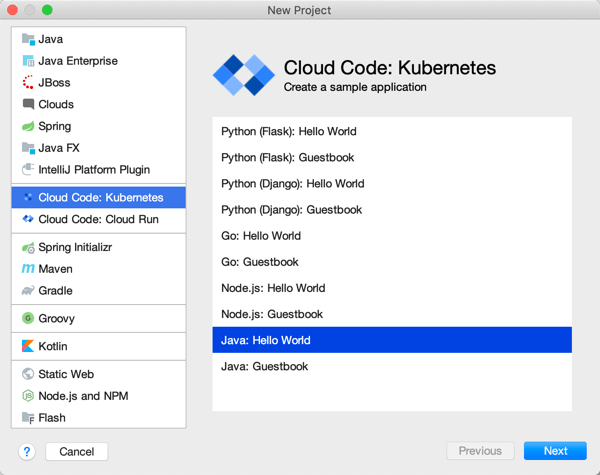
Cloud Code is a good place to start. Among other things, it delivers extensions to IntelliJ and Visual Studio Code. For IntelliJ IDEA users, you get starter templates for new projects, snippets for authoring relevant YAML files, tool windows for various Google Cloud services, app deployment commands, and more. Given that 72% of Java developers use IntelliJ IDEA, this extension helps many folks.
Cloud Code in VS Code
The Visual Studio Code extension is pretty great too. It’s got project starters and other command palette integrations, Activity Bar entries to manage Google Cloud services, deployment tools, and more. 4% of Java devs use Visual Studio Code, so, we’re looking out for you too. If you use Eclipse, take a look at the Cloud Tools for Eclipse.
The other major thing you want locally is the Cloud SDK. Within this little gem you get client libraries for your favorite language, CLIs, and emulators. This means that as Java developers, we get a Java client library, command line tools for all-up Google Cloud (gcloud), Big Query (bq) and Storage (gsutil), and then local emulators for cloud services like Pub/Sub, Spanner, Firestore, and more. Powerful stuff.
App development
Our machine is set up. Now we need to do real work. As you’d expect, you can use all, some, or none of these things to build your Java apps. It’s an open model.
Java devs have lots of APIs to work with in the Google Cloud Java client libraries, whether talking to databases or consuming world-class AI/ML services. If you’re using Spring Boot—and the JetBrains survey reveals that the majority of you are—then you’ll be happy to discover Spring Cloud GCP. This set of packages makes it super straightforward to interact with terrific managed services in Google Cloud. Use Spring Data with cloud databases (including Cloud Spanner and Cloud Firestore), Spring Cloud Stream with Cloud Pub/Sub, Spring Caching with Cloud Memorystore, Spring Security with Cloud IAP, Micrometer with Cloud Monitoring, and Spring Cloud Sleuth with Cloud Trace. And you get the auto-configuration, dependency injection, and extensibility points that make Spring Boot fun to use. Google offers Spring Boot starters, samples, and more to get you going quickly. And it works great with Kotlin apps too.
Emulators available via gcloud
As you’re building Java apps, you might directly use the many managed services in Google Cloud Platform, or, work with the emulators mentioned above. It might make sense to work with local emulators for things like Cloud Pub/Sub or Cloud Spanner. Conversely, you may decide to spin up “real” instance of cloud services to build apps using Managed Service for Microsoft Active Directory, Secret Manager, or Cloud Data Fusion. I’m glad Java developers have so many options.
Where are you going to store your Java source code? One choice is Cloud Source Repositories. This service offers highly available, private Git repos—use it directly or mirror source code code from GitHub or Bitbucket—with a nice source browser and first-party integration with many Google Cloud compute runtimes.
Building and packaging code
After you’ve written some Java code, you probably want to build the project, package it up, and prepare it for deployment.
Artifact Registry
Store your Java packages in Artifact Registry. Create private, secure artifact storage that supports Maven and Gradle, as well as Docker and npm. It’s the eventual replacement of Container Registry, which itself is a nice Docker registry (and more).
Looking to build container images for your Java app? You can write your own Dockerfiles. Or, skip docker build|push by using our open source Jib as a Maven or Gradle plugin that builds Docker images. Jib separates the Java app into multiple layers, making rebuilds fast. A new project is Google Cloud Buildpacks which uses the CNCF spec to package and containerize Java 8|11 apps.
Odds are, your build and containerization stages don’t happen in isolation; they happen as part of a build pipeline. Cloud Build is the highly-rated managed CI/CD service that uses declarative pipeline definitions. You can run builds locally with the open source local builder, or in the cloud service. Pull source from Cloud Source Repositories, GitHub and other spots. Use Buildpacks or Jib in the pipeline. Publish to artifact registries and push code to compute environments.
Application runtimes
As you’d expect, Google Cloud Platform offers a variety of compute environments to run your Java apps. Choose among:
Bare Metal. Choose a physical machine to host your Java app. Choose from machine sizes with as few as 16 CPU cores, and as many as 112.
Google Kubernetes Engine. The first, and still the best, managed Kubernetes service. Get fully managed clusters that are auto scaled, auto patched, and auto repaired. Run stateless or stateful Java apps.
App Engine. One of the original PaaS offerings, App Engine lets you just deploy your Java code without worrying about any infrastructure management.
Cloud Functions. Run Java code in this function-as-a-service environment.
Cloud Run. Based on the open source Knative project, Cloud Run is a managed platform for scale-to-zero containers. You can run any web app that fits into a container, including Java apps.
Google Cloud VMware Engine. If you’re hosting apps in vSphere today and want to lift-and-shift your app over, you can use a fully managed VMware environment in GCP.
Running in production
Regardless of the compute host you choose, you want management tools that make your Java apps better, and help you solve problems quickly.
You might stick an Apigee API gateway in front of your Java app to secure or monetize it. If you’re running Java apps in multiple clouds, you might choose Google Cloud Anthos for consistency purposes. Java apps running on GKE in Anthos automatically get observability, transport security, traffic management, and SLO definition with Anthos Service Mesh.
You probably have lots of existing Java apps. Some are fairly new, others were written a decade ago. Google Cloud offers tooling to migrate many types of existing VM-based apps to container or cloud VM environments. There’s good reasons to do it, and Java apps see real benefits.
Migrate for Anthos takes an existing Linux or Windows VM and creates artifacts (Dockerfiles, Kubernetes YAML, etc) to run that workload in GKE. Migrate for Compute Engine moves your Java-hosting VMs into Google Compute Engine.
All-in-all, there’s a lot to like here if you’re a Java developer. You can mix-and-match these Google Cloud services and tools to build, deploy, run, and manage Java apps.
I rarely enjoy the last mile of work. Sure, there’s pleasure in seeing something reach its conclusion, but when I’m close, I just want to be done! For instance, when I create a Pluralsight course—my new one, Cloud Foundry: The Big Picture just came out—I enjoy the building part, and dread the record+edit portion. Same with writing software. I like coding an app to solve a problem. Then, I want a fast deployment so that I can see how the app works, and wrap up. Ideally, each app I write doesn’t require a unique set of machinery or know-how. Thus, I wanted to see if I could create a *single* Google Cloud Build deployment pipeline that shipped any custom app to the serverless Google Cloud Run environment.
Cloud Build is Google Cloud’s continuous integration and delivery service. It reminds me of Concourse in that it’s declarative, container-based, and lightweight. It’s straightforward to build containers or non-container artifacts, and deploy to VMs, Kubernetes, and more. The fact that it’s a hosted service with a great free tier is a bonus. To run my app, I don’t want to deal with configuring any infrastructure, so I chose Google Cloud Run as my runtime. It just takes a container image and offers a fully-managed, scale-to-zero host. Before getting fancy with buildpacks, I wanted to learn how to use Build and Run to package up and deploy a Spring Boot application.
First, I generated a new Spring Boot app from start.spring.io. It’s going to be a basic REST API, so all I needed was the Web dependency.
I’m not splitting the atom with this Java code. It simply returns a greeting when you hit the root endpoint.
@RestController
@SpringBootApplication
public class HelloAppApplication {
public static void main(String[] args) {
SpringApplication.run(HelloAppApplication.class, args);
}
@GetMapping("/")
public String SayHello() {
return "Hi, Google Cloud Run!";
}
}
Now, I wanted to create a pipeline that packaged up the Boot app into a JAR file, built a Docker image, and deployed that image to Cloud Run. Before crafting the pipeline file, I needed a Dockerfile. This file offers instructions on how to assemble the image. Here’s my basic one:
FROM openjdk:11-jdk
ARG JAR_FILE=target/hello-app-0.0.1-SNAPSHOT.jar
COPY ${JAR_FILE} app.jar
ENTRYPOINT ["java", "-Djava.security.edg=file:/dev/./urandom","-jar","/app.jar"]
On to the pipeline. A build configuration isn’t hard to understand. It consists of a series of sequential or parallel steps that produce an outcome. Each step runs in its own container image (specified in the name attribute), and if needed, there’s a simple way to transfer state between steps. My cloudbuild.yaml file for this Spring Boot app looked like this:
steps:
# build the Java app and package it into a jar
- name: maven:3-jdk-11
entrypoint: mvn
args: ["package", "-Dmaven.test.skip=true"]
# use the Dockerfile to create a container image
- name: gcr.io/cloud-builders/docker
args: ["build", "-t", "gcr.io/$PROJECT_ID/hello-app", "--build-arg=JAR_FILE=target/hello-app-0.0.1-SNAPSHOT.jar", "."]
# push the container image to the Registry
- name: gcr.io/cloud-builders/docker
args: ["push", "gcr.io/$PROJECT_ID/hello-app"]
#deploy to Google Cloud Run
- name: 'gcr.io/cloud-builders/gcloud'
args: ['run', 'deploy', 'seroter-hello-app', '--image', 'gcr.io/$PROJECT_ID/hello-app', '--region', 'us-west1', '--platform', 'managed']
images: ["gcr.io/$PROJECT_ID/hello-app"]
You’ll notice four steps. The first uses the Maven image to package my application. The result of that is a JAR file. The second step uses a Docker image that’s capable of generating an image using the Dockerfile I created earlier. The third step pushes that image to the Container Registry. The final step deploys the container image to Google Cloud Run with an app name of seroter-hello-app. The final “images” property puts the image name in my Build results.
As you can imagine, I can configure triggers for this pipeline (based on code changes, etc), or execute it manually. I’ll do the latter, as I haven’t stored this code in a repository anywhere yet. Using the terrific gcloud CLI tool, I issued a single command to kick off the build.
gcloud builds submit --config cloudbuild.yaml .
After a minute or so, I have a container image in the Container Registry, an available endpoint in Cloud Run, and a full audit log in Cloud Build.
Container Registry:
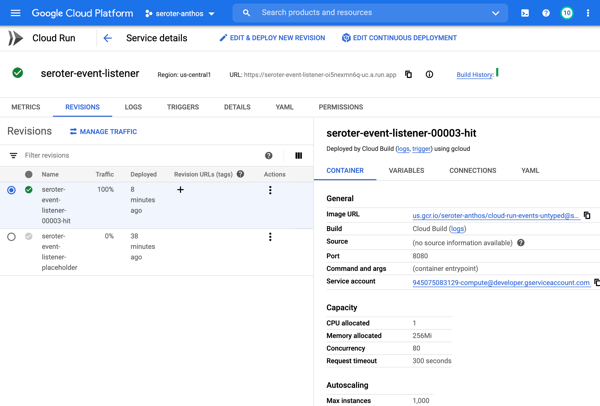
Cloud Run (with indicator that app was deployed via Cloud Build:
Cloud Build:
I didn’t expose the app publicly, so to call it, I needed to authenticate myself. I used the “gcloud auth print-identity-token” command to get a Bearer token, and plugged that into the Authorization header in Postman. As you’d expect, it worked. And when traffic dies down, the app scales to zero and costs me nothing.
So this was great. I did all this without having to install build infrastructure, or set up an application host. But I wanted to go a step further. Could I eliminate the Dockerization portion? I have zero trust in myself to build a good image. This is where buildpacks come in. They generate well-crafted, secure container images from source code. Google created a handful of these using the CNCF spec, and we can use them here.
My new cloudbuild.yaml file looks like this. See that I’ve removed the steps to package the Java app, and build and push the Docker image, and replaced them with a single “pack” step.
steps:
# use Buildpacks to create a container image
- name: 'gcr.io/k8s-skaffold/pack'
entrypoint: 'pack'
args: ['build', '--builder=gcr.io/buildpacks/builder', '--publish', 'gcr.io/$PROJECT_ID/hello-app-bp:$COMMIT_SHA']
#deploy to Google Cloud Run
- name: 'gcr.io/cloud-builders/gcloud'
args: ['run', 'deploy', 'seroter-hello-app-bp', '--image', 'gcr.io/$PROJECT_ID/hello-app-bp:latest', '--region', 'us-west1', '--platform', 'managed']
With the same gcloud command (gcloud builds submit --config cloudbuild.yaml .) I kicked off a new build. This time, the streaming logs showed me that the buildpack built the JAR file, pulled in a known-good base container image, and containerized the app. The result: a new image in the Registry (21% smaller in size, by the way), and a fresh service in Cloud Run.
I started out this blog post saying that I wanted a single cloudbuild.yaml file for *any* app. With Buildpacks, that seemed possible. The final step? Tokenizing the build configuration. Cloud Build supports “substitutions” which lets you offer run-time values for variables in the configuration. I changed my build configuration above to strip out the hard-coded names for the image, region, and app name.
steps:
# use Buildpacks to create a container image
- name: 'gcr.io/k8s-skaffold/pack'
entrypoint: 'pack'
args: ['build', '--builder=gcr.io/buildpacks/builder', '--publish', 'gcr.io/$PROJECT_ID/$_IMAGE_NAME:$COMMIT_SHA']
#deploy to Google Cloud Run
- name: 'gcr.io/cloud-builders/gcloud'
args: ['run', 'deploy', '$_RUN_APPNAME', '--image', 'gcr.io/$PROJECT_ID/$_IMAGE_NAME:latest', '--region', '$_REGION', '--platform', 'managed']
Before trying this with a new app, I tried this once more with my Spring Boot app. For good measure, I changed the source code so that I could confirm that I was getting a fresh build. My gcloud command now passed in values for the variables:
After a minute, the deployment succeeded, and when I called the endpoint, I saw the updated API result.
For the grand finale, I want to take this exact file, and put it alongside a newly built ASP.NET Core app. I did a simple “dotnet new webapi” and dropped the cloudbuild.yaml file into the project folder.
After tweaking the Program.cs file to read the application port from the platform-provided environment variable, I ran the following command:
A few moments later, I had a container image built, and my ASP.NET Core app listening to requests in Cloud Run.
Calling that endpoint (with authentication) gave me the API results I expected.
Super cool. So to recap, that six line build configuration above works for your Java, .NET Core, Python, Node, and Go apps. It’ll create a secure container image that works anywhere. And if you use Cloud Build and Cloud Run, you can do all of this with no mess. I might actually start enjoying the last mile of app development with this setup.
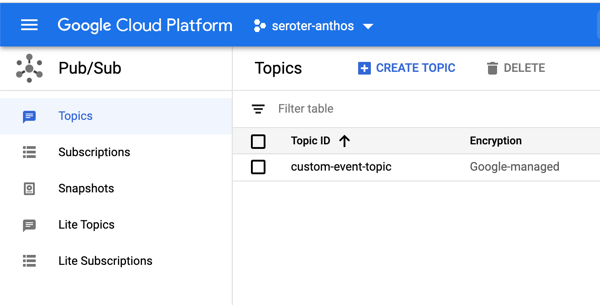
This week I’m once again speaking at INTEGRATE, a terrific Microsoft-oriented conference focused on app integration. This may be the last year I’m invited, so before I did my talk, I wanted to ensure I was up-to-speed on Google Cloud’s integration-related services. One that I was aware of, but not super familiar with, was Google Cloud Pub/Sub. My first impression was that this was a standard messaging service like Amazon SQS or Azure Service Bus. Indeed, it is a messaging service, but it does more.
Here are three unique aspects to Pub/Sub that might give you a better way to solve integration problems.
#1 – Global control plane with multi-region topics
When creating a Pub/Sub topic—an object that accepts a feed of messages—you’re only asked one major question: what’s the ID?
In the other major cloud messaging services, you select a geographic region along with the topic name. While you can, of course, interact with those messaging instances from any other region via the API, you’ll pay the latency cost. Not so with Pub/Sub. From the documentation (bolding mine):
Cloud Pub/Sub offers global data access in that publisher and subscriber clients are not aware of the location of the servers to which they connect or how those services route the data.
…
Pub/Sub’s load balancing mechanisms direct publisher traffic to the nearest GCP data center where data storage is allowed, as defined in the ResourceLocation Restriction section of the IAM & admin console. This means that publishers in multiple regions may publish messages to a single topic with low latency. Any individual message is stored in a single region. However, a topic may have messages stored in many regions. When a subscriber client requests messages published to this topic, it connects to the nearest server which aggregates data from all messages published to the topic for delivery to the client.
That’s a fascinating architecture, and it means you get terrific publisher performance from anywhere.
#2 – Supports both pull and push subscriptions for a topic
Messaging queues typically store data until it’s retrieved by the subscriber. That’s ideal for transferring messages, or work, between systems. Let’s see an example with Pub/Sub.
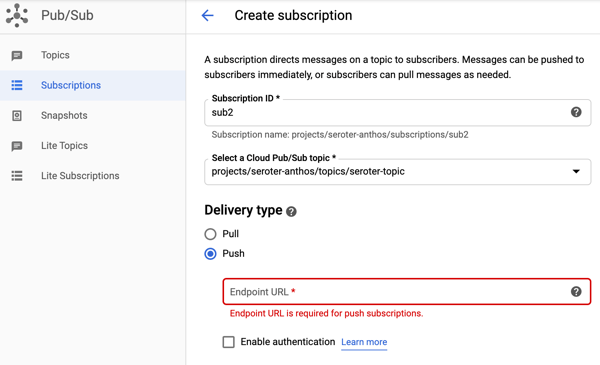
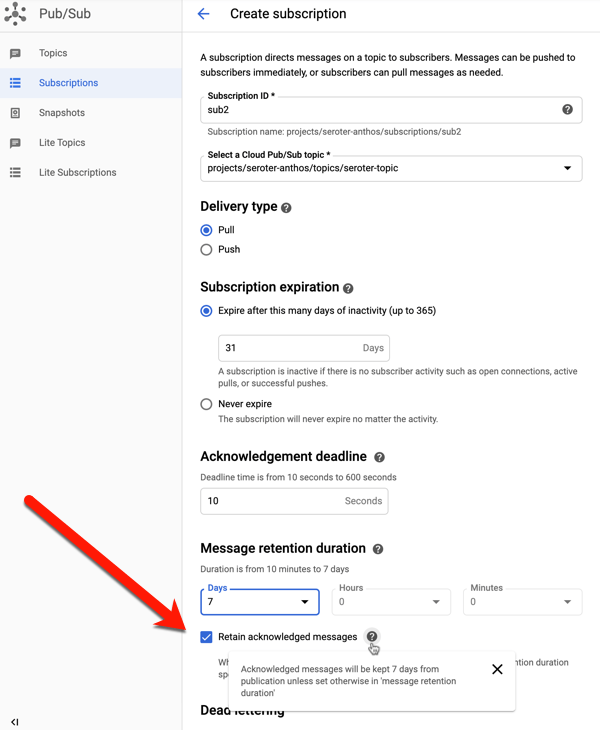
I first used the Google Cloud Console to create a pull-based subscription for the topic. You can see a variety of other settings (with sensible defaults) around acknowledgement deadlines, message retention, and more.
I then created a pair of .NET Core applications. One pushes messages to the topic, another pulls messages from the corresponding subscription. Google created NuGet packages for each of the major Cloud services—which is better than one mega-package that talks to all services—that you can see listed here on GitHub. Here’s the Pub/Sub package that added to both projects.
using Google.Cloud.PubSub.V1;
using Google.Protobuf;
...
public string PublishMessages()
{
PublisherServiceApiClient publisher = PublisherServiceApiClient.Create();
//create messages
PubsubMessage message1 = new PubsubMessage {Data = ByteString.CopyFromUtf8("Julie")};
PubsubMessage message2 = new PubsubMessage {Data = ByteString.CopyFromUtf8("Hazel")};
PubsubMessage message3 = new PubsubMessage {Data = ByteString.CopyFromUtf8("Frank")};
//load into a collection
IEnumerable<PubsubMessage> messages = new PubsubMessage[] {
message1,
message2,
message3
};
//publish messages
PublishResponse response = publisher.Publish("projects/seroter-anthos/topics/seroter-topic", messages);
return "success";
}
After I ran the publisher app, I switched to the web-based Console and saw that the subscription had three un-acknowledged messages. So, it worked.
The subscribing app? Equally straightforward. Here, I asked for up to ten messages associated with the subscription, and once I processed then, I sent “acknowledgements” back to Pub/Sub. This removes the messages from the queue so that I don’t see them again.
using Google.Cloud.PubSub.V1;
using Google.Protobuf;
...
public IEnumerable<String> ReadMessages()
{
List<string> names = new List<string>();
SubscriberServiceApiClient subscriber = SubscriberServiceApiClient.Create();
SubscriptionName subscriptionName = new SubscriptionName("seroter-anthos", "sub1");
PullResponse response = subscriber.Pull(subscriptionName, true, 10);
foreach(ReceivedMessage msg in response.ReceivedMessages) {
names.Add(msg.Message.Data.ToStringUtf8());
}
if(response.ReceivedMessages.Count > 0) {
//ack the message so we don't receive it again
subscriber.Acknowledge(subscriptionName, response.ReceivedMessages.Select(m => m.AckId));
}
return names;
}
When I start up the subscriber app, it reads the three available messages in the queue. If I pull from the queue again, I get no results (as expected).
As an aside, the Google Cloud Console is really outstanding for interacting with managed services. I built .NET Core apps to test out Pub/Sub, but I could have done everything within the Console itself. I can publish messages:
And then retrieve those message, with an option to acknowledge them as well:
Great stuff.
But back to the point of this section, I can use Pub/Sub to create pull subscriptions and push subscriptions. We’ve been conditioned by cloud vendors to expect distinct services for each variation in functionality. One example is with messaging services, where you see unique services for queuing, event streaming, notifications, and more. Here with Pub/Sub, I’m getting a notification service and queuing service together. A “push” subscription doesn’t wait for the subscriber to request work; it pushes the message to the designated (optionally, authenticated) endpoint. You might provide the URL of an application webhook, an API, a function, or whatever should respond immediately to your message.
I like this capability, and it simplifies your architecture.
#3 – Supports message replay within an existing subscription and for new subscriptions
One of the things I’ve found most attractive about event processing engines is the durability and replay-ability functionality. Unlike a traditional message queue, an event processor is based on a durable log where you can rewind and pull data from any point. That’s cool. Your event streaming engine isn’t a database or system of record, but a useful snapshot in time of an event stream. What if you could get the queuing semantics you want, with that durability you like from event streaming? Pub/Sub does that.
This again harkens back to point #2, where Pub/Sub absorbs functionality from other specialized services. Let me show you what I found.
When creating a subscription (or editing an existing one), you have the option to retain acknowledged messages. This keeps these messages around for whatever the duration is for the subscription (up to seven days).
To try this out, I sent in four messages to the topic, with bodies of “test1”, “test2”, “test3”, and “test4.” I then viewed, and acknowledged, all of them.
If I do another “pull” there are no more messages. This is standard queuing behavior. An empty queue is a happy queue. But what if something went wrong downstream? You’d typically have to go back upstream and resubmit the message. Because I saved acknowledged messages, I can use the “seek” functionality to replay!
Hey now. That’s pretty wicked. When I pull from the subscription again, any message after the date/time specified shows up again.
And I get unlimited bites at this apple. I can choose to replay again, and again, and again. You can imagine all sorts of scenarios where this sort of protection can come in handy.
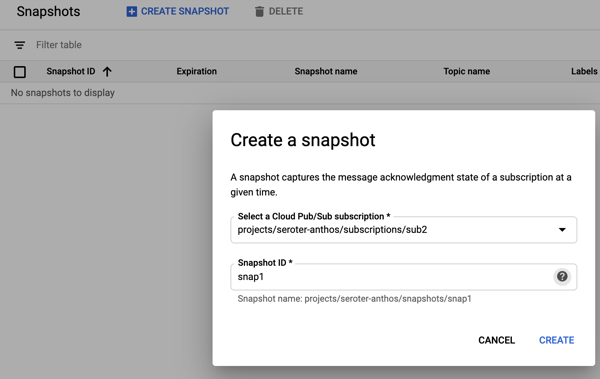
Ok, but what about new subscribers? What about a system that comes online and wants a batch of messages that went through the system yesterday? This is where snapshots are powerful. They store the state of any unacknowledged messages in the subscription, and any new messages published after the snapshot was taken. To demonstrate this, I sent in three more messages, with bodies of “test 5”, “test6” and “test7.” Then I took a snapshot on the subscription.
I read all the new messages from the subscription, and acknowledged them. Within this Pub/Sub subscription, I chose to “replay”, load the snapshot, and saw these messages again. That could be useful if I took a snapshot pre-deploy of code changes, something went wrong, and I wanted to process everything from that snapshot. But what if I want access to this past data from another subscription?
I created a new subscription called “sub3.” This might represent a new system that just came online, or even a tap that wants to analyze the last four days of data. Initially, this subscription has no associated messages. That makes sense; it only sees messages that arrived after the subscription was created. From this additional subscription, I chose to “replay” and selected the existing snapshot.
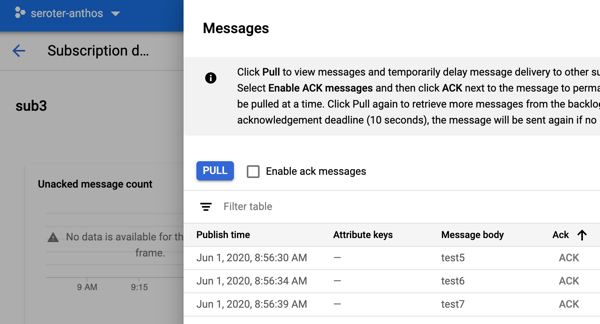
After that, I went to my subscription to view messages, and I saw the three messages from the other subscription’s snapshot.
Wow, that’s powerful. New subscribers don’t always have to start from scratch thanks to this feature.
It might be worth it for you to take an extended look at Google Cloud Pub/Sub. It’s got many of the features you expect from a scaled cloud service, with a few extra features that may delight you.
Most apps use databases. This is not a shocking piece of information. If your app is destined to run in a public cloud, how do you work with cloud-only databases when doing local development? It seems you have two choices:
Provision and use an instance of the cloud database. If you’re going to depend on a cloud database, you can certainly use it directly during local development. Sure, there might be a little extra latency, and you’re paying per hour for that instance. But this is the most direct way to do it.
Install and use a local version of that database. Maybe your app uses a cloud DB based on installable software like Microsoft SQL Server, MongoDB, or PostgreSQL. In that case, you can run a local copy (in a container, or natively), code against it, and swap connection strings as you deploy to production. There’s some risk, as it’s not the EXACT same environment. But doable.
A variation of choice #2 is when you select a cloud database that doesn’t have an installable equivalent. Think of the cloud-native, managed databases like Amazon DynamoDB, Google Cloud Spanner, and Azure Cosmos DB. What do you do then? Must you choose option #1 and work directly in the cloud? Fortunately, each of those cloud databases now has a local emulator. This isn’t a full-blown instance of that database, but a solid mock that’s suitable for development. In this post, I’ll take a quick look at the above mentioned emulators, and what you should know about them.
#1 Amazon DynamoDB
Amazon’s DynamoDB is a high-performing NoSQL (key-value and document) database. It’s a full-featured managed service that transparently scales to meet demand, supports ACID transactions, and offers multiple replication options.
DynamoDB Local is an emulator you can run anywhere. AWS offers a few ways to run it, including a direct download—it requires Java to run—or a Docker image. I chose the downloadable option and unpacked the zip file on my machine.
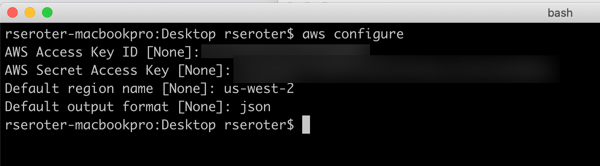
Before you can use it, you need credentials set up locally. Note that ANY credentials will do (they don’t have to be valid) for it to work. If you have the AWS CLI, you can simply do an aws configure command to generate a credentials file based on your AWS account.
The JAR file hosting the emulator has a few flags you can choose at startup:
You can see that you have a choice of running this entirely in-memory, or use the default behavior which saves your database to disk. The in-memory option is nice for quick testing, or running smoke tests in an automated pipeline. I started up DynamoDB Local with the following command, which gave me a shared database file that every local app will connect to:
This gave me a reachable instance on port 8000. Upon first starting it up, there’s no database file on disk. As soon as I issued a database query (in another console, as the emulator blocks after it starts up), I saw the database file.
Let’s try using it from code. I created a new Node Express app, and added an npm reference to the AWS SDK for JavaScript. In this app, I want to create a table in DynamoDB, add a record, and then query that record. Here’s the complete code:
const express = require('express')
const app = express()
const port = 3000
var AWS = require("aws-sdk");
//region doesn't matter for the emulator
AWS.config.update({
region: "us-west-2",
endpoint: "http://localhost:8000"
});
//dynamodb variables
var dynamodb = new AWS.DynamoDB();
var docClient = new AWS.DynamoDB.DocumentClient();
//table configuration
var params = {
TableName : "Animals",
KeySchema: [
{ AttributeName: "animal_id", KeyType: "HASH"}, //Partition key
{ AttributeName: "species", KeyType: "RANGE" } //Sort key
],
AttributeDefinitions: [
{ AttributeName: "animal_id", AttributeType: "S" },
{ AttributeName: "species", AttributeType: "S" }
],
ProvisionedThroughput: {
ReadCapacityUnits: 10,
WriteCapacityUnits: 10
}
};
// default endpoint
app.get('/', function(req, res, next) {
res.send('hello world!');
});
// create a table in DynamoDB
app.get('/createtable', function(req, res) {
dynamodb.createTable(params, function(err, data) {
if (err) {
console.error("Unable to create table. Error JSON:", JSON.stringify(err, null, 2));
res.send('failed to create table')
} else {
console.log("Created table. Table description JSON:", JSON.stringify(data, null, 2));
res.send('success creating table')
}
});
});
//create a variable holding a new data item
var animal = {
TableName: "Animals",
Item: {
animal_id: "B100",
species: "E. lutris",
name: "sea otter",
legs: 4
}
}
// add a record to DynamoDB table
app.get('/addrecord', function(req, res) {
docClient.put(animal, function(err, data) {
if (err) {
console.error("Unable to add animal. Error JSON:", JSON.stringify(err, null, 2));
res.send('failed to add animal')
} else {
console.log("Added animal. Item description JSON:", JSON.stringify(data, null, 2));
res.send('success added animal')
}
});
});
// define what I'm looking for when querying the table
var readParams = {
TableName: "Animals",
Key: {
"animal_id": "B100",
"species": "E. lutris"
}
};
// retrieve a record from DynamoDB table
app.get('/getrecord', function(req, res) {
docClient.get(readParams, function(err, data) {
if (err) {
console.error("Unable to read animal. Error JSON:", JSON.stringify(err, null, 2));
res.send('failed to read animal')
} else {
console.log("Read animal. Item description JSON:", JSON.stringify(data, null, 2));
res.send(JSON.stringify(data, null, 2))
}
});
});
//start up app
app.listen(port);
It’s not great, but it works. Yes, I’m using a GET To create a record. This is a free site, so you’ll take this code AND LIKE IT.
After starting up the app, I can create a table, create a record, and find it.
Because data is persisted, I can stop the emulator, start it up later, and everything is still there. That’s handy.
As you can imagine, this emulator isn’t an EXACT clone of a global managed service. It doesn’t do anything with replication or regions. The “provisioned throughput” settings which dictate read/write performance are ignored. Table scans are done sequentially and parallel scans aren’t supported, so that’s another performance-related thing you can’t test locally. Also, read operations are all eventually consistent, but things will be so fast, it’ll seem strongly consistent. There are a few other considerations, but basically, use this to build apps, not to do performance tests or game-day chaos exercises.
#2 Google Cloud Spanner
Cloud Spanner is a relational database that Google says is “built for the cloud.” You get the relational database traits including schema-on-write, strong consistency, and ANSI SQL syntax, with some NoSQL database traits like horizontal scale and great resilience.
Just recently, Google Cloud released a beta emulator. The Cloud Spanner Emulator stores data in memory and works with their Java, Go, and C++ libraries. To run the emulator, you need Docker on your machine. From there, you can either use the gcloud CLI to run it, a pre-built Docker image, Linux binaries, and more. I’m going to use the gcloud CLI that comes with the Google Cloud SDK.
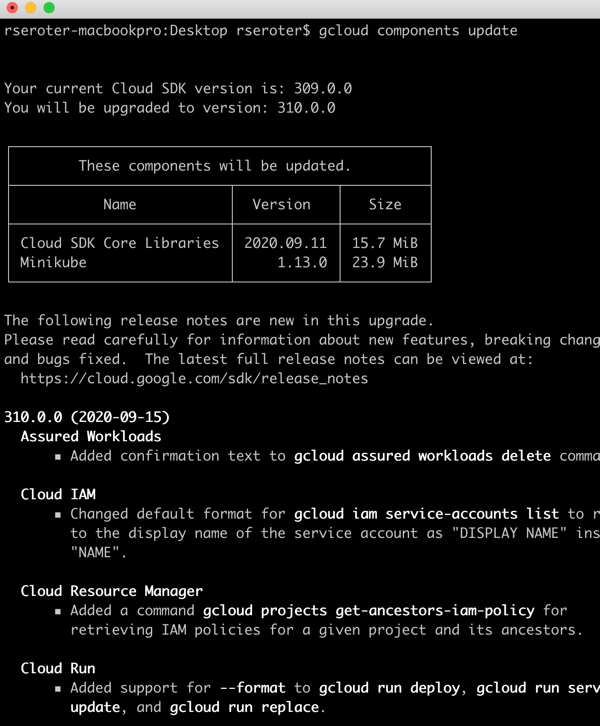
I ran a quick update of my existing SDK, and it was cool to see it pull in the new functionality. Kicking off emulation from the CLI is a developer-friendly idea.
Starting up the emulator is simple: gcloud beta emulators spanner start. The first time it runs, the CLI pulls down the Docker image, and then starts it up. Notice that it opens up all the necessary ports.
I want to make sure my app doesn’t accidentally spin up something in the public cloud, so I create a separate gcloud configuration that points at my emulator and uses the project ID of “seroter-local.”
gcloud config configurations create emulator
gcloud config set auth/disable_credentials true
gcloud config set project seroter-local
gcloud config set api_endpoint_overrides/spanner http://localhost:9020/
Next, I create a database instance. Using the CLI, I issue a command creating an instance named “spring-demo” and using the local emulator configuration.
Instead of building an app from scratch, I’m using one of the Spring examples created by the Google Cloud team. Their go-to demo for Spanner uses their library that already recognizes the emulator, if you provide a particular environment variable. This demo uses Spring Data to work with Spanner, and serves up web endpoints for interacting with the database.
In the application package, the only file I had to change was the application.properties. Here, I specified project ID, instance ID, and database to create.
In the terminal window where I’m going to run the app, I set two environment variables. First, I set SPANNER_EMULATOR_HOST=localhost:9010. As I mentioned earlier, the Spanner library for Java looks for this value and knows to connect locally. Secondly, I set a pointer to my GCP service account credentials JSON file: GOOGLE_APPLICATION_CREDENTIALS=~/Downloads/gcp-key.json. You’re not supposed to need creds for local testing, but my app wouldn’t start without it.
Finally, I compile and start up the app. There are a couple ways this app lets you interact with Spanner, and I chose the “repository” one:
After a second or two, I see that the app compiled, and data got loaded into the database.
Pinging the endpoint in the browser gives a RESTful response.
Like with the AWS emulator, the Google Cloud Spanner emulator doesn’t do everything that its managed counterpart does. It uses unencrypted traffic, identity management APIs aren’t supported, concurrent read/write transactions get aborted, there’s no data persistence, quotas aren’t enforced, and monitoring isn’t enabled. There are also limitations during the beta phase, related to the breadth of supported queries and partition operations. Check the GitHub README for a full list.
#3 Microsoft Azure Cosmos DB
Now let’s look at Azure’s Cosmos DB. This is billed as a “planet scale” NoSQL database with easy scaling, multi-master replication, sophisticated transaction support, and support for multiple APIs. It can “talk” Cassandra, MongoDB, SQL, Gremlin, or Etcd thanks to wire-compatible APIs.
Microsoft offers the Azure Cosmos Emulator for local development. Somewhat inexplicably, it’s available only as a Windows download or Windows container. That surprised me, given the recent friendliness to Mac and Linux. Regardless, I spun up a Windows 10 environment in Azure, and chose the downloadable option.
Once it’s installed, I see a graphical experience that closely resembles the one in the Azure Portal.
From here, I use this graphical UI and build out a new database, container—not an OS container, but the name of a collection—and specify a partition key.
For fun, I added an initial database record to get things going.
Nice. Now I have a database ready to use from code. I’m going to use the same Node.js app I built for the AWS demo above, but this time, reference the Azure SDK (npm install @azure/cosmos) to talk to the database. I also created a config.json file that stores, well, config values. Note that there is a single fixed account and well-known key for all users. These aren’t secret.
Finally, the app code itself. It’s pretty similar to what I wrote earlier for DynamoDB. I have an endpoint to add a record, and another one to retrieve records.
When I start the app, I call the endpoint to create a record, see it show up in Cosmos DB, and issue another request to get the records that match the target “species.” Sure enough, everything works great.
What’s different about the emulator, compared to the “real” Cosmos DB? The emulator UI only supports the SQL API, not the others. You can’t use the adjustable consistency levels—like strong, session, or eventual—for queries. There are limits on how many containers you can create, and there’s no concept of replication here. Check out the remaining differences on the Azure site.
All three emulators are easy to set up and straightforward to use. None of them are suitable for performance testing or simulating production resilience scenarios. That’s ok, because the “real” thing is just a few clicks (or CLI calls) away. Use these emulators to iterate on your app locally, and maybe to simulate behaviors in your integration pipelines, and then spin up actual instances for in-depth testing before going live.
It’s been nine years since I first tried out Cloud Foundry, and it remains my favorite app platform. It runs all kinds of apps, has a nice dev UX for deploying and managing software, and doesn’t force me to muck with infrastructure. The VMware team keeps shipping releases (another today) of the most popular packaging of Cloud Foundry, Tanzu Application Service (TAS). One knock against Cloud Foundry has been its weight—in typically runs on dozens of VMs. Others have commented on its use of open-source, but not widely-used, components like BOSH, the Diego scheduler, and more. I think there are good justifications for its size and choice of plumbing components, but I’m not here to debate that. Rather, I want to look at what’s next. The new Tanzu Application Service (TAS) for Kubernetes (now in beta) eliminates those prior concerns with Cloud Foundry, and just maybe, leapfrogs other platforms by delivering the dev UX you like, with the underlying components—things like Kubernetes, Cluster API, Istio, Envoy, fluentd, and kpack—you want. Let me show you.
TAS runs on any Kubernetes cluster: on-premises or in the cloud, VM-based or a managed service, VMware-provided or delivered by others. It’s based on the OSS Cloud Foundry for Kubernetes project, and available for beta download with a free (no strings attached) Tanzu Network account. You can follow along with me in this post, and in just a few minutes, have a fully working app platform that accepts containers or source code and wires it all up for you.
Step 1 – Download and Start Stuff (5 minutes)
Let’s get started. Some of these initial steps will go away post-beta as the install process gets polished up. But we’re brave explorers, and like trying things in their gritty, early stages, right?
First, we need a Kubernetes. That’s the first big change for Cloud Foundry and TAS. Instead of pointing it at any empty IaaS and using BOSH to create VMs, Cloud Foundry now supports bring-your-own-Kubernetes. I’m going to use Minikube for this example. You can use KinD, or any other number of options.
Install kubectl (to interact with the Kubernetes cluster), and then install Minikube. Ensure you have a recent version of Minikube, as we’re using the Docker driver for better performance. With Minikube installed, execute the following command to build out our single-node cluster. TAS for Kubernetes is happiest running on a generously-sized cluster.
After a minute or two, you’ll have a hungry Kubernetes cluster running, just waiting for workloads.
We also need a few command line tools to get TAS installed. These tools, all open source, do things like YAML templating, image building, and deploying things like Cloud Foundry as an “app” to Kubernetes. Install the lightweight kapp, klbd, and ytt tools using these simple instructions.
You also need the Cloud Foundry command line tool. This is for interacting with the environment, deploying apps, etc. This same CLI works against a VM-based Cloud Foundry, or Kubernetes-based one. You can download the latest version via your favorite package manager or directly.
Finally, you’ll want to install the BOSH CLI. Wait a second, you say, didn’t you say BOSH wasn’t part of this? Am I just a filthy liar? First off, no name calling, you bastards. Secondly, no, you don’t need to use BOSH, but the CLI itself helps generate some configuration values we’ll use in a moment. You can download the BOSH CLI via your favorite package manager, or grab it from the Tanzu Network. Install via the instructions here.
I downloaded the archive to my desktop, unpacked it, and renamed the folder “tanzu-application-service.” Create a sibling folder named “configuration-values.”
Now we’re going to create the configuration file. Run the following command in your console, which should be pointed at the tanzu-application-service directory. The first quoted value is the domain. For my local instance, this value is vcap.me. When running this in a “real” environment, this value is the DNS name associated with your cluster and ingress point. The output of this command is a new file in the configuration-values folder.
After a couple of seconds, we have an impressive-looking YAML file with passwords, certificates, and all sorts of delightful things.
We’re nearly done. Our TAS environment won’t just run containers; it will also use kpack and Cloud Native Buildpacks to generate secure container images from source code. That means we need a registry for stashing generated images. You can use most any one you want. I’m going to use Docker Hub. Thus, the final configuration values we need are appended to the above file. First, we need the credentials to the Tanzu Network for retrieving platform images, and secondly, credentials for container registry.
With our credentials in hand, add them to the very bottom of the file. Indentation matters, this is YAML after all, so ensure you’ve got it lined up right.
The last thing? There’s a file that instructs the installation to create a cluster IP ingress point versus a Kubernetes load balancer resource. For Minikube (and in public cloud Kubernetes-as-a-Service environments) I want the load balancer. So, within the tanzu-application-service folder, move the replace-loadbalancer-with-clusterip.yaml file from the custom-overlays folder to the config-optional folder.
Finally, to be safe, I created a copy of this remove-resource-requirements.yml file and put it in the custom-overlays folder. It relaxes some of the resource expectations for the cluster. You may not need it, but I saw CPU exhaustion issues pop up when I didn’t use it.
All finished. Let’s deploy this rascal.
Step 3 – Deploy Stuff (10 minutes)
Deploying TAS to Kubernetes takes 5-9 minutes. With your console pointed at the tanzu-application-service directory, run this command:
./bin/install-tas.sh ../configuration-values
There’s a live read-out of progress, and you can also keep checking the Kubernetes environment to see the pods inflate. Tools like k9s make it easy to keep an eye on what’s happening. Notice the Istio components, and some familiar Cloud Foundry pieces. Observe that the entire Cloud Foundry control plane is containerized here—no VMs anywhere to be seen.
While this is still installing, let’s open up the Minikube tunnel to expose the LoadBalancer service our ingress gateway needs. Do this in a separate console window, as its a blocking call. Note that the installation can’t complete until you do it!
minikube tunnel
After a few minutes, we’re ready to deploy workloads.
Step 4 – Test Stuff (3 minutes)
We now have a full-featured Tanzu Application Service up and running. Neat. Let’s try a few things. First, we need to point the Cloud Foundry CLI at our environment.
cf api --skip-ssl-validation https://api.vcap.me
Great. Next, we log in, using generated cf_admin_password from the deployment-values.yaml file.
cf auth admin <password>
After that, we’ll enable containers in the environment.
cf enable-feature-flag diego_docker
Finally, we set up a tenant. Cloud Foundry natively supports isolation between tenants. Here, I set up an organization, and within that organization, a “space.” Finally, I tell the Cloud Foundry CLI that we’re working with apps in that particular org and space.
Let’s do something easy, first. Push a previously-containerized app. Here’s one from my Docker Hub, but it can be anything you want.
cf push demo-app -o rseroter/simple-k8s-app-kpack
After you enter that command, 15 seconds later you have a hosted, routable app. The URL is presented in the Cloud Foundry CLI.
How about something more interesting? TAS for Kubernetes supports a variety of buildpacks. These buildpacks detect the language of your app, and then assemble a container image for you. Right now, the platform builds Java, .NET Core, Go, and Node.js apps. To make life simple, clone this sample Node app to your machine. Navigate your console to that folder, and simple enter cf push.
After a minute or so, you end up with a container image in whatever registry you specified (for me, Docker Hub), and a running app.
This beta release of TAS for Kubernetes also supports commands around log streaming (e.g. cf logs cf-nodejs), connecting to backing services like databases, and more. And yes, even the simple, yet powerful, cf scale command works to expand and contract pod instances.
It’s simple to uninstall the entire TAS environment from your Kubernetes cluster with a single command:
kapp delete -a cf
Thanks for trying this out with me! If you only read along, and want to try it yourself later, read the docs, download the bits, and let me know how it goes.