Category: Cloud

  • Networking with the Cloud is a Big Deal – Even if You Never Push Production Applications

    I’m flying to New Orleans to speak at TechEd North America, and reading a book called Everything is Obvious (* Once You Know the Answer) and it mentioned the difficulty of making macro-level assumptions based on characteristics applied to a sample population. For some reason my mind jumped to the challenge of truly testing applications using manufactured test cases that may not flex the scalability, availability, and inherent complexity of inter-connected apps. At the same time, I read a blog post from Scott Guthrie today that highlighted the ease by which companies can use Windows Azure to dev/test in the cloud and then run an application on premises, and vice versa. But to truly do dev/test in the cloud for an application that eventually runs on-premises, the development team either needs to entirely replicate the on-premises topology in the cloud, or, take advantage of virtual networking to link their dev/test cloud to the on-premises network.

    In my career, it’s been hard to acquire dev/test environments that were identical clones of production. It’s happened, but it often takes a while and making subsequent changes to resources is not trivial or without heartache. This is one reason why cloud infrastructure is so awesome. Need to add more capacity to server? Go for it. Want to triple the number of web servers to do a crazy load test for an hour? Have at it. But until recently, the cloud portion of the application was mostly distinct from on-premises resources. You weren’t using the same Active Directory, file system, shared databases, integration bus, or web services. You could clone them in the cloud, or simply stub them out, but then the cloud app wasn’t a realistic mimic of what was going to eventually run on-premises. Now, with all these advances in virtual networking in the cloud, you can actually build and test applications in the cloud and STILL take advantage of the rich system landscape sitting inside your firewall.

    One of my demos for TechEd shows off Windows Azure Virtual Networking and I was able to see first-hand how straightforward it was to use it. With Windows Azure Virtual Networking, I can do point-to-site connectivity (where I run a VPN on my machine and connect to an entire Windows Azure network of servers), or site-to-site connectivity where a persistent connection is established between an on-premises network and a cloud network. For even more advanced scenarios (not yet offered by Windows Azure, but offered by my company, Tier 3), you go a step further and do “direct connect” scenarios where physical cages are connected, or extensions are made to an existing WAN MPLS mesh. These options make it possible for a developer to run apps in the cloud (whether they are web apps or entire integration servers) and make them look more like apps that will eventually run in their datacenter. Regardless of what technology/provider you use – and whether or not you ever plan on pushing production apps to the cloud – it seems worthwhile to use cloud networking to give your developers a more realistic working environment. At TechEd in New Orleans at want to see this demonstrated in person? Come to my session on Wednesday! For those not here in person, you should be able to watch the session online soon!

  • Walkthrough of New Windows Azure BizTalk Services

    The Windows Azure EAI Bridges are dead. Long live BizTalk Services! Initially released last year as a “lab” project, the Service Bus EAI Bridges were a technology for connecting cloud and on-premises endpoints through an Azure-hosted broker. This technology has been rebranded (“Windows Azure BizTalk Services”) and upgraded and is now available as a public preview. In this blog post, I’ll give you a quick tour around the developer experience.

    First off, what actually *is* Windows Azure BizTalk Services (WABS)? Is it BizTalk Server running in the cloud? Does it run on-premises? Check out the announcement blog posts from the Windows Azure and BizTalk teams, respectively, for more. But basically, it’s separate technology from BizTalk Server, but meant to be highly complementary. Even though It uses a few of the same types of artifacts such as schemas and maps, they aren’t interchangeable. For example, WABS maps don’t run in BizTalk Server, and vice versa. Also, there’s no concept of long-running workflow (i.e. orchestration), and none of the value-added services that BizTalk Server provides (e.g. Rules Engine, BAM). All that said, this is still an important technology as it makes it quick and easy to connect a variety of endpoints regardless of location. It’s a powerful way to expose line-of-business apps to cloud systems, and Windows Azure hosting model makes it possible to rapidly scale solutions. Check out the pricing FAQ page for more details on the scaling functionality, and the reasonable pricing.

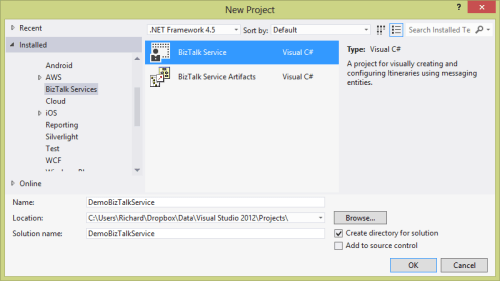
    Let’s get started. When you install the preview components, you’ll get a new project type in Visual Studio 2012.

    2013.06.03wabs01

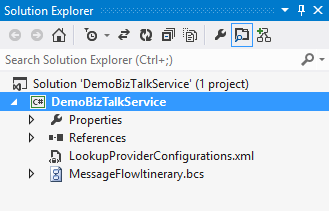
    Each WABS project can contain a single “bridge configuration” file. This file defines the flow of data between source and destination endpoints. Once you have a WABS project, you can add XML schemas, flat-file schemas, and maps.

    2013.06.03wabs02

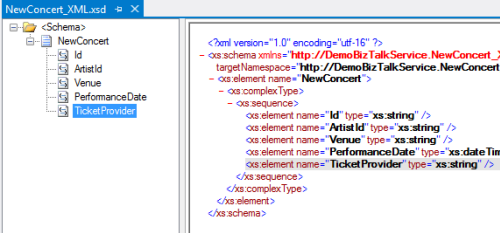
    The WABS Schema Editor looks identical to the BizTalk Server Schema Editor and lets you define XML or flat file message structures. While the right-click menu promises the ability to generate and validate file instances, my pre-preview version of the bits only let me validate messages, not generate sample ones.

    2013.06.03wabs03

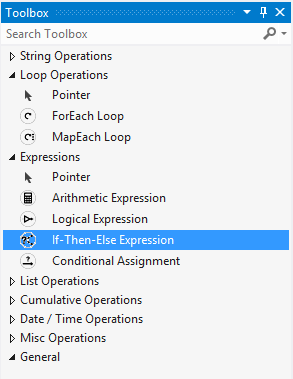
    The WABS schema mapper is very different from the BizTalk Mapper. And that’s a good thing. The UI has subtle alterations, but the more important change is in the palette of available “functoids” (components for manipulating data). First, you’ll see more sophisticated looping and logical expression handling. This include a ForEach Loop and finally, an If-Then-Else Expression option.

    2013.06.03wabs04

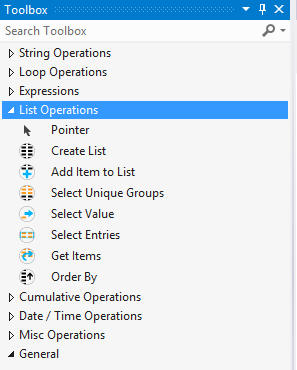
    The concept of “lists” are also entirely new. You can populate, persist, and query lists of data and create powerfully complex mappings between structures.

    2013.06.03wabs05

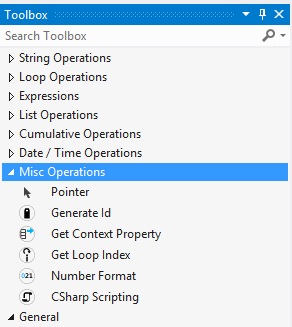
    Finally, there are some “miscellaneous” operations that introduce small – but helpful – capabilities. These functoids let you grab a property from the message’s context (metadata), generate a random ID, and even embed custom C# code into a map. I seem to recall that custom code was excluded from the EAI Bridges preview, and many folks expressed concern that this would limit the usefulness of these maps for tricky, real-world scenarios. Now, it looks like this is the most powerful data mapping tool that Microsoft has ever produced. I suspect that an entire book could be written about how to properly use this Mapper.

    2013.06.03wabs06

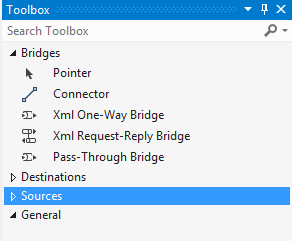
    Next up, let’s take a look at the bridge configuration and what source and destination endpoints are supported. The toolbox for the bridge configuration file shows three different types of bridges: XML One-Way Bridge, XML Request-Reply Bridge, and Pass-Through Bridge.

    2013.06.03wabs07

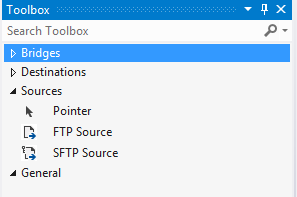
    You’d use each depending on whether you were doing synchronous or asynchronous XML messaging, or any flat file transmission. To get data into a bridge, today you can use HTTP, FTP, or SFTP. Notice that “HTTP” doesn’t show up in that list as each bridge automatically has a Windows Azure ACS-secured HTTP endpoint associated with it.

    2013.06.03wabs08

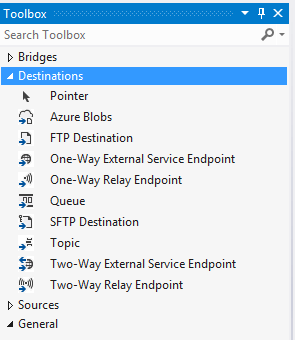
    While the currently available set of sources is a bit thin, the destination options are solid. You can consume web services, Service Bus Relay endpoints, Service Bus Queues / Topics, Windows Azure Blobs, FTP and SFTP endpoints.

    2013.06.03wabs09

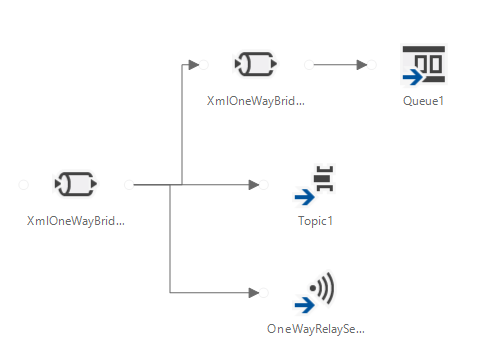
    A given bridge configuration file will often contain a mix of these endpoints. For instance, consider a case where you want to route a message to one of three different endpoints based on some value in the message itself. Also imagine wanting to do a special transformation heading to one endpoint, and not the others. In the configuration below, I’m chaining together XML bridges to route to the Service Bus Queue, and directly routing to either the Service Bus Topic or Relay Service based on the message content.

    2013.06.03wabs10

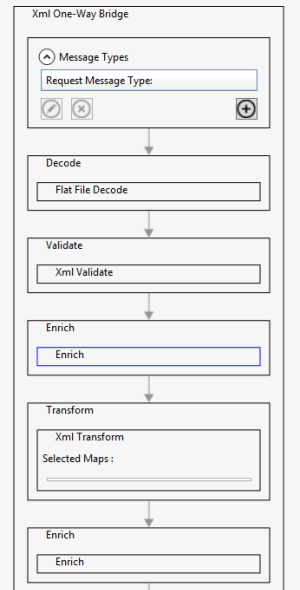
    An individual bridge has a number of stages that a message passes through. Double-clicking a bridge reveals steps for identifying, decoding, validating, enriching, encoding, and transforming messages.

    2013.06.03wabs11

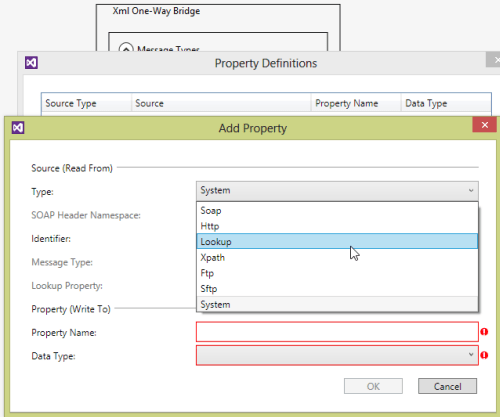
    An individual step exposes relevant configuration properties. For instance, the “Enrich” stage of a bridge lets you choose a way to populate data in the outbound message’s metadata (context) properties. Options include pulling values from the source message’s SOAP or HTTP headers, XPath against the source message body, lookup to a Windows Azure SQL database, and more.

    2013.06.03wabs12

    When a bridge configuration is completed and ready for deployment, simply right-click the Visual Studio project and choose Deploy and fill in valid credentials for the WABS preview.

    Wrap Up

    This is definitely preview software as there are a number of things we’ll likely see added before it’s ready for production use (e.g. enhanced management). However, it’s a good time to start poking around and getting a feel for when you might use this. On a broad scale, you COULD choose to use this instead of something like MuleSoft’s CloudHub to do pure cloud-to-cloud integration, but WABS is drastically less mature than what MuleSoft  has to offer. Moving forward, it’d be great to see a durable workflow component added, additional sources, and Microsoft really needs to start baking JSON support into more products from the get-go.

    What do you think? Plan on trying this out? Have ideas for where you could use it?

  • Going to Microsoft TechEd (North America) to Speak About Cloud Integration

    In a few weeks, I’ll be heading to New Orleans to speak at Microsoft TechEd for the first time. My topic – Patterns of Cloud Integration – is an extension of things I’ve talked about this year in Amsterdam, Gothenburg, and in my latest Pluralsight course. However, I’ll also be covering some entirely new ground and showcasing some brand new technologies.

    TechEd is a great conference with tons of interesting sessions, and I’m thrilled to be part of it. In my talk, I’ll spend 75 minutes discussing practical considerations for application, data, identity, and network integration with cloud systems. Expect lots of demonstrations of Microsoft (and non-Microsoft) technology that can help organizations cleanly link all IT assets, regardless of physical location. I’ll show off some of the best tools from Microsoft, Salesforce.com, AWS (assuming no one tackles me when I bring it up), Informatica, and more.

    Any of you plan on going to North America TechEd this year? If so, hope to see you there!

  • Creating a “Flat File” Shared Database with Amazon S3 and Node.js

    In my latest Pluralsight video training course – Patterns of Cloud Integration – I addressed application and data integration scenarios that involve cloud endpoints. In the “shared database” module of the course, I discussed integration options where parties relied on a common (cloud) data repository. One of my solutions was inspired by Amazon CTO Werner Vogels who briefly discussed this scenario during his keynote at last Fall’s AWS re:Invent conference. Vogels talked about the tight coupling that initially existed between Amazon.com and IMDB (the Internet Movie Database). Amazon.com pulls data from IMDB to supplement various pages, but they saw that they were forcing IMDB to scale whenever Amazon.com had a burst. Their solution was to decouple Amazon.com and IMDB by injecting a a shared database between them. What was that database? It was HTML snippets produced by IMDB and stored in the hyper-scalable Amazon S3 object storage. In this way, the source system (IMDB) could make scheduled or real-time updates to their HTML snippet library, and Amazon.com (and others) could pummel S3 as much as they wanted without impacting IMDB. You can also read a great Hacker News thread on this “flat file database” pattern as well. In this blog post, I’m going to show you how I created a flat file database in S3 and pulled the data into a Node.js application.

    Creating HTML Snippets

    This pattern relies on a process that takes data from a source, and converts it into ready to consume HTML. That source – whether a (relational) database or line of business system – may have data organized in a different way that what’s needed by the consumer. In this case, imagine combining data from multiple database tables into a single HTML representation. This particular demo addresses farm animals, so assume that I pulled data (pictures, record details) into one HTML file for each animal.

    2013.05.06-s301

    In my demo, I simply built these HTML files by hand, but in real-life, you’d use a scheduled service or trigger action to produce these HTML files. If the HTML files need to be closely in sync with the data source, then you’d probably look to establish an HTML build engine that ran whenever the source data changed. If you’re dealing with relatively static information, then a scheduled job is fine.

    Adding HTML Snippets to Amazon S3

    Amazon S3 has a useful portal and robust API. For my demonstration I loaded these snippets into a “bucket” via the AWS portal. In real life, you’d probably publish these objects to S3 via the API as the final stage of an HTML build pipeline.

    In this case, I created a bucket called “FarmSnippets” and uploaded four different HTML files.

    2013.05.06-s302

    My goal was to be able to list all the items in a bucket and see meaningful descriptions of each animal (and not the meaningless name of an HTML file). So, I renamed each object to something that described the animal. The S3 API (exposed through the Node.js module) doesn’t give you access to much metadata, so this was one way to share information about what was in each file.

    2013.05.06-s303

    At this point, I had a set of HTML files in an Amazon S3 bucket that other applications could access.

    Reading those HTML Snippets from a Node.js Application

    Next, I created a Node.js application that consumed the new AWS SDK for Node.js. Note that AWS also ships SDKs for Ruby, Python, .NET, Java and more, so this demo can work for most any development stack. In this case, I used JetBrains WebStorm and the Express framework  and Jade template engine to quickly crank out an application that listed everything in my S3 bucket showed individual items.

    In the Node.js router (controller) handling the default page of the web site, I loaded up the AWS SDK and issued a simple listObjects command.

    //reference the AWS SDK
    var aws = require('aws-sdk');
    
    exports.index = function(req, res){
    
        //load AWS credentials
        aws.config.loadFromPath('./credentials.json');
        //instantiate S3 manager
        var svc = new aws.S3;
    
        //set bucket query parameter
        var params = {
          Bucket: "FarmSnippets"
        };
    
        //list all the objects in a bucket
        svc.client.listObjects(params, function(err, data){
            if(err){
                console.log(err);
            } else {
                console.log(data);
                //yank out the contents
                var results = data.Contents;
                //send parameters to the page for rendering
                res.render('index', { title: 'Product List', objs: results });
            }
        });
    };
    

    Next, I built out the Jade template page that renders these results. Here I looped through each object in the collection and used the “Key” value to create a hyperlink and show the HTML file’s name.

    block content
        div.content
          h1 Seroter Farms - Animal Marketplace
          h2= title
          p Browse for animals that you'd like to purchase from our farm.
          b Cows
          p
              table.producttable
                tr
                    td.header Animal Details
                each obj in objs
                    tr
                        td.cell
                            a(href='/animal/#{obj.Key}') #{obj.Key}
    

    When the user clicks the hyperlink on this page, it should take them to a “details” page. The route (controller) for this page takes the object ID from the querystring and retrieves the individual HTML snippet from S3. It then reads the content of the HTML file and makes it available for the rendered page.

    //reference the AWS SDK
    var aws = require('aws-sdk');
    
    exports.list = function(req, res){
    
        //get the animal ID from the querystring
        var animalid = req.params.id;
    
        //load up AWS credentials
        aws.config.loadFromPath('./credentials.json');
        //instantiate S3 manager
        var svc = new aws.S3;
    
        //get object parameters
        var params = {
            Bucket: "FarmSnippets",
            Key: animalid
        };
    
        //get an individual object and return the string of HTML within it
        svc.client.getObject(params, function(err, data){
            if(err){
                console.log(err);
            } else {
                console.log(data.Body.toString());
                var snippet = data.Body.toString();
                res.render('animal', { title: 'Animal Details', details: snippet });
            }
        });
    };
    

    Finally, I built the Jade template that shows our selected animal. In this case, I used a Jade technique to unescaped HTML so that the tags in the HTML file (held in the “details” variable) were actually interpreted.

    block content
        div.content
            h1 Seroter Farms - Animal Marketplace
            h2= title
            p Good choice! Here are the details for the selected animal.
            | !{details}
    

    That’s all there was! Let’s test it out.

    Testing the Solution

    After starting up my Node.js project, I visited the URL.

    2013.05.06-s304

    You can see that it lists each object in the S3 bucket and shows the (friendly) name of the object. Clicking the hyperlink for a given object sends me to the details page which renders the HTML within the S3 object.

    2013.05.06-s305

    Sure enough, it rendered the exact HTML that was included in the snippet. If my source system changes and updates S3 with new or changed HTML snippets, the consuming application(s) will instantly see it. This “database” can easily be consumed by Node.js applications or any application that can talk to the Amazon S3 web API.

    Summary

    While it definitely makes sense in some cases to provide shared access to the source repository, the pattern shown here is a nice fit for loosely coupled scenarios where we don’t want – or need – consuming systems to bang on our source data systems.

    What do you think? Have you used this sort of pattern before? Do you have cases where providing pre-formatted content might be better than asking consumers to query and merge the data themselves?

    Want to see more about this pattern and others? Check out my Pluralsight course called Patterns of Cloud Integration.

  • Calling Salesforce.com REST and SOAP Endpoints from .NET Code

    A couple months back, the folks at Salesforce.com reached out to me and asked if I’d be interested in helping them beef up their .NET-oriented content. Given that I barely say “no” to anything – and this sounded fun – I took them up on the offer. I ended up contributing three articles that covered: consuming Force.com web services, using Force.com with the Windows Azure Service Bus, and using Force.com with BizTalk Server 2013.  The first article is now on the DeveloperForce wiki and is entitled Consuming Force.com SOAP and REST Web Services from .NET Applications.

    This article covers how to securely use the Enterprise API (strongly-typed, SOAP), Partner API (weakly-typed, SOAP), and REST API. It covers how to authenticate users of each API, and how to issue “query” and “create” commands against each. While I embedded a fair amount of code in the article, it’s always nice to see everything together in context. So, I’ve added my Visual Studio solution to GitHub so that anyone can browse and download the entire solution and quickly try out each scenario.

    Feedback welcome!

  • Using Active Directory Federation Services to Authenticate / Authorize Node.js Apps in Windows Azure

    It’s gotten easy to publish web applications to the cloud, but the last thing you want to do is establish unique authentication schemes for each one. At some point, your users will be stuck with a mountain of passwords, or, end up reusing passwords everywhere. Not good. Instead, what about extending your existing corporate identity directory to the cloud for all applications to use? Fortunately, Microsoft Active Directory can be extended to support authentication/authorization for web applications deployed in ANY cloud platform. In this post, I’ll show you how to configure Active Directory Federation Services (ADFS) to authenticate the users of a Node.js application hosted in Windows Azure Web Sites and deployed via Dropbox.
    [Note: I was going to also show how to do this with an ASP.NET application since the new “Identity and Access” tools in Visual Studio 2012 make it really easy to use AD FS to authenticate users. However because of the passive authentication scheme Windows Identity Foundation uses in this scenario, the ASP.NET application has to be secured by SSL/TLS. Windows Azure Web Sites doesn’t support HTTPS (yet), and getting HTTPS working in Windows Azure Cloud Services isn’t trivial. So, we’ll save that walkthrough for another day.]

    2013.04.17adfs03

    Configuring Active Directory Federation Services for our application

    First off, I created a server that had DNS services and Active Directory installed. This server sits in the Tier 3 cloud and I used our orchestration engine to quickly build up a box with all the required services. Check out this KB article I wrote for Tier 3 on setting up an Active Directory and AD FS server from scratch.

    2013.04.17adfs01

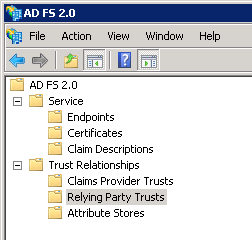
    AD FS is a service that supports identity federation and supports industry standards like SAML for authenticating users. It returns claims about the authenticated user. In AD FS, you’ve got endpoints that define which inbound authentication schemes are supported (like WS-Trust or SAML),  certificates for signing tokens and securing transmissions, and relying parties which represent the endpoints that AD FS has a trust relationship with.

    2013.04.17adfs02

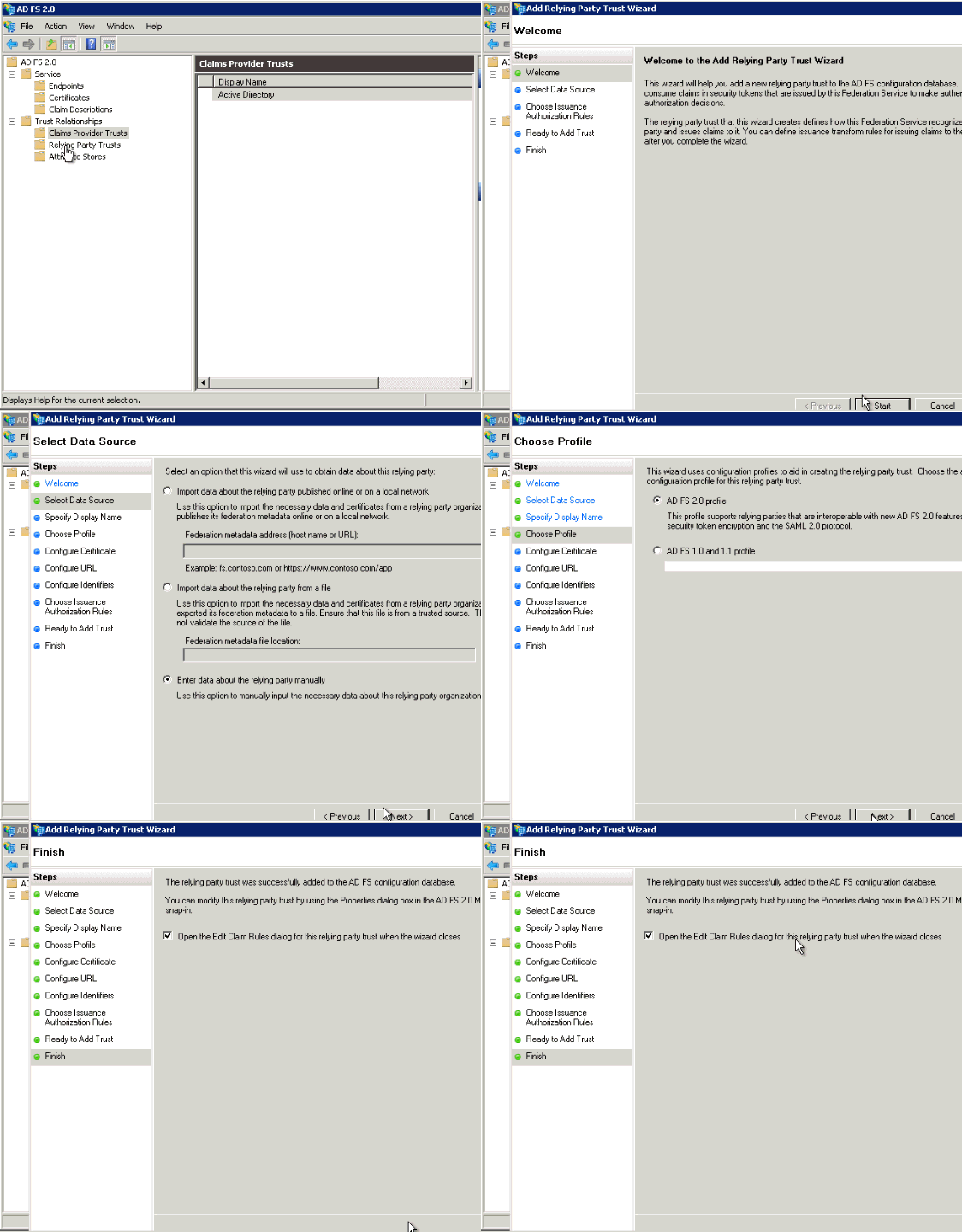
    In our case, I needed to enabled an active endpoint for my Node.js application to authenticate against, and one new relying party. First, I created a new relying party that referenced the yet-to-be-created URL of my Azure-hosted web site. In the animation below, see the simple steps I followed to create it. Note that because I’m doing active (vs. passive) authentication, there’s no endpoint to redirect to, and very few overall required settings.

    2013.04.17adfs04

    With the relying party finished, I could now add the claim rules. These tell AD FS what claims about the authenticated user to send back to the caller.

    2013.04.17adfs05

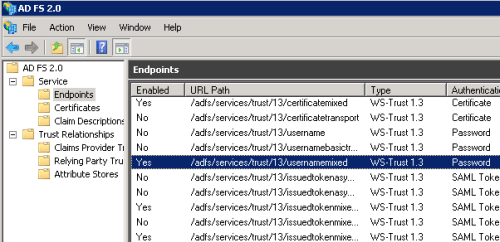
    At this point, AD FS was fully configured and able to authenticate my remote application. The final thing to do was enable the appropriate authentication endpoint. By default, the password-based WS-Trust endpoint is disabled, so I flipped it on so that I could pass username+password credentials to AD FS and authenticate a user.

    2013.04.17adfs06

    Connecting a Node.js application to AD FS

    Next, I used the JetBrains WebStorm IDE to build a Node.js application based on the Express framework. This simple application takes in a set of user credentials, and attempts to authenticate those credentials against AD FS. If successful, the application displays all the Active Directory Groups that the user belongs to. This information could be used to provide a unique application experience based on the role of the user. The initial page of the web application takes in the user’s credentials.

    div.content
            h1= title
            form(action='/profile', method='POST')
                  table
                      tr
                        td
                            label(for='user') User
                        td
                            input(id='user', type='text', name='user')
                      tr
                        td
                            label(for='password') Password
                        td
                            input(id='password', type='password', name='password')
                      tr
                        td(colspan=2)
                            input(type='submit', value='Log In')
    

    This page posts to a Node.js route (controller) that is responsible passing those credentials to AD FS. How do we talk to AD FS through the WS-Trust format? Fortunately, Leandro Boffi wrote up a simple Node.js module that does just that. I grabbed the wstrust-client module and added it to my Node.js project. The WS-Trust authentication response comes back as XML, so I also added a Node.js module to convert XML to JSON for easier parsing. My route code looked like this:
    //for XML parsing
    var xml2js = require('xml2js');
    var https = require('https');
    //to process WS-Trust requests
    var trustClient = require('wstrust-client');
    
    exports.details = function(req, res){
    
        var userName = req.body.user;
        var userPassword = req.body.password;
    
        //call endpoint, and pass in values
        trustClient.requestSecurityToken({
            scope: 'http://seroternodeadfs.azurewebsites.net',
            username: userName,
            password: userPassword,
            endpoint: 'https://[AD FS server IP address]/adfs/services/trust/13/UsernameMixed'
        }, function (rstr) {
    
            // Access the token
            var rawToken = rstr.token;
            console.log('raw: ' + rawToken);
    
            //convert to json
            var parser = new xml2js.Parser;
            parser.parseString(rawToken, function(err, result){
                //grab "user" object
                var user = result.Assertion.AttributeStatement[0].Attribute[0].AttributeValue[0];
                //get all "roles"
                var roles = result.Assertion.AttributeStatement[0].Attribute[1].AttributeValue;
                console.log(user);
                console.log(roles);
    
                //render the page and pass in the user and roles values
                res.render('profile', {title: 'User Profile', username: user, userroles: roles});
            });
        }, function (error) {
    
            // Error Callback
            console.log(error)
        });
    };
    

    See that I’m providing a “scope” (which maps to the relying party identifier), an endpoint (which is the public location of my AD FS server), and the user-provided credentials to the WS-Trust module. I then parse the results to grab the friendly name and roles of the authenticated user. Finally, the “profile” page takes the values that it’s given and renders the information.

    div.content
            h1 #{title} for #{username}
            br
            div
                div.roleheading User Roles
                ul
                    each userrole in userroles
                        li= userrole
    

    My application was complete and ready for deployment to Windows Azure.

    Publishing the Node.js application to Windows Azure

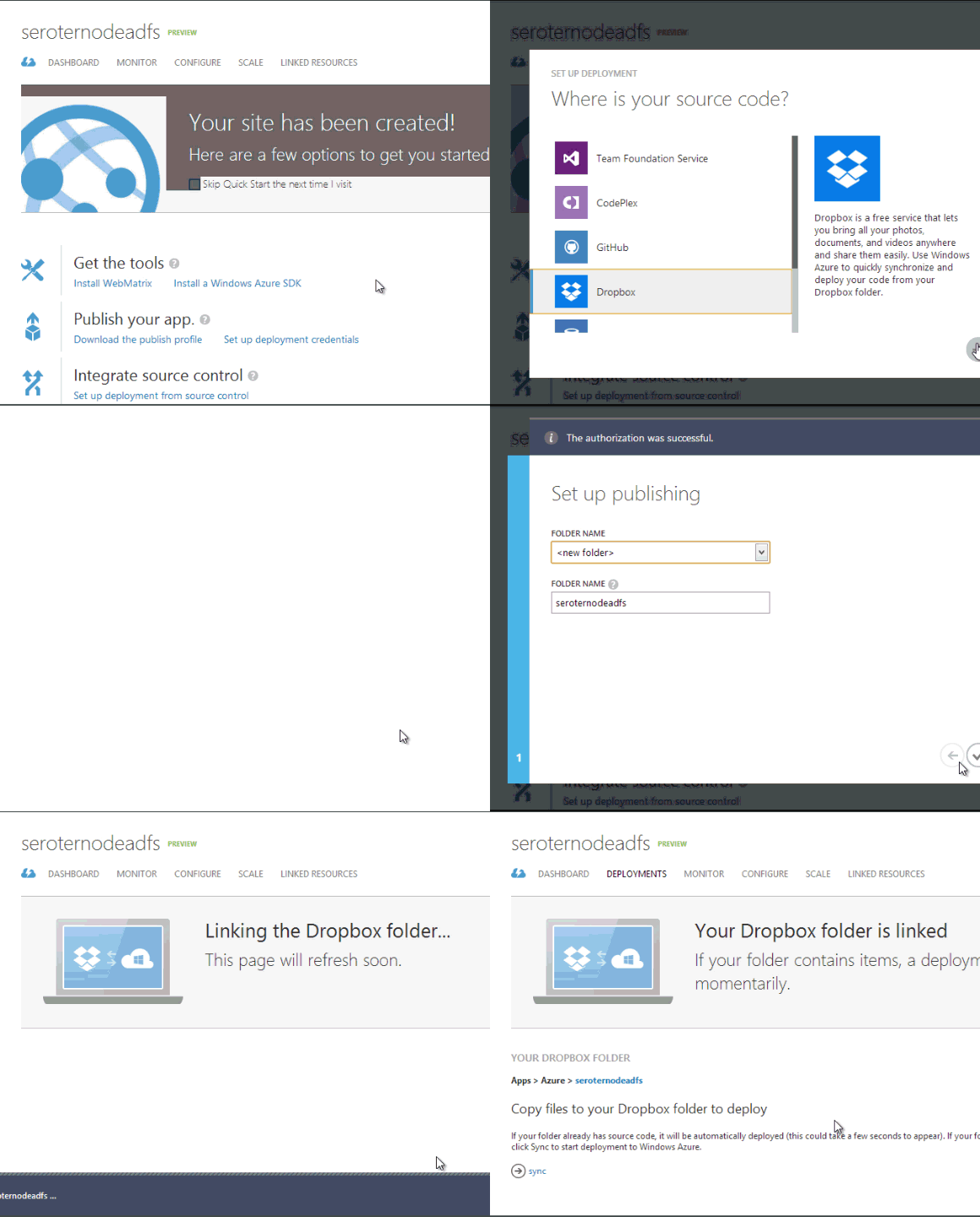
    Windows Azure Web Sites offer a really nice and easy way to host applications written in a variety of languages. It also supports a variety of ways to push code, including Git, GitHub, Team Foundation Service, Codeplex, and Dropbox. For simplicity sake (and because I hadn’t tried it yet), I chose to deploy via Dropbox.

    However, first I had to create my Windows Azure Web Site. I made sure to use the same name that I had specified in my AD FS relying party.

    2013.04.17adfs07

    Once the Web Site is set up (which takes only a few seconds), I could connect it to a source control repository.

    2013.04.17adfs08

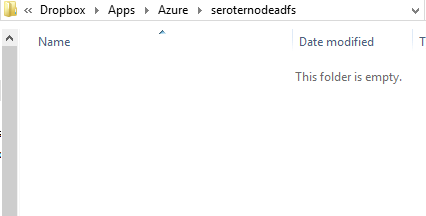
    After a couple moments, a new folder hierarchy appeared in my Dropbox.

    2013.04.17adfs09

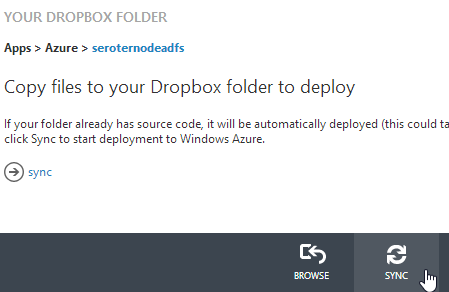
    I copied all the Node.js application source files into this folder. I then returned to the Windows Azure Management Portal and chose to Sync my Dropbox folder with my Windows Azure Web Site.

    2013.04.17adfs10

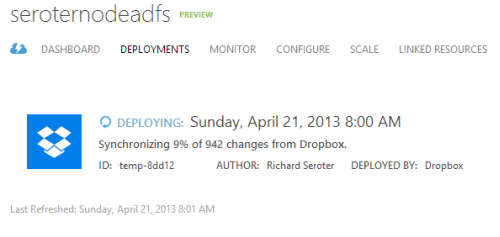
    Right away it starts synchronizing the application files. Windows Azure does a nice job of tracking my deployments and showing the progress.

    2013.04.17adfs11

    In about a minute, my application was uploaded and ready to test.

    Testing the application

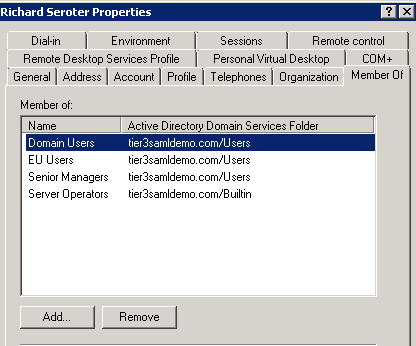
    The whole point of this application is to authenticate a user and return their Active Directory role collection. I created a “Richard Seroter” user in my Active Directory and put that user in a few different Active Directory Groups.

    2013.04.17adfs12

    I then browsed to my Windows Azure Website URL and was presented with my Node.js application interface.

    2013.04.17adfs13

    I plugged in my credentials and was immediately presented with the list of corresponding Active Directory user group membership information.

    2013.04.17adfs14

    Summary

    That was fun. AD FS is a fantastic way to extend your on-premises directory to applications hosted outside of your corporate network. In this case, we saw how to create  Node.js application that authenticated users against AD FS. While I deployed this sample application to Windows Azure Web Sites, I could have deployed this to ANY cloud that supports Node.js. Imagine having applications written in virtually any language, and hosted in any cloud, all using a single authentication endpoint. Powerful stuff!

  • My New Pluralsight Course – Patterns of Cloud Integration – Is Now Live

    I’ve been hard at work on a new Pluralsight video course and it’s now live and available for viewing. This course, Patterns of Cloud Integration,  takes you through how application and data integration differ when adding cloud endpoints. The course highlights the 4 integration styles/patterns introduced in the excellent Enterprise Integration Patterns book and discusses the considerations, benefits, and challenges of using them with cloud systems. There are five core modules in the course:

    • Integration in the Cloud. An overview of the new challenges of integrating with cloud systems as well as a summary of each of the four integration patterns that are covered in the rest of the course.
    • Remote Procedure Call. Sometimes you need information or business logic stored in an independent system and RPC is still a valid way to get it. Doing this with a cloud system on one (or both!) ends can be a challenge and we cover the technologies and gotchas here.
    • Asynchronous Messaging. Messaging is a fantastic way to do loosely coupled system architecture, but there are still a number of things to consider when doing this with the cloud.
    • Shared Database. If every system has to be consistent at the same time, then using a shared database is the way to go. This can be a challenge at cloud scale, and we review some options.
    • File Transfer. Good old-fashioned file transfers still make sense in many cases. Here I show a new crop of tools that make ETL easy to use!

    Because “the cloud” consists of so many unique and interesting technologies, I was determined to not just focus on the products and services from any one vendor. So, I decided to show off a ton of different technologies including:

    Whew! This represents years of work as I’ve written about or spoken on this topic for a while. It was fun to collect all sorts of tidbits, talk to colleagues, and experiment with technologies in order to create a formal course on the topic. There’s a ton more to talk about besides just what’s in this 4 hour course, but I hope that it sparks discussion and helps us continue to get better at linking systems, regardless of their physical location.

  • Publishing ASP.NET Web Sites to “Windows Azure Web Sites” Service

    Today, Microsoft made a number of nice updates to their Visual Studio tools and templates. On thing pointed out in Scott Hanselman’s blog post about it (and Scott Guthrie’s post as well), was the update that lets developers publish ASP.NET Web Site projects to WIndows Azure Web Sites. Given that I haven’t messed around with Windows Azure Web Sites, I figured that it’d be fun to try this out.

    After installing the new tooling and opening Visual Studio 2012, I created a new Web Site project.

    2013.02.18,websites01

    I then right-clicked my new project in Visual Studio and chose the “Publish Web Site” option.

    2013.02.18,websites02

    If you haven’t published to Windows Azure before, you’re told that you can do so if you download the necessary “publishing profile.”

    2013.02.18,websites03

    When I clicked the “Download your publishing profile …” link, I was redirected to the Windows Azure Management Portal where I could see that there were no existing Web Sites provisioned yet.

    2013.02.18,websites04

    I quickly walked through the easy-to-use wizard to provision a new Web Site container.

    2013.02.18,websites05

    Within moments, I had a new Web Site ready to go.

    2013.02.18,websites06

    After drilling into this new Web Site’s dashboard, I saw the link to download my publishing profile.

    2013.02.18,websites07

    I downloaded the profile, and returned to Visual Studio. After importing this publishing profile into the “Publish Web” wizard, I was able to continue towards publishing this site to Windows Azure.

    2013.02.18,websites08

    The last page of this wizard (“Preview”) let me see all the files that I was about to upload and choose which ones to include in the deployment.

    2013.02.18,websites09

    Publishing only took a few seconds, and shortly afterwards I was able to hit my cloud web site.

    2013.02.18,websites10

    As you’d hope, this flow also works fine for updating an existing deployment. I made a small change to the web site’s master page, and once again walked through the “Publish Web Site” wizard. This time I was immediately taken to the (final) “Preview” wizard page where it determined the changes between my local web site and the Azure Web Site.

    2013.02.18,websites11

    After a few seconds, I saw my updated Web Site with the new company name.

    2013.02.18,websites12

    Overall, very nice experience. I’m definitely more inclined to use Windows Azure Web Sites now given how simple, fast, and straightforward it is.

  • Interacting with Clouds From Visual Studio: Part 2 – Amazon Web Services

    In this series of blog posts, I’m looking at how well some leading cloud providers have embedded their management tools within the Microsoft Visual Studio IDE. In the first post of the series, I walked through the Windows Azure management capabilities in Visual Studio 2012.  This evaluation looks at the completeness of coverage for browsing, deploying, updating, and testing cloud services. In this post, I’ll assess the features of the Amazon Web Services (AWS) cloud plugin for Visual Studio.

    This table summarizes my overall assessment, and keep reading for my in-depth review.

    Category

    AWS

    Notes

    Browsing

    Web applications and files 3-4 You can browse a host of properties about your web applications, but cannot see the actual website files themselves.
    Databases

    4-4

    Excellent coverage of each AWS database; you can see properties and data for SimpleDB, DynamoDB, and RDS.
    Storage

    4-4

    Full view into the settings and content in S3 object storage.
    VM instances

    4-4

    Deep view into VM templates,  instances, policies.
    Messaging components

    4-4

    View all the queues, subscriptions and topics, as well as the properties for each.
    User accounts, permissions

    4-4

    Look through a complete set of IAM objects and settings.

    Deploying / Editing

    Web applications and files

    2-4

    Create CloudFormation stacks directly from the plugin. Elastic Beanstalk is triggered from the Solution Explorer for a given project.
    Databases

    4-4

    Easy to create databases, as well as change and delete them.
    Storage

    4-4

    Create and edit buckets, and even upload content to them.
    VM instances

    4-4

    Deploy new virtual machines, delete existing one with ease.
    Messaging components

    4-4

    Create SQS queues as well as SNS Topics and Subscriptions. Make changes as well.
    User accounts, permissions

    4-4

    Add or remove groups and users, and define both user and group-level permission policies.

    Testing

    Databases

    3-4

    Great query capability built in for SimpleDB and DynamoDB. Leverages Server Explorer for RDS.
    Messaging components

    2-4

    Send messages to queues, and send messages to topics. Cannot delete queue messages, or tap into subscriptions.

    Setting up the Visual Studio Plugin for AWS

    Getting a full AWS experience from Visual Studio is easy. Amazon has bundled a few of the components together, so if you go install the AWS Toolkit for Visual Studio, you also get the AWS SDK for .NET included. The Toolkit works for Visual Studio 2010 and Visual Studio 2012 users. In the screenshot below, notice that you also get access to a set of PowerShell commands for AWS.

    2013.01.15vs01

    Once the Toolkit is installed, you can view the full-featured plugin in Visual Studio and get deep access to just about every single service that AWS has to offer. There’s no mention of the Simple Workflow Service (SWF) and a couple others, but most any service that makes sense to expose to developers is here in the plugin.

    2013.01.15vs02

    To add your account details, simply click the “add” icon next to the “Account” drop down and plug in your credentials. Unlike the cloud plugin for Windows Azure which requires unique credentials for each major service, the AWS cloud uses a single set of credentials for all cloud services. This makes the plugin that much easier to use.

    2013.01.15vs03

    Browsing Cloud Resources

    First up, let’s see how easy it is to browse through the various cloud resources that are sitting in the AWS cloud. It’s important to note that your browsing is specific to the chosen data center. If you have US-East chosen as the active data center, then don’t expect to see servers or databases deployed to other data centers.

    2013.01.15vs04

    That’s not a huge deal, but something to keep in mind if you’re temporarily panicking about a “missing” server!

    Virtual Machines

    AWS is best known for its popular EC2 service where anyone can provision virtual machines in the cloud. From the Visual Studio, plugin, you can browse server templates called Amazon Machine Images (AMIs), server instances, security keys, firewall rules (called Security Groups), and persistent storage (called Volumes).

    2013.01.15vs05

    Unlike the Windows Azure plugin for Visual Studio that populates the plugin tree view with the records themselves, the AWS plugin assumes that you have a LOT of things deployed and opens a separate window for the actual user records. For instance, double-clicking the AMIs menu item launches a window that lets you browse the massive collection of server templates deployed by AWS or others.

    2013.01.15vs06

    The Instances node reveals all of the servers you have deployed within this data center. Notice that this view also pulls in any persistent disks that are used. Nice touch.

    2013.01.15vs07

    In addition to a dense set of properties that you can view about your server, you can also browse the VM itself by triggering a Remote Desktop connection!

    2013.01.15vs08

    Finally, you can also browse Security Groups and see which firewall ports are opened for a particular Group.

    2013.01.15vs09

    Overall, this plugin does an exceptional job showing the properties and settings for virtual machines in the AWS cloud.

    Databases

    AWS offers multiple database options. You’ve got SimpleDB which is a basic NoSQL database, DynamoDB for high performing NoSQL data, and RDS for managed relational databases. The AWS plugin for Visual Studio lets you browse each one of these.

    For SimpleDB, the Visual Studio plugin shows all of the domain records in the tree itself.

    2013.01.15vs10

    Right-clicking a given domain and choosing Properties pulls up the number of records in the domain, and how many unique attributes (columns) there are.

    2013.01.15vs11

    Double-clicking on the domain name shows you the items (records) it contains.

    2013.01.15vs12

    Pretty good browsing story for SimpleDB, and about what you’d expect from a beta product that isn’t highly publicized by AWS themselves.

    Amazon RDS is a very cool managed database, not entirely unlike Microsoft Azure for SQL Databases. In this case, RDS lets you deploy managed MySQL, Oracle, and Microsoft SQL Server databases. From the Visual Studio plugin, you can browse all your managed instances and see the database security groups (firewall policies) set up.

    2013.01.15vs13

    Much like EC2, Amazon RDS has some great property information available from within Visual Studio. While the Properties window is expectedly rich, you can also right-click the database instance and Add to Server Explorer (so that you can browse the database like any other SQL Server database). This is how you would actually see the data within a given RDS instance. Very thoughtful feature.

    2013.01.15vs17

    Amazon DynamoDB is great for high-performing applications, and the Visual Studio plugin for AWS lets you easily browse your tables.

    2013.01.15vs14

    If you right-click a given table, you can see various statistics pertaining to the hash key (critical for fast lookups) and the throughput that you’ve provisioned.

    2013.01.15vs15

    Finally, double-clicking a given table results in a view of all your records.

    2013.01.15vs16

    Good overall coverage of AWS databases from this plugin.

    Storage

    For storage, Amazon S3 is arguable the gold standard in the public cloud. With amazing redundancy, S3 offers a safe, easy way to storage binary content offsite. From the Visual Studio plugin, I can easily browse my list of S3 buckets.

    2013.01.15vs18

    Bucket properties are extensive, and the plugin does a great job surfacing them. Right-clicking on a particular bucket and viewing Properties turns up a set of categories that describe bucket permissions, logging behavior, website settings (if you want to run an entire static website out of S3), access policies, and content expiration policies.

    2013.01.15vs19

    As you might expect, you can also browse the contents of the bucket itself. Here I  can see not only my bucket item, but all the properties of it.

    2013.01.15vs20

    This plugin does a very nice job browsing the details and content of AWS S3 buckets.

    Messaging

    AWS offers a pair of messaging technologies for developers building solutions that share data across system boundaries. First, Amazon SNS is a service for push-based routing to one or more “subscribers” to a “topic.” Amazon SQS provides a durable queue for messages between systems. Both services are browsable from the AWS plugin for Visual Studio.

    2013.01.15vs21

    For a given SNS topic, you can view all of the subscriptions and their properties.

    2013.01.15vs22

    For SQS queues, you can not only see the queue properties, but also a sampling of messages currently in the queue.

    2013.01.15vs23

    Messaging isn’t the sexiest part of a solution, but it’s nice to see that AWS developers get a great view into the queues and topics that make up their systems.

    Web Applications

    When most people think of AWS, I bet they think of compute and storage. While the term “platform as a service” means less and less every day, AWS has gone out and built a pretty damn nice platform for hosting web applications. .NET developers have two choices: CloudFormation and Elastic Beanstalk. Both of these are now nicely supported in the Visual Studio plugin for AWS. CloudFormation lets you build up sets of AWS services into a template that can be deployed over and over again. From the Visual Studio plugin, you can see all of the web application stacks that you’ve deployed via CloudFormation.

    2013.01.15vs24

    Double-clicking on a particular entry pulls up all the settings, resources used, custom metadata attributes, event log, and much more.

    2013.01.15vs25

    The Elastic Beanstalk is an even higher abstraction that makes it easy to deploy, scale, and load balance your web application. The Visual Studio plugin for AWS shows you all of your Elastic Beanstalk environments and applications.

    2013.01.15vs26

    The plugin shows you a ridiculous amount of details for a given application.

    2013.01.15vs27

    For developers looking at viable hosting destinations for their web applications, AWS offers a pair of very nice choices. The Visual Studio plugin also gives a first-class view into these web application environments.

    Identity Management

    Finally, let’s look at how the plugin supports Identity Management. AWS has their own solution for this called Identity and Access Management (IAM). Developers use IAM to secure resources, and even access to the AWS Management Console itself. From within Visual Studio, developers can create users and groups and view permission policies.

    2013.01.15vs28

    For a group, you can easily see the policies that control what resources and fine-grained actions users of that group have access to.

    2013.01.15vs29

    Likewise, for a given user, you can see what groups they are in, and what user-specific policies have been applied to them.

    2013.01.15vs30

    The browsing story for IAM is very complete and make it easy to include identity management considerations in cloud application design and development.

    Deploying and Updating Cloud Resources

    At this point, I’ve probably established that the AWS plugin for Visual Studio provides an extremely comprehensive browsing experience for the AWS cloud. Let’s look at a few changes you can make to cloud resources from within the confines of Visual Studio.

    Virtual Machines

    For EC2 virtual machines, you can pretty much do anything from Visual Studio that you could do from the AWS Management Console. This includes launching instances of servers, changing running instance metadata, terminating existing instances, adding/detaching storage volumes, and much more.

    2013.01.15vs31

    Heck, you can even modify firewall policies (security groups) used by EC2 servers.

    2013.01.15vs32

    Great story for actually interacting with EC2 instead of just working with a static view.

    Databases

    The database story is equally great.  Whether it’s SimpleDB, DynamoDB, or RDS, you can easily create databases, add rows of data, and change database properties. For instance, when you choose to create a new managed database in RDS, you get a great wizard that steps you through the critical input needed.

    2013.01.15vs33

    You can even modify a running RDS instance and change everything from the server size to the database platform version.

    2013.01.15vs35

    Want to increase the throughput for a DynamoDB table? Just view the Properties and dial up the capacity values.

    2013.01.15vs34

    The database management options in the AWS plugin for Visual Studio are comprehensive and give developers incredible  power to provision and maintain cloud-scale databases from within the comfort of their IDE.

    Storage

    The Amazon S3 functionality in the Visual Studio plugin is great. Developers can use the plugin to create buckets, add content to buckets, delete content, set server-side encryption, create permission policies, set expiration policies, and much more.

    2013.01.15vs36

    It’s very useful to be able to fully interact with your object storage service while building cloud apps.

    Messaging

    Developers building applications that use messaging components have lots of power when using the AWS plugin for Visual Studio. From within the IDE,  you can create SQS queues, add/edit/delete queue access policies, change timeout values, alter retention periods, and more.

    2013.01.15vs37

    Similarly for SNS users, the plugin supports creating Topics, adding and removing Subscriptions, and adding/editing/deleting Topic access policies.

    2013.01.15vs38

    Once again, most anything you can do from the AWS Management Console with messaging components, you can do in Visual Studio as well.

    Web Applications

    While the Visual Studio plugin doesn’t support creating new Elastic Beanstalk packages (although you can trigger the “create” wizard by right-clicking a project in the Visual Studio Solution Explorer), you still have a few changes that you can make to running applications. Developers can restart applications, rebuild environments, change EC2 security groups, modify load balancer settings, and set a whole host of parameter values for dependent services.

    2013.01.15vs39

    CloudFormation users can delete deployed stacks, or create entirely new ones. Use an AWS-provided CloudFormation template, or reference your own when walking through the “new stack” wizard.

    2013.01.15vs40

    I can imagine that it’s pretty useful to be able to deploy, modify, and tear down these cloud-scale apps all from within Visual Studio.

    Identity Management

    Finally, the IAM components of the Visual Studio plugin have a high degree of interactivity as well. You can create groups, define or change group policies, create/edit/delete users, add users to groups, create/delete user-specific access keys, and more.

    2013.01.15vs41

    Testing Cloud Resources

    Here, we’ll look at a pair of areas where being able to test directly from Visual Studio is handy.

    Databases

    All the AWS databases can be queried directly from Visual Studio. SimpleDB users can issue simple query statements against the items in a domain.

    2013.01.15vs42

    For RDS, you cannot query directly from the AWS plugin, but when you choose the option to Add to Server Explorer, the plugin adds the database to the Visual Studio Server Explorer where you can dig deeper into the SQL Server instance. Finally, you can quickly scan through DynamoDB tables and match against any column that was added to the table.

    2013.01.15vs43

    Overall, developers who want to integrate with AWS databases from their Visual Studio projects have an easy way to test their database queries.

    Messaging

    Testing messaging solutions can be a cumbersome activity. You often have to create an application to act as a publisher, and then create another to act as the subscriber. The AWS plugin for Visual Studio does a pretty nice job simplifying this process. For SQS, it’s easy to create a sample message (containing whatever text you want) and send it to a queue.

    2013.01.15vs44

    Then, you can poll that queue from Visual Studio and see the message show up! You can’t delete messages from the queue, although you CAN do that from the AWS Management Console website.

    2013.01.15vs45

    As for SNS, the plugin makes it very easy to publish a new message to any Topic.

    2013.01.15vs46

    This will send a message to any Subscriber attached to the Topic. However, there’s no simulator here, so you’d actually have to set up a legitimate Subscriber and then go check that Subscriber for the test message you sent to the Topic. Not a huge deal, but something to be aware of.

    Summary

    Boy, that was a long post. However, I thought it would be helpful to get a deep dive into how AWS surfaces its services to Visual Studio developers. Needless to say, they do a spectacular job. Not only do they provide deep coverage for nearly every AWS service, but they also included countless little touches (e.g. clickable hyperlinks, right-click menus everywhere) that make this plugin a joy to use. If you’re a .NET developer who is looking for a first-class experience for building, deploying, and testing cloud-scale applications, you could do a lot worse than AWS.

  • January 2013 Trip to Europe to Speak on (Cloud) Integration, Identity Management

    In a couple weeks, I’m off to Amsterdam and Gothenburg to speak at a pair of events. First, on January 22nd I’ll be in Amsterdam at an event hosted by middleware service provider ESTREME. There will be a handful of speakers, and I’ll be presenting on the Patterns of Cloud Integration. It should be a fun chat about the challenges and techniques for applying application integration patterns in cloud settings.

    Next up, I’m heading to Gothenburg (Sweden) to speak at the annual Integration Days event hosted by Enfo Zystems. This two day event is held January 24th and 25th and features multiple tracks and a couple dozen sessions. My session on the 24th, called Cross Platform Security Done Right, focuses on identity management in distributed scenarios. I’ve got 7 demos lined up that take advantage of Windows Azure ACS, Active Directory Federation Services, Node.js, Salesforce.com and more. My session on the 25th, called Embracing the Emerging Integration Endpoints, looks at how existing integration tools can connect to up-and-coming technologies. Here I have another 7 demos that show off the ASP.NET Web API, SignalR, StreamInsight, Node.js, Amazon Web Services, Windows Azure Service Bus, Salesforce.com and the Informatica Cloud. Mikael Hakansson will be taking bets as to whether I’ll make it through all the demos in the allotted time.

    It should be a fun trip, and thanks to Steef-Jan Wiggers and Mikael for organizing my agenda. I hope to see some of you all in the audience!