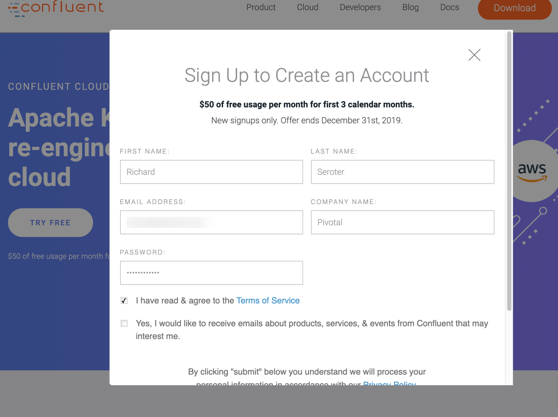
First, I went to the Confluent Cloud site and clicked the “try free” button. I was prompted to create an account.
I was asked for credit card info to account for overages above the free tier (and after the free credits expire in 3 months), which I provided. With that, I was in.
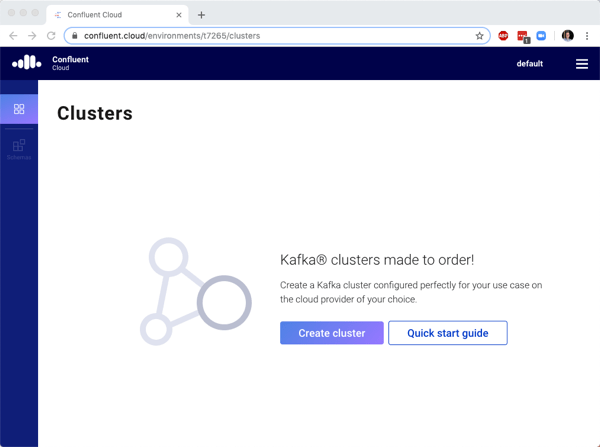
First, I was prompted to create a cluster. I do what I’m told.
Here, I was asked to provide a cluster name, and choose a public cloud provider. For each cloud, I was shown a set of available regions. Helpfully, the right side also showed me the prices, limits, billing cycle, and SLA. Transparency, FTW!
While that was spinning up, I followed the instructions to install the Confluent Cloud CLI so that I could also geek-out at the command line. I like the the example CLI commands in the docs actually reflect the values of my environment (e.g. cluster name). Nice touch.
Within maybe a minute, my Kafka cluster was running. That’s pretty awesome. I chose to create a new topic with 6 partitions. I’m able to choose up to 60 partitions for a topic, and define other settings like data retention period, max size on disk, and cleanup policy.
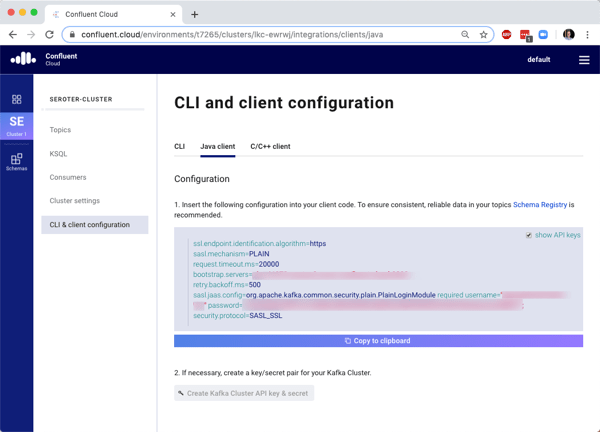
Before building an app to publish data to Confluent Cloud, I needed an API key and secret. I could create this via the CLI, or the dashboard. I generated the key via the dashboard, saved it (since I can’t see it again after generating), and saw the example Java client configuration updated with those values. Handy, especially because I’m going to talk to Kafka via Spring Cloud Stream!
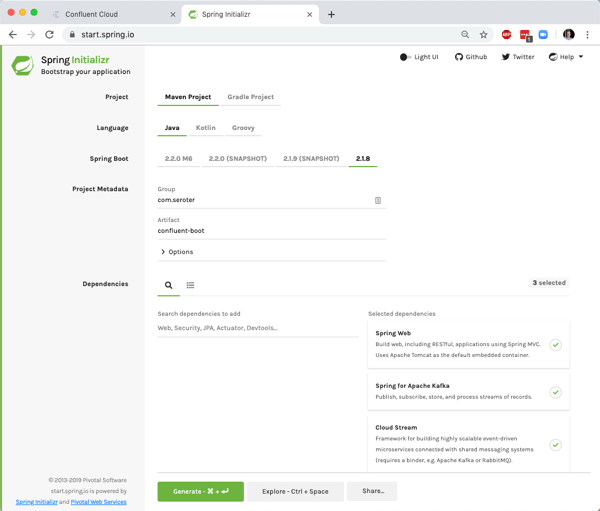
Now I needed an app that would send messages to Apache Kafka in the Confluent Cloud. I chose Spring Boot because I make good decisions. Thanks to the Spring Cloud Stream project, it’s super-easy to interact with Apache Kafka without having to be an expert in the tech itself. I went to start.spring.io to generate a project. If you click this link, you can download an identical project configuration.
I opened up this project and added the minimum code and configuration necessary to gab with Apache Kafka in Confluent Cloud. I wanted to be able to submit an HTTP request and see that message published out. That required one annotation to create a REST controller, and one annotation to indicate that this app is a source to the stream. I then have a “Source” variable is autowired, which means it’s inflated by Spring Boot at runtime. Finally, I have a single operation that responds to an HTTP post command and writes the payload to the message stream. That’s it!
The final piece? The application configuration. In the application.properties file, I set the handful of parameters, mostly around the target cluster, topic name, and credentials.
I started up the app, confirmed that it connected (via application logs), and opened Postman to issue an HTTP POST command.
After switching back to the Confluent Cloud dashboard, I saw my messages pop up.
You can probably repeat this whole demo in about 10 minutes. As you can imagine, there’s a LOT more you can do with Apache Kafka than what I showed you. If you want an environment to learn Apache Kafka in depth, it’s now a no-brainer to spin up a free account in Confluent Cloud. And if you want to use a legit managed Apache Kafka for production in any cloud, this seems like a good bet as well.
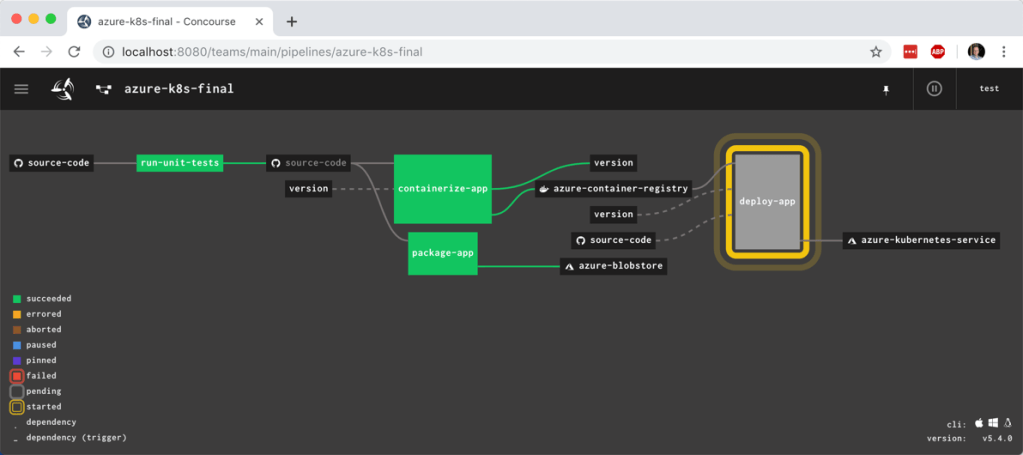
So far in this blog series, we’ve set up our local machine and cloud environment, and built the initial portion of a continuous delivery pipeline. That pipeline, built using the popular OSS tool Concourse, pulls source code from GitHub, generates a Docker image that’s stored in Azure Container Registry, and produces a tarball that’s stashed in Azure Blob Storage. What’s left? Deploying our container image to Azure Kubernetes Service (AKS). Let’s go.
Generating AKS credentials
Back in blog post one, we set up a basic AKS cluster. For Concourse to talk to AKS, we need credentials!
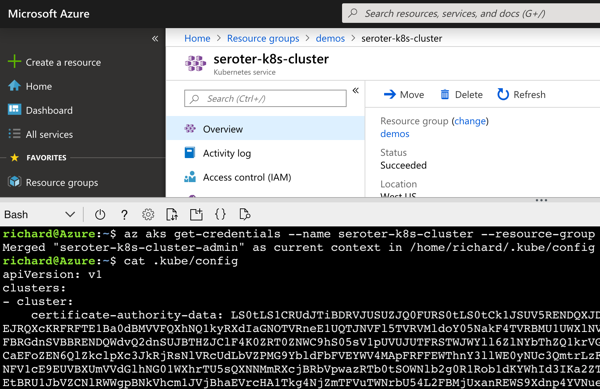
From within the Azure Portal, I started up an instance of the Cloud Shell. This is a hosted Bash environment with lots of pre-loaded tools. From here, I used the AKS CLI to get the administrator credentials for my cluster.
az aks get-credentials --name seroter-k8s-cluster --resource-group demos --admin
This command generated a configuration file with URLs, users, certificates, and tokens.
I copied this file locally for use later in my pipeline.
Creating a role-binding for permission to deploy
The administrative user doesn’t automatically have rights to do much in the default cluster namespace. Without explicitly allowing permissions, you’ll get some gnarly “does not have access” errors when doing most anything. Enter role-based access controls. I created a new rolebinding named “admin” with admin rights in the cluster, and mapped to the existing clusterAdmin user.
Now I knew that Concourse could effectively interact with my Kubernetes cluster.
Giving AKS access to Azure Container Registry
Right now, Azure Container Registry (ACR) doesn’t support an anonymous access strategy. Everything happens via authenticated users. The Kubernetes cluster needs access to its container registry, so I followed these instructions to connect ACR to AKS. Pretty easy!
Creating Kubernetes deployment and service definitions
Concourse is going to apply a Kubernetes deployment to create pods of containers in the cluster. Then, Concourse will apply a Kubernetes service to expose my pod with a routable endpoint.
I created a pair of configurations and added them to the ci folder of my source code.
I now had all the artifacts necessary to finish up the Concourse pipeline.
Adding Kubernetes resource definitions to the Concourse pipeline
First, I added a new resource type to the Concourse pipeline. Because Kubernetes isn’t a baked-in resource type, we need to pull in a community definition. No problem. This one’s pretty popular. It’s important than the Kubernetes client and server are expecting the same Kubernetes version, so I set the tag to match my AKS version.
There are a few key things to note here. First, the “server” refers to the cluster DNS server name in the credentials file. The “token” refers to the token associated with the clusterAdmin user. For me, it’s the last “user” called out in the credentials file. Finally, let’s talk about the certificate authority. This value comes from the “certificate-authority-data” entry associated with the cluster DNS server. HOWEVER, this value is base64 encoded, and I needed a decoded value. So, I decoded it, and embedded it as you see above.
Let’s unpack this. First, I “get” the Azure Container Registry resource. When it changes (because it gets a new version of the container), it triggers this job. It only fires if the “containerize app” job passes first. Then I get the source code (so that I can grab the deployment.yaml and service.yaml files I put in the ci folder), and I get the semantic version.
Next I “put” to the AKS resource, twice. In essence, this resource executes kubectl commands. The first command does a kubectl apply for both the deployment and service. On the first run, it provisions the pod and exposes it via a service. However, because the container image tag in the deployment file is to “latest”, Kubernetes actually won’t retrieve new images with that tag after I apply a deployment. So, I “patched” the deployment in a second “put” step and set the deployment’s image tag to the semantic version. This triggers a pod refresh!
Deploy and run the Concourse pipeline
I deployed the pipeline as a new revision with this command:
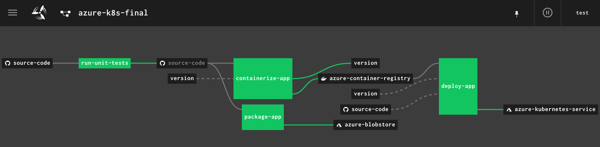
I unpaused the pipeline and watched it start up. It quickly reached and completed the “deploy to AKS” stage.
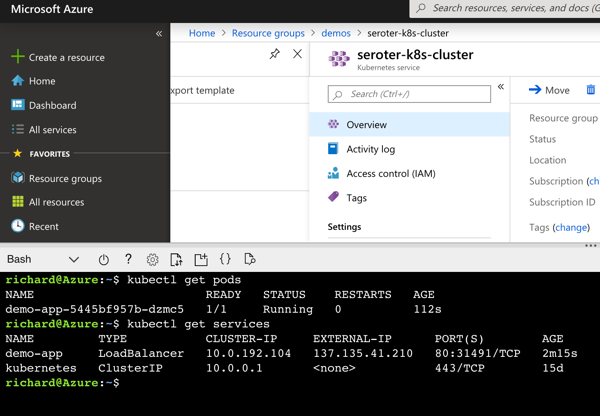
But did it actually work? I jumped back into the Azure Cloud Shell to check it out. First, I ran a kubectl get pods command. Then, a kubectl get services command. The first showed our running pod, and the second showed the external IP assigned to my pod.
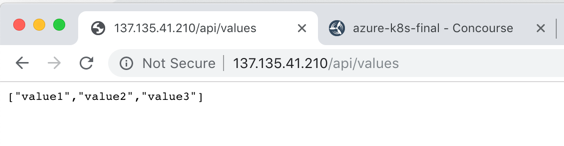
I also issued a request to that URL in the browser, and got back my ASP.NET Core API results.
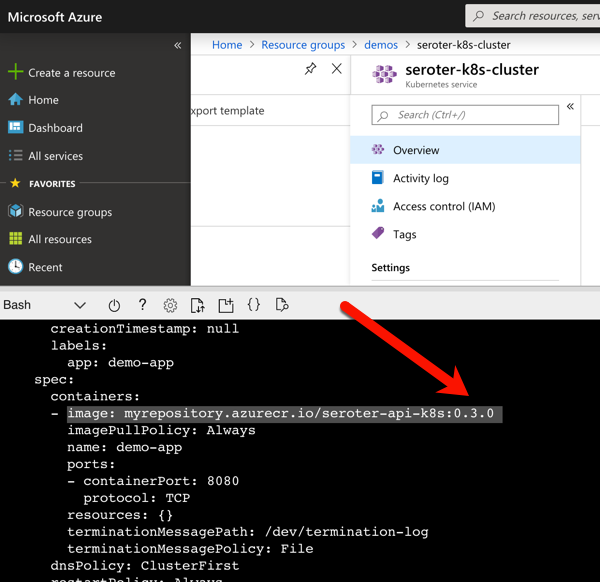
Also to prove that my “patch” command worked, I ran the kubectl get deployment demo-app –output=yaml command to see which container image my deployment referenced. As you can see below, it no longer references “latest” but rather, a semantic version number.
With all of these settings, I now have a pipeline that “just works” whenever I updated my ASP.NET Core source code. It tests the code, packages it up, and deploys it to AKS in seconds. I’ve added all the pipelines we created here to GitHub so that you can easily try this all out.
Whatever CI/CD tool you use, invest in automating your path to production.
Let’s continuously deliver an ASP.NET Core app to Kubernetes using Concourse. In part one of this blog series, I showed you how to set up your environment to follow along with me. It’s easy; just set up Azure Container Registry, Azure Storage, Azure Kubernetes Service, and Concourse. In this post, we’ll start our pipeline by pulling source code, running unit tests, generating a container image that’s stored in Azure Container Registry, and generating a tarball for Azure Blob Storage.
We’re building this pipeline with Concourse. Concourse has three core primitives: tasks, jobs, and resources. Tasks form jobs, jobs form pipelines, and state is stored in resources. Concourse is essentially stateless, meaning there are no artifacts on the server after a build. You also don’t register any plugins or extensions. Rather, the pipeline is executed in containers that go away after the pipeline finishes. Any state — be it source code or Docker images — resides in durable resources, not Concourse itself.
Let’s start building a pipeline.
Pulling source code
A Concourse pipeline is defined in YAML. Concourse ships with a handful of “known” resource types including Amazon S3, git, and Cloud Foundry. There are dozens and dozens of community ones, and it’s not hard to build your own. Because my source code is stored in GitHub, I can use the out-of-the-box resource type for git.
At the top of my pipeline, I declared that resource.
I’ve gave the resource a name (“source-code”) and identified where the code lives. That’s it! Note that when you deploy a pipeline, Concourse produces containers that “check” resources on a schedule for any changes that should trigger a pipeline.
Running unit tests
Next up? Build a working version of a pipeline that does something. Specifically, it should execute unit tests. That means we need to define a job.
A job has a build plan. That build plan contains any of three things: get steps (to retrieve a resource), put steps (to push something to a resource), and task steps (to run a script). Our job below has one get step (to retrieve source code), and one task (to execute the xUnit tests).
Let’s break it down. First, my “plan” gets the source-code resource. And because I set “trigger: true” Concourse will kick off this job whenever it detects a change in the source code.
Next, my build plan has a “task” step. Tasks run in containers, so you need to choose a base image that runs the user-defined script. I chose the Microsoft-provided .NET Core image so that I’d be confident it had all the necessary .NET tooling installed. Note that my task has an “input.” Since tasks are like functions, they have inputs and outputs. Anything I input into the task is mounted into the container and is available to any scripts. So, by making the source-code an input, my shell script can party on the source code retrieved by Concourse.
Finally, I embedded a short script that invokes the “dotnet test” command. If I were being responsible, I’d refactor this embedded script into an external file and reference that file. But hey, this is easier to read.
This is now a valid pipeline. In the previous post, I had you install the fly CLI to interact with Concourse. From the fly CLI, I deploy pipelines with the following command:
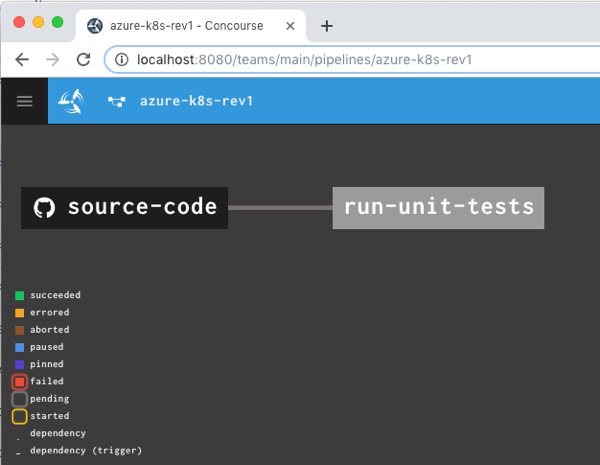
That command says to use the “rs” target (which points to a given Concourse instance), use the YAML file holding the pipeline, and name this pipeline azure-k8s-rev1. It deployed instantly, and looked like this in the Concourse web dashboard.
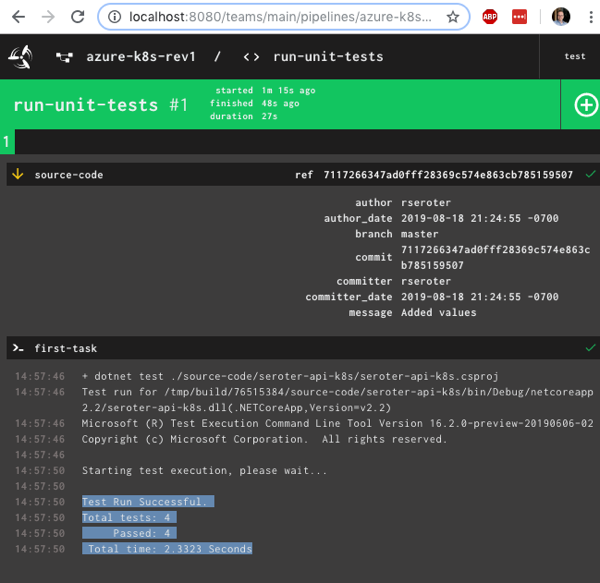
After unpausing the pipeline so that it came alive, I saw the “run unit tests” job start running. It’s easy to view what a job is doing, and I saw that it loaded the container image from Microsoft, mounted the source code, ran my script and turned “green” because all my tests passed.
Nice! I had a working pipeline. Now to generate a container image.
Producing and publishing a container image
A pipeline that just run tests is kinda weird. I need to do something when tests pass. In my case, I wanted to generate a Docker image. Another of the built-in Concourse resource types is “docker-image” which generates a container image and puts it into a registry. Here’s the resource definition that worked with Azure Container Registry:
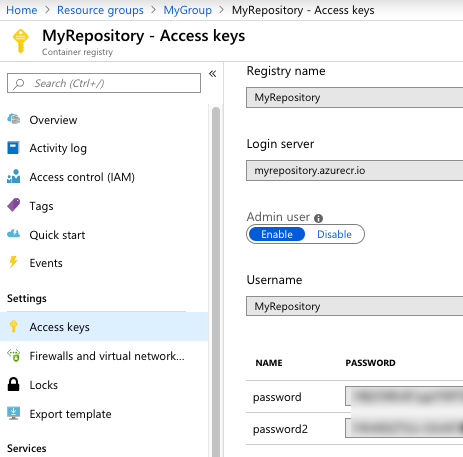
Where do you get those Azure Container Registry values? From the Azure Portal, they’re visible under “Access keys.” I grabbed the Username and one of the passwords.
What’s this job doing? Notice that I “get” the source code again. I also set a “passed” attribute meaning this will only run if the unit test step completes successfully. This is how you start chaining jobs together into a pipeline! Then I “put” into the registry. Recall from the first blog post that I generated a Dockerfile from within Visual Studio for Mac, and here, I point to it. The resource does a “docker build” with that Dockerfile, tags the resulting image as the “latest” one, and pushes to the registry.
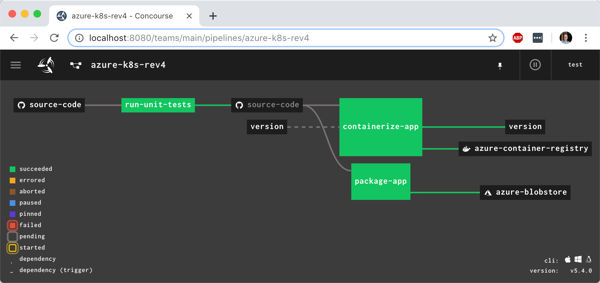
I manually triggered the “run unit tests” job, and after it completed, the “containerize app” job ran. When that was finished, I checked Azure Container Registry and saw a new repository one with image in it.
Generating and storing a tarball
Not every platform wants to run containers. BLASPHEMY! BURN THE HERETIC! Calm down. Some platforms happily take your source code and run it. So our pipeline should also generate a single artifact with all the published ASP.NET Core files.
I wanted to store this blob in Azure Storage. Since Azure Storage isn’t a built-in Concourse resource type, I needed to reference a community one. No problem finding one. For non-core resources, you have to declare the resource type in the pipeline YAML.
Here the “type” matches the resource type name I set earlier. Then I set the credentials (retrieved from the “Access keys” section in the Azure Portal), container name (pre-created in the first blog post), and the name of the file to upload. Regex is supported here too.
Finally, I added a new job that takes source code, runs a “publish” command, and creates a tarball from the result.
Note that this job is also triggered when unit tests succeed. But it’s not connected to the containerization job, so it runs in parallel. Also note that in addition to an input, I also have outputs defined on the task. This generates folders that are visible to subsequent steps in the job. I dropped the tarball into the “artifact-repo” folder, and then “put” that file into Azure Blob Storage.
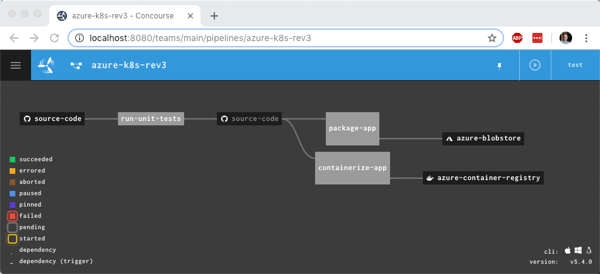
Now this pipeline’s looking pretty hot. Notice that I have parallel jobs that fire after I run unit tests.
I once again triggered the unit test job, and watched the subsequent jobs fire. After the pipeline finished, I had another updated container image in Azure Container Registry and a file sitting in Azure Storage.
Adding semantic version to the container image
I could stop there and push to Kubernetes (next post!), but I wanted to do one more thing. I don’t like publishing Docker images with the “latest” tag. I want a real version number. It makes sense for many reasons, not the least of which is that Kubernetes won’t pick up changes to a container if the tag doesn’t change! Fortunately, Concourse has a default resource type for semantic versioning.
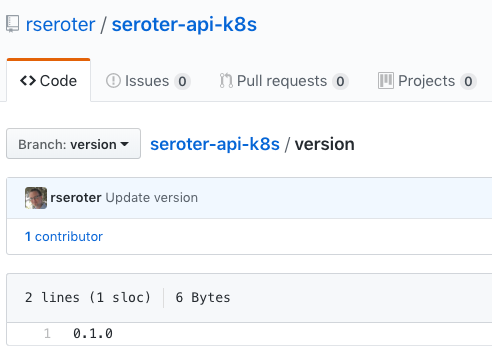
There are a few backing stores for the version number. Since Concourse is stateless, we need to keep the version value outside of Concourse itself. I chose a git backend. Specifically, I added a branch named “version” to my GitHub repo, and added a single file (no extension) named “version”. I started the version at 0.1.0.
Then, I ensured that my GitHub account had an SSH key associated with it. I needed this so that Concourse could write changes to this version file sitting in GitHub.
I added a new resource to my pipeline definition, referencing the built-in semver resource type.
- name: version
  type: semver
  source:
    driver: git
    uri: git@github.com:rseroter/seroter-api-k8s.git
    branch: version
    file: version
    private_key: |
        -----BEGIN OPENSSH PRIVATE KEY-----
        [...]
        -----END OPENSSH PRIVATE KEY-----
In that resource definition, I pointed at the repo URI, branch, file name, and embedded the private key for my account.
Next, I updated the existing “containerization” job to get the version resource, use it, and then update it.
First, I added another ‘get” for version. Notice that its parameter increments the number by one minor version. Then, see that the “put” for the container registry uses “version/version” as the tag file. This ensures our Docker image is tagged with the semantic version number. Finally, notice I “put” the incremented version file back into GitHub after using it successfully.
I deployed a fourth revision of this pipeline using this command:
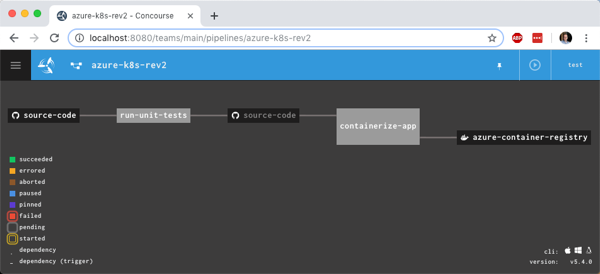
You see the pipeline, post-execution, below. The “version” resource comes into and out of the “containerize app” job.
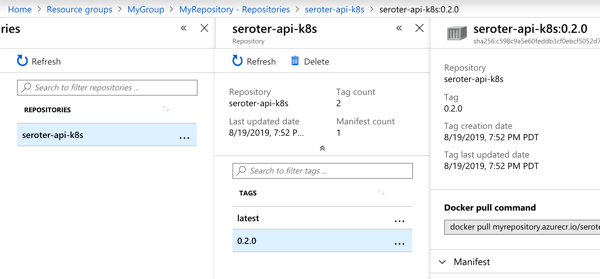
With the pipeline done, I saw that the “version” value in GitHub was incremented by the pipeline, and most importantly, our Docker image has a version tag.
In this blog post, we saw how to gradually build up a pipeline that retrieves source and prepares it for downstream deployment. Concourse is fun and easy to use, and its extensibility made it straightforward to deal with managed Azure services. In the final blog post of this series, we’ll take pipeline-generated Docker image and deploy it to Azure Kubernetes Service.
Isn’t it frustrating to build great software and helplessly watch as it waits to get deployed? We don’t just want to build software in small batches, we want to ship it in small batches. This helps us learn faster, and gives our users a non-stop stream of new value.
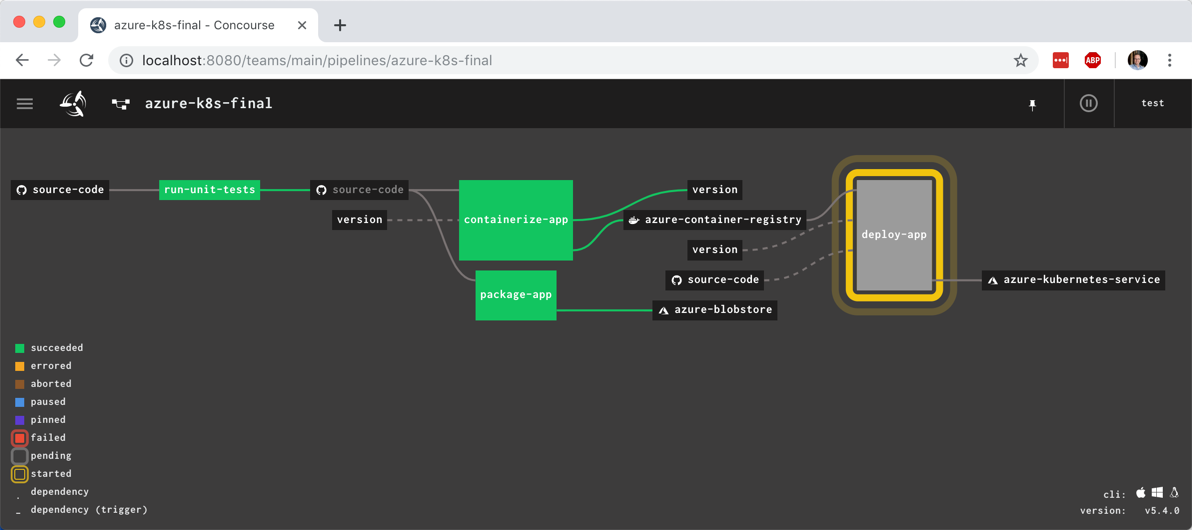
I’m a big fan of Concourse. It’s a continuous integration platform that reflects modern cloud-native values: it’s open source, container-native, stateless, and developer-friendly. And all pipeline definitions are declarative (via YAML) and easily source controlled. I wanted to learn how build a Concourse pipeline that unit tests an ASP.NET Core app, packages it up and stashes a tarball in Azure Storage, creates a Docker container and stores it in Azure Container Registry, and then deploy the app to Azure Kubernetes Service. In this three part blog series, we’ll do just that! Here’s the final pipeline:
This first posts looks at everything I did to set up the scenario.
My ASP.NET Core web app
I used Visual Studio for Mac to build a new ASP.NET Core Web API. I added NuGet package dependencies to xunit and xunit.runner.visualstudio. The API controller is super basic, with three operations.
[Route("api/[controller]")]
[ApiController]
public class ValuesController : ControllerBase
{
    [HttpGet]
    public ActionResult<IEnumerable<string>> Get()
    {
        return new string[] { "value1", "value2" };
    }

    [HttpGet("{id}")]
    public string Get(int id)
    {
        return "value1";
    }

    [HttpGet("{id}/status")]
    public string GetOrderStatus(int id)
    {
        if (id > 0 && id <= 20)
        {
            return "shipped";
        }
        else
        {
            return "processing";
        }
    }
}
I also added a Testing class for unit tests.
    public class TestClass
    {
        private ValuesController _vc;

        public TestClass()
        {
            _vc = new ValuesController();
        }

        [Fact]
        public void Test1()
        {
            Assert.Equal("value1", _vc.Get(1));
        }

        [Theory]
        [InlineData(1)]
        [InlineData(3)]
        [InlineData(9)]
        public void Test2(int value)
        {
            Assert.Equal("shipped", _vc.GetOrderStatus(value));
        }
    }
Next, I right-clicked my project and added “Docker Support.”
What this does is add a Docker Compose project to the solution, and Dockerfile to the project. Due to relative paths and such, if you try and “docker build” from directly within the project directory containing the Docker file, Docker gets angry. It’s meant to be invoked from the parent directory with a path to the project’s directory, like:
docker build -f seroter-api-k8s/Dockerfile .
I wasn’t sure if my pipeline could handle that nuance when containerizing my app, so just went ahead and moved the generated Dockerfile to the parent directory like in the screenshot below. From here, I could just execute the docker build command.
Where should we store our pipeline-created container images? You’ve got lots of options. You could use the Docker Hub, self-managed OSS projects like VMware’s Harbor, or cloud-specific services like Azure Container Registry. Since I’m trying to use all-things Azure, I chose the latter.
It’s easy to set up an ACR. Once I provided the couple parameters via the Azure Dashboard, I had a running, managed container registry.
Provisioning an Azure Storage blob
Container images are great. We may also want the raw published .NET project package for archival purposes, or to deploy to non-container runtimes. I chose Azure Storage for this purpose.
I created a blob storage account named seroterbuilds, and then a single blob container named coreapp. This isn’t a Docker container, but just a logical construct to hold blobs.
Creating an Azure Kubernetes Cluster
It’s not hard to find a way to run Kubernetes. I think my hair stylist sells a distribution. You can certainly spin up your own vanilla server environment from the OSS bits. Or run it on your desktop with minikube. Or run an enterprise-grade version anywhere with something like VMware PKS. Or run it via managed service with something like Azure Kubernetes Service (AKS).
AKS is easy to set up, and I provided the version (1.13.9), node pool size, service principal for authentication, and basic HTTP routing for hosted containers. My 3-node cluster was up and running in a few minutes.
Starting up a Concourse environment
Finally, Concourse. If you visit the Concourse website, there’s a link to a Docker Compose file you can download and start up via docker-compose up. This starts up the database, worker, and web node components needed to host pipelines.
Once Concourse is up and running, the web-based Dashboard is available on localhost:8080.
From there you can find links (bottom left) to downloads for the command line tool (called fly). This is the primary UX for deploying and troubleshooting pipelines.
With fly installed, we create a “target” that points to our environment. Do this with the following statement. Note that I’m using “rs” (my initials) as the alias, which gets used for each fly command.
fly -t rs login -c http://localhost:8080
Once I request a Concourse login (default username is “test” and password is “test”), I’m routed to the dashboard to get a token, which gets loaded automatically into the CLI.
At this point, we’ve got a functional ASP.NET Core app, a container registry, an object storage destination, a managed Kubernetes environment, and a Concourse. In the next post, we’ll build the first part of our Azure-focused pipeline that reads source code, runs tests, and packages the artifacts.
Serverless things don’t always complete their work in milliseconds. With the introduction of AWS Step Functions and Azure Durable Functions, we have compute instances that exist for hours, days, or even months. With serverless workflow tools like Azure Logic Apps, it’s also easy to build long-running processes. So in this world of continuous delivery and almost-too-easy update processes, what happens when you update the underlying definition of things that have running instances? Do they use the version they started with? Do they pick up changes and run with those after waking up? Do they crash and cause the heat death of the universe? I was curious, so I tried it out.
Azure Durable Functions
Azure Durable Functions extends “regular” Azure Functions. They introduce a stateful processing layer by defining an “orchestrator” that calls Azure Functions, checkpoints progress, and manages intermediate state.
Let’s build one, and then update it to see what happens to the running instances.
First, I created a new Function App in the Azure Portal. A Function App holds individual functions. This one uses the “consumption plan” so I only pay for the time a function runs, and contains .NET-based functions. Also note that it provisions a storage account, which we’ll end up using for checkpointing.
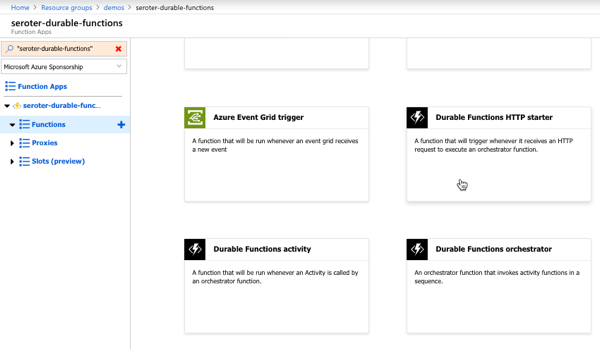
Durable Functions are made up of a client function that create an orchestration, orchestration functions that coordinate work, and activity functions that actually do the work. From the Azure Portal, I could see a template for creating an HTTP client (or starter) function.
The function code generated by the template works as-is.
#r "Microsoft.Azure.WebJobs.Extensions.DurableTask"
#r "Newtonsoft.Json"

using System.Net;

public static async Task<HttpResponseMessage> Run(
    HttpRequestMessage req,
    DurableOrchestrationClient starter,
    string functionName,
    ILogger log)
{
    // Function input comes from the request content.
    dynamic eventData = await req.Content.ReadAsAsync<object>();

    // Pass the function name as part of the route
    string instanceId = await starter.StartNewAsync(functionName, eventData);

    log.LogInformation($"Started orchestration with ID = '{instanceId}'.");

    return starter.CreateCheckStatusResponse(req, instanceId);
}
Next I created the activity function. Like with the client function, the Azure Portal generates a working function from the template. It simply takes in a string, and returns a polite greeting.
The final step was to create the orchestrator function. The template-generated code is below. Notice that our orchestrator calls the “hello” function three times with three different inputs, and aggregates the return values into a single output.
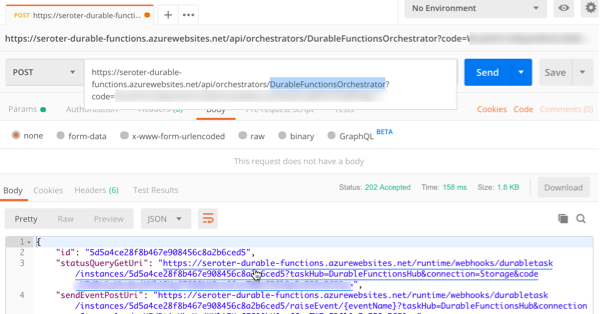
After saving this function, I went back to the starter/client function and clicked the “Get function URL” link to get the URL I need to invoke to instantiate this orchestrator. Then, I plugged that into Postman, and submitted a POST request.
Since the Durable Function is working asynchronously, I get back URIs to check the status, or terminate the orchestrator. I invoked the “get status” endpoint, and saw the aggregated results returned from the orchestrator function.
So it all worked. Terrific. Next I wanted to add a delay in between activity function calls to simulate a long-running process. What’s interesting with Durable Functions is that every time it gets results back from an async call (or timer), it reruns the entire orchestrator from scratch. Now, it checks the execution log to avoid calling the same operation again, but this made me wonder how it would respond if I added *new* activities in the mix, or deleted activities.
First, I added some instrumentation to the orchestrator function (and injected function input) so that I could see more about what was happening. In the code below, if we’re not replaying activities (so, first time it’s being called), it traces out a message.
public static async Task<List<string>> Run(DurableOrchestrationContext context, ILogger log)
{
    var outputs = new List<string>();

    outputs.Add(await context.CallActivityAsync<string>("Hello", "Tokyo"));
    if (!context.IsReplaying) log.LogInformation("Called function once.");

    outputs.Add(await context.CallActivityAsync<string>("Hello", "Seattle"));
    if (!context.IsReplaying) log.LogInformation("Called function twice.");

    outputs.Add(await context.CallActivityAsync<string>("Hello", "London"));
    if (!context.IsReplaying) log.LogInformation("Called function thrice.");

    // returns ["Hello Tokyo!", "Hello Seattle!", "Hello London!"]
    return outputs;
}
After saving this update, I triggered the client function again, and with the streaming “Logs” view open in the Portal. Here, I saw trace statements for each call to an activity function.
A durable function supports Timers that pause processing for up to seven days. I added the following code between the second and third function calls. This pauses the function for 30 seconds.
    if (!context.IsReplaying) log.LogInformation("Starting delay.");
    DateTime deadline = context.CurrentUtcDateTime.Add(TimeSpan.FromSeconds(30));
    await context.CreateTimer(deadline, System.Threading.CancellationToken.None);
    if (!context.IsReplaying) log.LogInformation("Delay finished.");
If you trigger the client function again, it will take 30-ish seconds to get results back, as expected.
Next I tested three scenarios to see how Durable Functions handled them:
Wait until the orchestrator hits the timer, andchange the payload for an activity function call that executed before the timer started. What happens when the framework tries to re-run a step that’s changed? I changed the first function’s payload from “Tokyo” to “Mumbai” after the function instance had already passed the first call, and was paused at the timer. After the function resumed from the timer, the orchestrator failed with a message of: “Non-Deterministic workflow detected: TaskScheduledEvent: 0 TaskScheduled Hello.” Didn’t like that. Changing the call signature, or apparently even the payload is a no-no if you don’t want to break running instances.
Wait until the orchestrator hits the timer, and update the function to introduce a new activity function call in code above the timer. Does the framework execute that new function call when it wakes up and re-runs, or ignore it? Indeed, it runs it. So after the timer wrapped up, the NEW, earlier function call got invoked, AND it ran the timer again before continuing. That part surprised me, and it only kinda worked. Instead of returning the expected value from the activity function, I got a “2” back. And some times when I tested this, I got the above “non-deterministic workflow” error. So, your mileage may vary.
Add an activity call after the timer, and see if it executes it after the delay is over. Does the orchestrator “see” the new activity call I added to the code after it woke back up? The first time I tried this, I again got the “non-deterministic workflow” error, but with a few more tests, I saw it actually executed the new function after waking back up, AND running the timer a second time.
What have we learned? The “version” a Durable Function starts with isn’t serialized and used for the entirety of the execution. It’s picking up things changing along the way. Be very aware of side effects! For a number of these tests, I also had to “try again” and would see different results. I feel like I was breaking Azure Functions!
What’s the right way to version these? Microsoft offers some advice, which ranges from “do nothing and let things fail” to “deploy an entirely new function.” But from these tests, I’d advise against changing function definitions outside of explicitly deploying new versions.
Azure Logic Apps
Let’s take a look at Logic Apps. This managed workflow service is designed for constructing processes that integrate a variety of sources and targets. It supports hundreds of connectors to things likes Salesforce.com, Amazon Redshift, Slack, OneDrive, and more. A Logic App can run for 90 days in the multi-tenant environment, and up to a year in the dedicated environment. So, most users of Logic Apps are going to have instances in-flight when it comes time to deploy updates.
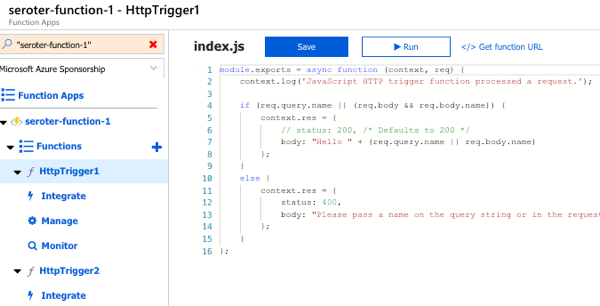
To test this out, I first created a couple of Azure Functions that Logic Apps could call. These JavaScript functions are super lame, and just return a greeting.
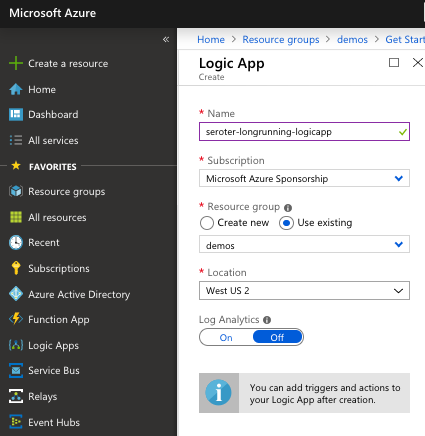
Next up, I created a Logic App. It’s easy.
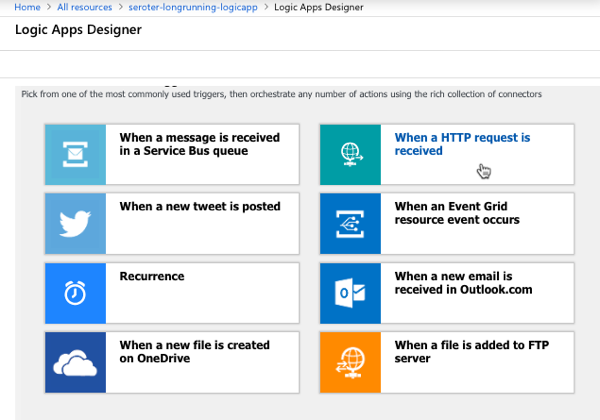
After a few moments, I could jump in and start designing my workflow. As a “serverless” service, Logic Apps only run when invoked, and start with a trigger. I chose the HTTP trigger.
My Logic App takes in an HTTP request, has a 45 second “delay” (which could represent waiting for new input, or a long-running API call) before invoke our simple Azure Function.
I saved the Logic App, called the HTTP endpoint via Postman, and waited. After about 45 seconds, I saw that everything succeeded.
Next, I kicked off another instance, and quickly went in and added another Function call after the first one. What would Logic Apps do with that after the delay was over? It ignored the new function call. Then I kicked off another Logic Apps instance, and quickly deleted the second function call. Would the instance wake up and now only call one Function? Nope, it called them both.
So it appears that Logic Apps snapshot the workflow when it starts, and it executes that version, regardless of what changes in the underlying definition after the fact. That seems good. It results in a more consistent, predictable process. Logic Apps does have the concept of versioning, and you can promote previous versions to the active one as needed.
AWS Step Functions
AWS doesn’t have something exactly like Logic Apps, but AWS Step Functions is somewhat similar to Azure Durable Functions. With Step Functions, you can chain together a series of AWS services into a workflow. It basically builds a state machine that you craft in their JSON-based Amazon State Language. A given Step Function can be idle for up to a year, so again. you’ll probably have long-running instances going at all times!
I jumped into the AWS console and started with their “hello world” template.
This state machine has a couple basic states that execute immediately. Then I added a 20 second wait.
After deploying the Step Function, it was easy to see that it ran everything quickly and successfully.
Next, I kicked off a new instance, and added a new step to the state machine while the instance was waiting. The Step Function that was running ignored it.
When I kicked off another Step Function and removed the step after the wait step, it also ignored it. It seems pretty clear that AWS Step Functions snapshot the workflow at the start proceed with that snapshot, even if the underlying definition changes. I didn’t find much documentation around formally versioning Step Functions, but it seems to keep you fairly safe from side effects.
With all of these, it’s important to realize that you also have to consider versioning of downstream calls. I could have an unchanged Logic App, but the function or API it invokes had its plumbing entirely updated after the Logic App started running. There’s no way to snapshot the state of all the dependencies! That’s normal in a distributed system. But, something to remember.
Have you observed any different behavior with these stateful serverless products?
You’ve got microservices. Great. They’re being continuous delivered. Neato. Ok … now what? The next hurdle you may face is data processing amongst this distributed mesh o’ things. Brokered messaging engines like Azure Service Bus or RabbitMQ are nice choices if you want pub/sub routing and smarts residing inside the broker. Lately, many folks have gotten excited by stateful stream processing scenarios and using distributed logs as a shared source of events. In those cases, you use something like Apache Kafka or Azure Event Hubs and rely on smart(er) clients to figure out what to read and what to process. What should you use to build these smart stream processing clients?
I’ve written about Spring Cloud Stream a handful of times, and last year showed how to integrate with the Kafka interface on Azure Event Hubs. Just today, Microsoft shipped a brand new “binder” for Spring Cloud Stream that works directly with Azure Event Hubs. Event processing engines aren’t useful if you aren’t actually publishing or subscribing to events, so I thought I’d try out this new binder and see how to light up Azure Event Hubs.
Setting Up Microsoft Azure
First, I created a new Azure Storage account. When reading from an Event Hubs partition, the client maintains a cursor. This cursor tells the client where it should start reading data from. You have the option to store this cursor server-side in an Azure Storage account so that when your app restarts, you can pick up where you left off.
There’s no need for me to create anything in the Storage account, as the Spring Cloud Stream binder can handle that for me.
Next, the actual Azure Event Hubs account! First I created the namespace. Here, I chose things like a name, region, pricing tier, and throughput units.
Like with the Storage account, I could stop here. My application will automatically create the actual Event Hub if it doesn’t exist. In reality, I’d probably want to create it first so that I could pre-define things like partition count and message retention period.
Creating the event publisher
The event publisher takes in a message via web request, and publishes that message for others to process. The app is a Spring Boot app, and I used the start.spring.io experience baked into Spring Tools (for Eclipse, Atom, and VS Code) to instantiate my project. Note that I chose “web” and “cloud stream” dependencies.
With the project created, I added the Event Hubs binder to my project. In the pom.xml file, I added a reference to the Maven package.
Now before going much farther, I needed a credentials file. Basically, it includes all the info needed for the binder to successfully chat with Azure Event Hubs. You use the az CLI tool to generate it. If you don’t have it handy, the easiest option is to use the Cloud Shell built into the Azure Portal.
From here, I did az list to show all my Azure subscriptions. I chose the one that holds my Azure Event Hub and copied the associated GUID. Then, I set that account as my default one for the CLI with this command:
az account set -s 11111111-1111-1111-1111-111111111111
With that done, I issued another command to generate the credential file.
az ad sp create-for-rbac --sdk-auth > my.azureauth
I opened up that file within the Cloud Shell, copied the contents, and pasted the JSON content into a new file in the resources directory of my Spring Boot app.
Next up, the code. Because we’re using Spring Cloud Stream, there’s no specific Event Hubs logic in my code itself. I only use Spring Cloud Stream concepts, which abstracts away any boilerplate configuration and setup. The code below shows a simple REST controller that takes in a message, and publishes that message to the output channel. Behind the scenes, when my app starts up, Boot discovers and inflates all the objects needed to securely talk to Azure Event Hubs.
How simple is that? All that’s left is the application properties used by the app. Here, I set a few general Spring Cloud Stream properties, and a few related to the Event Hubs binder.
 #point to credentials
 spring.cloud.azure.credential-file-path=my.azureauth
 #get these values from the Azure Portal
 spring.cloud.azure.resource-group=demos
 spring.cloud.azure.region=East US
 spring.cloud.azure.eventhub.namespace=seroter-event-hub

 #choose where to store checkpoints
 spring.cloud.azure.eventhub.checkpoint-storage-account=serotereventhubs

 #set the name of the Event Hub
 spring.cloud.stream.bindings.output.destination=seroterhub

 #be lazy and let the app create the Storage blobs and Event Hub
 spring.cloud.azure.auto-create-resources=true
With that, I had a working publisher.
Creating the event subscriber
It’s no fun publishing messages if no one ever reads them. So, I built a subscriber. I walked through the same start.spring.io experience as above, this time ONLY choosing the Cloud Stream dependency. And then added the Event Hubs binder to the pom.xml file of the created project. I also copied the my.azureauth file (containing our credentials) from the publisher project to the subscriber project.
It’s criminally simple to pull messages from a broker using Spring Cloud Stream. Here’s the full extent of the code. Stream handles things like content type transformation, and so much more.
The final step involved defining the application properties, including the Storage account for checkpointing, and whether to automatically create the Azure resources.
 #point to credentials
 spring.cloud.azure.credential-file-path=my.azureauth
 #get these values from the Azure Portal
 spring.cloud.azure.resource-group=demos
 spring.cloud.azure.region=East US
 spring.cloud.azure.eventhub.namespace=seroter-event-hub

 #choose where to store checkpoints
 spring.cloud.azure.eventhub.checkpoint-storage-account=serotereventhubs

 #set the name of the Event Hub
 spring.cloud.stream.bindings.input.destination=seroterhub
 #set the consumer group
 spring.cloud.stream.bindings.input.group=system3

 #read from the earliest point in the log; default val is LATEST
 spring.cloud.stream.eventhub.bindings.input.consumer.start-position=EARLIEST

 #be lazy and let the app create the Storage blobs and Event Hub
 spring.cloud.azure.auto-create-resources=true
And now we have a working subscriber.
Testing this thing
First, I started up the producer app. It started up successfully, and I can see in the startup log that it created the Event Hub automatically for me after connecting.
To be sure, I checked the Azure Portal and saw a new Event Hub with 4 partitions.
Sweet. I called the REST endpoint on my app three times to get a few messages into the Event Hub.
Now remember, since we’re dealing with a log versus a queuing system, my consumers don’t have to be online (or even registered anywhere) to get the data at their leisure. I can attach to the log at any time and start reading it. So that data is just hanging out in Event Hubs until its retention period expires.
I started up my Spring Boot subscriber app. After a couple moments, it connected to Azure Event Hubs, and read the three entries that it hadn’t ever seen before.
Back in the Azure Portal, I checked and saw a new blob container in my Storage account, with a folder for my consumer group, and checkpoints for each partition.
If I sent more messages into the REST endpoint, they immediately appeared in my subscriber app. What if I defined a new consumer group? Would it read all the messages from the beginning?
I stopped the subscriber app, changed the application property for “consumer group” to “system4” and restarted the app. After Spring Cloud Stream connected to each partition, it pumped out whatever it found, and responded immediately to any new entries.
Whether you’re building a change-feed listener off of Cosmos DB, sharing data between business partners, or doing data processing between microservices, you’ll probably be using a broker. If it’s an event bus like Azure Event Hubs, you now have an easy path with Spring Cloud Stream.
Creating new .NET apps, or modernizing existing ones? If you’re following the 12-factor criteria, you’re probably keeping your configuration out of the code. That means not stashing feature flags in your web.config file, or hard-coding connection strings inside your classes. So where’s this stuff supposed to go? Environment variables are okay, but not a great choice; no version control or access restrictions. What about an off-box configuration service? Now we’re talking. Fortunately AWS, and now Microsoft Azure, offer one that’s friendly to .NET devs. I’ll show you how to create and access configurations in each cloud, and as a bonus, throw out a third option.
.NET Core has a very nice configuration system that makes it easy to read configuration data from a variety of pluggable sources. That means that for the three demos below, I’ve got virtually identical code even though the back-end configuration stores are wildly different.
AWS
Setting it up
AWS offers a parameter store as part of the AWS Systems Manager service. This service is designed to surface information and automate tasks across your cloud infrastructure. While the parameter store is useful to support infrastructure automation, it’s also a handy little place to cram configuration values. And from what I can tell, it’s free to use.
To start, I went to the AWS Console, found the Systems Manager service, and chose Parameter Store from the left menu. From here, I could see, edit or delete existing parameters, and create new ones.
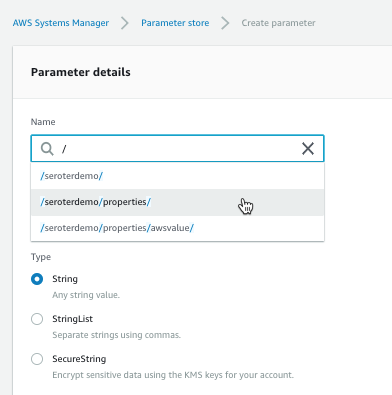
Each parameter gets a name and value. For the name, I used a “/” to define a hierarchy. The parameter type can be a string, list of strings, or encrypted string.
The UI was smart enough that when I went to go add a second parameter (/seroterdemo/properties/awsvalue2), it detected my existing hierarchy.
Ok, that’s it. Now I was ready to use it my .NET Core web app.
Using from code
Before starting, I installed the AWS CLI. I tried to figure out where to pass credentials into the AWS SDK, and stumbled upon some local introspection that the SDK does. Among other options, it looks for files in a local directory, and those files get created for you when you install the AWS CLI. Just a heads up!
I created a new .NET Core MVC project, and added the Amazon.Extensions.Configuration.SystemsManager package. Then I created a simple “Settings” class that holds the configuration values we’ll get back from AWS.
public class Settings
{
   public string awsvalue { get; set; }
   public string awsvalue2 { get; set; }
}
In the appsettings.json file, I told my app which AWS region to use.
Finally, I wanted to make my configuration properties available to my app code. So in the Startup.cs file, I grabbed the configuration properties I wanted, inflated the Settings object, and made it available to the runtime container.
public void ConfigureServices(IServiceCollection services) { services.Configure<Settings>(Configuration.GetSection("properties"));
Last step? Accessing the configuration properties! In my controller, I defined a private variable that would hold a local reference to the configuration values, pulled them in through the constructor, and then grabbed out the values in the Index() operation.
        private readonly Settings _settings;

        public HomeController(IOptions<Settings> settings)
        {
            _settings = settings.Value;
        }

        public IActionResult Index()
        {
            ViewData["configval"] = _settings.awsvalue;
            ViewData["configval2"] = _settings.awsvalue2;

            return View();
        }
After updating my View to show the two properties, I started up my app. As expected, the two configuration values showed up.
What I like
You gotta like that price! AWS Systems Manager is available at no cost, and there appears to be no cost to the parameter store. Wicked.
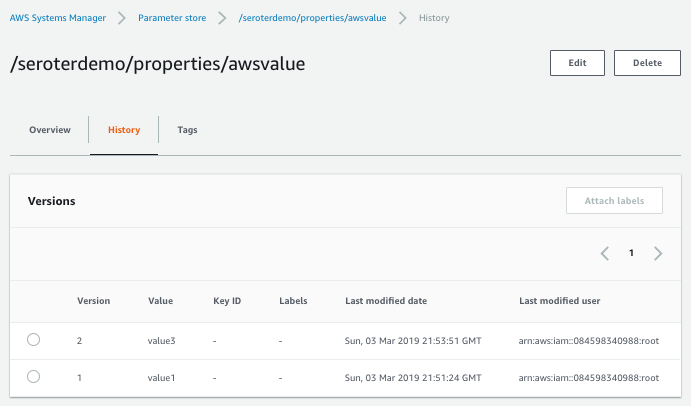
Also, it’s cool that you have an easily-visible change history. You can see below that the audit trail shows what changed for each version, and who changed it.
Microsoft just shared the preview release of the Azure App Configuration service. This managed service is specifically created to help you centralize configurations. It’s brand new, but seems to be in pretty good shape already. Let’s take it for a spin.
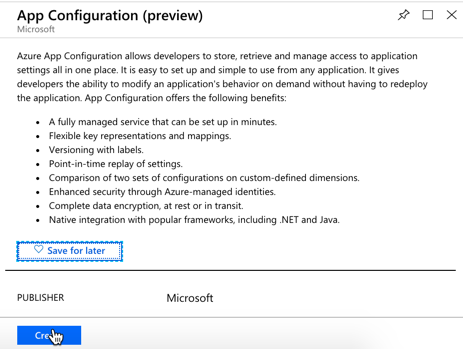
From the Microsoft Azure Portal, I searched for “configuration” and found the preview service.
I named my resource seroter-config, picked a region and that was it. After a moment, I had a service instance to mess with. I quickly added two key-value combos.
public class Settings
{
    public string azurevalue1 { get; set; }
    public string azurevalue2 { get; set; }
}
Next up, I updated my Program.cs file to read the Azure App Configuration. I passed the connection string in here, but there are better ways available.
public class Program
{
    public static void Main(string[] args)
    {
        CreateWebHostBuilder(args).Build().Run();
    }

    public static IWebHostBuilder CreateWebHostBuilder(string[] args) =>
        WebHost.CreateDefaultBuilder(args)
            .ConfigureAppConfiguration((hostingContext, config) => {
                var settings = config.Build();
                    config.AddAzureAppConfiguration("[con string]");
                })
            .UseStartup<Startup>();
}
I also updated the ConfigureServices() operation in my Startup.cs file. Here, I chose to only pull configurations that started with seroterdemo:properties.
public void ConfigureServices(IServiceCollection services) { //added services.Configure<Settings>(Configuration.GetSection("seroterdemo:properties"));
To read those values in my controller, I’ve got just about the same code as in the AWS example. The only difference was what I called my class members!
private readonly Settings _settings;

public HomeController(IOptions<Settings> settings)
{
    _settings = settings.Value;
}

public IActionResult Index()
{
   ViewData["configval"] = _settings.azurevalue1;
   ViewData["configval2"] = _settings.azurevalue2;

   return View();
}
I once again updated my View to print out the configuration values, and not shockingly, it worked fine.
What I like
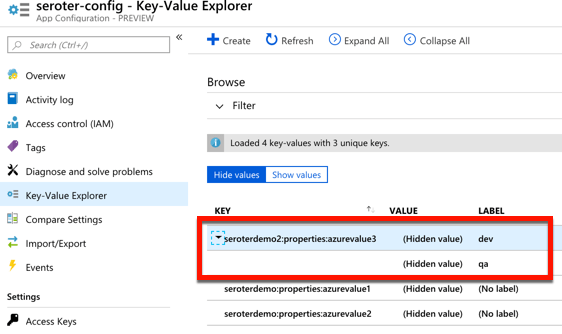
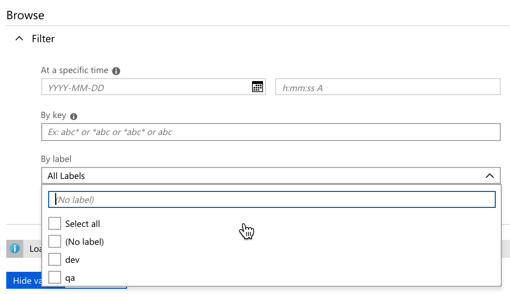
For a new service, there’s a few good things to like here. The concept of labels is handy, as it lets me build keys that serve different environments. See here that I created labels for “qa” and “dev” on the same key.
I saw a “compare” feature which looks handy. There’s also a simple search interface here too, which is valuable.
Pricing isn’t yet available, no I’m not clear as to how I’d have to pay for this.
Spring Cloud Config
Setting it up
Both of the above service are quite nice. And super convenient if you’re running in those clouds. You might also want a portable configuration store that offers its own pluggable backing engines. Spring Cloud Config makes it easy to build a config store backed by a file system, git, GitHub, Hashicorp Vault, and more. It’s accessible via HTTP/S, supports encryption, is fully open source, and much more.
I created a new Spring project from start.spring.io. I chose to include the Spring Cloud Config Server and generate the project.
Literally all the code required is a single annotation (@EnableConfigServer).
My GitHub repo has a configuration file called blogconfig.properties with the following content:
With that, I started up the project, and had a running configuration server.
Using from code
To talk to this configuration store from my .NET app, I used the increasingly-popular Steeltoe library. These packages, created by Pivotal, bring microservices patterns to your .NET (Framework or Core) apps.
For the last time, I created a .NET Core MVC project. This time I added a dependency to Steeltoe.Extensions.Configuration.ConfigServerCore. Again, I added a Settings class to hold these configuration properties.
public class Settings
{
    public string property1 { get; set; }
    public string property2 { get; set; }
    public string property3 { get; set; }
    public string property4 { get; set; }
}
In my appsettings.json, I set my application name (to match the config file’s name I want to access) and URI of the config server.
My Program.cs file has a “using” statement for the Steeltoe.Extensions.Configuration.ConfigServer package, and then used the “AddConfigServer” operation to add the config server as a source.
public class Program
{
    public static void Main(string[] args)
    {
        CreateWebHostBuilder(args).Build().Run();
    }

    public static IWebHostBuilder CreateWebHostBuilder(string[] args) =>
        WebHost.CreateDefaultBuilder(args)
            .AddConfigServer()
            .UseStartup<Startup>();
}
I once again updated the Startup.cs file to load the target configurations into my typed object.
public IActionResult Index() { ViewData["configval"] = _mySettings.property1; return View(); }
Updating the view, and starting the .NET Core app yielded the expected results.
What I like
Spring Cloud Config is a very mature OSS project. You can deliver this sort of microservices machinery along with your apps in your CI/CD pipelines — these components are software that you ship versus services that need to be running — which is powerful. It offers a variety of backends, OAuth2 for security, encryption/decryption of values, and much more. It’s a terrific choice for a consistent configuration store on every infrastructure.
But realistically, I don’t care which of the above you use. Just use something to extract environment-specific configuration settings from your .NET apps. Use these robust external stores to establish some rigor around these values, and make it easier to share configurations, and keep them in sync across all of your application instances.
What do you think of when you hear the phrase “multi-cloud”? Ok, besides stupid marketing people and their dumb words. You might think of companies with on-premises environments who are moving some workloads into a public cloud. Or those who organically use a few different clouds, picking the best one for each workload. While many suggest that you get the best value by putting everything on one provider, that clearly isn’t happening yet. And maybe it shouldn’t. Who knows. But can you get the best of each cloud while retaining some portability? I think you can.
One multi-cloud solution is to do the lowest-common-denominator thing. I really don’t like that. Multi-cloud management tools try to standardize cloud infrastructure but always leave me disappointed. And avoiding each cloud’s novel services in the name of portability is unsatisfying and leaves you at a competitive disadvantage. But why should we choose the cloud (Azure! AWS! GCP!) and runtime (Kubernetes! VMs!) before we’ve even written a line of code? Can’t we make those into boring implementation details, and return our focus to writing great software? I’d propose that with good app frameworks, and increasingly-standard interfaces, you can create great software that runs on any cloud, while still using their novel services.
In this post, I’ll build a RESTful API with Spring Boot and deploy it, without code changes, to four different environments, including:
Local environment running MongoDB software in a Docker container.
Side note: Ok, so multi-cloud sounds good, but it seems like a nightmare of ops headaches and nonstop dev training. That’s true, it sure can be. But if you use a good multi-cloud app platform like Pivotal Cloud Foundry, it honestly makes the dev and ops experience virtually the same everywhere. So, it doesn’t HAVE to suck, although there are still going to be challenges. Ideally, your choice of cloud is a deploy-time decision, not a design-time constraint.
Creating the app
In my career, I’ve coded (poorly) with .NET, Node, and Java, and I can say that Spring Boot is the fastest way I’ve seen to build production-quality apps. So, I chose Spring Boot to build my RESTful API. This API stores and returns information about cloud databases. HOW VERY META. I chose MongoDB as my backend database, and used the amazing Spring Data to simplify interactions with the data source.
From start.spring.io, I created a project with dependencies on spring-boot-starter-data-rest (auto-generated REST endpoints for interacting with databases), spring-boot-starter-data-mongodb (to talk to MongoDB), spring-boot-starter-actuator (for “free” health metrics), and spring-cloud-cloudfoundry-connector (to pull connection details from the Cloud Foundry environment). Then I opened the project and created a new Java class representing a CloudProvider.
package seroter.demo.cloudmongodb;

import org.springframework.data.annotation.Id;

public class CloudProvider {

	@Id private String id;

	private String providerName;
	private Integer numberOfDatabases;
	private Boolean mongoAsService;

	public String getProviderName() {
		return providerName;
	}

	public void setProviderName(String providerName) {
		this.providerName = providerName;
	}

	public Integer getNumberOfDatabases() {
		return numberOfDatabases;
	}

	public void setNumberOfDatabases(Integer numberOfDatabases) {
		this.numberOfDatabases = numberOfDatabases;
	}

	public Boolean getMongoAsService() {
		return mongoAsService;
	}

	public void setMongoAsService(Boolean mongoAsService) {
		this.mongoAsService = mongoAsService;
	}
}
Thanks to Spring Data REST (which is silly powerful), all that was left was to define a repository interface. If all I did was create an annotate the interface, I’d get full CRUD interactions with my MongoDB collection. But for fun, I also added an operation that would return all the clouds that did (or did not) offer a MongoDB service.
package seroter.demo.cloudmongodb;

import java.util.List;

import org.springframework.data.mongodb.repository.MongoRepository;
import org.springframework.data.rest.core.annotation.RepositoryRestResource;

@RepositoryRestResource(collectionResourceRel = "clouds", path = "clouds")
public interface CloudProviderRepository extends MongoRepository<CloudProvider, String> {

	//add an operation to search for a specific condition
	List<CloudProvider> findByMongoAsService(Boolean mongoAsService);
}
That’s literally all my code. Crazy.
Run using Dockerized MongoDB
To start this test, I wanted to use “real” MongoDB software. So I pulled the popular Docker image and started it up on my local machine:
docker run -d -p 27017:27017 --name serotermongo mongo
When starting up my Spring Boot app, I could provide database connection info (1) in an app.properties file, or, as (2) input parameters that require nothing in the compiled code package itself. I chose the file option for readability and demo purposes, which looked like this:
After starting the app, I issued a base request to my API via Postman. Sure enough, I got a response. As expected, no data in my MongoDB database. Note that Spring Data automatically creates a database if it doesn’t find the one specified, so the “demodb” now existed.
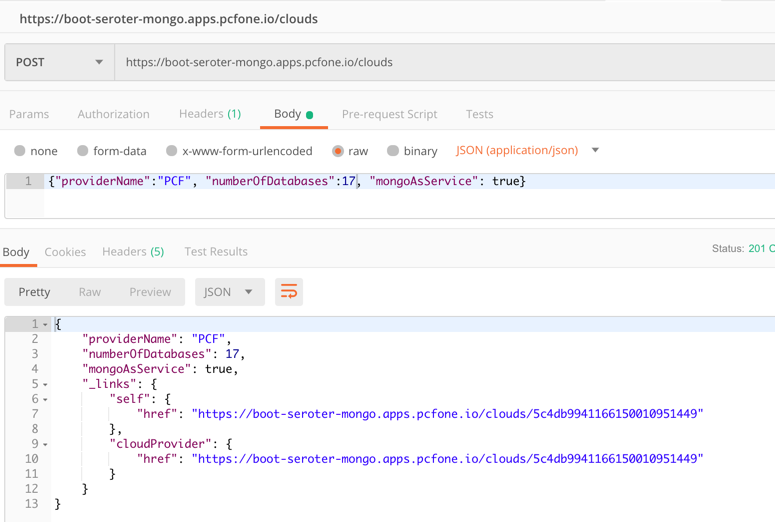
I then issued a POST command to add a record to MongoDB, and that worked great too. I got back the URI for the new record in the response.
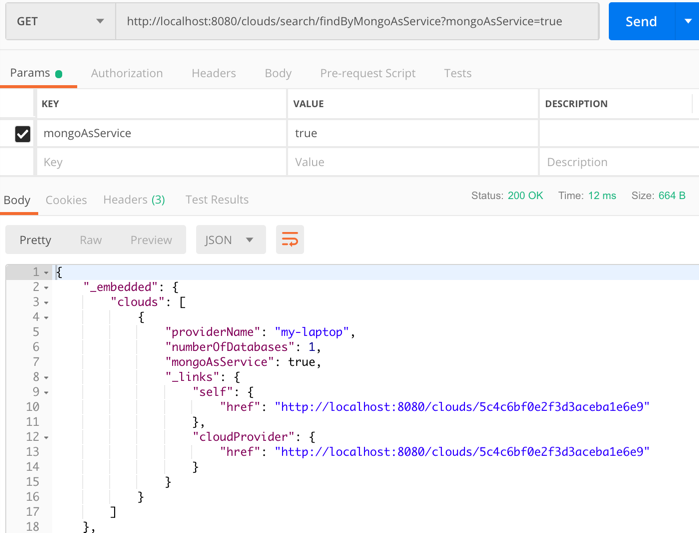
I also tried calling that custom “search” interface to filter the documents where “mongoAsService” is true. That worked.
So, running my Spring Boot REST API with a local MongoDB worked fine.
Run using Microsoft Azure Cosmos DB
Next up, I pointed this application to Microsoft Azure. One of the many databases in Azure is Cosmos DB. This underrated database offers some pretty amazing performance and scale, and is only available from Microsoft in their cloud. NO PROBLEM. It serves up a handful of standard interfaces, including Cassandra and MongoDB. So I can take advantage of all the crazy-great hosting features, but not lock myself into any of them.
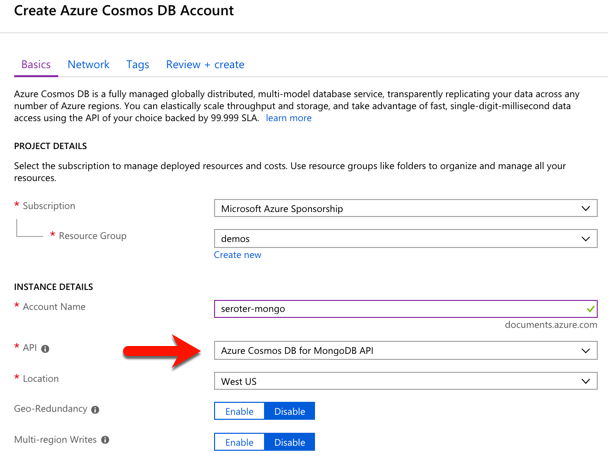
I started by visiting the Microsoft Azure portal. I chose to create a new Cosmos DB instance, and selected which API (SQL, Cassandra, Gremlin, MongoDB) I wanted.
After a few minutes, I had an instance of Cosmos DB. If I had wanted to, I could have created a database and collection from the Azure portal, but I wanted to confirm that Spring Data would do it for me automatically.
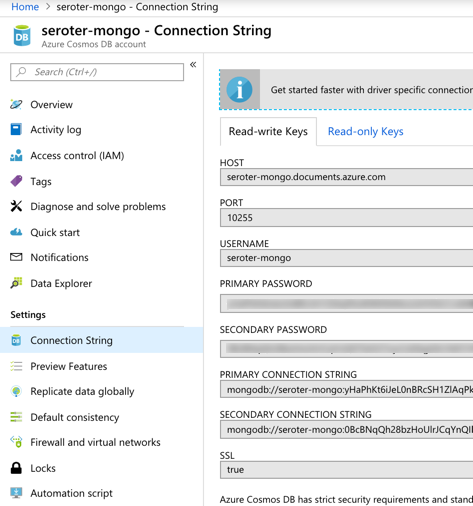
I located the “Connection String” properties for my new instance, and grabbed the primary one.
With that in hand, I went back to my application.properties file, commented out my “local” configuration, and added entries for the Azure instance.
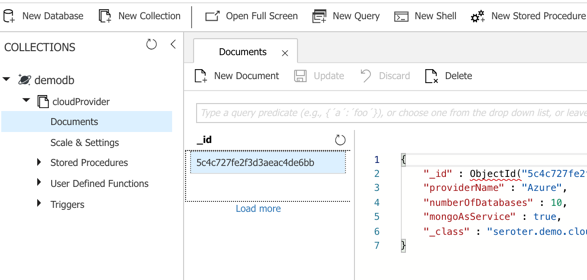
I could publish this app to Azure, but because it’s also easy to test it locally, I just started up my Spring Boot REST API again, and pinged the database. After POSTing a new record to my endpoint, I checked the Azure portal and sure enough, saw a new database and collection with my “document” in it.
Here, I’m using a super-unique cloud database but don’t need to manage my own software to remain “portable”, thanks to Spring Boot and MongoDB interfaces. Wicked.
Run using Amazon DocumentDB
Amazon DocumentDB is the new kid in town. I wrote up an InfoQ story about it, which frankly inspired me to try all this out.
Like Azure Cosmos DB, this database isn’t running MongoDB software, but offers a MongoDB-compatible interface. It also offers some impressive scale and performance capabilities, and could be a good choice if you’re an AWS customer.
For me, trying this out was a bit of a chore. Why? Mainly because the database service is only accessible from within an AWS private network. So, I had to properly set up a Virtual Private Cloud (VPC) network and get my Spring Boot app deployed there to test out the database. Not rocket science, but something I hadn’t done in a while. Let me lay out the steps here.
First, I created a new VPC. It had a single public subnet, and I added two more private ones. This gave me three total subnets, each in a different availability zone.
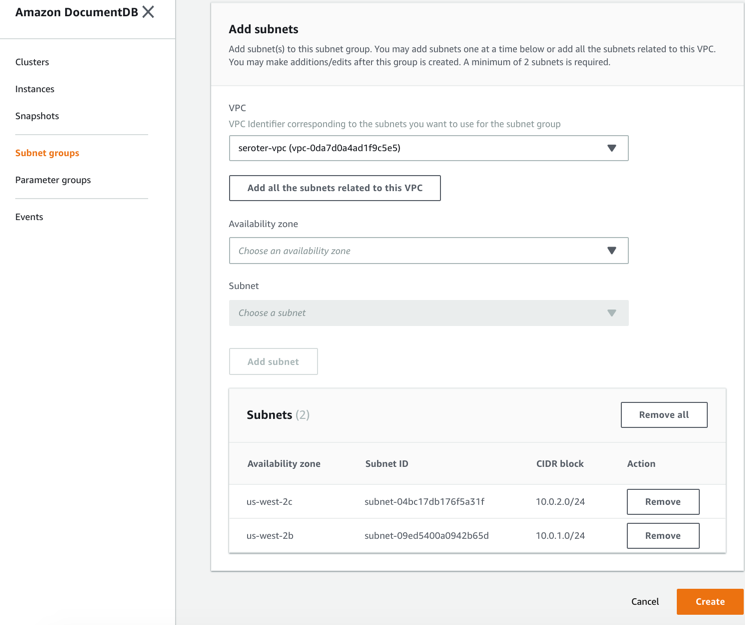
Next, I switched to the DocumentDB console in the AWS portal. First, I created a new subnet group. Each DocumentDB cluster is spread across AZs for high availability. This subnet group contains both the private subnets in my VPC.
I also created a parameter group. This group turned off the requirement for clients to use TLS. I didn’t want my app to deal with certs, and also wanted to mess with this capability in DocumentDB.
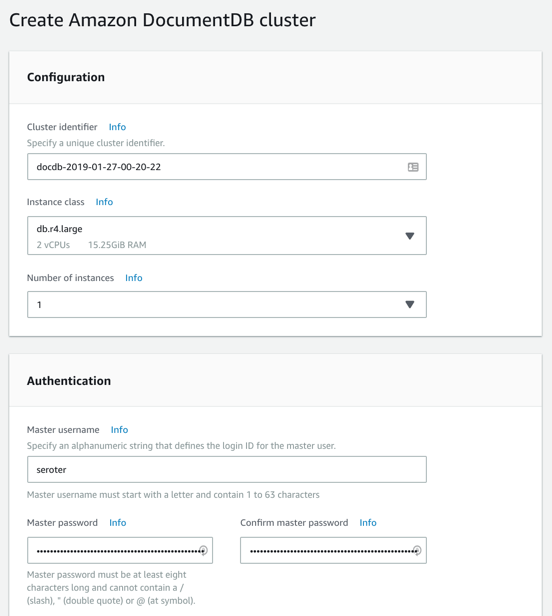
Next, I created my DocumentDB cluster. I chose an instance class to match my compute and memory needs. Then I chose a single instance cluster; I could have chosen up to 16 instances of primaries and replicas.
I also chose my pre-configured VPC and the DocumentDB subnet group I created earlier. Finally, I set my parameter group, and left default values for features like encryption and database backups.
After a few minutes, my cluster and instance were up and running. While this console doesn’t expose the ability to create databases or browse data, it does show me health metrics and cluster configuration details.
Next, I took the connection string for the cluster, and updated my application.properties file.
Now to deploy the app to AWS. I chose Elastic Beanstalk as the application host. I selected Java as my platform, and uploaded the JAR file associated with my Spring Boot REST API.
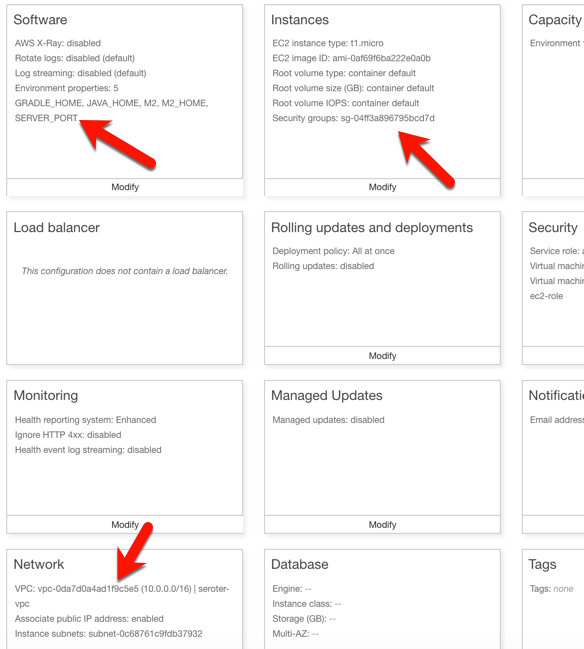
I had to set a few more parameters for this app to work correctly. First, I set a SERVER_PORT environment variable to 5000, because that’s what Beanstalk expects. Next, I ensured that my app was added to my VPC, provisioned a public IP address, and chose to host on the public subnet. Finally, I set the security group to the default one for my VPC. All of this should ensure that my app is on the right network with the right access to DocumentDB.
After the app was created in Beanstalk, I queried the endpoint of my REST API. Then I created a new document, and yup, it was added successfully.
So again, I used a novel, interesting cloud-only database, but didn’t have to change a lick of code.
Run using MongoDB in Pivotal Cloud Foundry
The last place to try this app out? A multi-cloud platform like PCF. If you did use something like PCF, the compute layer is consistent regardless of what public/private cloud you use, and connectivity to data services is through a Service Broker. In this case, MongoDB clusters are managed by PCF, and I get my own cluster via a Broker. Then my apps “bind” to that cluster.
First up, provisioning MongoDB. PCF offers MongoDB Enterprise from Mongo themselves. To a developer, this looks like a database-as–a-service because clusters are provisioned, optimized, backed up, and upgraded via automation. Via the command line or portal, I could provision clusters. I used the portal to get myself happy little instance.
After giving the service a name, I was set. As with all the other examples, no code changes were needed. I actually removed any MongoDB-related connection info from my application.properties file because that spring-cloud-cloudfoundry-connector dependency actually grabs the credentials from the environment variables set by the service broker.
One thing I *did* create for this environment — which is entirely optional — is a Cloud Foundry manifest file. I could pass these values into a command line instead of creating a declarative file, but I like writing them out. These properties simply tell Cloud Foundry what to do with my app.
With that, I jumped to a terminal, navigated to a directory holding that manifest file, and typed cf push. About 25 seconds later, I had a containerized, reachable application that connected to my MongoDB instance.
Fortunately, PCF treats Spring Boot apps special, so it used the Spring Boot Actuator to pull health metrics and more. Above, you can see that for each instance, I saw extra health information for my app, and, MongoDB itself.
Once again, I sent some GET requests into my endpoint, saw the expected data, did a POST to create a new document, and saw that succeed.
Wrap Up
Now, obviously there are novel cloud services without “standard” interfaces like the MongoDB API. Some of these services are IoT, mobile, or messaging related —although Azure Event Hubs has a Kafka interface now, and Spring Cloud Stream keeps message broker details out of the code. Other unique cloud services are in emerging areas like AI/ML where standardization doesn’t really exist yet. So some applications will have a hard coupling to a particular cloud, and of course that’s fine. But increasingly, where you run, how you run, and what you connect to, doesn’t have to be something you choose up front. Instead, first you build great software. Then, you choose a cloud. And that’s pretty cool.
Platforms should run on Kubernetes, apps should run on PaaS. That simple heuristic seems to resonate with the companies I talk to. When you have access to both environments, it makes sense to figure out what runs where. PaaS is ideal when you have custom code and want an app-aware environment that wires everything together. It’s about velocity, and straightforward Day 2 management. Kubernetes is a great choice when you have closely coordinated, distributed components with multiple exposed network ports and a need to access to infrastructure primitives. You know, a platform! Things like databases, message brokers, and hey, integration platforms.In this post, I see what it takes to get a platform up and running on Azure’s new Kubernetes service.
While Kubernetes itself is getting to be a fairly standard component, each public cloud offers it up in a slightly different fashion. Some clouds manage the full control plane, others don’t. Some are on the latest version of Kubernetes, others aren’t. When you want a consistent Kubernetes experience in every infrastructure pool, you typically use an installable product like Pivotal Container Service (PKS). But I’ll be cloud-specific in this demo, since I wanted to take Azure Kubernetes Service (AKS) for a spin. And we’ll use Spring Cloud Data Flow as our “platform” to install on AKS.
To start with, I went to the Azure Portal and chose to add a new instance of AKS. I was first asked to name my cluster, choose a location, pick a Kubernetes version, and set my initial cluster size.
For my networking configuration, I turned on “HTTP application routing” which gives me a basic (non-production grade) ingress controller. Since my Spring Cloud Data Flow is routable and this is a basic demo, it’ll work fine.
After about eleven minutes, I had a fully operational Kubernetes cluster.
Now, this is a “managed” service from Microsoft, but they definitely show you all the guts of what’s stood up to support it. When I checked out the Azure Resource Group that AKS created, it was … full. So, this is apparently the hooves and snouts of the AKS sausage. It’s there, but I don’t want to know about it.
The Azure Cloud Shell is a hidden gem of the Microsoft cloud. It’s a browser-based shell that’s stuffed with powerful components. Instead of prepping my local machine to talk to AKS, I just used this. From the Azure Portal, I spun up the Shell, loaded my credentials to the AKS cluster, and used the kubectl command to check out my nodes.
Groovy. Let’s install stuff. Spring Cloud Data Flow (SCDF) makes it easy to build data pipelines. These pipelines are really just standalone apps that get stitched together to form a sequential data processing pipeline. SCDF is a platform itself; it’s made up of a server, Redis node, MySQL node, and messaging broker (RabbitMQ, Apache Kafka, etc). It runs atop a number of different engines, including Cloud Foundry or Kubernetes. Spring Cloud Data Flow for Kubernetes has simple instructions for installing it via Helm.
I issued a Helm command from the Azure Cloud Shell (as Helm is pre-installed there) and in moments, had SCDF deployed.
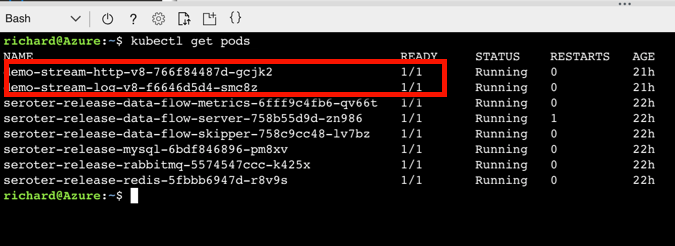
When it finished, I saw that I had new Kubernetes pods running, and a load balancer service for routing traffic to the Data Flow server.
SCDF offers up a handful of pre-built “apps” to bake into pipelines, but the real power comes from building your own apps. I showed that off a few weeks ago, so for this demo, I’ll keep it simple. This streaming pipeline simply takes in an HTTP request, and drop the payload into a log file. THRILLING!
The power of a platform like SCDF comes out during deployment of a pipeline. See here that I chose Kubernetes as my underlying engine, created a load balancer service (to make my HTTP component routable) via a property setting, and could have optionally chose different instance counts for each component in the pipeline. Love that.
If you have GUI-fatique, you can always set these deploy-time properties via free text. I won’t judge you.
After deploying my streaming pipeline, I saw new pods shows up in AKS: one pod for each component of my pipeline.
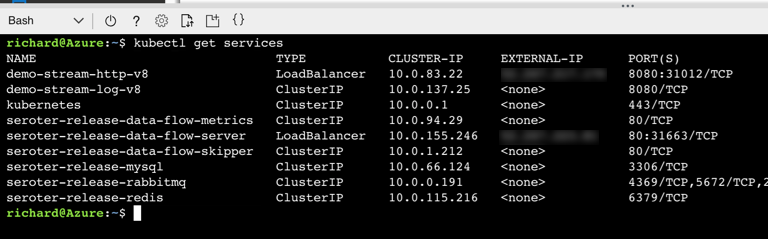
I ran the kubectl get services command to confirm that SCDF built out a load balancer service for the HTTP app and assigned a public IP.
SCDF reads runtime information from the underlying engine (AKS, in this case) and showed me that my HTTP app was running, and its URL.
I spun up Postman and sent a bunch of JSON payloads to the first component of the SCDF pipeline running on AKS.
I then ran a kubectl logs [log app’s pod name] command to check the logs of the pipeline component that’s supposed to write logs.
And that’s it. In a very short period of time, I stood up a Kubernetes cluster, deployed a platform on top of it, and tested it out. AKS makes this fairly easy, and the fact that it’s vanilla Kubernetes is nice. When using public cloud container-as-a-service products or installable software that runs everywhere, consider Kubernetes a great choice for running platforms.
When I say “PaaS” what comes to mind? If you’re like most people I talk to, you think of public cloud platforms for modern web apps. So I’ll forgive you if you didn’t realize that things are different now!
The first generation of PaaS products had a few things in common. They were public cloud only. You had to build apps with the runtime constraints in mind. They only ran statelesss web apps. Linux was the only runtime. When Cloud Foundry first came out, it checked most of those boxes. But over the years, Pivotal Cloud Foundry (PCF) evolved to do much more.
Many people still think of those first-generation PaaS constraints when considering PCF, and specifically, the Pivotal Application Service (PAS). So, I thought it’d be fun to look at non-traditional workloads. In this brief five-part series, I’m going to show off the following scenarios:
Most Cloud Foundry users depend on buildpacks. Developers push source code, and the buildpack pulls in dependencies, frameworks, and runtimes, then builds a tarball that’s deployed as an OCI-compatible container in Cloud Foundry. One major benefit of the buildpacks model is that the platform brings the root file system to your app. You’re not responsible for finding secure base images or maintaining that “layer” of the stack. But all that said, some folks like using Docker images as their packaging unit whether manually created (don’t do that) or as the output from a continuous integration pipeline.
It doesn’t matter if Cloud Foundry builds the container or you send in a Docker image, it’s all treated the same by the platform. At runtime, the orchestrator executes all containers using runC, the same spec used by Docker and Kubernetes. Let’s see this in action.
You can try this for free on Pivotal Web Services if you don’t have a Cloud Foundry available. I’m using a different environment, but they all behave the same. That’s the point! After you cf login to Cloud Foundry, it’s time to push a container.
How about we start with a Node.js web app. Here’s an Express app built by the folks at Bitnami. We can actually push this to Cloud Foundry with a single command.
In that command, notice a couple things. First, I’m using the –docker-image flag. Since I’m hitting a public image in the public Docker Hub, no credentials or anything are needed. PCF also works with private images, and private registries. Otherwise, it’s a standard command that asks for a single instance, and 128M of memory for each instance. Within ten seconds, you’ll have two routable instances ready to process traffic.
Seriously. That’s amazing. And PCF doesn’t “mess with” the image. Whatever layers are in your Docker image are what run in Cloud Foundry. One thing PCF *does* do is volume mount a directory that contains a unique certificate for the container. This regularly-rotated credential (up to hourly!) is used for things like mTLS. You can see it by SSH-ing into the container and doing printenv or browsing the file system. Yes, you can actually SSH into containers whether built by the platform or via Docker images. No black boxes here.
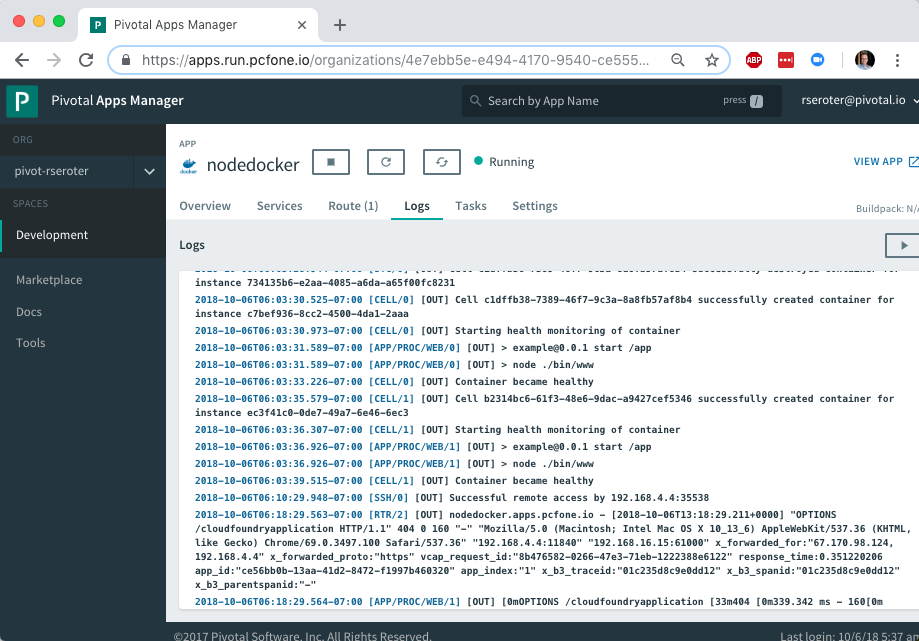
Deploying an app’s only half the story. Does PCF treat the running app the same way if it was packaged as a Docker image? Yup. Jumping to the PCF Apps Manager UX, you see our running app.
If you look closely, you see that we indicate the app type, in this case, that it’s from a Docker image.
More importantly, the platform bestows all the operational goodness on this app as any other. For example, all the logs from each app instance are collected and aggregated.
You can add environment variables. Configure auto-scaling. Monitor app and container health metrics. Bind to marketplace services. All the things that make PCF a great runtime for apps make it a great runtime for apps packaged as Docker images.
So try it out yourself. If you’re building custom apps, PCF is a great destination regardless of how you want to ship code. Stay tuned tomorrow for fun network routing demonstration.






























 Richard Seroter's Architecture Musings