Category: Cloud Foundry

  • Adding Voice To Event Processing Applications Using Microsoft StreamInsight and Twilio

    I recently did an in-person demonstration of how to use the cool Twilio service to send voice messages when Microsoft StreamInsight detected a fraud condition. In this blog post, I’ll walk through how I built the StreamInsight adapter, Twilio handler service and plugged it all together.

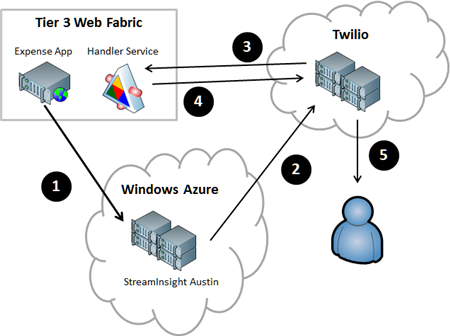
    Here is what I built, with each numbered activity explained below.
    2012.06.07twilio01

    1. Expense web application sends events to StreamInsight Austin. I built an ASP.NET web site that I deployed to the Iron Foundry environment that is provided by Tier 3’s Web Fabric offering. This web app takes in expense records from users and sends those events to the yet-to-be-released StreamInsight Austin platform. StreamInsight is Microsoft’s complex event processing engine that is capable of processing hundreds of thousands of events per second through a set of deployed queries. StreamInsight code-named Austin is the Windows Azure hosted version of StreamInsight that will be generally available in the near future. The events are sent by the Expense application to the HTTP endpoint provided by StreamInsight Austin.
    2. StreamInsight adapter triggers a call to the Twilio service. When a query pattern is matched in StreamInsight, the custom output adapter is called. This adapter uses the Twilio SDK for .NET to either initiate a phone call or send an SMS text message.
    3. Twilio service hits a URL that generates the call script. The Twilio VOIP technology works by calling a URL and getting back the Twilio Markup Language (TwiML) that describes what to say to the phone call recipient. Instead of providing a static TwiML (XML) file that instructs Twilio to say the same thing in each phone call, I built a simple WCF Handler Service that takes in URL parameters and returns a customized TwiML message.
    4. Return TwiML message to Twilio service. That TwiML that the WCF service produces is retrieved and parsed by Twilio.
    5. Place phone call to target. When StreamInsight invokes the Twilio service (step 2), it passes in the phone number of the call recipient. Now that Twilio has called the Handler Service and gotten back the TwiML instructions, it can ring the phone number and read the message.

    Sound interesting?  I’m going to tackle this in order of execution (from above), not necessary order of construction (where you’d realistically build them in this order: (1) Twilio Handler Service, (2) StreamInsight adapter, (3) StreamInsight application, (4) Expense web site). Let’s dive in.

    1. Sending events from the Expense web application to StreamInsight

    This site is a simple ASP.NET website that I’ve deployed up to Tier 3’s hosted Iron Foundry environment.

    2012.06.07twilio02

    Whenever you provision a StreamInsight Austin environment in the current “preview” mode, you get an HTTP endpoint for receiving events into the engine. This HTTP endpoint accepts JSON or XML messages. In my case, I’m throwing a JSON message at the endpoint. Right now the endpoint expects a generic event message, but in the future, we should see StreamInsight Austin be capable of taking in custom event formats.

    //pull Austin URL from configuration file
    string destination = ConfigurationManager.AppSettings["EventDestinationId"];
    //build JSON message consisting of required headers, and data payload
    string jsonPayload = "{\"DestinationID\":\"http:\\/\\/sample\\/\",\"Payload\":[{\"Key\":\"CustomerName\",\"Value\":\""+ txtRelatedParty.Text +"\"},{\"Key\":\"InteractionType\",\"Value\":\"Expense\"}],\"SourceID\":\"http:\\/\\/dummy\\/\",\"Version\":{\"_Build\":-1,\"_Major\":1,\"_Minor\":0,\"_Revision\":-1}}";
    
    //update URL with JSON flag
    string requestUrl = ConfigurationManager.AppSettings["AustinEndpoint"] + "json?batching=false";
    HttpWebRequest request = HttpWebRequest.Create(requestUrl) as HttpWebRequest;
    
    //set HTTP headers
    request.Method = "POST";
    request.ContentType = "application/json";
    
    using (Stream dataStream = request.GetRequestStream())
     {
         string postBody = jsonPayload;
    
         // Create POST data and convert it to a byte array.
         byte[] byteArray = Encoding.UTF8.GetBytes(postBody);
         dataStream.Write(byteArray, 0, byteArray.Length);
      }
    
    HttpWebResponse response = null;
    
    try
    {
        response = (HttpWebResponse)request.GetResponse();
     }
     catch (Exception ex)
     { }
    

    2. Building the StreamInsight application and Twilio adapter

    The Twilio adapter that I built is a “typed adapter” which means that it expects a specific payload. That “Fraud Alert Event” object that the adapter expects looks like this:

    public class FraudAlertEvent
        {
            public string CustomerName { get; set; }
            public string ExpenseDate { get; set; }
            public string AlertMessage { get; set; }
        }
    

    Next, I built up the actual adapter. I used NuGet to discover and add the Twilio SDK to my Visual Studio project.

    2012.06.07twilio03

    Below is the code for my adapter, with comments inline. Basically, I dequeue events that matched the StreamInsight query I deployed, and then use the Twilio API to either initiate a phone call or send a text message.

    public class TwilioPointOutputAdapter : TypedPointOutputAdapter
        {
            //member variables
            string acctId = string.Empty;
            string acctToken = string.Empty;
            string url = string.Empty;
            string phoneNum = string.Empty;
            string phoneOrMsg = string.Empty;
            TwilioRestClient twilioProxy;
    
            public TwilioPointOutputAdapter(AdapterConfig config)
            {
                //set member variables using values from runtime config values
                this.acctId = config.AccountId;
                this.acctToken = config.AuthToken;
                this.phoneOrMsg = config.PhoneOrMessage;
                this.phoneNum = config.TargetPhoneNumber;
                this.url = config.HandlerUrl;
            }
    
            ///
    <summary> /// When the adapter is resumed by the engine, start dequeuing events again /// </summary>
            public override void  Resume()
            {
                DequeueEvent();
            }
    
            ///
    <summary> /// When the adapter is started up, begin dequeuing events /// </summary>
            public override void  Start()
            {
                DequeueEvent();
            }
    
            ///
    <summary> /// Function that pulls events from the engine and calls the Twilio service /// </summary>
            void DequeueEvent()
            {
    		var twilioProxy = new TwilioRestClient(this.acctId, this.acctToken);
    
                while (true)
                {
                    try
                    {
                        //if the SI engine has issued a command to stop the adapter
                        if (AdapterState.Stopping == AdapterState)
                        {
                            Stopped();
    
                            return;
                        }
    
                        //create an event
                        PointEvent currentEvent = default(PointEvent);
    
                        //dequeue the event from the engine
                        DequeueOperationResult result = Dequeue(out currentEvent);
    
                        //if there is nothing there, tell the engine we're ready for more
                        if (DequeueOperationResult.Empty == result)
                        {
                            Ready();
                            return;
                        }
    
                        //if we find an event to process ...
                        if (currentEvent.EventKind == EventKind.Insert)
                        {
                            //append event-specific values to the Twilio handler service URL
                            string urlparams = "?val=0&action=Please%20look%20at%20" + currentEvent.Payload.CustomerName + "%20expenses";
    
                            //create object that holds call criteria
                            CallOptions opts = new CallOptions();
                            opts.Method = "GET";
                            opts.To = phoneNum;
                            opts.From = "+14155992671";
                            opts.Url = this.url + urlparams;
    
                            //if a phone call ...
                            if (phoneOrMsg == "phone")
                            {
                                //make the call
                                var call = twilioProxy.InitiateOutboundCall(opts);
                            }
                            else
                            {
                                //send an SMS message
                                var msg = twilioProxy.SendSmsMessage(opts.From, opts.To, "Fraud has occurred with " + currentEvent.Payload.CustomerName);
                            }
                        }
                        //cleanup the event
                        ReleaseEvent(ref currentEvent);
                    }
                    catch (Exception ex)
                    {
                        throw ex;
                    }
                }
            }
        }
    

    Next, I created my StreamInsight Austin application. Instead of using the command line sample provided by the StreamInsight team, I created a little WinForm app that handles the provisioning of the environment, the deployment of the query, and the sending of test event messages.

    2012.06.07twilio04

    The code that deploys the “fraud detection” query takes care of creating the LINQ query, defining the StreamInsight query that uses the Twilio adapter, and starting up the query in the StreamInsight Austin environment. My Expense web application sends events that contain a CustomerName and InteractionType (e.g. “sale”, “complaint”, etc).

    private void CreateQueries()
    {
    		...
    
    		//put inbound events into 30-second windows
         var custQuery = from i in allStream
              group i by new { Name = i.CustomerName, iType = i.InteractionType } into CustomerGroups
              from win in CustomerGroups.TumblingWindow(TimeSpan.FromSeconds(30), HoppingWindowOutputPolicy.ClipToWindowEnd)
              select new { ct = win.Count(), Cust = CustomerGroups.Key.Name, Type = CustomerGroups.Key.iType };
    
         //if there are more than two expenses for the same company in the window, raise event
         var thresholdQuery = from c in custQuery
                       where c.ct > 2 && c.Type == "Expense"
                       select new FraudAlertEvent
                       {
                              CustomerName = c.Cust,
                              AlertMessage = "Too many expenses!",
                              ExpenseDate = DateTime.Now.ToString()
                        };
    
          //call DeployQuery which instantiates StreamInsight Query
          Query query5 = DeployQuery(thresholdQuery, "Threshold Query");
           query5.Start();
    		...
    }
    
    private Query DeployQuery(CepStream queryStream, string queryName)
    {
          //setup Twilio adapter configuration settings
          var outputConfig = new AdapterConfig
           {
                AccountId = ConfigurationManager.AppSettings["TwilioAcctID"],
                AuthToken = ConfigurationManager.AppSettings["TwilioAcctToken"],
                TargetPhoneNumber = "+1111-111-1111",
                PhoneOrMessage = "phone",
                HandlerUrl = "http://twiliohandlerservice.ironfoundry.me/Handler.svc/Alert/Expense%20Fraud"
           };
    
          //add logging message
          lbMessages.Items.Add(string.Format("Creating new query '{0}'...", queryName));
    
          //define StreamInsight query that uses this output adapter and configuration
          Query query = queryStream.ToQuery(
                queryName,
                "",
                typeof(TwilioAdapterOutputFactory),
                outputConfig,
                EventShape.Point,
                StreamEventOrder.FullyOrdered);
    
          //return query to caller
          return query;
    }
    

    3. Creating the Twilio Handler Service hosted in Tier 3’s Web Fabric environment

    If you’re an eagle-eyed reader, you may have noticed my “HandlerUrl” property in the adapter configuration above. That URL points to a public address that the Twilio service uses to retrieve the speaking instructions for a phone call. Since I wanted to create a contextual phone message, I decided to build a WCF service that returns valid TwiML generated on demand. My WCF contract returns an XMLElement and takes in values that help drive the type of content in the TwiML message.

    [ServiceContract]
        public interface IHandler
        {
            [OperationContract]
            [WebGet(
                BodyStyle = WebMessageBodyStyle.Bare,
                RequestFormat = WebMessageFormat.Xml,
                ResponseFormat = WebMessageFormat.Xml,
                UriTemplate = "Alert/{thresholdType}?val={thresholdValue}&action={action}"
                )]
            XmlElement GenerateHandler(string thresholdType, string thresholdValue, string action);
        }
    

    The implementation of this service contract isn’t super interesting, but, I’ll include it anyway. Basically, if you provide a “thresholdValue” of zero (e.g. it doesn’t matter what value was exceeded), then I create a TwiML message that uses a woman’s voice to tell the call recipient that a threshold was exceeded and some action is required. If the “thresholdValue” is not zero, then this pleasant woman tells the call recipient about the limit that was exceeded.

            public XmlElement GenerateHandler(string thresholdType, string thresholdValue, string action)
            {
                string xml = string.Empty;
    
                if (thresholdValue == "0")
                {
                    xml = "<!--?xml version='1.0' encoding='utf-8' ?-->" +
                "" +
                "" +
                    "The " + thresholdType + " alert was triggered. " + action + "." +
                    "" +
                "";
                }
                else
                {
                    xml = "<!--?xml version='1.0' encoding='utf-8' ?-->" +
                "" +
                "" +
                    "The " + thresholdType + " value is " + thresholdValue + " and has exceeded the threshold limit. " + action + "." +
                    "" +
                "";
                }
    
                XmlDocument d = new XmlDocument();
                d.LoadXml(xml);
    
                return d.DocumentElement;
            }
        }
    

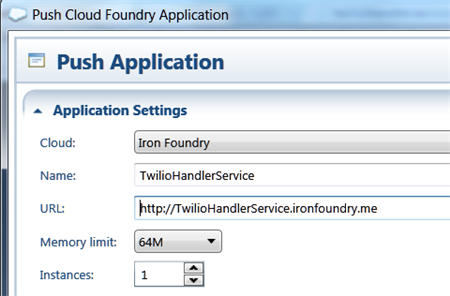
    I then did a quick push of this web service to my Web Fabric / Iron Foundry environment.
    2012.06.07twilio05

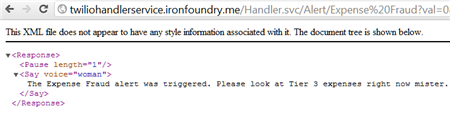
    I confirmed that my service was online (and you can too as I’ve left this service up) by hitting the URL and seeing valid TwiML returned.
    2012.06.07twilio06

    4. Test the solution and confirm the phone call

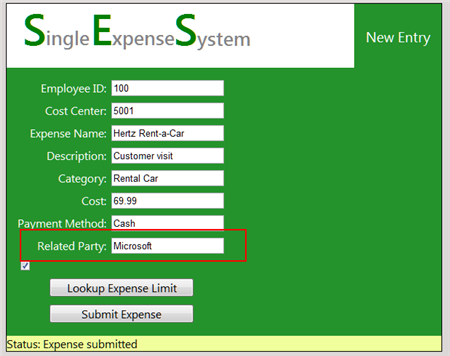
    Let’s commit some fraud on my website! I went to my Expense website, and according to my StreamInsight query, if I submitted more than 2 expenses for single client (in this case, “Microsoft”) within a 30 second window, a fraud event should be generated, and I should receive a phone call.
    2012.06.07twilio07

    After submitting a handful of events, I can monitor the Twilio dashboard and see when a phone call is being attempted and completed.

    2012.06.07twilio08

    Sure enough, I received a phone call. I captured the audio, which you can listen to here.

    Summary

    So what did we see? We saw that our Event Processing Engine in the cloud can receive events from public websites and trigger phone/text messages through the sweet Twilio service. One of the key benefits to StreamInsight Austin (vs. an onsite StreamInsight deployment) is the convenience of having an environment that can be easily reached by both on-premises and off-premises (web) applications. This can help you do true real-time monitoring vs. doing batch loads from off-premises apps into the on-premises Event Processing engine. And, the same adapter framework applies to either the onsite or cloud StreamInsight environment, so my Twilio adapter works fine, regardless of deployment model.

    The Twilio service provides a very simple way to inject voice into applications. While not appropriate for all cases, obviously, there are a host of interesting use cases that are enhanced by this service. Marrying StreamInsight and Twilio seems like a useful way to make very interactive CEP notifications possible!

  • New Job, Different Place

    Time to mix it up. I’ve been in enterprise IT for 5+ years, and while I’ve enjoyed it immensely and been fortunate to work at a great company, there are other things that I want to be able to do.

    So, I’ve decided to quit my job, and accept an offer with Tier 3. I’ll be a Product Manager and contribute to product strategy while writing/speaking about cloud computing and how to take advantage of IaaS and PaaS platforms. I’m excited to focus all my attention on cloud computing and get the opportunity work at a place that will compete and collaborate with some of the leading companies in this exploding space.

    Tier 3, included in Gartner’s recent Magic Quadrant for Public Cloud Infrastructure as a Service, has an excellent enterprise cloud infrastructure platform and a fascinating Cloud Foundry-based platform-as-a-service offering called Web Fabric. I’ve written about Iron Foundry (the open source technology beneath Web Fabric) a few times in the past, and really think that Tier 3 made a smart move bringing .NET developers into the popular Cloud Foundry ecosystem. Besides working with cool technology, I’m most excited about working with Adam, Jared, Wendy, Adron and all the supremely talented people at this up-and-coming company.

    I’ll stay in Southern California and travel up to Tier 3’s headquarters in Bellevue, WA every month or so. Tier 3 is completely supportive of my blogging, writing, InfoQ contribution, MS MVP activities, Pluralsight training, speaking engagements, and other random community activities. So, expect more of the same from me!

  • Is AWS or Windows Azure the Right Choice? It’s Not That Easy.

    I was thinking about this topic today, and as someone who built the AWS Developer Fundamentals course for Pluralsight, is a Microsoft MVP who plays with Windows Azure a lot, and has an unnatural affinity for PaaS platforms like Cloud Foundry / Iron Foundry and Force.com, I figured that I had some opinions on this topic.

    So why would a developer choose AWS over Windows Azure today? I don’t know all developers, so I’ll give you the reasons why I often lean towards AWS:

    • Pace of innovation. The AWS team is amazing when it comes to regularly releasing and updating products. The day my Pluralsight course came out, AWS released their Simple Workflow Service. My course couldn’t be accurate for 5 minutes before AWS screwed me over! Just this week, Amazon announced Microsoft SQL Server support in their robust RDS offering, and .NET support in their PaaS-like Elastic Beanstalk service. These guys release interesting software on a regular basis and that helps maintain constant momentum with the platform. Contrast that with the Windows Azure team that is a bit more sporadic with releases, and with seemingly less fanfare. There’s lots of good stuff that the Azure guys keep baking into their services, but not at the same rate as AWS.
    • Completeness of services. Whether the AWS folks think they offer a PaaS or not, their services cover a wide range of solution scenarios. Everything from foundational services like compute, storage, database and networking, to higher level offerings like messaging, identity management and content delivery. Sure, there’s no “true” application fabric like you’ll find in Windows Azure or Cloud Foundry, but tools like Cloud Formation and Elastic Beanstalk get you pretty close. This well-rounded offering means that developers can often find what they need to accomplish somewhere in this stack. Windows Azure actually has a very rich set of services, likely the most comprehensive of any PaaS vendor, but at this writing, they don’t have the same depth in infrastructure services. While PaaS may be the future of cloud (and I hope it is), IaaS is a critical component of today’s enterprise architecture.
    • It just works. AWS gets knocked from time to time on their reliability, but it seems like most agree that as far as clouds go, they’ve got a damn solid platform. Services spin up relatively quickly, stay up, and changes to service settings often cascade instantly. In this case, I wouldn’t say that Windows Azure doesn’t “just work”, but if AWS doesn’t fail me, I have little reason to leave.
    • Convenience. This may be one of the primary advantages of AWS at this point. Once a capability becomes a commodity (and cloud services are probably at that point), and if there is parity among competitors on functionality, price and stability, the only remaining differentiator is convenience. AWS shines in this area, for me. As a Microsoft Visual Studio user, there are at least four ways that I can consume (nearly) every AWS service: Visual Studio Explorer, API, .NET SDK or AWS Management Console. It’s just SO easy. The AWS experience in Visual Studio is actually better than the one Microsoft offers with Windows Azure! I can’t use a single UI to manage all the Azure services, but the AWS tooling provides a complete experience with just about every type of AWS service. In addition, speed of deployment matters. I recently compared the experience of deploying an ASP.NET application to Windows Azure, AWS and Iron Foundry. Windows Azure was both the slowest option, and the one that took the most steps. Not that those steps were difficult, mind you, but it introduced friction and just makes it less convenient. Finally, the AWS team is just so good at making sure that a new or updated product is instantly reflected across their websites, SDKs, and support docs. You can’t overstate how nice that is for people consuming those services.

    That said, the title of this post implies that this isn’t a black and white choice. Basing an entire cloud strategy on either platform isn’t a good idea. Ideally, a “cloud strategy” is nothing more than a strategy for meeting business needs with the right type of service. It’s not about choosing a single cloud and cramming all your use cases into it.

    A Microsoft shop that is looking to deploy public facing websites and reduce infrastructure maintenance can’t go wrong with Windows Azure. Lately, even non-Microsoft shops have a legitimate case for deploying apps written in Node.js or PHP to Windows Azure. Getting out of infrastructure maintenance is a great thing, and Windows Azure exposes you to much less infrastructure than AWS does.  Looking to use a SQL Server in the cloud? You have a very interesting choice to make now. Microsoft will do well if it creates (optional) value-added integrations between its offerings, while making sure each standalone product is as robust as possible. That will be its win in the “convenience” category.

    While I contend that the only truly differentiated offering that Windows Azure has is their Service Bus / Access Control / EAI product, the rest of the platform has undergone constant improvement and left behind many of its early inconvenient and unstable characteristics. With Scott Guthrie at the helm, and so many smart people spread across the Azure teams, I have absolutely no doubt that Windows Azure will be in the majority of discussions about “cloud leaders” and provide a legitimate landing point for all sorts of cloudy apps. At the same time though, AWS isn’t slowing their pace (quite the opposite), so this back-and-forth competition will end up improving both sets of services and leave us consumers with an awesome selection of choices.

    What do you think? Why would you (or do you) pick AWS over Azure, or vice versa?

  • Deploying Node.js Applications to Iron Foundry using the Cloude9 IDE

    This week, I attended the Cloud Foundry “one year anniversary” event where among other things, Cloud9 announced support for deployment to Cloud Foundry from their innovative Cloud9 IDE. The Cloud9 IDE lets you write HTML5, JavaScript and Node.js applications in an entirely web-based environment. Their IDE’s editor support many other programming languages, but they provide the fullest support for HTML/JavaScript. Up until this week, you could deploy your applications to Joyent, Heroku and Windows Azure. Now, you can also target any Cloud Foundry environment. Since I’ve been meaning to build a Node.js application, this seemed like the perfect push to do so. In this blog post, I’ll show you how to author a Node.js application in the Cloud9 IDE and push it to Iron Foundry’s distribution of Cloud Foundry. Iron Foundry recently announced their support for many languages besides .NET, so here’s a chance to see if that’s really the case.

    Let’s get started. First, I signed up for a free Cloud9 IDE account. It was super easy. Once I got my account, I saw a simple dashboard that showed my projects and allowed me to connect my account to Github.

    2012.04.12node01

    From here, I can create a new project by clicking the “+” icon above My Projects.

    2012.04.12node02

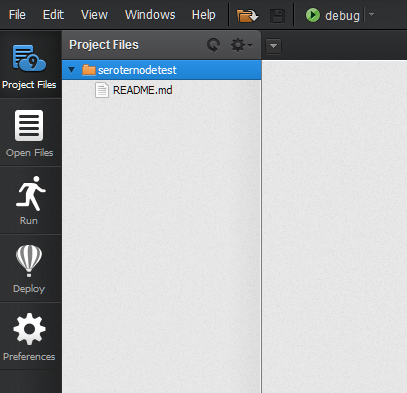
    At this point, I was asked for the name of my project and type of project (Git/Mercurial/FTP). Once my SeroterNodeTest project was provisioned, I jumped into the Cloud9 IDE editor interface. I don’t have any files (except for some simple Git instructions in a README file) but I got my first look at the user interface.

    2012.04.12node03

    The Cloud9 IDE provides much more than just code authoring and syntax highlighting. The IDE lets me create files, pull in Github projects, run my app in their environment, deploy to a supported cloud environment, and perform testing/debugging of the app. Now I was ready to build the app!

    I didn’t want to JUST build a simple “hello world” app, so I thought I’d use some recommended practices and let my app either return HTML or JSON based on querystring parameters. To start with, I’ll create my Node.js server by right-clicking my project and adding a new file named server.js.

    2012.04.12node04

    Before writing any code, I decided that I didn’t want to just build an HTML string by hand and have my Node.js app return it. So, I decided to use Mustache and separate my data from my HTML. Now, I couldn’t see an easy way to import this JavaScript library through the UI until I noticed that Cloud9 IDE supported the Node Package Manager (npm) in the exposed command window. From this command window, I could write a simple command (“npm install mustache”) and the necessary JavaScript libraries were added to my project.

    2012.04.12node05

    Great. Now I was ready to write my Node.js server code. First, I added a few references to required libraries.

    //create some variables that reference key libraries
    var http = require('http');
    var url = require('url');
    var Mustache = require('./node_modules/mustache/mustache.js');
    

    Next, I created a handler function that writes out HTML when it gets invoked. This function takes a “response” object which represents the content being returned to the caller. Doing response writing at this level helps prevent blocking calls in Node.js.

    //This function returns an HTML response when invoked
    function getweb(response)
    {
        console.log('getweb called');
        //create JSON object
        var data = {
            name: 'Richard',
            age: 35
        };
    
        //create template that formats the data
        var template = 'Hi there, <strong>{{ name }}</strong>';
    
        //use Mustache to apply the template and create HTML
        var result = Mustache.to_html(template, data);
    
        //write results back to caller
        response.writeHead(200, {'Content-Type': 'text/html'});
        response.write(result);
        response.end();
    }
    

    My second handler responds to a different URL querystring and returns a JSON object back to the caller.

    //This function returns JSON to simulate a service call
    function callservice(response)
    {
        console.log('callservice called');
        //create JSON object
        var data = {
            name: 'Richard',
            age: 35
        };
    
        //write results back to caller
        response.writeHead(200, {'Content-Type': 'text/html'});
        //convert JSON to string
        response.write(JSON.stringify(data));
        response.end();
    }
    

    How do I choose which of these two handlers to call? I have a function that uses input parameters to dynamically invoke one function or the other, based on the querystring input.

    //function that routes the request to appropriate handlers
    function routeRequest(path, reqhandle, response)
    {
        //does the request map to one of my function handlers?
         if (typeof reqhandle[path] === 'function') {
           //yes, so call the function
           reqhandle[path](response);
         }
         else
         {
             console.log('no match');
             response.end();
         }
    }
    

    The last function in my server.js file is the most important. This “startup” function is my entry point of the module. It starts the Node.js server and defines the operation that is called on each request. That operation invokes the previously defined routeRequest function which then explicitly handles the request.

    //inital function that routes requests
    function startup(reqhandle)
    {
        //function that responds to client requests
        function onRequest(request, response)
        {
            //yank out the path from the URL the client hit
            var path = url.parse(request.url).pathname;
    
            //handle individual requests
            routeRequest(path, reqhandle, response);
        }
    
        //start up the Node.js server
        http.createServer(onRequest).listen(process.env.PORT);
        console.log('Server running');
    }
    

    Finally, at the bottom of this module, I expose the functions that I want other modules to be able to call.

    //expose this module's operations so they can be called from main JS file
    exports.startup = startup;
    exports.getweb = getweb;
    exports.callservice = callservice;
    

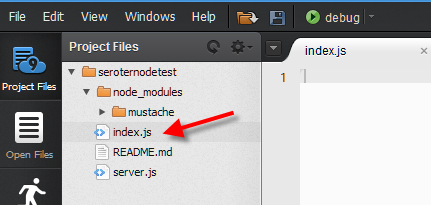
    With my primary server done, I went and added a new file, index.js.

    2012.04.12node06

    This acts as my application entry point. Here I reference the server.js module and create an array of valid querystring values and which function should respond to which path.

    //reference my server.js module
    var server = require('./server');
    
    //create an array of valid input values and what server function to invoke
    var reqhandle = {};
    reqhandle['/'] = server.getweb;
    reqhandle['/web'] = server.getweb;
    reqhandle['/service'] = server.callservice;
    
    //call the startup function to get the server going
    server.startup(reqhandle);
    

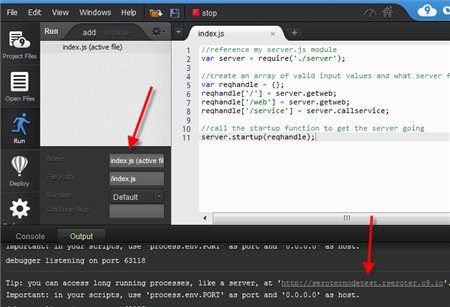
    And … we’re done. I switched to the Run tab, made sure I was starting with index.js and clicked the Debug button. At the bottom of the screen, in the Console window, I could see whether or not the application was able to start up. If so, a URL is shown.

    2012.04.12node07

    Clicking that link took me to my application hosted by Cloud9.

    2012.04.12node08

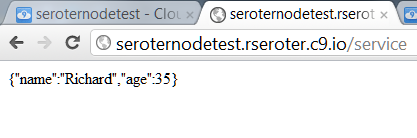
    With no URL parameters (just “/”), the web function was called. If I add “/service” to the URL, I see a JSON result.

    2012.04.12node09

    Cool! Just to be thorough, I also threw the “/web” on the URL, and sure enough, my web function was called.

    2012.04.12node10

    I was now ready to deploy this bad boy to Iron Foundry. The Cloud9 IDE is going to look for a package.json file before allowing deployment, so I went ahead and added a very simple one.

    2012.04.12node11

    Also, Cloud Foundry uses a different environmental variable to allocate the server port that Node.js listens on.So, I switched this line:

    http.createServer(onRequest).listen(process.env.C9_PORT);

    to this …

    http.createServer(onRequest).listen(process.env.VCAP_APP_PORT);

    I moved to the Deployment tab and clicked on the “+” sign at the top.

    2012.04.12node12

    What comes up is a wizard where I chose to deploy to Cloud Foundry (but could have also chosen Windows Azure, Joyent or Heroku).

    2012.04.12node13

    The key phrasing there is that you are signing into a Cloud Foundry API. So ANY Cloud Foundry provider (that is accessible by Cloud9 IDE) is a valid target. I plugged in the API endpoint of the newest Iron Foundry environment, and provided my credentials.

    2012.04.12node14

    Once I signed in, I saw that I had no apps in this environment yet. After putting a name to application, I clicked the Create New Cloud Foundry application button and was given the choice of Node.js runtime version, number of instances to run this on, and how much RAM to allocate.

    2012.04.12node15

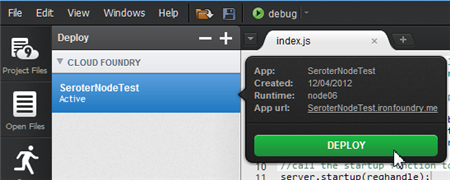
    That was the final step in the deployment target wizard, and now all that’s left to do is select this new package and click Deploy.

    2012.04.12node16

    In seven seconds, the deployment was done and I was provided my Iron Foundry URL.

    2012.04.12node17

    Sure enough, hitting that URL (http://seroternodetest.ironfoundry.me/service) in the browser resulted in my Node.js application returning the expected response.

    2012.04.12node18

    How cool is all that? I admit that while I find Node.js pretty interesting, I don’t have a whole lot of enterprise-type scenarios in mind yet. But, playing with Node.js gave me a great excuse to try out the handy Cloud9 IDE while flexing Iron Foundry’s newfound love for polyglot environments.

    What do you think? Have you tried web-only IDEs? Do you have any sure-thing usage scenarios for Node.js in enterprise environments?

  • Three Software Updates to be Aware Of

    In the past few days, there have been three sizable product announcements that should be of interest to the cloud/integration community. Specifically, there are noticeable improvements to Microsoft’s CEP engine StreamInsight, Windows Azure’s integration services, and Tier 3’s Iron Foundry PaaS.

    First off, the Microsoft StreamInsight team recently outlined changes that are coming in their StreamInsight 2.1 release. This is actually a pretty major update with some fundamental modification to the programmatic object model. I can attest to the fact that it can be challenge to build up the necessary host/query/adapter plumbing necessary to get a solution rolling, and the StreamInsight team has acknowledged this. The new object model will be a bit more straightforward. Also, we’ll see IEnumerable and IObservable become more first-class citizens in the platform. Developers are going to be encouraged to use IEnumerable/IObservable in lieu of adapters in both embedded AND server-based deployment scenarios. In addition to changes to the object model, we’ll also see improved checkpointing (failure recovery) support. If you want to learn more about StreamInsight, and are a Pluralsight subscriber, you can watch my course on this product.

    Next up, Microsoft released the latest CTP for its Windows Azure Service Bus EAI and EDI components. As a refresher, these are “BizTalk in the cloud”-like services that improve connectivity, message processing and partner collaboration for hybrid situations. I summarized this product in an InfoQ article written in December 2011. So what’s new? Microsoft issued a description of the core changes, but in a nutshell, the components are maturing. The tooling is improving, the message processing engine can handle flat files or XML, the mapping and schema designers have enhanced functionality, and the EDI offering is more complete. You can download this release from the Microsoft site.

    Finally, those cats at Tier 3 have unleashed a substantial update to their open-source Iron Foundry (public or private) .NET PaaS offering. The big takeaway is that Iron Foundry is now feature-competitive with its parent project, the wildly popular Cloud Foundry. Iron Foundry now supports a full suite of languages (.NET as well as Ruby, Java, PHP, Python, Node.js), multiple backend databases (SQL Server, Postgres, MySQL, Redis, MongoDB), and queuing support through Rabbit MQ. In addition, they’ve turned on the ability to tunnel into backend services (like SQL Server) so you don’t necessarily need to apply the monkey business that I employed a few months back. Tier 3 has also beefed up the hosting environment so that people who try out their hosted version of Iron Foundry can have a stable, reliable experience. A multi-language, private PaaS with nearly all the services that I need to build apps? Yes, please.

    Each of the above releases is interesting in its own way and to me, they have relationships with one another. The Azure services enable a whole new set of integration scenarios, Iron Foundry makes it simple to move web applications between environments, and StreamInsight helps me quickly make sense of the data being generated by my applications. It’s a fun time to be an architect or developer!

  • Doing a Multi-Cloud Deployment of an ASP.NET Web Application

    The recent Azure outage once again highlighted the value in being able to run an application in multiple clouds so that a failure in one place doesn’t completely cripple you. While you may not run an application in multiple clouds simultaneously, it can be helpful to have a standby ready to go. That standby could already be deployed to backup environment, or, could be rapidly deployed from a build server out to a cloud environment.

    https://twitter.com/#!/jamesurquhart/status/174919593788309504

    So, I thought I’d take a quick look at how to take the same ASP.NET web application and deploy it to three different .NET-friendly public clouds: Amazon Web Services (AWS), Iron Foundry, and Windows Azure. Just for fun, I’m keeping my database (AWS SimpleDB) separate from the primary hosting environment (Windows Azure) so that my database could be available if my primary, or backup (Iron Foundry) environments were down.

    My application is very simple: it’s a Web Form that pulls data from AWS SimpleDB and displays the results in a grid. Ideally, this works as-is in any of the below three cloud environments. Let’s find out.

    Deploying the Application to Windows Azure

    Windows Azure is a reasonable destination for many .NET web applications that can run offsite. So, let’s see what it takes to push an existing web application into the Windows Azure application fabric.

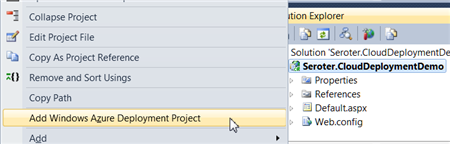
    First, after confirming that I had installed the Azure SDK 1.6, I right-clicked my ASP.NET web application and added a new Azure Deployment project.

    2012.03.05cloud01

    After choosing this command, I ended up with a new project in this Visual Studio solution.

    2012.03.05cloud02

    While I can view configuration properties (how many web roles to provision, etc), I jumped right into Publishing without changing any settings. While there was a setting to add an Azure storage account (vs. using local storage), but I didn’t think I had a need for Azure storage.

    The first step in the Publishing process required me to supply authentication in the form of a certificate. I created a new certificate, uploaded it to the Windows Azure portal, took my Azure account’s subscription identifier, and gave this set of credentials a friendly name.

    2012.03.05cloud03

    I didn’t have any “hosted services” in this account, so I was prompted to create one.

    2012.03.05cloud04

    With a host created, I then left the other settings as they were, with the hope of deploying this app to production.

    2012.03.05cloud05

    After publishing, Visual Studio 2010 showed me the status of the deployment that took about 6-7 minutes.

    2012.03.05cloud06

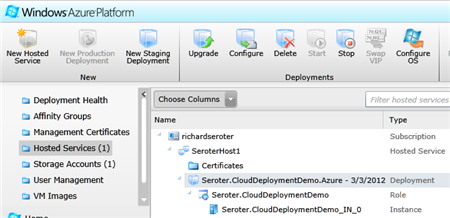
    An Azure hosted service and single instance were provisioned. A storage account was also added automatically.

    2012.03.05cloud07

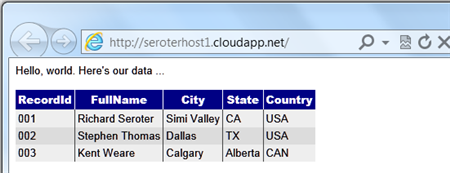
    I had an error and updated my configuration file to show the error, and that update took another 5 minutes (upon replacing the original). The error was that the app couldn’t load the AWS SDK component that was referenced. So, I switched the AWS SDK dll to “copy local” in the ASP.NET application project and once again redeployed my application. This time it worked fine, and I was able to see my SimpleDB data from my Azure-hosted ASP.NET website.

    2012.03.05cloud08

    Not too bad. Definitely a bit of upfront work to do, but subsequent projects can reuse the authentication-related activities that I completed earlier. The sluggish deployment times really stunt momentum, but realistically, you can do some decent testing locally so that what gets deployed is pretty solid.

    Deploying the Application to Iron Foundry

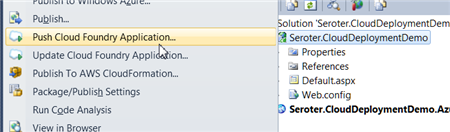
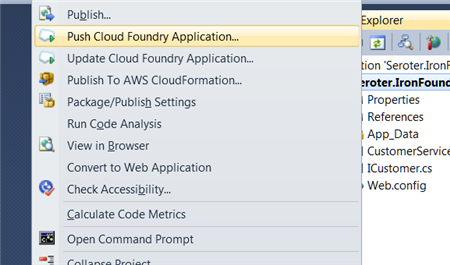
    Tier3’s Iron Foundry is the .NET-flavored version of VMware’s popular Cloud Foundry platform. Given that you can use Iron Foundry in your own data center, or in the cloud, it’s something that developers should keep a close eye on. I decided to use the Cloud Foundry Explorer that sits within Visual Studio 2010. You can download it from the Iron Foundry site. With that installed, I can right-click my ASP.NET application and choose to Push Cloud Foundry Application.

    2012.03.05cloud09

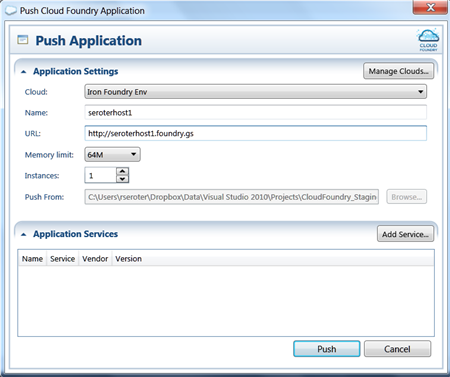
    Next, if I hadn’t previously configured access to the Iron Foundry cloud, I’d need to create a connection with the target API and my valid credentials. With the connection in place, I set the name of my cloud application and clicked Push.

    2012.03.05cloud18

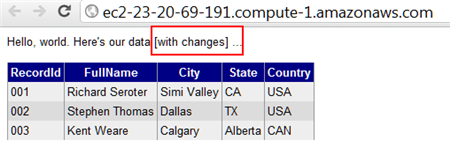
    In under 60 seconds, my application was deployed and ready to look at.

    2012.03.05cloud19

    What if a change to the application is needed? I updated the HTML, right clicked my project and chose to Update Cloud Foundry Application. Once again, in a few seconds, my application was updated and I could see the changes. Taking an existing ASP.NET and moving to Iron Foundry doesn’t require any modifications to the application itself.

    If you’re looking for a multi-language, on-or-off premises PaaS, that is easy to work with, then I strongly encourage you to try Iron Foundry out.

    Deploying the Application to AWS via CloudFormation

    While AWS does not have a PaaS, per se, they do make it easy to deploy apps in a PaaS-like way via CloudFormation. Via CloudFormation, I can deploy a set of related resources and manage them as one deployment unit.

    From within Visual Studio 2010, I right-clicked my ASP.NET web application and chose Publish to AWS CloudFormation.

    2012.03.05cloud11

    When the wizard launches, I was asked to choose one of two deployment templates (single instance or multiple, load balanced instances).

    2012.03.05cloud12

    After selecting the single instance template, I kept the default values in the next wizard page. These settings include the size of the host machine, security group and name of this stack.

    2012.03.05cloud13

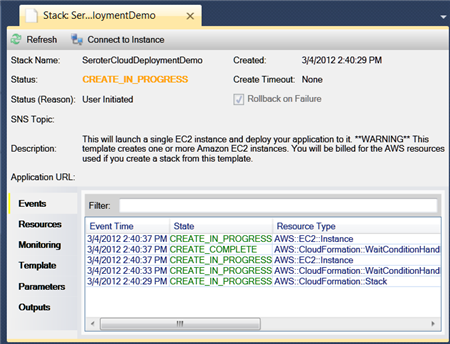
    On the next wizard pages, I kept the default settings (e.g. .NET version) and chose to deploy my application. Immediately, I saw a window in Visual Studio that showed the progress of my deployment.

    2012.03.05cloud14

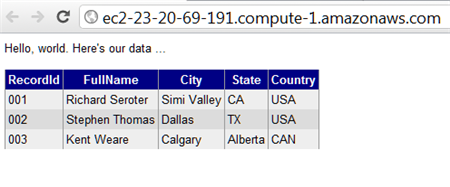
    In about 7 minutes, I had a finished deployment and a URL to my application was provided. Sure enough, upon clicking that link, I was sent to my web application running successfully in AWS.

    2012.03.05cloud15

    Just to compare to previous scenarios, I went ahead and made a small change to the HTML of the web application and once again chose Publish to AWS CloudFormation from the right-click menu.

    2012.03.05cloud16

    As you can see, it saw my previous template, and as I walked through the wizard, it retrieved any existing settings and allowed me to make any changes where possible. When I clicked Deploy again, I saw that my package was being uploaded, and in less than a minute, I saw the changes in my hosted web application.

    2012.03.05cloud17

    So while I’m still leveraging the AWS infrastructure-as-a-service environment, the use of CloudFormation makes this seem a bit more like an application fabric. The deployments were very straightforward and smooth, arguably the smoothest of all three options shown in this post.

    Summary

    I was able to fairly easily take the same ASP.NET website and from Visual Studio 2010, deploy to three distinct clouds.  Each cloud has their own steps and processes, but each are fairly straightforward. Because Iron Foundry doesn’t require new VMs to be spun up, it’s consistently the faster deployment scenario. That can make a big difference during development and prototyping and should be something you factor into your cloud platform selection. Windows Azure has a nice set of additional services (like queuing, storage, integration), and Amazon gives you some best-of-breed hosting and monitoring. Tier 3’s Iron Foundry lets you use one of the most popular open source, multi-environment PaaS platforms for .NET apps. There are factors that would lead you to each of these clouds.

    This is hopefully a good bit of information to know when panic sets in over the downtime of a particular cloud. However, as you build your application with more and more services that are specific to a given environment, this multi-cloud strategy becomes less straightforward. For instance, if an ASP.NET application leverages SQL Azure for database storage, then you are still in pretty good shape when an application has to move to other environments. ASP.NET talks to SQL Server using the same ports and API, regardless of whether it’s using SQL Azure or a SQL instance deployed on an Amazon instance. But, if I’m using Azure Queues (or Amazon SQS for that matter), then it’s more difficult to instantly replace that component in another cloud environment.

    Keep all these portability concerns in mind when building your cloud-friendly applications!

  • Building an OData Web Service on Iron Foundry

    In my previous posts on Iron Foundry, I did a quick walkthrough of the tooling, and then showed how to use external libraries to communicate from the cloud to an on-premises service. One thing that I hadn’t done yet was use the various application services that are available to Iron Foundry application developers. In this post, I’ll show you how to provision a SQL Server database, create a set of tables, populate data, and expose that data via an OData web service.

    The first challenge we face is how to actually interact with our Iron Foundry SQL Server service. At this point, Iron Foundry (and Cloud Foundry) doesn’t support direct tunneling to the application services. That means that I can’t just point the SQL Server 2008 Management Studio to a cloud database and use the GUI to muck with database properties. SQL Azure supports this, and hopefully we’ll see this added to the Cloud Foundry stack in the near future.

    But one man’s challenge is … well, another man’s challenge. But, it’s an entirely solvable one. I decided to use the Microsoft Entity Framework to model a data structure, generate the corresponding database script, and run that against the Iron Foundry environment. I can do all of this locally (with my own SQL Server) to test it before deploying to Iron Foundry. Let’s do that.

    Step 1: Generate the Data Model

    To start with, I created a new, empty ASP.NET web application. This will hold our Entity model, ASP.NET web page for creating the database tables and populating them with data, and the WCF Data Service that exposes our data sets. Then, I added a new ADO.NET Data Entity Model to the project.

    2012.1.16ironfoundry01

    We’re not starting with an existing database here, so I chose the Empty Model option after creating this file. I then defined a simple set of entities representing Pets and Owners. The relationship indicates that an Owner may have multiple Pets.

    2012.1.16ironfoundry02

    Now, to make my life easier, I generated the DDL script that would build a pair of tables based on this model. The script is produced by right-clicking the model and selecting the Generate Database from Model option.

    2012.1.16ironfoundry03

    When walking through the Generate Database Wizard, I chose a database (“DemoDb”) on my own machine, and chose to save a connection entry in my web application’s configuration file. Note that the name used here (“PetModelContainer”) is the same name of the connection string the Entity Model expects to use when inflating the entities.

    2012.1.16ironfoundry04

    When this wizard finished, we got a SQL script that can generate the tables and relationships.

    2012.1.16ironfoundry12

    Before proceeding, open up that file and comment out all the GO statements. Otherwise, the SqlCommand object will throw an error when trying to execute the script.

    2012.1.16ironfoundry05

    Step 2: Add WCF Data Service

    With the data model complete, I then added the WCF Data Service which exposes an OData endpoint for our entity model.

    2012.1.16ironfoundry06

    These services are super-easy to configure. There are really only two things you HAVE to do in order to get this service working. First the topmost statement (class declaration) needs to be updated with the name of the data entity class. Secondly, I uncommented/added statements for the entity access rules. In the case below, I provided “Read” access to all entities in the model.

    public class PetService : DataService
        {
            // This method is called only once to initialize service-wide policies.
            public static void InitializeService(DataServiceConfiguration config)
            {
                // TODO: set rules to indicate which entity sets and service operations are visible, updatable, etc.
                // Examples:
                config.SetEntitySetAccessRule("*", EntitySetRights.AllRead);
                // config.SetServiceOperationAccessRule("MyServiceOperation", ServiceOperationRights.All);
                config.DataServiceBehavior.MaxProtocolVersion = DataServiceProtocolVersion.V2;
            }
        }
    

    Our service is now completed! That was easy.

    Step 3: Create a Web Form that Creates the Database and Loads Data

    I could not yet test this application since I haven’t physically constructed the underlying data structure. Since I cannot run the database script directly against the Iron Foundry database, I needed a host that can run this script. I chose an ASP.NET Web Form that could execute the script AND put some sample data in the tables.

    Before creating the web page, I added an entry in my web.config file. Specifically, I added a new connection string entry that holds the details I need to connect to my LOCAL database.

    <connectionStrings>
    <add name="PetModelContainer" connectionString="metadata=res://*/PetModel.csdl|res://*/PetModel.ssdl|res://*/PetModel.msl;provider=System.Data.SqlClient; provider connection string=&quot;data source=.; initial catalog=DemoDb; integrated security=True; multipleactiveresultsets=True; App=EntityFramework&quot;" providerName="System.Data.EntityClient" />
    <add name="PetDb" connectionString="data source=.; initial catalog=DemoDb; integrated security=True;" />
    </connectionStrings>
    

    I was now ready to consume the SQL script and create the database tables. The follow code instantiates a database connection, loads the database script from the file system into a SqlCommand object, and executes the command. Note that unlike Windows Azure, an Iron Foundry web application CAN use file system operations.

    //create connection
                string connString = ConfigurationManager.ConnectionStrings["PetDb"].ConnectionString;
                SqlConnection c = new SqlConnection(connString);
    
                //load generated SQL script into a string
                FileInfo file = new FileInfo(Server.MapPath("PetModel.edmx.sql"));
                string tableScript = file.OpenText().ReadToEnd();
    
                c.Open();
                //execute sql script and create tables
                SqlCommand command = new SqlCommand(tableScript, c);
                command.ExecuteNonQuery();
                file.OpenText().Close();
                c.Close();
    
                command.Dispose();
                c.Dispose();
    
                lblStatus.Text = "db table created";
    

    Cool. So after this runs, we should have real database tables in our LOCAL database. Next up, I wrote the code necessary to add some sample data into our tables

     //create connection
                string connString = ConfigurationManager.ConnectionStrings["PetDb"].ConnectionString;
                SqlConnection c = new SqlConnection(connString);
                c.Open();
    
                string commandString = "";
                SqlCommand command;
                string ownerId;
                string petId;
    
                //owner command
                commandString = "INSERT INTO Owners VALUES ('Richard Seroter', '818-232-5454', 0);SELECT SCOPE_IDENTITY();";
                command = new SqlCommand(commandString, c);
                ownerId = command.ExecuteScalar().ToString();
    
                //pet command
                commandString = "INSERT INTO Pets VALUES ('Watson', 'Dog', 'Corgador', '31 lbs', 'Do not feed wet food', " + ownerId + ");SELECT SCOPE_IDENTITY();";
                command = new SqlCommand(commandString, c);
                petId = command.ExecuteScalar().ToString();
    
     		//add more rows
    
    		c.Close();
                command.Dispose();
                c.Dispose();
    
                lblStatus.Text = "rows added";
    

    Step 4: Local Testing

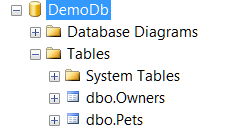
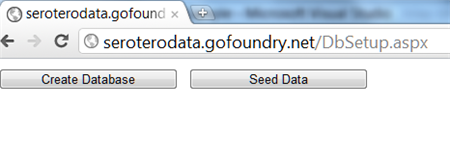
    I’m ready to test this application. After pressing F5 in Visual Studio 2010 and running this web application in a local web server, I saw my Web Form buttons for creating tables and seeding data. After clicking the Create Database button, I checked my local SQL Server. Sure enough, I found my new tables.

    2012.1.16ironfoundry07

    Next, I clicked the Seed Data button on my form and saw three rows added to each table. With my tables ready and data loaded, I could now execute the OData service. Hitting the service address resulted in a list of entities that the service makes available.

    2012.1.16ironfoundry08

    And then, per typical OData queries, I could drill into the various entities and relationship. With this simple query, I can show all the pets for a particular owner.

    2012.1.16ironfoundry09

    At this point, I had a fully working, LOCAL version of the this application.

    Step 5: Deploy to Iron Foundry

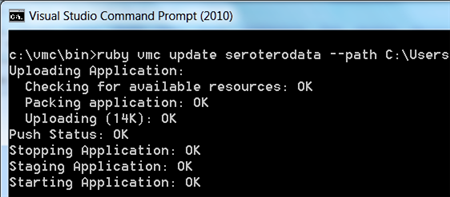
    Here’s where the rubber meets the road. Can I take this app, as is, and have it work in Iron Foundry? This answer is “pretty much.” The only thing that I really need to do is update the connection string for my Iron Foundry instance of SQL Server, but I’m getting ahead of myself. I first had to get this application up to Iron Foundry so that I could associate it with a SQL instance. Since I’ve had some instability with the Visual Studio plugin for Iron Foundry, I went ahead and “published” my ASP.NET application to my file system and ran the vmc client to upload the application.

    2012.1.16ironfoundry11

    With my app uploaded, I then bound my application to a SQL Server application service. I used the bind-service command to bind my SQL Server service to my application.

    2012.1.16ironfoundry14

    Now I needed to view my web.config file that was modified by the Iron Foundry engine. When this binding occurred, Iron Foundry provisioned a SQL Server space for me and updated my web.config file with the valid connection string. I’m going to need those connection string values (server name, database name, credentials) for my application as well. I wasn’t sure how to access my application files from the vmc tool, so I switched back to the Cloud Explorer where I can actually browse an app.

    2012.1.16ironfoundry15

    My web.config file now contained a “Default” connection string added by Iron Foundry.

    <connectionStrings>
        <add name="PetModelContainer" connectionString="metadata=res://*/PetModel.csdl|res://*/PetModel.ssdl|res://*/PetModel.msl;provider=System.Data.SqlClient;provider connection string=&quot;data source=.;initial catalog=DemoDb;integrated security=True;multipleactiveresultsets=True;App=EntityFramework&quot;"
          providerName="System.Data.EntityClient" />
        <add name="PetDb" connectionString="data source=.;initial catalog=DemoDb;integrated security=True;" />
        <add name="Default" connectionString="Data Source=XXXXXX;Initial Catalog=YYYYYYY;Integrated Security=False;User ID=ABC;Password=DEF;Connect Timeout=30" />
      </connectionStrings>
    

    Step 6: Update Application with Iron Foundry Connection Details and then Test the Solution

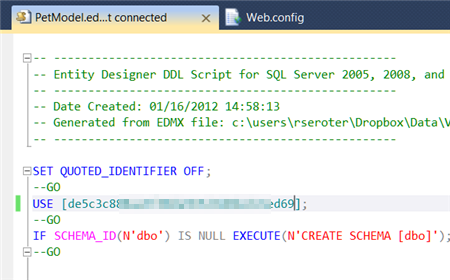
    With these connection string values in hand, I had two things to update. First, I updated my generated T-SQL script to “use” the appropriate database.

    2012.1.16ironfoundry16

    Finally, I had to update the two previously created connection strings. I updated my ORIGINAL web.config and not the one that I retrieved back from Iron Foundry. The first (“PetDb”) connection string was used by my code to run the T-SQL script and create the tables, and the second connection string (“PetModelContainer”) is leveraged by the Entity Framework and the WCF Data Service. Both were updated with the Iron Foundry connection string details.

    <connectionStrings>
        <add name="PetModelContainer" connectionString="metadata=res://*/PetModel.csdl|res://*/PetModel.ssdl|res://*/PetModel.msl;provider=System.Data.SqlClient;provider connection string=&quot;data source=XXXXX;initial catalog=YYYYYY;Integrated Security=False;User ID=ABC;Password=DEF;multipleactiveresultsets=True;App=EntityFramework&quot;"
          providerName="System.Data.EntityClient" />
        <add name="PetDb" connectionString="data source=XXXXX;initial catalog=YYYYYY;Integrated Security=False;User ID=ABC;Password=DEF;" />
       </connectionStrings>
    

    With these updates in place, I rebuilt the application and pushed a new version of my application up to Iron Foundry.

    2012.1.16ironfoundry17

    I was now ready to test this cat out. As expected, I could now hit the public URL of my “setup” page (which I have since removed so that you can’t create tables over and over!).

    2012.1.16ironfoundry18

    After creating the database (via Create Database button), I then clicked the button to load a few rows of data into my database tables.

    2012.1.16ironfoundry19

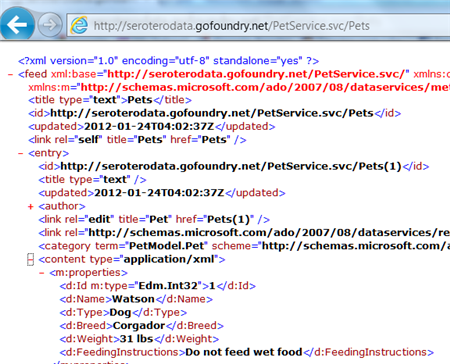
    For the grand finale, I tested my OData service which should allow me to query my new SQL Server database tables. Hitting the URL http://seroterodata.gofoundry.net/PetService.svc/Pets returns a list of all the Pets in my database.

    2012.1.16ironfoundry20

    As with any OData service, you can now mess with the data in all sorts of ways. This URL (http://seroterodata.gofoundry.net/PetService.svc/Pets(2)/Owner) returns the owner of the second pet. If I want to show the owner and pet in a single result set, I can use this URL (http://seroterodata.gofoundry.net/PetService.svc/Owners(1)?$expand=Pets). Want the name of the 3rd pet? use this URL (http://seroterodata.gofoundry.net/PetService.svc/Pets(3)/Name).

    Summary

    Overall, this is fairly straightforward stuff. I definitely felt a bit handicapped by not being able to directly use SQL Server Management Studio, but at least it forced me to brush up on my T-SQL commands. One interesting item was that it APPEARS that I am provisioned a single database when I first bind to an application service and that same database is used for subsequent bindings. I had built a previous application that used the SQL Server application service and later deleted the app. When I deployed the application above, I noticed that the tables I had created earlier were still there! So, whether intentionally or not, Iron Foundry points me to the same (personal?) database for each app. Not a big deal, but this could have unintended side effects if you’re not aware of it.

    Right now, developers can use either the SQL Server application service or MongoDB application service. Expect to see more show up in the near future. While you need to programmatically provision your database resources, that doesn’t seem to be a big deal. The Iron Foundry application services are a critical resource in building truly interesting web applications and I hope you enjoyed this walkthrough.

  • Sending Messages to Azure AppFabric Service Bus Topics From Iron Foundry

    I recently took a look at Iron Foundry and liked what I found.  Let’s take a bit of a deeper look into how to deploy Iron Foundry .NET solutions that reference additional components.  Specifically, I’ll show you how to use the new Windows Azure AppFabric brokered messaging to reliably send messages from Iron Foundry to an on-premises application.

    The Azure AppFabric v1.5 release contains useful Service Bus capabilities for durable messaging communication through the use of Queues and Topics. The Service Bus still has the Relay Service which is great for invoking services through a cloud relay, but the asynchronous communication through the Relay Service isn’t durable.  Queues and Topics now let you send messages to one or many subscribers and have stronger guarantees of delivery.

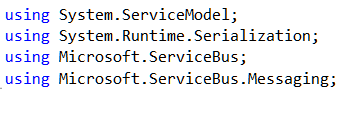
    An Iron Foundry application is just a standard .NET web application.  So, I’ll start with a blank ASP.NET web application and use old-school Web Forms instead of MVC. We need a reference to the Microsoft.ServiceBus.dll that comes with Azure AppFabric v1.5.  With that reference added, I added a new Web Form and included the necessary “using” statements.

    2011.12.23ironfoundry01

    I then built a very simple UI on the Web Form that takes in a handful of values that will be sent to the on-premises subscriber(s) through the Service Bus. Before creating the code that sends a message to a Topic, I defined an “Order” object that represents the data being sent to the topic. This object sits in a shared assembly used by this application that sends the message, and another application that receives a message.

    [DataContract]
        public class Order
        {
            [DataMember]
            public string Id { get; set; }
            [DataMember]
            public string ProdId { get; set; }
            [DataMember]
            public string Quantity { get; set; }
            [DataMember]
            public string Category { get; set; }
            [DataMember]
            public string CustomerId { get; set; }
        }
    

    The “submit” button on the Web Form triggers a click event that contains a flurry of activities.  At the beginning of that click handler, I defined some variables that will be used throughout.

    //define my personal namespace
    string sbNamespace = "richardseroter";
    //issuer name and key
    string issuer = "MY ISSUER";
    string key = "MY PRIVATE KEY";
    
    //set the name of the Topic to post to
    string topicName = "OrderTopic";
    //define a variable that holds messages for the user
    string outputMessage = "result: ";
    

    Next I defined a TokenProvider (to authenticate to my Topic) and a NamespaceManager (which drives most of the activities with the Service Bus).

    //create namespace manager
    TokenProvider tp = TokenProvider.CreateSharedSecretTokenProvider(issuer, key);
    Uri sbUri = ServiceBusEnvironment.CreateServiceUri("sb", sbNamespace, string.Empty);
    NamespaceManager nsm = new NamespaceManager(sbUri, tp);
    

    Now we’re ready to either create a Topic or reference an existing one. If the Topic does NOT exist, then I went ahead and created it, along with two subscriptions.

    //create or retrieve topic
    bool doesExist = nsm.TopicExists(topicName);
    
    if (doesExist == false)
       {
          //topic doesn't exist yet, so create it
          nsm.CreateTopic(topicName);
    
          //create two subscriptions
    
          //create subscription for just messages for Electronics
          SqlFilter eFilter = new SqlFilter("ProductCategory = 'Electronics'");
          nsm.CreateSubscription(topicName, "ElecFilter", eFilter);
    
          //create subscription for just messages for Clothing
          SqlFilter eFilter2 = new SqlFilter("ProductCategory = 'Clothing'");
          nsm.CreateSubscription(topicName, "ClothingFilter", eFilter2);
    
          outputMessage += "Topic/subscription does not exist and was created; ";
        }
    

    At this point we either know that a topic exists, or we created one.  Next, I created a MessageSender which will actually send a message to the Topic.

    //create objects needed to send message to topic
     MessagingFactory factory = MessagingFactory.Create(sbUri, tp);
     MessageSender orderSender = factory.CreateMessageSender(topicName);
    

    We’re now ready to create the actual data object that we send to the Topic.  Here I referenced the Order object we created earlier.  Then I wrapped that Order in the BrokeredMessage object.  This object has a property bag that is used for routing.  I’ve added a property called “ProductCategory” that our Topic subscription uses to make decisions on whether to deliver the message to the subscriber or not.

    //create order
    Order o = new Order();
    o.Id = txtOrderId.Text;
    o.ProdId = txtProdId.Text;
    o.CustomerId = txtCustomerId.Text;
    o.Category = txtCategory.Text;
    o.Quantity = txtQuantity.Text;
    
    //create brokered message object
    BrokeredMessage msg = new BrokeredMessage(o);
    //add properties used for routing
    msg.Properties["ProductCategory"] = o.Category;
    

    Finally, I send the message and write out the data to the screen for the user.

    //send it
    orderSender.Send(msg);
    
    outputMessage += "Message sent; ";
    lblOutput.Text = outputMessage;
    

    I decided to use the command line (Ruby-based) vmc tool to deploy this app to Iron Foundry.  So, I first published my website to a directory on the file system.  Then, I manually copied the Microsoft.ServiceBus.dll to the bin directory of the published site.  Let’s deploy! After logging into my production Iron Foundry account by targeting the api.gofoundry.net management endpoint, I executed a push command and instantly saw my web application move up to the cloud. It takes like 8 seconds from start to finish.

    2011.12.23ironfoundry02

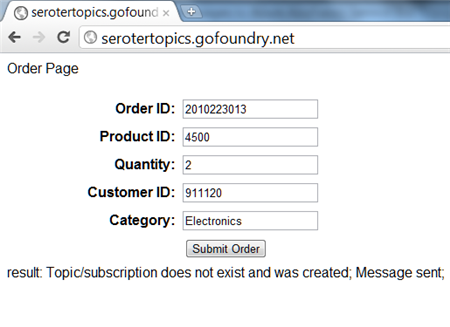
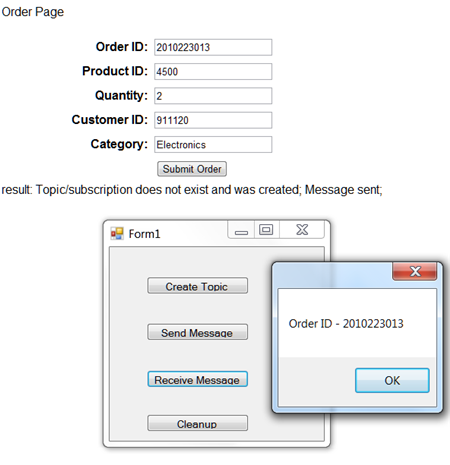
    My site is now online and I can visit it and submit a new order [note that this site isn’t online now, so don’t try and flood my machine with messages!].  When I click the submit button, I can see that a new Topic was created by this application and a message was sent.

    2011.12.23ironfoundry03

    Let’s confirm that we really have a new Topic with subscriptions. I can first confirm this through the Windows Azure Management Console.

    2011.12.23ironfoundry04

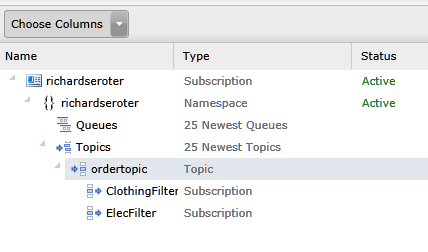
    To see more details, I can use the Service Bus Explorer tool which allows us to browse our Service Bus configuration.  When I launch it, I can see that I have a Topic with a pair of subscriptions and even what Filter I applied.

    2011.12.23ironfoundry05

    I previously built a WinForm application that pulls data from an Azure AppFabric Service Bus Topic. When I click the “Receive Message” button, I pull a message from the Topic and we can see that it has the same Order ID as the message submitted from the website.

    2011.12.23ironfoundry06

    If I submit another message from the website, I see a different message because my Topic already exists and I’m simply reusing it.

    2011.12.23ironfoundry07

    Summary

    So what did we see here?  First, I proved that an ASP.NET web application that you want to deploy to the Iron Foundry (onsite or offsite) cloud looks just like any other ASP.NET web application.  I didn’t have to build it differently or do anything special. Secondly, we saw that I can easily use the Windows Azure AppFabric Service Bus to reliably share data between a cloud-hosted application and an on-premises application.

  • First Look: Deploying .NET Web Apps to Cloud Foundry via Iron Foundry

    It’s been a good week for .NET developers who like the cloud.  First, Microsoft makes a huge update to Windows Azure that improves everything from billing to support for lots of non-Microsoft platforms like memcached and Node.js. Second, there was a significant announcement today from Tier 3 regarding support for .NET in a Cloud Foundry environment.

    I’ve written a bit about Cloud Foundry in the past, and have watched it become one of the most popular platforms for cloud developers.  While Cloud Foundry supports a diverse set of platforms like Java, Ruby and Node.js, .NET has been conspicuous absent from that list.  That’s where Tier 3 jumped in.  They’ve forked the Cloud Foundry offering and made a .NET version (called Iron Foundry) that can run by an online hosted provider, or, in your own data center. Your own private, open source .NET PaaS.  That’s a big deal.

    I’ve been working a bit with their team for the past few weeks, and if you’d like to read more from their technical team, check out the article that I wrote for InfoQ.com today.  Let’s jump in and try and deploy a very simple RESTful WCF service to Iron Foundry using the tools they’ve made available.

    Demo

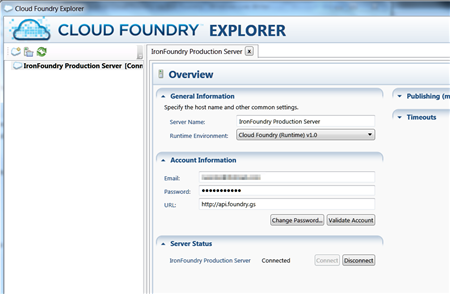
    First off, I pulled the source code from their GitHub library.  After building that, I made sure that I could open up their standalone Cloud Foundry Explorer tool and log into my account. This tool also plugs into Visual Studio 2010, and I’ll show that soon [12/22 update: note that Iron Foundry’s production URL has changed from the value used in the screenshot below].

    2011.12.13ironfoundry01

    It’s a nice little tool that shows me any apps I have running, and lets me interact with them.  But, I have no apps deployed here, so let’s change that!  How about we go with a very simple WCF contract that returns a customer object when the caller hits a specific URI.  Here’s the WCF contract:

    [ServiceContract]
        public interface ICustomer
        {
            [OperationContract]
            [WebGet(UriTemplate = "/{id}")]
            Customer GetCustomer(string id);
        }
    
        [DataContract]
        public class Customer
        {
            [DataMember]
            public string Id { get; set; }
            [DataMember]
            public string FullName { get; set; }
            [DataMember]
            public string Country { get; set; }
            [DataMember]
            public DateTime DateRegistered { get; set; }
        }
    

    The implementation of this service is extremely simple.  Based on the input ID, I return one of a few different customer records.

    public class CustomerService : ICustomer
        {
            public Customer GetCustomer(string id)
            {
                Customer c = new Customer();
                c.Id = id;
    
                switch (id)
                {
                    case "100":
                        c.FullName = "Richard Seroter";
                        c.Country = "USA";
                        c.DateRegistered = DateTime.Parse("2011-08-24");
                        break;
                    case "200":
                        c.FullName = "Jared Wray";
                        c.Country = "USA";
                        c.DateRegistered = DateTime.Parse("2011-06-05");
                        break;
                    default:
                        c.FullName = "Shantu Roy";
                        c.Country = "USA";
                        c.DateRegistered = DateTime.Parse("2011-05-11");
                        break;
                }
    
                return c;
            }
    

    My WCF service configuration is also pretty straightforward.  However, note that I do NOT specify a full service address. When I asked one of the Iron Foundry developers about this he said:

    When an application is deployed, the cloud controller picks a server out of our farm of servers to which to deploy the application. On that server, a random high port number is chosen and a dedicated web site and app pool is configured to use that port. The router service then uses that URL (http://server:49367) when requests come in to http://<application&gt;.gofoundry.net

    <configuration>
    <system.web>
    <compilation debug="true" targetFramework="4.0" />
    </system.web>
    <system.serviceModel>
    <bindings>
    <webHttpBinding>
    <binding name="WebBinding" />
    </webHttpBinding>
    </bindings>
    <services>
    <service name="Seroter.IronFoundry.WcfRestServiceDemo.CustomerService">
    <endpoint address="CustomerService" behaviorConfiguration="RestBehavior"
    binding="webHttpBinding" bindingConfiguration="WebBinding" contract="Seroter.IronFoundry.WcfRestServiceDemo.ICustomer" />
    </service>
    </services>
    <behaviors>
    <endpointBehaviors>
    <behavior name="RestBehavior">
    <webHttp helpEnabled="true" />
    </behavior>
    </endpointBehaviors>
    <serviceBehaviors>
    <behavior name="">
    <serviceMetadata httpGetEnabled="true" />
    <serviceDebug includeExceptionDetailInFaults="true" />
    </behavior>
    </serviceBehaviors>
    </behaviors>
    <serviceHostingEnvironment multipleSiteBindingsEnabled="true" />
    </system.serviceModel>
    <system.webServer>
    <modules runAllManagedModulesForAllRequests="true"/>
    </system.webServer>
    <connectionStrings></connectionStrings>
    </configuration>
    

    I’m not ready to deploy this application. While  I could use the standalone Cloud Foundry Explorer that I showed you before, or even the vmc command line, the easiest one is the Visual Studio plug in.  By right-clicking my project, I can choose Push Cloud Foundry Application which launches the Cloud Foundry Explorer.

    2011.12.13ironfoundry02

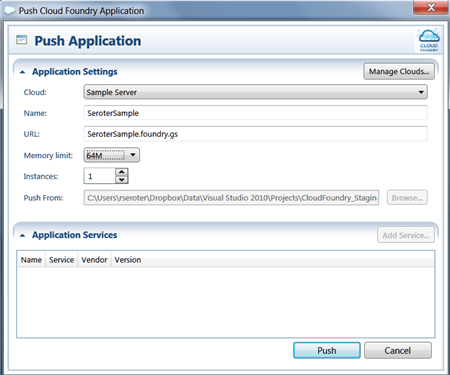
    Now I can select my existing Iron Foundry configuration named Sample Server (which points to the Iron Foundry endpoint and includes my account credentials), select a name for my application, choose a URL, and pick both the memory size (64MB up to 2048MB) and application instance count [12/22 update: note that Iron Foundry’s production URL has changed from the value used in the screenshot below].

    2011.12.13ironfoundry03

    The application is then pushed to the cloud. What’s awesome is that the application is instantly available after publishing.  No waits, no delays.  Want to see the app in action?  Based on the values I entered during deployment, you can hit the URL at http://serotersample6.gofoundry.net/CustomerService.svc/CustomerService/100. [12/22 update: note that Iron Foundry’s production URL has changed, so the working URL above doesn’t match the values I showed in the screenshots]

    2011.12.13ironfoundry04

    Sweet.  Now let’s check out some diagnostic info, shall we?  I can fire up the standalone Cloud Foundry Explorer and see my application running.

    2011.12.13ironfoundry05

    What can I do now?  On the right side of the screen, I have options to change/add URLs that map to my service, increase my allocated memory, or modify the number of application instances.

    2011.12.13ironfoundry06

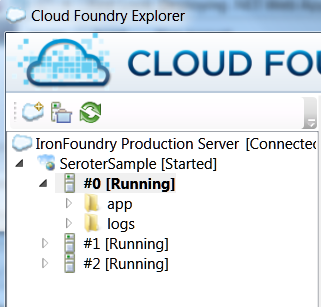
    On the bottom left of the this screen, I can find out details of the instances that I’m running on.  Here, I’m on a single instance and my app has been running for 5 minutes.

    2011.12.13ironfoundry07

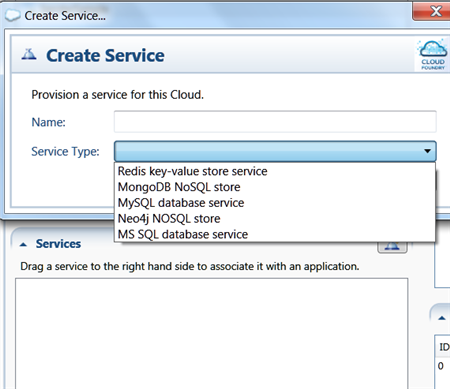
    Finally,  I can provision application services associated with my web application.

    2011.12.13ironfoundry08

    Let’s change my instance count.  I was blown away when I simply “upticked” the Instances value and instantly I saw another instance provisioned.  I don’t think Azure is anywhere near as fast.

    2011.12.13ironfoundry11

    2011.12.13ironfoundry12

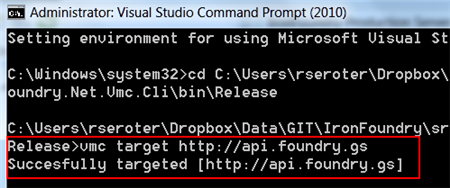
    What if I like using the vmc command line tool to administer my Iron Foundry application?  Let’s try that out. I went to the .NET version of the vmc tool that came with the Iron Foundry code download, and targeted the API just like you would in “regular” Cloud Foundry.[12/22 update: note that Iron Foundry’s production URL has changed from the value used in the screenshot below].

    2011.12.13ironfoundry09

    It’s awesome (and I guess, expected) that all the vmc commands work the same and I can prove that by issuing the “vmc apps” command which should show me my running applications.

    2011.12.13ironfoundry10

    Not everything was supported yet on my build, so if I want to increase the instance count or memory, I’d jump back to the Cloud Foundry Explorer tool.

    Summary

    What a great offering. Imagine deploying this within your company as a way to have a private PaaS. Or using it as a public PaaS and have the same deployment experience for .NET, Java, Ruby and Node applications.  I’m definitely going to troll through the source code since I know what a smart bunch build the “original” Cloud Foundry and I want to see how the cool underpinnings of that (internal pub/sub, cloud controller, router, etc) translated to .NET.

    I encourage you to take a look.  I like Windows Azure, but more choice is a good thing and I congratulate the Tier 3 team on open sourcing their offering and doing such a cool service for the community.

  • Integration in the Cloud: Part 4 – Asynchronous Messaging Pattern

    So far in this blog series we’ve been looking at how Enterprise Integration Patterns apply to cloud integration scenarios. We’ve seen that a Shared Database Pattern works well when you have common data (and schema) and multiple consumers who want consistent access.  The Remote Procedure Invocation Pattern is a good fit when one system desires synchronous access to data and functions sitting in other systems. In this final post in the series, I’ll walk through the Asynchronous Messaging Pattern and specifically demonstrate how to share data between clouds using this pattern.

    What Is It?

    While the remote procedure pattern provides looser coupling than the shared database pattern, it is still a blocking call and not particularly scalable.  Architects and developers use an asynchronous messaging pattern when they want to share data in the most scalable and responsive way possible.  Think of sending an email.  Your email client doesn’t sit and wait until the recipient has received and read the email message.  That would be atrocious. Instead, our email server does a multicast to recipients allows our email client to carry on. This is somewhat similar to publish/subscribe where the publisher does not dictate which specific receiver will get the message.

    So in theory, the sender of the message doesn’t need to know where the message will end up.  They also don’t need to know *when* a message is received or processed by another party.  This supports disconnected client scenarios where the subscriber is not online at the same time as the publisher.  It also supports the principle of replicable units where one receiver could be swapped out with no direct impact to the source of the message.  We see this pattern realized in Enterprise Service Bus or Integration Bus products (like BizTalk Server) which promote extreme loose coupling between systems.

    Challenges

    There are a few challenges when dealing with this pattern.

    • There is no real-time consistency. Because the message source asynchronously shares data that will be processed at the convenience of the receiver, there is a low likelihood that the systems involved are simultaneously consistent.  Instead, you end up with eventual consistency between the players in the messaging solution.
    • Reliability / durability is required in some cases. Without a persistence layer, it is possible to lose data.  Unlike the remote procedure invocation pattern (where exceptions are thrown by the target and both caught and handled by the caller), problems in transmission or target processing do not flow back to the publisher.  What happens if the recipient of a message is offline?  What if the recipient is under heavy load and rejecting new messages? A durable component in the messaging tier can protect against such cases by doing store-and-forward type implementation that doesn’t remove the message from the durable store until it has been successfully consumed.
    • A router may be useful when transmitting messages. Instead of, or in addition to a durable store, a routing component can help manage the central subscriptions for pub/sub transmissions, help with protocol bridging, data transformation and workflow (e.g. something like BizTalk Server). This may not be needed in distributed ESB solutions where the receiver is responsible for most of that.
    • There is limited support for this pattern in packaged software products.  I’ve seen few commercial products that expose asynchronous inbound channels, and even fewer that have easy-to-configure ways to publish outbound events asynchronously.  It’s not that difficult to put adapters in front of these systems, or mimic asynchronous publication by polling a data tier, but it’s not the same.

    Cloud Considerations

    What are things to consider when doing this pattern in a cloud scenario?

    • To do this between cloud and on-premises solutions, this requires creativity. I showed in the previous post how one can use Windows Azure AppFabric to expose on-premises endpoints to cloud applications. If we need to push data on-premises, and Azure AppFabric isn’t an option, then you’re looking at doing a VPN or internet-facing proxy service. Or, you could rely on aggressive polling of a shared queue (as I’ll show below).
    • Cloud provider limits and architecture will influence solution design. Some vendors, such as Salesforce.com, limit the frequency and amount of polling that it will do. This impacts the ability to poll a durable store used between cloud applications. The distributed nature of cloud services. and embrace of the eventual consistency model, can change how one retrieves data.  For example, Amazon’s Simple Queue Service may not be first-in-first out, and uses a sampling algorithm that COULD result in a query not returning all the messages in the logical queue.

    Solution Demonstration

    Let’s say that the fictitious Seroter Corporation has a series of public websites and wants a consistent way to push customer inquiries from the websites to back end systems that process these inquiries.  Instead of pushing these inquiries directly into one or many CRM systems, or doing the low-tech email option, we’d rather put all the messages into a queue and let each interested party pull the ones they want.  Since these websites are cloud-hosted, we don’t want to explicitly push these messages into the internal network, but rather, asynchronously publish and poll messages from a shared queue hosted by Amazon Simple Queue Service (SQS). The polling applications could either be another cloud system (CRM system Salesforce.com) or an on-premises system, as shown below.

    2011.11.14int01

    So I’ll have a web page built using Ruby and hosted in Cloud Foundry, a SQS queue that holds inquiries submitted from that site, and both an on-premises .NET application and a SaaS Salesforce.com application that can poll that queue for messages.

    Setting up a queue in SQS is so easy now, that I won’t even make it a sub-section in this post.  The AWS team recently added SQS operations to their Management Console, and they’ve made it very simple to create, delete, secure and monitor queues. I created a new queue named Seroter_CustomerInquiries.

    2011.11.14int02

    Sending Messages from Cloud Foundry to Amazon Simple Queue Service

    In my Ruby (Sinatra) application, I have a page where a user can ask a question.  When they click the submit button, I go into the following routine which builds up the SQS message (similar to the SimpleDB message from my previous post) and posts a message to the queue.

    post '/submitted/:uid' do	# method call, on submit of the request path, do the following
    
       #--get user details from the URL string
    	@userid = params[:uid]
    	@message = CGI.escape(params[:message])
        #-- build message that will be sent to the queue
    	@fmessage = @userid + "-" + @message.gsub("+", "%20")
    
    	#-- define timestamp variable and format
    	@timestamp = Time.now
    	@timestamp = @timestamp.strftime("%Y-%m-%dT%H:%M:%SZ")
    	@ftimestamp = CGI.escape(@timestamp)
    
    	#-- create signing string
    	@stringtosign = "GET\n" + "queue.amazonaws.com\n" + "/084598340988/Seroter_CustomerInquiries\n" + "AWSAccessKeyId=ACCESS_KEY" + "&Action=SendMessage" + "&MessageBody=" + @fmessage + "&SignatureMethod=HmacSHA1" + "&SignatureVersion=2" + "&Timestamp=" + @ftimestamp + "&Version=2009-02-01"
    
    	#-- create hashed signature
    	@esignature = CGI.escape(Base64.encode64(OpenSSL::HMAC.digest('sha1',@@awskey, @stringtosign)).chomp)
    
    	#-- create AWS SQS query URL
    	@sqsurl = "https://queue.amazonaws.com/084598340988/Seroter_CustomerInquiries?Action=SendMessage" + "&MessageBody=" + @fmessage + "&Version=2009-02-01" + "&Timestamp=" + @ftimestamp + "&Signature=" + @esignature + "&SignatureVersion=2" + "&SignatureMethod=HmacSHA1" + "&AWSAccessKeyId=ACCESS_KEY"
    
    	#-- load XML returned from query
    	@doc = Nokogiri::XML(open(@sqsurl))
    
       #-- build result message which is formatted string of the inquiry text
    	@resultmsg = @fmessage.gsub("%20", "&nbsp;")
    
    	haml :SubmitResult
    end
    

    The hard part when building these demos was getting my signature string and hashing exactly right, so hopefully this helps someone out.

    After building and deploying the Ruby site to Cloud Foundry, I could see my page for inquiry submission.

    2011.11.14int03

    When the user hits the “Send Inquiry” button, the function above is called and assuming that I published successfully to the queue, I see the acknowledgement page.  Since this is an asynchronous communication, my web app only has to wait for publication to the queue, not invoking a function in a CRM system.

    2011.11.14int04

    To confirm that everything worked, I viewed my SQS queue and can clearly see that I have a single message waiting in the queue.

    2011.11.14int05

    .NET Application Pulling Messages from an SQS Queue

    With our message sitting safely in the queue, now we can go grab it.  The first consuming application is an on-premises .NET app.  In this very feature-rich application, I poll the queue and pull down any messages found.  When working with queues, you often have two distinct operations: read and delete (“peek” is also nice to have). I can read messages from a queue, but unless I delete them, they become available (after a timeout) to another consumer.  For this scenario, we’d realistically want to read all the messages, and ONLY process and delete the ones targeted for our CRM app.  Any others, we simply don’t delete, and they go back to waiting in the queue. I haven’t done that, for simplicity sake, but keep this in mind for actual implementations.

    In the example code below, I’m being a bit lame by only expecting a single message. In reality, when polling, you’d loop through each returned message, save its Handle value (which is required when calling the Delete operation) and do something with the message.  In my case, I only have one message, so I explicitly grab the “Body” and “Handle” values.  The code shows the “retrieve messages” button click operation which in turn calls “receive” operation and “delete” operation.

    private void RetrieveButton_Click(object sender, EventArgs e)
            {
                lbQueueMsgs.Items.Clear();
                lblStatus.Text = "Status:";
    
                string handle = ReceiveFromQueue();
                if(handle!=null)
                    DeleteFromQueue(handle);
    
            }
    
    private string ReceiveFromQueue()
            {
                //timestamp formatting for AWS
                string timestamp = Uri.EscapeUriString(string.Format("{0:s}", DateTime.UtcNow));
                timestamp = DateTime.Now.ToUniversalTime().ToString("yyyy-MM-ddTHH:mm:ss.fffZ");
                timestamp = HttpUtility.UrlEncode(timestamp).Replace("%3a", "%3A");
    
                //string for signing
                string stringToConvert = "GET\n" +
                "queue.amazonaws.com\n" +
                "/084598340988/Seroter_CustomerInquiries\n" +
                "AWSAccessKeyId=ACCESS_KEY" +
                "&Action=ReceiveMessage" +
                "&AttributeName=All" +
                "&MaxNumberOfMessages=5" +
                "&SignatureMethod=HmacSHA1" +
                "&SignatureVersion=2" +
                "&Timestamp=" + timestamp +
                "&Version=2009-02-01" +
                "&VisibilityTimeout=15";
    
                //hash the signature string
    			  string awsPrivateKey = "PRIVATE KEY";
                Encoding ae = new UTF8Encoding();
                HMACSHA1 signature = new HMACSHA1();
                signature.Key = ae.GetBytes(awsPrivateKey);
                byte[] bytes = ae.GetBytes(stringToConvert);
                byte[] moreBytes = signature.ComputeHash(bytes);
                string encodedCanonical = Convert.ToBase64String(moreBytes);
                string urlEncodedCanonical = HttpUtility.UrlEncode(encodedCanonical).Replace("%3d", "%3D");
    
                 //build up request string (URL)
                string sqsUrl = "https://queue.amazonaws.com/084598340988/Seroter_CustomerInquiries?Action=ReceiveMessage" +
                "&Version=2009-02-01" +
                "&AttributeName=All" +
                "&MaxNumberOfMessages=5" +
                "&VisibilityTimeout=15" +
                "&Timestamp=" + timestamp +
                "&Signature=" + urlEncodedCanonical +
                "&SignatureVersion=2" +
                "&SignatureMethod=HmacSHA1" +
                "&AWSAccessKeyId=ACCESS_KEY";
    
                //make web request to SQS using the URL we just built
                HttpWebRequest req = WebRequest.Create(sqsUrl) as HttpWebRequest;
                XmlDocument doc = new XmlDocument();
                using (HttpWebResponse resp = req.GetResponse() as HttpWebResponse)
                {
                    StreamReader reader = new StreamReader(resp.GetResponseStream());
                    string responseXml = reader.ReadToEnd();
                    doc.LoadXml(responseXml);
                }
    
    			 //do bad xpath and grab the body and handle
                XmlNode handle = doc.SelectSingleNode("//*[local-name()='ReceiptHandle']");
                XmlNode body = doc.SelectSingleNode("//*[local-name()='Body']");
    
                //if empty then nothing there; if not, then add to listbox on screen
                if (body != null)
                {
                    //write result
                    lbQueueMsgs.Items.Add(body.InnerText);
                    lblStatus.Text = "Status: Message read from queue";
                    //return handle to calling function so that we can pass it to "Delete" operation
                    return handle.InnerText;
                }
                else
                {
                    MessageBox.Show("Queue empty");
                    return null;
                }
            }
    
    private void DeleteItem(string itemId)
            {
                //timestamp formatting for AWS
                string timestamp = Uri.EscapeUriString(string.Format("{0:s}", DateTime.UtcNow));
                timestamp = DateTime.Now.ToUniversalTime().ToString("yyyy-MM-ddTHH:mm:ss.fffZ");
                timestamp = HttpUtility.UrlEncode(timestamp).Replace("%3a", "%3A");
    
                string stringToConvert = "GET\n" +
                "sdb.amazonaws.com\n" +
                "/\n" +
                "AWSAccessKeyId=ACCESS_KEY" +
                "&Action=DeleteAttributes" +
                "&DomainName=SeroterInteractions" +
                "&ItemName=" + itemId +
                "&SignatureMethod=HmacSHA1" +
                "&SignatureVersion=2" +
                "&Timestamp=" + timestamp +
                "&Version=2009-04-15";
    
                string awsPrivateKey = "PRIVATE KEY";
                Encoding ae = new UTF8Encoding();
                HMACSHA1 signature = new HMACSHA1();
                signature.Key = ae.GetBytes(awsPrivateKey);
                byte[] bytes = ae.GetBytes(stringToConvert);
                byte[] moreBytes = signature.ComputeHash(bytes);
                string encodedCanonical = Convert.ToBase64String(moreBytes);
                string urlEncodedCanonical = HttpUtility.UrlEncode(encodedCanonical).Replace("%3d", "%3D");
    
                //build up request string (URL)
                string simpleDbUrl = "https://sdb.amazonaws.com/?Action=DeleteAttributes" +
                "&DomainName=SeroterInteractions" +
                "&ItemName=" + itemId +
                "&Version=2009-04-15" +
                "&Timestamp=" + timestamp +
                "&Signature=" + urlEncodedCanonical +
                "&SignatureVersion=2" +
                "&SignatureMethod=HmacSHA1" +
                "&AWSAccessKeyId=ACCESS_KEY";
    
                HttpWebRequest req = WebRequest.Create(simpleDbUrl) as HttpWebRequest;
    
                using (HttpWebResponse resp = req.GetResponse() as HttpWebResponse)
                {
                    StreamReader reader = new StreamReader(resp.GetResponseStream());
    
                    string responseXml = reader.ReadToEnd();
                }
            }
    

    When the application runs and pulls the message that I sent to the queue earlier, it looks like this.

    2011.11.14int06

    Nothing too exciting on the user interface, but we’ve just seen the magic that’s happening underneath. After running this (which included reading and deleting the message), the SQS queue is predictably empty.

    Force.com Application Pulling from an SQS Queue

    I went ahead and sent another message from my Cloud Foundry app into the queue.

    2011.11.14int07

    This time, I want my cloud CRM users on Salesforce.com to pull these new inquiries and process them.  I’d like to automatically convert the inquiries to CRM Cases in the system.  A custom class in a Force.com application can be scheduled to execute every interval. To account for that (as the solution below supports both on-demand and scheduled retrieval from the queue), I’ve added a couple things to the code.  Specifically, notice that my “case lookup” class implements the Schedulable interface (which allows it be scheduled through the Force.com administrative tooling) and my “queue lookup” function uses the @future annotation (which allows asynchronous invocation).

    Much like the .NET application above, you’ll find operations below that retrieve content from the queue and then delete the messages it finds.  The solution differs from the one above in that it DOES handle multiple messages (not that it loops through retrieved results and calls “delete” for each) and also creates a Salesforce.com “case” for each result.

    //implement Schedulable to support scheduling
    global class doCaseLookup implements Schedulable
    {
    	//required operation for Schedulable interfaces
        global void execute(SchedulableContext ctx)
        {
            QueueLookup();
        }
    
        @future(callout=true)
        public static void QueueLookup()
        {
    	  //create HTTP objects and queue namespace
         Http httpProxy = new Http();
         HttpRequest sqsReq = new HttpRequest();
         String qns = 'http://queue.amazonaws.com/doc/2009-02-01/';
    
         //monkey with date format for SQS query
         Datetime currentTime = System.now();
         String formattedTime = currentTime.formatGmt('yyyy-MM-dd')+'T'+ currentTime.formatGmt('HH:mm:ss')+'.'+ currentTime.formatGmt('SSS')+'Z';
         formattedTime = EncodingUtil.urlEncode(formattedTime, 'UTF-8');
    
    	  //build signing string
         String stringToSign = 'GET\nqueue.amazonaws.com\n/084598340988/Seroter_CustomerInquiries\nAWSAccessKeyId=ACCESS_KEY&' +
    			'Action=ReceiveMessage&AttributeName=All&MaxNumberOfMessages=5&SignatureMethod=HmacSHA1&SignatureVersion=2&Timestamp=' +
    			formattedTime + '&Version=2009-02-01&VisibilityTimeout=15';
         String algorithmName = 'HMacSHA1';
         Blob mac = Crypto.generateMac(algorithmName, Blob.valueOf(stringToSign),Blob.valueOf(PRIVATE_KEY));
         String macUrl = EncodingUtil.urlEncode(EncodingUtil.base64Encode(mac), 'UTF-8');
    
    	  //build SQS URL that retrieves our messages
         String queueUrl = 'https://queue.amazonaws.com/084598340988/Seroter_CustomerInquiries?Action=ReceiveMessage&' +
    			'Version=2009-02-01&AttributeName=All&MaxNumberOfMessages=5&VisibilityTimeout=15&Timestamp=' +
    			formattedTime + '&Signature=' + macUrl + '&SignatureVersion=2&SignatureMethod=HmacSHA1&AWSAccessKeyId=ACCESS_KEY';
    
         sqsReq.setEndpoint(queueUrl);
         sqsReq.setMethod('GET');
    
         //invoke endpoint
         HttpResponse sqsResponse = httpProxy.send(sqsReq);
    
         Dom.Document responseDoc = sqsResponse.getBodyDocument();
         Dom.XMLNode receiveResponse = responseDoc.getRootElement();
         //receivemessageresult node which holds the responses
         Dom.XMLNode receiveResult = receiveResponse.getChildElements()[0];
    
         //for each Message node
         for(Dom.XMLNode itemNode: receiveResult.getChildElements())
         {
            String handle= itemNode.getChildElement('ReceiptHandle', qns).getText();
            String body = itemNode.getChildElement('Body', qns).getText();
    
            //pull out customer ID
            Integer indexSpot = body.indexOf('-');
            String customerId = '';
            if(indexSpot > 0)
            {
               customerId = body.substring(0, indexSpot);
            }
    
            //delete this message
            DeleteQueueMessage(handle);
    
    	     //create a new case
            Case c = new Case();
            c.Status = 'New';
            c.Origin = 'Web';
            c.Subject = 'Web request: ' + body;
            c.Description = body;
    
    		 //insert the case record into the system
            insert c;
         }
      }
    
      static void DeleteQueueMessage(string handle)
      {
    	 //create HTTP objects
         Http httpProxy = new Http();
         HttpRequest sqsReq = new HttpRequest();
    
         //encode handle value associated with queue message
         String encodedHandle = EncodingUtil.urlEncode(handle, 'UTF-8');
    
    	 //format the date
         Datetime currentTime = System.now();
         String formattedTime = currentTime.formatGmt('yyyy-MM-dd')+'T'+ currentTime.formatGmt('HH:mm:ss')+'.'+ currentTime.formatGmt('SSS')+'Z';
         formattedTime = EncodingUtil.urlEncode(formattedTime, 'UTF-8');
    
    		//create signing string
         String stringToSign = 'GET\nqueue.amazonaws.com\n/084598340988/Seroter_CustomerInquiries\nAWSAccessKeyId=ACCESS_KEY&' +
    					'Action=DeleteMessage&ReceiptHandle=' + encodedHandle + '&SignatureMethod=HmacSHA1&SignatureVersion=2&Timestamp=' +
    					formattedTime + '&Version=2009-02-01';
         String algorithmName = 'HMacSHA1';
         Blob mac = Crypto.generateMac(algorithmName, Blob.valueOf(stringToSign),Blob.valueOf(PRIVATE_KEY));
         String macUrl = EncodingUtil.urlEncode(EncodingUtil.base64Encode(mac), 'UTF-8');
    
    	  //create URL string for deleting a mesage
         String queueUrl = 'https://queue.amazonaws.com/084598340988/Seroter_CustomerInquiries?Action=DeleteMessage&' +
    					'Version=2009-02-01&ReceiptHandle=' + encodedHandle + '&Timestamp=' + formattedTime + '&Signature=' +
    					macUrl + '&SignatureVersion=2&SignatureMethod=HmacSHA1&AWSAccessKeyId=ACCESS_KEY';
    
         sqsReq.setEndpoint(queueUrl);
         sqsReq.setMethod('GET');
    
    	  //invoke endpoint
         HttpResponse sqsResponse = httpProxy.send(sqsReq);
    
         Dom.Document responseDoc = sqsResponse.getBodyDocument();
      }
    }
    

    When I view my custom APEX page which calls this function, I can see the button to query this queue.

    2011.11.14int08

    When I click the button, our function retrieves the message from the queue, deletes that message, and creates a Salesforce.com case.

    2011.11.14int09

    Cool!  This still required me to actively click a button, but we can also make this function run every hour.  In the Salesforce.com configuration screens, we have the option to view Scheduled Jobs.

    2011.11.14int10

    To actually create the job itself, I had created an Apex class which schedules the job.

    global class CaseLookupJobScheduler
    {
        global void CaseLookupJobScheduler() {}
    
        public static void start()
        {
     		// takes in seconds, minutes, hours, day of month, month and day of week
    		//the statement below tries to schedule every 5 min, but SFDC only allows hourly
            System.schedule('Case Queue Lookup', '0 5 1-23 * * ?', new doCaseLookup());
        }
    }
    

    Note that I use the System.schedule operation. While my statement above says to schedules the doCaseLookup function to run every 5 minutes, in reality, it won’t.  Salesforce.com restricts these jobs from running too frequently and keeps jobs from running more than once per hour. One could technically game the system by using some of the ten allowable polling jobs to set of a series of jobs that start at different times of the hour. I’m not worrying about that here. To invoke this function and schedule the job, I first went to the System Log menu.

    2011.11.14int12

    From here, I can execute Apex code.  So, I can call my start() function, which should schedule the job.

    2011.11.14int13

    Now, if I view the Scheduled Jobs view from the Setup screens, I can see that my job is scheduled.

    2011.11.14int14

    This job is now scheduled to run every hour.  This means that each hour, the queue is polled and any found messages are added to Salesforce.com as cases.  You could use a mix of both solutions and manually poll if you want to (through a button) but allow true asynchronous processing on all ends.

    Summary

    Asynchronous messaging is a great way to build scalable, loosely coupled systems. A durable intermediary helps provide assurances of message delivery, but this patterns works without it as well.  The demonstrations in this post shows how two cloud solutions can asynchronously exchange data through the use of a shared queue that sits between them.  The publisher to the queue has no idea who will retrieve the message and the retrievers have no direct connection to those who publish messages.  This makes for a very maintainable solution.

    My goal with these posts was to demonstrate that classic Integration patterns work fine in cloudy environments. I think it’s important to not throw out existing patterns just because new technologies are introduced. I hope you enjoyed this series.