In my previous post, I explained my cloud orchestration scenario where my on-premises ESB coordinated calls to the Google App Engine, Salesforce.com and a local service, and returned a single data entity to a caller. That post looked at creating and consuming a Google App Engine service from BizTalk.
In this post, I’ll show you how to customize a data object in Force.com, expose that object via a web service, and invoke that from BizTalk Server. As a ridiculously short primer, SalesForce.com is considered the premier SaaS CRM product which provides sales force automation and customer service modules serving both large and small organizations alike. Underlying SalesForce.com is a scalable robust platform (Force.com) which can be used to build all sorts of data-driven applications. You can leverage the apps built by others through the AppExchange which lists a diverse range of applications built on Force.com.
Ok, enough of a sales job. First off, I signed up for a free Force.com account. I’m going to extend the out-of-the-box “Contact” object by adding a few new fields. The “Setup” section of my Force.com application provides me access to a host of options to create new things, customize existing things and turn all sorts of knobs that enable rich functionality. Here I browsed to the “Contact” object and chose “Fields”.

Next I created a few custom fields to hold a global identifier (across all my CRM applications), a contact preference and a list of technology interests of the contact.

I then navigate to my “Contacts” page and see my custom fields on the screen. I can move then anywhere on the screen that I like using an easy-to-use drag-and-drop interface.

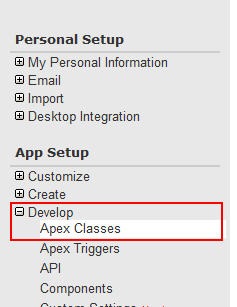
Now that my data object is complete, I want to create a web service that lets my on-premises ESB retrieve customers based on their Global ID. Back within the Force.com “Setup” screens I chose to Develop a new Apex class. Note that Apex is the C#/Java-like language used to write code for Force.com.
My class, named CRMCustomer has a web service operation identified where I lookup the contact with the ID matching the service’s input parameter, and then deliver a subset of the full Contact object back to the service caller. If you look closely you can see that some fields have a “__c” after the field name to designate them as custom.

If my class is written successfully, I’ll see an entry in my list of classes. Note that my class now has a “WSDL” link next to it.

Ok, now I have the object and service that I need for BizTalk to call this Force.com service. But, I still need to retrieve my service definition. First, I clicked this WSDL link next to my Apex class and saved the WSDL to my BizTalk machine. Every time that I call the Force.com service I need to pass an access token in the header. The header definition can be found in the Enterprise WSDL, which I also saved to my BizTalk machine.

I made a choice to cache the temporary Force.com access token so that each call to my custom service wouldn’t have to do two invocations. I accomplished this by building a singleton class which expires its token and reacquires a new one every hour. That class library project has a reference to the Salesforce.com Enterprise WSDL.
[Serializable]
public static class ForceToken
{
private static DateTime _sessionDate = DateTime.Now;
private static string _sessionId = string.Empty;
public static string SessionId
{
get { return GetSession(); }
}
private static string GetSession()
{
DateTime now = DateTime.Now;
TimeSpan diff = now.Subtract(_sessionDate);
if (_sessionId == string.Empty || (diff.TotalMinutes > 60))
{
//TODO lock object during update
//refresh token
System.Diagnostics.EventLog.WriteEntry("Utilities", "Salesforce.com Session Refresh");
string uname = "<sf account>";
string password = "<sf password>";
string securityToken = "<sf token>";
SFSvcRef.SforceService proxy = new SFSvcRef.SforceService();
proxy.Url = "https://www.salesforce.com/services/Soap/c/16.0";
SFSvcRef.LoginResult result = proxy.login(uname, password + securityToken);
_sessionId = result.sessionId;
}
return _sessionId;
}
}
Within my actual BizTalk project, I added a service reference to the Force.com custom WSDL that was saved to my machine. Lots of things come in, including the definition of the session header and my modified Contact object.

Notice that the response object holds my custom fields such as “Contact Preference.”

I’m using an orchestration to first get the access token from my singleton, and then put that token into the WCF header of the outbound message.

Inside the Assignment shape is the simple statement that populates the SOAP header of my Force.com service call.
CRMCustomer_Request(WCF.Headers) = "<headers><SessionHeader><sessionId>"+ Seroter.SwedenUG.Utilities.ForceToken.SessionId +"</sessionId></SessionHeader></headers>";
My send port was created automatically from the binding file produced when importing the Force.com custom WSDL. This WCF-Custom send port uses the basicHttp binding to call the endpoint.

Once I send a message to my orchestration which contains the “global ID” of the record that I’m looking for, the Force.com service is called and my record is returned.

Cool. That’s a live record in my Force.com application (shown in a screenshot earlier) and can be pulled on-demand via my service.
So what we know now?
- Easy to set up a Force.com account
- There is a straightforward interface to customize objects and build web services
- BizTalk needs to request a time-limited token for it service calls so a singleton can introduce some efficiency
- You can add the session header to the outbound message via a WCF context property accessor in an orchestration
Next up, I’ll show how I tie all this together with an web application hosted in Amazon.com’s EC2 environment and leveraging the Azure .NET Service Bus to communicate between Amazon’s public cloud and my on-premise ESB.



 Richard Seroter's Architecture Musings
Leave a reply to Richard Seroter Cancel reply