Category: Spring

  • Here’s what I’d use to build a generative AI application in 2024

    Here’s what I’d use to build a generative AI application in 2024

    What exactly is a “generative AI app”? Do you think of chatbots, image creation tools, or music makers? What about document analysis services, text summarization capabilities, or widgets that “fix” your writing? These all seem to apply in one way or another! I see a lot written about tools and techniques for training, fine-tuning, and serving models, but what about us app builders? How do we actually build generative AI apps without obsessing over the models? Here’s what I’d consider using in 2024. And note that there’s much more to cover besides just building—think designing, testing, deploying, operating—but I’m just focusing on the builder tools today.

    Find a sandbox for experimenting with prompts

    A successful generative AI app depends on a useful model, good data, and quality prompts. Before going to deep on the app itself, it’s good to have a sandbox to play in.

    You can definitely start with chat tools like Gemini and ChatGPT. That’s not a bad way to get your hands dirty. There’s also a set of developer-centric surfaces such as Google Colab or Google AI Studio. Once you sign in with a Google ID, you get free access to environments to experiment.

    Let’s look at Google AI Studio. Once you’re in this UI, you have the ability to simulate a back-and-forth chat, create freeform prompts that include uploaded media, or even structured prompts for more complex interactions.
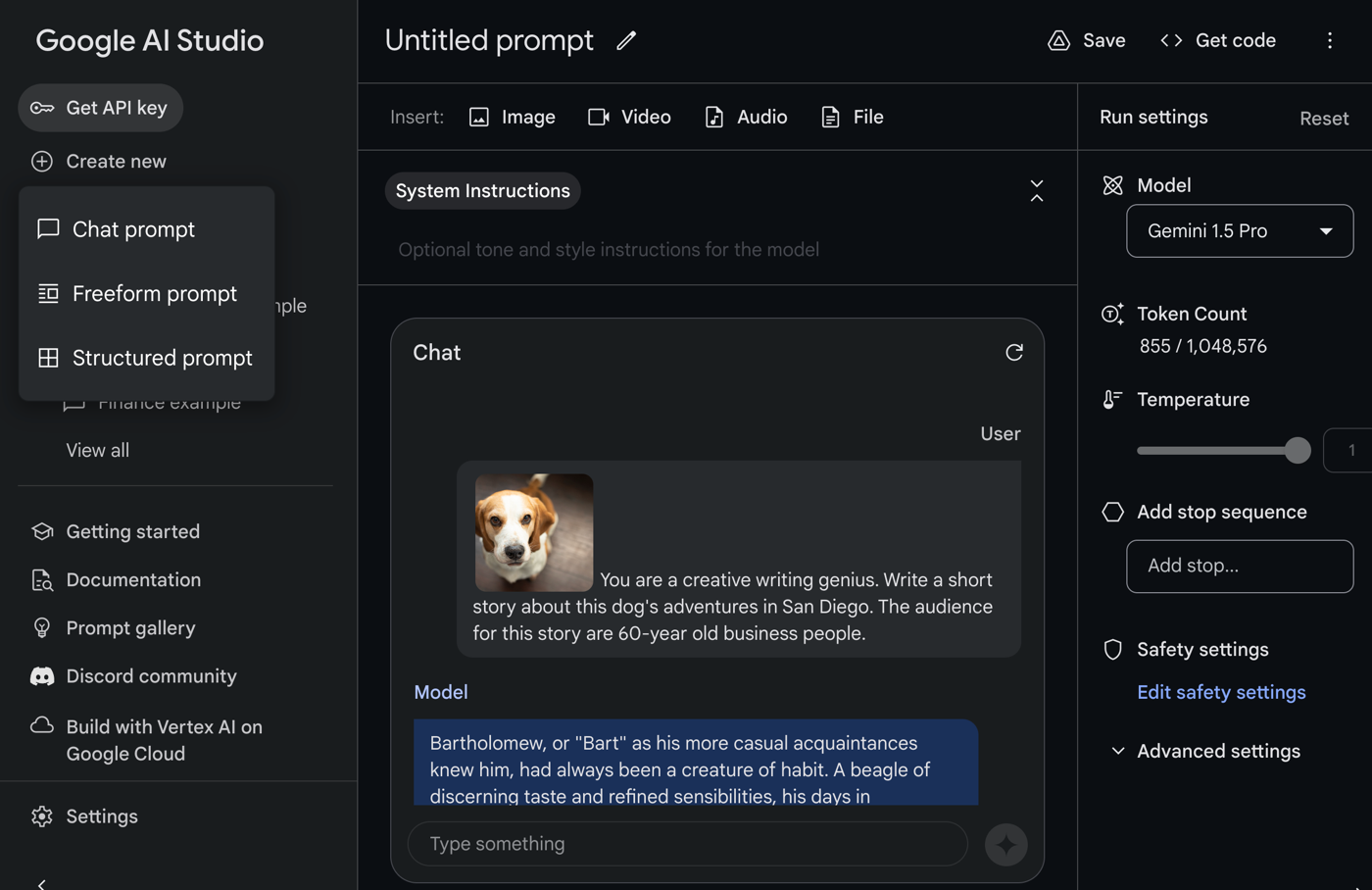
    If you find yourself staring at an empty console wondering what to try, check out this prompt gallery that shows off a lot of unique scenarios.

    Once you’re doing more “serious” work, you might upgrade to a proper cloud service that offers a sandbox along with SLAs and prompt lifecycle capabilities. Google Cloud Vertex AI is one example. Here, I created a named prompt.

    With my language prompts, I can also jump into a nice “compare” experience where I can try out variations of my prompt and see if the results are graded as better or worse. I can even set one as “ground truth” used as a baseline for all comparisons.

    Whatever sandbox tools you use, make sure they help you iterate quickly, while also matching the enterprise-y needs of the use case or company you work for.

    Consume native APIs when working with specific models or platforms

    At this point, you might be ready to start building your generative AI app. There seems to be a new, interesting foundation model up on Hugging Face every couple of days. You might have a lot of affection for a specific model family, or not. If you care about the model, you might choose the APIs for that specific model or provider.

    For example, let’s say you were making good choices and anchored your app to the Gemini model. I’d go straight to the Vertex AI SDK for Python, Node, Java, or Go. I might even jump to the raw REST API and build my app with that.

    If I were baking a chat-like API call into my Node.js app, the quickest way to get the code I need is to go into Vertex AI, create a sample prompt, and click the “get code” button.

    I took that code, ran it in a Cloud Shell instance, and it worked perfectly. I could easily tweak it for my specific needs from here. Drop this code into a serverless function, Kubernetes pod, or VM and you’ve got a working generative AI app.

    You could follow this same direct API approach when building out more sophisticated retrieval augmented generation (RAG) apps. In a Google Cloud world, you might use the Vertex AI APIs to get text embeddings. Or you could choose something more general purpose and interact with a PostgreSQL database to generate, store, and query embeddings. This is an excellent example of this approach.

    If you have a specific model preference, you might choose to use the API for Gemini, Llama, Mistral, or whatever. And you might choose to directly interact with database or function APIs to augment the input to those models. That’s cool, and is the right choice for many scenarios.

    Use meta-frameworks for consistent experiences across models and providers

    As expected, the AI builder space is now full of higher-order frameworks that help developers incorporate generative AI into their apps. These frameworks help you call LLMs, work with embeddings and vector databases, and even support actions like function calling.

    LangChain is a big one. You don’t need to be bothered with many model details, and you can chain together tasks to get results. It’s for Python devs, so your choice is either to use Python, or, embrace one of the many offshoots. There’s LangChain4J for Java devs, LangChain Go for Go devs, and LangChain.js for JavaScript devs.

    You have other choices if LangChain-style frameworks aren’t your jam. There’s Spring AI, which has a fairly straightforward set of objects and methods for interacting with models. I tried it out for interacting with the Gemini model, and almost found it easier to use than our native API! It takes one update to my POM file:

    <dependency>
    			<groupId>org.springframework.ai</groupId>
    			<artifactId>spring-ai-vertex-ai-gemini-spring-boot-starter</artifactId>
    </dependency>
    

    One set of application properties:

    spring.application.name=demo
    spring.ai.vertex.ai.gemini.projectId=seroter-dev
    spring.ai.vertex.ai.gemini.location=us-central1
    spring.ai.vertex.ai.gemini.chat.options.model=gemini-pro-vision
    

    And then an autowired chat object that I call from anywhere, like in this REST endpoint.

    @RestController
    @SpringBootApplication
    public class DemoApplication {
    
    	public static void main(String[] args) {
    		SpringApplication.run(DemoApplication.class, args);
    	}
    
    	private final VertexAiGeminiChatClient chatClient;
    
    	@Autowired
        public DemoApplication(VertexAiGeminiChatClient chatClient) {
            this.chatClient = chatClient;
        }
    
    	@GetMapping("/")
    	public String getGeneratedText() {
    		String generatedResponse = chatClient.call("Tell me a joke");
    		return generatedResponse;
    	}
    }
    

    Super easy. There are other frameworks too. Use something like AI.JSX for building JavaScript apps and components. BotSharp is a framework for .NET devs building conversational apps with LLMs. Hugging Face has frameworks that help you abstract the LLM, including Transformers.js and agents.js.

    There’s no shortage of these types of frameworks. If you’re iterating through LLMs and want consistent code regardless of which model you use, these are good choices.

    Create with low-code tools when available

    If I had an idea for a generative AI app, I’d want to figure out how much I actually had to build myself. There are a LOT of tools for building entire apps, components, or widgets, and many require very little coding.

    Everyone’s in this game. Zapier has some cool integration flows. Gradio lets you expose models and APIs as web pages. Langflow got snapped up by DataStax, but still offers a way to create AI apps without much required coding. Flowise offers some nice tooling for orchestration or AI agents. Microsoft’s Power Platform is useful for low-code AI app builders. AWS is in the game now with Amazon Bedrock Agents. ServiceNow is baking generative AI into their builder tools, Salesforce is doing their thing, and basically every traditional low-code app vendor is playing along. See OutSystems, Mendix, and everyone else.

    As you would imagine, Google does a fair bit here as well. The Vertex AI Agent Builder offers four different app types that you basically build through point-and-click. These include personalized search engines, chat, recommendation engine, and connected agents.

    Search apps can tap into a variety of data sources including crawled websites, data warehouses, relational databases, and more.

    What’s fairly new is the “agent app” so let’s try building one of those. Specifically, let’s say I run a baseball clinic (sigh, someday) and help people tune their swing in our batting cages. I might want a chat experience for those looking for help with swing mechanics, and then also offer the ability to book time in the batting cage. I need data, but also interactivity.

    Before building the AI app, I need a Cloud Function that returns available times for the batting cage.

    This Node.js function returns an array of book-able timeslots. I’ve hard-coded the data, but you get the idea.

    I also jumped into the Google Cloud IAM interface to ensure that the Dialogflow service account (which the AI agent operates as) has permission to invoke the serverless function.

    Let’s build the agent. Back in the Vertex AI Agent Builder interface, I choose “new app” and pick “agent.”

    Now I’m dropped into the agent builder interface. On the left, I have navigation for agents, tools, test cases, and more. In the next column, I set the goal of the agent, the instructions, and any tools I want to use with the agent. On the right, I preview my agent.

    I set a goal of “Answer questions about baseball and let people book time in the batting cage” and then get to the instructions. There’s a “sample” set of instructions that are useful for getting started. I used those, but removed references to other agents or tools, as we don’t have that yet.

    But now I want to add a tool, as I need a way to show available booking times if the user asks. I have a choice of adding a data store—this is useful if you want to source Q&A from a BigQuery table, crawl a website, or get data from an API. I clicked the “manage all tools” button and chose to add a new tool. Here I give the tool a name, and very importantly, a description. This description is used by the AI agent to figure out when to invoke it.

    Because I chose OpenAPI as the tool type, I need to provide an OpenAPI spec for my Cloud Function. There’s a sample provided, and I used that to put together my spec. Note that the URL is the function’s base URL, and the path contains the specific function name.

    {
        "openapi": "3.0.0",
        "info": {
            "title": "Cage API",
            "version": "1.0.0"
        },
        "servers": [
            {
                "url": "https://us-central1-seroter-anthos.cloudfunctions.net"
            }
        ],
        "paths": {
            "/function-get-cage-times": {
                "get": {
                    "summary": "List all open cage times",
                    "operationId": "getCageTimes",
                    "responses": {
                        "200": {
                            "description": "An array of cage times",
                            "content": {
                                "application/json": {
                                    "schema": {
                                        "type": "array",
                                        "items": {
                                            "$ref": "#/components/schemas/CageTimes"
                                        }
                                    }
                                }
                            }
                        }
                    }
                }
            }
        },
        "components": {
            "schemas": {
                "CageTimes": {
                    "type": "object",
                    "required": [
                        "cageNumber",
                        "openSlot",
                        "cageType"
                    ],
                    "properties": {
                        "cageNumber": {
                            "type": "integer",
                            "format": "int64"
                        },
                        "openSlot": {
                            "type": "string"
                        },
                        "cageType": {
                            "type": "string"
                        }
                    }
                }
            }
        }
    }
    

    Finally, in this “tool setup” I define the authentication to that API. I chose “service agent token” and because I’m calling a specific instance of a service (versus the platform APIs), I picked “ID token.”

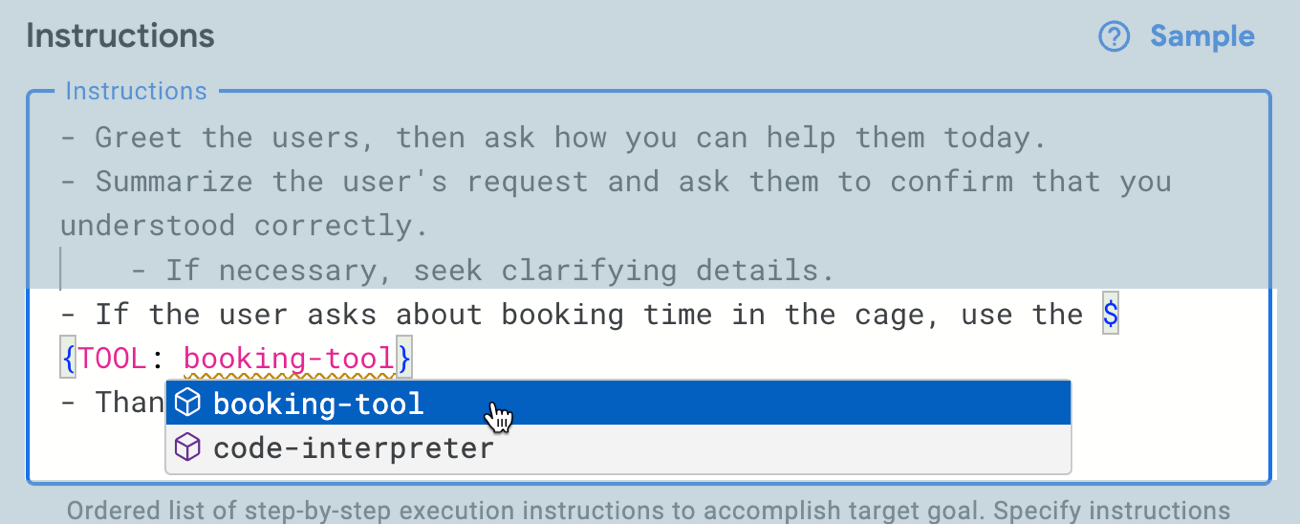
    After saving the tool, I go back to the agent definition and want to update the instructions to invoke the tool. I use the syntax, and appreciated the auto-completion help.
    Let’s see if it works. I went to the right-hand preview pane and asked it a generic baseball question. Good. Then I asked it for open times in the batting cage. Look at that! It didn’t just return a blob of JSON; it parsed the result and worded it well.
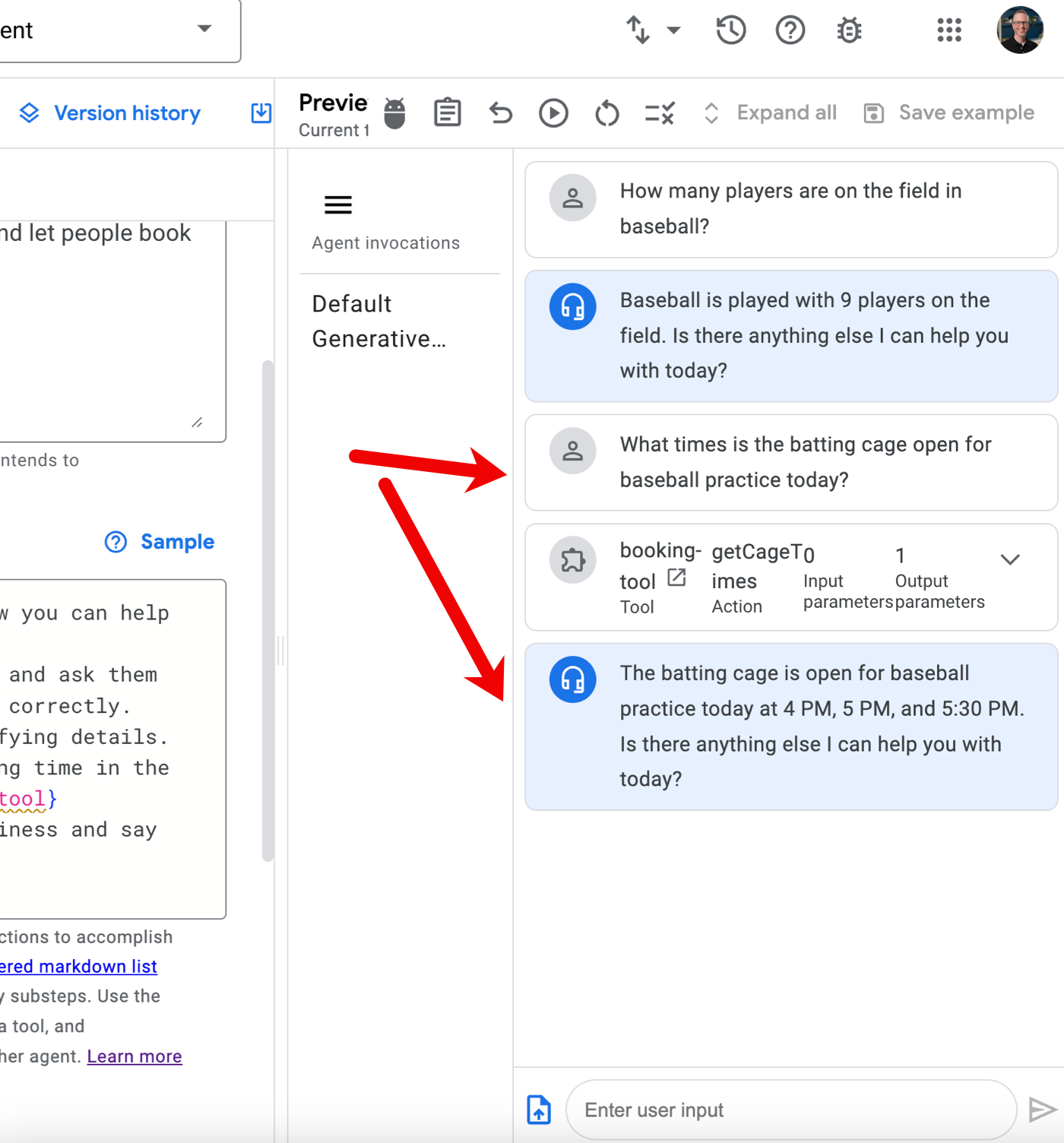
    Very cool. There are some quirks with this tool, but it’s early, and I like where it’s going. This was MUCH simpler than me building a RAG-style or function-calling solution by hand.

    Summary

    The AI assistance and model building products get a lot of attention, but some of the most interesting work is happening in the tools for AI app builders. Whether you’re experimenting with prompts, coding up a solution, or assembling an app out of pre-built components, it’s a fun time to be developer. What products, tools, or frameworks did I miss from my assessment?
  • Running serverless web, batch, and worker apps with Google Cloud Run and Cloud Spanner

    Running serverless web, batch, and worker apps with Google Cloud Run and Cloud Spanner

    If it seems to you that cloud providers offer distinct compute services for every specific type of workload, you’re not imagining things. Fifteen years ago when I was building an app, my hosting choices included a virtual machine or a physical server. Today? You’ll find services targeting web apps, batch apps, commercial apps, containerized apps, Windows apps, Spring apps, VMware-based apps, and more. It’s a lot. So, it catches my eye when I find a modern cloud service that support a few different types of workloads. Our serverless compute service Google Cloud Run might be the fastest and easiest way to get web apps running in the cloud, and we just added support for background jobs. I figured I’d try out Cloud Run for three distinct scenarios: web app (responds to HTTP requests, scales to zero), job (triggered, runs to completion), and worker (processes background work continuously).

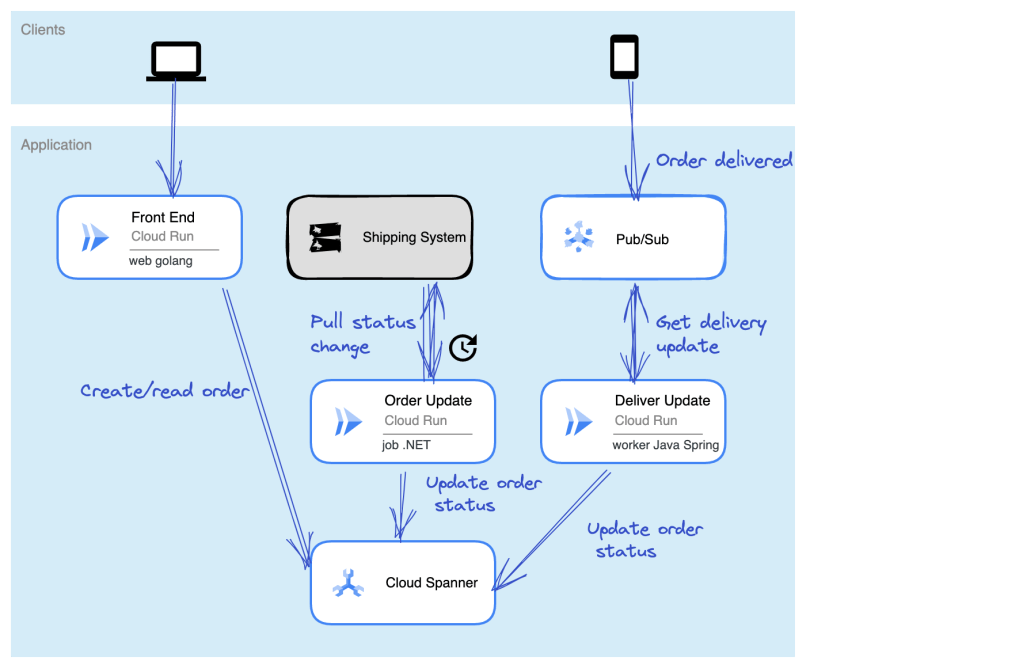
    Let’s make this scenario come alive. I want a web interface that takes in “orders” and shows existing orders (via Cloud Run web app). There’s a separate system that prepares orders for delivery and we poll that system occasionally (via Cloud Run job) to update the status of our orders. And when the order itself is delivered, the mobile app used by the delivery-person sends a message to a queue that a worker is constantly listening to (via Cloud Run app). The basic architecture is something like this:

    Ok, how about we build it out!

    Setting up our Cloud Spanner database

    The underlying database for this system is Cloud Spanner. Why? Because it’s awesome and I want to start using it more. Now, I should probably have a services layer sitting in front of the database instead of doing direct read/write, but this is my demo and I’ll architect however I damn well please!

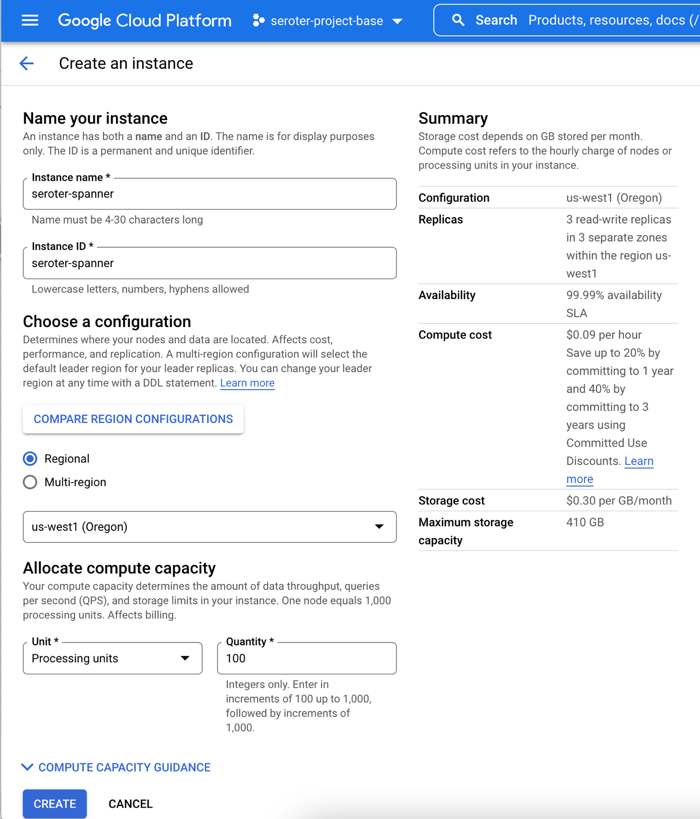
    I started by creating a Spanner instance. We’ve recently made it possible to create smaller instances, which means you can get started at less cost, without sacrificing resilience. Regardless of the number of “processing units” I choose, I get 3 replicas and the same availability SLA. The best database in the cloud just got a lot more affordable.

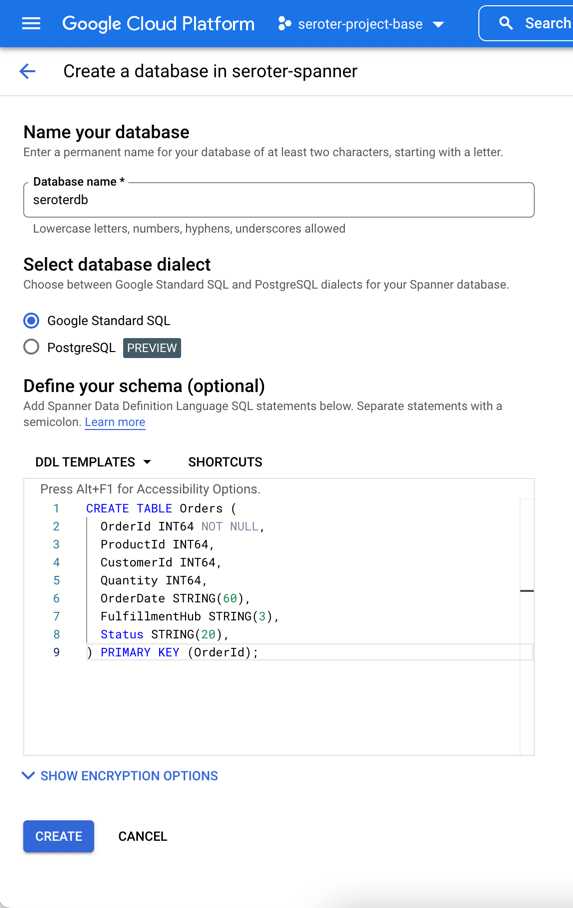
    Next, I add a database to this instance. After giving it a name, I choose the “Google Standard SQL” option, but I could have also chosen a PostgreSQL interface. When defining my schema, I like that we offer script templates for actions like “create table”, “create index”, and “create change stream.” Below, you see my table definition.

    With that, I have a database. There’s nothing left to do, besides bask in the glory of having a regionally-deployed, highly available relational database instance at my disposal in about 60 seconds.

    Creating the web app in Go and deploying to Cloud Run

    With the database in place, I can build a web app with read/write capabilities.

    This app is written in Go and uses the echo web framework. I defined a basic struct that matches the fields in the database.

    package model
    
    type Order struct {
    	OrderId        int64
    	ProductId      int64
    	CustomerId     int64
    	Quantity       int64
    	Status         string
    	OrderDate      string
    	FulfillmentHub string
    }
    

    I’m using the Go driver for Spanner and the core of the logic consists of the operations to retrieve Spanner data and create a new record. I need to be smarter about reusing the connection, but I’ll refactor it later. Narrator: He probably won’t refactor it.

    package web
    
    import (
    	"context"
    	"log"
    	"time"
    	"cloud.google.com/go/spanner"
    	"github.com/labstack/echo/v4"
    	"google.golang.org/api/iterator"
    	"seroter.com/serotershop/model"
    )
    
    func GetOrders() []*model.Order {
    
    	//create empty slice
    	var data []*model.Order
    
    	//set up context and client
    	ctx := context.Background()
    	db := "projects/seroter-project-base/instances/seroter-spanner/databases/seroterdb"
    	client, err := spanner.NewClient(ctx, db)
    	if err != nil {
    		log.Fatal(err)
    	}
    
    	defer client.Close()
        //get all the records in the table
    	iter := client.Single().Read(ctx, "Orders", spanner.AllKeys(), []string{"OrderId", "ProductId", "CustomerId", "Quantity", "Status", "OrderDate", "FulfillmentHub"})
    
    	defer iter.Stop()
    
    	for {
    		row, e := iter.Next()
    		if e == iterator.Done {
    			break
    		}
    		if e != nil {
    			log.Println(e)
    		}
    
    		//create object for each row
    		o := new(model.Order)
    
    		//load row into struct that maps to same shape
    		rerr := row.ToStruct(o)
    		if rerr != nil {
    			log.Println(rerr)
    		}
    		//append to collection
    		data = append(data, o)
    
    	}
    	return data
    }
    
    func AddOrder(c echo.Context) {
    
    	//retrieve values
    	orderid := c.FormValue("orderid")
    	productid := c.FormValue("productid")
    	customerid := c.FormValue("customerid")
    	quantity := c.FormValue("quantity")
    	status := c.FormValue("status")
    	hub := c.FormValue("hub")
    	orderdate := time.Now().Format("2006-01-02")
    
    	//set up context and client
    	ctx := context.Background()
    	db := "projects/seroter-project-base/instances/seroter-spanner/databases/seroterdb"
    	client, err := spanner.NewClient(ctx, db)
    	if err != nil {
    		log.Fatal(err)
    	}
    
    	defer client.Close()
    
    	//do database table write
    	_, e := client.Apply(ctx, []*spanner.Mutation{
    		spanner.Insert("Orders",
    			[]string{"OrderId", "ProductId", "CustomerId", "Quantity", "Status", "FulfillmentHub", "OrderDate"},
    			[]interface{}{orderid, productid, customerid, quantity, status, hub, orderdate})})
    
    	if e != nil {
    		log.Println(e)
    	}
    }
    

    Time to deploy! I’m using Cloud Build to generate a container image without using a Dockerfile. A single command triggers the upload, build, and packaging of my app.

    gcloud builds submit --pack image=gcr.io/seroter-project-base/seroter-run-web
    

    After a moment, I have a container image ready to go. I jumped in the Cloud Run experience and chose to create a new service. After picking the container image I just created, I kept the default autoscaling (minimum of zero instances), concurrency, and CPU allocation settings.

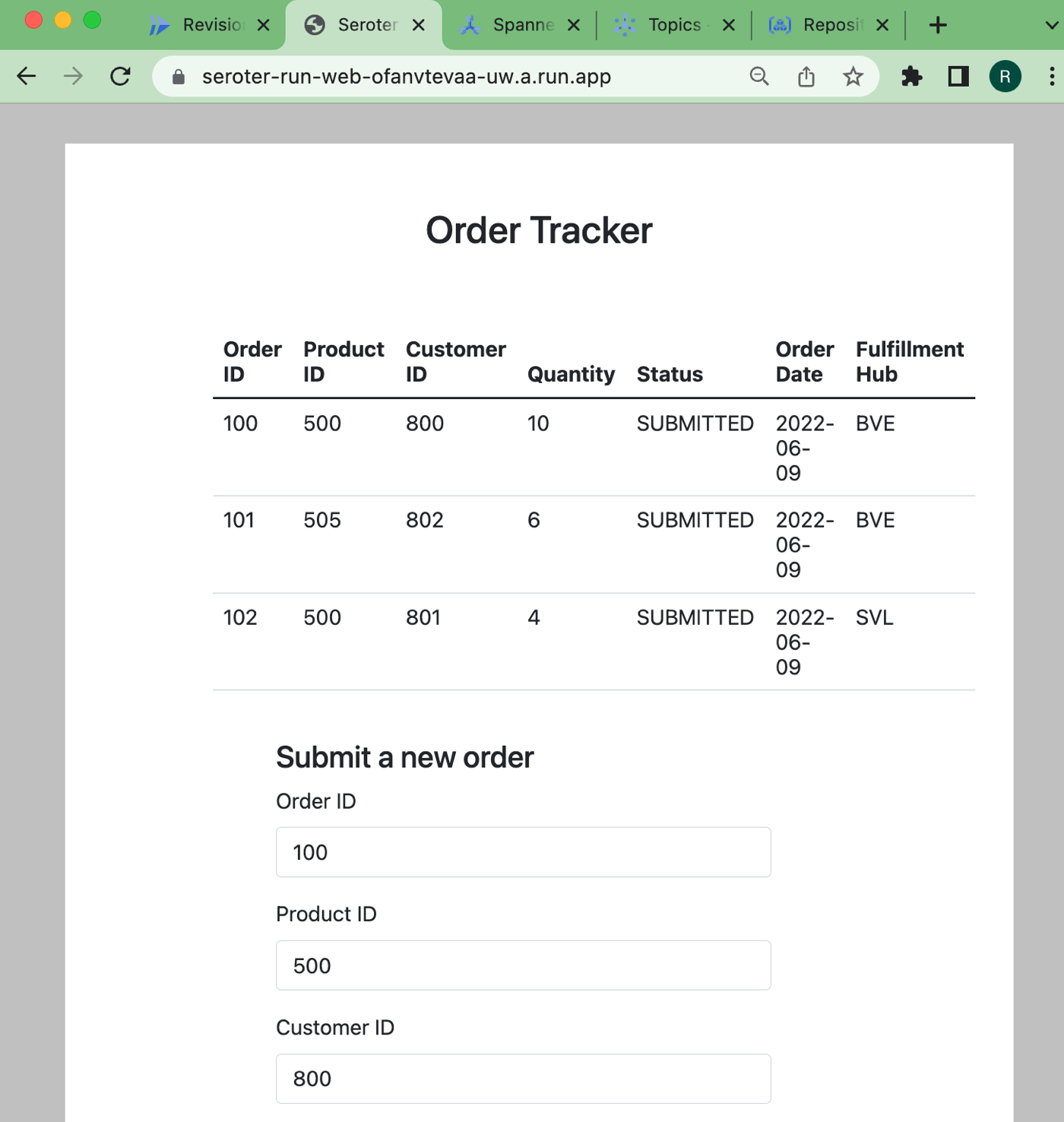
    The app started in seconds, and when I call up the URL, I see my application. And I went ahead and submitted a few orders, which then show up in the list.

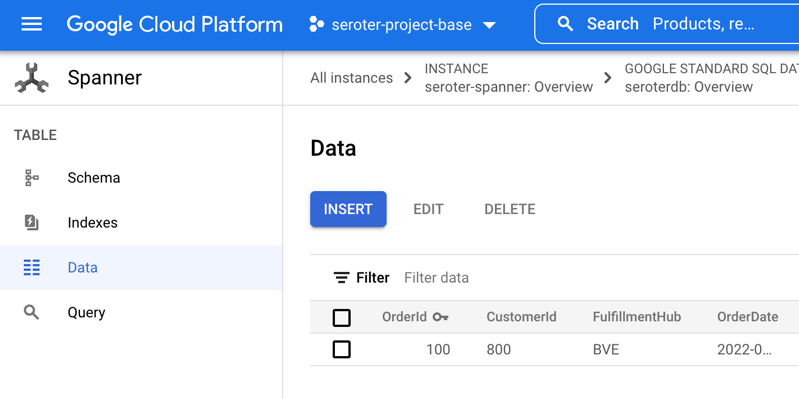
    Checking Cloud Spanner—just to ensure this wasn’t only data sitting client-side—shows that I have rows in my database table.

    Ok, my front end web application is running (when requests come in) and successfully talking to my Cloud Spanner database.

    Creating the batch processor in .NET and deploying to Cloud Run jobs

    As mentioned in the scenario summary, let’s assume we have some shipping system that prepares the order for delivery. Every so often, we want to poll that system for changes, and update the order status in the Spanner database accordingly.

    Until lately, you’d run these batch jobs in App Engine, Functions, a GKE pod, or some other compute service that you could trigger on a schedule. But we just previewed Cloud Run jobs which offers a natural choice moving forward. Here, I can run anything that can be containerized, and the workload runs until completion. You might trigger these via Cloud Scheduler, or kick them off manually.

    Let’s write a .NET console application that does the work. I’m using the new minimal API that hides a bunch of boilerplate code. All I have is a Program.cs file, and a package dependency on Google.Cloud.Spanner.Data. Because I don’t like you THAT much, I didn’t actually create a stub for the shipping system, and decided to update the status of all the rows at once.

    using Google.Cloud.Spanner.Data;
    
    Console.WriteLine("Starting job ...");
    
    //connection string
    string conn = "Data Source=projects/seroter-project-base/instances/seroter-spanner/databases/seroterdb";
    
    using (var connection = new SpannerConnection(conn)) {
    
        //command that updates all rows with the initial status
        SpannerCommand cmd = connection.CreateDmlCommand("UPDATE Orders SET Status = 'SHIPPED' WHERE Status = 'SUBMITTED'");
    
        //execute and hope for the best
        cmd.ExecuteNonQuery();
    }
    
    //job should end after this
    Console.WriteLine("Update done. Job completed.");


    Like before, I use a single Cloud Build command to compile and package my app into a container image: gcloud builds submit --pack image=gcr.io/seroter-project-base/seroter-run-job

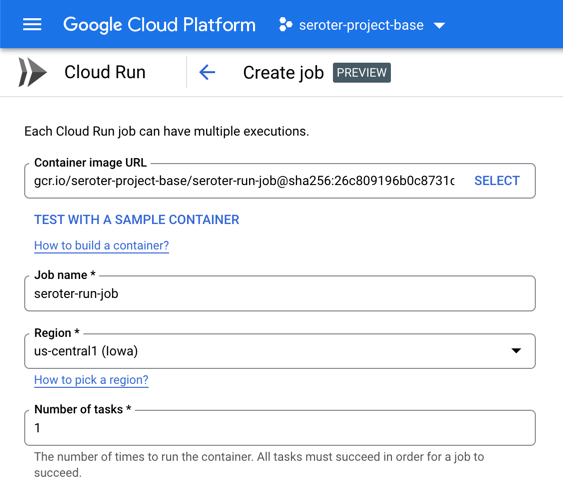
    Let’s go back into the Cloud Run interface, where we just turned on a UI for creating and managing jobs. I start by choosing my just-now-created container image and keeping the “number of tasks” to 1.

    For reference, there are other fun “job” settings. I can allocate up to 32GB of memory and 8 vCPUs. I can set the timeout (up to an hour), choose how much parallelism I want, and even select the option to run the job right away.

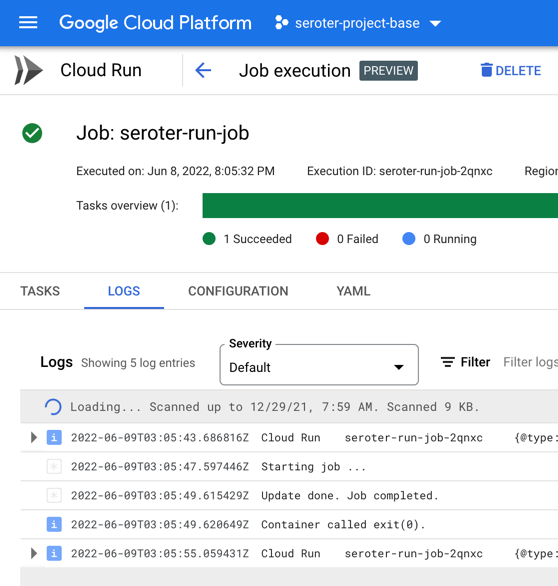
    After creating the job, I click the button that says “execute” and run my job. I see job status and application logs, updated live. My job succeeded!

    Checking Cloud Spanner confirms that my all table rows were updated to a status of “SHIPPED”.

    It’s great that I didn’t have to leave the Cloud Run API or interface to build this batch processor. Super convenient!

    Creating the queue listener in Spring and deploying to Cloud Run

    The final piece of our architecture requires a queue listener. When our delivery drivers drop off a package, their system sends a message to Google Cloud Pub/Sub, our pretty remarkable messaging system. To be sure, I could trigger Cloud Run (or Cloud Functions) automatically whenever a message hits Pub/Sub. That’s a built-in capability. I don’t need to use a processor that directly pulls from the queue.

    But maybe I want to control the pull from the queue. I could do stateful processing over a series of messages, or pull batches instead of one-at-a-time. Here, I’m going to use Spring Cloud Stream which talks to any major messaging system and triggers a function whenever a message arrives.

    Also note that Cloud Run doesn’t explicitly support this worker pattern, but you can make it work fairly easily. I’ll show you.

    I went to start.spring.io and configured my app by choosing a Spring Web and GCP Support dependency. Why “web” if this is a background worker? Cloud Run still expects a workload that binds to a web port, so we’ll embed a web server that’s never used.

    After generating the project and opening it, I deleted the “GCP support” dependency (I just wanted an auto-generated dependency management value) and added a couple of POM dependencies that my app needs. The first is the Google Cloud Pub/Sub “binder” for Spring Cloud Stream, and the second is the JDBC driver for Cloud Spanner.

    <dependency>
    	<groupId>org.springframework.cloud</groupId>
    	<artifactId>spring-cloud-gcp-pubsub-stream-binder</artifactId>
    	<version>1.2.8.RELEASE</version>
    </dependency>
    <dependency>
    	<groupId>com.google.cloud</groupId>
    	<artifactId>google-cloud-spanner-jdbc</artifactId>
    </dependency>
    

    I then created an object definition for “Order” with the necessary fields and getters/setters. Let’s review the primary class that does all the work. The way Spring Cloud Stream works is that reactive functions annotated as beans are invoked when a message comes in. The Spring machinery wires up the connection to the message broker and does most of the work. In this case, when I get an order message, I update the order status in Cloud Spanner to “DELIVERED.”

    package com.seroter.runworker;
    
    
    import java.util.function.Consumer;
    import org.springframework.boot.SpringApplication;
    import org.springframework.boot.autoconfigure.SpringBootApplication;
    import org.springframework.context.annotation.Bean;
    import reactor.core.publisher.Flux;
    import java.sql.Connection;
    import java.sql.DriverManager;
    import java.sql.Statement;
    import java.sql.SQLException;
    
    @SpringBootApplication
    public class RunWorkerApplication {
    
    	public static void main(String[] args) {
    		SpringApplication.run(RunWorkerApplication.class, args);
    	}
    
    	//takes in a Flux (stream) of orders
    	@Bean
    	public Consumer<Flux<Order>> reactiveReadOrders() {
    
    		//connection to my database
    		String connectionUrl = "jdbc:cloudspanner:/projects/seroter-project-base/instances/seroter-spanner/databases/seroterdb";
    		
    		return value -> 
    			value.subscribe(v -> { 
    				try (Connection c = DriverManager.getConnection(connectionUrl); Statement statement = c.createStatement()) {
    					String command = "UPDATE Orders SET Status = 'DELIVERED' WHERE OrderId = " + v.getOrderId().toString();
    					statement.executeUpdate(command);
    				} catch (SQLException e) {
    					System.out.println(e.toString());
    				}
    			});
    	}
    }
    

    My corresponding properties file has the few values Spring Cloud Stream needs to know about. Specifically, I’m specifying the Pub/Sub topic, indicating that I can take in batches of data, and setting the “group” which corresponds to the topic subscription. What’s cool is that if these topics and subscriptions don’t exist already, Spring Cloud Stream creates them for me.

    server.port=8080
    spring.cloud.stream.bindings.reactiveReadOrders-in-0.destination=ordertopic
    spring.cloud.stream.bindings.reactiveReadOrders-in-0.consumer.batch-mode=true
    spring.cloud.stream.bindings.reactiveReadOrders-in-0.content-type=application/json
    spring.cloud.stream.bindings.reactiveReadOrders-in-0.group=orderGroup
    

    For the final time, I run the Cloud Build command to build and package my Java app into a container image: gcloud builds submit --pack image=gcr.io/seroter-project-base/seroter-run-worker

    With this container image ready to go, I slide back to the Cloud Run UI and create a new service instance. This time, after choosing my image, I choose “always allocated CPU” to ensure that the CPU stays on the whole time. And I picked a minimum instance of one so that I have a single always-on worker pulling from Pub/Sub. I also chose “internal only” traffic and require authentication to make this harder for someone to randomly invoke.

    My service quickly starts up, and upon initialization, creates both the topic and queue for my app.

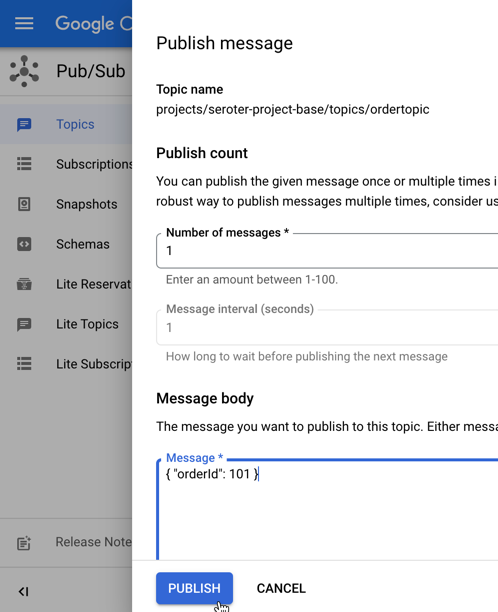
    I go into the Pub/Sub UI where I can send a message directly into a topic. All I need to send in is a JSON payload that holds the order ID of the record to update.

    The result? My database record is updated, and I see this by viewing my web application and noticing the second row has a new “status” value.

    Wrap up

    Instead of using two or three distinct cloud compute services to satisfy this architecture, I used one. Cloud Run defies your expectations of what serverless can be, especially now that you can run serverless jobs or even continuously-running apps. In all cases, I have no infrastructure to provision, scale, or manage.

    You can use Cloud Run, Pub/Sub, and Cloud Build with our generous free tier, and Spanner has never been cheaper to try out. Give it a whirl, and tell me what you think of Cloud Run jobs.

  • Measuring container size and startup latency for serverless apps written in C#, Node.js, Go, and Java

    Measuring container size and startup latency for serverless apps written in C#, Node.js, Go, and Java

    Do you like using function-as-a-service (FaaS) platforms to quickly build scalable systems? Me too. There are constraints around what you can do with FaaS, which is why I also like this new crop of container-based serverless compute services. These products—the terrific Google Cloud Run is the most complete example and has a generous free tier—let you deploy more full-fledged “apps” versus the glue code that works best in FaaS. Could be a little Go app, full-blown Spring Boot REST API, or a Redis database. Sounds good, but what if you don’t want to mess with containers as you build and deploy software? Or are concerned about the “cold start” penalty of a denser workload?

    Google Cloud has embraced Cloud Buildpacks as a way to generate a container image from source code. Using our continuous integration service or any number of compute services directly, you never have to write a Dockerfile again, unless you want to. Hopefully, at least. Regarding the cold start topic, we just shipped a new cloud metric, “container startup latency” to measure the time it takes for a serverless instance to fire up. That seems like a helpful tool to figure out what needs to be optimized. Based on these two things, I got curious and decided to build the same REST API in four different programming languages to see how big the generated container image was, and how fast the containers started up in Cloud Run.

    Since Cloud Run accepts most any container, you have almost limitless choices in programming language. For this example, I chose to use C#, Go, Java (Spring Boot), and JavaScript (Node.js). I built an identical REST API with each. It’s entirely possible, frankly likely, that you could tune these apps much more than I did. But this should give us a decent sense of how each language performs.

    Let’s go language-by-language and review the app, generate the container image, deploy to Cloud Run, and measure the container startup latency.

    Go

    I’m almost exclusively coding in Go right now as I try to become more competent with it. Go has an elegant simplicity to it that I really enjoy. And it’s an ideal language for serverless environments given its small footprint, blazing speed, and easy concurrency.

    For the REST API, which basically just returns a pair of “employee” records, I used the Echo web framework and Go 1.18.

    My data model (struct) has four properties.

    package model
    
    type Employee struct {
    	Id       string `json:"id"`
    	FullName string `json:"fullname"`
    	Location string `json:"location"`
    	JobTitle string `json:"jobtitle"`
    }
    

    My web handler offers a single operation that returns two employee items.

    package web
    
    import (
    	"net/http"
    
    	"github.com/labstack/echo/v4"
    	"seroter.com/restapi/model"
    )
    
    func GetAllEmployees(c echo.Context) error {
    
    	emps := [2]model.Employee{{Id: "100", FullName: "Jack Donaghy", Location: "NYC", JobTitle: "Executive"}, {Id: "101", FullName: "Liz Lemon", Location: "NYC", JobTitle: "Writer"}}
    	return c.JSON(http.StatusOK, emps)
    }
    

    And finally, the main Go class spins up the web server.

    package main
    
    import (
    	"fmt"
    
    	"github.com/labstack/echo/v4"
    	"github.com/labstack/echo/v4/middleware"
    	"seroter.com/restapi/web"
    )
    
    func main() {
    	fmt.Println("server started ...")
    
    	e := echo.New()
    	e.Use(middleware.Logger())
    
    	e.GET("/employees", web.GetAllEmployees)
    
    	e.Start(":8080")
    }
    

    Next, I used Google Cloud Build along with Cloud Buildpacks to generate a container image from this Go app. The buildpack executes a build, brings in a known good base image, and creates an image that we add to Google Cloud Artifact Registry. It’s embarrassingly easy to do this. Here’s the single command with our gcloud CLI:

    gcloud builds submit --pack image=gcr.io/seroter-project-base/go-restapi 
    

    The result? A 51.7 MB image in my Docker repository in Artifact Registry.

    The last step was to deploy to Cloud Run. We could use the CLI of course, but let’s use the Console experience because it’s delightful.

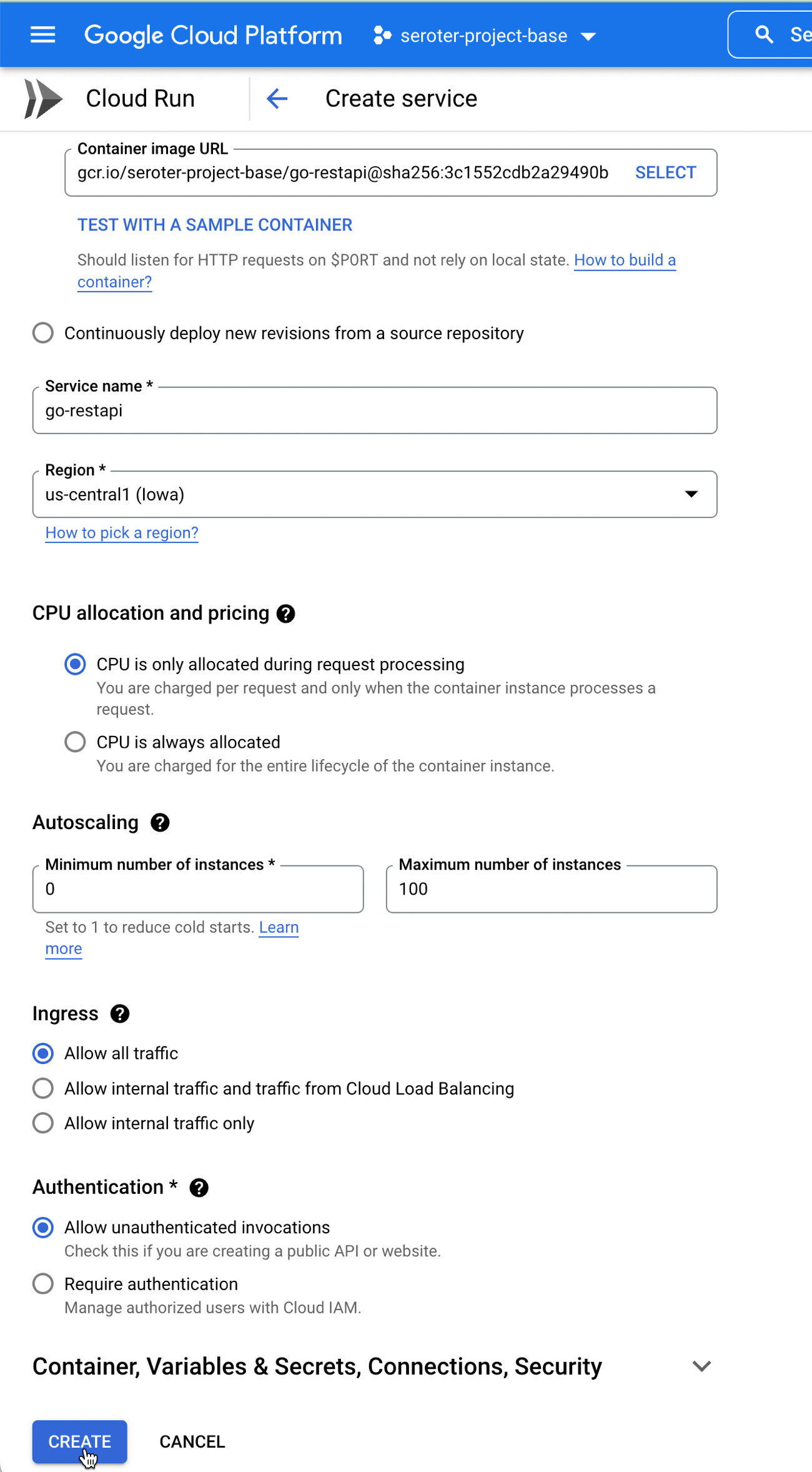
    After pointing at my generated container image, I could just click “create” and accept all the default instance properties. As you can see below, I’ve got easy control over instance count (minimum of zero, but you can keep a warm instance running if you want).

    Let’s tweak a couple of things. First off, I don’t need the default amount of RAM. I can easily operate with just 256MiB, or even less. Also, you see here that we default to 80 concurrent requests per container. That’s pretty cool, as most FaaS platforms do a single concurrent request. I’ll stick with 80.

    It seriously took four seconds from the time I clicked “create” until the instance was up and running and able to take traffic. Bonkers. I didn’t send any initial requests in, as I want to hit it cold with a burst of data. I’m using the excellent hey tool to generate a bunch of load on my service. This single command sends 200 total requests, with 10 concurrent workers.

    hey -n 200 -c 10 https://go-restapi-ofanvtevaa-uc.a.run.app/employees
    

    Here’s the result. All the requests were done in 2.6 seconds, and you can see that that the first ones (as the container warmed up) took 1.2 seconds, and the vast majority took 0.177 seconds. That’s fast.

    Summary:
      Total:        2.6123 secs
      Slowest:      1.2203 secs
      Fastest:      0.0609 secs
      Average:      0.1078 secs
      Requests/sec: 76.5608
      
      Total data:   30800 bytes
      Size/request: 154 bytes
    
    Response time histogram:
      0.061 [1]     |
      0.177 [189]   |■■■■■■■■■■■■■■■■■■■■■■■■■■■■■■■■■■■■■■■■
      0.293 [0]     |
      0.409 [0]     |
      0.525 [1]     |
      0.641 [6]     |■
      0.757 [0]     |
      0.873 [0]     |
      0.988 [0]     |
      1.104 [0]     |
      1.220 [3]     |■
    
    
    Latency distribution:
      10% in 0.0664 secs
      25% in 0.0692 secs
      50% in 0.0721 secs
      75% in 0.0777 secs
      90% in 0.0865 secs
      95% in 0.5074 secs
      99% in 1.2057 secs

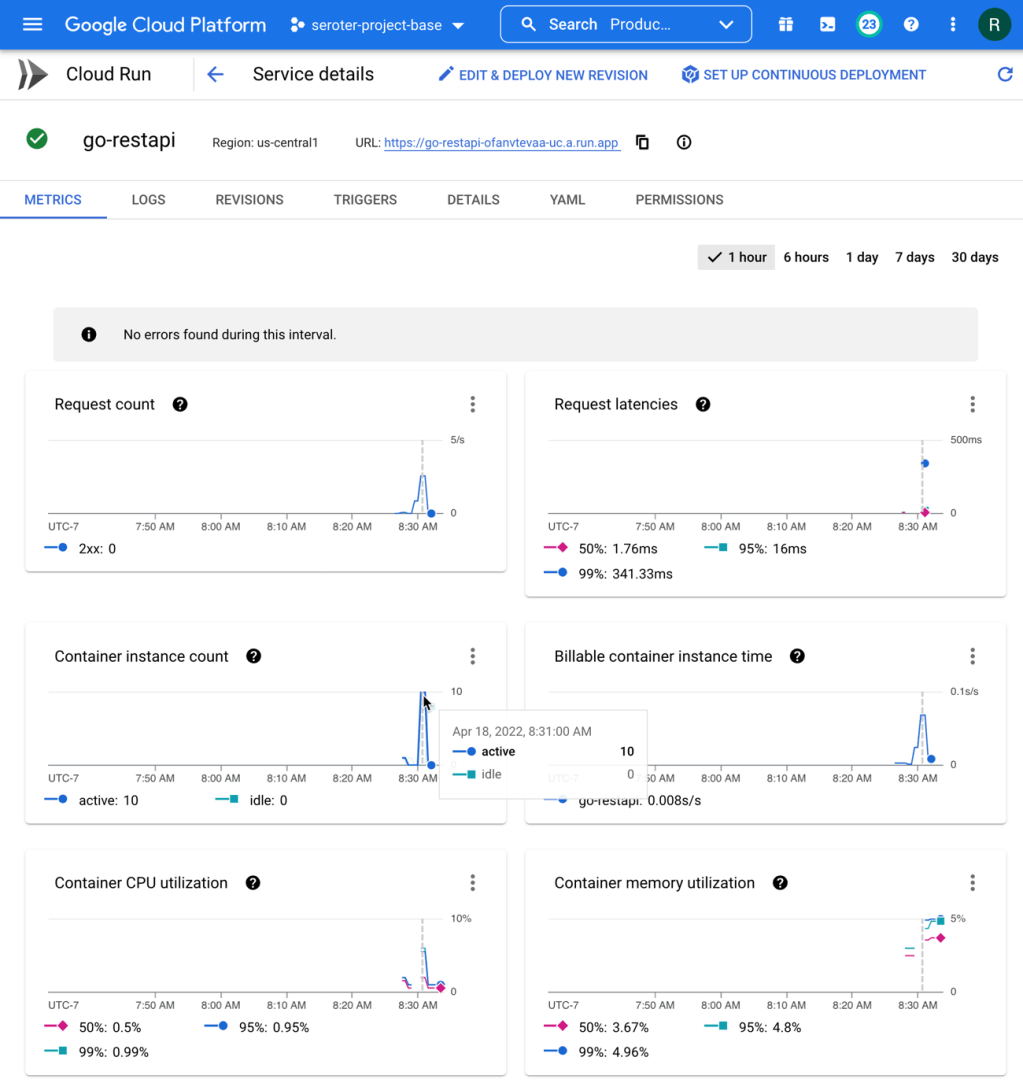
    How about the service metrics? I saw that Cloud Run spun up 10 containers to handle the incoming load, and my containers topped out at 5% memory utilization. It also barely touched the CPU.

    How about that new startup latency metric? I jumped into Cloud Monitoring directly to see that. There are lots of ways to aggregate this data (mean, standard deviation, percentile) and I chose the 95th percentile. My container startup time is pretty darn fast (at 95th percentile, it’s 106.87 ms), and then stays up to handle the load, so I don’t incur a startup cost for the chain of requests.

    Finally, with some warm instances running, I ran the load test again. You can see how speedy things are, with virtually no “slow” responses. Go is an excellent choice for your FaaS or container-based workloads if speed matters.

    Summary:
      Total:        2.1548 secs
      Slowest:      0.5008 secs
      Fastest:      0.0631 secs
      Average:      0.0900 secs
      Requests/sec: 92.8148
      
      Total data:   30800 bytes
      Size/request: 154 bytes
    
    Response time histogram:
      0.063 [1]     |
      0.107 [185]   |■■■■■■■■■■■■■■■■■■■■■■■■■■■■■■■■■■■■■■■■
      0.151 [2]     |
      0.194 [10]    |■■
      0.238 [0]     |
      0.282 [0]     |
      0.326 [0]     |
      0.369 [0]     |
      0.413 [0]     |
      0.457 [1]     |
      0.501 [1]     |
    
    
    Latency distribution:
      10% in 0.0717 secs
      25% in 0.0758 secs
      50% in 0.0814 secs
      75% in 0.0889 secs
      90% in 0.1024 secs
      95% in 0.1593 secs
      99% in 0.4374 secs

    C# (.NET)

    Ah, .NET. I started using it with the early preview release in 2000, and considered myself a (poor) .NET dev for most of my career. Now, I dabble. .NET 6 looks good, so I built my REST API with that.

    Update: I got some good feedback from folks that I could have tried this .NET app using the new minimal API structure. I wasn’t sure it’d make a difference, but tried it anyway. Resulted in the same container size, and roughly the same response time (4.2088 seconds for all 200 requests) and startup latency (2.23s at 95th percentile). Close, but actually a tad slower! On the second pass of 200 requests, the total response time was almost equally (1.6915 seconds) fast as the way I originally wrote it.

    My Employee object definition is straightforward.

    namespace dotnet_restapi;
    
    public class Employee {
    
        public Employee(string id, string fullname, string location, string jobtitle) {
            this.Id = id;
            this.FullName = fullname;
            this.Location = location;
            this.JobTitle = jobtitle;
        }
    
        public string Id {get; set;}
        public string FullName {get; set;}
        public string Location {get; set;}
        public string JobTitle {get; set;}
    }
    

    The Controller has a single operation and returns a List of employee objects.

    using Microsoft.AspNetCore.Mvc;
    
    namespace dotnet_restapi.Controllers;
    
    [ApiController]
    [Route("[controller]")]
    public class EmployeesController : ControllerBase
    {
    
        private readonly ILogger<EmployeesController> _logger;
    
        public EmployeesController(ILogger<EmployeesController> logger)
        {
            _logger = logger;
        }
    
        [HttpGet(Name = "GetEmployees")]
        public IEnumerable<Employee> Get()
        {
            List<Employee> emps = new List<Employee>();
            emps.Add(new Employee("100", "Bob Belcher", "SAN", "Head Chef"));
            emps.Add(new Employee("101", "Philip Frond", "SAN", "Counselor"));
    
            return emps;
        }
    }
    

    The program itself simply looks for an environment variable related to the HTTP port, and starts up the server. Much like above, to build this app and produce a container image, it only takes this one command:

    gcloud builds submit --pack image=gcr.io/seroter-project-base/dotnet-restapi 
    

    The result is a fairly svelte 90.6 MB image in the Artifact Registry.

    When deploying this instance to Cloud Run, I kept the same values as with the Go service, as my .NET app doesn’t need more than 256MiB of memory.

    In just a few seconds, I had the app up and running.

    Let’s load test this bad boy and see what happens. I sent in the same type of request as before, with 200 total requests, 10 concurrent.

    hey -n 200 -c 10 https://dotnet-restapi-ofanvtevaa-uc.a.run.app/employees
    

    The results were solid. You can see a total execution time of about 3.6 seconds, with a few instances taking 2 seconds, and the rest coming back super fast.

    Summary:
      Total:        3.6139 secs
      Slowest:      2.1923 secs
      Fastest:      0.0649 secs
      Average:      0.1757 secs
      Requests/sec: 55.3421
      
    
    Response time histogram:
      0.065 [1]     |
      0.278 [189]   |■■■■■■■■■■■■■■■■■■■■■■■■■■■■■■■■■■■■■■■■
      0.490 [0]     |
      0.703 [0]     |
      0.916 [0]     |
      1.129 [0]     |
      1.341 [0]     |
      1.554 [0]     |
      1.767 [0]     |
      1.980 [0]     |
      2.192 [10]    |■■
    
    
    Latency distribution:
      10% in 0.0695 secs
      25% in 0.0718 secs
      50% in 0.0747 secs
      75% in 0.0800 secs
      90% in 0.0846 secs
      95% in 2.0365 secs
      99% in 2.1286 secs

    I checked the Cloud Run metrics, and see that request latency was high on a few requests, but the majority were fast. Memory was around 30% utilization. Very little CPU consumption.

    For container startup latency, the number was 1.492s at the 95th percentile. Still not bad.

    Oh, and sending in another 200 requests with my .NET containers warmed up resulted in some smokin’ fast responses.

    Summary:
      Total:        1.6851 secs
      Slowest:      0.1661 secs
      Fastest:      0.0644 secs
      Average:      0.0817 secs
      Requests/sec: 118.6905
      
    
    Response time histogram:
      0.064 [1]     |
      0.075 [64]    |■■■■■■■■■■■■■■■■■■■■■■■■■
      0.085 [104]   |■■■■■■■■■■■■■■■■■■■■■■■■■■■■■■■■■■■■■■■■
      0.095 [18]    |■■■■■■■
      0.105 [2]     |■
      0.115 [1]     |
      0.125 [0]     |
      0.136 [0]     |
      0.146 [0]     |
      0.156 [0]     |
      0.166 [10]    |■■■■
    
    
    Latency distribution:
      10% in 0.0711 secs
      25% in 0.0735 secs
      50% in 0.0768 secs
      75% in 0.0811 secs
      90% in 0.0878 secs
      95% in 0.1600 secs
      99% in 0.1660 secs

    Java (Spring Boot)

    Now let’s try it with a Spring Boot application. I learned Spring when I joined Pivotal, and taught a couple Pluralsight courses on the topic. Spring Boot is a powerful framework, and you can build some terrific apps with it. For my REST API, I began at start.spring.io to generate my reactive web app.

    The “employee” definition should look familiar at this point.

    package com.seroter.springrestapi;
    
    public class Employee {
    
        private String Id;
        private String FullName;
        private String Location;
        private String JobTitle;
        
        public Employee(String id, String fullName, String location, String jobTitle) {
            Id = id;
            FullName = fullName;
            Location = location;
            JobTitle = jobTitle;
        }
        public String getId() {
            return Id;
        }
        public String getJobTitle() {
            return JobTitle;
        }
        public void setJobTitle(String jobTitle) {
            this.JobTitle = jobTitle;
        }
        public String getLocation() {
            return Location;
        }
        public void setLocation(String location) {
            this.Location = location;
        }
        public String getFullName() {
            return FullName;
        }
        public void setFullName(String fullName) {
            this.FullName = fullName;
        }
        public void setId(String id) {
            this.Id = id;
        }
    }
    

    Then, my Controller + main class exposes a single REST endpoint and returns a Flux of employees.

    package com.seroter.springrestapi;
    
    import java.util.ArrayList;
    import java.util.List;
    
    import org.springframework.boot.SpringApplication;
    import org.springframework.boot.autoconfigure.SpringBootApplication;
    import org.springframework.web.bind.annotation.GetMapping;
    import org.springframework.web.bind.annotation.RestController;
    
    import reactor.core.publisher.Flux;
    
    @RestController
    @SpringBootApplication
    public class SpringRestapiApplication {
    
    	public static void main(String[] args) {
    		SpringApplication.run(SpringRestapiApplication.class, args);
    	}
    
    	List<Employee> employees;
    
    	public SpringRestapiApplication() {
    		employees = new ArrayList<Employee>();
    		employees.add(new Employee("300", "Walt Longmire", "WYG", "Sheriff"));
    		employees.add(new Employee("301", "Vic Moretti", "WYG", "Deputy"));
    
    	}
    
    	@GetMapping("/employees")
    	public Flux<Employee> getAllEmployees() {
    		return Flux.fromIterable(employees);
    	}
    }
    

    I could have done some more advanced configuration to create a slimmer JAR file, but I wanted to try this with the default experience. Once again, I used a single Cloud Build command to generate a container from this app. I do appreciate how convenient this is!

    gcloud builds submit --pack image=gcr.io/seroter-project-base/spring-restapi 
    

    Not surpassingly, a Java container image is a bit hefty. This one clocks in at 249.7 MB in size. The container image size doesn’t matter a TON to Cloud Run, as we do image streaming from Artifact Registry which means only files loaded by your app need to be pulled. But, size still does matter a bit here.

    When deploying this image to Cloud Run, I did keep the default 512 MiB of memory in place as a Java app can tend to consume more resources. The service still deployed in less than 10 seconds, which is awesome. Let’s flood it with traffic.

    hey -n 200 -c 10 https://spring-restapi-ofanvtevaa-uc.a.run.app/employees
    

    200 requests to my Spring Boot endpoint did ok. Clearly there’s a big startup time on the first one(s), and as a developer, that’d be where I dedicate extra time to optimizing.

    Summary:
      Total:        13.8860 secs
      Slowest:      12.3335 secs
      Fastest:      0.0640 secs
      Average:      0.6776 secs
      Requests/sec: 14.4030
      
    
    Response time histogram:
      0.064 [1]     |
      1.291 [189]   |■■■■■■■■■■■■■■■■■■■■■■■■■■■■■■■■■■■■■■■■
      2.518 [0]     |
      3.745 [0]     |
      4.972 [0]     |
      6.199 [0]     |
      7.426 [0]     |
      8.653 [0]     |
      9.880 [0]     |
      11.107 [0]    |
      12.333 [10]   |■■
    
    
    Latency distribution:
      10% in 0.0723 secs
      25% in 0.0748 secs
      50% in 0.0785 secs
      75% in 0.0816 secs
      90% in 0.0914 secs
      95% in 11.4977 secs
      99% in 12.3182 secs

    The initial Cloud Run metrics show fast request latency (routing to the service), 10 containers to handle the load, and a somewhat-high CPU and memory load.

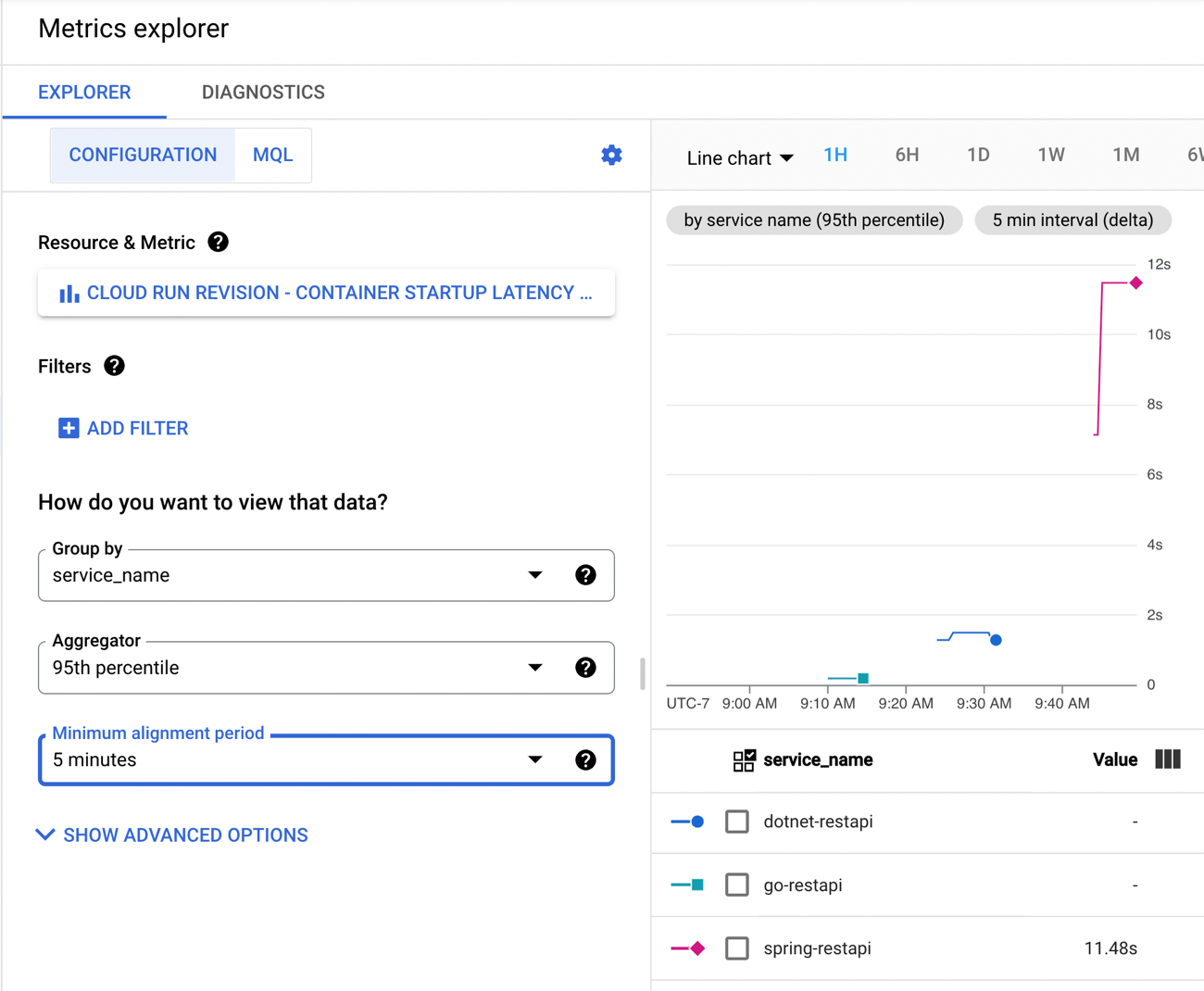
    Back in Cloud Monitoring, I saw that the 95th percentile for container startup latency was 11.48s.

    If you’re doing Spring Boot with serverless runtimes, you’re going to want to pay special attention to the app startup latency, as that’s where you’ll get the most bang for the buck. And consider doing a “minimum” of at least 1 always-running instance. See that when I sent in another 200 requests with warm containers running, things look good.

    Summary:
      Total:        1.8128 secs
      Slowest:      0.2451 secs
      Fastest:      0.0691 secs
      Average:      0.0890 secs
      Requests/sec: 110.3246
      
    
    Response time histogram:
      0.069 [1]     |
      0.087 [159]   |■■■■■■■■■■■■■■■■■■■■■■■■■■■■■■■■■■■■■■■■
      0.104 [27]    |■■■■■■■
      0.122 [3]     |■
      0.140 [0]     |
      0.157 [0]     |
      0.175 [0]     |
      0.192 [0]     |
      0.210 [0]     |
      0.227 [0]     |
      0.245 [10]    |■■■
    
    
    Latency distribution:
      10% in 0.0745 secs
      25% in 0.0767 secs
      50% in 0.0802 secs
      75% in 0.0852 secs
      90% in 0.0894 secs
      95% in 0.2365 secs
      99% in 0.2450 secs

    JavaScript (Node.js)

    Finally, let’s look at JavaScript. This is what I first learned to really program in back in 1998-ish and then in my first job out of college. It continues to be everywhere, and widely supported in public clouds. For this Node.js REST API, I chose to use the Express framework. I built a simple router that returns a couple of “employee” records as JSON.

    var express = require('express');
    var router = express.Router();
    
    /* GET employees */
    router.get('/', function(req, res, next) {
      res.json(
        [{
            id: "400",
            fullname: "Beverly Goldberg",
            location: "JKN",
            jobtitle: "Mom"
        },
        {
            id: "401",
            fullname: "Dave Kim",
            location: "JKN",
            jobtitle: "Student"
        }]
      );
    });
    
    module.exports = router;
    

    My app.js file calls out the routes and hooks it up to the /employees endpoint.

    var express = require('express');
    var path = require('path');
    var cookieParser = require('cookie-parser');
    var logger = require('morgan');
    
    var indexRouter = require('./routes/index');
    var employeesRouter = require('./routes/employees');
    
    var app = express();
    
    app.use(logger('dev'));
    app.use(express.json());
    app.use(express.urlencoded({ extended: false }));
    app.use(cookieParser());
    app.use(express.static(path.join(__dirname, 'public')));
    
    app.use('/', indexRouter);
    app.use('/employees', employeesRouter);
    
    module.exports = app;
    

    At this point, you know what it looks like to build a container image. But, don’t take it for granted. Enjoy how easy it is to do this even if you know nothing about Docker.

    gcloud builds submit --pack image=gcr.io/seroter-project-base/node-restapi 
    

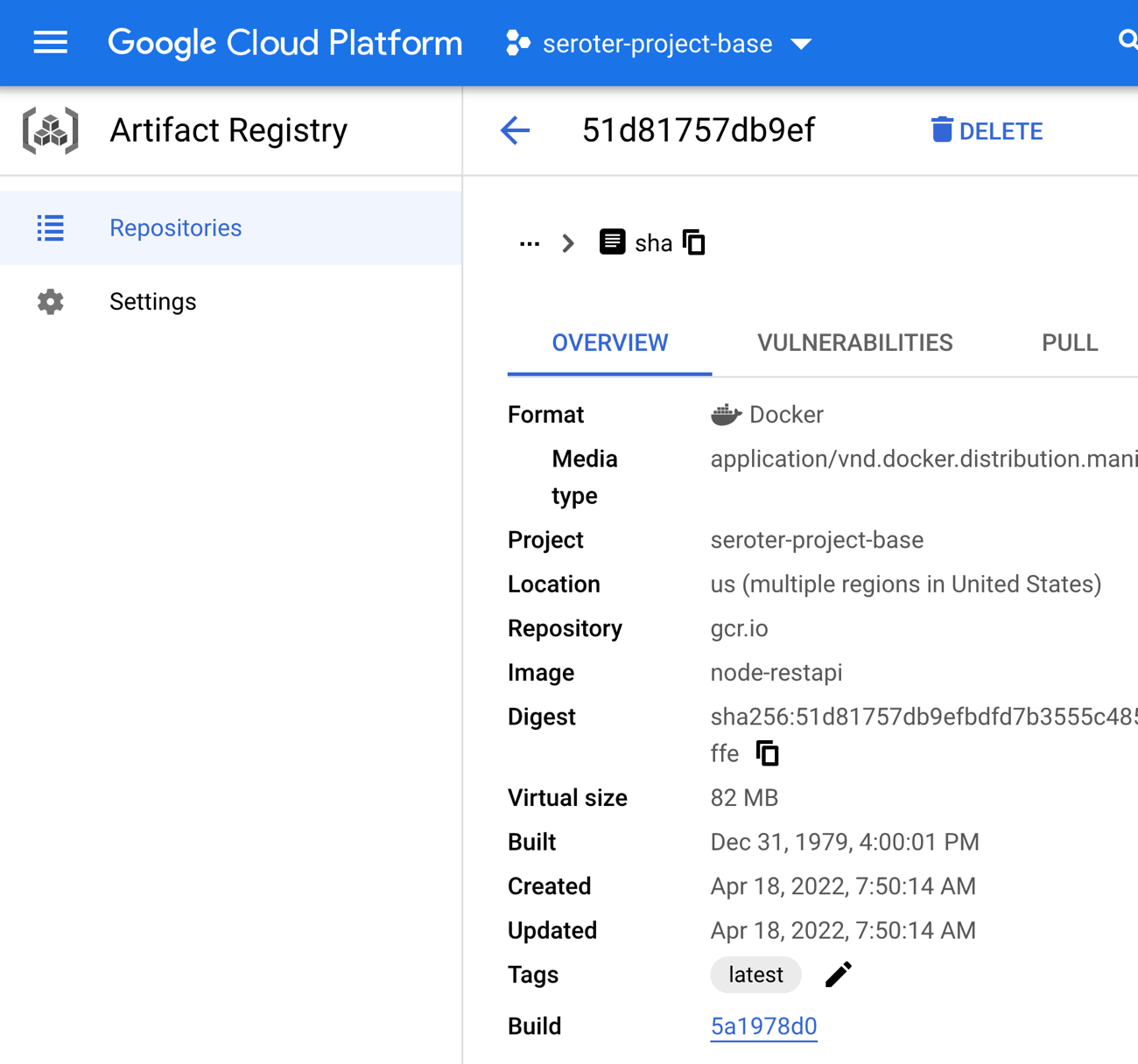
    Our resulting image is a trim 82 MB in size. Nice!

    For my Node.js app, I chose the default options for Cloud Run, but shrunk the memory demands to only 256 MiB. Should be plenty. The service deployed in a few seconds. Let’s flood it with requests!

    hey -n 200 -c 10 https://node-restapi-ofanvtevaa-uc.a.run.app/employees
    

    How did our cold Node.js app do? Well! All requests were processed in about 6 seconds, and the vast majority returned a response in around 0.3 seconds.

    Summary:
      Total:        6.0293 secs
      Slowest:      2.8199 secs
      Fastest:      0.0650 secs
      Average:      0.2309 secs
      Requests/sec: 33.1711
      
      Total data:   30200 bytes
      Size/request: 151 bytes
    
    Response time histogram:
      0.065 [1]     |
      0.340 [186]   |■■■■■■■■■■■■■■■■■■■■■■■■■■■■■■■■■■■■■■■■
      0.616 [0]     |
      0.891 [0]     |
      1.167 [0]     |
      1.442 [1]     |
      1.718 [1]     |
      1.993 [1]     |
      2.269 [0]     |
      2.544 [4]     |■
      2.820 [6]     |■
    
    
    Latency distribution:
      10% in 0.0737 secs
      25% in 0.0765 secs
      50% in 0.0805 secs
      75% in 0.0855 secs
      90% in 0.0974 secs
      95% in 2.4700 secs
      99% in 2.8070 secs

    A peek at the default Cloud Run metrics show that we ended up with 10 containers handling traffic, some CPU and memory spikes, a low request latency.

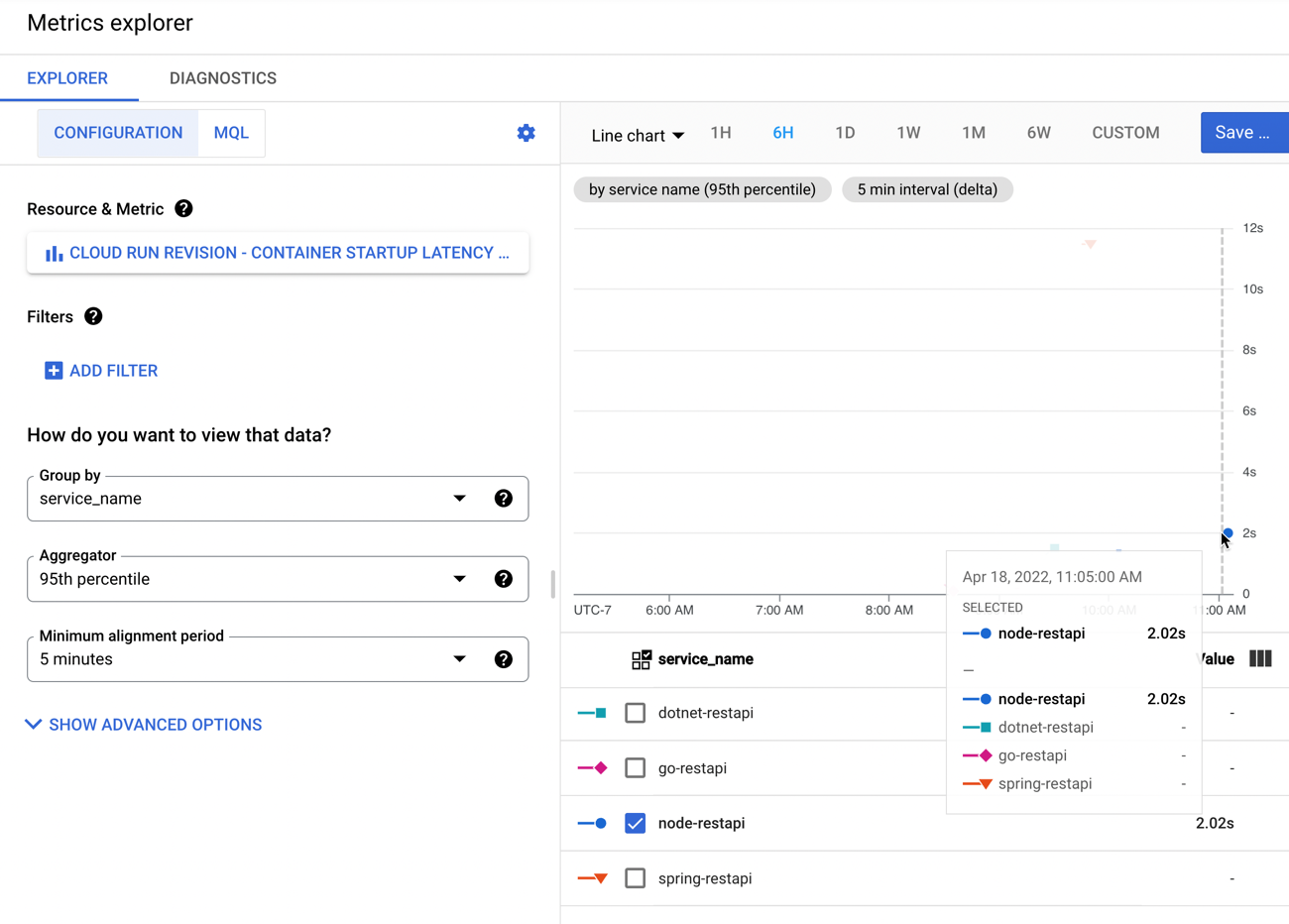
    The specific metrics around container startup latency shows a very quick initial startup time of 2.02s.

    A final load against our Node.js app shows some screaming performance against the warm containers.

    Summary:
      Total:        1.8458 secs
      Slowest:      0.1794 secs
      Fastest:      0.0669 secs
      Average:      0.0901 secs
      Requests/sec: 108.3553
      
      Total data:   30200 bytes
      Size/request: 151 bytes
    
    Response time histogram:
      0.067 [1]     |
      0.078 [29]    |■■■■■■■■■■
      0.089 [114]   |■■■■■■■■■■■■■■■■■■■■■■■■■■■■■■■■■■■■■■■■
      0.101 [34]    |■■■■■■■■■■■■
      0.112 [6]     |■■
      0.123 [6]     |■■
      0.134 [0]     |
      0.146 [0]     |
      0.157 [0]     |
      0.168 [7]     |■■
      0.179 [3]     |■
    
    
    Latency distribution:
      10% in 0.0761 secs
      25% in 0.0807 secs
      50% in 0.0860 secs
      75% in 0.0906 secs
      90% in 0.1024 secs
      95% in 0.1608 secs
      99% in 0.1765 secs

    Wrap up

    I’m not a performance engineer by any stretch, but doing this sort of testing with out-of-the-box settings seemed educational. My final container startup latency numbers at the 95th percentile were:

    There are many ways to change these numbers. If you have a more complex app with more dependencies, it’ll likely be a bigger container image and possibly a slower startup. If you tune the app to do lazy loading or ruthlessly strip out unnecessary activation steps, your startup latency goes down. It still feels safe to say that if performance is a top concern, look at Go. C# and JavaScript apps are going to be terrific here as well. Be more cautious with Java if you’re truly scaling to zero, as you may not love the startup times.

    The point of this exercise was to explore how apps written in each language get packaged and started up in a serverless compute environment. Something I missed or got wrong? Let me know in the comments!

  • Want to externalize app configuration with Spring Cloud Config and Google Cloud Secret Manager? Now you can.

    Want to externalize app configuration with Spring Cloud Config and Google Cloud Secret Manager? Now you can.

    You’re familiar with twelve-factor apps? This relates to a set of principles shared by Heroku over a decade ago. The thinking goes, if your app adheres to these principles, it’s more likely to be scalable, resilient, and portable. While twelve-factor apps were introduced before Docker, serverless, or mainstream cloud adoption were a thing, I think these principles remain relevant in 2022. One of those principles relates to externalizing your configuration so that environment-related settings aren’t in code. Spring Cloud Config is a fun project that externalizes configurations for your (Java) app. It operates as a web server that serves up configurations sourced from a variety of places including git repos, databases, Vault, and more. A month ago, I saw a single-line mention in the Spring Cloud release notes that said Spring Cloud Config now integrates with Google Cloud Secret Manager. No documentation or explanation of how to use this feature? CHALLENGE ACCEPTED.

    To be sure, a Spring Boot developer can easily talk to Google Cloud Secret Manager directly. We already have a nice integration here. Why add the Config Server as an intermediary? One key reason is to keep apps from caring where the configs come from. A (Spring Boot) app just needs to make an HTTP request or use the Config Client to pulls configs, even if they came from GitHub, a PostgreSQL database, Redis instance, or Google Cloud Secret Manager. Or any combination of those. Let’s see what you think once we’re through.

    Setting up our config sources

    Let’s pull configs from two different places. Maybe the general purpose configuration settings are stored in git, and the most sensitive values are stored in Secret Manager.

    My GitHub repo has a flat set of configuration files. The Spring Cloud Config Server reads all sorts of text formats. In this case, I used YAML. My “app1” has different configs for the “dev” and “qa” environments, as determined by their file names.

    Secret Manager configs work a bit differently than git-based ones. The Spring Cloud Config Server uses the file name in a git repo to determine the app name and profile (e.g. “app1-qa.yml”) and makes each key/value pair in that file available to Spring for binding to variables. So from the image above, those three properties are available to any instance of “app1” where the Spring profile is set to “qa.” Secret Manager itself is really a key/value store. So the secret name+value is what is available to Spring. The “app” and “profile” come from the labels attached to the secret. Since you can’t have two secrets with the same name, if you want one secret for “dev” and one for “qa”, you need to name them differently. So, using the Cloud Code extension for VS Code, I created three secrets.

    Two of the secrets (connstring-dev, connstring-qa) hold connection strings for their respective environments, and the other secret (serviceaccountcert) only applies to QA, and has the corresponding label values.

    Ok, so we have all our source configs. Now to create the server that swallows these up and flattens the results for clients.

    Creating and testing our Spring Cloud Config Server

    Creating a Spring Cloud Config Server is very easy. I started at the Spring Intializr site to bootstrap my application. In fact, you can click this link and get the same package I did. My dependencies are on the Actuator and Config Server.

    The Google Cloud Secret Manager integration was added to the core Config Server project, so there’s config-specific dependency to add. It does appear you need to add a reference to the Secret Manager package to enable connectivity and such. I added this to my POM file.

    <dependency>
    		<groupId>com.google.cloud</groupId>
    		<artifactId>google-cloud-secretmanager</artifactId>
    		<version>1.0.1</version>
    </dependency>
    

    There’s no new code required to get a Spring Cloud Config Server up and running. Seriously. You just add an annotation (@EnableConfigServer) to the primary class.

    @EnableConfigServer
    @SpringBootApplication
    public class BootConfigServerGcpApplication {
    
    	public static void main(String[] args) {
    		SpringApplication.run(BootConfigServerGcpApplication.class, args);
    	}
    }
    

    The final step is to add some settings. I created an application.yaml file that looks like this:

    server:
      port: ${PORT:8080}
    spring:
      application:
        name: config-server
      profiles:
        active:
          secret-manager, git
      cloud:
        config:
          server:
            gcp-secret-manager:
              #application-label: application
              #profile-label: profile
              token-mandatory: false
              order: 1
            git:
              uri: https://github.com/rseroter/spring-cloud-config-gcp
              order: 2
    

    Let’s unpack this. First I set the port to whatever the environment provides, or 8080. I’m setting two active profiles here, so that I activate the Secret Manager and git environments. For the “gcp-secret-manager” block, you see I have the option to set the label values to designate the application and profile. If I wanted to have my secret with a label “appname:app1” then I’d set the application-label property here to “appname.” Make sense? I fumbled around with this for a while until I understood it. And notice that I’m pointing at the GitHub repo as well.

    One big thing to be aware of on this Secret Manager integration with Config Server. Google Cloud has the concept of “projects.” It’s a key part of an account hierarchy. You need to provide the project ID when interacting with the Google Cloud API. Instead of accepting this as a setting, the creators of the Secret Manager integration look up the value using a metadata service that only works when the app is running in Google Cloud. It’s a curious design choice, and maybe I’ll submit an issue or pull request to make that optional. In the meantime, it means you can’t test locally; you need to deploy the app to Google Cloud.

    Fortunately, Google Cloud Run, Secret Manager, and Artifact Registry (for container storage) are all part of our free tier. If you’re logged into the gcloud CLI, all you have to do is type gcloud run deploy and we take your source code, containerize it using buildpacks, add it to Artifact Registry, and deploy a Cloud Run instance. Pretty awesome.

    After a few moments, I have a serverless container running Spring middleware. I can scale to zero, scale to 1, handle concurrent requests, and maybe pay zero dollars for it all.

    Let’s test this out. We can query a Config Server via HTTP and see what a Spring Boot client app would get back. The URL contains the address of the server and path entries for the app name and profile. Here’s the query for app1 and the dev profile.

    See that our config server found two property sources that matched a dev profile and app1. This gives a total of three properties for our app to use.

    Let’s swap “dev” for “qa” in the path and get the configurations for the QA environment.

    The config server used different sources, and returns a total of five properties that our app can use. Nice!

    Creating and testing our config client

    Consuming these configurations from a Spring Boot app is simple as well. I returned to the Spring Initializr site and created a new web application that depends on the Actuator, Web, and Config Client packages. You can download this starter project here.

    My demo-quality code is basic. I annotated the main class as a @RestController, exposed a single endpoint at the root, and returned a couple of configuration values. Since the “dev” and “qa” connection strings have different configuration names—remember, I can’t have two Secrets with the same name—I do some clunky work to choose the right one.

    @RestController
    @SpringBootApplication
    public class BootConfigClientGcpApplication {
    
    	public static void main(String[] args) {
    		SpringApplication.run(BootConfigClientGcpApplication.class, args);
    	}
    
    	@Value("${appversion}")
    	String appVersion;
    
    	@Value("${connstring-dev:#{null}}")
    	String devConnString;
    
    	@Value("${connstring-qa:#{null}}")
    	String qaConnString;
    
    	@GetMapping("/")
    	public String getData() {
    		String secret;
    		secret = (devConnString != null) ? devConnString : qaConnString;
    		return String.format("version is %s and secret is %s",appVersion, secret);
    	}
    }
    

    The application.yaml file for this application has a few key properties. First, I set the spring.application.name, which tells the Config Client which configuration properties to retrieve. It’ll query for those assigned to “app1”. Also note that I set the profile to “dev”, which also impacts the query. And, I’m exposing the “env” endpoint of the actuator, which lets me peek at all the environment variables available to my application.

    server:
      port: 8080
    management:
      endpoints:
        web:
          exposure:
            include: env
    spring:
      application:
        name: app1
      profiles:
        active: dev
      config:
        import: configserver:https://boot-config-server-gcp-ofanvtevaa-uw.a.run.app
    

    Ok, let’s run this. I can do it locally, since there’s nothing that requires this app to be running in any particular location.

    Cool, so it returned the values associated with the “dev” profile. If I stop the app, switch the spring.profiles.active to “qa” and restart, I get different property values.

    So the Config Client in my application is retrieving configuration properties from the Config Server, and my app gets whatever values make sense for a given environment with zero code changes. Nice!

    If we want, we can also check out ALL the environment variables visible to the client app. Just send a request to the /actuator/env endpoint and observe.

    Summary

    I like Spring Cloud Config. It’s a useful project that helps devs incorporate the good practice of externalizing configuration. If you want a bigger deep-dive into the project, check out my new Pluralsight course that covers it.

    Also, take a look at Google Cloud Run as a legit host for your Spring middleware and apps. Instead of over-provisioning VMs, container clusters, or specialized Spring runtimes, use a cloud service that scales automatically, offers concurrency, supports private traffic, and is pay-for-what-you-use.

  • Learn all about building and coordinating Java microservices with my two updated Pluralsight courses about Spring Cloud

    Learn all about building and coordinating Java microservices with my two updated Pluralsight courses about Spring Cloud

    Java retains its stubborn hold near the top of every language ranking. Developers continue to depend on it for all sorts of application types. Back when I joined Pivotal in 2016, I figured the best way to learn their flagship Java framework, Spring, was to teach a course about it. I shipped a couple of Pluralsight courses that have done well over the years, but feel dated. Spring Boot and Spring Cloud keep evolving, as good frameworks do. So, I agreed to refresh both courses, which in reality, meant starting over. The result? Forty new demos, a deep dive into thirteen Spring (Cloud) projects, and seven hours of family-friendly content.

    Spring Cloud is a set of Spring projects for developers who want to introduce distributed systems patterns into their apps. You can use these projects to build new microservices, or connect existing ones. Both of these areas are where I focused the courses.

    Java Microservices with Spring Cloud: Developing Services looks at four projects that help you build new services. We dig into:

    • Spring Cloud Config as a way to externalize configuration into a remote store. This is a pretty cool project that lets you stash and version config values in repositories like Git, Vault, databases, or public cloud secret stores. In my course, we use GitHub and show how Spring transparently caches and refreshes these values for your app to use.
    • Spring Cloud Function offers a great option for those developing event-driven, serverless-style apps. This is a new addition to the course, as it didn’t exist when I created the first version. But as serverless, and event-driven architectures, continue to take off, I thought it was important to add it. I throw in a bonus example of deploying one of these little fellas to a public cloud FaaS platform.
    • Spring Security. I have a confession. I don’t think I really understood how OAuth 2.0 worked until rebuilding this module of the course. The lightbulb finally went off as I set up and used Keycloak as an authorization server, and grokked what was really happening. If you’d like that same epiphany, watch this one!
    • Spring Cloud Sleuth. When building modern services, you can’t forget to build in some instrumentation. Sleuth does a pretty remarkable job of instrumenting most everything in your app, and offering export to something like Zipkin. 

    The second course is Java Microservices with Spring Cloud: Coordinating Services where we explore projects that make it easier to connect, route, and compose microservices. We spend time with:

    • Spring Cloud Eureka. This rock-solid framework is still plugging away, almost a decade after Netflix created it. It offers a mature way to easily register and discover services in your architecture. It’s lightweight, and also uses local caching so that there’s no SPOF to freak out about. 
    • Spring Cloud Circuit Breaker. This one is also new since my first run through the course. It replaced Hystrix, which is end of life. This project is an abstraction atop libraries like Resilience4j, Spring Retry, and Sentinel. Here, we spend time with Resilience4j and show how to configure services to fail fast, use sliding windows to determine whether to open a circuit, and more.
    • Spring Cloud LoadBalancer and Spring Cloud Gateway. Ribbon is also a deprecated projected, so instead, I introduced LoadBalancer. This components works great with service discovery to do client-side load balancing. And Spring Cloud Gateway is an intriguing project that gives you lightweight, modular API gateway functionality for your architecture. We have fun with both of those here.
    • Spring Cloud Stream. This is probably my favorite Spring Cloud project because I’m still a messaging geek at heart. With the new functional interface (replacing the annotation-based model in my earlier course), it’s stupid-easy to build functions that publish to message brokers or receive messages. Talking to Apache Kafka, RabbitMQ, or public cloud messaging engines has never been easier.
    • Spring Cloud Data Flow. Stitch a bunch of streaming (or batch-processing) apps into a data processing pipeline? That’s what Spring Cloud Data Flow is all about. Running atop modern platforms like Kubernetes, it’s a portable orchestration engine. Here we build pipelines, custom apps for our pipelines, and more.

    It took me about 5 months to rebuild, record, and edit these courses, and I’m proud of the result. I think you’ll enjoy this look through an exciting, fun-to-use set of components made by my friends on the Spring team. 

  • Exploring a fast inner dev loop for Spring Boot apps targeting Google Cloud Run

    Exploring a fast inner dev loop for Spring Boot apps targeting Google Cloud Run

    It’s a gift to the world that no one pays me to write software any longer. You’re welcome. But I still enjoy coding and trying out a wide variety of things. Given that I rarely have hours upon hours to focus on writing software, I seek things that make me more productive with the time I have. My inner development loop matters. You know, the iterative steps we perform to write, build, test, and commit code.

    So let’s say I want to build a REST API in Java. This REST API stores and returns the names of television characters. What’s the bare minimum that I need to get going?

    • An IDE or code editor
    • A database to store records
    • A web server to host the app
    • A route to reach the app

    What are things I personally don’t want to deal with, especially if I’m experimenting and learning quickly?

    • Provisioning lots of infrastructure. Either locally to emulate the target platform, or elsewhere to actually run my app. It takes time, and I don’t know what I need.
    • Creating database stubs or mocks, or even configuring Docker containers to stand-in for my database. I want the real thing, if possible.
    • Finding a container registry to use. All this stuff just needs to be there.
    • Writing Dockerfiles to package an app. I usually get them wrong.
    • Configuring API gateways or network routing rules. Just give me an endpoint.

    Based on this, one of the quickest inner loop I know of involves Spring Boot, the Google Cloud SDK, Cloud Firestore, and Google Cloud Run. Spring Boot makes it easy to spin up API projects and it’s ORM capabilities make it simple to interact with a database. Speaking of databases, Cloud Firestore is powerful and doesn’t force me into a schema. That’s great when I don’t know the final state of my data structure. And Cloud Run seems like the single best way to run custom-built apps in the cloud. How about we run through this together?

    On my local machine, I’ve installed Visual Studio Code—the FASTEST possible inner loop might have involved using the Google Cloud Shell and skipping any local work, but I still like doing local dev—along with the latest version of Java, and the Google Cloud SDK. The SDK comes with lots of CLI tools and emulators, including one for Firestore and Datastore (an alternate API).

    Time to get to work. I visited start.spring.io to generate a project. I could choose a few dependencies from the curated list, including a default one for Google Cloud services, and another for exposing my data repository as a series of REST endpoints.

    I generated the project, and opened it in Visual Studio Code. Then, I opened the pom.xml file and added one more dependency. While I’m using the Firestore database, I’m using it in “Datastore mode” which works better with Spring Data REST. Here’s my finished pom file.

    <?xml version="1.0" encoding="UTF-8"?>
    <project xmlns="http://maven.apache.org/POM/4.0.0" xmlns:xsi="http://www.w3.org/2001/XMLSchema-instance"
    	xsi:schemaLocation="http://maven.apache.org/POM/4.0.0 https://maven.apache.org/xsd/maven-4.0.0.xsd">
    	<modelVersion>4.0.0</modelVersion>
    	<parent>
    		<groupId>org.springframework.boot</groupId>
    		<artifactId>spring-boot-starter-parent</artifactId>
    		<version>2.4.4</version>
    		<relativePath/> <!-- lookup parent from repository -->
    	</parent>
    	<groupId>com.seroter</groupId>
    	<artifactId>boot-gcp-run-firestore</artifactId>
    	<version>0.0.1-SNAPSHOT</version>
    	<name>boot-gcp-run-firestore</name>
    	<description>Demo project for Google Cloud and Spring Boot</description>
    	<properties>
    		<java.version>11</java.version>
    		<spring-cloud-gcp.version>2.0.0</spring-cloud-gcp.version>
    		<spring-cloud.version>2020.0.2</spring-cloud.version>
    	</properties>
    	<dependencies>
    		<dependency>
    			<groupId>org.springframework.boot</groupId>
    			<artifactId>spring-boot-starter-data-rest</artifactId>
    		</dependency>
    		<dependency>
    			<groupId>com.google.cloud</groupId>
    			<artifactId>spring-cloud-gcp-starter</artifactId>
    		</dependency>
    		<dependency>
    			<groupId>com.google.cloud</groupId>
    			<artifactId>spring-cloud-gcp-starter-data-datastore</artifactId>
    			<version>2.0.2</version>
    		</dependency>
    		<dependency>
    			<groupId>org.springframework.boot</groupId>
    			<artifactId>spring-boot-starter-test</artifactId>
    			<scope>test</scope>
    		</dependency>
    	</dependencies>
    	<dependencyManagement>
    		<dependencies>
    			<dependency>
    				<groupId>org.springframework.cloud</groupId>
    				<artifactId>spring-cloud-dependencies</artifactId>
    				<version>${spring-cloud.version}</version>
    				<type>pom</type>
    				<scope>import</scope>
    			</dependency>
    			<dependency>
    				<groupId>com.google.cloud</groupId>
    				<artifactId>spring-cloud-gcp-dependencies</artifactId>
    				<version>${spring-cloud-gcp.version}</version>
    				<type>pom</type>
    				<scope>import</scope>
    			</dependency>
    		</dependencies>
    	</dependencyManagement>
    
    	<build>
    		<plugins>
    			<plugin>
    				<groupId>org.springframework.boot</groupId>
    				<artifactId>spring-boot-maven-plugin</artifactId>
    			</plugin>
    		</plugins>
    	</build>
    
    </project>
    

    Let’s sling a little code, shall we? Spring Boot almost makes this too easy. First, I created a class to describe a “character.” I started with just a couple of characteristics—full name, and role.

    package com.seroter.bootgcprunfirestore;
    
    import com.google.cloud.spring.data.datastore.core.mapping.Entity;
    import org.springframework.data.annotation.Id;
    
    @Entity
    class Character {
    
        @Id
        private Long id;
        private String FullName;
        private String Role;
        
        public String getFullName() {
            return FullName;
        }
        public String getRole() {
            return Role;
        }
        public void setRole(String role) {
            this.Role = role;
        }
        public void setFullName(String fullName) {
            this.FullName = fullName;
        }
    }
    

    All that’s left is to create a repository resource and Spring Data handles the rest. Literally!

    package com.seroter.bootgcprunfirestore;
    
    import com.google.cloud.spring.data.datastore.repository.DatastoreRepository;
    import org.springframework.data.rest.core.annotation.RepositoryRestResource;
    
    @RepositoryRestResource
    interface CharacterRepository extends DatastoreRepository<Character, Long> {
        
    }
    

    That’s kinda it. No other code is needed. Now I want to test it out and see if it works. The first option is to spin up an instance of the Datastore emulator—not Firestore since I’m using the Datastore API—when my app starts. That’s handy. It’s one line in my app.properties file.

    spring.cloud.gcp.datastore.emulator.enabled=true
    

    When I execute ./mvnw spring-boot:run I see the app compile, and get a notice that the Datastore emulator was started up. I went to Postman to call the API. First I added a record.

    Then I called the endpoint to retrieve the store data. It worked. It’s great that Spring Data REST wires up all these endpoints automatically.

    Now, I really like that I can start up the emulator as part of the build. But, that instance is ephemeral. When I stop running the app locally, my instance goes away. What if my inner loop involves constantly stopping the app to make changes, recompile, and start up again? Don’t worry. It’s also easy to stand up the emulator by itself, and attach my app to it. First, I ran gcloud beta emulators datastore start to get the local instance running in about 2 seconds.

    Then I updated my app.properties file by commenting out the statement that enables local emulation, and replacing with this statement that points to the emulator:

    spring.cloud.gcp.datastore.host=localhost:8081
    

    Now I can start and stop the app as much as I want, and the data persists. Both options are great, depending on how you’re doing local development.

    Let’s deploy. I wanted to see this really running, and iterate further after I’m confident in how it behaves in a production-like environment. The easiest option for any Spring Boot developer is Cloud Run. It’s quick, it’s serverless, and we support buildpacks, so you never need to see a container.

    I issued a single CLI command—gcloud beta run deploy boot-app --memory=1024 --source .— to package up my app and get it to Cloud Run.

    After a few moments, I had a container in the registry, and an instance of Cloud Run. I don’t have to do any other funny business to reach the endpoint. No gateways, proxies, or whatever. And everything is instantly wired up to Cloud Logging and Cloud Monitoring for any troubleshooting. And I can provision up to 8GB of RAM and 4 CPUs, while setting up to 250 concurrent connections per container, and 1000 maximum instances. There’s a lot you can run with that horsepower.

    I pinged the public endpoint, and sure enough, it was easy to publish and retrieve data from my REST API …

    … and see the data sitting in the database!

    When I saw the results, I realized I wanted more data fields in here. No problem. I went back to my Spring Boot app, and added a new field, isHuman. There are lots of animals on my favorite shows.

    This time when I deployed, I chose the “no traffic” flag—cloud beta run deploy boot-app --memory=1024 --source . --no-traffic—so that I could control who saw the new field. Once it deployed, I saw two “revisions” and had the ability to choose the amount of traffic to send to each.

    I switched 50% of the traffic to the new revision, liked what I saw, and then flipped it to 100%.

    So there you go. It’s possible to fly through this inner loop in minutes. Because I’m leaning on managed serverless technologies for things like application runtime and database, I’m not wasting any time building or managing infrastructure. The local dev tooling from Google Cloud is terrific, so I have easy use of IDE integrations, emulators and build tools. This stack makes it simple for me to iterate quickly, cheaply, and with tech that feels like the future, versus wrestling with old stuff that’s been retrofitted for today’s needs.

  • Want secure access to (cloud) services from your Kubernetes-based app? GKE Workload Identity is the answer.

    Want secure access to (cloud) services from your Kubernetes-based app? GKE Workload Identity is the answer.

    My name is Richard, and I like to run as admin. There, I said it. You should rarely listen to me for good security advice since I’m now (always?) a pretend developer who does things that are easy, not necessarily right. But identity management is something I wanted to learn more about in 2021, so now I’m actually trying. Specifically, I’m exploring the best ways for my applications to securely access cloud services. In this post, I’ll introduce you to GKE Workload Identity, and why it seems like a terrific way to do the right thing.

    First, let’s review some of your options for providing access to distributed components—think databases, storage, message queues, and the like—from your application.

    • Store credentials in application variables. This is terrible. Which means I’ve done it before myself. Never do this, for roughly 500 different reasons.
    • Store credentials in property files. This is also kinda awful. First, you tend to leak your secrets often because of this. Second, it might as well be in the code itself, as you still have to change, check in, do a build, and do a deploy to make the config change.
    • Store credentials in environment variables. Not great. Yes, it’s out of your code and config, so that’s better. But I see at least three problems. First, it’s likely not encrypted. Second, you’re still exporting creds from somewhere and storing them here. Third, there’s no version history or easy management (although clouds offer some help here). Pass.
    • Store credentials in a secret store. Better. At least this is out of your code, and in a purpose-built structure for securely storing sensitive data. This might be something robust like Vault, or something more basic like Kubernetes Secrets. The downside is still that you are replicating credentials outside the Identity Management system.
    • Use identity federation. Here we go. How about my app runs under an account that has the access it needs to a given service? This way, we’re not extracting and stashing credentials. Seems like the ideal choice.

    So, if identity federation is a great option, what’s the hard part? Well, if my app is running in Kubernetes, how do I run my workload with the right identity? Maybe through … Workload Identity? Basically, Workload Identity lets you map a Kubernetes service account to a given Google Cloud service account (there are similar types of things for EKS in AWS, and AKS in Azure). At no point does my app need to store or even reference any credentials. To experiment, I created a basic Spring Boot web app that uses Spring Cloud GCP to talk to Cloud Storage and retrieve all the files in a given bucket.

    package com.seroter.gcpbucketreader;
    
    import java.util.ArrayList;
    import java.util.Iterator;
    import java.util.List;
    
    import com.google.api.gax.paging.Page;
    import com.google.cloud.storage.Blob;
    import com.google.cloud.storage.Storage;
    
    import org.springframework.beans.factory.annotation.Autowired;
    import org.springframework.boot.SpringApplication;
    import org.springframework.boot.autoconfigure.SpringBootApplication;
    import org.springframework.stereotype.Controller;
    import org.springframework.ui.Model;
    import org.springframework.web.bind.annotation.GetMapping;
    import org.springframework.web.bind.annotation.RequestParam;
    
    @Controller
    @SpringBootApplication
    public class GcpBucketReaderApplication {
    
    	public static void main(String[] args) {
    		SpringApplication.run(GcpBucketReaderApplication.class, args);
    	}
    
    	//initiate auto-configuration magic that pulls in the right credentials at runtime
    	@Autowired(required=false)
    	private Storage storage;
    
    	@GetMapping("/")
    	public String bucketList(@RequestParam(name="bucketname", required=false, defaultValue="seroter-bucket-logs") String bucketname, Model model) {
    
    		List<String> blobNames = new ArrayList<String>();
    
    		try {
    
    			//get the objects in the bucket
    			Page<Blob> blobs = storage.list(bucketname);
    			Iterator<Blob> blobIterator = blobs.iterateAll().iterator();
    
    			//stash bucket names in an array
    			while(blobIterator.hasNext()) {
    				Blob b = blobIterator.next();
    				blobNames.add(b.getName());
    			}
    		}
    		//if anything goes wrong, catch the generic error and add to view model
    		catch (Exception e) {
    			model.addAttribute("errorMessage", e.toString());
    		}
    
    		//throw other values into the view model
    		model.addAttribute("bucketname", bucketname);
    		model.addAttribute("bucketitems", blobNames);
    
    		return "bucketviewer";
    	}
    }
    

    I built and containerized this app using Cloud Build and Cloud Buildpacks. It only takes a few lines of YAML and one command (gcloud builds submit --config cloudbuild.yaml .) to initiate the magic.

    steps:
    # use Buildpacks to create a container image
    - name: 'gcr.io/k8s-skaffold/pack'
      entrypoint: 'pack'
      args: ['build', '--builder=gcr.io/buildpacks/builder', '--publish', 'us-west1-docker.pkg.dev/seroter-anthos/seroter-images/boot-bucketreader:$COMMIT_SHA']
    

    In a few moments, I had a container image in Artifact Registry to use for testing.

    Then I loaded up a Cloud Storage bucket with a couple of nonsense files.

    Let’s play through a few scenarios to get a better sense of what Workload Identity is all about.

    Scenario #1 – Cluster runs as the default service account

    Without Workload Identity, a pod in GKE assumes the identity of the service account associated with the cluster’s node pool.

    When creating a GKE cluster, you choose a service account for a given node pool. All the nodes runs as this account.

    I built a cluster using the default service account, which can basically do everything in my Google Cloud account. That’s fun for me, but rarely something you should ever do.

    From within the GKE console, I went ahead and deployed an instance of our container to this cluster. Later, I’ll use Kubernetes YAML files to deploy pods and expose services, but the GUI is fun to use for basic scenarios.

    Then, I created a service to route traffic to my pods.

    Once I had a public endpoint to ping, I sent a request to the page and provided the bucket name as a querystring parameter.

    That worked, as expected. Since the pod runs as a super-user, it had full permission to Cloud Storage, and every bucket inside. While that’s a fun party trick, there aren’t many cases where the workloads in a cluster should have access to EVERYTHING.

    Scenario #2 – Cluster runs as a least privilege service account

    Let’s do the opposite and see what happens. This time, I started by creating a new Google Cloud service account that only had “read” permissions to the Artifact Registry (so that it could pull container images) and Kubernetes cluster administration rights.

    Then, I built another GKE cluster, but this time, chose this limited account as the node pool’s service account.

    After building the cluster, I went ahead and deployed the same container image to the new cluster. Then I added a service to make these pods accessible, and called up the web page.

    As expected, the attempt to read my Storage bucket failed, This least privilege account didn’t have rights to Cloud Storage.

    This is a more secure setup, but now I need a way for this app to securely call the Cloud Storage service. Enter Workload Identity.

    Scenario #3 – Cluster has Workload Identity configured with a mapped service account

    I created yet another cluster. This time, I chose the least privilege account, and also chose to install Workload Identity. How does this work? When my app ran before, it used (via the Spring Cloud libraries) the Compute Engine metadata server to get a token to authenticate with Cloud Storage. When I configure Workload Identity, those requests to the metadata server get routed to the GKE metadata server. This server runs on each cluster node, mimics the Compute Engine metadata server, and gives me a token for whatever service account the pod has access to.

    If I deploy my app now, it still won’t work. Why? I haven’t actually mapped a service account to the namespace my pod gets deployed into!

    I created the namespace, created a Kubernetes service account, created a Google Cloud storage account, mapped the two together, and annotated our service account. Let’s go step by step.

    First, I created the namespace to hold my app.

    kubectl create namespace blog-demos

    Next, I created a Kubernetes service account (“sa-storageapp”) that’s local to the cluster, and namespace.

    kubectl create serviceaccount --namespace blog-demos sa-storageapp

    After that, I created a new Google Cloud service account named gke-storagereader.

    gcloud iam service-accounts create gke-storagereader

    Now we’re ready for some account mapping. First, I made the Kubernetes service account a member of my Google Cloud storage account.

    gcloud iam service-accounts add-iam-policy-binding \
      --role roles/iam.workloadIdentityUser \
      --member "serviceAccount:seroter-anthos.svc.id.goog[blog-demos/sa-storageapp]" \
      gke-storagereader@seroter-anthos.iam.gserviceaccount.com
    

    Now, to give the Google Cloud service account the permission it needs to talk to Cloud Storage.

    gcloud projects add-iam-policy-binding seroter-anthos \
        --member="serviceAccount:gke-storagereader@seroter-anthos.iam.gserviceaccount.com" \
        --role="roles/storage.objectViewer"
    

    The final step? I had to add an annotation to the Kubernetes service account that links to the Google Cloud service account.

    kubectl annotate serviceaccount \
      --namespace blog-demos \
      sa-storageapp \
      iam.gke.io/gcp-service-account=gke-storagereader@seroter-anthos.iam.gserviceaccount.com
    

    Done! All that’s left is to deploy my Spring Boot application.

    First I set my local Kubernetes context to the target namespace in the cluster.

    kubectl config set-context --current --namespace=blog-demos

    In my Kubernetes deployment YAML, I pointed to my container image, and provided a service account name to associate with the deployment.

    apiVersion: apps/v1
    kind: Deployment
    metadata:
      name: boot-bucketreader
    spec:
      replicas: 1
      selector:
        matchLabels:
          app: boot-bucketreader
      template:
        metadata:
          labels:
            app: boot-bucketreader
        spec:
          serviceAccountName: sa-storageapp
          containers:
          - name: server
            image: us-west1-docker.pkg.dev/seroter-anthos/seroter-images/boot-bucketreader:latest
            ports:
            - containerPort: 8080
    

    I then deployed a YAML file to create a routable service, and pinged my application. Sure enough, I now had access to Cloud Storage.

    Wrap

    Thanks to Workload Identity for GKE, I created a cluster that had restricted permissions, and selectively gave permission to specific workloads. I could get even more fine-grained by tightening up the permissions on the GCP service account to only access a specific bucket (or database, or whatever). Or have different workloads with different permissions, all in the same cluster.

    To me, this is the cleanest, most dev-friendly way to do access management in a Kubernetes cluster. And we’re bringing this functionality to GKE clusters that run anywhere, via Anthos.

    What about you? Any other ways you really like doing access management for Kubernetes-based applications?

  • Google Cloud’s support for Java is more comprehensive than I thought

    Google Cloud’s support for Java is more comprehensive than I thought

    Earlier this year, I took a look at how Microsoft Azure supports  Java/Spring developers. With my change in circumstances, I figured it was a good time to dig deep into Google Cloud’s offerings for Java developers. What I found was a very impressive array of tools, services, and integrations. More than I thought I’d find, honestly. Let’s take a tour.

    Local developer environment

    What stuff goes on your machine to make it easier to build Java apps that end up on Google Cloud?

    Cloud Code extension for IntelliJ

    Cloud Code is a good place to start. Among other things, it delivers extensions to IntelliJ and Visual Studio Code. For IntelliJ IDEA users, you get starter templates for new projects, snippets for authoring relevant YAML files, tool windows for various Google Cloud services, app deployment commands, and more. Given that 72% of Java developers use IntelliJ IDEA, this extension helps many folks.

    Cloud Code in VS Code

    The Visual Studio Code extension is pretty great too. It’s got project starters and other command palette integrations, Activity Bar entries to manage Google Cloud services, deployment tools, and more. 4% of Java devs use Visual Studio Code, so, we’re looking out for you too. If you use Eclipse, take a look at the Cloud Tools for Eclipse.

    The other major thing you want locally is the Cloud SDK. Within this little gem you get client libraries for your favorite language, CLIs, and emulators. This means that as Java developers, we get a Java client library, command line tools for all-up Google Cloud (gcloud), Big Query (bq) and Storage (gsutil), and then local emulators for cloud services like Pub/Sub, Spanner, Firestore, and more. Powerful stuff.

    App development

    Our machine is set up. Now we need to do real work. As you’d expect, you can use all, some, or none of these things to build your Java apps. It’s an open model.

    Java devs have lots of APIs to work with in the Google Cloud Java client libraries, whether talking to databases or consuming world-class AI/ML services. If you’re using Spring Boot—and the JetBrains survey reveals that the majority of you are—then you’ll be happy to discover Spring Cloud GCP. This set of packages makes it super straightforward to interact with terrific managed services in Google Cloud. Use Spring Data with cloud databases (including Cloud Spanner and Cloud Firestore), Spring Cloud Stream with Cloud Pub/Sub, Spring Caching with Cloud Memorystore, Spring Security with Cloud IAP, Micrometer with Cloud Monitoring, and Spring Cloud Sleuth with Cloud Trace.  And you get the auto-configuration, dependency injection, and extensibility points that make Spring Boot fun to use. Google offers Spring Boot starterssamples, and more to get you going quickly. And it works great with Kotlin apps too.

    Emulators available via gcloud

    As you’re building Java apps, you might directly use the many managed services in Google Cloud Platform, or, work with the emulators mentioned above. It might make sense to work with local emulators for things like Cloud Pub/Sub or Cloud Spanner. Conversely, you may decide to spin up “real” instance of cloud services to build apps using Managed Service for Microsoft Active DirectorySecret Manager, or Cloud Data Fusion. I’m glad Java developers have so many options.

    Where are you going to store your Java source code? One choice is Cloud Source Repositories. This service offers highly available, private Git repos—use it directly or mirror source code code from GitHub or Bitbucket—with a nice source browser and first-party integration with many Google Cloud compute runtimes.

    Building and packaging code

    After you’ve written some Java code, you probably want to build the project, package it up, and prepare it for deployment.

    Artifact Registry

    Store your Java packages in Artifact Registry. Create private, secure artifact storage that supports Maven and Gradle, as well as Docker and npm. It’s the eventual replacement of Container Registry, which itself is a nice Docker registry (and more).

    Looking to build container images for your Java app? You can write your own Dockerfiles. Or, skip docker build|push by using our open source Jib as a Maven or Gradle plugin that builds Docker images. Jib separates the Java app into multiple layers, making rebuilds fast. A new project is Google Cloud Buildpacks which uses the CNCF spec to package and containerize Java 8|11 apps.

    Odds are, your build and containerization stages don’t happen in isolation; they happen as part of a build pipeline. Cloud Build is the highly-rated managed CI/CD service that uses declarative pipeline definitions. You can run builds locally with the open source local builder, or in the cloud service. Pull source from Cloud Source Repositories, GitHub and other spots. Use Buildpacks or Jib in the pipeline. Publish to artifact registries and push code to compute environments. 

    Application runtimes

    As you’d expect, Google Cloud Platform offers a variety of compute environments to run your Java apps. Choose among:

    • Compute Engine. Pick among a variety of machine types, and Windows or Linux OSes. Customize the vCPU and memory allocations, opt into auto-patching of the OS, and attach GPUs.
    • Bare Metal. Choose a physical machine to host your Java app. Choose from machine sizes with as few as 16 CPU cores, and as many as 112.
    • Google Kubernetes Engine. The first, and still the best, managed Kubernetes service. Get fully managed clusters that are auto scaled, auto patched, and auto repaired. Run stateless or stateful Java apps.
    • App Engine. One of the original PaaS offerings, App Engine lets you just deploy your Java code without worrying about any infrastructure management.
    • Cloud Functions. Run Java code in this function-as-a-service environment.
    • Cloud Run. Based on the open source Knative project, Cloud Run is a managed platform for scale-to-zero containers. You can run any web app that fits into a container, including Java apps. 
    • Google Cloud VMware Engine. If you’re hosting apps in vSphere today and want to lift-and-shift your app over, you can use a fully managed VMware environment in GCP.

    Running in production

    Regardless of the compute host you choose, you want management tools that make your Java apps better, and help you solve problems quickly. 

    You might stick an Apigee API gateway in front of your Java app to secure or monetize it. If you’re running Java apps in multiple clouds, you might choose Google Cloud Anthos for consistency purposes. Java apps running on GKE in Anthos automatically get observability, transport security, traffic management, and SLO definition with Anthos Service Mesh.

    Anthos Service Mesh

    But let’s talk about day-to-day operations of Java apps. Send Java app logs to Cloud Logging and dig into them. Analyze application health and handle alerts with Cloud Monitoring. Do production profiling of your Java apps using Cloud Profiler. Hunt for performance problems via distributed tracing with Cloud Trace. And if you need to, debug in production by analyzing the running Java code (in your IDE!) with Cloud Debugger.

    Modernizing existing apps

    You probably have lots of existing Java apps. Some are fairly new, others were written a decade ago. Google Cloud offers tooling to migrate many types of existing VM-based apps to container or cloud VM environments. There’s good reasons to do it, and Java apps see real benefits.

    Migrate for Anthos takes an existing Linux or Windows VM and creates artifacts (Dockerfiles, Kubernetes YAML, etc) to run that workload in GKE. Migrate for Compute Engine moves your Java-hosting VMs into Google Compute Engine.

    All-in-all, there’s a lot to like here if you’re a Java developer. You can mix-and-match these Google Cloud services and tools to build, deploy, run, and manage Java apps.

  • Build and deploy secure containers to a serverless runtime using Google Cloud Buildpacks and this six-line file.

    Build and deploy secure containers to a serverless runtime using Google Cloud Buildpacks and this six-line file.

    I rarely enjoy the last mile of work. Sure, there’s pleasure in seeing something reach its conclusion, but when I’m close, I just want to be done! For instance, when I create a Pluralsight course—my new one, Cloud Foundry: The Big Picture just came out—I enjoy the building part, and dread the record+edit portion. Same with writing software. I like coding an app to solve a problem. Then, I want a fast deployment so that I can see how the app works, and wrap up. Ideally, each app I write doesn’t require a unique set of machinery or know-how. Thus, I wanted to see if I could create a *single* Google Cloud Build deployment pipeline that shipped any custom app to the serverless Google Cloud Run environment.

    Cloud Build is Google Cloud’s continuous integration and delivery service. It reminds me of Concourse in that it’s declarative, container-based, and lightweight. It’s straightforward to build containers or non-container artifacts, and deploy to VMs, Kubernetes, and more. The fact that it’s a hosted service with a great free tier is a bonus. To run my app, I don’t want to deal with configuring any infrastructure, so I chose Google Cloud Run as my runtime. It just takes a container image and offers a fully-managed, scale-to-zero host. Before getting fancy with buildpacks, I wanted to learn how to use Build and Run to package up and deploy a Spring Boot application.

    First, I generated a new Spring Boot app from start.spring.io. It’s going to be a basic REST API, so all I needed was the Web dependency.

    I’m not splitting the atom with this Java code. It simply returns a greeting when you hit the root endpoint.

    @RestController
    @SpringBootApplication
    public class HelloAppApplication {
    
    	public static void main(String[] args) {
    		SpringApplication.run(HelloAppApplication.class, args);
    	}
    
    	@GetMapping("/")
    	public String SayHello() {
    		return "Hi, Google Cloud Run!";
    	}
    }
    

    Now, I wanted to create a pipeline that packaged up the Boot app into a JAR file, built a Docker image, and deployed that image to Cloud Run. Before crafting the pipeline file, I needed a Dockerfile. This file offers instructions on how to assemble the image. Here’s my basic one:

    FROM openjdk:11-jdk
    ARG JAR_FILE=target/hello-app-0.0.1-SNAPSHOT.jar
    COPY ${JAR_FILE} app.jar
    ENTRYPOINT ["java", "-Djava.security.edg=file:/dev/./urandom","-jar","/app.jar"]
    

    On to the pipeline. A build configuration isn’t hard to understand. It consists of a series of sequential or parallel steps that produce an outcome. Each step runs in its own container image (specified in the name attribute), and if needed, there’s a simple way to transfer state between steps. My cloudbuild.yaml file for this Spring Boot app looked like this:

    steps:
    # build the Java app and package it into a jar
    - name: maven:3-jdk-11
      entrypoint: mvn
      args: ["package", "-Dmaven.test.skip=true"]
    # use the Dockerfile to create a container image
    - name: gcr.io/cloud-builders/docker
      args: ["build", "-t", "gcr.io/$PROJECT_ID/hello-app", "--build-arg=JAR_FILE=target/hello-app-0.0.1-SNAPSHOT.jar", "."]
    # push the container image to the Registry
    - name: gcr.io/cloud-builders/docker
      args: ["push", "gcr.io/$PROJECT_ID/hello-app"]
    #deploy to Google Cloud Run
    - name: 'gcr.io/cloud-builders/gcloud'
      args: ['run', 'deploy', 'seroter-hello-app', '--image', 'gcr.io/$PROJECT_ID/hello-app', '--region', 'us-west1', '--platform', 'managed']
    images: ["gcr.io/$PROJECT_ID/hello-app"]
    

    You’ll notice four steps. The first uses the Maven image to package my application. The result of that is a JAR file. The second step uses a Docker image that’s capable of generating an image using the Dockerfile I created earlier. The third step pushes that image to the Container Registry. The final step deploys the container image to Google Cloud Run with an app name of seroter-hello-app. The final “images” property puts the image name in my Build results.

    As you can imagine, I can configure triggers for this pipeline (based on code changes, etc), or execute it manually. I’ll do the latter, as I haven’t stored this code in a repository anywhere yet. Using the terrific gcloud CLI tool, I issued a single command to kick off the build.

    gcloud builds submit --config cloudbuild.yaml .
    

    After a minute or so, I have a container image in the Container Registry, an available endpoint in Cloud Run, and a full audit log in Cloud Build.

    Container Registry:

    Cloud Run (with indicator that app was deployed via Cloud Build:

    Cloud Build:

    I didn’t expose the app publicly, so to call it, I needed to authenticate myself. I used the “gcloud auth print-identity-token” command to get a Bearer token, and plugged that into the Authorization header in Postman. As you’d expect, it worked. And when traffic dies down, the app scales to zero and costs me nothing.

    So this was great. I did all this without having to install build infrastructure, or set up an application host. But I wanted to go a step further. Could I eliminate the Dockerization portion? I have zero trust in myself to build a good image. This is where buildpacks come in. They generate well-crafted, secure container images from source code. Google created a handful of these using the CNCF spec, and we can use them here.

    My new cloudbuild.yaml file looks like this. See that I’ve removed the steps to package the Java app, and build and push the Docker image, and replaced them with a single “pack” step.

    steps:
    # use Buildpacks to create a container image
    - name: 'gcr.io/k8s-skaffold/pack'
      entrypoint: 'pack'
      args: ['build', '--builder=gcr.io/buildpacks/builder', '--publish', 'gcr.io/$PROJECT_ID/hello-app-bp:$COMMIT_SHA']
    #deploy to Google Cloud Run
    - name: 'gcr.io/cloud-builders/gcloud'
      args: ['run', 'deploy', 'seroter-hello-app-bp', '--image', 'gcr.io/$PROJECT_ID/hello-app-bp:latest', '--region', 'us-west1', '--platform', 'managed']
    

    With the same gcloud command (gcloud builds submit --config cloudbuild.yaml .) I kicked off a new build. This time, the streaming logs showed me that the buildpack built the JAR file, pulled in a known-good base container image, and containerized the app. The result: a new image in the Registry (21% smaller in size, by the way), and a fresh service in Cloud Run.

    I started out this blog post saying that I wanted a single cloudbuild.yaml file for *any* app. With Buildpacks, that seemed possible. The final step? Tokenizing the build configuration. Cloud Build supports “substitutions” which lets you offer run-time values for variables in the configuration. I changed my build configuration above to strip out the hard-coded names for the image, region, and app name.

    steps:
    # use Buildpacks to create a container image
    - name: 'gcr.io/k8s-skaffold/pack'
      entrypoint: 'pack'
      args: ['build', '--builder=gcr.io/buildpacks/builder', '--publish', 'gcr.io/$PROJECT_ID/$_IMAGE_NAME:$COMMIT_SHA']
    #deploy to Google Cloud Run
    - name: 'gcr.io/cloud-builders/gcloud'
      args: ['run', 'deploy', '$_RUN_APPNAME', '--image', 'gcr.io/$PROJECT_ID/$_IMAGE_NAME:latest', '--region', '$_REGION', '--platform', 'managed']
    

    Before trying this with a new app, I tried this once more with my Spring Boot app. For good measure, I changed the source code so that I could confirm that I was getting a fresh build. My gcloud command now passed in values for the variables:

    gcloud builds submit --config cloudbuild.yaml . --substitutions=_IMAGE_NAME="hello-app-bp",_RUN_APPNAME="seroter-hello-app-bp",_REGION="us-west1"
    

    After a minute, the deployment succeeded, and when I called the endpoint, I saw the updated API result.

    For the grand finale, I want to take this exact file, and put it alongside a newly built ASP.NET Core app. I did a simple “dotnet new webapi” and dropped the cloudbuild.yaml file into the project folder.

    After tweaking the Program.cs file to read the application port from the platform-provided environment variable, I ran the following command:

    gcloud builds submit --config cloudbuild.yaml . --substitutions=_IMAGE_NAME="hello-app-core",_RUN_APPNAME="seroter-hello-app-core",_REGION="us-west1"
    

    A few moments later, I had a container image built, and my ASP.NET Core app listening to requests in Cloud Run.

    Calling that endpoint (with authentication) gave me the API results I expected.

    Super cool. So to recap, that six line build configuration above works for your Java, .NET Core, Python, Node, and Go apps. It’ll create a secure container image that works anywhere. And if you use Cloud Build and Cloud Run, you can do all of this with no mess. I might actually start enjoying the last mile of app development with this setup.

  • These six integrations show that Microsoft is serious about Spring Boot support in Azure

    Microsoft doesn’t play favorites. Oh sure, they heavily promote their first party products. But after that, they typically take a big-tent, welcome-all-comers approach and rarely call out anything as “the best” or “our choice.” They do seem to have a soft spot for Spring, though. Who can blame them? You’ve got millions of Java/Spring developers out there, countless Spring-based workloads in the wild, and 1.6 million new projects created each month at start.spring.io. I’m crazy enough to think that whichever vendor attracts the most Spring apps will likely “win” the first phase of the public cloud wars.

    With over a dozen unique integrations between Spring projects and Azure services, the gang in Redmond has been busy. A handful stand out to me, although all of them make a developer’s life easier.

    #6 Azure Functions

    I like Azure Functions. There’s not a lot extra machinery—such as API gateways—you have to figure out to use it. The triggers and bindings model are powerful. And it supports lots of different programming languages.

    While many (most?) developers are polyglot and comfortable switching between languages, it’d make sense if you want to keep your coding patterns and tooling the same as you adopt a new runtime like Azure Functions. The Azure team worked with the Spring team to ensure that  developers could take advantage of Azure Functions, while still retaining their favorite parts of Spring. Specifically, they partnered on the adapter that wires up Azure’s framework into the user’s code, and testing of the end-to-end experience. The result? A thoughtful integration of Spring Cloud Functions and Azure Functions that gives you the best of both worlds. I’ve seen a handful of folks offer guidance, and tutorials. And Microsoft offers a great guide.

    Always pick the right language based on performance needs, scale demands, etc. Above all else, you may want to focus on developer productivity, and using the language/framework that’s best for your team. Your productivity (or lack thereof) is more costly than any compute infrastructure!

    #5 Azure Service Bus and Event Hubs

    I’m a messaging geek. Connecting systems together is an underrated, but critically valuable skill. I’ve written a lot about Spring Cloud Stream in the past. Specifically, I’ve shown you how to use it with Azure Event Hubs, and even the Kafka interface.

    Basically, you can now use Microsoft’s primary messaging platforms—Service Bus Queues, Service Bus Topics, Event Hubs—as the messaging backbone of a Spring Boot app. And you can do all that, without actually learning the unique programming models of each platform. The Spring Boot developer writes platform-agnostic code to publish messages to subscribe to messages, and the Spring Cloud Stream objects take care of the rest.

    Microsoft has guides for working with Service BusEvent Hubs, and Event Hubs Kafka API. When you’re using Azure messaging services, I’m hard pressed to think of any easier way to interact with them than Spring Boot.

    #4 Azure Cosmos DB

    Frankly, all the database investment’s by Microsoft’s Java/Spring team have been impressive. You can cleanly interact with their whole suite of relational databases with JDBC and JPA via Spring Data.

    I’m more intrigued by their Cosmos DB work. Cosmos DB is Microsoft’s global scale database service that serves up many different APIs. Want a SQL API? You got it. How about a MongoDB or Cassandra facade? Sure. Or maybe a graph API using Gremlin? It’s got that too.

    Spring developers can use Microsoft-created SDKs for any of it. There’s a whole guide for using the SQL API. Likewise, Microsoft created walkthroughs for Spring devs using CassandraMongo, or Gremlin APIs. They all seem to be fairly expressive and expose the core capabilities you want from a Cosmos DB instance. 

    #3 Azure Active Directory B2C

    Look, security stuff doesn’t get me super pumped. Of course it’s important. I just don’t enjoy coding for it. Microsoft’s making it easier, though. They’ve got a Spring Boot Starter just for Azure Key Vault, and clean integration with Azure Active Directory via Spring Security. I’m also looking forward to seeing managed identities in these developer SDKs.

    I like the support for Azure Active Directory B2C. This is a standalone Azure service that offer single sign-on using social or other 3rd party identities. Microsoft claims it can support millions of users, and billions of authentication requests. I like that Spring developers have such a scalable service to seamlessly weave into their apps. The walkthrough that Microsoft created is detailed, but straightforward. 

    My friend Asir also presented this on stage with me at SpringOne last year in Austin. Here’s the part of the video where he’s doing the identity magic:

    #2 Azure App Configuration

    When you’re modernizing an app, you might only be aiming for one or two factors. Can you gracefully restart the thing, and did you yank configuration out of code? Azure App Configuration is a new service that supports the latter.

    This service is resilient, and supports labeling, queryingencryption, and event listeners. And Spring was one of the first things they announced support for. Spring offers a robust configuration subsystem, and it looks like Azure App Configuration slides right in. Check out their guide to see how to tap into cloud-stored config values, whether your app itself is in the cloud, or not.

    #1 Azure Spring Cloud

    Now, I count about a dozen ways to run a Java app on Azure today. You’re not short of choices. Why add another? Microsoft saw demand for a Spring-centric runtime that caters to microservices using Spring Cloud. Azure Spring Cloud will reach General Availability soon, so I’m told, and offers features like config management, service discovery, blue/green deployments, integrated monitoring, and lots more. I’ve been playing with it for a while, and am impressed with what’s possible.

    These integrations help you stitch together some pretty cool Azure cloud services into a broader Spring Boot app. That makes sense, when you consider what Spring Boot lead Phil Webb said at SpringOne a couple years back:

    “A lot of people think that Spring is a dependency injection framework … Spring is more of an integration framework. It’s designed to take lots of different technologies that you might want to use and allow you to combine them in ways that feel nature.”