Category: .NET

  • Running serverless web, batch, and worker apps with Google Cloud Run and Cloud Spanner

    Running serverless web, batch, and worker apps with Google Cloud Run and Cloud Spanner

    If it seems to you that cloud providers offer distinct compute services for every specific type of workload, you’re not imagining things. Fifteen years ago when I was building an app, my hosting choices included a virtual machine or a physical server. Today? You’ll find services targeting web apps, batch apps, commercial apps, containerized apps, Windows apps, Spring apps, VMware-based apps, and more. It’s a lot. So, it catches my eye when I find a modern cloud service that support a few different types of workloads. Our serverless compute service Google Cloud Run might be the fastest and easiest way to get web apps running in the cloud, and we just added support for background jobs. I figured I’d try out Cloud Run for three distinct scenarios: web app (responds to HTTP requests, scales to zero), job (triggered, runs to completion), and worker (processes background work continuously).

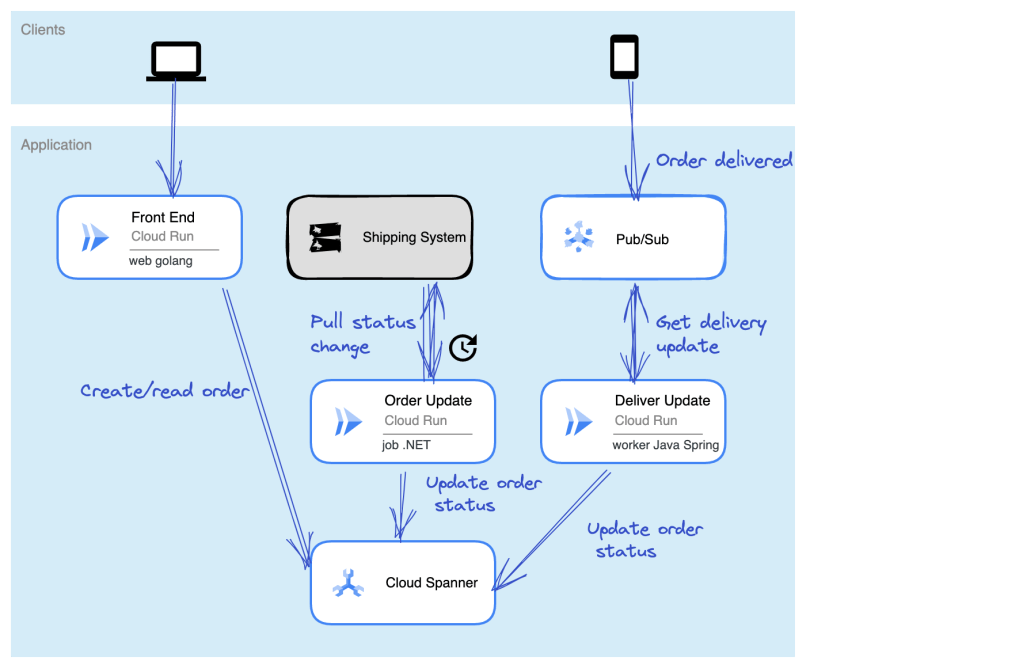
    Let’s make this scenario come alive. I want a web interface that takes in “orders” and shows existing orders (via Cloud Run web app). There’s a separate system that prepares orders for delivery and we poll that system occasionally (via Cloud Run job) to update the status of our orders. And when the order itself is delivered, the mobile app used by the delivery-person sends a message to a queue that a worker is constantly listening to (via Cloud Run app). The basic architecture is something like this:

    Ok, how about we build it out!

    Setting up our Cloud Spanner database

    The underlying database for this system is Cloud Spanner. Why? Because it’s awesome and I want to start using it more. Now, I should probably have a services layer sitting in front of the database instead of doing direct read/write, but this is my demo and I’ll architect however I damn well please!

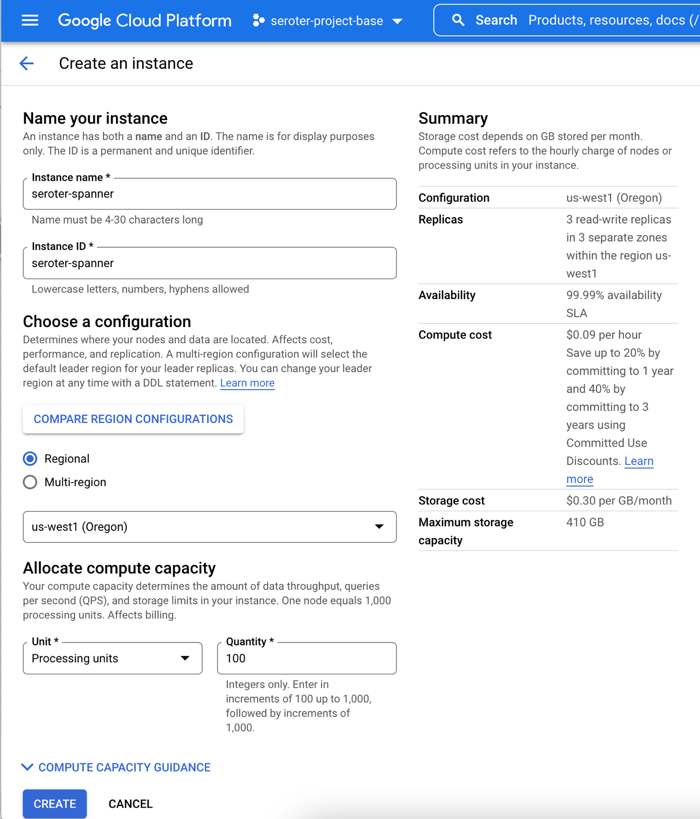
    I started by creating a Spanner instance. We’ve recently made it possible to create smaller instances, which means you can get started at less cost, without sacrificing resilience. Regardless of the number of “processing units” I choose, I get 3 replicas and the same availability SLA. The best database in the cloud just got a lot more affordable.
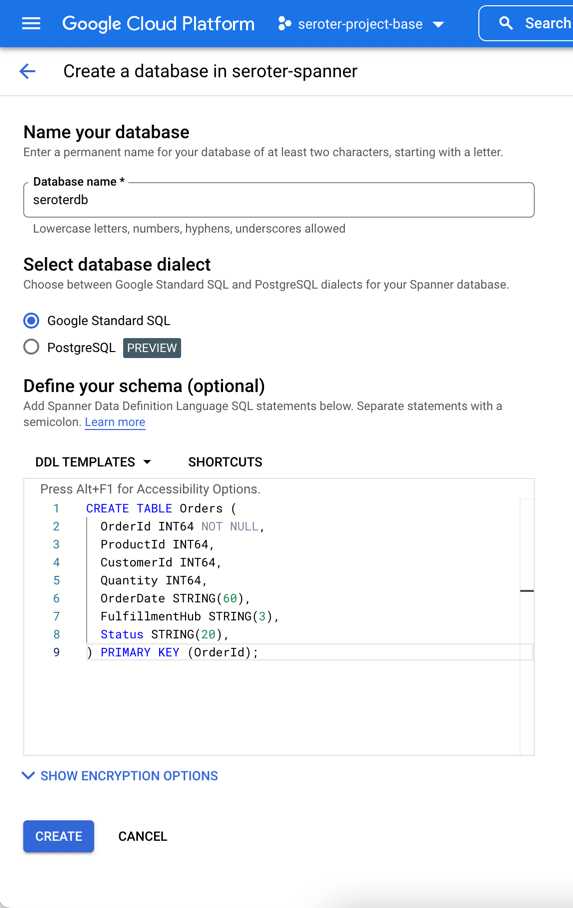
    Next, I add a database to this instance. After giving it a name, I choose the “Google Standard SQL” option, but I could have also chosen a PostgreSQL interface. When defining my schema, I like that we offer script templates for actions like “create table”, “create index”, and “create change stream.” Below, you see my table definition.
    With that, I have a database. There’s nothing left to do, besides bask in the glory of having a regionally-deployed, highly available relational database instance at my disposal in about 60 seconds.

    Creating the web app in Go and deploying to Cloud Run

    With the database in place, I can build a web app with read/write capabilities.

    This app is written in Go and uses the echo web framework. I defined a basic struct that matches the fields in the database.

    package model
    
    type Order struct {
    	OrderId        int64
    	ProductId      int64
    	CustomerId     int64
    	Quantity       int64
    	Status         string
    	OrderDate      string
    	FulfillmentHub string
    }
    

    I’m using the Go driver for Spanner and the core of the logic consists of the operations to retrieve Spanner data and create a new record. I need to be smarter about reusing the connection, but I’ll refactor it later. Narrator: He probably won’t refactor it.

    package web
    
    import (
    	"context"
    	"log"
    	"time"
    	"cloud.google.com/go/spanner"
    	"github.com/labstack/echo/v4"
    	"google.golang.org/api/iterator"
    	"seroter.com/serotershop/model"
    )
    
    func GetOrders() []*model.Order {
    
    	//create empty slice
    	var data []*model.Order
    
    	//set up context and client
    	ctx := context.Background()
    	db := "projects/seroter-project-base/instances/seroter-spanner/databases/seroterdb"
    	client, err := spanner.NewClient(ctx, db)
    	if err != nil {
    		log.Fatal(err)
    	}
    
    	defer client.Close()
        //get all the records in the table
    	iter := client.Single().Read(ctx, "Orders", spanner.AllKeys(), []string{"OrderId", "ProductId", "CustomerId", "Quantity", "Status", "OrderDate", "FulfillmentHub"})
    
    	defer iter.Stop()
    
    	for {
    		row, e := iter.Next()
    		if e == iterator.Done {
    			break
    		}
    		if e != nil {
    			log.Println(e)
    		}
    
    		//create object for each row
    		o := new(model.Order)
    
    		//load row into struct that maps to same shape
    		rerr := row.ToStruct(o)
    		if rerr != nil {
    			log.Println(rerr)
    		}
    		//append to collection
    		data = append(data, o)
    
    	}
    	return data
    }
    
    func AddOrder(c echo.Context) {
    
    	//retrieve values
    	orderid := c.FormValue("orderid")
    	productid := c.FormValue("productid")
    	customerid := c.FormValue("customerid")
    	quantity := c.FormValue("quantity")
    	status := c.FormValue("status")
    	hub := c.FormValue("hub")
    	orderdate := time.Now().Format("2006-01-02")
    
    	//set up context and client
    	ctx := context.Background()
    	db := "projects/seroter-project-base/instances/seroter-spanner/databases/seroterdb"
    	client, err := spanner.NewClient(ctx, db)
    	if err != nil {
    		log.Fatal(err)
    	}
    
    	defer client.Close()
    
    	//do database table write
    	_, e := client.Apply(ctx, []*spanner.Mutation{
    		spanner.Insert("Orders",
    			[]string{"OrderId", "ProductId", "CustomerId", "Quantity", "Status", "FulfillmentHub", "OrderDate"},
    			[]interface{}{orderid, productid, customerid, quantity, status, hub, orderdate})})
    
    	if e != nil {
    		log.Println(e)
    	}
    }
    

    Time to deploy! I’m using Cloud Build to generate a container image without using a Dockerfile. A single command triggers the upload, build, and packaging of my app.

    gcloud builds submit --pack image=gcr.io/seroter-project-base/seroter-run-web
    

    After a moment, I have a container image ready to go. I jumped in the Cloud Run experience and chose to create a new service. After picking the container image I just created, I kept the default autoscaling (minimum of zero instances), concurrency, and CPU allocation settings.

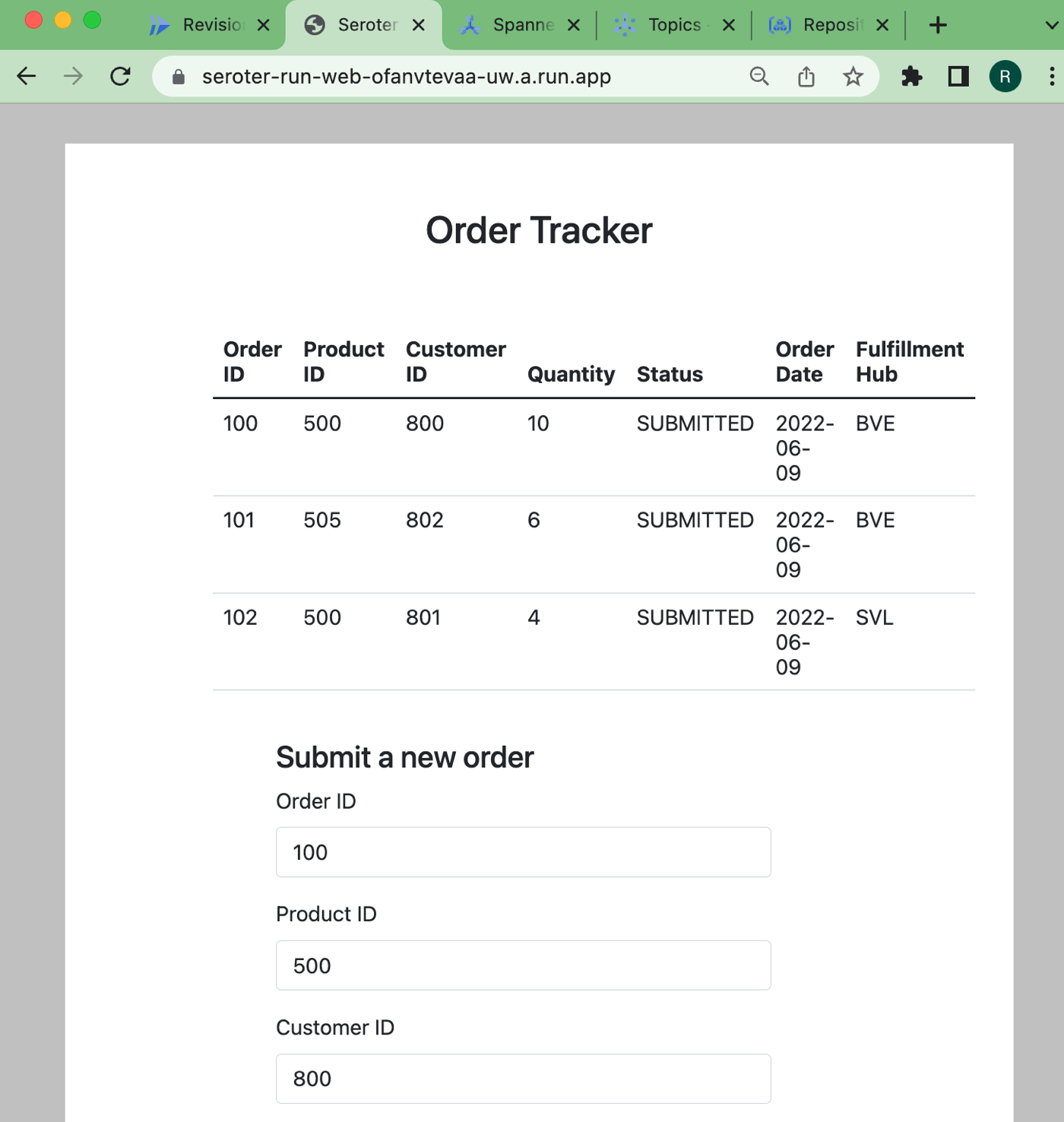
    The app started in seconds, and when I call up the URL, I see my application. And I went ahead and submitted a few orders, which then show up in the list.
    Checking Cloud Spanner—just to ensure this wasn’t only data sitting client-side—shows that I have rows in my database table.
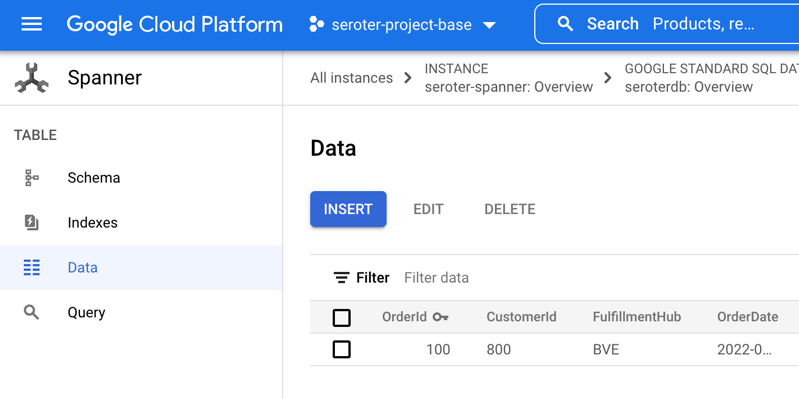
    Ok, my front end web application is running (when requests come in) and successfully talking to my Cloud Spanner database.

    Creating the batch processor in .NET and deploying to Cloud Run jobs

    As mentioned in the scenario summary, let’s assume we have some shipping system that prepares the order for delivery. Every so often, we want to poll that system for changes, and update the order status in the Spanner database accordingly.

    Until lately, you’d run these batch jobs in App Engine, Functions, a GKE pod, or some other compute service that you could trigger on a schedule. But we just previewed Cloud Run jobs which offers a natural choice moving forward. Here, I can run anything that can be containerized, and the workload runs until completion. You might trigger these via Cloud Scheduler, or kick them off manually.

    Let’s write a .NET console application that does the work. I’m using the new minimal API that hides a bunch of boilerplate code. All I have is a Program.cs file, and a package dependency on Google.Cloud.Spanner.Data. Because I don’t like you THAT much, I didn’t actually create a stub for the shipping system, and decided to update the status of all the rows at once.

    using Google.Cloud.Spanner.Data;
    
    Console.WriteLine("Starting job ...");
    
    //connection string
    string conn = "Data Source=projects/seroter-project-base/instances/seroter-spanner/databases/seroterdb";
    
    using (var connection = new SpannerConnection(conn)) {
    
        //command that updates all rows with the initial status
        SpannerCommand cmd = connection.CreateDmlCommand("UPDATE Orders SET Status = 'SHIPPED' WHERE Status = 'SUBMITTED'");
    
        //execute and hope for the best
        cmd.ExecuteNonQuery();
    }
    
    //job should end after this
    Console.WriteLine("Update done. Job completed.");


    Like before, I use a single Cloud Build command to compile and package my app into a container image: gcloud builds submit --pack image=gcr.io/seroter-project-base/seroter-run-job

    Let’s go back into the Cloud Run interface, where we just turned on a UI for creating and managing jobs. I start by choosing my just-now-created container image and keeping the “number of tasks” to 1.
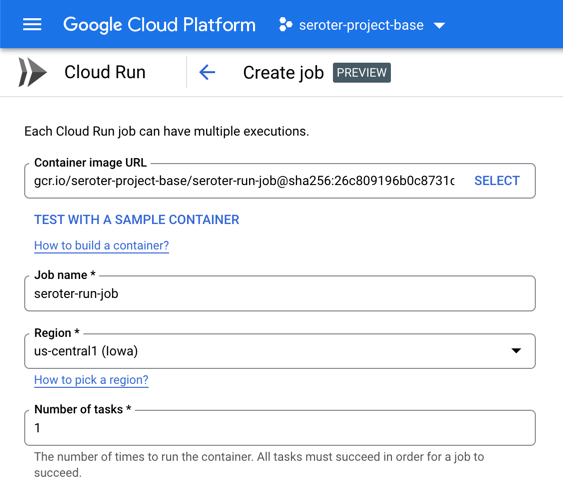
    For reference, there are other fun “job” settings. I can allocate up to 32GB of memory and 8 vCPUs. I can set the timeout (up to an hour), choose how much parallelism I want, and even select the option to run the job right away.

    After creating the job, I click the button that says “execute” and run my job. I see job status and application logs, updated live. My job succeeded!
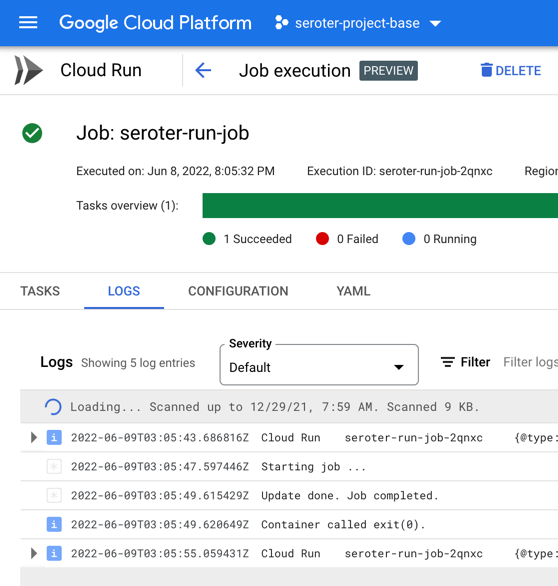
    Checking Cloud Spanner confirms that my all table rows were updated to a status of “SHIPPED”.

    It’s great that I didn’t have to leave the Cloud Run API or interface to build this batch processor. Super convenient!

    Creating the queue listener in Spring and deploying to Cloud Run

    The final piece of our architecture requires a queue listener. When our delivery drivers drop off a package, their system sends a message to Google Cloud Pub/Sub, our pretty remarkable messaging system. To be sure, I could trigger Cloud Run (or Cloud Functions) automatically whenever a message hits Pub/Sub. That’s a built-in capability. I don’t need to use a processor that directly pulls from the queue.

    But maybe I want to control the pull from the queue. I could do stateful processing over a series of messages, or pull batches instead of one-at-a-time. Here, I’m going to use Spring Cloud Stream which talks to any major messaging system and triggers a function whenever a message arrives.

    Also note that Cloud Run doesn’t explicitly support this worker pattern, but you can make it work fairly easily. I’ll show you.

    I went to start.spring.io and configured my app by choosing a Spring Web and GCP Support dependency. Why “web” if this is a background worker? Cloud Run still expects a workload that binds to a web port, so we’ll embed a web server that’s never used.

    After generating the project and opening it, I deleted the “GCP support” dependency (I just wanted an auto-generated dependency management value) and added a couple of POM dependencies that my app needs. The first is the Google Cloud Pub/Sub “binder” for Spring Cloud Stream, and the second is the JDBC driver for Cloud Spanner.

    <dependency>
    	<groupId>org.springframework.cloud</groupId>
    	<artifactId>spring-cloud-gcp-pubsub-stream-binder</artifactId>
    	<version>1.2.8.RELEASE</version>
    </dependency>
    <dependency>
    	<groupId>com.google.cloud</groupId>
    	<artifactId>google-cloud-spanner-jdbc</artifactId>
    </dependency>
    

    I then created an object definition for “Order” with the necessary fields and getters/setters. Let’s review the primary class that does all the work. The way Spring Cloud Stream works is that reactive functions annotated as beans are invoked when a message comes in. The Spring machinery wires up the connection to the message broker and does most of the work. In this case, when I get an order message, I update the order status in Cloud Spanner to “DELIVERED.”

    package com.seroter.runworker;
    
    
    import java.util.function.Consumer;
    import org.springframework.boot.SpringApplication;
    import org.springframework.boot.autoconfigure.SpringBootApplication;
    import org.springframework.context.annotation.Bean;
    import reactor.core.publisher.Flux;
    import java.sql.Connection;
    import java.sql.DriverManager;
    import java.sql.Statement;
    import java.sql.SQLException;
    
    @SpringBootApplication
    public class RunWorkerApplication {
    
    	public static void main(String[] args) {
    		SpringApplication.run(RunWorkerApplication.class, args);
    	}
    
    	//takes in a Flux (stream) of orders
    	@Bean
    	public Consumer<Flux<Order>> reactiveReadOrders() {
    
    		//connection to my database
    		String connectionUrl = "jdbc:cloudspanner:/projects/seroter-project-base/instances/seroter-spanner/databases/seroterdb";
    		
    		return value -> 
    			value.subscribe(v -> { 
    				try (Connection c = DriverManager.getConnection(connectionUrl); Statement statement = c.createStatement()) {
    					String command = "UPDATE Orders SET Status = 'DELIVERED' WHERE OrderId = " + v.getOrderId().toString();
    					statement.executeUpdate(command);
    				} catch (SQLException e) {
    					System.out.println(e.toString());
    				}
    			});
    	}
    }
    

    My corresponding properties file has the few values Spring Cloud Stream needs to know about. Specifically, I’m specifying the Pub/Sub topic, indicating that I can take in batches of data, and setting the “group” which corresponds to the topic subscription. What’s cool is that if these topics and subscriptions don’t exist already, Spring Cloud Stream creates them for me.

    server.port=8080
    spring.cloud.stream.bindings.reactiveReadOrders-in-0.destination=ordertopic
    spring.cloud.stream.bindings.reactiveReadOrders-in-0.consumer.batch-mode=true
    spring.cloud.stream.bindings.reactiveReadOrders-in-0.content-type=application/json
    spring.cloud.stream.bindings.reactiveReadOrders-in-0.group=orderGroup
    

    For the final time, I run the Cloud Build command to build and package my Java app into a container image: gcloud builds submit --pack image=gcr.io/seroter-project-base/seroter-run-worker

    With this container image ready to go, I slide back to the Cloud Run UI and create a new service instance. This time, after choosing my image, I choose “always allocated CPU” to ensure that the CPU stays on the whole time. And I picked a minimum instance of one so that I have a single always-on worker pulling from Pub/Sub. I also chose “internal only” traffic and require authentication to make this harder for someone to randomly invoke.

    My service quickly starts up, and upon initialization, creates both the topic and queue for my app.

    I go into the Pub/Sub UI where I can send a message directly into a topic. All I need to send in is a JSON payload that holds the order ID of the record to update.
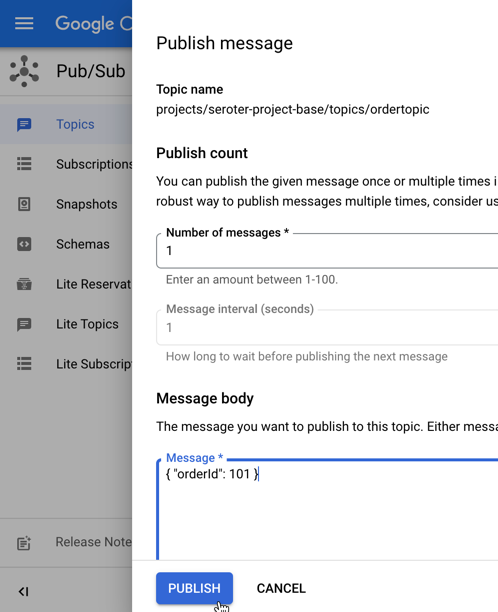
    The result? My database record is updated, and I see this by viewing my web application and noticing the second row has a new “status” value.

    Wrap up

    Instead of using two or three distinct cloud compute services to satisfy this architecture, I used one. Cloud Run defies your expectations of what serverless can be, especially now that you can run serverless jobs or even continuously-running apps. In all cases, I have no infrastructure to provision, scale, or manage.

    You can use Cloud Run, Pub/Sub, and Cloud Build with our generous free tier, and Spanner has never been cheaper to try out. Give it a whirl, and tell me what you think of Cloud Run jobs.
  • Measuring container size and startup latency for serverless apps written in C#, Node.js, Go, and Java

    Measuring container size and startup latency for serverless apps written in C#, Node.js, Go, and Java

    Do you like using function-as-a-service (FaaS) platforms to quickly build scalable systems? Me too. There are constraints around what you can do with FaaS, which is why I also like this new crop of container-based serverless compute services. These products—the terrific Google Cloud Run is the most complete example and has a generous free tier—let you deploy more full-fledged “apps” versus the glue code that works best in FaaS. Could be a little Go app, full-blown Spring Boot REST API, or a Redis database. Sounds good, but what if you don’t want to mess with containers as you build and deploy software? Or are concerned about the “cold start” penalty of a denser workload?

    Google Cloud has embraced Cloud Buildpacks as a way to generate a container image from source code. Using our continuous integration service or any number of compute services directly, you never have to write a Dockerfile again, unless you want to. Hopefully, at least. Regarding the cold start topic, we just shipped a new cloud metric, “container startup latency” to measure the time it takes for a serverless instance to fire up. That seems like a helpful tool to figure out what needs to be optimized. Based on these two things, I got curious and decided to build the same REST API in four different programming languages to see how big the generated container image was, and how fast the containers started up in Cloud Run.

    Since Cloud Run accepts most any container, you have almost limitless choices in programming language. For this example, I chose to use C#, Go, Java (Spring Boot), and JavaScript (Node.js). I built an identical REST API with each. It’s entirely possible, frankly likely, that you could tune these apps much more than I did. But this should give us a decent sense of how each language performs.

    Let’s go language-by-language and review the app, generate the container image, deploy to Cloud Run, and measure the container startup latency.

    Go

    I’m almost exclusively coding in Go right now as I try to become more competent with it. Go has an elegant simplicity to it that I really enjoy. And it’s an ideal language for serverless environments given its small footprint, blazing speed, and easy concurrency.

    For the REST API, which basically just returns a pair of “employee” records, I used the Echo web framework and Go 1.18.

    My data model (struct) has four properties.

    package model
    
    type Employee struct {
    	Id       string `json:"id"`
    	FullName string `json:"fullname"`
    	Location string `json:"location"`
    	JobTitle string `json:"jobtitle"`
    }
    

    My web handler offers a single operation that returns two employee items.

    package web
    
    import (
    	"net/http"
    
    	"github.com/labstack/echo/v4"
    	"seroter.com/restapi/model"
    )
    
    func GetAllEmployees(c echo.Context) error {
    
    	emps := [2]model.Employee{{Id: "100", FullName: "Jack Donaghy", Location: "NYC", JobTitle: "Executive"}, {Id: "101", FullName: "Liz Lemon", Location: "NYC", JobTitle: "Writer"}}
    	return c.JSON(http.StatusOK, emps)
    }
    

    And finally, the main Go class spins up the web server.

    package main
    
    import (
    	"fmt"
    
    	"github.com/labstack/echo/v4"
    	"github.com/labstack/echo/v4/middleware"
    	"seroter.com/restapi/web"
    )
    
    func main() {
    	fmt.Println("server started ...")
    
    	e := echo.New()
    	e.Use(middleware.Logger())
    
    	e.GET("/employees", web.GetAllEmployees)
    
    	e.Start(":8080")
    }
    

    Next, I used Google Cloud Build along with Cloud Buildpacks to generate a container image from this Go app. The buildpack executes a build, brings in a known good base image, and creates an image that we add to Google Cloud Artifact Registry. It’s embarrassingly easy to do this. Here’s the single command with our gcloud CLI:

    gcloud builds submit --pack image=gcr.io/seroter-project-base/go-restapi 
    

    The result? A 51.7 MB image in my Docker repository in Artifact Registry.

    The last step was to deploy to Cloud Run. We could use the CLI of course, but let’s use the Console experience because it’s delightful.

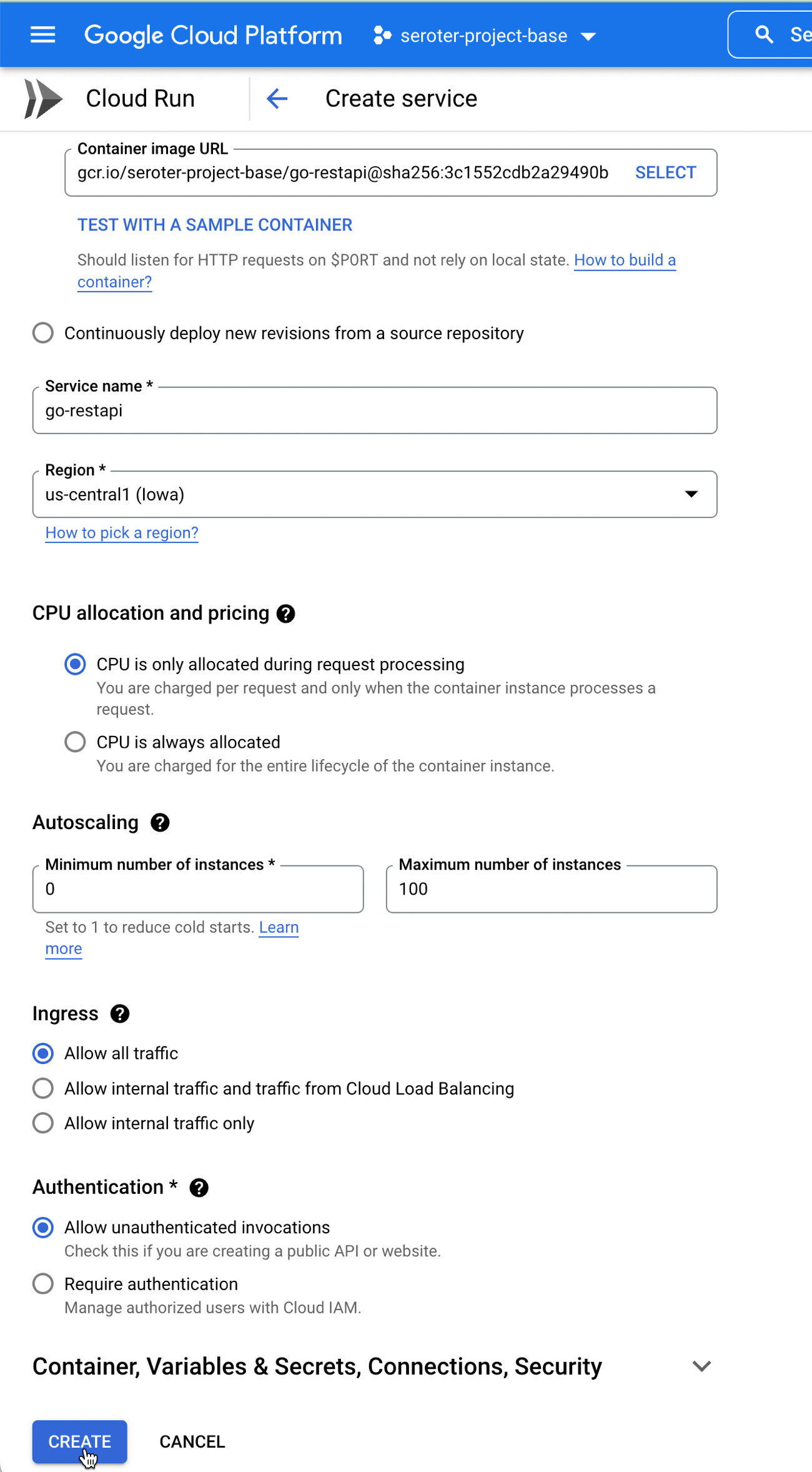
    After pointing at my generated container image, I could just click “create” and accept all the default instance properties. As you can see below, I’ve got easy control over instance count (minimum of zero, but you can keep a warm instance running if you want).

    Let’s tweak a couple of things. First off, I don’t need the default amount of RAM. I can easily operate with just 256MiB, or even less. Also, you see here that we default to 80 concurrent requests per container. That’s pretty cool, as most FaaS platforms do a single concurrent request. I’ll stick with 80.

    It seriously took four seconds from the time I clicked “create” until the instance was up and running and able to take traffic. Bonkers. I didn’t send any initial requests in, as I want to hit it cold with a burst of data. I’m using the excellent hey tool to generate a bunch of load on my service. This single command sends 200 total requests, with 10 concurrent workers.

    hey -n 200 -c 10 https://go-restapi-ofanvtevaa-uc.a.run.app/employees
    

    Here’s the result. All the requests were done in 2.6 seconds, and you can see that that the first ones (as the container warmed up) took 1.2 seconds, and the vast majority took 0.177 seconds. That’s fast.

    Summary:
      Total:        2.6123 secs
      Slowest:      1.2203 secs
      Fastest:      0.0609 secs
      Average:      0.1078 secs
      Requests/sec: 76.5608
      
      Total data:   30800 bytes
      Size/request: 154 bytes
    
    Response time histogram:
      0.061 [1]     |
      0.177 [189]   |■■■■■■■■■■■■■■■■■■■■■■■■■■■■■■■■■■■■■■■■
      0.293 [0]     |
      0.409 [0]     |
      0.525 [1]     |
      0.641 [6]     |■
      0.757 [0]     |
      0.873 [0]     |
      0.988 [0]     |
      1.104 [0]     |
      1.220 [3]     |■
    
    
    Latency distribution:
      10% in 0.0664 secs
      25% in 0.0692 secs
      50% in 0.0721 secs
      75% in 0.0777 secs
      90% in 0.0865 secs
      95% in 0.5074 secs
      99% in 1.2057 secs

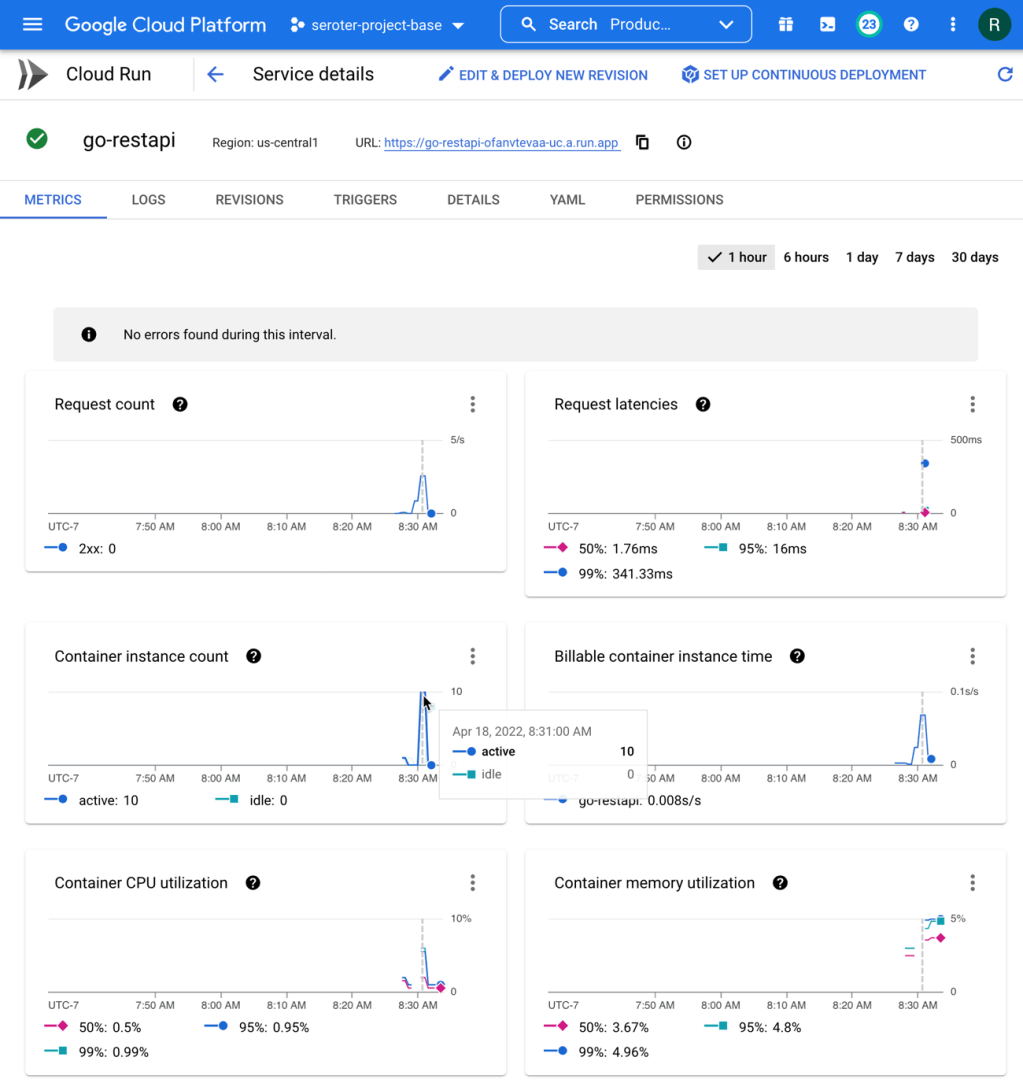
    How about the service metrics? I saw that Cloud Run spun up 10 containers to handle the incoming load, and my containers topped out at 5% memory utilization. It also barely touched the CPU.

    How about that new startup latency metric? I jumped into Cloud Monitoring directly to see that. There are lots of ways to aggregate this data (mean, standard deviation, percentile) and I chose the 95th percentile. My container startup time is pretty darn fast (at 95th percentile, it’s 106.87 ms), and then stays up to handle the load, so I don’t incur a startup cost for the chain of requests.

    Finally, with some warm instances running, I ran the load test again. You can see how speedy things are, with virtually no “slow” responses. Go is an excellent choice for your FaaS or container-based workloads if speed matters.

    Summary:
      Total:        2.1548 secs
      Slowest:      0.5008 secs
      Fastest:      0.0631 secs
      Average:      0.0900 secs
      Requests/sec: 92.8148
      
      Total data:   30800 bytes
      Size/request: 154 bytes
    
    Response time histogram:
      0.063 [1]     |
      0.107 [185]   |■■■■■■■■■■■■■■■■■■■■■■■■■■■■■■■■■■■■■■■■
      0.151 [2]     |
      0.194 [10]    |■■
      0.238 [0]     |
      0.282 [0]     |
      0.326 [0]     |
      0.369 [0]     |
      0.413 [0]     |
      0.457 [1]     |
      0.501 [1]     |
    
    
    Latency distribution:
      10% in 0.0717 secs
      25% in 0.0758 secs
      50% in 0.0814 secs
      75% in 0.0889 secs
      90% in 0.1024 secs
      95% in 0.1593 secs
      99% in 0.4374 secs

    C# (.NET)

    Ah, .NET. I started using it with the early preview release in 2000, and considered myself a (poor) .NET dev for most of my career. Now, I dabble. .NET 6 looks good, so I built my REST API with that.

    Update: I got some good feedback from folks that I could have tried this .NET app using the new minimal API structure. I wasn’t sure it’d make a difference, but tried it anyway. Resulted in the same container size, and roughly the same response time (4.2088 seconds for all 200 requests) and startup latency (2.23s at 95th percentile). Close, but actually a tad slower! On the second pass of 200 requests, the total response time was almost equally (1.6915 seconds) fast as the way I originally wrote it.

    My Employee object definition is straightforward.

    namespace dotnet_restapi;
    
    public class Employee {
    
        public Employee(string id, string fullname, string location, string jobtitle) {
            this.Id = id;
            this.FullName = fullname;
            this.Location = location;
            this.JobTitle = jobtitle;
        }
    
        public string Id {get; set;}
        public string FullName {get; set;}
        public string Location {get; set;}
        public string JobTitle {get; set;}
    }
    

    The Controller has a single operation and returns a List of employee objects.

    using Microsoft.AspNetCore.Mvc;
    
    namespace dotnet_restapi.Controllers;
    
    [ApiController]
    [Route("[controller]")]
    public class EmployeesController : ControllerBase
    {
    
        private readonly ILogger<EmployeesController> _logger;
    
        public EmployeesController(ILogger<EmployeesController> logger)
        {
            _logger = logger;
        }
    
        [HttpGet(Name = "GetEmployees")]
        public IEnumerable<Employee> Get()
        {
            List<Employee> emps = new List<Employee>();
            emps.Add(new Employee("100", "Bob Belcher", "SAN", "Head Chef"));
            emps.Add(new Employee("101", "Philip Frond", "SAN", "Counselor"));
    
            return emps;
        }
    }
    

    The program itself simply looks for an environment variable related to the HTTP port, and starts up the server. Much like above, to build this app and produce a container image, it only takes this one command:

    gcloud builds submit --pack image=gcr.io/seroter-project-base/dotnet-restapi 
    

    The result is a fairly svelte 90.6 MB image in the Artifact Registry.

    When deploying this instance to Cloud Run, I kept the same values as with the Go service, as my .NET app doesn’t need more than 256MiB of memory.

    In just a few seconds, I had the app up and running.

    Let’s load test this bad boy and see what happens. I sent in the same type of request as before, with 200 total requests, 10 concurrent.

    hey -n 200 -c 10 https://dotnet-restapi-ofanvtevaa-uc.a.run.app/employees
    

    The results were solid. You can see a total execution time of about 3.6 seconds, with a few instances taking 2 seconds, and the rest coming back super fast.

    Summary:
      Total:        3.6139 secs
      Slowest:      2.1923 secs
      Fastest:      0.0649 secs
      Average:      0.1757 secs
      Requests/sec: 55.3421
      
    
    Response time histogram:
      0.065 [1]     |
      0.278 [189]   |■■■■■■■■■■■■■■■■■■■■■■■■■■■■■■■■■■■■■■■■
      0.490 [0]     |
      0.703 [0]     |
      0.916 [0]     |
      1.129 [0]     |
      1.341 [0]     |
      1.554 [0]     |
      1.767 [0]     |
      1.980 [0]     |
      2.192 [10]    |■■
    
    
    Latency distribution:
      10% in 0.0695 secs
      25% in 0.0718 secs
      50% in 0.0747 secs
      75% in 0.0800 secs
      90% in 0.0846 secs
      95% in 2.0365 secs
      99% in 2.1286 secs

    I checked the Cloud Run metrics, and see that request latency was high on a few requests, but the majority were fast. Memory was around 30% utilization. Very little CPU consumption.

    For container startup latency, the number was 1.492s at the 95th percentile. Still not bad.

    Oh, and sending in another 200 requests with my .NET containers warmed up resulted in some smokin’ fast responses.

    Summary:
      Total:        1.6851 secs
      Slowest:      0.1661 secs
      Fastest:      0.0644 secs
      Average:      0.0817 secs
      Requests/sec: 118.6905
      
    
    Response time histogram:
      0.064 [1]     |
      0.075 [64]    |■■■■■■■■■■■■■■■■■■■■■■■■■
      0.085 [104]   |■■■■■■■■■■■■■■■■■■■■■■■■■■■■■■■■■■■■■■■■
      0.095 [18]    |■■■■■■■
      0.105 [2]     |■
      0.115 [1]     |
      0.125 [0]     |
      0.136 [0]     |
      0.146 [0]     |
      0.156 [0]     |
      0.166 [10]    |■■■■
    
    
    Latency distribution:
      10% in 0.0711 secs
      25% in 0.0735 secs
      50% in 0.0768 secs
      75% in 0.0811 secs
      90% in 0.0878 secs
      95% in 0.1600 secs
      99% in 0.1660 secs

    Java (Spring Boot)

    Now let’s try it with a Spring Boot application. I learned Spring when I joined Pivotal, and taught a couple Pluralsight courses on the topic. Spring Boot is a powerful framework, and you can build some terrific apps with it. For my REST API, I began at start.spring.io to generate my reactive web app.

    The “employee” definition should look familiar at this point.

    package com.seroter.springrestapi;
    
    public class Employee {
    
        private String Id;
        private String FullName;
        private String Location;
        private String JobTitle;
        
        public Employee(String id, String fullName, String location, String jobTitle) {
            Id = id;
            FullName = fullName;
            Location = location;
            JobTitle = jobTitle;
        }
        public String getId() {
            return Id;
        }
        public String getJobTitle() {
            return JobTitle;
        }
        public void setJobTitle(String jobTitle) {
            this.JobTitle = jobTitle;
        }
        public String getLocation() {
            return Location;
        }
        public void setLocation(String location) {
            this.Location = location;
        }
        public String getFullName() {
            return FullName;
        }
        public void setFullName(String fullName) {
            this.FullName = fullName;
        }
        public void setId(String id) {
            this.Id = id;
        }
    }
    

    Then, my Controller + main class exposes a single REST endpoint and returns a Flux of employees.

    package com.seroter.springrestapi;
    
    import java.util.ArrayList;
    import java.util.List;
    
    import org.springframework.boot.SpringApplication;
    import org.springframework.boot.autoconfigure.SpringBootApplication;
    import org.springframework.web.bind.annotation.GetMapping;
    import org.springframework.web.bind.annotation.RestController;
    
    import reactor.core.publisher.Flux;
    
    @RestController
    @SpringBootApplication
    public class SpringRestapiApplication {
    
    	public static void main(String[] args) {
    		SpringApplication.run(SpringRestapiApplication.class, args);
    	}
    
    	List<Employee> employees;
    
    	public SpringRestapiApplication() {
    		employees = new ArrayList<Employee>();
    		employees.add(new Employee("300", "Walt Longmire", "WYG", "Sheriff"));
    		employees.add(new Employee("301", "Vic Moretti", "WYG", "Deputy"));
    
    	}
    
    	@GetMapping("/employees")
    	public Flux<Employee> getAllEmployees() {
    		return Flux.fromIterable(employees);
    	}
    }
    

    I could have done some more advanced configuration to create a slimmer JAR file, but I wanted to try this with the default experience. Once again, I used a single Cloud Build command to generate a container from this app. I do appreciate how convenient this is!

    gcloud builds submit --pack image=gcr.io/seroter-project-base/spring-restapi 
    

    Not surpassingly, a Java container image is a bit hefty. This one clocks in at 249.7 MB in size. The container image size doesn’t matter a TON to Cloud Run, as we do image streaming from Artifact Registry which means only files loaded by your app need to be pulled. But, size still does matter a bit here.

    When deploying this image to Cloud Run, I did keep the default 512 MiB of memory in place as a Java app can tend to consume more resources. The service still deployed in less than 10 seconds, which is awesome. Let’s flood it with traffic.

    hey -n 200 -c 10 https://spring-restapi-ofanvtevaa-uc.a.run.app/employees
    

    200 requests to my Spring Boot endpoint did ok. Clearly there’s a big startup time on the first one(s), and as a developer, that’d be where I dedicate extra time to optimizing.

    Summary:
      Total:        13.8860 secs
      Slowest:      12.3335 secs
      Fastest:      0.0640 secs
      Average:      0.6776 secs
      Requests/sec: 14.4030
      
    
    Response time histogram:
      0.064 [1]     |
      1.291 [189]   |■■■■■■■■■■■■■■■■■■■■■■■■■■■■■■■■■■■■■■■■
      2.518 [0]     |
      3.745 [0]     |
      4.972 [0]     |
      6.199 [0]     |
      7.426 [0]     |
      8.653 [0]     |
      9.880 [0]     |
      11.107 [0]    |
      12.333 [10]   |■■
    
    
    Latency distribution:
      10% in 0.0723 secs
      25% in 0.0748 secs
      50% in 0.0785 secs
      75% in 0.0816 secs
      90% in 0.0914 secs
      95% in 11.4977 secs
      99% in 12.3182 secs

    The initial Cloud Run metrics show fast request latency (routing to the service), 10 containers to handle the load, and a somewhat-high CPU and memory load.

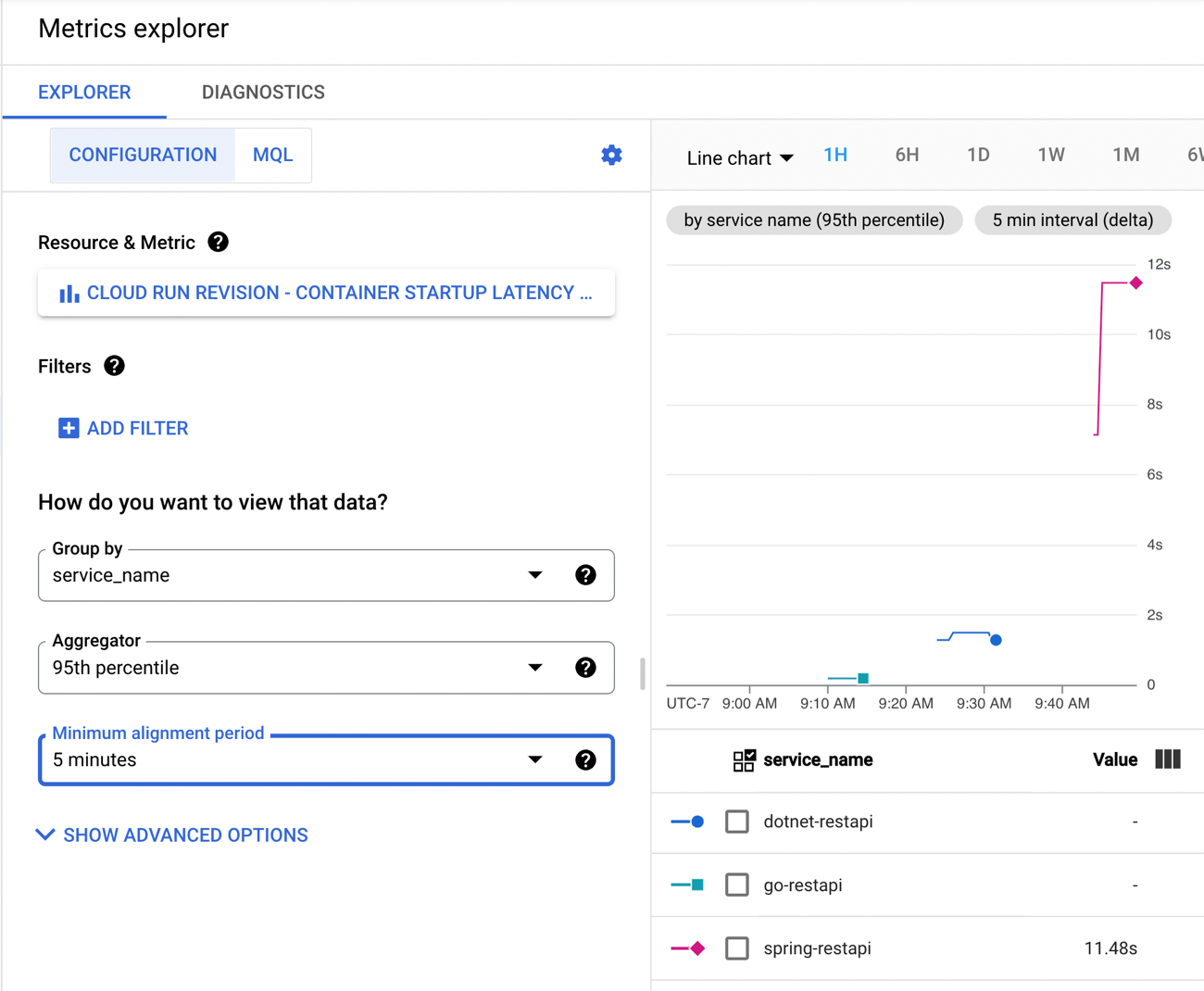
    Back in Cloud Monitoring, I saw that the 95th percentile for container startup latency was 11.48s.

    If you’re doing Spring Boot with serverless runtimes, you’re going to want to pay special attention to the app startup latency, as that’s where you’ll get the most bang for the buck. And consider doing a “minimum” of at least 1 always-running instance. See that when I sent in another 200 requests with warm containers running, things look good.

    Summary:
      Total:        1.8128 secs
      Slowest:      0.2451 secs
      Fastest:      0.0691 secs
      Average:      0.0890 secs
      Requests/sec: 110.3246
      
    
    Response time histogram:
      0.069 [1]     |
      0.087 [159]   |■■■■■■■■■■■■■■■■■■■■■■■■■■■■■■■■■■■■■■■■
      0.104 [27]    |■■■■■■■
      0.122 [3]     |■
      0.140 [0]     |
      0.157 [0]     |
      0.175 [0]     |
      0.192 [0]     |
      0.210 [0]     |
      0.227 [0]     |
      0.245 [10]    |■■■
    
    
    Latency distribution:
      10% in 0.0745 secs
      25% in 0.0767 secs
      50% in 0.0802 secs
      75% in 0.0852 secs
      90% in 0.0894 secs
      95% in 0.2365 secs
      99% in 0.2450 secs

    JavaScript (Node.js)

    Finally, let’s look at JavaScript. This is what I first learned to really program in back in 1998-ish and then in my first job out of college. It continues to be everywhere, and widely supported in public clouds. For this Node.js REST API, I chose to use the Express framework. I built a simple router that returns a couple of “employee” records as JSON.

    var express = require('express');
    var router = express.Router();
    
    /* GET employees */
    router.get('/', function(req, res, next) {
      res.json(
        [{
            id: "400",
            fullname: "Beverly Goldberg",
            location: "JKN",
            jobtitle: "Mom"
        },
        {
            id: "401",
            fullname: "Dave Kim",
            location: "JKN",
            jobtitle: "Student"
        }]
      );
    });
    
    module.exports = router;
    

    My app.js file calls out the routes and hooks it up to the /employees endpoint.

    var express = require('express');
    var path = require('path');
    var cookieParser = require('cookie-parser');
    var logger = require('morgan');
    
    var indexRouter = require('./routes/index');
    var employeesRouter = require('./routes/employees');
    
    var app = express();
    
    app.use(logger('dev'));
    app.use(express.json());
    app.use(express.urlencoded({ extended: false }));
    app.use(cookieParser());
    app.use(express.static(path.join(__dirname, 'public')));
    
    app.use('/', indexRouter);
    app.use('/employees', employeesRouter);
    
    module.exports = app;
    

    At this point, you know what it looks like to build a container image. But, don’t take it for granted. Enjoy how easy it is to do this even if you know nothing about Docker.

    gcloud builds submit --pack image=gcr.io/seroter-project-base/node-restapi 
    

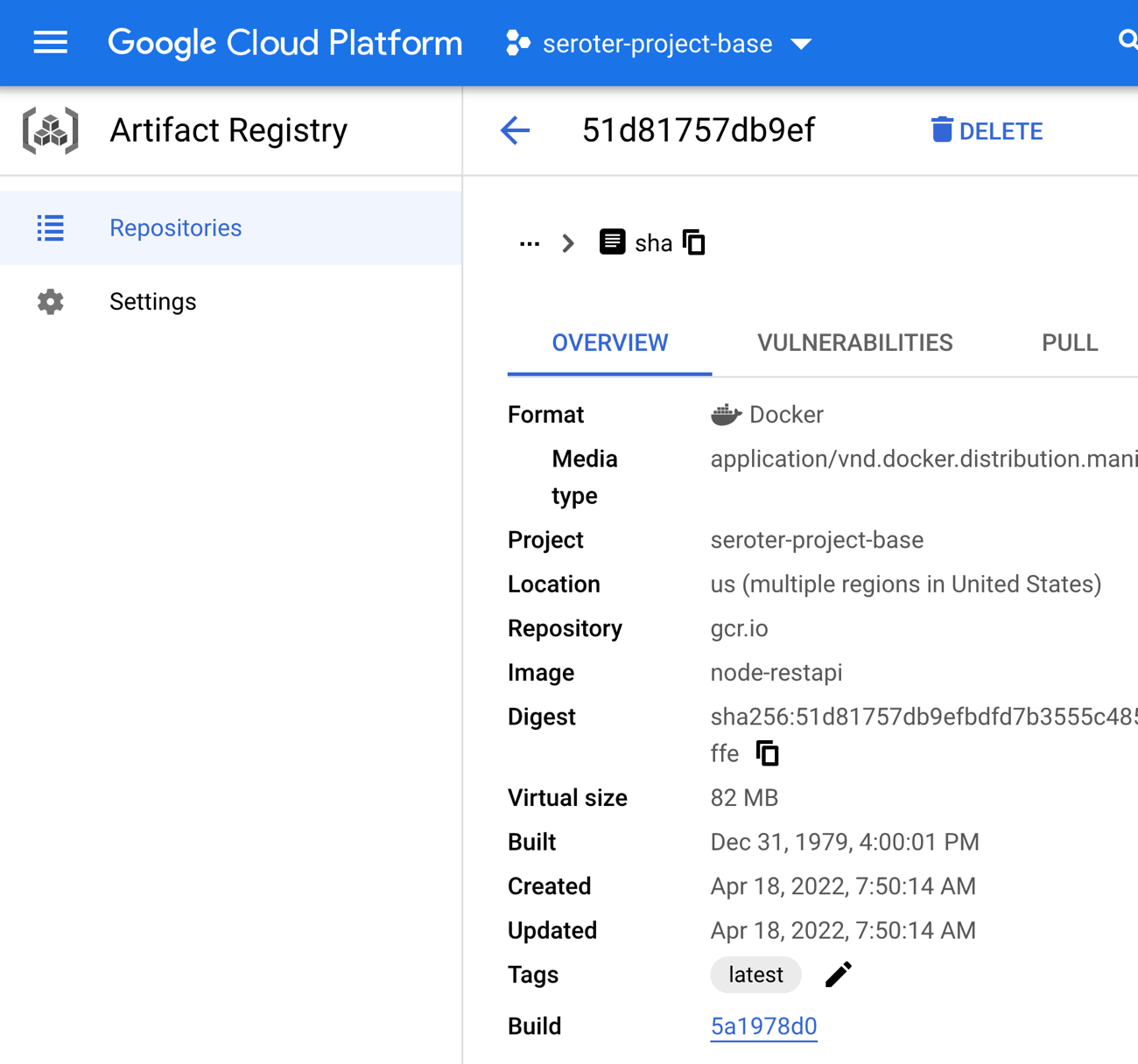
    Our resulting image is a trim 82 MB in size. Nice!

    For my Node.js app, I chose the default options for Cloud Run, but shrunk the memory demands to only 256 MiB. Should be plenty. The service deployed in a few seconds. Let’s flood it with requests!

    hey -n 200 -c 10 https://node-restapi-ofanvtevaa-uc.a.run.app/employees
    

    How did our cold Node.js app do? Well! All requests were processed in about 6 seconds, and the vast majority returned a response in around 0.3 seconds.

    Summary:
      Total:        6.0293 secs
      Slowest:      2.8199 secs
      Fastest:      0.0650 secs
      Average:      0.2309 secs
      Requests/sec: 33.1711
      
      Total data:   30200 bytes
      Size/request: 151 bytes
    
    Response time histogram:
      0.065 [1]     |
      0.340 [186]   |■■■■■■■■■■■■■■■■■■■■■■■■■■■■■■■■■■■■■■■■
      0.616 [0]     |
      0.891 [0]     |
      1.167 [0]     |
      1.442 [1]     |
      1.718 [1]     |
      1.993 [1]     |
      2.269 [0]     |
      2.544 [4]     |■
      2.820 [6]     |■
    
    
    Latency distribution:
      10% in 0.0737 secs
      25% in 0.0765 secs
      50% in 0.0805 secs
      75% in 0.0855 secs
      90% in 0.0974 secs
      95% in 2.4700 secs
      99% in 2.8070 secs

    A peek at the default Cloud Run metrics show that we ended up with 10 containers handling traffic, some CPU and memory spikes, a low request latency.

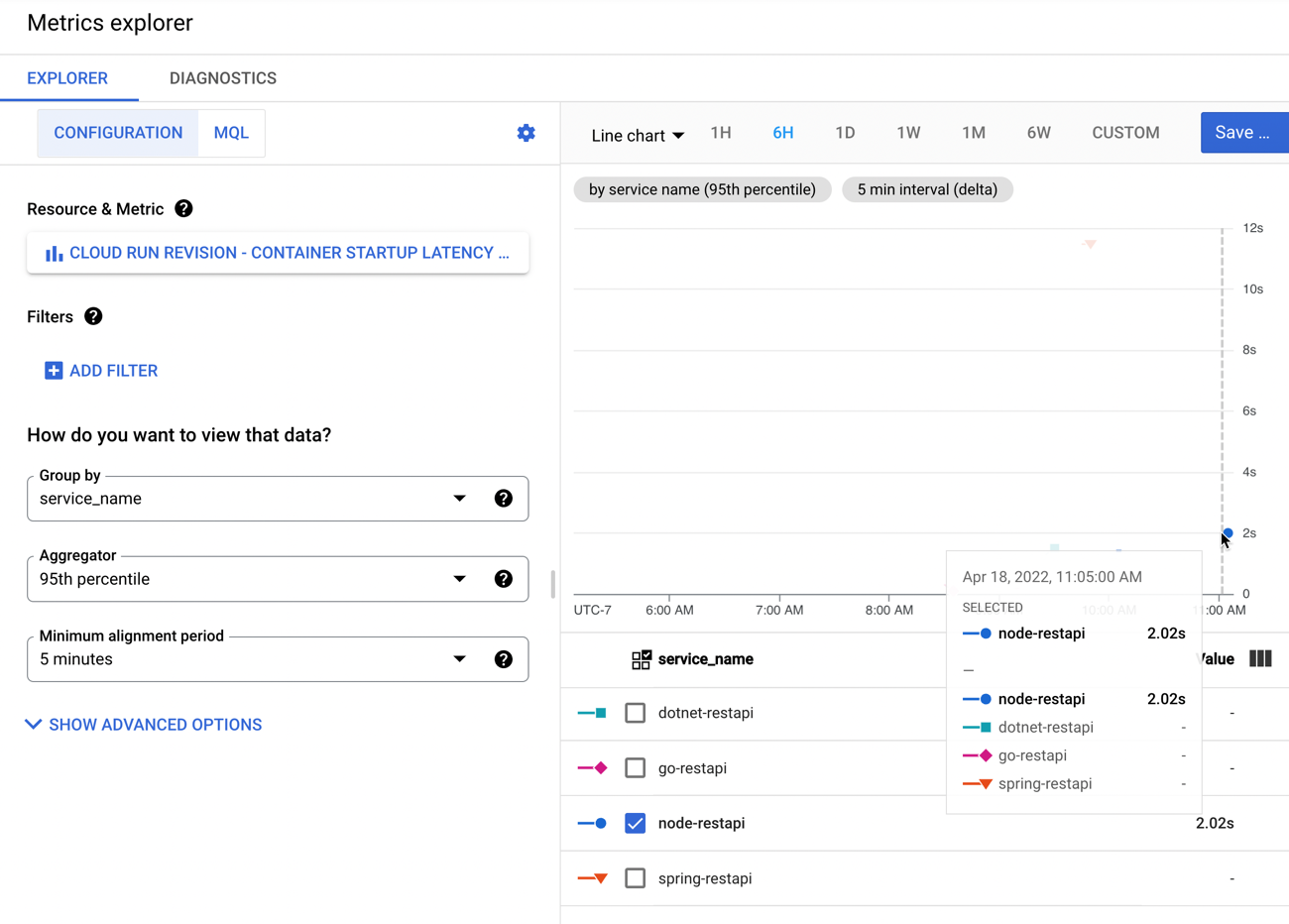
    The specific metrics around container startup latency shows a very quick initial startup time of 2.02s.

    A final load against our Node.js app shows some screaming performance against the warm containers.

    Summary:
      Total:        1.8458 secs
      Slowest:      0.1794 secs
      Fastest:      0.0669 secs
      Average:      0.0901 secs
      Requests/sec: 108.3553
      
      Total data:   30200 bytes
      Size/request: 151 bytes
    
    Response time histogram:
      0.067 [1]     |
      0.078 [29]    |■■■■■■■■■■
      0.089 [114]   |■■■■■■■■■■■■■■■■■■■■■■■■■■■■■■■■■■■■■■■■
      0.101 [34]    |■■■■■■■■■■■■
      0.112 [6]     |■■
      0.123 [6]     |■■
      0.134 [0]     |
      0.146 [0]     |
      0.157 [0]     |
      0.168 [7]     |■■
      0.179 [3]     |■
    
    
    Latency distribution:
      10% in 0.0761 secs
      25% in 0.0807 secs
      50% in 0.0860 secs
      75% in 0.0906 secs
      90% in 0.1024 secs
      95% in 0.1608 secs
      99% in 0.1765 secs

    Wrap up

    I’m not a performance engineer by any stretch, but doing this sort of testing with out-of-the-box settings seemed educational. My final container startup latency numbers at the 95th percentile were:

    There are many ways to change these numbers. If you have a more complex app with more dependencies, it’ll likely be a bigger container image and possibly a slower startup. If you tune the app to do lazy loading or ruthlessly strip out unnecessary activation steps, your startup latency goes down. It still feels safe to say that if performance is a top concern, look at Go. C# and JavaScript apps are going to be terrific here as well. Be more cautious with Java if you’re truly scaling to zero, as you may not love the startup times.

    The point of this exercise was to explore how apps written in each language get packaged and started up in a serverless compute environment. Something I missed or got wrong? Let me know in the comments!

  • First look: Triggering Google Cloud Run with events generated by GCP services

    First look: Triggering Google Cloud Run with events generated by GCP services

    When you think about “events” in an event-driven architecture, what comes to mind? Maybe you think of business-oriented events like “file uploaded”, “employee hired”, “invoice sent”, “fraud detected”, or “batch job completed.” You might emit (or consume) these types of events in your application to develop more responsive systems. 

    What I find even more interesting right now are the events generated by the systems beneath our applications. Imagine what your architects, security pros, and sys admins could do if they could react to databases being provisioned, users getting deleted, firewall being changed, or DNS zone getting updated. This sort of thing is what truly enables the “trust, but verify” approach for empowered software teams. Let those teams run free, but “listen” to things that might be out of compliance.

    This week, the Google Cloud team announced Events for Cloud Run, in beta this September. What this capability does is let you trigger serverless containers when lifecycle events happen in most any Google Cloud service. These lifecycle events are in the CloudEvents format, and distributed (behind the scenes) to Cloud Run via Google Cloud PubSub. For reference, this capability bears some resemblance to AWS EventBridge and Azure Event GridIn this post, I’ll give you a look at Events for Cloud Run, and show you how simple it is to use.

    Code and deploy the Cloud Run service

    Developers deploy containers to Cloud Run. Let’s not get ahead of ourselves. First, let’s build the app. This app is Seroter-quality, and will just do the basics. I’ll read the incoming event and log it out. This is a simple ASP.NET Core app, with the source code in GitHub

    I’ve got a single controller that responds to a POST command coming from the eventing system. I take that incoming event, serialize from JSON to a string, and print it out. Events for Cloud Run accepts either custom events, or CloudEvents from GCP services. If I detect a custom event, I decode the payload and print it out. Otherwise, I just log the whole CloudEvent.

    namespace core_sample_api.Controllers
    {
        [ApiController]
        [Route("")]
        public class Eventsontroller : ControllerBase
        {
            private readonly ILogger<Eventsontroller> _logger;
            public Eventsontroller(ILogger<Eventsontroller> logger)
            {
                _logger = logger;
            }
            [HttpPost]
            public void Post(object receivedEvent)
            {
                Console.WriteLine("POST endpoint called");
                string s = JsonSerializer.Serialize(receivedEvent);
                //see if custom event with "message" root property
                using(JsonDocument d = JsonDocument.Parse(s)){
                    JsonElement root = d.RootElement;
                    if(root.TryGetProperty("message", out JsonElement msg)) {
                        Console.WriteLine("Custom event detected");
                        JsonElement rawData = msg.GetProperty("data");
                        //decode
                        string data = System.Text.Encoding.UTF8.GetString(Convert.FromBase64String(rawData.GetString()));
                        Console.WriteLine("Data value is: " + data);
                    }
                }
                Console.WriteLine("Data: " + s);
            }
        }
    }
    

    After checking all my source code into GitHub, I was ready to deploy it to Cloud Run. Note that you can use my same repo to continue on this example!

    I switched over to the GCP Console, and chose to create a new Cloud Run service. I picked a region and service name. Then I could have chosen either an existing container image, or, continuous deployment from a git repo. I chose the latter. First I picked my GitHub repo to get source from.

    Then, instead of requiring a Dockerfile, I picked the new Cloud Buildpacks support. This takes my source code and generates a container for me. Sweet. 

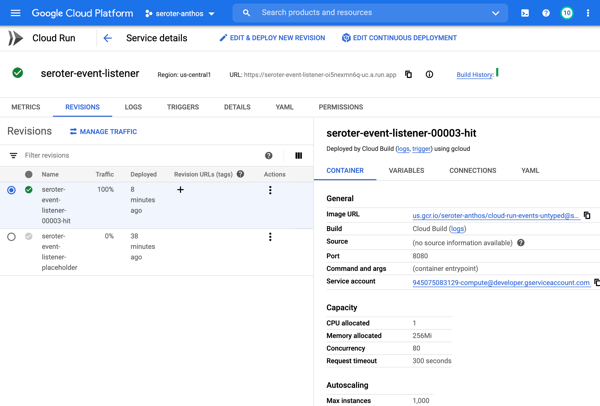
    After choosing my code source and build process, I kept the default HTTP trigger. After a few moments, I had a running service.

    Add triggers to Cloud Run

    Next up, adding a trigger. By default, the “triggers” tab shows the single HTTP trigger I set up earlier. 

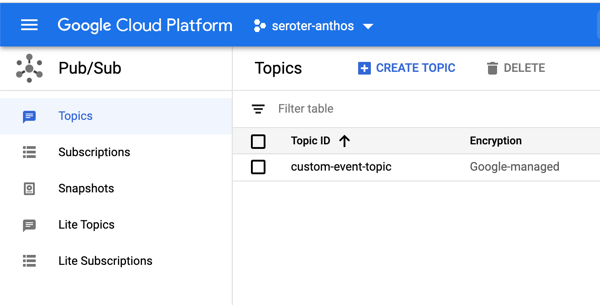
    I wanted to show custom events in addition to CloudEvents ones, so I went to the PubSub dashboard and created a new queue that would trigger Cloud Run.

    Back in the Cloud Run UX, I added a new trigger. I chose the trigger type of “com.google.cloud.pubsub.topic.publish” and picked the Topic I created earlier. After saving the trigger, I saw it show up in the list.

    After this, I wanted to trigger my Cloud Run service with CloudEvents. If you’re receiving events from Google Cloud services, you’ll have to enable Data Access Logs so that events can be spun up from Cloud Logs. I’m going to listen for events from Cloud Storage and Cloud Build, so I turned on audit logging for each.

    All that was left to define the final triggers. For Cloud Storage, I chose the storage.create.bucket trigger.

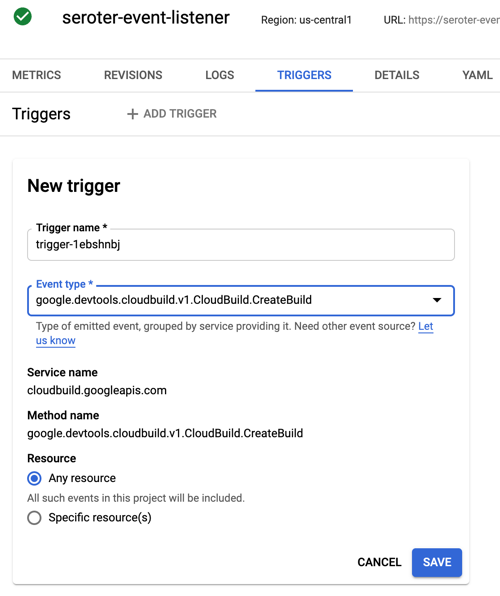
    I wanted to react to Cloud Build, so that I could see whenever a build started.

    Terrific. Now I was ready to test. I sent in a message to PubSub to trigger the custom event.

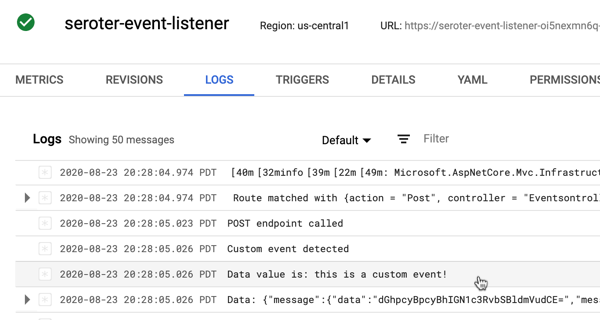
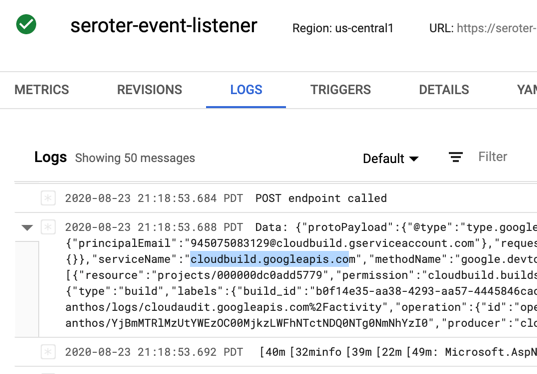
    I checked the logs for Cloud Run, and almost immediately saw that the service ran, accepted the event, and logged the body.

    Next, I tested Cloud Storage by adding a new bucket.

    Almost immediately, I saw a CloudEvent in the log.

    Finally, I kicked off a new Build pipeline, and saw an event indicating that Cloud Run received a message, and logged it.

    If you care about what happens inside the systems your apps depend on, take a look at the new Events for Cloud Run and start tapping into the action.

  • Build and deploy secure containers to a serverless runtime using Google Cloud Buildpacks and this six-line file.

    Build and deploy secure containers to a serverless runtime using Google Cloud Buildpacks and this six-line file.

    I rarely enjoy the last mile of work. Sure, there’s pleasure in seeing something reach its conclusion, but when I’m close, I just want to be done! For instance, when I create a Pluralsight course—my new one, Cloud Foundry: The Big Picture just came out—I enjoy the building part, and dread the record+edit portion. Same with writing software. I like coding an app to solve a problem. Then, I want a fast deployment so that I can see how the app works, and wrap up. Ideally, each app I write doesn’t require a unique set of machinery or know-how. Thus, I wanted to see if I could create a *single* Google Cloud Build deployment pipeline that shipped any custom app to the serverless Google Cloud Run environment.

    Cloud Build is Google Cloud’s continuous integration and delivery service. It reminds me of Concourse in that it’s declarative, container-based, and lightweight. It’s straightforward to build containers or non-container artifacts, and deploy to VMs, Kubernetes, and more. The fact that it’s a hosted service with a great free tier is a bonus. To run my app, I don’t want to deal with configuring any infrastructure, so I chose Google Cloud Run as my runtime. It just takes a container image and offers a fully-managed, scale-to-zero host. Before getting fancy with buildpacks, I wanted to learn how to use Build and Run to package up and deploy a Spring Boot application.

    First, I generated a new Spring Boot app from start.spring.io. It’s going to be a basic REST API, so all I needed was the Web dependency.

    I’m not splitting the atom with this Java code. It simply returns a greeting when you hit the root endpoint.

    @RestController
    @SpringBootApplication
    public class HelloAppApplication {
    
    	public static void main(String[] args) {
    		SpringApplication.run(HelloAppApplication.class, args);
    	}
    
    	@GetMapping("/")
    	public String SayHello() {
    		return "Hi, Google Cloud Run!";
    	}
    }
    

    Now, I wanted to create a pipeline that packaged up the Boot app into a JAR file, built a Docker image, and deployed that image to Cloud Run. Before crafting the pipeline file, I needed a Dockerfile. This file offers instructions on how to assemble the image. Here’s my basic one:

    FROM openjdk:11-jdk
    ARG JAR_FILE=target/hello-app-0.0.1-SNAPSHOT.jar
    COPY ${JAR_FILE} app.jar
    ENTRYPOINT ["java", "-Djava.security.edg=file:/dev/./urandom","-jar","/app.jar"]
    

    On to the pipeline. A build configuration isn’t hard to understand. It consists of a series of sequential or parallel steps that produce an outcome. Each step runs in its own container image (specified in the name attribute), and if needed, there’s a simple way to transfer state between steps. My cloudbuild.yaml file for this Spring Boot app looked like this:

    steps:
    # build the Java app and package it into a jar
    - name: maven:3-jdk-11
      entrypoint: mvn
      args: ["package", "-Dmaven.test.skip=true"]
    # use the Dockerfile to create a container image
    - name: gcr.io/cloud-builders/docker
      args: ["build", "-t", "gcr.io/$PROJECT_ID/hello-app", "--build-arg=JAR_FILE=target/hello-app-0.0.1-SNAPSHOT.jar", "."]
    # push the container image to the Registry
    - name: gcr.io/cloud-builders/docker
      args: ["push", "gcr.io/$PROJECT_ID/hello-app"]
    #deploy to Google Cloud Run
    - name: 'gcr.io/cloud-builders/gcloud'
      args: ['run', 'deploy', 'seroter-hello-app', '--image', 'gcr.io/$PROJECT_ID/hello-app', '--region', 'us-west1', '--platform', 'managed']
    images: ["gcr.io/$PROJECT_ID/hello-app"]
    

    You’ll notice four steps. The first uses the Maven image to package my application. The result of that is a JAR file. The second step uses a Docker image that’s capable of generating an image using the Dockerfile I created earlier. The third step pushes that image to the Container Registry. The final step deploys the container image to Google Cloud Run with an app name of seroter-hello-app. The final “images” property puts the image name in my Build results.

    As you can imagine, I can configure triggers for this pipeline (based on code changes, etc), or execute it manually. I’ll do the latter, as I haven’t stored this code in a repository anywhere yet. Using the terrific gcloud CLI tool, I issued a single command to kick off the build.

    gcloud builds submit --config cloudbuild.yaml .
    

    After a minute or so, I have a container image in the Container Registry, an available endpoint in Cloud Run, and a full audit log in Cloud Build.

    Container Registry:

    Cloud Run (with indicator that app was deployed via Cloud Build:

    Cloud Build:

    I didn’t expose the app publicly, so to call it, I needed to authenticate myself. I used the “gcloud auth print-identity-token” command to get a Bearer token, and plugged that into the Authorization header in Postman. As you’d expect, it worked. And when traffic dies down, the app scales to zero and costs me nothing.

    So this was great. I did all this without having to install build infrastructure, or set up an application host. But I wanted to go a step further. Could I eliminate the Dockerization portion? I have zero trust in myself to build a good image. This is where buildpacks come in. They generate well-crafted, secure container images from source code. Google created a handful of these using the CNCF spec, and we can use them here.

    My new cloudbuild.yaml file looks like this. See that I’ve removed the steps to package the Java app, and build and push the Docker image, and replaced them with a single “pack” step.

    steps:
    # use Buildpacks to create a container image
    - name: 'gcr.io/k8s-skaffold/pack'
      entrypoint: 'pack'
      args: ['build', '--builder=gcr.io/buildpacks/builder', '--publish', 'gcr.io/$PROJECT_ID/hello-app-bp:$COMMIT_SHA']
    #deploy to Google Cloud Run
    - name: 'gcr.io/cloud-builders/gcloud'
      args: ['run', 'deploy', 'seroter-hello-app-bp', '--image', 'gcr.io/$PROJECT_ID/hello-app-bp:latest', '--region', 'us-west1', '--platform', 'managed']
    

    With the same gcloud command (gcloud builds submit --config cloudbuild.yaml .) I kicked off a new build. This time, the streaming logs showed me that the buildpack built the JAR file, pulled in a known-good base container image, and containerized the app. The result: a new image in the Registry (21% smaller in size, by the way), and a fresh service in Cloud Run.

    I started out this blog post saying that I wanted a single cloudbuild.yaml file for *any* app. With Buildpacks, that seemed possible. The final step? Tokenizing the build configuration. Cloud Build supports “substitutions” which lets you offer run-time values for variables in the configuration. I changed my build configuration above to strip out the hard-coded names for the image, region, and app name.

    steps:
    # use Buildpacks to create a container image
    - name: 'gcr.io/k8s-skaffold/pack'
      entrypoint: 'pack'
      args: ['build', '--builder=gcr.io/buildpacks/builder', '--publish', 'gcr.io/$PROJECT_ID/$_IMAGE_NAME:$COMMIT_SHA']
    #deploy to Google Cloud Run
    - name: 'gcr.io/cloud-builders/gcloud'
      args: ['run', 'deploy', '$_RUN_APPNAME', '--image', 'gcr.io/$PROJECT_ID/$_IMAGE_NAME:latest', '--region', '$_REGION', '--platform', 'managed']
    

    Before trying this with a new app, I tried this once more with my Spring Boot app. For good measure, I changed the source code so that I could confirm that I was getting a fresh build. My gcloud command now passed in values for the variables:

    gcloud builds submit --config cloudbuild.yaml . --substitutions=_IMAGE_NAME="hello-app-bp",_RUN_APPNAME="seroter-hello-app-bp",_REGION="us-west1"
    

    After a minute, the deployment succeeded, and when I called the endpoint, I saw the updated API result.

    For the grand finale, I want to take this exact file, and put it alongside a newly built ASP.NET Core app. I did a simple “dotnet new webapi” and dropped the cloudbuild.yaml file into the project folder.

    After tweaking the Program.cs file to read the application port from the platform-provided environment variable, I ran the following command:

    gcloud builds submit --config cloudbuild.yaml . --substitutions=_IMAGE_NAME="hello-app-core",_RUN_APPNAME="seroter-hello-app-core",_REGION="us-west1"
    

    A few moments later, I had a container image built, and my ASP.NET Core app listening to requests in Cloud Run.

    Calling that endpoint (with authentication) gave me the API results I expected.

    Super cool. So to recap, that six line build configuration above works for your Java, .NET Core, Python, Node, and Go apps. It’ll create a secure container image that works anywhere. And if you use Cloud Build and Cloud Run, you can do all of this with no mess. I might actually start enjoying the last mile of app development with this setup.

  • Take a fresh look at Cloud Foundry? In 20 minutes we’ll get Tanzu Application Service for Kubernetes running on your machine.

    Take a fresh look at Cloud Foundry? In 20 minutes we’ll get Tanzu Application Service for Kubernetes running on your machine.

    It’s been nine years since I first tried out Cloud Foundry, and it remains my favorite app platform. It runs all kinds of apps, has a nice dev UX for deploying and managing software, and doesn’t force me to muck with infrastructure. The VMware team keeps shipping releases (another today) of the most popular packaging of Cloud Foundry, Tanzu Application Service (TAS). One knock against Cloud Foundry has been its weight—in typically runs on dozens of VMs. Others have commented on its use of open-source, but not widely-used, components like BOSH, the Diego scheduler, and more. I think there are good justifications for its size and choice of plumbing components, but I’m not here to debate that. Rather, I want to look at what’s next. The new Tanzu Application Service (TAS) for Kubernetes (now in beta) eliminates those prior concerns with Cloud Foundry, and just maybe, leapfrogs other platforms by delivering the dev UX you like, with the underlying components—things like Kubernetes, Cluster API, Istio, Envoy, fluentd, and kpack—you want. Let me show you.

    TAS runs on any Kubernetes cluster: on-premises or in the cloud, VM-based or a managed service, VMware-provided or delivered by others. It’s based on the OSS Cloud Foundry for Kubernetes project, and available for beta download with a free (no strings attached) Tanzu Network account. You can follow along with me in this post, and in just a few minutes, have a fully working app platform that accepts containers or source code and wires it all up for you.

    Step 1 – Download and Start Stuff (5 minutes)

    Let’s get started. Some of these initial steps will go away post-beta as the install process gets polished up. But we’re brave explorers, and like trying things in their gritty, early stages, right?

    First, we need a Kubernetes. That’s the first big change for Cloud Foundry and TAS. Instead of pointing it at any empty IaaS and using BOSH to create VMs, Cloud Foundry now supports bring-your-own-Kubernetes. I’m going to use Minikube for this example. You can use KinD, or any other number of options.

    Install kubectl (to interact with the Kubernetes cluster), and then install Minikube. Ensure you have a recent version of Minikube, as we’re using the Docker driver for better performance. With Minikube installed, execute the following command to build out our single-node cluster. TAS for Kubernetes is happiest running on a generously-sized cluster.

    minikube start --cpus=4 --memory=8g --kubernetes-version=1.15.7 --driver=docker

    After a minute or two, you’ll have a hungry Kubernetes cluster running, just waiting for workloads.

    We also need a few command line tools to get TAS installed. These tools, all open source, do things like YAML templating, image building, and deploying things like Cloud Foundry as an “app” to Kubernetes. Install the lightweight kapp, klbd, and ytt tools using these simple instructions.

    You also need the Cloud Foundry command line tool. This is for interacting with the environment, deploying apps, etc. This same CLI works against a VM-based Cloud Foundry, or Kubernetes-based one. You can download the latest version via your favorite package manager or directly.

    Finally, you’ll want to install the BOSH CLI. Wait a second, you say, didn’t you say BOSH wasn’t part of this? Am I just a filthy liar? First off, no name calling, you bastards. Secondly, no, you don’t need to use BOSH, but the CLI itself helps generate some configuration values we’ll use in a moment. You can download the BOSH CLI via your favorite package manager, or grab it from the Tanzu Network. Install via the instructions here.

    With that, we’re done the environmental setup.

    Step 2 – Generate Stuff (2 minute)

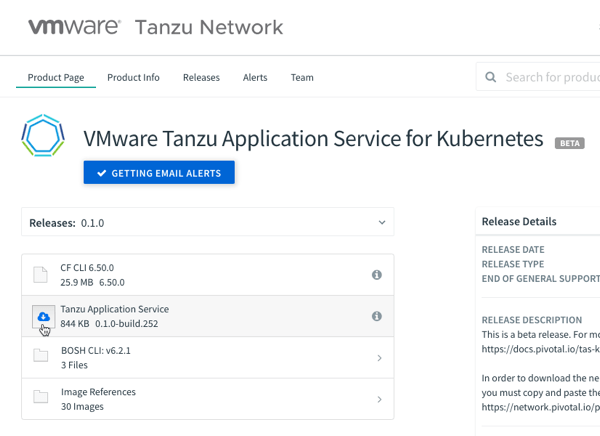
    This is quick and easy. Download the 844KB TAS for Kubernetes bundle from the Tanzu Network.

    I downloaded the archive to my desktop, unpacked it, and renamed the folder “tanzu-application-service.” Create a sibling folder named “configuration-values.”

    Now we’re going to create the configuration file. Run the following command in your console, which should be pointed at the tanzu-application-service directory. The first quoted value is the domain. For my local instance, this value is vcap.me. When running this in a “real” environment, this value is the DNS name associated with your cluster and ingress point. The output of this command is a new file in the configuration-values folder.

    ./bin/generate-values.sh -d "vcap.me" > ../configuration-values/deployment-values.yml

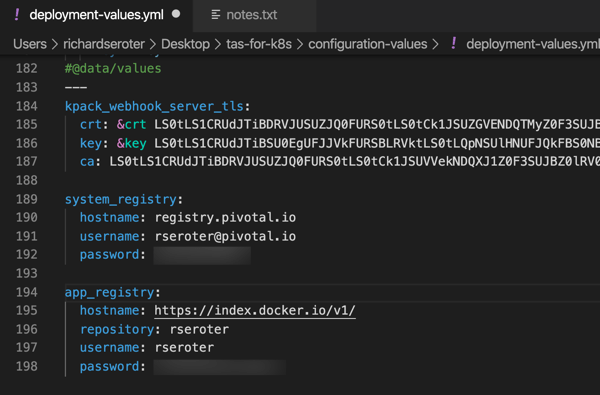
    After a couple of seconds, we have an impressive-looking YAML file with passwords, certificates, and all sorts of delightful things.

    We’re nearly done. Our TAS environment won’t just run containers; it will also use kpack and Cloud Native Buildpacks to generate secure container images from source code. That means we need a registry for stashing generated images. You can use most any one you want. I’m going to use Docker Hub. Thus, the final configuration values we need are appended to the above file. First, we need the credentials to the Tanzu Network for retrieving platform images, and secondly, credentials for container registry.

    With our credentials in hand, add them to the very bottom of the file. Indentation matters, this is YAML after all, so ensure you’ve got it lined up right.

    The last thing? There’s a file that instructs the installation to create a cluster IP ingress point versus a Kubernetes load balancer resource. For Minikube (and in public cloud Kubernetes-as-a-Service environments) I want the load balancer. So, within the tanzu-application-service folder, move the replace-loadbalancer-with-clusterip.yaml file from the custom-overlays folder to the config-optional folder.

    Finally, to be safe, I created a copy of this remove-resource-requirements.yml file and put it in the custom-overlays folder. It relaxes some of the resource expectations for the cluster. You may not need it, but I saw CPU exhaustion issues pop up when I didn’t use it.

    All finished. Let’s deploy this rascal.

    Step 3 – Deploy Stuff (10 minutes)

    Deploying TAS to Kubernetes takes 5-9 minutes. With your console pointed at the tanzu-application-service directory, run this command:

    ./bin/install-tas.sh ../configuration-values

    There’s a live read-out of progress, and you can also keep checking the Kubernetes environment to see the pods inflate. Tools like k9s make it easy to keep an eye on what’s happening. Notice the Istio components, and some familiar Cloud Foundry pieces. Observe that the entire Cloud Foundry control plane is containerized here—no VMs anywhere to be seen.

    While this is still installing, let’s open up the Minikube tunnel to expose the LoadBalancer service our ingress gateway needs. Do this in a separate console window, as its a blocking call. Note that the installation can’t complete until you do it!

    minikube tunnel

    After a few minutes, we’re ready to deploy workloads.

    Step 4 – Test Stuff (3 minutes)

    We now have a full-featured Tanzu Application Service up and running. Neat. Let’s try a few things. First, we need to point the Cloud Foundry CLI at our environment.

    cf api --skip-ssl-validation https://api.vcap.me

    Great. Next, we log in, using generated cf_admin_password from the deployment-values.yaml file.

    cf auth admin <password>

    After that, we’ll enable containers in the environment.

    cf enable-feature-flag diego_docker

    Finally, we set up a tenant. Cloud Foundry natively supports isolation between tenants. Here, I set up an organization, and within that organization, a “space.” Finally, I tell the Cloud Foundry CLI that we’re working with apps in that particular org and space.

    cf create-org seroter-org
    cf create-space -o seroter-org dev-space
    cf target -o seroter-org -s dev-space

    Let’s do something easy, first. Push a previously-containerized app. Here’s one from my Docker Hub, but it can be anything you want.

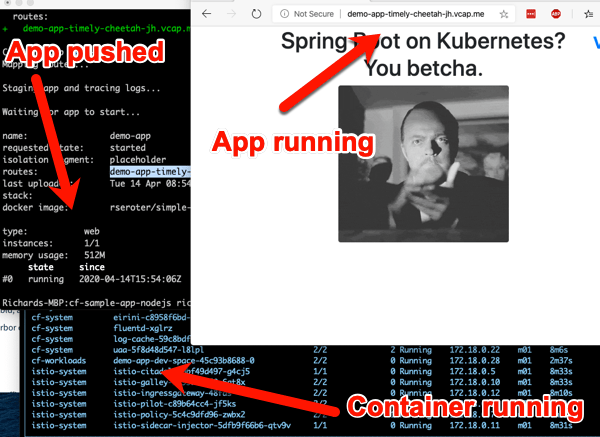
    cf push demo-app -o rseroter/simple-k8s-app-kpack

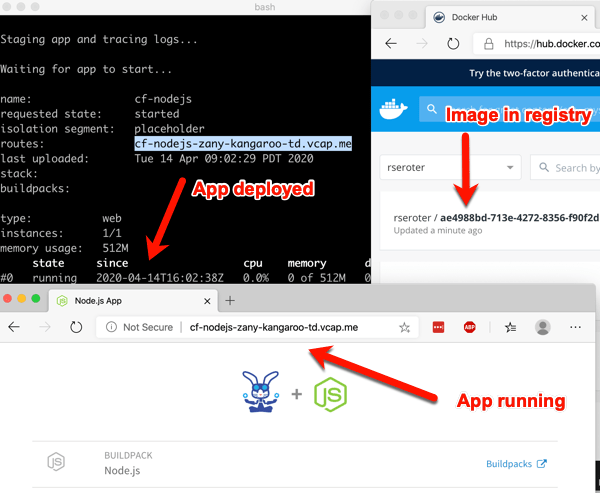
    After you enter that command, 15 seconds later you have a hosted, routable app. The URL is presented in the Cloud Foundry CLI.

    How about something more interesting? TAS for Kubernetes supports a variety of buildpacks. These buildpacks detect the language of your app, and then assemble a container image for you. Right now, the platform builds Java, .NET Core, Go, and Node.js apps. To make life simple, clone this sample Node app to your machine. Navigate your console to that folder, and simple enter cf push.

    After a minute or so, you end up with a container image in whatever registry you specified (for me, Docker Hub), and a running app.

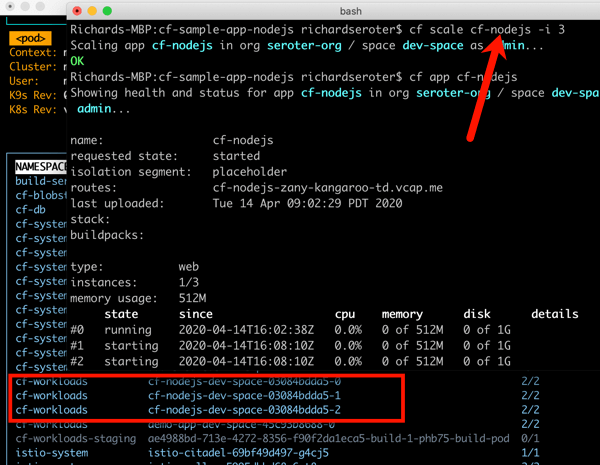
    This beta release of TAS for Kubernetes also supports commands around log streaming (e.g. cf logs cf-nodejs), connecting to backing services like databases, and more. And yes, even the simple, yet powerful, cf scale command works to expand and contract pod instances.

    It’s simple to uninstall the entire TAS environment from your Kubernetes cluster with a single command:

    kapp delete -a cf

    Thanks for trying this out with me! If you only read along, and want to try it yourself later, read the docs, download the bits, and let me know how it goes.

  • I’ve noticed three types of serverless compute platforms. Let’s deploy something to each.

    I’ve noticed three types of serverless compute platforms. Let’s deploy something to each.

    Are all serverless compute platforms—typically labeled Function-as-a-Service—the same? Sort of. They all offer scale-to-zero compute triggered by events and billed based on consumed resources. But I haven’t appreciated the nuances of these offerings, until now. Last week, Laurence Hecht did great work analyzing the latest CNCF survey data. It revealed which serverless (compute) offerings have the most usage. To be clear, this is about compute, not databases, API gateways, workflow services, queueing, or any other managed services.

    To me, the software in that list falls into one of three categories: connective compute, platform expanding, and full stack apps. Depending on what you want to accomplish, one may be better than the others. Let’s look at those three categories, see which platforms fall into each one, and see an example in action.

    Category 1: Connective Compute

    Trigger / DestinationSignaturePackagingDeployment
    Database, storage, message queue, API Gateway, CDN, Monitoring service Handlers with specific parametersZIP archive, containersWeb portal, CLI, CI/CD pipelines

    The best functions are small functions that fill the gaps between managed services. This category is filled with products like AWS Lambda, Microsoft Azure Functions, Google Cloud Functions, Alibaba Cloud Functions, and more. These functions are triggered when something happens in another managed service—think of database table changes, messages reaching a queue, specific log messages hitting the monitoring system, and files uploaded to storage. With this category of serveless compute, you stitch together managed services into apps, writing as little code as possible. Little-to-none of your existing codebase transfers over, as this caters to greenfield solutions based on a cloud-first approach.

    AWS Lambda is the grandaddy of them all, so let’s take a look at it.

    In my example, I want to read messages from a queue. Specifically, have an AWS Lambda function read from Amazon SQS. Sounds simple enough!

    You can write AWS Lambda functions in many ways. You can also deploy them in many ways. There are many frameworks that try to simplify the latter, as you would rarely deploy a single function as your “app.” Rather, a function is part of a broader collection of resources that make up your system. Those resources might be described via the AWS Serverless Application Model (SAM), where you can lay out all the functions, databases, APIs and more that should get deployed together. And you could use the AWS Serverless Application Repository to browse and deploy SAM templates created by you, or others. However you define it, you’ll deploy your function-based system via the AWS CLI, AWS console, AWS-provided CI/CD tooling, or 3rd party tools like CircleCI.

    For this simple demo, I’m going to build a C#-based function and deploy it via the AWS console.

    First up, I went to the AWS console and defined a new queue in SQS. I chose the “standard queue” type.

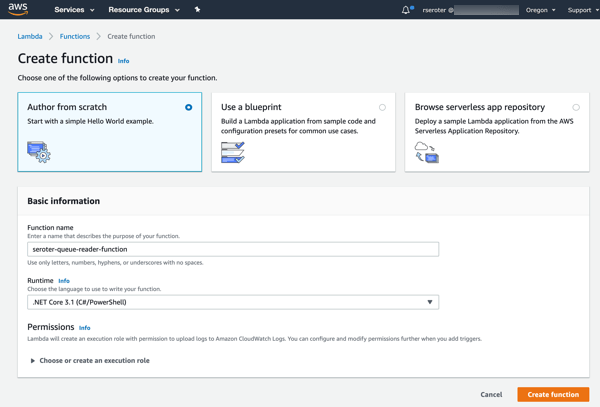
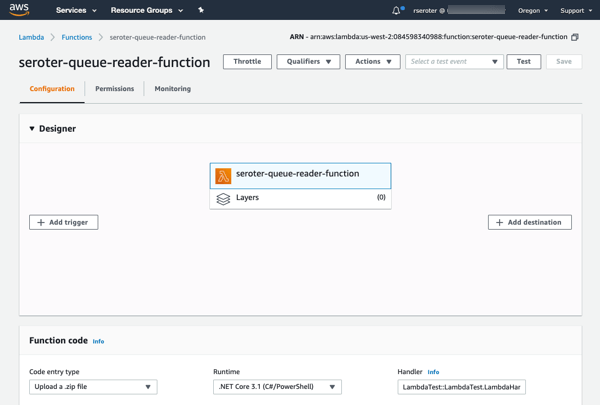
    Next up, creating a new AWS Lambda function. I gave it a name, chose .NET Core 3.1 as my runtime, and created a role with basic permissions.

    After clicking “create function”, I get a overview screen that shows the “design” of my function and provides many configuration settings.

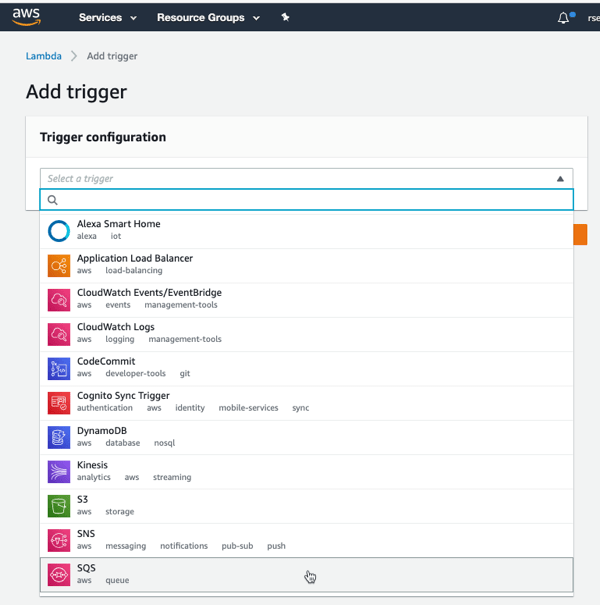
    I clicked “add trigger” to specify what event kicks off my function. I’ve got lots of options to choose from, which is the hallmark of a “connective compute” function platform. I chose SQS, selected my previously-created queue from the dropdown list, and clicked “Add.”

    Now all I have to do is the write the code that handles the queue message. I chose VS Code as my tool. At first, I tried using the AWS Toolkit for Visual Studio Code to generate a SAM-based project, but the only template was an API-based “hello world” one that forced me to retrofit a bunch of stuff after code generation. So, I decided to skip SAM for now, and code the AWS Lambda function directly, by itself.

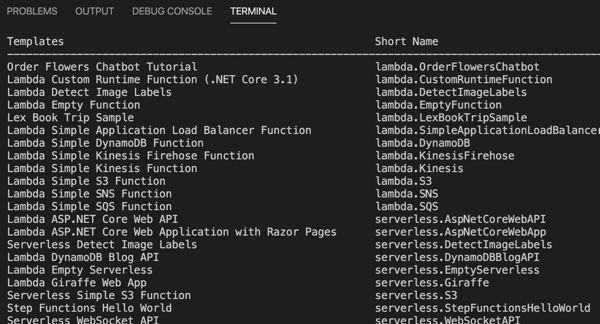
    The .NET team at AWS has done below-the-radar great work for years now, and their Lambda tooling is no exception. They offer a handful of handy templates you can use with the .NET CLI. One basic command installs them for you: dotnet new -i Amazon.Lambda.Templates

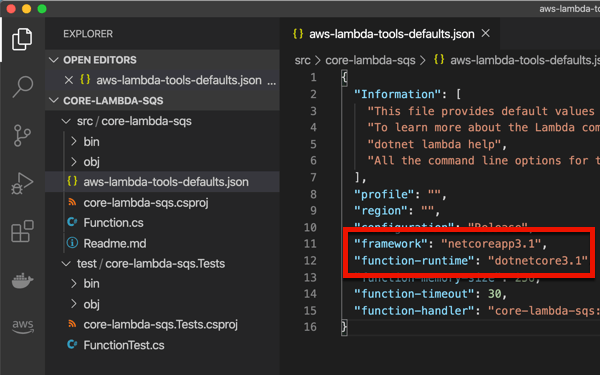
    I chose to create a new project by entering dotnet new lambda.sqs. This produced a pair of projects, one with the function source code, and one that has unit tests. The primary project also has a aws-lambda-tools-default.json file that includes command line options for deploying your function. I’m not sure if I need it given I’m deploying via CLI, but I updated references to .NET Core 3.1 anyway. Note that the “function-handler” value *is* important, as we’ll need that shortly. This tells Lambda which operation (in which class) to invoke.

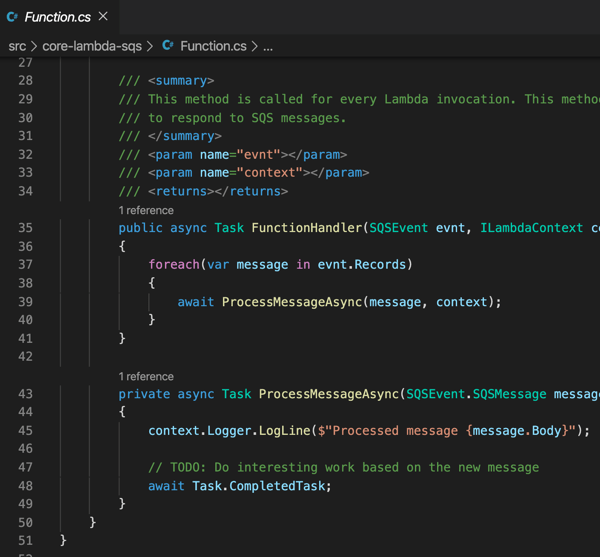
    I kept the generated function code, which simply prints out the contents of the message pulled from Amazon SQS.

    I successfully built the project, and then had to “publish” it to get the right assets for packaging. This publish command ensures that configuration files get bundled up as well:

    dotnet publish /p:GenerateRuntimeConfigurationFiles=true

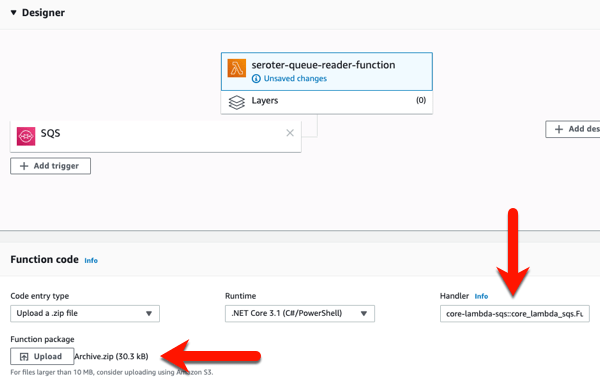
    Now, all I have to do is zip up the resulting files in the “publish” directory. With those DLLs and *.json files zipped up, I return to the AWS console to upload my code. In most cases, you’re going to stash the archive file in Amazon S3 (either manually, or as the result of a CI process). Here, I uploaded my ZIP file directly, AND, set the function handler value equal to the “function-handler” value from my configuration file.

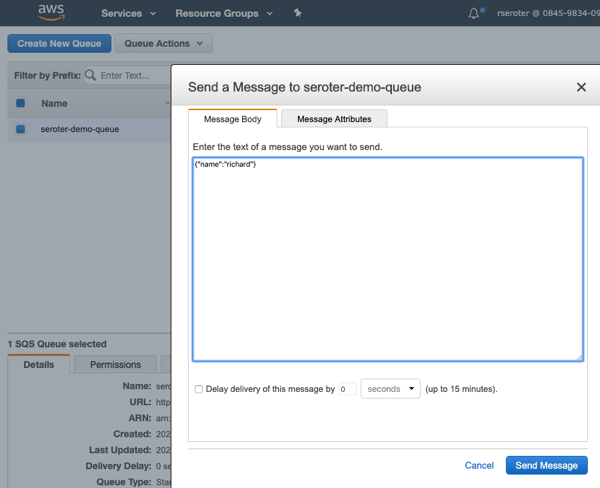
    After I click “save”, I get a notice that my function was updated. I went back to Amazon SQS, and sent a few messages to the queue, using the “send a message” option.

    After a moment, I saw entries in the “monitoring” view of the AWS Lambda console, and drilled into the CloudWatch logs and saw that my function wrote out the SQS payloads.

    I’m impressed at how far the AWS Lambda experience has come since I first tried it out. You’ll find similarly solid experiences from Microsoft, Google and others as you use their FaaS platforms as glue code to connect managed services.

    Category 2: Platform Expanding

    Trigger / DestinationSignaturePackagingDeployment
    HTTPHandlers with specific parameterscode packagesWeb portal, CLI

    There’s a category of FaaS that, to me, isn’t about connecting services together, as much as it’s about expanding or enriching the capabilities of a host platform. From the list above, I’d put offerings like Cloudflare Workers, Twilio Functions, and Zeit Serverless Functions into that bucket.

    Most, if not all, of these start with an HTTP request and only support specific programming languages. For Twilio, you can use their integrated FaaS to serve up tokens, call outbound APIs after receiving an SMS, or even change voice calls. Zeit is an impressive host for static sites, and their functions platform supports backend operations like authentication, form submissions, and more. And Cloudflare Workers is about adding cool functionality whenever someone sends a request to a Cloudfare-managed domain. Let’s actually mess around with Cloudflare Workers.

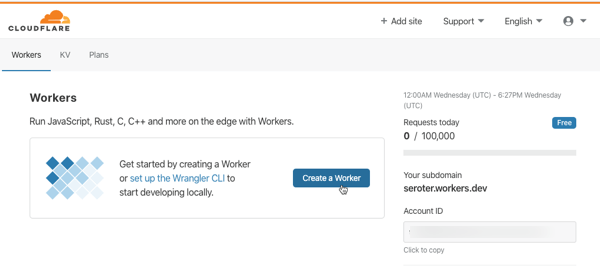
    I go to my (free) Cloudflare account to get started. You can create these running-at-the-edge functions entirely in the browser, or via the Wrangler CLI. Notice here that Workers support JavaScript, Rust, C, and C++.

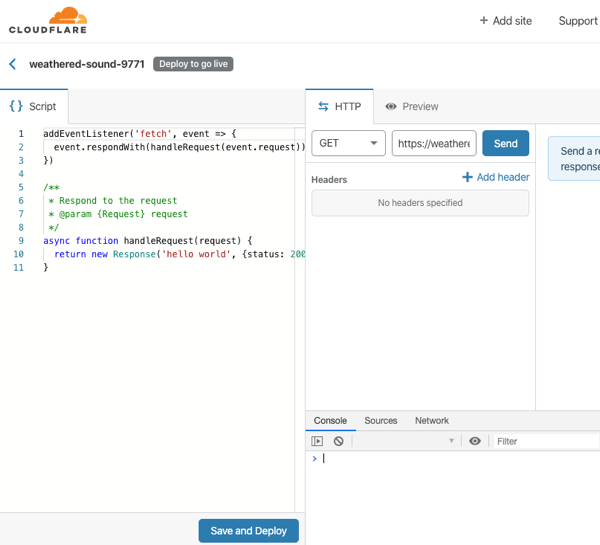
    After I click “create a Worker”, I’m immediately dropped into a web console where I can author, deploy, and test my function. And, I get some sample code that represents a fully-working Worker. All workers start by responding to a “fetch” event.

    I don’t think you’d use this to create generic APIs or standalone apps. No, you’d use this to make the Cloudflare experience better. They handily have a whole catalog of templates to inspire you, or do your work for you. Most of these show examples of legit Cloudflare use cases: inspect and purge sensitive data from responses, deny requests missing an authorization header, do A/B testing based on cookies, and more. I copied the code from the “redirect” template which redirects requests to a different URL. I changed a couple things, clicked “save and deploy” and called my function.

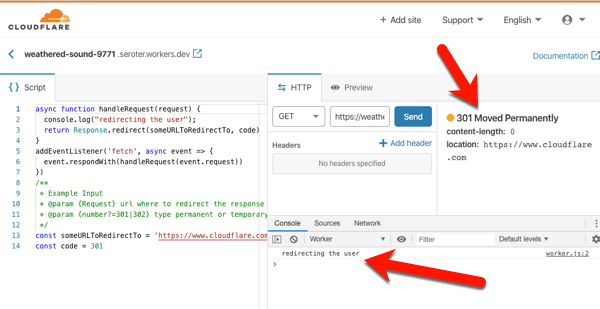
    On the left is my code. In the middle is the testing console, where I submitted a GET request, and got back a “301 Moved Permanently” HTTP response. I also see a log entry from my code. If you call my function in your browser, you’ll get redirected to cloudflare.com.

    That was super simple. The serverless compute products in this category have a constrained set of functionality, but I think that’s on purpose. They’re meant to expand the set of problems you can solve with their platform, versus creating standalone apps or services.

    Category 3: Full Stack Apps

    Trigger / DestinationSignaturePackagingDeployment
    HTTP, queue, timeNoneContainersWeb portal, CLI, CI/CD pipelines

    This category—which I can’t quite figure out the right label for—is about serverless computing for complete web apps. These aren’t functions, per-se, but run on a serverless stack that scales to zero and is billed based on usage. The unit of deployment is a container, which means you are providing more than code to the platform—you are also supplying a web server. This can make serverless purists squeamish since a key value prop of FaaS is the outsourcing of the server to the platform, and only focusing on your code. I get that. The downside of that pure FaaS model is that it’s an unforgiving host for any existing apps.

    What fits in this category? The only obvious one to me is Google Cloud Run, but AWS Fargate kinda fits here too. Google Cloud Run is based on the popular open source Knative project, and runs as a managed service in Google Cloud. Let’s try it out.

    First, install the Google Cloud SDK to get the gcloud command line tool. Once the CLI gets installed, you do a gcloud init in order to link up your Google Cloud credentials, and set some base properties.

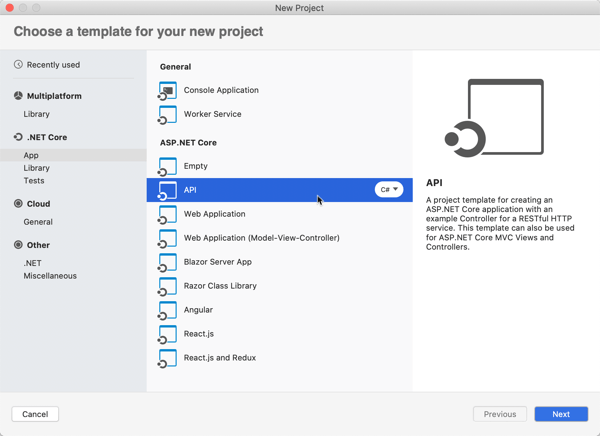
    Now, to build the app. What’s interesting here, is this is just an app. There’s no special format or method signature. The app just has to accept HTTP requests. You can write the app in any language, use any base image, and end up with a container of any size. The app should still follow some basic cloud-native patterns around fast startup and attached storage. This means—and Google promotes this—that you can migrate existing apps fairly easily. For my example, I’ll use Visual Studio for Mac to build a new ASP.NET Web API project with a couple RESTful endpoints.

    The default project generates a weather-related controller, so let’s stick with that. To show that Google Cloud Run handles more than one endpoint, I’m adding a second method. This one returns a forecast for Seattle, which has been wet and cold for months.

    namespace seroter_api_gcr.Controllers
    {
        [ApiController]
        [Route("[controller]")]
        public class WeatherForecastController : ControllerBase
        {
            private static readonly string[] Summaries = new[]
            {
                "Freezing", "Bracing", "Chilly", "Cool", "Mild", "Warm", "Balmy", "Hot", "Sweltering", "Scorching"
            };
    
            private readonly ILogger<WeatherForecastController> _logger;
    
            public WeatherForecastController(ILogger<WeatherForecastController> logger)
            {
                _logger = logger;
            }
    
            [HttpGet]
            public IEnumerable<WeatherForecast> Get()
            {
                var rng = new Random();
                return Enumerable.Range(1, 5).Select(index => new WeatherForecast
                {
                    Date = DateTime.Now.AddDays(index),
                    TemperatureC = rng.Next(-20, 55),
                    Summary = Summaries[rng.Next(Summaries.Length)]
                })
                .ToArray();
            }
    
            [HttpGet("seattle")]
            public WeatherForecast GetSeattleWeather()
            {
                return new WeatherForecast { Date = DateTime.Now, Summary = "Chilly", TemperatureC = 6 };
            }
        }
    }
    

    If I were doing this the right way, I’d also change my Program.cs file and read the port from a provided environment variable, as Google suggests. I’m NOT going to do that, and instead will act like I’m just shoveling an existing, unchanged API into the service.

    The app is complete and works fine when running locally. To work with Google Cloud Run, my app must be containerized. You can do this a variety of ways, including the most reasonable, which involves Google Cloud Build and continuous delivery. I don’t roll like that. WE’RE DOING IT BY HAND.

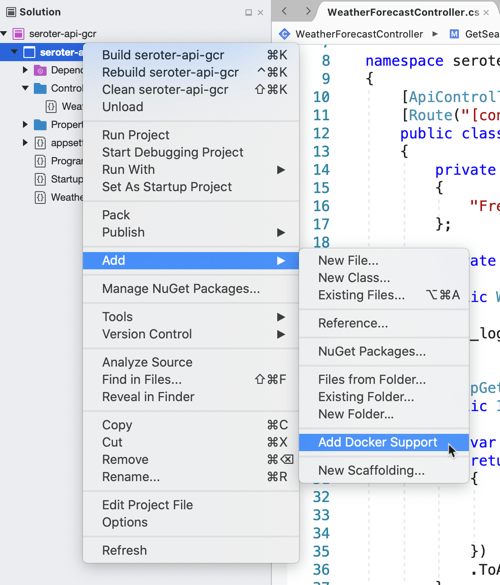
    I will cheat and have Visual Studio give me a valid Dockerfile. Right-click the project, and add Docker support. This creates a Docker Compose project, and throws a Dockerfile into my original project.

    Let’s make one small tweak. In the Dockerfile, I’m exposing port 5000 from my container, and setting an environment variable to tell my app to listen on that port.

    I opened my CLI, and navigated to the folder directly above this project. From there, I executed a Docker build command that pointed to the generated Dockerfile, and tagged the image for Google Container Registry (where Google Cloud Run looks for images).

    docker build --file ./seroter-api-gcr/Dockerfile . --tag gcr.io/seroter/seroter-api-gcr

    That finished, and I had a container image in my local registry. I need to get it up to Google Container Registry, so I ran a Docker push command.

    docker push gcr.io/seroter/seroter-api-gcr

    After a moment, I see that container in the Google Container Registry.

    Neat. All that’s left is to spin up Google Cloud Run. From the Google Cloud portal, I choose to create a new Google Cloud Run service. I choose a region and name for my service.

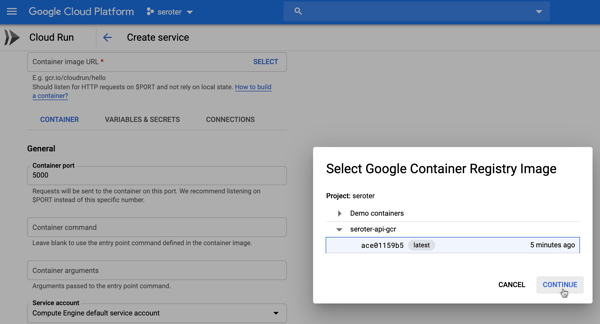
    Next up, I chose the container image to use, and set the container port to 5000. There are lots of other settings here too. I can create a connection to managed services like Cloud SQL, choose max requests per container, set the request timeout, specify the max number of container instances, and more.

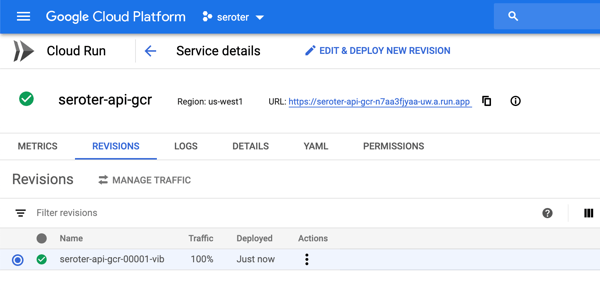
    After creating the service, I only need to wait a few seconds before my app is reachable.

    As expected, I can ping both API endpoints and get back a result. After a short duration, the service spins compute down to zero.

    Wrap up

    The landscape of serverless computing is broader than you may think. Depending on what you’re trying to do, it’s possible to make a sub-optimal choice. If you’re working with many different managed services and writing code to connect them, use the first category. If you’re enriching existing platforms with bits of compute functionality, use the second category. And if you’re migrating or modernizing existing apps, or have workloads that demand more platform flexibility, choose the third. Comments? Violent disagreement? Tell me below.

  • Fronting web sites, a classic .NET app, and a serverless function with Spring Cloud Gateway

    Fronting web sites, a classic .NET app, and a serverless function with Spring Cloud Gateway

    Automating deployment of custom code and infrastructure? Not always easy, but feels like a solved problem. It gets trickier when you want to use automation to instantiate and continuously update databases and middleware. Why? This type of software stores state which makes upgrades more sensitive. You also may be purchasing this type of software from vendors who haven’t provided a full set of automation-friendly APIs. Let’s zero in on one type of middleware: API gateways.

    API gateways do lots of things. They selectively expose private services to wider audiences. With routing rules, they make it possible to move clients between versions of a service without them noticing. They protect downstream services by offering capabilities like rate limiting and caching. And they offer a viable way for those with a microservices architecture to secure services without requiring each service to do their own authentication. Historically, your API gateway was a monolith of its own. But a new crop of automation-friendly OSS (and cloud-hosted) options are available, and this gives you new ways to deploy many API gateway instances that get continuously updated.

    I’ve been playing around with Spring Cloud Gateway, which despite its name, can proxy traffic to a lot more than just Spring Boot applications. In fact, I wanted to try and create a configuration-only-no-code API Gateway that could do three things:

    1. Weighted routing between “regular’ web pages on the internet.
    2. Add headers to a JavaScript function running in Microsoft Azure.
    3. Performing rate-limiting on a classic ASP.NET Web Service running on the Pivotal Platform.

    Before starting, let me back up and briefly explain what Spring Cloud Gateway is. Basically, it’s a project that turns a Spring Boot app into an API gateway that routes requests while applying cross-cutting functionality for things like security. Requests come in, and if the request matches a declared route, the request is passed through a series of filters, sent to the target endpoint, and “post” filters get applied on the way back to the client. Spring Cloud Gateway built on a Reactive base, which means it’s non-blocking and efficiently handles many simultaneous requests.

    The biggest takeaway? This is just an app. You can write tests and do continuous integration. You can put it on a pipeline and continuously deliver your API gateway. That’s awesome.

    Note that you can easily follow along with the steps below without ANY Java knowledge! Everything I’m doing using configuration you can also do with the Java DSL, but I wanted to prove how straightforward the configuration-only option is.

    Creating the Spring Cloud Gateway project

    This is the first, and easiest, part of this demonstration. I went to start.spring.io, and generated a new Spring Boot project. This project has dependencies on Gateway (to turn this into an API gateway), Spring Data Reactive Redis (for storing rate limiting info), and Spring Boot Actuator (so we get “free” metrics and insight into the gateway). Click this link to generate an identical project.

    Doing weighed routing between web pages

    For the first demonstration, I wanted to send traffic to either spring.io or pivotal.io/spring-app-framework. You might use weighted routing to do A/B testing with different versions of your site, or even to send a subset of traffic to a new API.

    I added an application.yml file (to replace the default application.properties file) to hold all my configuration settings. Here’s the configuration, and we’ll go through it bit by bit.

    spring:
      cloud:
        gateway:
          routes:
          # doing weighted routing between two sites
          - id: test1
            uri: https://www.pivotal.io
            predicates:
            - Path=/spring
            - Weight=group1, 3
            filters:
            - SetPath=/spring-app-framework
          - id: test2
            uri: https://www.spring.io
            predicates:
            - Path=/spring
            - Weight=group1, 7
            filters:
            - SetPath=/
    

    Each “route” is represented by a section in the YAML configuration. A route has a URI (which represents the downstream host), and a route predicate that indicates the path on the gateway you’re invoking. For example, in this case, my path is “/spring” which means that sending a request to “localhost:8080/spring” would map to this route configuration.

    Now, you’ll see I have two routes with the same path. These are part of the same weighted routing group, which means that traffic to /spring will go to one of the two downstream endpoints. The second endpoint is heavily weighted (7 vs 3), so most traffic goes there. Also see that I applied one filter to clear out the path. If I didn’t do this, then requests to localhost:8080/spring would result in a call to spring.io/spring, as the path (and querystring) is forwarded. Instead, I stripped that off for requests to spring.io, and added the secondary path into the pivotal.io endpoint.

    I’ve got Java and Maven installed locally, so a simple command (mvn spring-boot:run) starts up my Spring Cloud Gateway. Note that so far, I’ve written exactly zero code. Thanks to Spring Boot autoconfiguration and dependency management, all the right packages exist and runtime objects get inflated. Score!

    Once, the Spring Cloud Gateway was up and running, I pinged the Gateway’s endpoint in the browser. Note that some browser’s try to be helpful by caching things, which screws up a weighted routing demo! I opened the Chrome DevTools and disabled request caching before running a test.

    That worked great. Our gateway serves up a single endpoint, but through basic configuration, I can direct a subset of traffic somewhere else.

    Adding headers to serverless function calls

    Next, I wanted to stick my gateway in front of some serverless functions running in Azure Functions. You could imagine having a legacy system that you were slowly strangling and replacing with managed services, and leveraging Spring Cloud Gateway to intercept calls and redirect to the new destination.

    For this example, I built a dead-simple JavaScript function that’s triggered via HTTP call. I added a line of code that prints out all the request headers before sending a response to the caller.

    The Spring Cloud Gateway configuration is fairly simple. Let’s walk through it.

    spring:
      cloud:
        gateway:
          routes:
          # doing weighted routing between two sites
          - id: test1
            ...
          # adding a header to an Azure Function request
          - id: test3
            uri: https://seroter-function-app.azurewebsites.net
            predicates:
            - Path=/function
            filters:
            - SetPath=/api/HttpTrigger1
            - SetRequestHeader=X-Request-Seroter, Pivotal
    

    Like before, I set the URI to the target host, and set a gateway path. On the pre-filters, I reset the path (removing the /function and replacing with the “real” path to the Azure Function) and added a new request header.

    I started up the Spring Cloud Gateway project and sent in a request via Postman. My function expects a “name” value, which I provided as a query parameter.

    I jumped back to the Azure Portal and checked the logs associated with my Azure Function. Sure enough, I see all the HTTP request headers, including the random one that I added via the gateway. You could imagine this type of functionality helping if you have modern endpoints and legacy clients and need to translate between them!

    Applying rate limiting to an ASP.NET Web Service

    You know what types of apps can benefit from an API Gateway? Legacy apps that weren’t designed for high load or modern clients. One example is rate limiting. Your legacy service may not be able to handle internet-scale requests, or have a dependency on a downstream system that isn’t mean to get pummeled with traffic. You can apply request caching and rate limiting to prevent clients from burying the legacy app.

    First off, I built a classic ASP.NET Web Service. I hoped to never use SOAP again, but I’m dedicated to my craft.

    I did a “cf push” to my Pivotal Application Service environment and deployed two instances of the app to a Windows environment. In a few seconds, I had a publicly-accessible endpoint.

    Then it was back to my Gateway configuration. To do rate limiting, you need a way to identify callers. You know, some way to say that client X has exceeded their limit. Out of the box, there’s a rate limiter that uses Redis to store information about clients. That means I need a Redis instance. The simplest answer is “Docker”, so I ran a simple command to get Redis running locally (docker run --name my-redis -d -p 6379:6379 redis).

    I also needed a way to identify the caller. Here, I finally had to write some code. Specifically, this rate limiter filter expects a “key resolver.” I don’t see a way to declare one via configuration, so I opened the .java file in my project and added a Bean declaration that pulls a query parameter named “user.” That’s not enterprise ready (as you’d probably pull source IP, or something from a header), but this’ll do.

    @SpringBootApplication
    public class CloudGatewayDemo1Application {
    
      public static void main(String[] args) {	 
       SpringApplication.run(CloudGatewayDemo1Application.class, args);
      }
    	
      @Bean
      KeyResolver userKeyResolver() {
        return exchange -> 
       Mono.just(exchange.getRequest().getQueryParams().getFirst("user"));
      }
    }
    

    All that was left was my configuration. Besides adding rate limiting, I also wanted to to shield the caller from setting all those gnarly SOAP-related headings, so I added filters for that too.

    spring:
      cloud:
        gateway:
          routes:
          # doing weighted routing between two sites
          - id: test1
            ...
            
          # adding a header to an Azure Function request
          - id: test3
            ...
            
          # introducing rate limiting for ASP.NET Web Service
          - id: test4
            uri: https://aspnet-web-service.apps.pcfone.io
            predicates:
            - Path=/dotnet
            filters:
            - name: RequestRateLimiter
              args:
                key-resolver: "#{@userKeyResolver}"
                redis-rate-limiter.replenishRate: 1
                redis-rate-limiter.burstCapacity: 1
            - SetPath=/MyService.asmx
            - SetRequestHeader=SOAPAction, http://pivotal.io/SayHi
            - SetRequestHeader=Content-Type, text/xml
            - SetRequestHeader=Accept, text/xml
    

    Here, I set the replenish rate, which is how many request per second per user, and burst capacity, which is the max number of requests in a single second. And I set the key resolver to that custom bean that reads the “user” querystring parameter. Finally, notice the three request headers.

    I once again started up the Spring Cloud Gateway, and send a SOAP payload (no extra headers) to the localhost:8080/dotnet endpoint.

    A single call returned the expected response. If I rapidly submitted requests in, I saw an HTTP 429 response.

    So almost zero code to do some fairly sophisticated things with my gateway. None of those things involved a Java microservice, although obviously, Spring Cloud Gateway does some very nice things for Spring Boot apps.

    I like this trend of microservices-machinery-as-code where I can test and deploy middleware the same way I do custom apps. The more things we can reliably deliver via automation, the more bottlenecks we can remove.

  • Building an Azure-powered Concourse pipeline for Kubernetes  – Part 3: Deploying containers to Kubernetes

    Building an Azure-powered Concourse pipeline for Kubernetes – Part 3: Deploying containers to Kubernetes

    So far in this blog series, we’ve set up our local machine and cloud environment, and built the initial portion of a continuous delivery pipeline. That pipeline, built using the popular OSS tool Concourse, pulls source code from GitHub, generates a Docker image that’s stored in Azure Container Registry, and produces a tarball that’s stashed in Azure Blob Storage. What’s left? Deploying our container image to Azure Kubernetes Service (AKS). Let’s go.

    Generating AKS credentials

    Back in blog post one, we set up a basic AKS cluster. For Concourse to talk to AKS, we need credentials!

    From within the Azure Portal, I started up an instance of the Cloud Shell. This is a hosted Bash environment with lots of pre-loaded tools. From here, I used the AKS CLI to get the administrator credentials for my cluster.

    az aks get-credentials --name seroter-k8s-cluster --resource-group demos --admin

    This command generated a configuration file with URLs, users, certificates, and tokens.

    I copied this file locally for use later in my pipeline.

    Creating a role-binding for permission to deploy

    The administrative user doesn’t automatically have rights to do much in the default cluster namespace. Without explicitly allowing permissions, you’ll get some gnarly “does not have access” errors when doing most anything. Enter role-based access controls. I created a new rolebinding named “admin” with admin rights in the cluster, and mapped to the existing clusterAdmin user.

    kubectl create rolebinding admin --clusterrole=admin --user=clusterAdmin --namespace=default

    Now I knew that Concourse could effectively interact with my Kubernetes cluster.

    Giving AKS access to Azure Container Registry

    Right now, Azure Container Registry (ACR) doesn’t support an anonymous access strategy. Everything happens via authenticated users. The Kubernetes cluster needs access to its container registry, so I followed these instructions to connect ACR to AKS. Pretty easy!

    Creating Kubernetes deployment and service definitions

    Concourse is going to apply a Kubernetes deployment to create pods of containers in the cluster. Then, Concourse will apply a Kubernetes service to expose my pod with a routable endpoint.

    I created a pair of configurations and added them to the ci folder of my source code.

    The deployment looks like:

    apiVersion: extensions/v1beta1
     kind: Deployment
     metadata:
       name: demo-app
       namespace: default
       labels:
         app: demo-app
     spec:
       replicas: 1
       template:
         metadata:
           labels:
             app: demo-app
         spec:
           containers:
           - name: demo-app
             image: myrepository.azurecr.io/seroter-api-k8s:latest
             imagePullPolicy: Always
             ports:
             - containerPort: 8080
           restartPolicy: Always 
    

    This is a pretty basic deployment definition. It points to the latest image in the ACR and deploys a single instance (replicas: 1).

    My service is also fairly simple, and AKS will provision the necessary Azure Load Balancer and public IP addresses.

     apiVersion: v1
     kind: Service
     metadata:
       name: demo-app
       namespace: default
       labels:
         app: demo-app
     spec:
       selector:
         app: demo-app
       type: LoadBalancer
       ports:
         - name: web
           protocol: TCP
           port: 80
           targetPort: 80 
    

    I now had all the artifacts necessary to finish up the Concourse pipeline.

    Adding Kubernetes resource definitions to the Concourse pipeline

    First, I added a new resource type to the Concourse pipeline. Because Kubernetes isn’t a baked-in resource type, we need to pull in a community definition. No problem. This one’s pretty popular. It’s important than the Kubernetes client and server are expecting the same Kubernetes version, so I set the tag to match my AKS version.

    resource_types:
    - name: kubernetes
      type: docker-image
      source:
        repository: zlabjp/kubernetes-resource
        tag: "1.13"
    

    Next, I had to declare my resource itself. It has references to the credentials we generated earlier.

    resources:
    - name: azure-kubernetes-service
      type: kubernetes
      icon: azure
      source:
        server: ((k8s-server))
        namespace: default
        token: ((k8s-token))
        certificate_authority: |
          -----BEGIN CERTIFICATE-----
          [...]
          -----END CERTIFICATE-----
    

    There are a few key things to note here. First, the “server” refers to the cluster DNS server name in the credentials file. The “token” refers to the token associated with the clusterAdmin user. For me, it’s the last “user” called out in the credentials file. Finally, let’s talk about the certificate authority. This value comes from the “certificate-authority-data” entry associated with the cluster DNS server. HOWEVER, this value is base64 encoded, and I needed a decoded value. So, I decoded it, and embedded it as you see above.

    The last part of the pipeline? The job!

    jobs:
    - name: run-unit-tests
      [...]
    - name: containerize-app
      [...]
    - name: package-app
      [...]
    - name: deploy-app
      plan:
      - get: azure-container-registry
        trigger: true
        passed:
        - containerize-app
      - get: source-code
      - get: version
      - put: azure-kubernetes-service
        params:
          kubectl: apply -f ./source-code/seroter-api-k8s/ci/deployment.yaml -f ./source-code/seroter-api-k8s/ci/service.yaml
      - put: azure-kubernetes-service
        params:
          kubectl: |
            patch deployment demo-app -p '{"spec":{"template":{"spec":{"containers":[{"name":"demo-app","image":"myrepository.azurecr.io/seroter-api-k8s:'$(cat version/version)'"}]}}}}' 
    

    Let’s unpack this. First, I “get” the Azure Container Registry resource. When it changes (because it gets a new version of the container), it triggers this job. It only fires if the “containerize app” job passes first. Then I get the source code (so that I can grab the deployment.yaml and service.yaml files I put in the ci folder), and I get the semantic version.

    Next I “put” to the AKS resource, twice. In essence, this resource executes kubectl commands. The first command does a kubectl apply for both the deployment and service. On the first run, it provisions the pod and exposes it via a service. However, because the container image tag in the deployment file is to “latest”, Kubernetes actually won’t retrieve new images with that tag after I apply a deployment. So, I “patched” the deployment in a second “put” step and set the deployment’s image tag to the semantic version. This triggers a pod refresh!

    Deploy and run the Concourse pipeline

    I deployed the pipeline as a new revision with this command:

    fly -t rs set-pipeline -c azure-k8s-final.yml -p azure-k8s-final

    I unpaused the pipeline and watched it start up. It quickly reached and completed the “deploy to AKS” stage.

    But did it actually work? I jumped back into the Azure Cloud Shell to check it out. First, I ran a kubectl get pods command. Then, a kubectl get services command. The first showed our running pod, and the second showed the external IP assigned to my pod.

    I also issued a request to that URL in the browser, and got back my ASP.NET Core API results.

    Also to prove that my “patch” command worked, I ran the kubectl get deployment demo-app –output=yaml command to see which container image my deployment referenced. As you can see below, it no longer references “latest” but rather, a semantic version number.

    With all of these settings, I now have a pipeline that “just works” whenever I updated my ASP.NET Core source code. It tests the code, packages it up, and deploys it to AKS in seconds. I’ve added all the pipelines we created here to GitHub so that you can easily try this all out.

    Whatever CI/CD tool you use, invest in automating your path to production.

  • Building an Azure-powered Concourse pipeline for Kubernetes  – Part 2: Packaging and containerizing code

    Building an Azure-powered Concourse pipeline for Kubernetes – Part 2: Packaging and containerizing code

    Let’s continuously deliver an ASP.NET Core app to Kubernetes using Concourse. In part one of this blog series, I showed you how to set up your environment to follow along with me. It’s easy; just set up Azure Container Registry, Azure Storage, Azure Kubernetes Service, and Concourse. In this post, we’ll start our pipeline by pulling source code, running unit tests, generating a container image that’s stored in Azure Container Registry, and generating a tarball for Azure Blob Storage.

    We’re building this pipeline with Concourse. Concourse has three core primitives: tasks, jobs, and resources. Tasks form jobs, jobs form pipelines, and state is stored in resources. Concourse is essentially stateless, meaning there are no artifacts on the server after a build. You also don’t register any plugins or extensions. Rather, the pipeline is executed in containers that go away after the pipeline finishes. Any state — be it source code or Docker images — resides in durable resources, not Concourse itself.

    Let’s start building a pipeline.

    Pulling source code

    A Concourse pipeline is defined in YAML. Concourse ships with a handful of “known” resource types including Amazon S3, git, and Cloud Foundry. There are dozens and dozens of community ones, and it’s not hard to build your own. Because my source code is stored in GitHub, I can use the out-of-the-box resource type for git.

    At the top of my pipeline, I declared that resource.

    ---
    resources:
    - name: source-code
      type: git
      icon: github-circle
      source:
        uri: https://github.com/rseroter/seroter-api-k8s
        branch: master
    

    I’ve gave the resource a name (“source-code”) and identified where the code lives. That’s it! Note that when you deploy a pipeline, Concourse produces containers that “check” resources on a schedule for any changes that should trigger a pipeline.

    Running unit tests

    Next up? Build a working version of a pipeline that does something. Specifically, it should execute unit tests. That means we need to define a job.

    A job has a build plan. That build plan contains any of three things: get steps (to retrieve a resource), put steps (to push something to a resource), and task steps (to run a script). Our job below has one get step (to retrieve source code), and one task (to execute the xUnit tests).

    jobs:
    - name: run-unit-tests
      plan:
      - get: source-code
        trigger: true
      - task: first-task
        config: 
          platform: linux
          image_resource:
            type: docker-image
            source: {repository: mcr.microsoft.com/dotnet/core/sdk}
          inputs:
          - name: source-code
          run:
              path: sh
              args:
              - -exec
              - |
                dotnet test ./source-code/seroter-api-k8s/seroter-api-k8s.csproj 
    

    Let’s break it down. First, my “plan” gets the source-code resource. And because I set “trigger: true” Concourse will kick off this job whenever it detects a change in the source code.

    Next, my build plan has a “task” step. Tasks run in containers, so you need to choose a base image that runs the user-defined script. I chose the Microsoft-provided .NET Core image so that I’d be confident it had all the necessary .NET tooling installed. Note that my task has an “input.” Since tasks are like functions, they have inputs and outputs. Anything I input into the task is mounted into the container and is available to any scripts. So, by making the source-code an input, my shell script can party on the source code retrieved by Concourse.

    Finally, I embedded a short script that invokes the “dotnet test” command. If I were being responsible, I’d refactor this embedded script into an external file and reference that file. But hey, this is easier to read.

    This is now a valid pipeline. In the previous post, I had you install the fly CLI to interact with Concourse. From the fly CLI, I deploy pipelines with the following command:

    fly -t rs set-pipeline -c azure-k8s-rev1.yml -p azure-k8s-rev1

    That command says to use the “rs” target (which points to a given Concourse instance), use the YAML file holding the pipeline, and name this pipeline azure-k8s-rev1. It deployed instantly, and looked like this in the Concourse web dashboard.

    After unpausing the pipeline so that it came alive, I saw the “run unit tests” job start running. It’s easy to view what a job is doing, and I saw that it loaded the container image from Microsoft, mounted the source code, ran my script and turned “green” because all my tests passed.

    Nice! I had a working pipeline. Now to generate a container image.

    Producing and publishing a container image

    A pipeline that just run tests is kinda weird. I need to do something when tests pass. In my case, I wanted to generate a Docker image. Another of the built-in Concourse resource types is “docker-image” which generates a container image and puts it into a registry. Here’s the resource definition that worked with Azure Container Registry:

    resources:
    - name: source-code
      [...]
    - name: azure-container-registry
      type: docker-image
      icon: docker
      source:
        repository: myrepository.azurecr.io/seroter-api-k8s
        tag: latest
        username: ((azure-registry-username))
        password: ((azure-registry-password))
    

    Where do you get those Azure Container Registry values? From the Azure Portal, they’re visible under “Access keys.” I grabbed the Username and one of the passwords.

    Next, I added a new job to the pipeline.

    jobs:
    - name: run-unit-tests
      [...]
    - name: containerize-app
      plan:
      - get: source-code
        trigger: true
        passed:
        - run-unit-tests
      - put: azure-container-registry
        params:
          build: ./source-code
          tag_as_latest: true
    

    What’s this job doing? Notice that I “get” the source code again. I also set a “passed” attribute meaning this will only run if the unit test step completes successfully. This is how you start chaining jobs together into a pipeline! Then I “put” into the registry. Recall from the first blog post that I generated a Dockerfile from within Visual Studio for Mac, and here, I point to it. The resource does a “docker build” with that Dockerfile, tags the resulting image as the “latest” one, and pushes to the registry.

    I pushed this as a new pipeline to Concourse:

    fly -t rs set-pipeline -c azure-k8s-rev2.yml -p azure-k8s-rev2

    I now had something that looked like a pipeline.

    I manually triggered the “run unit tests” job, and after it completed, the “containerize app” job ran. When that was finished, I checked Azure Container Registry and saw a new repository one with image in it.

    Generating and storing a tarball

    Not every platform wants to run containers. BLASPHEMY! BURN THE HERETIC! Calm down. Some platforms happily take your source code and run it. So our pipeline should also generate a single artifact with all the published ASP.NET Core files.

    I wanted to store this blob in Azure Storage. Since Azure Storage isn’t a built-in Concourse resource type, I needed to reference a community one. No problem finding one. For non-core resources, you have to declare the resource type in the pipeline YAML.

    resource_types:
    - name: azure-blobstore
      type: docker-image
      source:
        repository: pcfabr/azure-blobstore-resource
    

    A resource type declaration is fairly simple; it’s just a type (often docker-image) and then the repo to get it from.

    Next, I needed the standard resource definition. Here’s the one I created for Azure Storage:

    name: azure-blobstore
      type: azure-blobstore
      icon: azure
      source:
        storage_account_name: ((azure-storage-account-name))
        storage_account_key: ((azure-storage-account-key))
        container: coreapp
        versioned_file: app.tar.gz
    

    Here the “type” matches the resource type name I set earlier. Then I set the credentials (retrieved from the “Access keys” section in the Azure Portal), container name (pre-created in the first blog post), and the name of the file to upload. Regex is supported here too.

    Finally, I added a new job that takes source code, runs a “publish” command, and creates a tarball from the result.

    jobs:
    - name: run-unit-tests
      [...]
    - name: containerize-app
      [...]
    - name: package-app
      plan:
      - get: source-code
        trigger: true
        passed:
        - run-unit-tests
      - task: first-task
        config:
          platform: linux
          image_resource:
            type: docker-image
            source: {repository: mcr.microsoft.com/dotnet/core/sdk}
          inputs:
          - name: source-code
          outputs:
          - name: compiled-app
          - name: artifact-repo
          run:
              path: sh
              args:
              - -exec
              - |
                dotnet publish ./source-code/seroter-api-k8s/seroter-api-k8s.csproj -o .././compiled-app
                tar -czvf ./artifact-repo/app.tar.gz ./compiled-app
                ls
      - put: azure-blobstore
        params:
          file: artifact-repo/app.tar.gz
    

    Note that this job is also triggered when unit tests succeed. But it’s not connected to the containerization job, so it runs in parallel. Also note that in addition to an input, I also have outputs defined on the task. This generates folders that are visible to subsequent steps in the job. I dropped the tarball into the “artifact-repo” folder, and then “put” that file into Azure Blob Storage.

    I deployed this pipeline as yet another revision:

    fly -t rs set-pipeline -c azure-k8s-rev3.yml -p azure-k8s-rev3

    Now this pipeline’s looking pretty hot. Notice that I have parallel jobs that fire after I run unit tests.

    I once again triggered the unit test job, and watched the subsequent jobs fire. After the pipeline finished, I had another updated container image in Azure Container Registry and a file sitting in Azure Storage.

    Adding semantic version to the container image

    I could stop there and push to Kubernetes (next post!), but I wanted to do one more thing. I don’t like publishing Docker images with the “latest” tag. I want a real version number. It makes sense for many reasons, not the least of which is that Kubernetes won’t pick up changes to a container if the tag doesn’t change! Fortunately, Concourse has a default resource type for semantic versioning.

    There are a few backing stores for the version number. Since Concourse is stateless, we need to keep the version value outside of Concourse itself. I chose a git backend. Specifically, I added a branch named “version” to my GitHub repo, and added a single file (no extension) named “version”. I started the version at 0.1.0.

    Then, I ensured that my GitHub account had an SSH key associated with it. I needed this so that Concourse could write changes to this version file sitting in GitHub.

    I added a new resource to my pipeline definition, referencing the built-in semver resource type.

    - name: version  
      type: semver
      source:
        driver: git
        uri: git@github.com:rseroter/seroter-api-k8s.git
        branch: version
        file: version
        private_key: |
            -----BEGIN OPENSSH PRIVATE KEY-----
            [...]
            -----END OPENSSH PRIVATE KEY-----
    

    In that resource definition, I pointed at the repo URI, branch, file name, and embedded the private key for my account.

    Next, I updated the existing “containerization” job to get the version resource, use it, and then update it.

    jobs:
    - name: run-unit-tests
      [...] 
    - name: containerize-app
      plan:
      - get: source-code
        trigger: true
        passed:
        - run-unit-tests
      - get: version
        params: {bump: minor}
      - put: azure-container-registry
        params:
          build: ./source-code
          tag_file: version/version
          tag_as_latest: true
      - put: version
        params: {file: version/version}
    - name: package-app
      [...]
    

    First, I added another ‘get” for version. Notice that its parameter increments the number by one minor version. Then, see that the “put” for the container registry uses “version/version” as the tag file. This ensures our Docker image is tagged with the semantic version number. Finally, notice I “put” the incremented version file back into GitHub after using it successfully.

    I deployed a fourth revision of this pipeline using this command:

    fly -t rs set-pipeline -c azure-k8s-rev4.yml -p azure-k8s-rev4

    You see the pipeline, post-execution, below. The “version” resource comes into and out of the “containerize app” job.

    With the pipeline done, I saw that the “version” value in GitHub was incremented by the pipeline, and most importantly, our Docker image has a version tag.

    In this blog post, we saw how to gradually build up a pipeline that retrieves source and prepares it for downstream deployment. Concourse is fun and easy to use, and its extensibility made it straightforward to deal with managed Azure services. In the final blog post of this series, we’ll take pipeline-generated Docker image and deploy it to Azure Kubernetes Service.

  • Building an Azure-powered Concourse pipeline for Kubernetes  – Part 1: Setup

    Building an Azure-powered Concourse pipeline for Kubernetes – Part 1: Setup

    Isn’t it frustrating to build great software and helplessly watch as it waits to get deployed? We don’t just want to build software in small batches, we want to ship it in small batches. This helps us learn faster, and gives our users a non-stop stream of new value.

    I’m a big fan of Concourse. It’s a continuous integration platform that reflects modern cloud-native values: it’s open source, container-native, stateless, and developer-friendly. And all pipeline definitions are declarative (via YAML) and easily source controlled. I wanted to learn how build a Concourse pipeline that unit tests an ASP.NET Core app, packages it up and stashes a tarball in Azure Storage, creates a Docker container and stores it in Azure Container Registry, and then deploy the app to Azure Kubernetes Service. In this three part blog series, we’ll do just that! Here’s the final pipeline:

    This first posts looks at everything I did to set up the scenario.

    My ASP.NET Core web app

    I used Visual Studio for Mac to build a new ASP.NET Core Web API. I added NuGet package dependencies to xunit and xunit.runner.visualstudio. The API controller is super basic, with three operations.

    [Route("api/[controller]")]
    [ApiController]
    public class ValuesController : ControllerBase
    {
        [HttpGet]
        public ActionResult<IEnumerable<string>> Get()
        {
            return new string[] { "value1", "value2" };
        }
    
        [HttpGet("{id}")]
        public string Get(int id)
        {
            return "value1";
        }
    
        [HttpGet("{id}/status")]
        public string GetOrderStatus(int id)
        {
            if (id > 0 && id <= 20)
            {
                return "shipped";
            }
            else
            {
                return "processing";
            }
        }
    }
    

    I also added a Testing class for unit tests.

        public class TestClass
        {
            private ValuesController _vc;
    
            public TestClass()
            {
                _vc = new ValuesController();
            }
    
            [Fact]
            public void Test1()
            {
                Assert.Equal("value1", _vc.Get(1));
            }
    
            [Theory]
            [InlineData(1)]
            [InlineData(3)]
            [InlineData(9)]
            public void Test2(int value)
            {
                Assert.Equal("shipped", _vc.GetOrderStatus(value));
            }
        }
    

    Next, I right-clicked my project and added “Docker Support.”

    What this does is add a Docker Compose project to the solution, and Dockerfile to the project. Due to relative paths and such, if you try and “docker build” from directly within the project directory containing the Docker file, Docker gets angry. It’s meant to be invoked from the parent directory with a path to the project’s directory, like:

    docker build -f seroter-api-k8s/Dockerfile .

    I wasn’t sure if my pipeline could handle that nuance when containerizing my app, so just went ahead and moved the generated Dockerfile to the parent directory like in the screenshot below. From here, I could just execute the docker build command.

    You can find the complete project up on my GitHub.

    Instantiating an Azure Container Registry

    Where should we store our pipeline-created container images? You’ve got lots of options. You could use the Docker Hub, self-managed OSS projects like VMware’s Harbor, or cloud-specific services like Azure Container Registry. Since I’m trying to use all-things Azure, I chose the latter.

    It’s easy to set up an ACR. Once I provided the couple parameters via the Azure Dashboard, I had a running, managed container registry.

    Provisioning an Azure Storage blob

    Container images are great. We may also want the raw published .NET project package for archival purposes, or to deploy to non-container runtimes. I chose Azure Storage for this purpose.

    I created a blob storage account named seroterbuilds, and then a single blob container named coreapp. This isn’t a Docker container, but just a logical construct to hold blobs.

    Creating an Azure Kubernetes Cluster

    It’s not hard to find a way to run Kubernetes. I think my hair stylist sells a distribution. You can certainly spin up your own vanilla server environment from the OSS bits. Or run it on your desktop with minikube. Or run an enterprise-grade version anywhere with something like VMware PKS. Or run it via managed service with something like Azure Kubernetes Service (AKS).
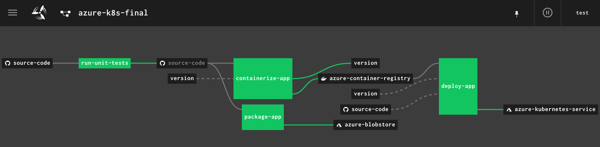
    AKS is easy to set up, and I provided the version (1.13.9), node pool size, service principal for authentication, and basic HTTP routing for hosted containers. My 3-node cluster was up and running in a few minutes.

    Starting up a Concourse environment

    Finally, Concourse. If you visit the Concourse website, there’s a link to a Docker Compose file you can download and start up via docker-compose up. This starts up the database, worker, and web node components needed to host pipelines.

    Once Concourse is up and running, the web-based Dashboard is available on localhost:8080.

    From there you can find links (bottom left) to downloads for the command line tool (called fly). This is the primary UX for deploying and troubleshooting pipelines.

    With fly installed, we create a “target” that points to our environment. Do this with the following statement. Note that I’m using “rs” (my initials) as the alias, which gets used for each fly command.

    fly -t rs login -c http://localhost:8080

    Once I request a Concourse login (default username is “test” and password is “test”), I’m routed to the dashboard to get a token, which gets loaded automatically into the CLI.

    At this point, we’ve got a functional ASP.NET Core app, a container registry, an object storage destination, a managed Kubernetes environment, and a Concourse. In the next post, we’ll build the first part of our Azure-focused pipeline that reads source code, runs tests, and packages the artifacts.