Category: Cloud

  • Using the New AWS Web Console Interface to Set Up Simple Notification Services

    I’ve written a few times about the Amazon Web Services (AWS) offerings and in this post, want to briefly show you the new web-based interface for configuring the Simple Notification Services (SNS) product.

    I’m really a fan of the straightforward simplicity of the AWS service interfaces, and that principle applies to their web console as well.  You’ll typically find well-designed and very usable tools for configuring services.  AWS recently announced a web interface for their SNS offering, which is one of the AWS messaging services (along with Simple Queue Service [SQS]) for cloud-based integration/communication.  These products mirror some capabilities of Microsoft’s Windows Azure, but for both vendors, their are clear feature differences.  SNS is described by Amazon as:

    [SNS] provides developers with a highly scalable, flexible, and cost-effective capability to publish messages from an application and immediately deliver them to subscribers or other applications.

    SNS uses a topics and subscribers model where you publish messages to SNS topics, and subscribers are pushed a message through a protocol of their choice.  Each topic can have policies applied which may include granular restrictions with regards to who can publish messages or which subscriber protocols the topic will support.  Available subscriber protocols include HTTP (or HTTPS), email (straight text or JSON encoded), or AWS SQS.  SNS has “at least once delivery” and it appears that, like Windows Azure AppFabric, SNS doesn’t have a guaranteed delivery mechanism and they encourage developers to publish from SNS to SQS if you need a higher quality of service and delivery guarantees.  If you want to learn more about SNS (and I encourage you to do so), check out the SNS product page with all the documentation and such.  The SNS FAQ is also a great resource.

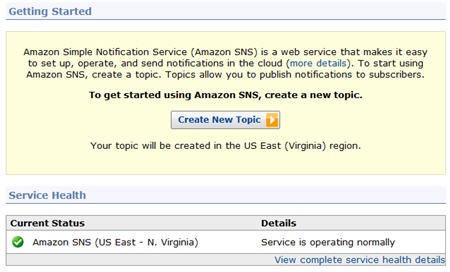
    Ok, let’s take a look at setting up a simple example that requires no coding and only web console configuration.  I’ve logged into my AWS web console, and now see an SNS tab at the top.

    2010.10.20sns01

    I’m then shown a large, friendly message asking me to create a topic, and because they asked nicely, I will do just that.

    2010.10.20sns02

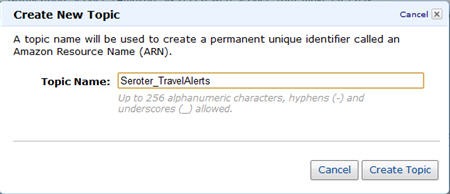
    When I click that button, I’m given a small window and asked to name my topic.  I’ll end up with a SNS URI similar to how Windows Azure AppFabric provides a DNS-like addressing for it’s endpoints.

    2010.10.20sns03 

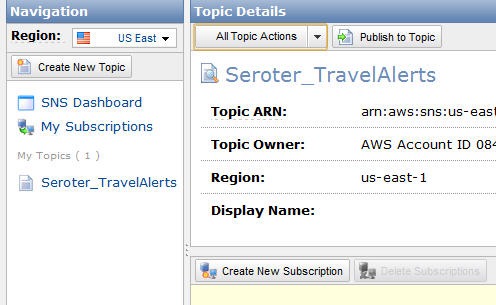
    After the topic is created, I get to a Topic Details screen where I can create subscriptions, view/edit a topic policy, and even publish a message to the topic.

    2010.10.20sns04

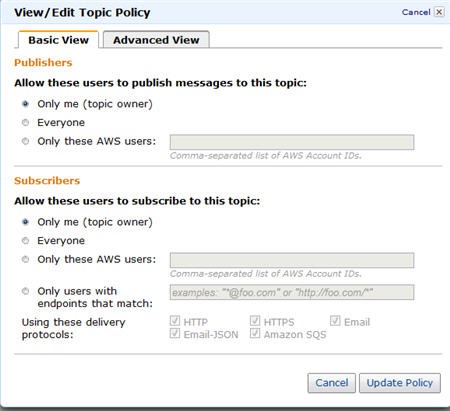
    I’ve chosen to view my topic’s policy, and I get a very clean screen showing how to restrict who can publish to my topic, and what people, endpoints and protocols are considered valid topic subscribers.  By default, as you can see, a topic is locked down to just the owner.

    2010.10.20sns05

    Next up, I’m going to create a new subscriber.  As you can see below, I have a number of protocol options.  I’m going to choose Email. Note that JSON is the encoding of choice in SNS, but nothing prevents me from publishing XML to an HTTP REST endpoint or sending XML in an email payload.

    2010.10.20sns06

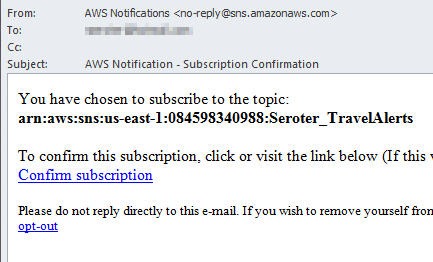
    Every subscriber is required to confirm their subscription, and if you choose an email protocol, then you get an email with a link which acknowledges the subscription.

    2010.10.20sns07

    The confirmation email arrived a few moments later.

    2010.10.20sns08

    Clicking the link took me to a confirmation page that contained my specific subscription identifier.  At this point, my SNS web console shows one approved subscriber.

    2010.10.20sns09

    I’ll conclude this walkthrough by actually sending a message to this topic.  There is a Publish to Topic button on the console screen that lets me enter the text to send as a notification.  My notification includes a subject and a body message.  I could include any string of characters here, so for fun, I’ll throw in an XML message that an email poller (e.g. BizTalk) could read and process.
    2010.10.20sns10

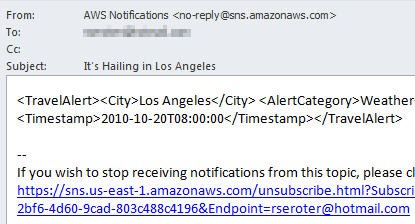
    When I choose to Publish Message, I get a short confirmation message, and switch back to my inbox to find the notification.  Sure enough, I get a notification with the data payload I specified above.  You will notice that I get an email footer that I’d have to pre-process out or have my automated email poller ignore.

    2010.10.20sns11 

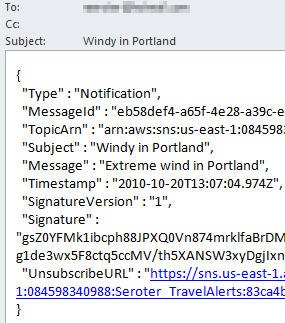
    Just so that I don’t leave you with questions, I’ve also configured an Email-JSON subscriber to compare the type of message sent to the subscriber.  I mentioned earlier that JSON is the preferred encoding, and you can see that in action here.  Because JSON encoded messages are expected to be processed by systems vs. humans, the email notification doesn’t include any additional footer “fluff” and only has the raw JSON formatted message.

    2010.10.20sns12

    Pretty nice, eh? And I didn’t have to think once about cost (it’s free up to a certain threshold) or even leave the web console to set up a solution.  Take note, Microsoft!  At some point, I’ll mess around with sending an SNS notification to a Windows Azure AppFabric endpoint, as I suspect we’ll see more of these sophisticated cloud integration scenarios in the coming years. 

    I encourage you to check out the AWS SNS offering and see if this sort of communication pattern can offer you new ways to solve problems.

  • Comparing AWS SimpleDB and Windows Azure Table Storage – Part II

    In my last post, I took an initial look at the Amazon Web Services (AWS) SimpleDB product and compared it to the Microsoft Windows Azure Table storage.  I showed that both solutions are relatively similar in that they embrace a loosely typed, flexible storage strategy and both provide a bit of developer tooling.  In that post, I walked through a demonstration of SimpleDB using the AWS SDK for .NET.

    In this post, I’ll perform a quick demonstration of the Windows Azure Table storage product and then conclude with a few thoughts on the two solution offerings.  Let’s get started.

    Windows Azure Table Storage

    First, I’m going to define a .NET object that represents the entity being stored in the Azure Table storage.  Remember that, as pointed out in the previous post, the Azure Table storage is schema-less so this new .NET object is just a representation used for creating and querying the Azure Table.   It has no bearing on the underlying Azure Table structure. However, accessing the Table through a typed object differs from the AWS SimpleDB which has a fully type-less .NET API model.

    I’ve built a new WinForm .NET project that will interact with the Azure Table.  My Azure Table will hold details about different conferences that are available for attendance.  My “conference record” object inherits from TableServiceEntity.

    public class ConferenceRecord: TableServiceEntity
        {
            public ConferenceRecord()
            {
                PartitionKey = "SeroterPartition1";
                RowKey = System.Guid.NewGuid().ToString();
    
            }
    
            public string ConferenceName { get; set; }
            public DateTime ConferenceStartDate { get; set; }
            public string ConferenceCategory { get; set; }
        }
    

    Notice that I have both a partition key and row key value.  The PartitionKey attribute is used to identify and organize data entities.  Entities with the same PartitionKey are physically co-located which in turn, helps performance.  The RowKey attribute uniquely defines a row within a given partition.  The PartitionKey + RowKey must be a unique combination.

    Next up, I built a table context class which is used to perform operations on the Azure Table.  This class inherits from TableServiceContext and has operations to get, add and update ConferenceRecord objects from the Azure Table.

    public class ConferenceRecordDataContext : TableServiceContext
        {
            public ConferenceRecordDataContext(string baseAddress, StorageCredentials credentials)
                : base(baseAddress, credentials)
            {}
    
            public IQueryable<ConferenceRecord> ConferenceRecords
            {
                get
                {
                    return this.CreateQuery<ConferenceRecord>("ConferenceRecords");
                }
            }
    
            public void AddConferenceRecord(ConferenceRecord confRecord)
            {
                this.AddObject("ConferenceRecords", confRecord);
                this.SaveChanges();
            }
    
            public void UpdateConferenceRecord(ConferenceRecord confRecord)
            {
                this.UpdateObject(confRecord);
                this.SaveChanges();
            }
        }
    

    In my WinForm code, I have a class variable of type CloudStorageAccount which is used to interact with the Azure account.  When the “connect” button is clicked on my WinForm, I establish a connection to the Azure cloud.  This is where Microsoft’s tooling is pretty cool.  I have a local “fabric” that represents the various Azure storage options (table, blob, queue) and can leverage this fabric without ever provisioning a live cloud account.

    2010.10.04storage01

    Connecting to my development storage through the CloudStorageAccount looks like this:

    string connString = "UseDevelopmentStorage=true";
    
    storageAcct = CloudStorageAccount.Parse(connString);
    

    After connecting to the local (or cloud) storage, I can create a new table using the ConferenceRecord type definition, URI of the table, and my cloud credentials.

     CloudTableClient.CreateTablesFromModel(
                    typeof(ConferenceRecordDataContext),
                    storageAcct.TableEndpoint.AbsoluteUri,
                    storageAcct.Credentials);
    

    Now I instantiate my table context object which will add new entities to my table.

    string confName = txtConfName.Text;
    string confType = cbConfType.Text;
    DateTime confDate = dtStartDate.Value;
    
    var context = new ConferenceRecordDataContext(
          storageAcct.TableEndpoint.ToString(),
          storageAcct.Credentials);
    
    ConferenceRecord rec = new ConferenceRecord
     {
           ConferenceName = confName,
           ConferenceCategory = confType,
           ConferenceStartDate = confDate,
      };
    
    context.AddConferenceRecord(rec);
    

    Another nice tool built into Visual Studio 2010 (with the Azure extensions) is the Azure viewer in the Server Explorer window.  Here I can connect to either the local fabric or the cloud account.  Before I run my application for the first time, we can see that my Table list is empty.

    2010.10.04storage02

    If I start up my application and add a few rows, I can see my new Table.

    2010.10.04storage03

    I can do more than just see that my table exists.  I can right-click that table and choose to View Table, which pulls up all the entities within the table.

    2010.10.04storage04

    Performing a lookup from my Azure Table via code is fairly simple and I can either loop through all the entities via a “foreach” and conditional, or, I can use LINQ.  Here I grab all conference records whose ConferenceCategory is equal to “Technology”.

    var val = from c in context.ConferenceRecords
                where c.ConferenceCategory == "Technology"
                select c;
    

    Now, let’s prove that the underlying storage is indeed schema-less.  I’ll go ahead and add a new attribute to the ConferenceRecord object type and populate it’s value in the WinForm UI.  A ConferenceAttendeeLimit of type int was added to the class and then assigned a random value in the UI.  Sure enough, my underlying table was updated with the new “column’” and data value.

    2010.10.04storage05

    I can also update my LINQ query to look for all conferences where the attendee limit is greater than 100, and only my latest column is returned.

    Summary of Part II

    In this second post of the series, we’ve seen that the Windows Azure Table storage product is relatively straightforward to work with.  I find the AWS SimpleDB documentation to be better (and more current) than the Windows Azure storage documentation, but the Visual Studio-integrated tooling for Azure storage is really handy.  AWS has a lower cost of entry as many AWS products don’t charge you a dime until you reach certain usage thresholds.  This differs from Windows Azure where you pretty much pay from day one for any type of usage.

    All in all, both of these products are useful for high-performing, flexible data repositories.  I’d definitely recommend getting more familiar with both solutions.

  • Comparing AWS SimpleDB and Windows Azure Table Storage – Part I

    We have a multitude of options for storing data in the cloud.  If you are looking for a storage mechanism for fast access to non-relational data, then both the Amazon Web Service (AWS) SimpleDB product and the Microsoft Windows Azure Table storage are viable choices.  In this post, I’m going to do a quick comparison of these two products, including how to leverage the .NET API provided by both.

    First, let’s do a comparison of these two.

    Amazon SimpleDB Windows Azure Table
    Feature
    Storage Metaphor Domains are like worksheets, items are rows, attributes are column headers, items are each cell Tables, properties are columns, entities are rows
    Schema None enforced None enforced
    “Table” size Domain up to 10GB, 256 attributes per item, 1 billion attributes per domain 255 properties per entity, 1MB per entity, 100TB per table
    Cost (excluding transfer) Free up to 1GB, 25 machine hours (time used for interactions); $0.15 GB/month up to 10TB, $0.14 per machine hour 0.15 GB/month
    Transactions Conditional put/delete for attributes on single item Batch transactions in same table and partition group
    Interface mechanism REST, SOAP REST
    Development tooling AWS SDK for .NET Visual Studio.NET, Development Fabric

    These platforms are relatively similar in features and functions, with each platform also leveraging aspects of their sister products (e.g. AWS EC2 for SimpleDB), so that could sway your choice as well.

    Both products provide a toolkit for .NET developers and here is a brief demonstration of each.

    Amazon Simple DB using AWS SDK for .NET

    You can download the AWS SDK for .NET from the AWS website.  You get some assemblies in the GAC, and also some Visual Studio.NET project templates.

    2010.09.29storage01

    In my case, I just built a simple Windows Forms application that creates a domain, adds attributes and items and then adds new attributes and new items.

    After adding a reference to the AWSSDK.dll in my .NET project, I added the following “using” statements in my code:

    using Amazon;
    using Amazon.SimpleDB;
    using Amazon.SimpleDB.Model;
    

    Then I defined a few variables which will hold my SimpleDB domain name, AWS credentials and SimpleDB web service container object.

    NameValueCollection appConfig;
    AmazonSimpleDB simpleDb = null;
    string domainName = "ConferenceDomain";
    

    I next read my AWS credentials from a configuration file and pass them into the AmazonSimpleDB object.

    appConfig = ConfigurationManager.AppSettings;
    simpleDb = AWSClientFactory.CreateAmazonSimpleDBClient(appConfig["AWSAccessKey"],
                    appConfig["AWSSecretKey"]);
    

    Now I can create a SimpleDB domain (table) with a simple command.

    CreateDomainRequest domainreq = (new CreateDomainRequest()).WithDomainName(domainName);
    simpleDb.CreateDomain(domainreq);
    

    Deleting domains looks like this:

    DeleteDomainRequest deletereq = new DeleteDomainRequest().WithDomainName(domainName);
    simpleDb.DeleteDomain(deletereq);
    

    And listing all the domains under an account can be done like this:

    string results = string.Empty;
    ListDomainsResponse sdbListDomainsResponse = simpleDb.ListDomains(new ListDomainsRequest());
    if (sdbListDomainsResponse.IsSetListDomainsResult())
    {
       ListDomainsResult listDomainsResult = sdbListDomainsResponse.ListDomainsResult;
       
       foreach (string domain in listDomainsResult.DomainName)
       {
            results += domain + "\n";
        }
     }
    

    To create attributes and items, we use a PutAttributeRequest object.  Here, I’m creating two items, adding attributes to them, and setting the value of the attributes.  Notice that we use a very loosely typed process and don’t work with typed objects representing the underlying items.

    //first item
    string itemName1 = "Conference_PDC2010";
    PutAttributesRequest putreq1 = 
         new PutAttributesRequest().WithDomainName(domainName).WithItemName(itemName1);
    List<ReplaceableAttribute> item1Attributes = putreq1.Attribute;
    item1Attributes.Add(new ReplaceableAttribute().WithName("ConferenceName").WithValue("PDC 2010"));
    item1Attributes.Add(new ReplaceableAttribute().WithName("ConferenceType").WithValue("Technology"));
    item1Attributes.Add(new ReplaceableAttribute().WithName("ConferenceDates").WithValue("09/25/2010"));
    simpleDb.PutAttributes(putreq1);
    
    //second item
    string itemName2 = "Conference_PandP";
    PutAttributesRequest putreq2 = 
        new PutAttributesRequest().WithDomainName(domainName).WithItemName(itemName2);
    List<ReplaceableAttribute> item2Attributes = putreq2.Attribute;
    item2Attributes.Add(new ReplaceableAttribute().WithName("ConferenceName").
         WithValue("Patterns and Practices Conference"));
    item2Attributes.Add(new ReplaceableAttribute().WithName("ConferenceType").WithValue("Technology"));
    item2Attributes.Add(new ReplaceableAttribute().WithName("ConferenceDates").WithValue("11/10/2010"));
    simpleDb.PutAttributes(putreq2);
    

    If we want to update an item in the domain, we can do another PutAttributeRequest and specify which item we wish to update, and with which new attribute/value.

    //replace conference date in item 2
    ReplaceableAttribute repAttr = 
        new ReplaceableAttribute().WithName("ConferenceDates").WithValue("11/11/2010").WithReplace(true);
    PutAttributesRequest putReq = 
        new PutAttributesRequest().WithDomainName(domainName).WithItemName("Conference_PandP").
        WithAttribute(repAttr);
    simpleDb.PutAttributes(putReq);
    

    Querying the domain is done with familiar T-SQL syntax.  In this case, I’m asking for all items in the domain where the ConferenceType attribute equals ‘Technology.”

    string query = "SELECT * FROM ConferenceDomain WHERE ConferenceType='Technology'";
    SelectRequest selreq = new SelectRequest().WithSelectExpression(query);
    SelectResponse selresp = simpleDb.Select(selreq);
    

    Summary of Part I

    Easy stuff, eh?  Because of the non-existent domain schema, I can add a new attribute to an existing item (or new one) with no impact on the rest of the data in the domain.  If you’re looking for fast, highly flexible data storage with high redundancy and no need for the rigor of a relational database, then AWS SimpleDB is a nice choice.  In part two of this post, we’ll do a similar investigation of the Windows Azure Table storage option.

  • Book’s Sample Chapter, Articles and Press Release

    The book is now widely available and our publisher is starting up the promotion machine.  At the bottom of this post is the publisher’s press release.  Also, we now have one sample chapter online (Mike Sexton’s Debatching Bulk Data) as well as two articles representing some of the material from my Content Based Routing chapter (Part 1 – Content Based Routing on the Microsoft Platform, Part II – Building the Content Based Routing Solution on the Microsoft Platform).  This hopefully provides a good sneak peak into the book’s style.

    ## PRESS RELEASE ##

    Solve business problems on the Microsoft application platform using Packt’s new book

     Applied Architecture Patterns on the Microsoft Platform is a new book from Packt that offers an architectural methodology for choosing Microsoft application platform technologies. Written by a team of specialists in the Microsoft space, this book examines new technologies such as Windows Server AppFabric, StreamInsight, and Windows Azure Platform, and their application in real-world solutions.

     Filled with live examples on how to use the latest Microsoft technologies, this book guides developers through thirteen architectural patterns utilizing code samples for a wide variety of technologies including Windows Server AppFabric, Windows Azure Platform AppFabric, SQL Server (including Integration Services, Service Broker, and StreamInsight), BizTalk Server, Windows Communication Foundation (WCF), and Windows Workflow Foundation (WF).

     This book is broken down into 4 different sections. Part 1 starts with getting readers up to speed with various Microsoft technologies. Part 2 concentrates on messaging patterns and the inclusion of use cases highlighting content-based routing. Part 3 digs into bulk data processing, and multi-master synchronization. Finally the last part covers performance-related patterns including low latency, failover to the cloud, and reference data caching.

     Developers can learn about the core components of BizTalk Server 2010, with an emphasis on BizTalk Server versus Windows Workflow and BizTalk Server versus SQL Server. They will not only be in a position to develop their first Windows Azure Platform AppFabric, and SQL Azure applications but will also learn to master data management and data governance of SQL Server Integration Services, Microsoft Sync Framework, and SQL Server Service Broker.

     Architects, developers, and managers wanting to get up to speed on selecting the most appropriate platform for a particular problem will find this book to be a useful and beneficial read. This book is out now and is available from Packt. For more information, please visit the site.

    [Cross posted on Book’s dedicated website]

  • And … The New Book is Released

    Nearly 16 months after a book idea was born, the journey is now complete.  Today, you can find our book, Applied Architecture Patterns on the Microsoft Platform, in stock at Amazon.com and for purchase and download at the Packt Publishing site.

    I am currently in Stockholm along with co-authors Stephen Thomas and Ewan Fairweather delivering a 2 day workshop for the BizTalk User Group Sweden.  We’re providing overviews of the core Microsoft application platform technologies and then excerpting the book to show how we analyzed a particular use case, chose a technology and then implemented it.  It’s our first chance to see if this book was a crazy idea, or actually useful.  So far, the reaction has been positive.  Of course, the Swedes are such a nice bunch that they may just be humoring me.

    I have absolutely no idea how this book will be received by you all.  I hope you find it to be a unique tool for evaluating architecture and building solutions on Microsoft technology.  If you DON’T like it, then I’ll blame this book idea on Ewan.

  • Do you know the Microsoft Customer Advisory Teams? You should.

    For those who live and work with Microsoft application platform technologies, the Microsoft Customer Advisory Teams (CAT) are a great source of real-world info about products and technology.  These are the small, expert-level teams whose sole job is to make sure customers are successful with Microsoft technology.  Last month I had the pleasure of presenting to both the SQL CAT and Server AppFabric CAT teams about blogging and best practices and thought I’d throw a quick plug out for these groups here.

    First off, the SQL CAT team (dedicated website here) has a regular blog of best practices, and link to the best whitepapers for SQL admins, architects, and developers.  I’m not remotely a great SQL Server guy, but I love following this team’s work and picking up tidbits that make me slightly more dangerous at work.  If you actually need to engage these guys on a project, contact your Microsoft rep.

    As for the Windows Server AppFabric CAT team, they also have a team blog with great expert content.  This team, which contains the artists-formerly-known-as-BizTalk-Rangers, provides deep expertise on BizTalk Server, Windows Server AppFabric, WCF, WF, AppFabric Caching and StreamInsight.  You’ll find a great bunch of architects on this team including Tim Wieman, Mark Simms, Rama Ramani, Paolo Salvatori and more, all led by Suren Machiraju and the delightfully frantic Curt Peterson. They’ve recently produced posts about using BizTalk with the AppFabric Service Bus, material on the Entity Framework,  and a ridiculously big and meaty post from Mark Simms about building StreamInsight apps.

    I highly recommend subscribing to both these team blogs and following SQL CAT on twitter (@sqlcat).

    Share

  • Using “Houston” to Manage SQL Azure Databases

    Up until now, your only option for managing SQL Azure cloud databases was using an on-premise SQL Server Management Console and pointing to your cloud database.  The SQL Azure team has released a CTP of “Houston” which is a web-based, Silverlight environment for doing all sorts of stuff with your SQL Azure database.  Instead of just telling you about it, I figured I’d show it.

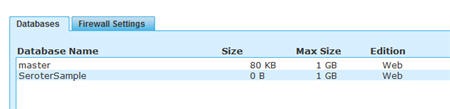
    First, you need to create a SQL Azure database (assuming that you don’t already have one).  Mine is named SeroterSample.  I’m feeling very inspired this evening.

    2010.07.22SqlAzure01

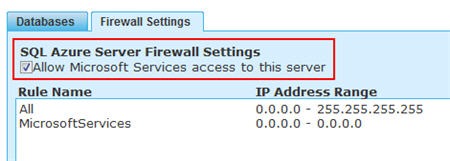
    Next up, we make sure to have a firewall rule allowing Microsoft services to access the database.

    2010.07.22SqlAzure02

    After this, we want to grab our database connection details via the button at the bottom of the Databases view.

    2010.07.22SqlAzure03

    Now go to the SQL Azure labs site and select the Project Houston CTP 1 tab.

    2010.07.22SqlAzure04

    We then see a futuristic console which either logs me into project Houston or launches a missile.

    2010.07.22SqlAzure05

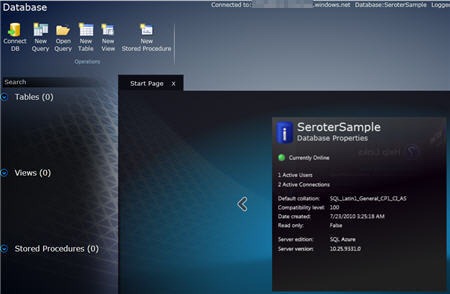
    If the login is successful, we get the management dashboard.  It contains basic management operations at the top (“new table”, “new stored procedure”, “open query”, etc), a summary of database schema objects on the left, and an unnecessary but interesting “cube of info” in the middle.

    2010.07.22SqlAzure06

    The section in the middle (aka “cube of info”) rotates as you click the arrows and shows various data points.  Hopefully a future feature includes a jack-in-the-box that pops out of the top.

    I chose to create a new table in my database.  We are shown an interface where we build up our table structure by choosing columns, data types, default values, data types and more.

    2010.07.22SqlAzure07

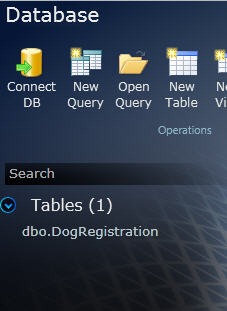
    After creating a few columns and renaming my table, I clicked the Save button on the top left of the screen to commit my changes.  I can now see my table in the list of artifacts belonging to my database.

    2010.07.22SqlAzure08

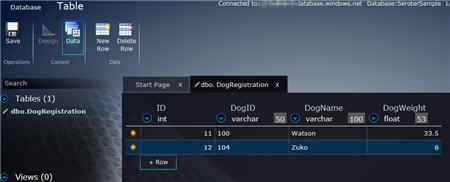
    It’s great to have a table, but let’s put some data into that bad boy.  Clicking the table name re-opens the design view by default.  We can select the Data view at the top to actually add rows to our table.

    2010.07.22SqlAzure10

    I’m not exactly sure how to delete artifacts except through manual queries.  For kicks and giggles I clicked the New View option, and when I canceled out of it, I still ended up with a view in the artifact list.  Right-clicking is not something that is available anywhere in the application, and there was no visible way to delete the view short of create a new Query and deleting it from there.  That said, when I logged out and logged back in, the view was no longer there.  So, because I didn’t explicitly save it, the view was removed when I disconnected.

    All in all, this is a fine, light-weight management interface for our cloud database.  It wasn’t until I was halfway through my demonstration that I realized that I did all my interactions on the portal through a Chrome browser.  Cross-browser stuff is much more standard now, but, still nice to see.

    Because I have no confidence that my Azure account is accurately tied to my MSDN Subscription, I predict that this demonstration has cost me roughly $14,000 in Azure data fees.  You all are worth it though.

    Share

  • How Do You Figure Out the Cost of Using the Azure AppFabric Service Bus?

    So the Windows Azure platform AppFabric was recently launched into production and made available for commercial use.  For many of us, this meant that Azure moved from “place to mess around with no real consequences” to “crap, I better figure out what this is going to cost me.” 

    I’ve heard a few horror stories of folks who left Azure apps online or forgot about their storage usage and got giant bills at the end of the month.  This just means we need to be more aware of our cloud service usage now.

    That said, I’ve personally been a tad hesitant to get back into playing with the Service Bus since I didn’t fully grok the pricing scheme and was worried that my MSDN Subscription only afforded me five incremental “connections” per month.

    Today I was pointed to the updated FAQ for AppFabric which significantly cleared up what “connections” really meant.  First off, a “connection” is established whether the service binds to the AppFabric Service Bus, and also when a client(s) bind to the cloud endpoint.  So if I have a development application and press F5 in Visual Studio, when my service and client bind to the cloud, that counts as 2 “connections.”

    Now if you’re like me, you might say “sweet fancy Moses, I’ll use up my 5 connections in about 75 seconds!”  HOWEVER, you aren’t billed for an aggregate count of connections, but a concurrent average.  From the FAQ (emphasis mine):

    That means you don’t need to pay for every Connection that you create; you’ll only pay for the maximum number of Connections that were in simultaneous use on any given day during the billing period. It also means that if you increase your usage, the increased usage is charged on a daily pro rata basis; you will not be charged for the entire month at that increased usage level.  For example, a given client application may open and close a single Connection many times during a day; this is especially likely if an HTTP binding is used. To the target system, this might appear to be separate, discrete Connections, however to the customer this is a single intermittent Connection. Charging based on simultaneous Connection usage ensures that a customer would not be billed multiple times for a single intermittent Connection.

    So that’s an important thing to know.  If I’m just testing over and over, and binding my service and client to the cloud, that’s only going to count as two of my connections and not put me over my limit.

    As for how this is calculated, the FAQ states:

    The maximum number of open Connections is used to calculate your daily charges. For the purposes of billing, a day is defined as the period from midnight to midnight, Coordinated Universal Time (UTC).Each day is divided into 5-minute intervals, and for each interval, the time-weighted average number of open Connections is calculated. The daily maximum of these 5-minute averages is then used to calculate your daily Connection charge.

    So, unless you are regularly binding multiple clients to an endpoint (which is possible when we’re talking about the event relay binding), you shouldn’t worry too much about exceeding your “connection pack” limits.  The key point is, connections are not incrementally counted, but rather, calculated as part of concurrent usage.

    Hope that helps.  I’ll sleep better tonight, and bind to the cloud better tomorrow.

    Share

  • Microsoft’s Strategy of “Framework First”, “Host Second”

    I’ll say up front that this post is more of just thoughts in my head vs. any deep insight. 

    It hit me on Friday (as a result of a discussion list I’m on) that many of the recent additions to Microsoft’s application platform portfolio are first released as frameworks, and only later are afforded a proper hosting environment.

    We saw this a few years ago with Windows Workflow, and to a lesser extent, Windows Communication Foundation.  In both cases, nearly all demonstration showed a form of self-hosting, primarily because that was the most flexible development choice you had.  However, it was also the most work and least enterprise-ready choice you had.  With WCF, you could host in IIS, but it hardly provided any rich configuration or management of services.

    Here in 2010, we finally get a legitimate host for both WCF and WF in the form of the Windows Server AppFabric (“Dublin”) environment.  This should make the story for WF and WCF significantly more compelling. But we’re in the midst of two new platform technologies from Microsoft that also have less than stellar “host” providers.  With the Windows Azure AppFabric Service Bus, you can host on-premise endpoints and enable a secure, cloud-based relay for external consumers.  Really great stuff.  But, so far, there is no fantastic story for hosting these Service Bus endpoints on-premise.  It’s my understanding that the IIS story is incomplete, so you either self-host it (Windows Service, etc) or even use something like BizTalk to host it. 

    We also have StreamInsight about to come out.  This is Microsoft’s first foray into the Complex Event Processing space, and StreamInsight looks promising.  But in reality, you’re getting a toolkit and engine.  There’s no story (yet) around a centrally managed, load balanced, highly available enterprise server to host the engine and its queries.  Or at least I haven’t seen it.  Maybe I missed it.

    I wonder what this will do to adoption of these two new technologies.  Most anyone will admit that uptake of WCF and WF has been slow (but steady), and that can’t be entirely attributed to the hosting story, but I’m sure in WF’s case, it didn’t help.

    I can partially understand the Microsoft strategy here.  If the underlying technology isn’t fully baked, having a kick-ass host doesn’t help much.  But, you could also stagger the release of capabilities in exchange for having day-1 access to an enterprise-ready container.

    Do you think that you’d be less likely to deploy StreamInsight or Azure Service Bus endpoints without a fully-functional vendor-provided hosting environment?

    Share

  • My Presentation from Sweden on BizTalk/SOA/Cloud is on Channel9

    So my buddy Mikael informs me (actually all of us), that my presentation on “BizTalk, SOA and Leveraging the Cloud” from my visit to the Sweden User Group is finally available for viewing on Microsoft’s Channel9.

    In Part 1 of the presentation, I lay the groundwork for doing SOA with BizTalk, and, try to warm up the crowd with stupid American humor.  Then, in Part II I explain how to leverage the Google, Salesforce.com, Azure and Amazon clouds in a BizTalk solution.  Also, either out of sympathy or because my material was improving, you may hear a few more audible chuckles.  I take it where I can get it.

    I had lots of fun over there, and will start openly petitioning for a return visit in 6 months or so.  Consider yourself warned, Mikael.

    Share