

I’m approaching twenty-five years of connecting systems together. Yikes. In the summer of 2000, I met a new product called BizTalk Server that included a visual design tool for building workflows. In the years following, that particular toolset got better (see image), and a host of other cloud-based point-and-click services emerged. Cloud integration platforms are solid now, but fairly stagnant. I haven’t noticed a ton of improvements over the past twelve months. That said, Google Cloud’s Application Integration service is improving (and catching up) month over month, and I wanted to try out the latest and greatest capabilities. I think you’ll see something you like.
Could you use code (and AI-generated code) to create all your app integrations instead of using visual modeling tools like this? Probably. But you’d see scope creep. You’d have to recreate system connectors (e.g. Salesforce, Stripe, databases, Google Sheets), data transformation logic, event triggers, and a fault-tolerant runtime for async runners. You might find yourself creating a fairly massive system to replace one you can use as-a-service. So what’s new with Google Cloud Application Integration?
Project setup improvements
Let’s first look at templates. These are pre-baked blueprints that you can use to start a new project. Google now offers a handful of built-in templates, and you can see custom ones shared with you by others.
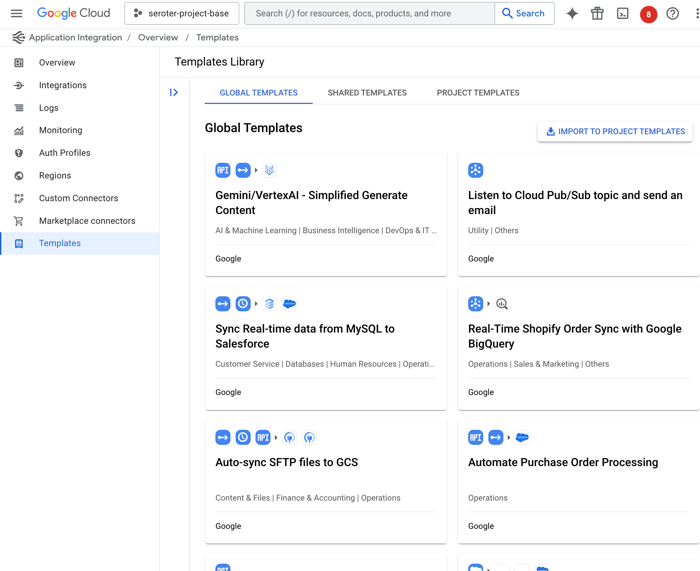
I like that anyone can define a new template from an existing integration, as I show here.

Once I create a template, it shows up under “project templates” along with a visual preview of the integration, the option to edit, share or download as JSON, and any related templates.

The next new feature of Google Cloud Application Integration related to setup is the Gemini assistance. This is woven into a few different features—I’ll show another later—including the ability to create new integrations with natural language.
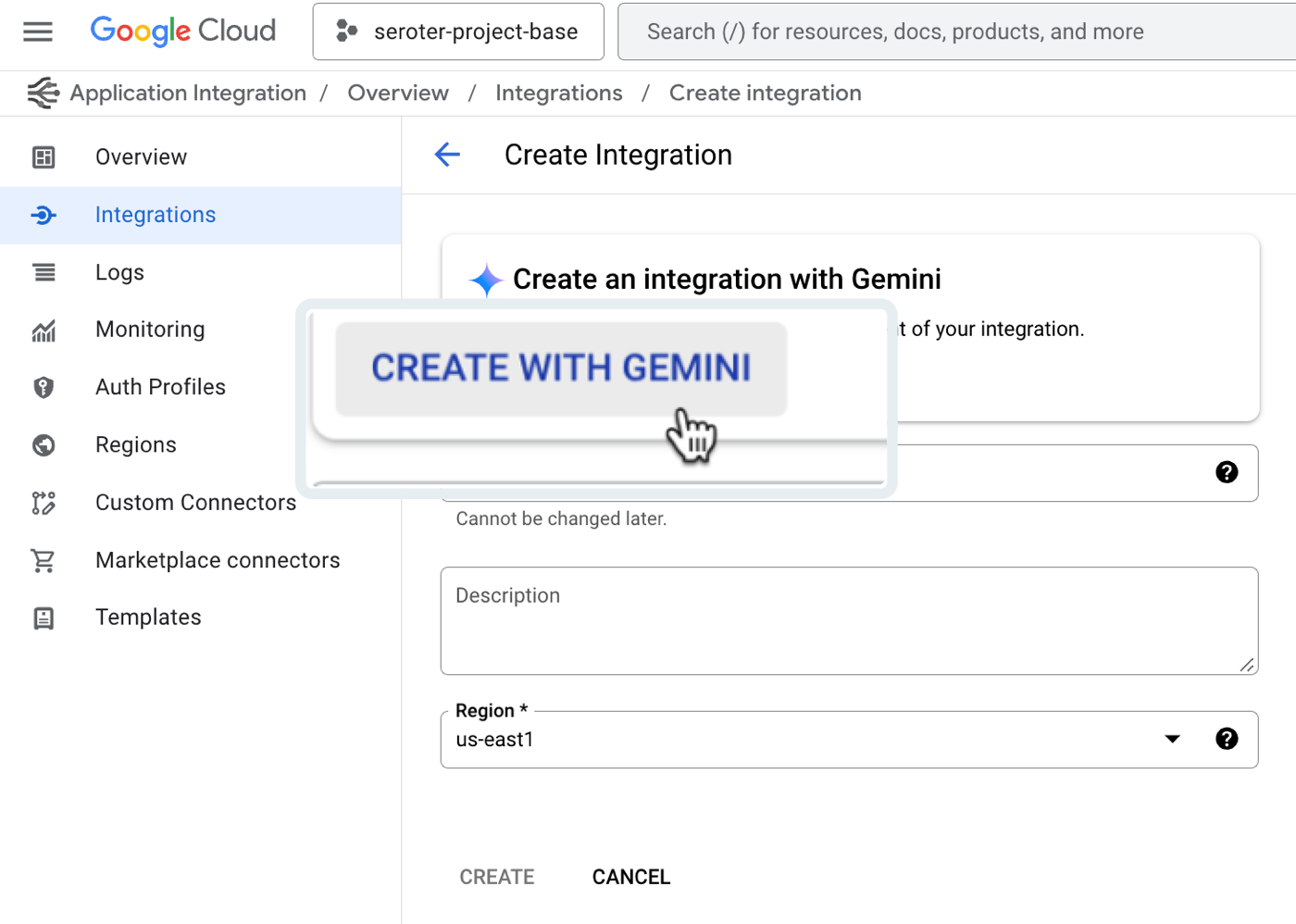
After clicking that button, I’m asked to provide a natural language description of the integration I want to create. There’s a subset of triggers and tasks recognized here. See here that I’m asking for a message to be read from Pub/Sub, approvals sent, and a serverless function called if the approval is provided.

I’m shown the resulting integration, and iterate in place as much as I want. Once I land on the desired integration, I accept the Gemini-created configuration and start working with the resulting workflow.

This feels like a very useful AI feature that helps folks learn the platform, and set up integrations.
New design and development features
Let’s look at new features for doing the core design and development of integrations.
First up, there’s a new experience for seeing and editing configuration variables. What are these? Think of config variable as settings for the integration itself that you can set at deploy time. It might be something like a connection string or desired log level.

Here’s another great use of AI assistance. The do-whatever-you-want JavaScript task in an integration can now be created with Gemini. Instead of writing the JavaScript yourself, use Gemini to craft it.
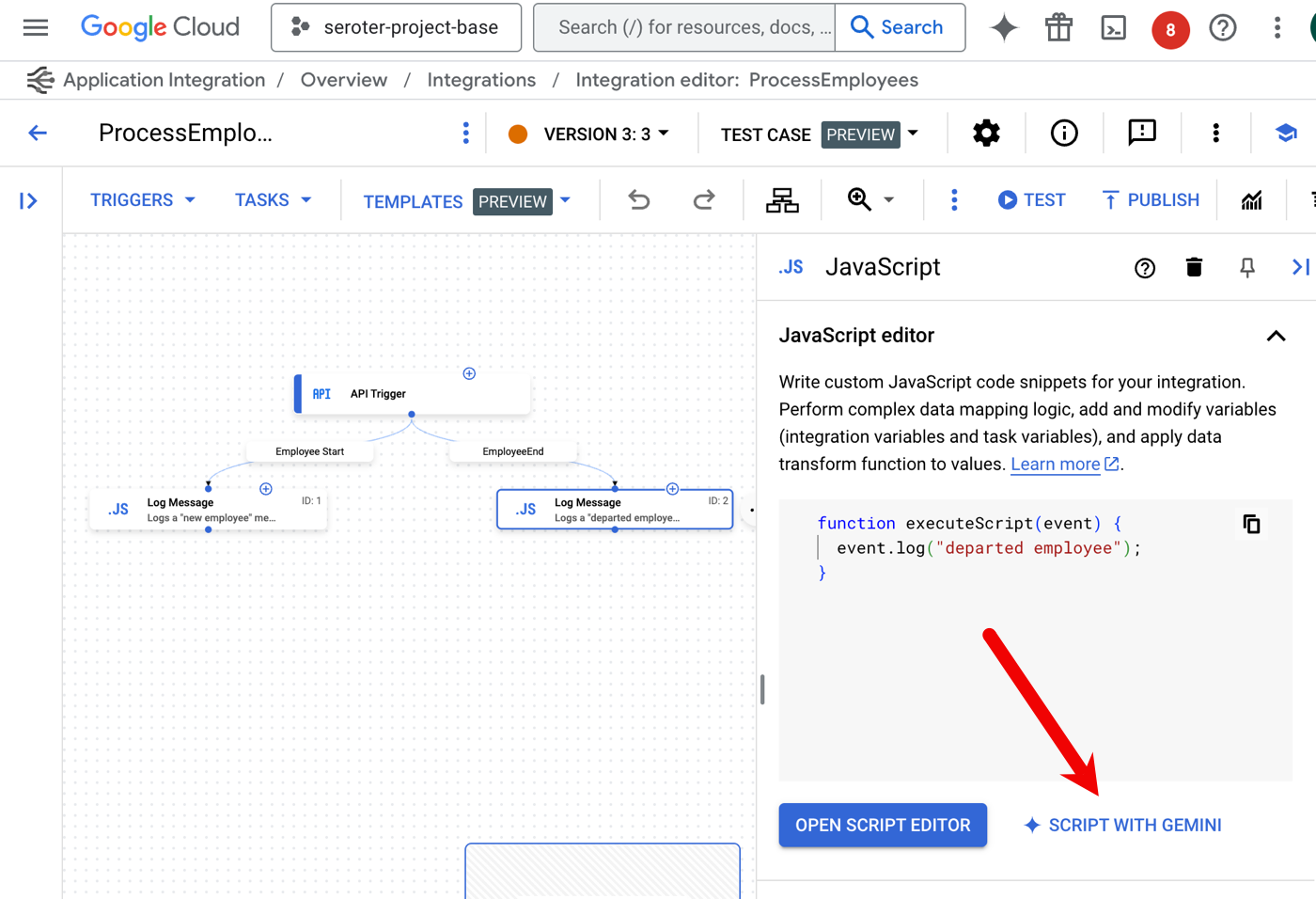
I’m provided a prompt and asked for updated JavaScript to also log the ID of the employee record. I’m then shown a diff view that I can confirm, or continue editing.

As you move data between applications or systems, you likely need to switch up structure and format. I’ve long been jealous of the nice experience in Azure Logic Apps, and now our mapping experience is finally catching up.
The Data Transformer task now has a visual mapping tool for the Jsonnet templates. This provides a drag-and-drop experience between data structures.
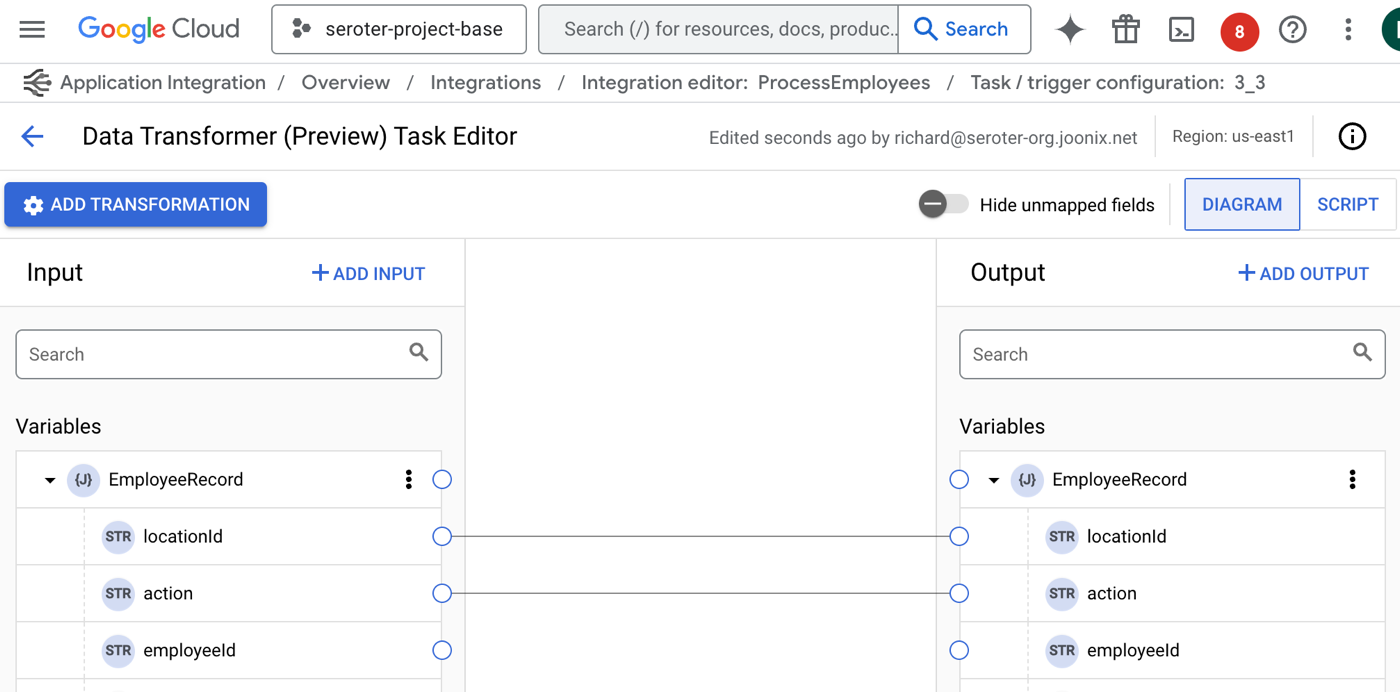
Is the mapping not as easy as one to one? No problem. There are now transformation operations for messing with arrays, performing JSON operations, manipulating strings, and much more.

I’m sure your integrations NEVER fail, but for everyone else, it’s useful to know have advanced failure policies for rich error handling strategies. For a given task, I can set up one or more failure policies that tell the integration what to do when an issue occurs? Quit? Retry? Ignore it? I like the choices I have available.

There’s a lot to like the authoring experience, but these recent updates make it even better.
Fresh testing capabilities
Testing? Who wants to test anything? Not me, but that’s because I’m not a good software engineer.
We shipped a couple of interesting features for those who want to test their integrations.
First, it’s a small thing, but when you have an API Trigger kicking off your integration—which means that someone invokes it via web request—we now make it easy to see the associated OpenAPI spec. This makes it easier to understand a service, and even consume it from external testing tools.
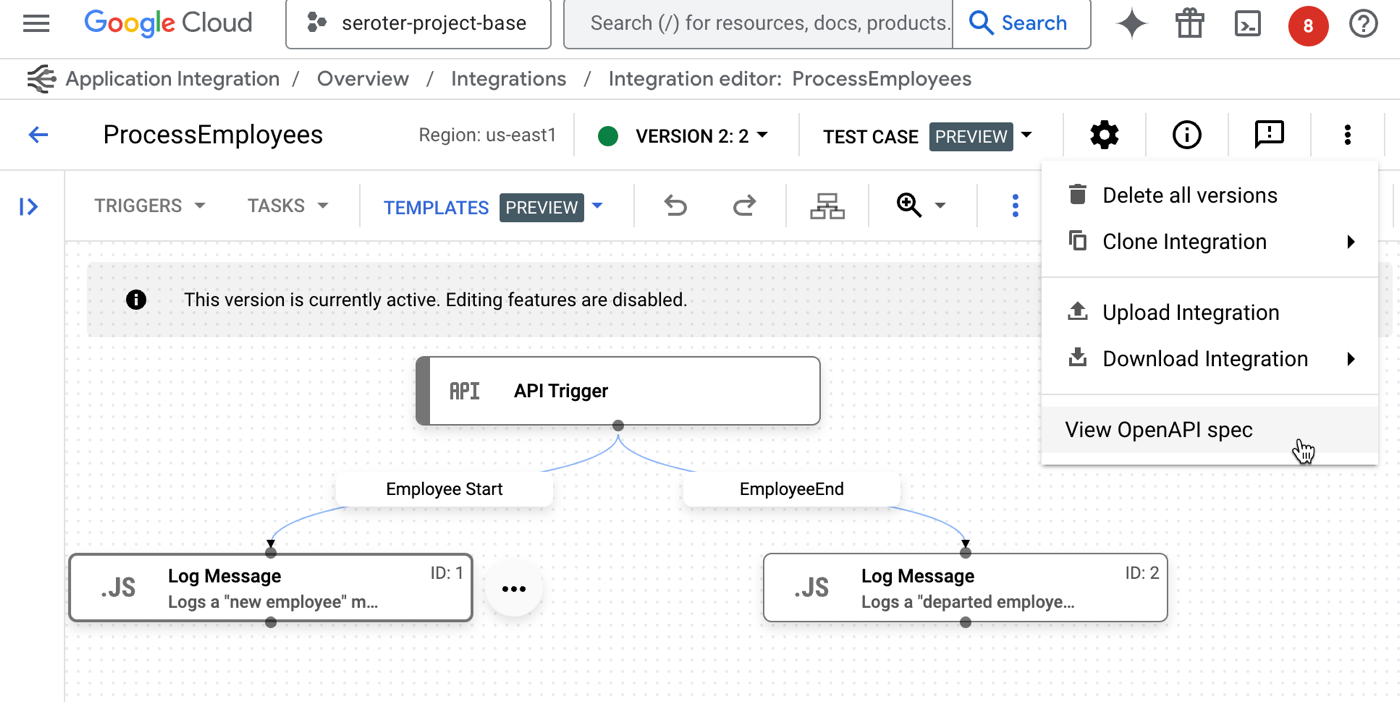
Once I choose to “view OpenAPI spec“, I get a slide-out pane with the specification, along with options to copy or download the details.

But by far, the biggest addition to the Application Integration toolchain for testers is the ability to create and run test plans. Add one or more test cases to an integration, and apply some sophisticated configurations to a test.

When I choose that option, I’m first asked to name the test case and optionally provide a description. Then, I enter “test mode” and set up test configurations for the given components in the integration. For instance, here I’ve chosen the initial API trigger. I can see the properties of the trigger, and then set a test input value.
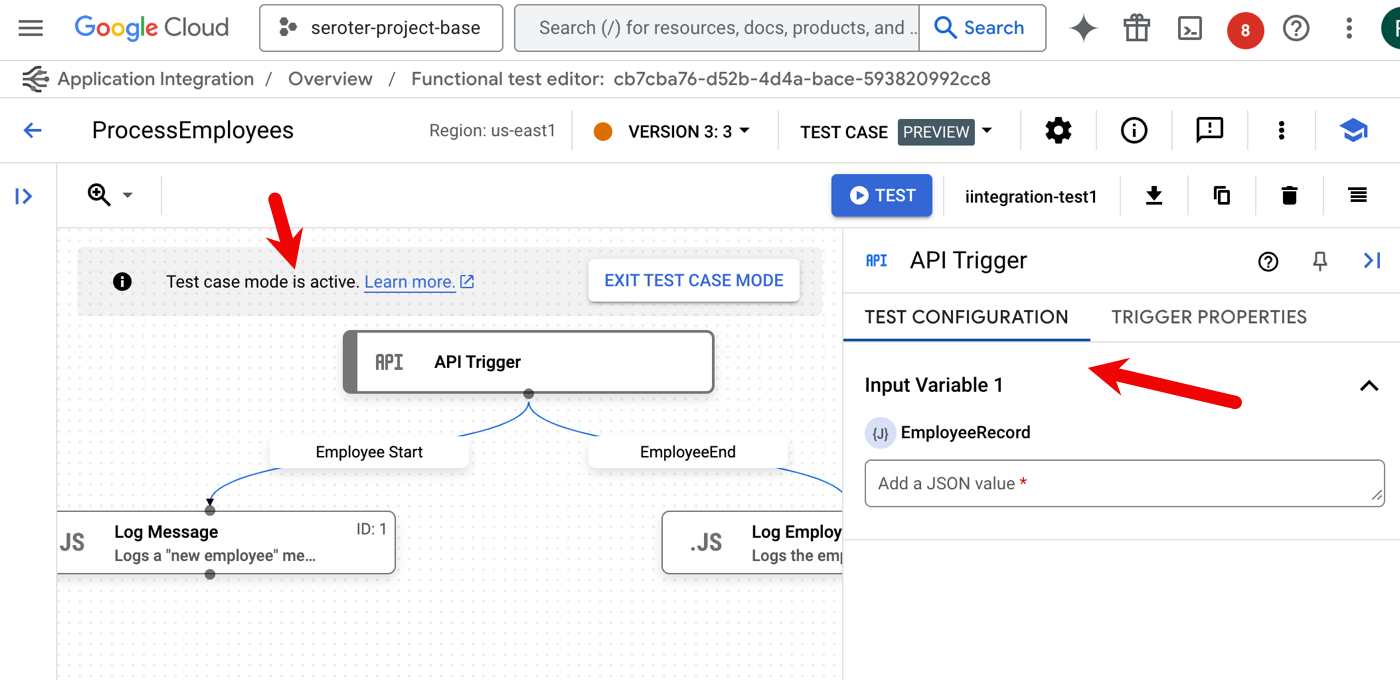
A “task” in the integration has more test case configuration options. When I choose the JavaScript task, I see that I can choose a mocking strategy. Do you play it straight with the data coming in, purposely trigger a skip or failure, or manipulate the output?

Then I add one or more “assertions” for the test case. I can check whether the step succeeded or failed, if a variable equals what I think it should, or if a variable meets a specific condition.

Once I have a set of test cases, the service makes it easy to list them, duplicate them, download them, and manage them. But I want to run them.
Even if you don’t use test cases, you can run a test. In that case, you click the “Test” button and provide an input value. If you’re using test cases, you stay in (or enter) “test case mode” and then the “Test” button runs your test cases.

Very nice. There’s a lot you can do here to create integrations that exist in a typical Ci/CD environment.
Better “day 2” management
This final category looks at operational features for integrations.
This first feature shipped a few days ago. Now we’re offering more detailed execution logs that you can also download as JSON. A complaint with systems like this is that they’re a black box and you can’t tell what’s going on. The more transparency, the better. Lots of log details now!

Another new operational feature is the ability replay an integration. Maybe something failed downstream and you want to retry the whole process. Or something transient happened and you need a fresh run. No problem. Now I can pick any completed (or failed) integration and run it again.
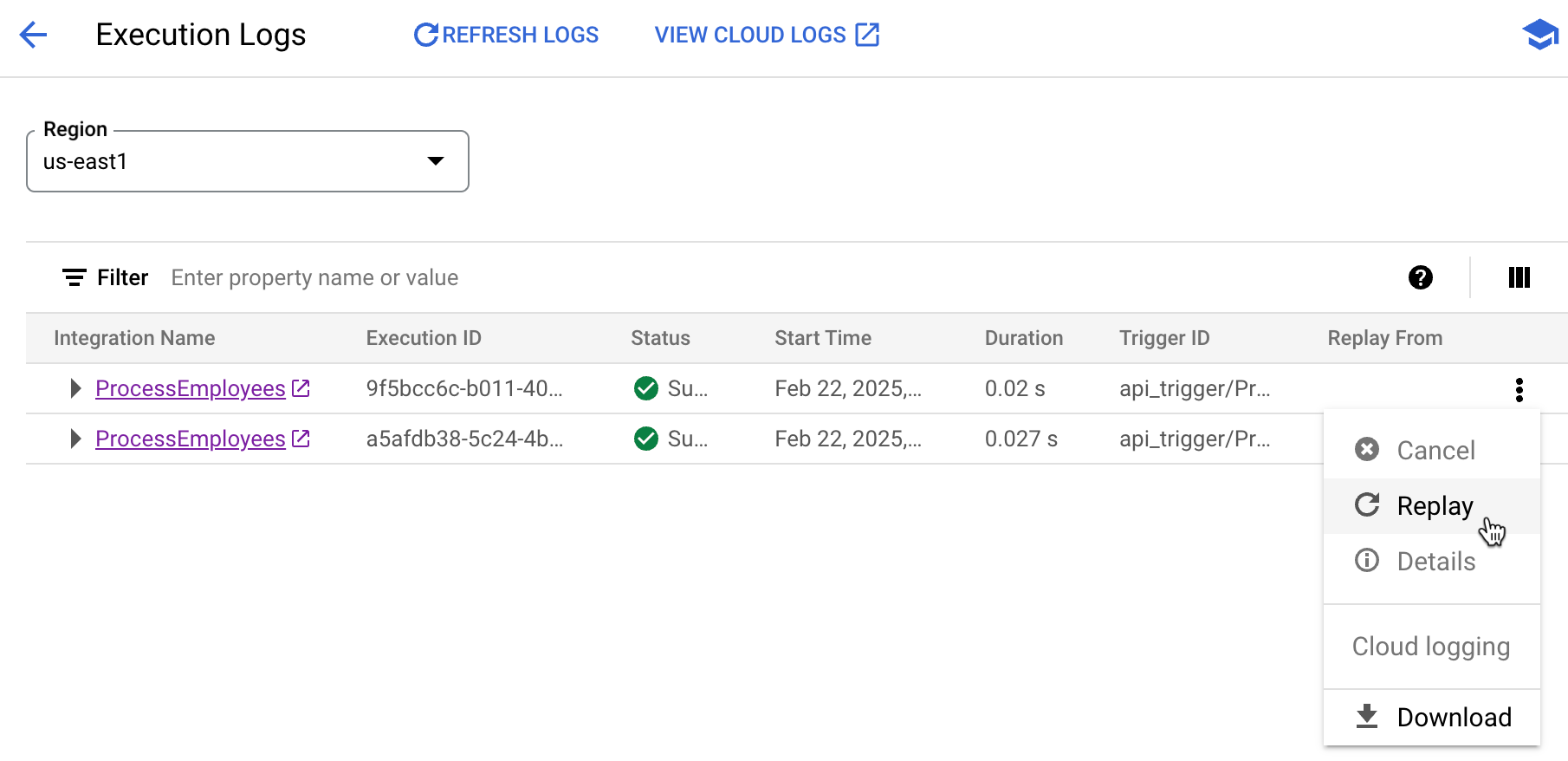
When I use this, I’m asked for a reason to replay. And what I liked is that after the replay occurs, there’s an annotation indicating that this given execution was the result of a replay.

Also be aware that you can now cancel an execution. This is hand for long-running instances that may no longer matter.
Summary
You don’t need to use tools like this, of course. You can connect your systems together with code or scripts. But I personally like managed experiences like this that handle the machinery of connecting to systems, transforming data, and dealing with running the dozens or thousands of hourly events between systems.
If you’re hunting for a solution here, give Google Cloud Application Integration a good look.
 Richard Seroter's Architecture Musings
Leave a comment