Yesterday, Microsoft kicked out the first public beta of the Service Bus for Windows software. You can use this to install and maintain Service Bus queues and topics in your own data center (or laptop!). See my InfoQ article for a bit more info. I thought I’d take a stab at installing this software on a demo machine and trying out a scenario or two.
To run the Service Bus for Windows, you need a Windows Server 2008 R2 (or later) box, SQL Server 2008 R2 (or later), IIS 7.5, PowerShell 3.0, .NET 4.5, and a pony. Ok, not a pony, but I wasn’t sure if you’d read the whole list. The first thing I did was spin up a server with SQL Server and IIS.

Then I made sure that I installed SQL Server 2008 R2 SPI. Next, I downloaded the Service Bus for Windows executable from the Microsoft site. Fortunately, this kicks off the Web Platform Installer, so you do NOT have to manually go hunt down all the other software prerequisites.

The Web Platform Installer checked my new server and saw that I was missing a few dependencies, so it nicely went out and got them.
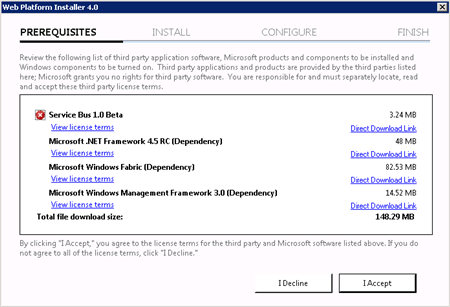
After the obligatory server reboots, I had everything successfully installed.

I wanted to see what this bad boy installed on my machine, so I first checked the Windows Services and saw the new Windows Fabric Host Service.
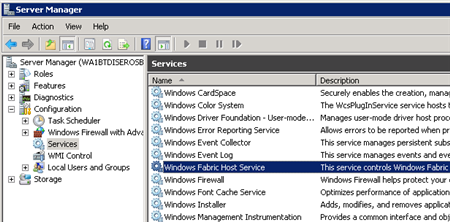
I didn’t have any databases installed in SQL Server yet, no sites in IIS, but did have a new Windows permissions Group (WindowsFabricAllowedUsers) and a Service Bus-flavored PowerShell command prompt in my Start Menu.
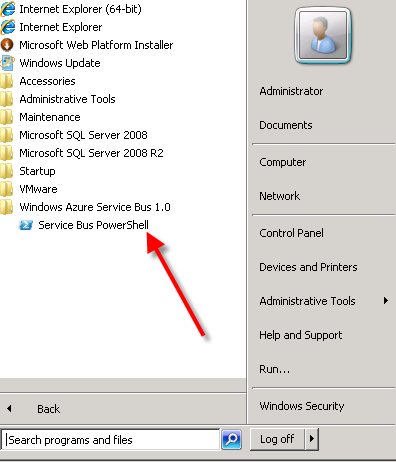
Following the configuration steps outlined in the Help documents, I executed a series of PowerShell commands to set up a new Service Bus farm. The first command which actually got things rolling was New-SBFarm:
$SBCertAutoGenerationKey = ConvertTo-SecureString -AsPlainText -Force -String [new password used for cert]

New-SBFarm -FarmMgmtDBConnectionString 'Data Source=.;Initial Catalog=SbManagementDB;Integrated Security=True' -PortRangeStart 9000 -TcpPort 9354 -RunAsName 'WA1BTDISEROSB01\sbuser' -AdminGroup 'BUILTIN\Administrators' -GatewayDBConnectionString 'Data Source=.;Initial Catalog=SbGatewayDatabase;Integrated Security=True' -CertAutoGenerationKey $SBCertAutoGenerationKey -ContainerDBConnectionString 'Data Source=.;Initial Catalog=ServiceBusDefaultContainer;Integrated Security=True';
When this finished running, I saw the confirmation in the PowerShell window:

But more importantly, I now had databases in SQL Server 2008 R2.

Next up, I needed to actually create a Service Bus host. According to the docs about the Add-SBHost command, the Service Bus farm isn’t considered running, and can’t offer any services, until a host is added. So, I executed the necessary PowerShell command to inflate a host.
$SBCertAutoGenerationKey = ConvertTo-SecureString -AsPlainText -Force -String [new password used for cert]

$SBRunAsPassword = ConvertTo-SecureString -AsPlainText -Force -String [password for sbuser account];

Add-SBHost -FarmMgmtDBConnectionString 'Data Source=.;Initial Catalog=SbManagementDB;Integrated Security=True' -RunAsPassword $SBRunAsPassword -CertAutoGenerationKey $SBCertAutoGenerationKey;
A bunch of stuff started happening in PowerShell …

… and then I got the acknowledgement that everything had completed, and I now had one host registered on the server.
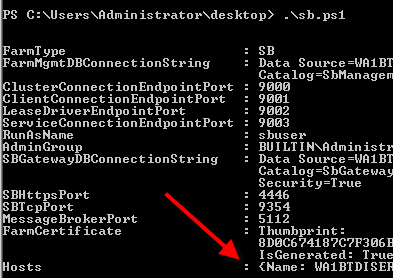
I also noticed that the Windows Service (Windows Fabric Host Service) that was disabled before, was now in a Started state. Next I required a new namespace for my Service Bus host. The New-SBNamespace command generates the namespace that provides segmentation between applications. The documentation said that “ManageUser” wasn’t required, but my script wouldn’t work without it, So, I added the user that I created just for this demo.
New-SBNamespace -Name 'NsSeroterDemo' -ManageUser 'sbuser';
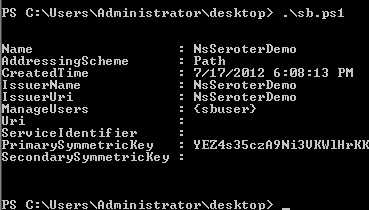
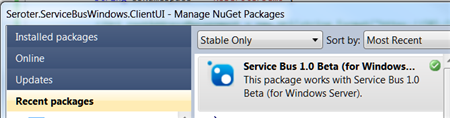
To confirm that everything was working, I ran the Get-SbMessageContainer and saw an active database server returned. At this point, I was ready to try and build an application. I opened Visual Studio and went to NuGet to add the package for the Service Bus. The name of the SDK package mentioned in the docs seems wrong, and I found the entry under Service Bus 1.0 Beta .
In my first chunk of code, I created a new queue if one didn’t exist.
//define variables
string servername = "WA1BTDISEROSB01";
int httpPort = 4446;
int tcpPort = 9354;
string sbNamespace = "NsSeroterDemo";

//create SB uris
Uri rootAddressManagement = ServiceBusEnvironment.CreatePathBasedServiceUri("sb", sbNamespace, string.Format("{0}:{1}", servername, httpPort));
Uri rootAddressRuntime = ServiceBusEnvironment.CreatePathBasedServiceUri("sb", sbNamespace, string.Format("{0}:{1}", servername, tcpPort));

//create NS manager
NamespaceManagerSettings nmSettings = new NamespaceManagerSettings();
nmSettings.TokenProvider = TokenProvider.CreateWindowsTokenProvider(new List() { rootAddressManagement });
NamespaceManager namespaceManager = new NamespaceManager(rootAddressManagement, nmSettings);

//create factory
MessagingFactorySettings mfSettings = new MessagingFactorySettings();
mfSettings.TokenProvider = TokenProvider.CreateWindowsTokenProvider(new List() { rootAddressManagement });
MessagingFactory factory = MessagingFactory.Create(rootAddressRuntime, mfSettings);

//check to see if topic already exists
if (!namespaceManager.QueueExists("OrderQueue"))
{
     MessageBox.Show("queue is NOT there ... creating queue");

     //create the queue
     namespaceManager.CreateQueue("OrderQueue");
 }
else
 {
      MessageBox.Show("queue already there!");
 }
After running this (directly on the Windows Server that had the Service Bus installed since my local laptop wasn’t part of the same domain as my Windows Server, and credentials would be messy), as my “sbuser” account, I successfully created a new queue. I confirmed this by looking at the relevant SQL Server database tables.

Next I added code that sends a message to the queue.
//write message to queue
 MessageSender msgSender = factory.CreateMessageSender("OrderQueue");
BrokeredMessage msg = new BrokeredMessage("This is a new order");
msgSender.Send(msg);

 MessageBox.Show("Message sent!");
Executing this code results in a message getting added to the corresponding database table.
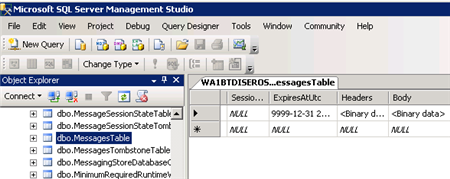
Sweet. Finally, I wrote the code that pulls (and deletes) a message from the queue.
//receive message from queue
MessageReceiver msgReceiver = factory.CreateMessageReceiver("OrderQueue");
BrokeredMessage rcvMsg = new BrokeredMessage();
string order = string.Empty;
rcvMsg = msgReceiver.Receive();

if(rcvMsg != null)
{
     order = rcvMsg.GetBody();
     //call complete to remove from queue
     rcvMsg.Complete();
 }

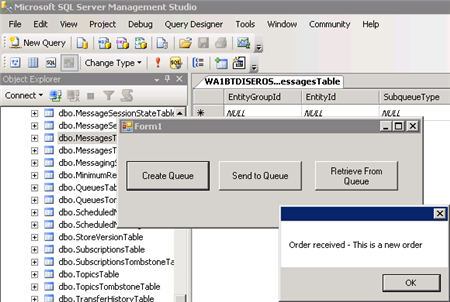
MessageBox.Show("Order received - " + order);
When this block ran, the application showed me the contents of the message, and upon looking at the MessagesTable again, I saw that it was empty (because the message had been processed).
So that’s it. From installation to development in a few easy steps. Having the option to run the Service Bus on any Windows machine will introduce some great scenarios for cloud providers and organizations that want to manage their own message broker.


 Richard Seroter's Architecture Musings
Leave a reply to Niklas Brättemark Cancel reply