The Informatica Cloud is an integration-as-a-service platform for designing and executing Extract-Transform-Load (ETL) tasks. This is the fourth and final post in a blog series that looked a few realistic usage scenarios for this platform. In this post, I’ll show you how you can send real-time data changes from Salesforce.com to a local SQL Server database.
As a reminder, in this four-part blog series, I am walking through the following scenarios:
- Part 1 – Sending File Data to Dynamics CRM Online
- Part 2 – Sending Salesforce.com Data to Dynamics CRM Online
- Part 3 – Sending Dynamics CRM Online Data to a Local Database
- Part 4 – Sending Salesforce.com Data to Local Database
Scenario Summary
I originally tried to do this with a SQL Azure database, but the types of errors I was getting led me to believe that Informatica is not yet using a JDBC driver that supports Azure. So be it. Here’s what I built:

In this solution, I (1) create the ETL task in the web-based designer, (2) setup Salesforce.com Outbound Messaging to send out an event whenever a new Account is added, (3) receive that event on an endpoint hosted in the Informatica Cloud and push the message to the on-premises agent, and (4) update the local database with the new account.
Outbound Messaging is such a cool feature of Salesforce.com and a way to have a truly event-driven line of business application. Let’s see how it works.
Building the ETL Package
To start with, I decided to reuse the same CrmAccount table that I created for the last post. This table holds some basic details for a given account.

Next, I went to the Informatica Cloud task designer and created a new Data Synchronization task. I first need to create the task BEFORE I can set up Outbound Messaging in Salesforce.com. On the first page of the wizard, I defined my ETL and set the operation for Insert.

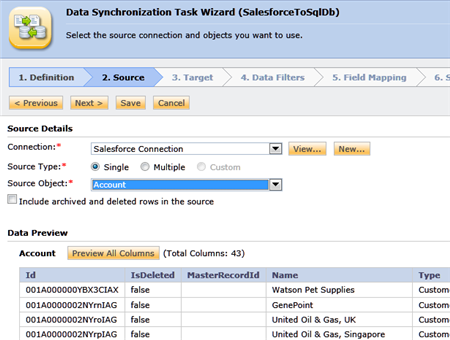
On the next wizard page, I reused the Salesforce.com connection that I created in the second post of this blog series. I set the Source Object to Account and saw the simple preview of the accounts currently in Salesforce.com.
I then set up my target, using the same SQL Server connection that I created in the previous post. I then chose the CrmAccount table and saw that there were no rows in there.

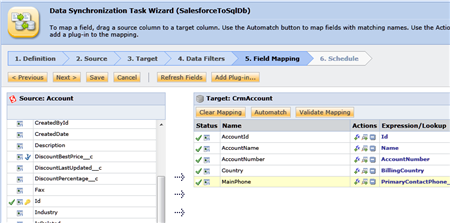
I didn’t choose any filter of data and moved on to the Field Mapping section. Here, I filled each target field with a value from the source object.
Finally, on the scheduling tab, I chose the “Run this task in real-time upon receiving an outbound message from Salesforce” option. When selected, this option reveals a URL that Salesforce.com can call from its Outbound Messaging activity.

That’s it! Now, how about we go get Salesforce.com all set up for this solution?
Setting up Salesforce.com Outbound Messaging
In my Salesforce.com Setup console, I went to the Workflow Rules section.

I then created a brand new Workflow Rule and selected the Account object. I then named the rule, set it to run when records are created or edited and gave it a simple evaluation rule that checks to see if the Account Name has a value.

On the next page of this wizard, I was given the choice of what to do when that workflow condition is met. Notice that besides Outbound Messaging, there are also options for creating tasks and sending email messages.

After choosing New Outbound Message, I needed to provide a name for this Outbound Message, the endpoint URL provided to me by the Informatica Cloud, and the data fields that my mapping will expect. In my case, there were five fields that were used in my mapping.

After saving this configuration, I completed the Workflow Rule and activated it.
Testing the ETL
With my Informatica Cloud configuration ready, and Salesforce.com Workflow Rule activated, I went and created a brand new Account record.

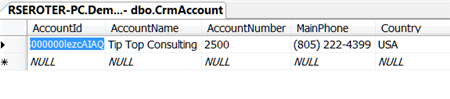
After saving the new record, I went and looked in the Outbound Messaging Delivery Status view and it was empty, meaning that it had already completed! Sure enough, I checked my database table and BOOM, there it was.
That’s impressive!
Summary
One of the trickiest aspects of Salesforce.com Outbound Messaging is that you need an public-facing internet endpoint to push to, even if your receiving app is inside your firewall. By using the Informatica Cloud, you get one! This scenario demonstrated a way to do *instant* data transfer from Salesforce.com to a local database. I think that’s pretty killer.
I hope you found this series useful. A modern enterprise architecture landscape will include traditional components like BizTalk Server and Informatica (or SSIS for that matter), but also start to contain cloud-based integration tools. Informatica Cloud should be high on your list of options for integrating both on-premises and cloud applications, especially if you want to stop installing and maintaining integration software!


 Richard Seroter's Architecture Musings
Leave a reply to Richard Seroter Cancel reply