Category: Windows Azure

  • Going to Microsoft TechEd (North America) to Speak About Cloud Integration

    In a few weeks, I’ll be heading to New Orleans to speak at Microsoft TechEd for the first time. My topic – Patterns of Cloud Integration – is an extension of things I’ve talked about this year in Amsterdam, Gothenburg, and in my latest Pluralsight course. However, I’ll also be covering some entirely new ground and showcasing some brand new technologies.

    TechEd is a great conference with tons of interesting sessions, and I’m thrilled to be part of it. In my talk, I’ll spend 75 minutes discussing practical considerations for application, data, identity, and network integration with cloud systems. Expect lots of demonstrations of Microsoft (and non-Microsoft) technology that can help organizations cleanly link all IT assets, regardless of physical location. I’ll show off some of the best tools from Microsoft, Salesforce.com, AWS (assuming no one tackles me when I bring it up), Informatica, and more.

    Any of you plan on going to North America TechEd this year? If so, hope to see you there!

  • Using Active Directory Federation Services to Authenticate / Authorize Node.js Apps in Windows Azure

    It’s gotten easy to publish web applications to the cloud, but the last thing you want to do is establish unique authentication schemes for each one. At some point, your users will be stuck with a mountain of passwords, or, end up reusing passwords everywhere. Not good. Instead, what about extending your existing corporate identity directory to the cloud for all applications to use? Fortunately, Microsoft Active Directory can be extended to support authentication/authorization for web applications deployed in ANY cloud platform. In this post, I’ll show you how to configure Active Directory Federation Services (ADFS) to authenticate the users of a Node.js application hosted in Windows Azure Web Sites and deployed via Dropbox.

    [Note: I was going to also show how to do this with an ASP.NET application since the new “Identity and Access” tools in Visual Studio 2012 make it really easy to use AD FS to authenticate users. However because of the passive authentication scheme Windows Identity Foundation uses in this scenario, the ASP.NET application has to be secured by SSL/TLS. Windows Azure Web Sites doesn’t support HTTPS (yet), and getting HTTPS working in Windows Azure Cloud Services isn’t trivial. So, we’ll save that walkthrough for another day.]

    2013.04.17adfs03

    Configuring Active Directory Federation Services for our application

    First off, I created a server that had DNS services and Active Directory installed. This server sits in the Tier 3 cloud and I used our orchestration engine to quickly build up a box with all the required services. Check out this KB article I wrote for Tier 3 on setting up an Active Directory and AD FS server from scratch.

    2013.04.17adfs01

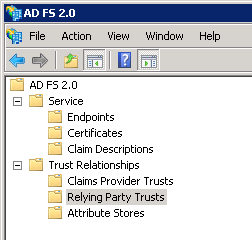
    AD FS is a service that supports identity federation and supports industry standards like SAML for authenticating users. It returns claims about the authenticated user. In AD FS, you’ve got endpoints that define which inbound authentication schemes are supported (like WS-Trust or SAML),  certificates for signing tokens and securing transmissions, and relying parties which represent the endpoints that AD FS has a trust relationship with.

    2013.04.17adfs02

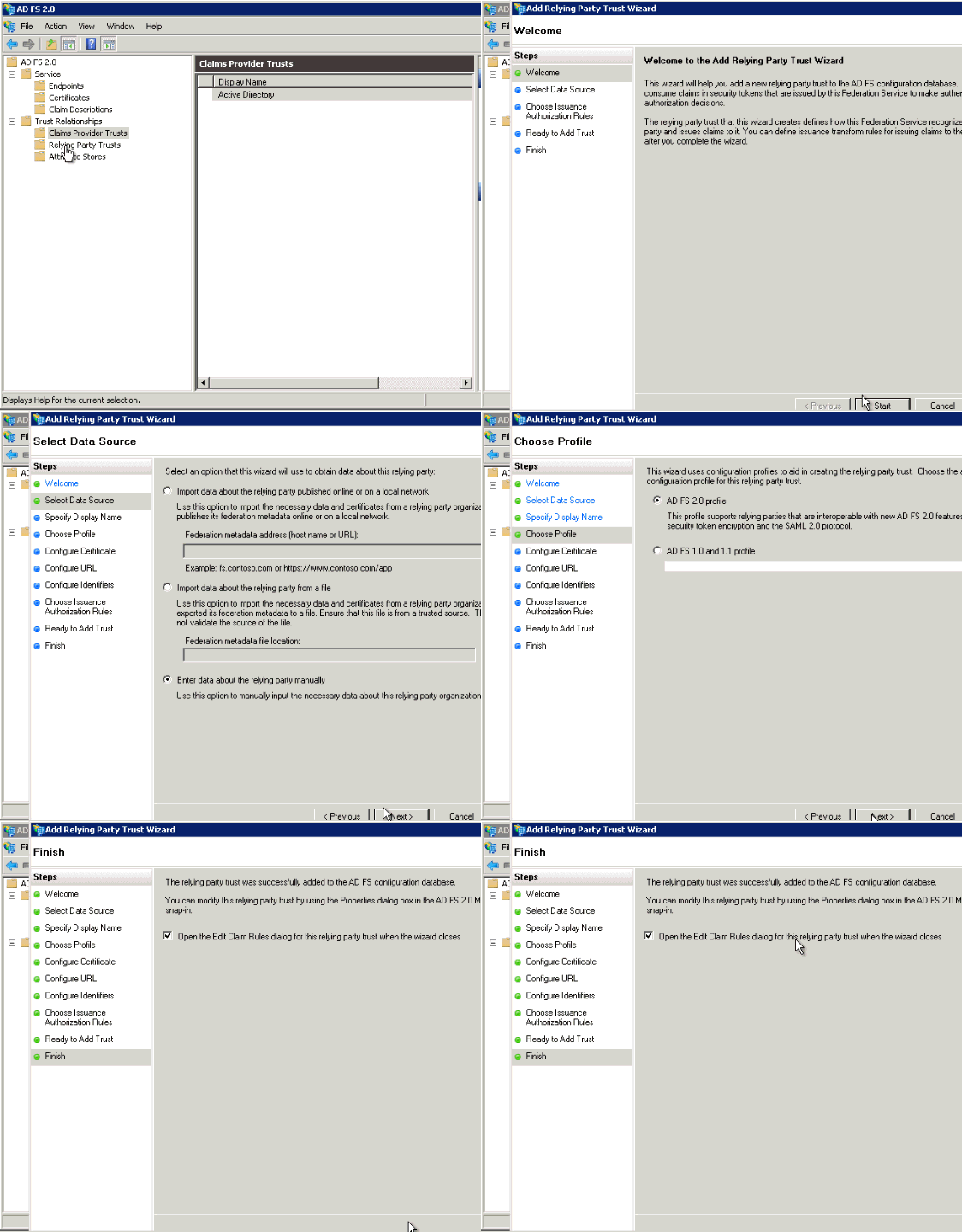
    In our case, I needed to enabled an active endpoint for my Node.js application to authenticate against, and one new relying party. First, I created a new relying party that referenced the yet-to-be-created URL of my Azure-hosted web site. In the animation below, see the simple steps I followed to create it. Note that because I’m doing active (vs. passive) authentication, there’s no endpoint to redirect to, and very few overall required settings.

    2013.04.17adfs04

    With the relying party finished, I could now add the claim rules. These tell AD FS what claims about the authenticated user to send back to the caller.

    2013.04.17adfs05

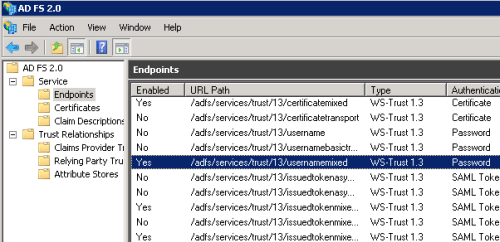
    At this point, AD FS was fully configured and able to authenticate my remote application. The final thing to do was enable the appropriate authentication endpoint. By default, the password-based WS-Trust endpoint is disabled, so I flipped it on so that I could pass username+password credentials to AD FS and authenticate a user.

    2013.04.17adfs06

    Connecting a Node.js application to AD FS

    Next, I used the JetBrains WebStorm IDE to build a Node.js application based on the Express framework. This simple application takes in a set of user credentials, and attempts to authenticate those credentials against AD FS. If successful, the application displays all the Active Directory Groups that the user belongs to. This information could be used to provide a unique application experience based on the role of the user. The initial page of the web application takes in the user’s credentials.

    div.content
            h1= title
            form(action='/profile', method='POST')
                  table
                      tr
                        td
                            label(for='user') User
                        td
                            input(id='user', type='text', name='user')
                      tr
                        td
                            label(for='password') Password
                        td
                            input(id='password', type='password', name='password')
                      tr
                        td(colspan=2)
                            input(type='submit', value='Log In')
    

    This page posts to a Node.js route (controller) that is responsible passing those credentials to AD FS. How do we talk to AD FS through the WS-Trust format? Fortunately, Leandro Boffi wrote up a simple Node.js module that does just that. I grabbed the wstrust-client module and added it to my Node.js project. The WS-Trust authentication response comes back as XML, so I also added a Node.js module to convert XML to JSON for easier parsing. My route code looked like this:

    //for XML parsing
    var xml2js = require('xml2js');
    var https = require('https');
    //to process WS-Trust requests
    var trustClient = require('wstrust-client');
    
    exports.details = function(req, res){
    
        var userName = req.body.user;
        var userPassword = req.body.password;
    
        //call endpoint, and pass in values
        trustClient.requestSecurityToken({
            scope: 'http://seroternodeadfs.azurewebsites.net',
            username: userName,
            password: userPassword,
            endpoint: 'https://[AD FS server IP address]/adfs/services/trust/13/UsernameMixed'
        }, function (rstr) {
    
            // Access the token
            var rawToken = rstr.token;
            console.log('raw: ' + rawToken);
    
            //convert to json
            var parser = new xml2js.Parser;
            parser.parseString(rawToken, function(err, result){
                //grab "user" object
                var user = result.Assertion.AttributeStatement[0].Attribute[0].AttributeValue[0];
                //get all "roles"
                var roles = result.Assertion.AttributeStatement[0].Attribute[1].AttributeValue;
                console.log(user);
                console.log(roles);
    
                //render the page and pass in the user and roles values
                res.render('profile', {title: 'User Profile', username: user, userroles: roles});
            });
        }, function (error) {
    
            // Error Callback
            console.log(error)
        });
    };
    

    See that I’m providing a “scope” (which maps to the relying party identifier), an endpoint (which is the public location of my AD FS server), and the user-provided credentials to the WS-Trust module. I then parse the results to grab the friendly name and roles of the authenticated user. Finally, the “profile” page takes the values that it’s given and renders the information.

    div.content
            h1 #{title} for #{username}
            br
            div
                div.roleheading User Roles
                ul
                    each userrole in userroles
                        li= userrole
    

    My application was complete and ready for deployment to Windows Azure.

    Publishing the Node.js application to Windows Azure

    Windows Azure Web Sites offer a really nice and easy way to host applications written in a variety of languages. It also supports a variety of ways to push code, including Git, GitHub, Team Foundation Service, Codeplex, and Dropbox. For simplicity sake (and because I hadn’t tried it yet), I chose to deploy via Dropbox.

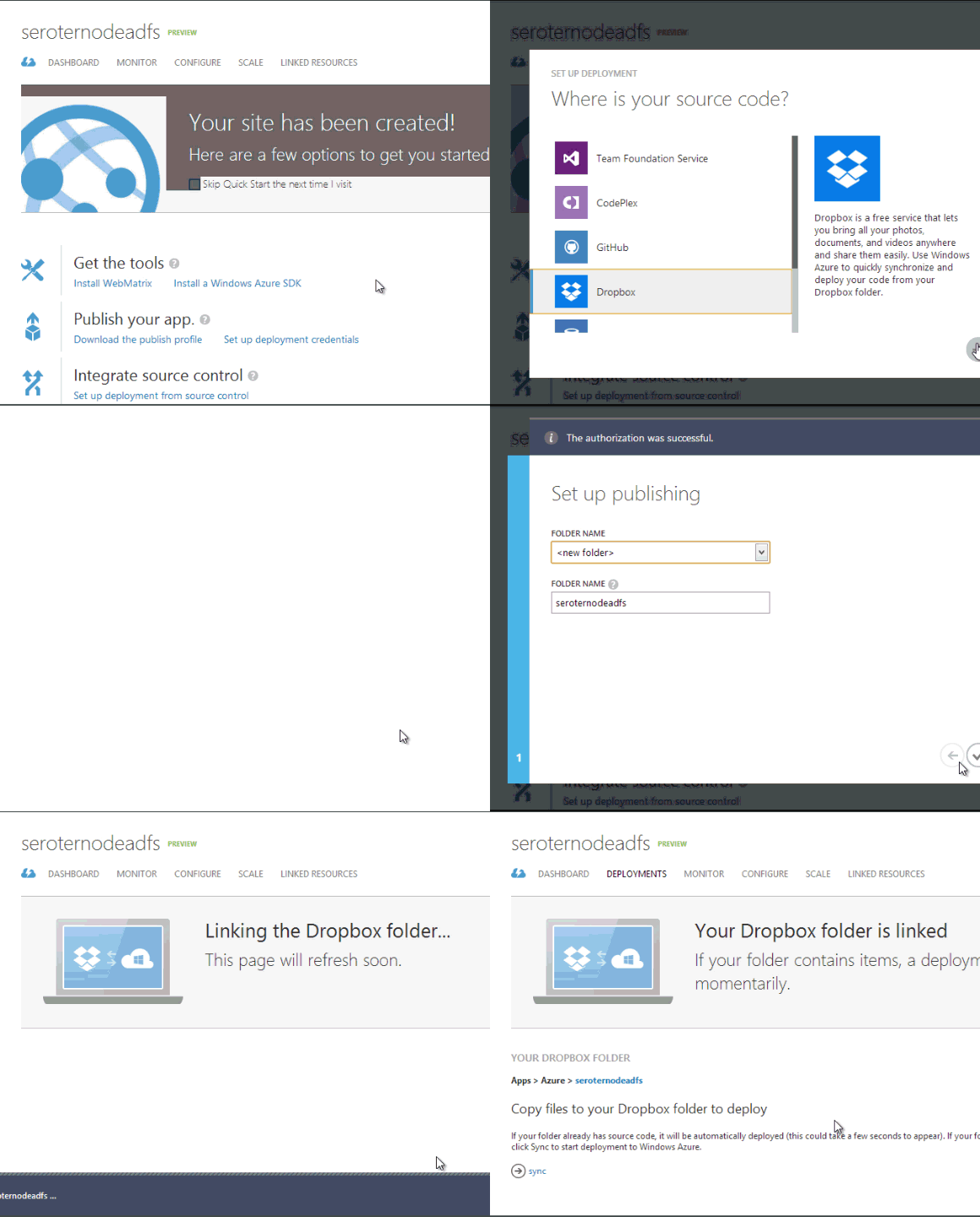
    However, first I had to create my Windows Azure Web Site. I made sure to use the same name that I had specified in my AD FS relying party.

    2013.04.17adfs07

    Once the Web Site is set up (which takes only a few seconds), I could connect it to a source control repository.

    2013.04.17adfs08

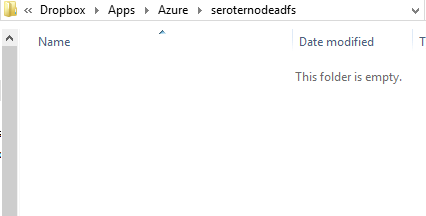
    After a couple moments, a new folder hierarchy appeared in my Dropbox.

    2013.04.17adfs09

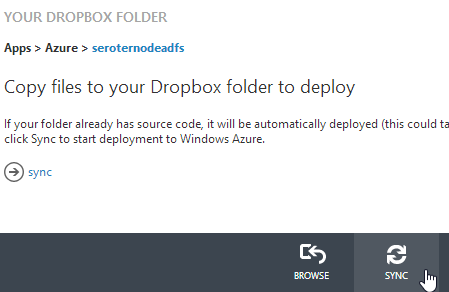
    I copied all the Node.js application source files into this folder. I then returned to the Windows Azure Management Portal and chose to Sync my Dropbox folder with my Windows Azure Web Site.

    2013.04.17adfs10

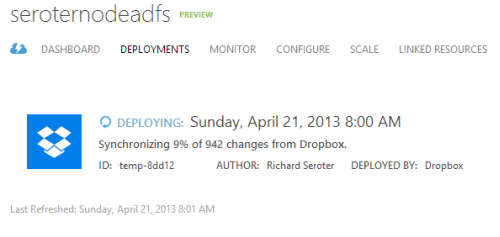
    Right away it starts synchronizing the application files. Windows Azure does a nice job of tracking my deployments and showing the progress.

    2013.04.17adfs11

    In about a minute, my application was uploaded and ready to test.

    Testing the application

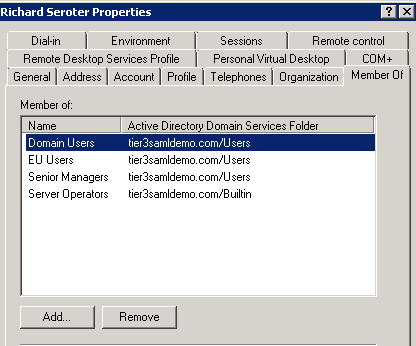
    The whole point of this application is to authenticate a user and return their Active Directory role collection. I created a “Richard Seroter” user in my Active Directory and put that user in a few different Active Directory Groups.

    2013.04.17adfs12

    I then browsed to my Windows Azure Website URL and was presented with my Node.js application interface.

    2013.04.17adfs13

    I plugged in my credentials and was immediately presented with the list of corresponding Active Directory user group membership information.

    2013.04.17adfs14

    Summary

    That was fun. AD FS is a fantastic way to extend your on-premises directory to applications hosted outside of your corporate network. In this case, we saw how to create  Node.js application that authenticated users against AD FS. While I deployed this sample application to Windows Azure Web Sites, I could have deployed this to ANY cloud that supports Node.js. Imagine having applications written in virtually any language, and hosted in any cloud, all using a single authentication endpoint. Powerful stuff!

  • My New Pluralsight Course – Patterns of Cloud Integration – Is Now Live

    I’ve been hard at work on a new Pluralsight video course and it’s now live and available for viewing. This course, Patterns of Cloud Integration,  takes you through how application and data integration differ when adding cloud endpoints. The course highlights the 4 integration styles/patterns introduced in the excellent Enterprise Integration Patterns book and discusses the considerations, benefits, and challenges of using them with cloud systems. There are five core modules in the course:

    • Integration in the Cloud. An overview of the new challenges of integrating with cloud systems as well as a summary of each of the four integration patterns that are covered in the rest of the course.
    • Remote Procedure Call. Sometimes you need information or business logic stored in an independent system and RPC is still a valid way to get it. Doing this with a cloud system on one (or both!) ends can be a challenge and we cover the technologies and gotchas here.
    • Asynchronous Messaging. Messaging is a fantastic way to do loosely coupled system architecture, but there are still a number of things to consider when doing this with the cloud.
    • Shared Database. If every system has to be consistent at the same time, then using a shared database is the way to go. This can be a challenge at cloud scale, and we review some options.
    • File Transfer. Good old-fashioned file transfers still make sense in many cases. Here I show a new crop of tools that make ETL easy to use!

    Because “the cloud” consists of so many unique and interesting technologies, I was determined to not just focus on the products and services from any one vendor. So, I decided to show off a ton of different technologies including:

    Whew! This represents years of work as I’ve written about or spoken on this topic for a while. It was fun to collect all sorts of tidbits, talk to colleagues, and experiment with technologies in order to create a formal course on the topic. There’s a ton more to talk about besides just what’s in this 4 hour course, but I hope that it sparks discussion and helps us continue to get better at linking systems, regardless of their physical location.

  • Publishing ASP.NET Web Sites to “Windows Azure Web Sites” Service

    Today, Microsoft made a number of nice updates to their Visual Studio tools and templates. On thing pointed out in Scott Hanselman’s blog post about it (and Scott Guthrie’s post as well), was the update that lets developers publish ASP.NET Web Site projects to WIndows Azure Web Sites. Given that I haven’t messed around with Windows Azure Web Sites, I figured that it’d be fun to try this out.

    After installing the new tooling and opening Visual Studio 2012, I created a new Web Site project.

    2013.02.18,websites01

    I then right-clicked my new project in Visual Studio and chose the “Publish Web Site” option.

    2013.02.18,websites02

    If you haven’t published to Windows Azure before, you’re told that you can do so if you download the necessary “publishing profile.”

    2013.02.18,websites03

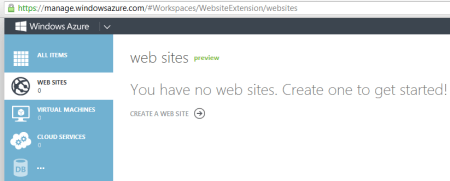
    When I clicked the “Download your publishing profile …” link, I was redirected to the Windows Azure Management Portal where I could see that there were no existing Web Sites provisioned yet.

    2013.02.18,websites04

    I quickly walked through the easy-to-use wizard to provision a new Web Site container.

    2013.02.18,websites05

    Within moments, I had a new Web Site ready to go.

    2013.02.18,websites06

    After drilling into this new Web Site’s dashboard, I saw the link to download my publishing profile.

    2013.02.18,websites07

    I downloaded the profile, and returned to Visual Studio. After importing this publishing profile into the “Publish Web” wizard, I was able to continue towards publishing this site to Windows Azure.

    2013.02.18,websites08

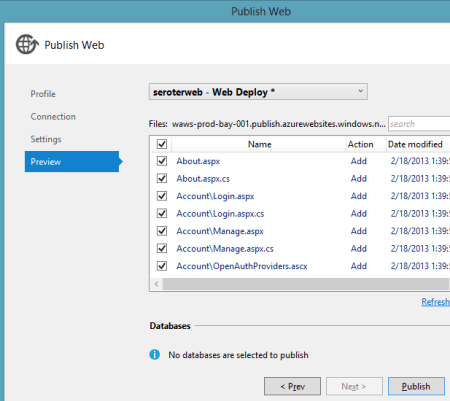
    The last page of this wizard (“Preview”) let me see all the files that I was about to upload and choose which ones to include in the deployment.

    2013.02.18,websites09

    Publishing only took a few seconds, and shortly afterwards I was able to hit my cloud web site.

    2013.02.18,websites10

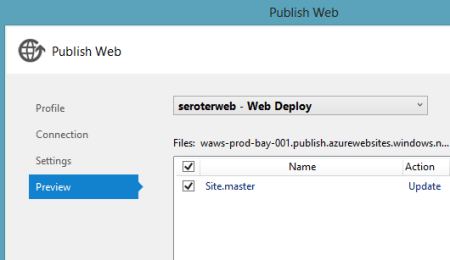
    As you’d hope, this flow also works fine for updating an existing deployment. I made a small change to the web site’s master page, and once again walked through the “Publish Web Site” wizard. This time I was immediately taken to the (final) “Preview” wizard page where it determined the changes between my local web site and the Azure Web Site.

    2013.02.18,websites11

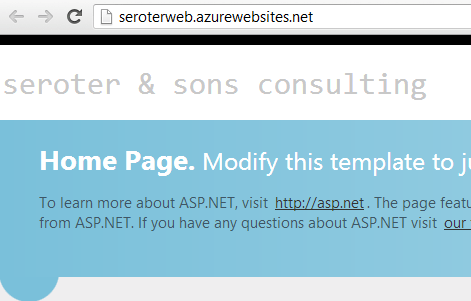
    After a few seconds, I saw my updated Web Site with the new company name.

    2013.02.18,websites12

    Overall, very nice experience. I’m definitely more inclined to use Windows Azure Web Sites now given how simple, fast, and straightforward it is.

  • January 2013 Trip to Europe to Speak on (Cloud) Integration, Identity Management

    In a couple weeks, I’m off to Amsterdam and Gothenburg to speak at a pair of events. First, on January 22nd I’ll be in Amsterdam at an event hosted by middleware service provider ESTREME. There will be a handful of speakers, and I’ll be presenting on the Patterns of Cloud Integration. It should be a fun chat about the challenges and techniques for applying application integration patterns in cloud settings.

    Next up, I’m heading to Gothenburg (Sweden) to speak at the annual Integration Days event hosted by Enfo Zystems. This two day event is held January 24th and 25th and features multiple tracks and a couple dozen sessions. My session on the 24th, called Cross Platform Security Done Right, focuses on identity management in distributed scenarios. I’ve got 7 demos lined up that take advantage of Windows Azure ACS, Active Directory Federation Services, Node.js, Salesforce.com and more. My session on the 25th, called Embracing the Emerging Integration Endpoints, looks at how existing integration tools can connect to up-and-coming technologies. Here I have another 7 demos that show off the ASP.NET Web API, SignalR, StreamInsight, Node.js, Amazon Web Services, Windows Azure Service Bus, Salesforce.com and the Informatica Cloud. Mikael Hakansson will be taking bets as to whether I’ll make it through all the demos in the allotted time.

    It should be a fun trip, and thanks to Steef-Jan Wiggers and Mikael for organizing my agenda. I hope to see some of you all in the audience!

  • 2012 Year in Review

    2012 was a fun year. I added 50+ blog posts, built Pluralsight courses about Force.com and Amazon Web Services, kept writing regularly for InfoQ.com, and got 2/3 of the way done my graduate degree in Engineering. It was a blast visiting Australia to talk about integration technologies, going to Microsoft Convergence to talk about CRM best practices, speaking about security at the Dreamforce conference, and attending the inaugural AWS re:Invent conference in Las Vegas. Besides all that, I changed employers, got married, sold my home and adopted some dogs.

    Below are some highlights of what I’ve written and books that I’ve read this past year.

    These are a handful of the blog posts that I enjoyed writing the most.

    I read a number of interesting books this year, and these were some of my favorites.

    A sincere thanks to all of you for continuing to read what I write, and I hope to keep throwing out posts that you find useful (or at least mildly amusing).

  • Interacting with Clouds From Visual Studio: Part 1 – Windows Azure

    Now that cloud providers are maturing and stabilizing their platforms, we’re seeing better and better dev tooling get released. Three major .NET-friendly cloud platforms (Windows Azure, AWS, and Iron Foundry) have management tools baked right into Visual Studio, and I thought it’d be fun to compare them with respect to completeness of functional coverage and overall usability. Specifically, I’m looking to see how well the Visual Studio plugins for each of these clouds account for browsing, deploying, updating, and testing services. To be sure, there are other tools that may help developers interact with their target cloud, but this series of posts is JUST looking at what is embedded within Visual Studio.

    Let’s start with the Windows Azure tooling for Visual Studio 2012. The table below summarizes my assessment. I’ll explain each rating in the sections that follow.

    Category

    Windows
    Azure

    Notes

    Browsing

    Web applications and files 1-4 Can view names and see instance counts, but that’s it. No lists of files, no properties of the application itself. Can initiate Remote Desktop command.
    Databases 4-4 No really part of the plugin (as its already in Server Explorer), but you get a rich view of Windows Azure SQL databases.
    Storage 1-4 No queues available, and no properties shown for tables and blobs.
    VM instances 2-4 Can see list of VMs and small set of properties. Also have the option to Remote Desktop into the server.
    Messaging components 3-4 Pretty complete story. Missing Service Bus relay component. Good view into Topics/Queues and informative set of properties.
    User accounts, permissions 0-4 No browsing of users or their permissions in Windows Azure.

    Deploying / Editing

    Web applications and files 0-4 No way to deploy new web application (instances) or update existing applications.
    Databases 4-4 Good story for adding new database artifacts and changing existing ones.
    Storage 0-4 No changes can be made to existing storage, and users can’t add new storage components.
    VM instances 0-4 Cannot alter existing VMs or deploy new ones.
    Messaging components 3-4 Nice ability to create and edit queues and topics. Cannot change existing topic subscriptions.
    User accounts, permissions 0-4 Cannot add or change user permissions.

    Testing

    Databases 4-4 Good testability through query execution.
    Messaging components 3-4 Nice ability to send and receive test messages, but lack of customization of message limits test cases.

    Setting up the Visual Studio Plugin for Windows Azure

    Before going to the functionality of the plugin interface, let’s first see how a developer sets up their workstation to use it. First, the developer must install the Windows Azure SDK for .NET. Among other things, this adds the ability to see and interact with a sub-set of Windows Azure from within Visual Studio’s existing Server Explorer window.

    2012.12.20vs01

    As you can see, it’s not a COMPLETE view of everything in the Windows Azure family (no Windows Azure Web Sites, Windows Azure SQL Database), but it’s got most of the biggies.

    Browsing Cloud Resources

    If the goal is to not only push apps to the cloud, but also manage them, then a decent browsing story is a must-have.  While Windows Azure offers a solid web portal – and programmatic interfaces ranging from PowerShell to a web service API – it’s nice to also be able to see your cloud components from within the same environment (Visual Studio) that you build them!

    What’s interesting to me is that each cloud function (Compute, Service Bus, Storage, VMs) requires a unique set of credentials to view the included resources. So no global “here’s my Windows Azure credentials … show me my stuff!” experience.

    Compute

    For Compute, the very first time that I want to browse web applications, I need to add a Deployment Environment.
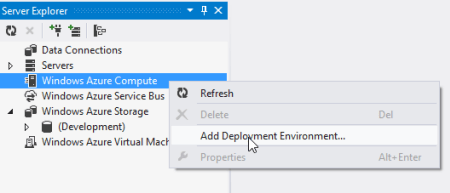
    2012.12.20vs02

    I’m then asked for which subscription to use, and if there are none listed, then I  am prompted to download a “publish settings” file from my Windows Azure account. Once I do that, I see my various subscriptions, and am asked to choose which one to show in the Visual Studio plugin.

    2012.12.20vs03

    Finally, I can see my deployed web applications.

    2012.12.20vs04

    Note however, that there are no “properties” displayed for any of the objects in this tree. So, I can’t browse the application settings or see how the web application was configured.

    Service Bus

    To browse all the deployed bits for the Service Bus, I once again have to add a new connection.
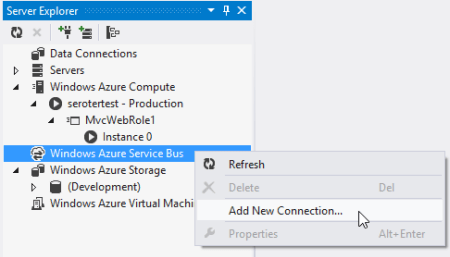
    2012.12.20vs05

    After adding my Service Bus namespace, Issuer, and Key, I get all the Topics and Queues (not Relays, though) associated with this subscription.

    2012.12.20vs06

    Unlike the Compute tree nodes, all the Service Bus nodes reveal tidbits of information in the Properties window. For instance, clicking on the Service Bus subscription shows me the Issuer, Key, endpoints, and more. Clicking on an individual queue shows me a host of properties including message count, duplicate detection status, and more. Handy stuff.
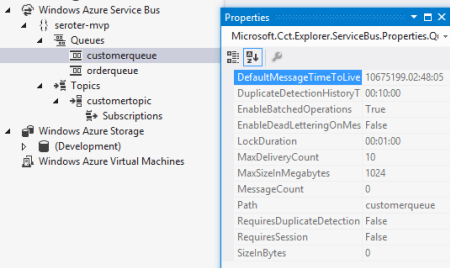
    2012.12.20vs07

    Storage

    To check out the storage (blob and table, no queues) artifacts in Windows Azure, I first have to add a connection to one of my storage accounts.
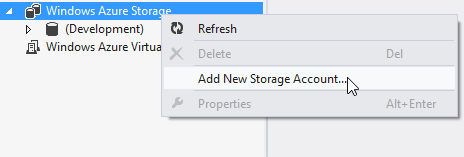
    2012.12.20vs08

    After providing my account name and key, I’m shown everything that’s in this account.
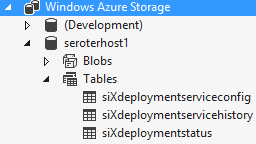
    2012.12.20vs09

    Unfortunately, these seem to follow the same pattern as Compute and don’t present any values in the Properties window.

    Virtual Machines

    How about the new, beta Windows Azure Virtual Machines? Like the other cloud resources exposed via this Visual Studio plugin, this one requires a one-time setup of a subscription.
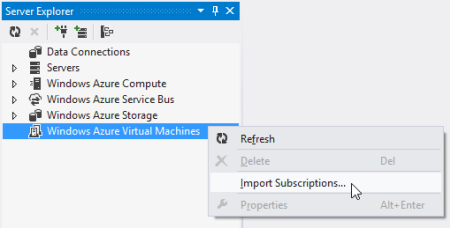
    2012.12.20vs10

    After pointing it to my downloaded subscription file, I was shown a list of the VMs that I’ve deployed to Windows Azure.

    2012.12.20vs11

    When I click on a particular VM, the Visual Studio Properties window includes a few attributes such as VM size, status, and name. However, there’s no option to see networking settings or any other advanced VM environment settings.

    2012.12.20vs12

    Database

    While there’s not a specific entry for Windows Azure SQL Databases, I figured that I’d try and add it as a regular “data connection” within the Visual Studio plugin. After updating the Windows Azure portal to allow my IP address to access one of my Azure databases, and plugged in the address and credentials of my cloud database.

    2012.12.20vs13

    Once connected, I see all the artifacts in my Windows Azure SQL database.

    2012.12.20vs14

    Deploying and Updating Cloud Resources

    So what can you create or update directly from the plug-in? For the Windows Azure plugin, the answer is “not much.” The Compute node is for (limited) read only views and you cannot deploy new instances. The Storage node is read-only as well as users cannot created new tables/blobs. The Virtual Machines node is for browsing only as there is no way to initiate the VM-creation process or change existing VMs.

    There are some exceptions to this read-only world. The Service Bus portion of the plugin is pretty interactive. I can easily create brand new topics and queues.
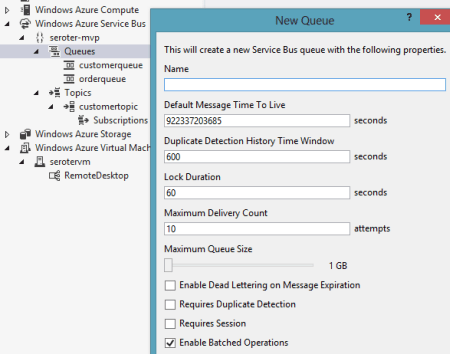
    2012.12.20vs15

    However, I cannot change the properties of existing topics or queues. As for topic subscriptions, I am able to create both subscriptions and rules, but cannot change the rules after the fact.

    The options for Windows Azure SQL Databases are the most promising. Using the Visual Studio plugin, I can create new tables, stored procedures and the like, and can also add/change table data or update artifacts such as stored procedures.

    2012.12.20vs16

    Testing Cloud Resources

    As you might expect given the limited support for interacting with cloud resources, the Visual Studio plugin for Windows Azure only has a few testing-oriented capabilities. First, users of SQL databases can easily execute procedures and run queries from the plugin.

    2012.12.20vs17

    The Service Bus also has a decent testing story. From the plugin, I can send test messages to queues, and receive them.

    2012.12.20vs18

    However, it doesn’t appear that I can customize the message. Instead, a generic message is sent on my behalf. Similarly, when I choose to send a test message to a topic, I don’t have a chance to change it. However, it is nice to be able to easily send and receive messages.

    Summary

    Overall, the Visual Studio plugin for Windows Azure offers a decent, but incomplete experience. If it were only a read-only tool, I’d expect better metadata about the deployed artifacts. If it was an interactive tool that supported additions and changes, I’d expect many more exposed features. Clearly Microsoft expects developers to use a mix of the Windows Azure portal, and custom tools (like the awesome Service Bus Explorer), but I hope that future releases of this plugin have a more comprehensive coverage area.

    In the next post, I’ll look at what Amazon offers in their Visual Studio plugin.

  • Links to Recent Articles Written Elsewhere

    Besides this blog, I still write regularly for InfoQ.com as well in as a pair of blogs for my employer, Tier 3. It’s always a fun exercise for me to figure out what content should go where, but I do my best to spread it around. Anyway, in the past couple weeks, I’ve written a few different posts that may (or may not) be of interest to you:

    Lots of great things happening in the tech space, so there’s never a shortage of cool things to investigate and write about!

  • Trying Out the New Windows Azure Portal Support for Relay Services

    Scott Guthrie announced a handful of changes to the Windows Azure Portal, and among them, was the long-awaited migration of Service Bus resources from the old-and-busted Silverlight Portal to the new HTML hotness portal. You’ll find some really nice additions to the Service Bus Queues and Topics. In addition to creating new queues/topics, you can also monitor them pretty well. You still can’t submit test messages (ala Amazon Web Services and their Management Portal), but it’s going in the right direction.

    2012.10.08sb05

    One thing that caught my eye was the “Relays” portion of this. In the “add” wizard, you see that you can “quick create” a Service Bus relay.

    2012.10.08sb02

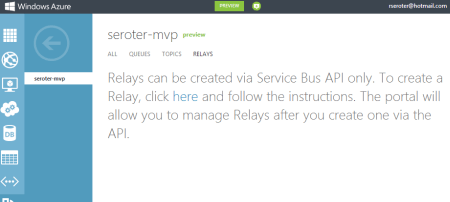
    However, all this does is create the namespace, not a relay service itself, as can be confirmed by viewing the message on the Relays portion of the Portal.

    2012.10.08sb03

    So, this portal is just for the *management* of relays. Fair enough. Let’s see what sort of management I get! I created a very simple REST service that listens to the Windows Azure Service Bus.  I pulled in the proper NuGet package so that I had all the Service Bus configuration values and assembly references. Then, I proceeded to configure this service using the webHttpRelayBinding.

    2012.10.08sb06

    I started up the service and invoked it a few times. I was hoping that I’d see performance metrics like those found with Service Bus Queues/Topics.

    2012.10.08sb07

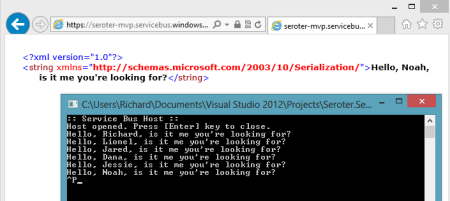
    However, when I returned to the Windows Azure Portal, all I saw was the name of my Relay service and confirmation of a single listener. This is still an improvement from the old portal where you really couldn’t see what you had deployed. So, it’s progress!

    2012.10.08sb08

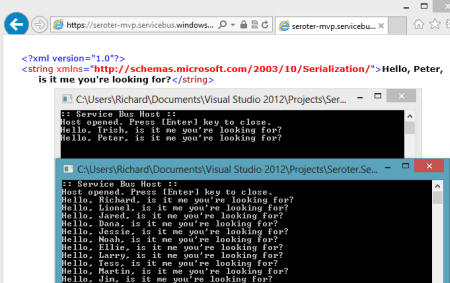
    You can see the Service Bus load balancing feature represented here. I started up a second instance of my “hello service” listener and pumped through a few more messages. I could see that messages were being sent to either of my two listeners.

    2012.10.08sb09

    Back in the Windows Azure Portal, I immediately saw that I now had two listeners.

    2012.10.08sb10

    Good stuff. I’d still like to see monitoring/throughput information added here for the Relay services. But, this is still  more useful than the last version of the Portal. And for those looking to use Topics/Queues, this is a significant upgrade in overall user experience.

  • Interview Series: Four Questions With … Shan McArthur

    Welcome to the 42nd interview in my series of talks with thought leaders in the “connected systems” space. This month, we have Shan McArthur who is the Vice President of Technology for software company Adxstudio, a Microsoft MVP for Dynamics CRM, blogger and Windows Azure enthusiast. You can find him on Twitter as @Shan_McArthur.

    Q: Microsoft recently injected themselves into the Infrastructure-as-a-Service (IaaS) market with the new Windows Azure Virtual Machines. Do you think that this is Microsoft’s way of admitting that a PaaS-only approach is difficult at this time or was there another major incentive to offer this service?

    A: The Azure PaaS offering was only suitable for a small subset of workloads.  It really delivered on the ability to dynamically scale web and worker roles in your solution, but it did this at the cost of requiring developers to rewrite their applications or design them specifically for the Azure PaaS model.  The PaaS-only model did nothing for infrastructure migration, nor did it help the non-web/worker role workloads.  Most business systems today are made from a number of different application tiers and not all of those tiers are suited to a PaaS model.  I have been advocating for many years that Microsoft must also give us a strong virtual machine environment.  I just wish they gave it to us three years ago.

    As for incentives, I believe it is simple economics – there are significantly more people interested in moving many different workloads to Windows Azure Virtual Machines than developers that are building the next Facebook/twitter/yammer/foursquare website.  Enterprises want more agility in their infrastructure.  Medium sized businesses want to have a disaster recovery (DR) environment hosted in the cloud.  Developers want to innovate in the cloud (and outside of IT interference) before deploying apps to on-prem or making capital commitments.  There are many other workloads like SharePoint, CRM, build environments, and more that demand a strong virtual machine environment in Azure.  In the process of delivering a great virtual machine environment, Microsoft will have increased their overall Azure revenue as well as gaining relevant mindshare with customers.  If they had not given us virtual machines, they would not survive in the long run in the cloud market as all of their primary competitors have had virtual machines for quite some time and have been eating into Microsoft’s revenue opportunities.

    Q: Do you think that customers will take application originally targeted at the Windows Azure Cloud Services (PaaS) environment and deploy them to the Windows Azure Virtual Machines instead? What do you think are the core scenarios for customers who are evaluating this IaaS offering?

    A: I have done some of that myself, but only for some workloads that make sense.  An Azure virtual machine will give you higher density for websites and a mix of workloads.  For things like web roles that are already working fine on Azure and have a 2-plus instance requirement, I think those roles will stay right where they are – in PaaS.  For roles like back-end processes, databases, CRM, document management, email/SMS, and other workloads, these will be easier to add in a virtual machine than in the PaaS model and will naturally gravitate to that.  Most on-premise software today has a heavy dependency on Active Directory, and again, an Azure Virtual Machine is the easiest way to achieve that.   I think that in the long run, most ‘applications’ that are running in Windows Azure will have a mix of PaaS and virtual machines.  As the market matures and ISV software starts supporting claims with less dependency on Active Directory, and builds their applications for direct deployment into Windows Azure, then this may change a bit, but for the foreseeable future, infrastructure as a service is here to stay.

    That said, I see a lot of the traditional PaaS websites migrating to Windows Azure Web Sites.  Web sites have the higher density (and a better pricing model) that will enable customers to use Azure more efficiently (from a cost standpoint).  It will also increase the number of sites that are hosted in Azure as most small websites were financially infeasible to move to Windows Azure previously to the WaWs feature.  For me, I compare the 30-45 minutes it takes me to deploy an update to an existing Azure PaaS site to the 1-2 minutes it takes to deploy to WaWs.  When you are building a lot of sites, this time really makes a significant impact on developer productivity!  I can even now deploy to Windows Azure without even having the Azure SDK installed on my developer machine.

    As for myself, this spring wave of Azure features has really changed how I engage customers in pre-sales.  I now have a number of virtual disk images of my standard demo/engagement environments, and I can now stand up a complete presales demo environment in less than 10 minutes.  This compares to the day of effort I used to stand up similar environments using CRM Online and Azure cloud services.  And now I can turn them off after a meeting, dispose of them at will, or resurrect them as I need them again.  I never had this agility before and have become completely addicted to it.

    Q: Your company has significant expertise in the CRM space and specifically, the on-premises and cloud versions of Dynamics CRM. How do you help customers decided where to put their line-of-business applications, and what are your most effective ways for integrating applications that may be hosted by different providers?

    A: Microsoft did a great job of ensuring that CRM Online and on-premise had the same application functionality.  This allows me to advise my customers that they can choose the hosting environment that best meets their requirements or their values.  Some things that are considered are the effort of maintenance, bandwidth and performance, control of service maintenance windows, SLAs, data residency, and licensing models.  It basically boils down to CRM Online being a shared service – this is great for customers that would prefer low cost to guaranteed performance levels, that prefer someone else maintain and operate the service versus them picking their own maintenance windows and doing it themselves, ones that don’t have concerns about their data being outside of their network versus ones that need to audit their systems from top to bottom, and ones that would prefer to rent their software versus purchasing it.  The new Windows Azure Virtual Machines features now gives us the ability to install CRM in Windows Azure – running it in the cloud but on dedicated hardware.  This introduces some new options for customers to consider as this is a hybrid cloud/on-premise solution.

    As for integration, all integration with CRM is done through the web services and those services are consistent in all environments (online and on-premise).  This really has enabled us to integrate with any CRM environment, regardless of where it is hosted.  Integrating applications that are hosted between different application providers is still fairly difficult.  The most difficult part is to get those independent providers to agree on a single authentication model.  Claims and federation are making great strides, and REST and oAuth are growing quickly.  That said, it is still rather rare to see two ISVs building to the same model.  Where it is more prevalent is in the larger vendors like Facebook that publish an SDK that everyone builds towards.  This is going to be a temporary problem, as more vendors start to embrace REST and oAuth.  Once two applications have a common security model (at least an identity model), it is easy for them to build deep integrations between the two systems.  Take a good long hard look at where Office 2013 is going with their integration story…

    Q [stupid question]: I used to work with a fellow who hated peanut butter. I had trouble understanding this. I figured that everyone loved peanut butter. What foods do you think have the most even, and uneven, splits of people who love and hate it? I’d suspect that the most even love/hate splits are specific vegetables (sweet potatoes, yuck) and the most uneven splits are universally loved foods like strawberries. Thoughts?

    A: Chunky or smooth? I have always wondered if our personal tastes are influenced by the unique varieties of how each of our brains and sensors (eyes, hearing, smell, taste) are wired up.  Although I could never prove it, I would bet that I would sense the taste of peanut butter differently than someone else, and perhaps those differences in how they are perceived by the brain has a very significant impact on whether or not we like something.  But that said, I would assume that the people that have a deadly allergy to peanut butter would prefer to stay away from it no matter how they perceived the taste!  That said, for myself I have found that the way food is prepared has a significant impact on whether or not I like it.  I grew up eating a lot of tough meat that I really did not enjoy eating, but now I smoke my meat and prefer it more than my traditional favorites.

    Good stuff, Shan, thanks for the insight!