Category: Windows Azure Service Bus

  • Interacting with Clouds From Visual Studio: Part 1 – Windows Azure

    Now that cloud providers are maturing and stabilizing their platforms, we’re seeing better and better dev tooling get released. Three major .NET-friendly cloud platforms (Windows Azure, AWS, and Iron Foundry) have management tools baked right into Visual Studio, and I thought it’d be fun to compare them with respect to completeness of functional coverage and overall usability. Specifically, I’m looking to see how well the Visual Studio plugins for each of these clouds account for browsing, deploying, updating, and testing services. To be sure, there are other tools that may help developers interact with their target cloud, but this series of posts is JUST looking at what is embedded within Visual Studio.

    Let’s start with the Windows Azure tooling for Visual Studio 2012. The table below summarizes my assessment. I’ll explain each rating in the sections that follow.

    Category

    Windows
    Azure

    Notes

    Browsing

    Web applications and files 1-4 Can view names and see instance counts, but that’s it. No lists of files, no properties of the application itself. Can initiate Remote Desktop command.
    Databases 4-4 No really part of the plugin (as its already in Server Explorer), but you get a rich view of Windows Azure SQL databases.
    Storage 1-4 No queues available, and no properties shown for tables and blobs.
    VM instances 2-4 Can see list of VMs and small set of properties. Also have the option to Remote Desktop into the server.
    Messaging components 3-4 Pretty complete story. Missing Service Bus relay component. Good view into Topics/Queues and informative set of properties.
    User accounts, permissions 0-4 No browsing of users or their permissions in Windows Azure.

    Deploying / Editing

    Web applications and files 0-4 No way to deploy new web application (instances) or update existing applications.
    Databases 4-4 Good story for adding new database artifacts and changing existing ones.
    Storage 0-4 No changes can be made to existing storage, and users can’t add new storage components.
    VM instances 0-4 Cannot alter existing VMs or deploy new ones.
    Messaging components 3-4 Nice ability to create and edit queues and topics. Cannot change existing topic subscriptions.
    User accounts, permissions 0-4 Cannot add or change user permissions.

    Testing

    Databases 4-4 Good testability through query execution.
    Messaging components 3-4 Nice ability to send and receive test messages, but lack of customization of message limits test cases.

    Setting up the Visual Studio Plugin for Windows Azure

    Before going to the functionality of the plugin interface, let’s first see how a developer sets up their workstation to use it. First, the developer must install the Windows Azure SDK for .NET. Among other things, this adds the ability to see and interact with a sub-set of Windows Azure from within Visual Studio’s existing Server Explorer window.

    2012.12.20vs01

    As you can see, it’s not a COMPLETE view of everything in the Windows Azure family (no Windows Azure Web Sites, Windows Azure SQL Database), but it’s got most of the biggies.

    Browsing Cloud Resources

    If the goal is to not only push apps to the cloud, but also manage them, then a decent browsing story is a must-have.  While Windows Azure offers a solid web portal – and programmatic interfaces ranging from PowerShell to a web service API – it’s nice to also be able to see your cloud components from within the same environment (Visual Studio) that you build them!

    What’s interesting to me is that each cloud function (Compute, Service Bus, Storage, VMs) requires a unique set of credentials to view the included resources. So no global “here’s my Windows Azure credentials … show me my stuff!” experience.

    Compute

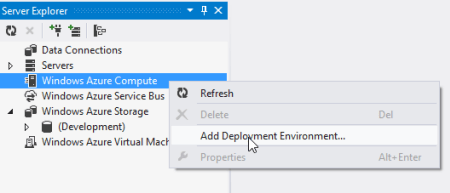
    For Compute, the very first time that I want to browse web applications, I need to add a Deployment Environment.
    2012.12.20vs02

    I’m then asked for which subscription to use, and if there are none listed, then I  am prompted to download a “publish settings” file from my Windows Azure account. Once I do that, I see my various subscriptions, and am asked to choose which one to show in the Visual Studio plugin.

    2012.12.20vs03

    Finally, I can see my deployed web applications.

    2012.12.20vs04

    Note however, that there are no “properties” displayed for any of the objects in this tree. So, I can’t browse the application settings or see how the web application was configured.

    Service Bus

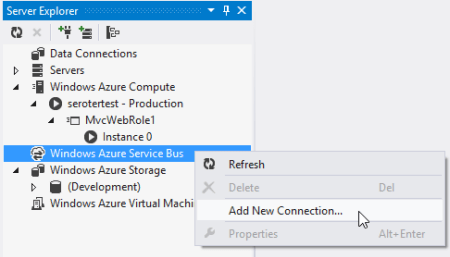
    To browse all the deployed bits for the Service Bus, I once again have to add a new connection.
    2012.12.20vs05

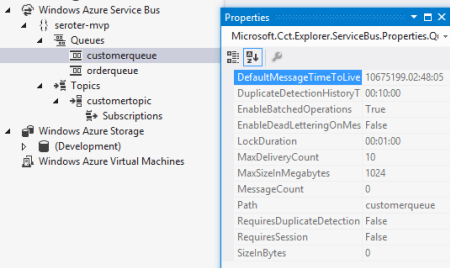
    After adding my Service Bus namespace, Issuer, and Key, I get all the Topics and Queues (not Relays, though) associated with this subscription.

    2012.12.20vs06

    Unlike the Compute tree nodes, all the Service Bus nodes reveal tidbits of information in the Properties window. For instance, clicking on the Service Bus subscription shows me the Issuer, Key, endpoints, and more. Clicking on an individual queue shows me a host of properties including message count, duplicate detection status, and more. Handy stuff.
    2012.12.20vs07

    Storage

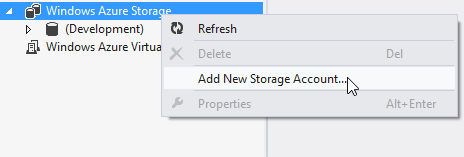
    To check out the storage (blob and table, no queues) artifacts in Windows Azure, I first have to add a connection to one of my storage accounts.
    2012.12.20vs08

    After providing my account name and key, I’m shown everything that’s in this account.
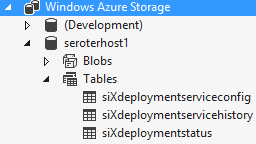
    2012.12.20vs09

    Unfortunately, these seem to follow the same pattern as Compute and don’t present any values in the Properties window.

    Virtual Machines

    How about the new, beta Windows Azure Virtual Machines? Like the other cloud resources exposed via this Visual Studio plugin, this one requires a one-time setup of a subscription.
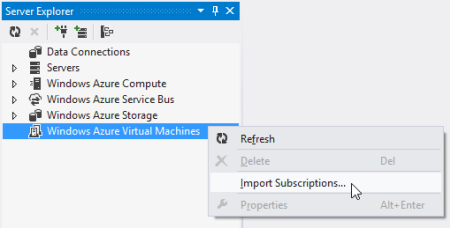
    2012.12.20vs10

    After pointing it to my downloaded subscription file, I was shown a list of the VMs that I’ve deployed to Windows Azure.

    2012.12.20vs11

    When I click on a particular VM, the Visual Studio Properties window includes a few attributes such as VM size, status, and name. However, there’s no option to see networking settings or any other advanced VM environment settings.

    2012.12.20vs12

    Database

    While there’s not a specific entry for Windows Azure SQL Databases, I figured that I’d try and add it as a regular “data connection” within the Visual Studio plugin. After updating the Windows Azure portal to allow my IP address to access one of my Azure databases, and plugged in the address and credentials of my cloud database.

    2012.12.20vs13

    Once connected, I see all the artifacts in my Windows Azure SQL database.

    2012.12.20vs14

    Deploying and Updating Cloud Resources

    So what can you create or update directly from the plug-in? For the Windows Azure plugin, the answer is “not much.” The Compute node is for (limited) read only views and you cannot deploy new instances. The Storage node is read-only as well as users cannot created new tables/blobs. The Virtual Machines node is for browsing only as there is no way to initiate the VM-creation process or change existing VMs.

    There are some exceptions to this read-only world. The Service Bus portion of the plugin is pretty interactive. I can easily create brand new topics and queues.
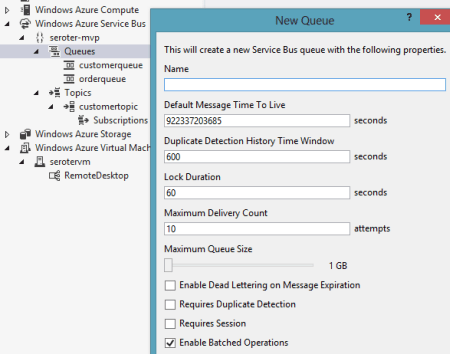
    2012.12.20vs15

    However, I cannot change the properties of existing topics or queues. As for topic subscriptions, I am able to create both subscriptions and rules, but cannot change the rules after the fact.

    The options for Windows Azure SQL Databases are the most promising. Using the Visual Studio plugin, I can create new tables, stored procedures and the like, and can also add/change table data or update artifacts such as stored procedures.

    2012.12.20vs16

    Testing Cloud Resources

    As you might expect given the limited support for interacting with cloud resources, the Visual Studio plugin for Windows Azure only has a few testing-oriented capabilities. First, users of SQL databases can easily execute procedures and run queries from the plugin.

    2012.12.20vs17

    The Service Bus also has a decent testing story. From the plugin, I can send test messages to queues, and receive them.

    2012.12.20vs18

    However, it doesn’t appear that I can customize the message. Instead, a generic message is sent on my behalf. Similarly, when I choose to send a test message to a topic, I don’t have a chance to change it. However, it is nice to be able to easily send and receive messages.

    Summary

    Overall, the Visual Studio plugin for Windows Azure offers a decent, but incomplete experience. If it were only a read-only tool, I’d expect better metadata about the deployed artifacts. If it was an interactive tool that supported additions and changes, I’d expect many more exposed features. Clearly Microsoft expects developers to use a mix of the Windows Azure portal, and custom tools (like the awesome Service Bus Explorer), but I hope that future releases of this plugin have a more comprehensive coverage area.

    In the next post, I’ll look at what Amazon offers in their Visual Studio plugin.

  • Trying Out the New Windows Azure Portal Support for Relay Services

    Scott Guthrie announced a handful of changes to the Windows Azure Portal, and among them, was the long-awaited migration of Service Bus resources from the old-and-busted Silverlight Portal to the new HTML hotness portal. You’ll find some really nice additions to the Service Bus Queues and Topics. In addition to creating new queues/topics, you can also monitor them pretty well. You still can’t submit test messages (ala Amazon Web Services and their Management Portal), but it’s going in the right direction.

    2012.10.08sb05

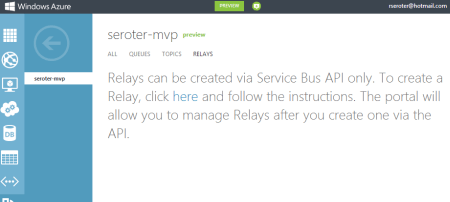
    One thing that caught my eye was the “Relays” portion of this. In the “add” wizard, you see that you can “quick create” a Service Bus relay.

    2012.10.08sb02

    However, all this does is create the namespace, not a relay service itself, as can be confirmed by viewing the message on the Relays portion of the Portal.

    2012.10.08sb03

    So, this portal is just for the *management* of relays. Fair enough. Let’s see what sort of management I get! I created a very simple REST service that listens to the Windows Azure Service Bus.  I pulled in the proper NuGet package so that I had all the Service Bus configuration values and assembly references. Then, I proceeded to configure this service using the webHttpRelayBinding.

    2012.10.08sb06

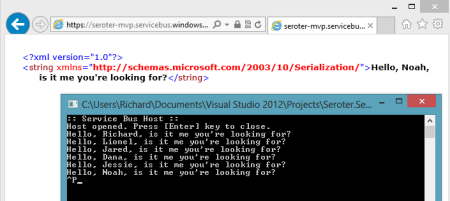
    I started up the service and invoked it a few times. I was hoping that I’d see performance metrics like those found with Service Bus Queues/Topics.

    2012.10.08sb07

    However, when I returned to the Windows Azure Portal, all I saw was the name of my Relay service and confirmation of a single listener. This is still an improvement from the old portal where you really couldn’t see what you had deployed. So, it’s progress!

    2012.10.08sb08

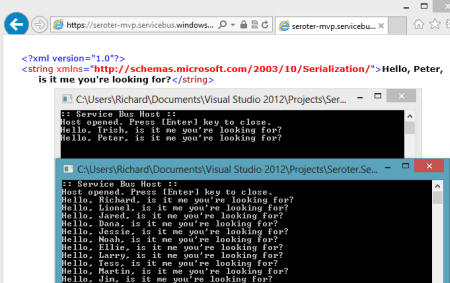
    You can see the Service Bus load balancing feature represented here. I started up a second instance of my “hello service” listener and pumped through a few more messages. I could see that messages were being sent to either of my two listeners.

    2012.10.08sb09

    Back in the Windows Azure Portal, I immediately saw that I now had two listeners.

    2012.10.08sb10

    Good stuff. I’d still like to see monitoring/throughput information added here for the Relay services. But, this is still  more useful than the last version of the Portal. And for those looking to use Topics/Queues, this is a significant upgrade in overall user experience.

  • Installing and Testing the New Service Bus for Windows

    Yesterday, Microsoft kicked out the first public beta of the Service Bus for Windows software. You can use this to install and maintain Service Bus queues and topics in your own data center (or laptop!). See my InfoQ article for a bit more info. I thought I’d take a stab at installing this software on a demo machine and trying out a scenario or two.

    To run the Service Bus for Windows,  you need a Windows Server 2008 R2 (or later) box, SQL Server 2008 R2 (or later), IIS 7.5, PowerShell 3.0, .NET 4.5, and a pony. Ok, not a pony, but I wasn’t sure if you’d read the whole list. The first thing I did was spin up a server with SQL Server and IIS.

    2012.07.17sb03

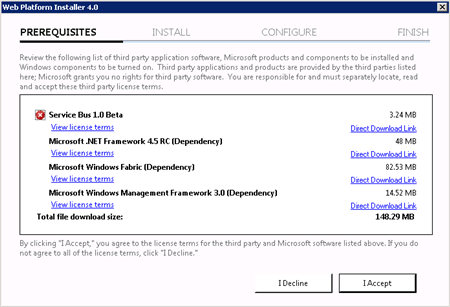
    Then I made sure that I installed SQL Server 2008 R2 SPI. Next, I downloaded the Service Bus for Windows executable from the Microsoft site. Fortunately, this kicks off the Web Platform Installer, so you do NOT have to manually go hunt down all the other software prerequisites.

    2012.07.17sb01

    The Web Platform Installer checked my new server and saw that I was missing a few dependencies, so it nicely went out and got them.

    2012.07.17sb02

    After the obligatory server reboots, I had everything successfully installed.

    2012.07.17sb04

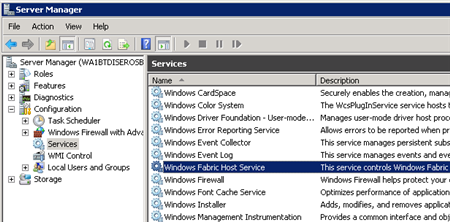
    I wanted to see what this bad boy installed on my machine, so I first checked the Windows Services and saw the new Windows Fabric Host Service.

    2012.07.17sb05

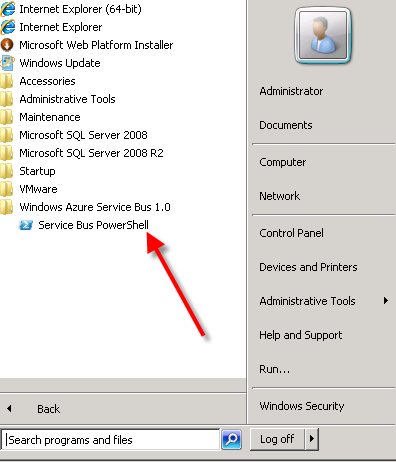
    I didn’t have any databases installed in SQL Server yet, no sites in IIS, but did have a new Windows permissions Group (WindowsFabricAllowedUsers) and a Service Bus-flavored PowerShell command prompt in my Start Menu.

    2012.07.17sb06

    Following the configuration steps outlined in the Help documents, I executed a series of PowerShell commands to set up a new Service Bus farm. The first command which actually got things rolling was New-SBFarm:

    $SBCertAutoGenerationKey = ConvertTo-SecureString -AsPlainText -Force -String [new password used for cert]
    
    New-SBFarm -FarmMgmtDBConnectionString 'Data Source=.;Initial Catalog=SbManagementDB;Integrated Security=True' -PortRangeStart 9000 -TcpPort 9354 -RunAsName 'WA1BTDISEROSB01\sbuser' -AdminGroup 'BUILTIN\Administrators' -GatewayDBConnectionString 'Data Source=.;Initial Catalog=SbGatewayDatabase;Integrated Security=True' -CertAutoGenerationKey $SBCertAutoGenerationKey -ContainerDBConnectionString 'Data Source=.;Initial Catalog=ServiceBusDefaultContainer;Integrated Security=True';
    

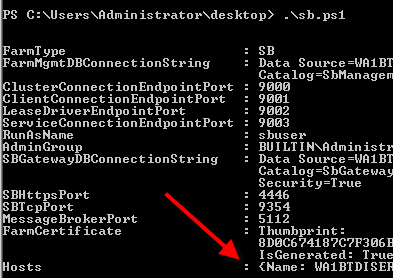
    When this finished running, I saw the confirmation in the PowerShell window:

    2012.07.17sb07

    But more importantly, I now had databases in SQL Server 2008 R2.

    2012.07.17sb08

    Next up, I needed to actually create a Service Bus host. According to the docs about the Add-SBHost command, the Service Bus farm isn’t considered running, and can’t offer any services, until a host is added. So, I executed the necessary PowerShell command to inflate a host.

    $SBCertAutoGenerationKey = ConvertTo-SecureString -AsPlainText -Force -String [new password used for cert]
    
    $SBRunAsPassword = ConvertTo-SecureString -AsPlainText -Force -String [password for sbuser account];
    
    Add-SBHost -FarmMgmtDBConnectionString 'Data Source=.;Initial Catalog=SbManagementDB;Integrated Security=True' -RunAsPassword $SBRunAsPassword -CertAutoGenerationKey $SBCertAutoGenerationKey;
    

    A bunch of stuff started happening in PowerShell …

    2012.07.17sb09

    … and then I got the acknowledgement that everything had completed, and I now had one host registered on the server.

    2012.07.17sb10

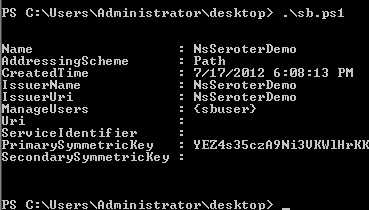
    I also noticed that the Windows Service (Windows Fabric Host Service) that was disabled before, was now in a Started state. Next I required a new namespace for my Service Bus host. The New-SBNamespace command generates the namespace that provides segmentation between applications. The documentation said that “ManageUser” wasn’t required, but my script wouldn’t work without it, So, I added the user that I created just for this demo.

    New-SBNamespace -Name 'NsSeroterDemo' -ManageUser 'sbuser';
    

    2012.07.17sb11

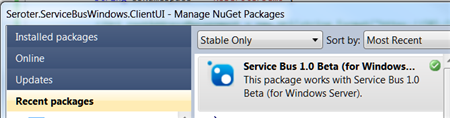
    To confirm that everything was working, I ran the Get-SbMessageContainer and saw an active database server returned. At this point, I was ready to try and build an application. I opened Visual Studio and went to NuGet to add the package for the Service Bus. The name of the SDK package mentioned in the docs seems wrong, and I found the entry under Service Bus 1.0 Beta .

    2012.07.17sb13

    In my first chunk of code, I created a new queue if one didn’t exist.

    //define variables
    string servername = "WA1BTDISEROSB01";
    int httpPort = 4446;
    int tcpPort = 9354;
    string sbNamespace = "NsSeroterDemo";
    
    //create SB uris
    Uri rootAddressManagement = ServiceBusEnvironment.CreatePathBasedServiceUri("sb", sbNamespace, string.Format("{0}:{1}", servername, httpPort));
    Uri rootAddressRuntime = ServiceBusEnvironment.CreatePathBasedServiceUri("sb", sbNamespace, string.Format("{0}:{1}", servername, tcpPort));
    
    //create NS manager
    NamespaceManagerSettings nmSettings = new NamespaceManagerSettings();
    nmSettings.TokenProvider = TokenProvider.CreateWindowsTokenProvider(new List() { rootAddressManagement });
    NamespaceManager namespaceManager = new NamespaceManager(rootAddressManagement, nmSettings);
    
    //create factory
    MessagingFactorySettings mfSettings = new MessagingFactorySettings();
    mfSettings.TokenProvider = TokenProvider.CreateWindowsTokenProvider(new List() { rootAddressManagement });
    MessagingFactory factory = MessagingFactory.Create(rootAddressRuntime, mfSettings);
    
    //check to see if topic already exists
    if (!namespaceManager.QueueExists("OrderQueue"))
    {
         MessageBox.Show("queue is NOT there ... creating queue");
    
         //create the queue
         namespaceManager.CreateQueue("OrderQueue");
     }
    else
     {
          MessageBox.Show("queue already there!");
     }
    

    After running this (directly on the Windows Server that had the Service Bus installed since my local laptop wasn’t part of the same domain as my Windows Server, and credentials would be messy), as my “sbuser” account, I successfully created a new queue. I confirmed this by looking at the relevant SQL Server database tables.

    2012.07.17sb14

    Next I added code that sends a message to the queue.

    //write message to queue
     MessageSender msgSender = factory.CreateMessageSender("OrderQueue");
    BrokeredMessage msg = new BrokeredMessage("This is a new order");
    msgSender.Send(msg);
    
     MessageBox.Show("Message sent!");
    

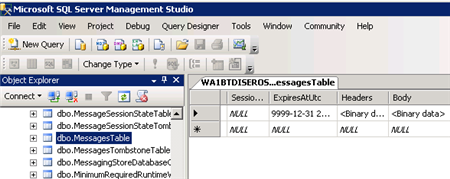
    Executing this code results in a message getting added to the corresponding database table.

    2012.07.17sb15

    Sweet. Finally, I wrote the code that pulls (and deletes) a message from the queue.

    //receive message from queue
    MessageReceiver msgReceiver = factory.CreateMessageReceiver("OrderQueue");
    BrokeredMessage rcvMsg = new BrokeredMessage();
    string order = string.Empty;
    rcvMsg = msgReceiver.Receive();
    
    if(rcvMsg != null)
    {
         order = rcvMsg.GetBody();
         //call complete to remove from queue
         rcvMsg.Complete();
     }
    
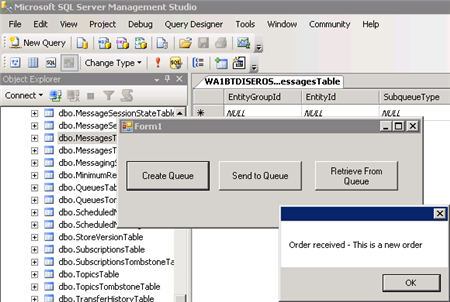
    MessageBox.Show("Order received - " + order);
    

    When this block ran, the application showed me the contents of the message, and upon looking at the MessagesTable again, I saw that it was empty (because the message had been processed).

    2012.07.17sb16

    So that’s it. From installation to development in a few easy steps. Having the option to run the Service Bus on any Windows machine will introduce some great scenarios for cloud providers and organizations that want to manage their own message broker.

  • Interview Series: Four Questions With … Paolo Salvatori

    Welcome to the 41st interview in this longer-than-expected running series of chats with thought leaders in the “connected technology” space.  This month, I’m pleased to snag Paolo Salvatori who is Senior Program Manager on the Business Platform Division Customer Advisory Team (CAT) at Microsoft, an epic blogger, frequent conference speaker, and recognized expert in distributed solution design. You can also stalk him on Twitter at @babosbird.

    There’s been a lot happening in the Microsoft space lately, so let’s see how he holds up to my probing questions.

    Q: With Microsoft recently outlining the details of BizTalk Server 2010 R2, it seems that there WILL be a relatively strong feature-based update coming soon. Of the new capabilities included in this version, which are you most interested in, and why?

    A: First of all let me point out that Microsoft has a strong commitment to investing in BizTalk Server as an integration platform for cloud, on-premises and hybrid scenarios and taking customers and partners forward. Microsoft’s strategy in the integration and B2B landscape is to allow customers to preserve their investments and provide them an easy way to migrate or extend their solutions to the cloud. The new on-premises version will align with the platform update: BizTalk Server 2010 R2 will provide support for Visual Studio 2012, Windows 8 Server, SQL Server 2012, Office 15 and System Center 2012. In addition, it will offer B2B enhancements to support the latest standards natively, better performance and improvements of the messaging engine like the possibility to associate dynamic send port to specific host handlers. Also the MLLP adapter has been improved to provide better scalability and latency. The ESB Toolkit will be a core part of BizTalk setup and product and the BizTalk Administration Console will be extended to visualize artifact dependencies.

    That said, the new features which I’m most interested in are the possibility to host BizTalk Server in Windows Azure Virtual Machines in an IaaS context, and the new connectivity features, in particular the possibility to directly consume REST services using a new dedicated adapter and the possibility to natively integrate with ACS and the Windows Azure Service Bus relay services, topics and queues. In particular, BizTalk on Windows Azure Virtual Machines will enable customers to eliminate hardware procurement lead times and reduce time and cost to setup, configure and maintain BizTalk environments. It will allow developers and system administrators to move existing applications from on-premises to Windows Azure or back if necessary and to connect to corporate data centers and access local services and data via a Virtual Network. I’m also pretty excited about the new capabilities offered by Windows Azure Service Bus EAI & EDI, which you can think of as BizTalk capabilities on Windows Azure as PaaS. The EAI capabilities will help bridge integration needs within one’s boundaries. Using EDI capabilities one will be able to configure trading partners and agreements directly on Windows Azure so as to send/receive EDI messages. The Windows Azure EAI & EDI capabilities are already in preview mode in the LABS environment at https://portal.appfabriclabs.com. The new capabilities cover the full range of needs for building hybrid integration solutions: on-premises with BizTalk Server, IaaS with BizTalk Server on Windows Azure Virtual Machines, and PaaS with Windows Azure EAI & EDI.  Taken together these capabilities give customers a lot of choice and will greatly ease the development of a new class of hybrid solutions.

    Q: In your work with customers, how do you think that they will marry their onsite integration platforms with new cloud environments? Will products like the Windows Azure Service Bus play a key role, or do you foresee many companies relying on tried-and-true ETL operations between environments? What role do you think BizTalk will play in this cloudy world?

    A: In today’s IT landscape, it’s quite common that data and services used by a system are located in multiple application domains. In this context, resources may be stored in a corporate data center, while other resources may be located across the organizational boundaries, in the cloud or in the data centers of business partners or service providers. An Internet Service Bus can be used to connect a set of heterogeneous applications across multiple domains and across network topologies, such as NAT and firewall. A typical Internet Service Bus provides connectivity and queuing capabilities, a service registry, a claims-based security model, support for RESTful services and intermediary capabilities such as message validation, enrichment, transformation, routing. BizTalk Server 2010 R2 and the Windows Azure Service Bus together will provide this functionality. Microsoft BizTalk Server enables organizations to connect and extend heterogeneous systems across the enterprise and with trading partners. The Service Bus is part of Windows Azure and is designed to provide connectivity, queuing, and routing capabilities not only for cloud applications but also for on-premises applications. As a I explained in my article “How to Integrate a BizTalk Server Application with Service Bus Queues and Topics” on MSDN, using these two technologies together enables a significant number of hybrid solutions that span the cloud and on premises environments:

    1.     Exchange electronic documents with trading partners.

    2.     Expose services running on-premises behind firewalls to third parties.

    3.     Enable communication between spoke branches and a hub back office system.

    BizTalk Server on-premises, BizTalk Server on Windows Azure Virtual Machines as IaaS, and Windows Azure EAI & EDI services as PaaS, along with the Service Bus allow you to seamlessly connect with Windows Azure artifacts, build hybrid applications that span Windows Azure and on-premises, access local LOB systems from Windows Azure and easily migrate application artifacts from on-premises to cloud. This year I had the chance to work with a few partners that leveraged the Service Bus as the backbone of their messaging infrastructure. For example, Bedin Shop Systems realized a retail management solution called aKite where front-office and back-office applications running in a point of sale can exchange messages in a reliable, secure and scalable manner with headquarters via Service Bus topics and queues. In addition, as the author of the Service Bus Explorer, I had the chance to receive a significant number of positive feedbacks from customers and partners about this technology. At this regard, my team is working with the BizTalk and Service Bus product groups to turn these feedbacks into new capabilities in the next release of our Windows Azure services. My personal perception, as an architect, is that the usage of BizTalk Server and Service Bus as an integration and messaging platform for on-premise, cloud and hybrid scenarios is set to grow in the immediate future.

    Q: With the Windows Azure SDK v1.7, Microsoft finally introduced some more vigorous Visual Studio-based management tooling for the Windows Azure Service Bus. Much like your excellent Service Bus Explorer tool, the Azure SDK now provides the ability for developers to send and receive test messages from Service Bus queues/topics. I’ve always found it interesting that “testing tools” from Microsoft always seem to come very late in the game, if at all. We still have the just-ok WCF Test Client tool for testing WCF (SOAP) services, Fiddler for REST services, nothing really for BizTalk input testing, and nothing much for StreamInsight. When I was working with the Service Bus EAI CTP last month, the provided “test tool” was relatively rudimentary and I ended up building my own. Should Microsoft provide more comprehensive testing tools for its products (and earlier in their lifecycles), or is the reliance on the community and 3rd parties the right way to go?

    A: Thanks for the compliments Richard, much appreciated. 🙂 Providing a good tooling is extremely important not to say crucial to drive the adoption of any technologies as it allows to lower the learning curve and decrease the time necessary to develop and test applications. One year ago I decided to build my tool to facilitate the management, debugging, monitoring and testing of hybrid solutions that make use of the relayed and brokered messaging capabilities of the Windows Azure Service Bus. My intention is to keep updating the tool as I did recently, so expect new capabilities in the future. To answer your question, I’m sure that Microsoft will  continue to invest in management, debugging, testing and profiling tooling that made Visual Studio and our technologies a successful application platform. At the same time, I’ve to admit that sometimes Microsoft concentrates its efforts in delivering the core functionality of products or technologies and pays less attention in building tools. In this context, community and 3rd parties tools sometimes can be perceived as filling a functionality gap, but at the same time they are an incentive for Microsoft to build a better tooling around its products. In addition, I think that tools built by the community plays an important role because they can be extended and customized by developers based on their needs and because they usually anticipate and surface the need for missing capabilities.

    Q [stupid question]: During a recent double-date, my friend’s wife proclaimed that someone was the “Bill Gates of wedding planners.” My friend and I were baffled at this comparison, so I proceeded to throw out other “X is they Y” scenarios that made virtually no sense. Examples include “this is the Angelina Jolie of Maine lobsters” or “he’s the Steve Jobs of exterminators.” Give us some comparisons that might make sense for a moment, but don’t hold up to any critical thinking.

    A:I’m Italian, so for this game I will use some references from my country: Windows Azure is the Leonardo da Vinci of the cloud platforms, while BizTalk Server and Service Bus, together, are the Gladiator of the integration and messaging platforms. 😉

    Great stuff, Paolo. Thanks for participating!

  • Is AWS or Windows Azure the Right Choice? It’s Not That Easy.

    I was thinking about this topic today, and as someone who built the AWS Developer Fundamentals course for Pluralsight, is a Microsoft MVP who plays with Windows Azure a lot, and has an unnatural affinity for PaaS platforms like Cloud Foundry / Iron Foundry and Force.com, I figured that I had some opinions on this topic.

    So why would a developer choose AWS over Windows Azure today? I don’t know all developers, so I’ll give you the reasons why I often lean towards AWS:

    • Pace of innovation. The AWS team is amazing when it comes to regularly releasing and updating products. The day my Pluralsight course came out, AWS released their Simple Workflow Service. My course couldn’t be accurate for 5 minutes before AWS screwed me over! Just this week, Amazon announced Microsoft SQL Server support in their robust RDS offering, and .NET support in their PaaS-like Elastic Beanstalk service. These guys release interesting software on a regular basis and that helps maintain constant momentum with the platform. Contrast that with the Windows Azure team that is a bit more sporadic with releases, and with seemingly less fanfare. There’s lots of good stuff that the Azure guys keep baking into their services, but not at the same rate as AWS.
    • Completeness of services. Whether the AWS folks think they offer a PaaS or not, their services cover a wide range of solution scenarios. Everything from foundational services like compute, storage, database and networking, to higher level offerings like messaging, identity management and content delivery. Sure, there’s no “true” application fabric like you’ll find in Windows Azure or Cloud Foundry, but tools like Cloud Formation and Elastic Beanstalk get you pretty close. This well-rounded offering means that developers can often find what they need to accomplish somewhere in this stack. Windows Azure actually has a very rich set of services, likely the most comprehensive of any PaaS vendor, but at this writing, they don’t have the same depth in infrastructure services. While PaaS may be the future of cloud (and I hope it is), IaaS is a critical component of today’s enterprise architecture.
    • It just works. AWS gets knocked from time to time on their reliability, but it seems like most agree that as far as clouds go, they’ve got a damn solid platform. Services spin up relatively quickly, stay up, and changes to service settings often cascade instantly. In this case, I wouldn’t say that Windows Azure doesn’t “just work”, but if AWS doesn’t fail me, I have little reason to leave.
    • Convenience. This may be one of the primary advantages of AWS at this point. Once a capability becomes a commodity (and cloud services are probably at that point), and if there is parity among competitors on functionality, price and stability, the only remaining differentiator is convenience. AWS shines in this area, for me. As a Microsoft Visual Studio user, there are at least four ways that I can consume (nearly) every AWS service: Visual Studio Explorer, API, .NET SDK or AWS Management Console. It’s just SO easy. The AWS experience in Visual Studio is actually better than the one Microsoft offers with Windows Azure! I can’t use a single UI to manage all the Azure services, but the AWS tooling provides a complete experience with just about every type of AWS service. In addition, speed of deployment matters. I recently compared the experience of deploying an ASP.NET application to Windows Azure, AWS and Iron Foundry. Windows Azure was both the slowest option, and the one that took the most steps. Not that those steps were difficult, mind you, but it introduced friction and just makes it less convenient. Finally, the AWS team is just so good at making sure that a new or updated product is instantly reflected across their websites, SDKs, and support docs. You can’t overstate how nice that is for people consuming those services.

    That said, the title of this post implies that this isn’t a black and white choice. Basing an entire cloud strategy on either platform isn’t a good idea. Ideally, a “cloud strategy” is nothing more than a strategy for meeting business needs with the right type of service. It’s not about choosing a single cloud and cramming all your use cases into it.

    A Microsoft shop that is looking to deploy public facing websites and reduce infrastructure maintenance can’t go wrong with Windows Azure. Lately, even non-Microsoft shops have a legitimate case for deploying apps written in Node.js or PHP to Windows Azure. Getting out of infrastructure maintenance is a great thing, and Windows Azure exposes you to much less infrastructure than AWS does.  Looking to use a SQL Server in the cloud? You have a very interesting choice to make now. Microsoft will do well if it creates (optional) value-added integrations between its offerings, while making sure each standalone product is as robust as possible. That will be its win in the “convenience” category.

    While I contend that the only truly differentiated offering that Windows Azure has is their Service Bus / Access Control / EAI product, the rest of the platform has undergone constant improvement and left behind many of its early inconvenient and unstable characteristics. With Scott Guthrie at the helm, and so many smart people spread across the Azure teams, I have absolutely no doubt that Windows Azure will be in the majority of discussions about “cloud leaders” and provide a legitimate landing point for all sorts of cloudy apps. At the same time though, AWS isn’t slowing their pace (quite the opposite), so this back-and-forth competition will end up improving both sets of services and leave us consumers with an awesome selection of choices.

    What do you think? Why would you (or do you) pick AWS over Azure, or vice versa?

  • Windows Azure Service Bus EAI Doesn’t Support Multicast Messaging. Should It?

    Lately, I’ve been playing around a lot with the Windows Azure Service Bus EAI components (currently in CTP). During my upcoming Australia trip (register now!) I’m going to be walking through a series of use cases for this technology.

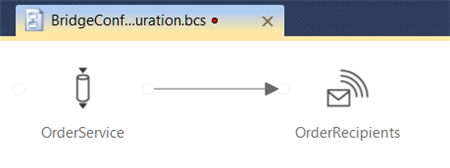
    There are plenty of cool things about this software, and one of them is that you can visually model the routing of messages through the bus. For instance, I can define a routing scenario (using “Bridges” and destination endpoints) that takes in an “order” message, and routes it to an (onsite) database, Service Bus Queue or a public web service.

    2012.5.3multicast01

    Super cool! However, the key word in the previous sentence was “or.” I cannot send a message to ALL those endpoints because currently, the Service Bus EAI engine doesn’t support the multi-cast scenario. You can only route a message to a single destination. So the flow above is valid, IF I have routing rules (e.g. “OrderAmount > 100”) that help the engine decide which of the endpoints to send the message to. I asked about this in the product forums, and  had that (non) capability confirmed. If you need to do multi-cast messaging, then the suggestion is to use Service Bus Topics as an endpoint. Service Bus Topics (unlike Service Bus Queues) support multiple subscribers who can all receive a copy of a message.  The end result would be this:

    2012.5.3multicast03

    However, for me, one of the great things about the Bridges is the ability to use Mapping to transform message (format/content) before it goes to an endpoint. In the image below, note that I have a Transform that takes the initial “Order” message and transforms it to the format expected by my SQL Server database endpoint (from my first diagram).

    2012.5.3multicast02

    If I had to use Topics to send messages to a database and web service (via the second diagram), then I’d have to push the transformation responsibility down to the application that polls the Topic and communicates with the database or service. I’d also lose the ability to send directly to my endpoint and would require a Service Bus Topic to act as an intermediary. That may work for some scenarios, but I’d love the option to use all the nice destination options (instead of JUST Topics), perform the mapping in the EAI Bridges, and multi-cast to all the endpoints.

    What do you think? Should the Azure Service Bus EAI support multi-cast messaging, or do you think that scenario is unusual for you?