Category: Tier 3 Enterprise Cloud Platform

  • New Job, Same Place (Kind Of)

    For the past 18 months, I’ve been a product manager at a small but innovative cloud provider called Tier 3. We’ve been doing amazing work and I’ve had fun being part of such a high performing team. Last week, we were acquired by telecommunications giant CenturyLink and instantly rebranded the CenturyLink Cloud. The team stays intact and will run as a relatively independent unit.

    The reaction to this acquisition was universally positive. Ben Kepes of Forbes wrote:

    This deal sees Tier 3 able to scale its existing IaaS and PaaS offerings to a far greater audience upon CenturyLink’s massive global footprint.

    This is a transformational deal for the industry – Tier 3′s credibility, matched with Century Links asset base and capital base – could change the face of cloud infrastructure as we know it.

    NetworkWorld also pointed out how this acquisition gives us the necessary resources to make more noise in the market.

    Gartner noted that Tier 3 was being held back because it was not big enough to devote the marketing and outreach resources to attract users to its platform compared to some of the industry heavyweights. Being bought by CenturyLink could help fix that though.

    You can check out some other great writeups at TechCrunch, Geekwire, and GigaOm.

    So what about me? I’ve been asked to stay on and become the head of product management for the organization. This means shaping our product strategy, coordinating software sprints, and helping the rest of the company explain our value proposition. I’ve never worked with such a ridiculously talented team, and can’t wait to see what we do next. We’re growing our Engineering team, and I’m building out my own Product Management team, so let me know if you want to come aboard!

    It’s status quo for the rest of my non-work activities like writing for InfoQ and Salesforce.com, training for Pluralsight, and speaking at events. While I firmly believe that CenturyLink Cloud offers one of the best cloud experiences available, I will still experiment with a host of other (cloud) products and services because it’s fun and something I like doing!

  • 8 Things I Learned From the Tier 3 Hack House

    In September, my employer Tier 3 rented a house in St. George, Utah so that the Engineering team could cohabitate and collaborate.2013.09.30hackhouse The house could accommodate 25 people, and we had anywhere from 8-12 folks there on a given week. This was the first time we’ve done this, and the concept seems to be gaining momentum in the industry.

    I joined our rockstar team in Utah for one of the three weeks, and learned a few things that may help others who are planning these sorts of exercises.

    1. Location matters. Why were we in a giant house located in Utah? I actually have no idea. Ask my boss. Our team is almost entirely based on Bellevue, WA. But this location actually served a few purposes. First, the huge house made it possible for us all to live and work in the same place. Doing this at a hotel or set of bungalows wouldn’t have had the same effect. Second, being far away from home forced us to hang out! If we were an hour south of Bellevue (or closer to me in Los Angeles), it would have been to easy for people to duck out. Instead, for better or worse, we spent almost all of our time together as a team. Finally, I found this particular location to be visually inspirational. We were in beautiful part of the country in a house with a fantastic view. This encouraged the team to work outside, go hiking, play basketball, and simply enjoy the surroundings.
    2. Casual collaboration is awesome. I’m a huge believer in the fact that we learn SO MUCH more during casual conversation than in formal meetings. In fact, I just read a great book on that topic. The nature of the Hack House trip – and even the physical layout of the house – made it so easy to quickly talk through a plethora of topics. I saw the developers quickly pair and solve problems. I was able to spontaneously brainstorm with our Creative Director on some amazing new ideas for our software. I know that “distributed teams” is the new hotness, but absolutely nothing beats having a team together to work through a challenge.
    3. Have a theme for the effort. At Tier 3, we update our cloud software once a month. Our Agile team focused this particular sprint on one major feature area. This focus ensured that the majority of people in the Hack House were working towards the same objective. When we left the Hack House last Friday, we knew we had made significant progress towards it. I think the common theme contributed to the easy collaboration since nearly every conversation was relevant to everyone in the house.
    4. Get to know people. This was honestly one of the primary reasons I went to the Hack House. I work with a ridiculously talented team. Despite being a fraction of the size of the largest cloud computing providers, Tier 3 has the “platform lead” according to Gartner’s IaaS Magic Quadrant (read it free here). Why? Great software and a usability-centric experience. While I’ve worked with this team for over a year, I only knew most of them in a professional setting. Being a remote employee, I don’t get to sit in on many of the goofy office conversations, or randomly grab people for lunch breaks. So, I used some time at the Hack House to simply get to know these brilliant developers and designers. These situations create the perfect environment to learn more about what makes people tick, and thus create an even better working relationship.
    5. Make sure someone can cook. Tier 3 stocked the kitchen every day which was great. Fortunately, a lot of people knew what to DO with a stocked kitchen. If we had just gone out to eat for every meal, that would have wasted time and split us up into groups. Instead, it was fun to have joint meals cooked by different team members.
    6. Get involved in activities. Even though we were all living together, it’s still possible for someone to disappear in an eight-bedroom house! I didn’t see any of that on this trip. Instead, it seemed like everyone WANTED to hang out. We watched Monday Night Football, ate together, played The Resistance (poorly, in my case), and went hiking. These non-work activities were a cool way to wind down from work. What was fantastic though, is that this started at the top. Our VP of Engineering was there for the whole duration, and he set the tone for the work-hard-play-hard mentality. Want to go shoot hoops for a half hour at 2pm? Go for it, no one will give you a weird look. Up for a hike that will get you back by lunch time? Have fun! Everyone worked hard, but we also embraced the spirit of Hack House.
    7. Valuable to mix teams. Our Engineering team consists primarily of developers, but my team (Product Management), Design, and QA also roll up underneath it. All teams were invited to the Hack House and mixing it up was really useful. This let us have well-rounded discussions about feature priority, design considerations, development trade-offs, and even testing strategy. In the next Hack House, I’d love us to also invite the Operations team.
    8. Invest in bandwidth! Yeah, we maxed out the network at this house. 8-12 people, constantly online. I had a GoToMeeting session and somehow kicked everyone off the network! Before choosing a house, consider network options and whether you should bring your own 4G connectivity!

    All in all, a very fun week and productive effort. I’ve seen other companies do weekend hack-a-thons for team building purposes, but an extended period of collaboration was invaluable. If you want to join us at the next Hack House, we’re still looking for one or two more great developers to join the team.

  • 3 Rarely Discussed, But Valuable, Uses for Cloud Object Storage

    I’ve got object storage on the brain. I’m finishing up a new Pluralsight course on distributed systems in AWS that uses Amazon S3 in a few places, and my employer Tier 3 just shipped a new Object Storage service based on Riak CS Enterprise. While many of the most touted uses for cloud-based object storage focus on archived data, backups, media files and the like, there are actually 3 more really helpful uses for cloud-based object storage.

    1. Provided a Degraded “Emergency Mode” Website

    For a while, AWS has supported running static websites in S3. What this means is that customers can serve simple static HTML sites out of S3 buckets. Why might you want to do this? A cool blog post last week pointed out the benefits of having a “hot spare” website running in S3 for when the primary site is flooded with traffic. The corresponding discussion on Hacker News called out a bit more of the logistics. Basically, you can use the AWS Route 53 DNS service to mark the S3-hosted website as a failover that is only used when health checks are failing on the primary site. For cases when a website is overloaded because it gets linked from a high-profile social site, or gets flooded with orders from a popular discount promotion, it’s handy to use a scalable, rock solid object storage platform to host the degraded, simple version of a website.

    2013.07.15os01

    2. Partner file transfer

    Last year I wrote about using Amazon S3 or Windows Azure Blob Storage for managed file transfer. While these are no substitute for enterprise-class MFT products, they are also a heck of a lot cheaper. Why use cloud-based object storage to transfer files between business partners? Simplicity, accessibility, and cost. For plenty of companies, those three words do not describe their existing B2B services that rely on old FTP infrastructure. I’d bet that plenty of rogue/creative employees are leveraging services like Dropbox or Skydrive to transfer files that are too big for email and too urgent to wait for enterprise IT staff to configure FTP. Using something like Amazon S3, you have access to ultra-cheap storage that has extreme high availability and is (securely) accessible by anyone with an internet connection.

    I’ve spent time recently looking at the ecosystem of tools for Amazon S3, and it’s robust! You’ll find free, freemium, and paid software options that let you use a GUI tool (much like an FTP browser) or even mount S3 object storage as a virtual disk on your computer. Check out the really nice solutions from S3 Browser, Cloud Berry, DragonDisk, Bucket Explorer, Cross FTP, Cyberduck, ExpanDrive, and more. And because products like Riak CS support the S3 API, most of these tools “just work” with any S3-compliant service. For instance, I wrote up a Tier 3 knowledge base article on how to use S3 Browser and ExpanDrive with our own Tier 3 Object Storage service.

    3. Bootstrap server builds

    You have many choices when deciding how to deploy cloud servers. You could create templates (or “AMIs” in the AWS world) that have all the software and configurations built in, or you could build up the server on the fly with software and configuration scripts stored elsewhere.

    By using cloud-based object storage as a repository for software and scripts, you don’t have to embed them in the templates and have to maintain them. Instead, you can pass in arguments to the cloud server build process and pull the latest bits from a common repository. Given that you shouldn’t ever embed credentials in a cloud VM (because they can change, among other reasons), you can use this process (and built in identity management integration) to have a cloud server request sensitive content – such as ASP.NET web.config with database connection strings – from object storage and load it onto the machine. This could be part of the provisioning process itself (see example of doing it with AWS EMR clusters) or as a startup script that runs on the server. Either way,  consider using object storage as a centrally accessible source for cloud deployments and upgrades!

    Summary

    Cloud-based object storage has lots of uses besides just stashing database backups and giant video files. The easy access and low cost makes it a viable option for the reasons I’ve outlined here. Any other ways you can imagine using it?

  • TechEd North America Session Recap, Recording Link

    Last week I had the pleasure of visiting New Orleans to present at TechEd North America. My session, Patterns of Cloud Integration, was recorded and is now available on Channel9 for everyone to view.

    I made the bold (or “reckless”, depending on your perspective) decision to show off as many technology demos as possible so that attendees could get a broad view of the options available for integrating applications, data, identity, and networks. Being a Microsoft conference, many of my demonstrations highlighted aspects of the Microsoft product portfolio – including one of the first public demos of Windows Azure BizTalk Services – but I also snuck in a few other technologies as well. My demos included:

    1. [Application Integration] BizTalk Server 2013 calls REST-based Salesforce.com endpoint and authenticates with custom WCF behavior. Secondary demo also showed using SignalR to incrementally return the results of multiple calls to Salesforce.com.
    2. [Application Integration] ASP.NET application running in Windows Azure Web Sites using the Windows Azure Service Bus Relay Service to invoke a web service on my laptop.
    3. [Application Integration] App running in Windows Azure Web Sites sending message to Windows Azure BizTalk Services. Message then dropped to one of three queues that was polled by Node.js application running in CloudFoundry.com.
    4. [Application Integration] App running in Windows Azure Web Sites sending message to Windows Azure Service Bus Topic, and polled by both a Node.js application in CloudFoundry.com, and a BizTalk Server 2013 server on-premises.
    5. [Application/Data Integration] ASP.NET application that uses local SQL Server database but changes connection string (only) to instead point to shared database running in Windows Azure.
    6. [Data Integration] Windows Azure SQL Database replicated to on-premises SQL Server database through the use of Windows Azure SQL Data Sync.
    7. [Data Integration] Account list from Salesforce.com copied into on-premises SQL Server database by running ETL job through the Informatica Cloud.
    8. [Identity Integration] Using a single set of credentials to invoke an on-premises web service from a custom VisualForce page in Salesforce.com. Web service exposed via Windows Azure Service Bus Relay.
    9. [Identity Integration] ASP.NET application running in Windows Azure Web Sites that authenticates users stored in Windows Azure Active Directory.
    10. [Identity Integration] Node.js application running in CloudFoundry.com that authenticates users stored in an on-premises Active Directory that’s running Active Directory Federation Services (AD FS).
    11. [Identity Integration] ASP.NET application that authenticates users via trusted web identity providers (Google, Microsoft, Yahoo) through Windows Azure Access Control Service.
    12. [Network Integration] Using new Windows Azure point-to-site VPN to access Windows Azure Virtual Machines that aren’t exposed to the public internet.

    Against all odds, each of these demos worked fine during the presentation. And I somehow finished with 2 minutes to spare. I’m grateful to see that my speaker scores were in the top 10% of the 350+ breakouts, and hope you’ll take some time to watch it. Feedback welcome!

  • Networking with the Cloud is a Big Deal – Even if You Never Push Production Applications

    I’m flying to New Orleans to speak at TechEd North America, and reading a book called Everything is Obvious (* Once You Know the Answer) and it mentioned the difficulty of making macro-level assumptions based on characteristics applied to a sample population. For some reason my mind jumped to the challenge of truly testing applications using manufactured test cases that may not flex the scalability, availability, and inherent complexity of inter-connected apps. At the same time, I read a blog post from Scott Guthrie today that highlighted the ease by which companies can use Windows Azure to dev/test in the cloud and then run an application on premises, and vice versa. But to truly do dev/test in the cloud for an application that eventually runs on-premises, the development team either needs to entirely replicate the on-premises topology in the cloud, or, take advantage of virtual networking to link their dev/test cloud to the on-premises network.

    In my career, it’s been hard to acquire dev/test environments that were identical clones of production. It’s happened, but it often takes a while and making subsequent changes to resources is not trivial or without heartache. This is one reason why cloud infrastructure is so awesome. Need to add more capacity to server? Go for it. Want to triple the number of web servers to do a crazy load test for an hour? Have at it. But until recently, the cloud portion of the application was mostly distinct from on-premises resources. You weren’t using the same Active Directory, file system, shared databases, integration bus, or web services. You could clone them in the cloud, or simply stub them out, but then the cloud app wasn’t a realistic mimic of what was going to eventually run on-premises. Now, with all these advances in virtual networking in the cloud, you can actually build and test applications in the cloud and STILL take advantage of the rich system landscape sitting inside your firewall.

    One of my demos for TechEd shows off Windows Azure Virtual Networking and I was able to see first-hand how straightforward it was to use it. With Windows Azure Virtual Networking, I can do point-to-site connectivity (where I run a VPN on my machine and connect to an entire Windows Azure network of servers), or site-to-site connectivity where a persistent connection is established between an on-premises network and a cloud network. For even more advanced scenarios (not yet offered by Windows Azure, but offered by my company, Tier 3), you go a step further and do “direct connect” scenarios where physical cages are connected, or extensions are made to an existing WAN MPLS mesh. These options make it possible for a developer to run apps in the cloud (whether they are web apps or entire integration servers) and make them look more like apps that will eventually run in their datacenter. Regardless of what technology/provider you use – and whether or not you ever plan on pushing production apps to the cloud – it seems worthwhile to use cloud networking to give your developers a more realistic working environment. At TechEd in New Orleans at want to see this demonstrated in person? Come to my session on Wednesday! For those not here in person, you should be able to watch the session online soon!

  • Using Active Directory Federation Services to Authenticate / Authorize Node.js Apps in Windows Azure

    It’s gotten easy to publish web applications to the cloud, but the last thing you want to do is establish unique authentication schemes for each one. At some point, your users will be stuck with a mountain of passwords, or, end up reusing passwords everywhere. Not good. Instead, what about extending your existing corporate identity directory to the cloud for all applications to use? Fortunately, Microsoft Active Directory can be extended to support authentication/authorization for web applications deployed in ANY cloud platform. In this post, I’ll show you how to configure Active Directory Federation Services (ADFS) to authenticate the users of a Node.js application hosted in Windows Azure Web Sites and deployed via Dropbox.

    [Note: I was going to also show how to do this with an ASP.NET application since the new “Identity and Access” tools in Visual Studio 2012 make it really easy to use AD FS to authenticate users. However because of the passive authentication scheme Windows Identity Foundation uses in this scenario, the ASP.NET application has to be secured by SSL/TLS. Windows Azure Web Sites doesn’t support HTTPS (yet), and getting HTTPS working in Windows Azure Cloud Services isn’t trivial. So, we’ll save that walkthrough for another day.]

    2013.04.17adfs03

    Configuring Active Directory Federation Services for our application

    First off, I created a server that had DNS services and Active Directory installed. This server sits in the Tier 3 cloud and I used our orchestration engine to quickly build up a box with all the required services. Check out this KB article I wrote for Tier 3 on setting up an Active Directory and AD FS server from scratch.

    2013.04.17adfs01

    AD FS is a service that supports identity federation and supports industry standards like SAML for authenticating users. It returns claims about the authenticated user. In AD FS, you’ve got endpoints that define which inbound authentication schemes are supported (like WS-Trust or SAML),  certificates for signing tokens and securing transmissions, and relying parties which represent the endpoints that AD FS has a trust relationship with.
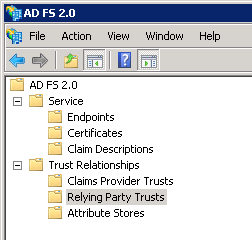
    2013.04.17adfs02

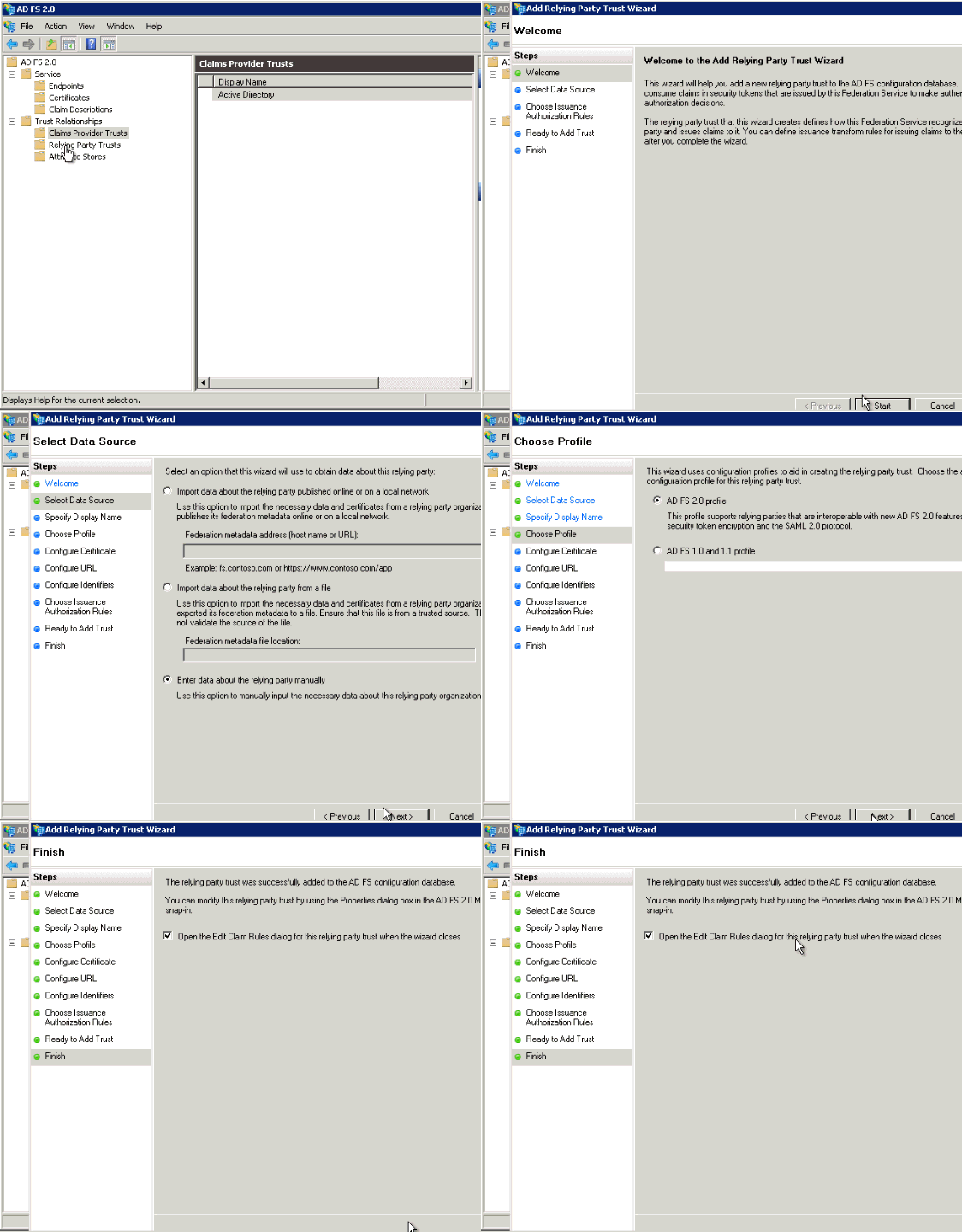
    In our case, I needed to enabled an active endpoint for my Node.js application to authenticate against, and one new relying party. First, I created a new relying party that referenced the yet-to-be-created URL of my Azure-hosted web site. In the animation below, see the simple steps I followed to create it. Note that because I’m doing active (vs. passive) authentication, there’s no endpoint to redirect to, and very few overall required settings.

    2013.04.17adfs04

    With the relying party finished, I could now add the claim rules. These tell AD FS what claims about the authenticated user to send back to the caller.

    2013.04.17adfs05

    At this point, AD FS was fully configured and able to authenticate my remote application. The final thing to do was enable the appropriate authentication endpoint. By default, the password-based WS-Trust endpoint is disabled, so I flipped it on so that I could pass username+password credentials to AD FS and authenticate a user.
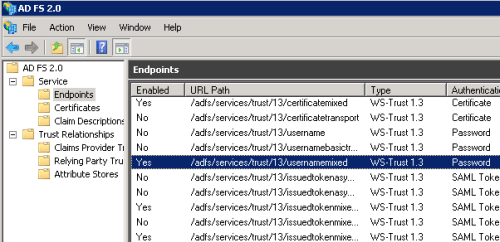
    2013.04.17adfs06

    Connecting a Node.js application to AD FS

    Next, I used the JetBrains WebStorm IDE to build a Node.js application based on the Express framework. This simple application takes in a set of user credentials, and attempts to authenticate those credentials against AD FS. If successful, the application displays all the Active Directory Groups that the user belongs to. This information could be used to provide a unique application experience based on the role of the user. The initial page of the web application takes in the user’s credentials.

    div.content
            h1= title
            form(action='/profile', method='POST')
                  table
                      tr
                        td
                            label(for='user') User
                        td
                            input(id='user', type='text', name='user')
                      tr
                        td
                            label(for='password') Password
                        td
                            input(id='password', type='password', name='password')
                      tr
                        td(colspan=2)
                            input(type='submit', value='Log In')
    

    This page posts to a Node.js route (controller) that is responsible passing those credentials to AD FS. How do we talk to AD FS through the WS-Trust format? Fortunately, Leandro Boffi wrote up a simple Node.js module that does just that. I grabbed the wstrust-client module and added it to my Node.js project. The WS-Trust authentication response comes back as XML, so I also added a Node.js module to convert XML to JSON for easier parsing. My route code looked like this:

    //for XML parsing
    var xml2js = require('xml2js');
    var https = require('https');
    //to process WS-Trust requests
    var trustClient = require('wstrust-client');
    
    exports.details = function(req, res){
    
        var userName = req.body.user;
        var userPassword = req.body.password;
    
        //call endpoint, and pass in values
        trustClient.requestSecurityToken({
            scope: 'http://seroternodeadfs.azurewebsites.net',
            username: userName,
            password: userPassword,
            endpoint: 'https://[AD FS server IP address]/adfs/services/trust/13/UsernameMixed'
        }, function (rstr) {
    
            // Access the token
            var rawToken = rstr.token;
            console.log('raw: ' + rawToken);
    
            //convert to json
            var parser = new xml2js.Parser;
            parser.parseString(rawToken, function(err, result){
                //grab "user" object
                var user = result.Assertion.AttributeStatement[0].Attribute[0].AttributeValue[0];
                //get all "roles"
                var roles = result.Assertion.AttributeStatement[0].Attribute[1].AttributeValue;
                console.log(user);
                console.log(roles);
    
                //render the page and pass in the user and roles values
                res.render('profile', {title: 'User Profile', username: user, userroles: roles});
            });
        }, function (error) {
    
            // Error Callback
            console.log(error)
        });
    };
    

    See that I’m providing a “scope” (which maps to the relying party identifier), an endpoint (which is the public location of my AD FS server), and the user-provided credentials to the WS-Trust module. I then parse the results to grab the friendly name and roles of the authenticated user. Finally, the “profile” page takes the values that it’s given and renders the information.

    div.content
            h1 #{title} for #{username}
            br
            div
                div.roleheading User Roles
                ul
                    each userrole in userroles
                        li= userrole
    

    My application was complete and ready for deployment to Windows Azure.

    Publishing the Node.js application to Windows Azure

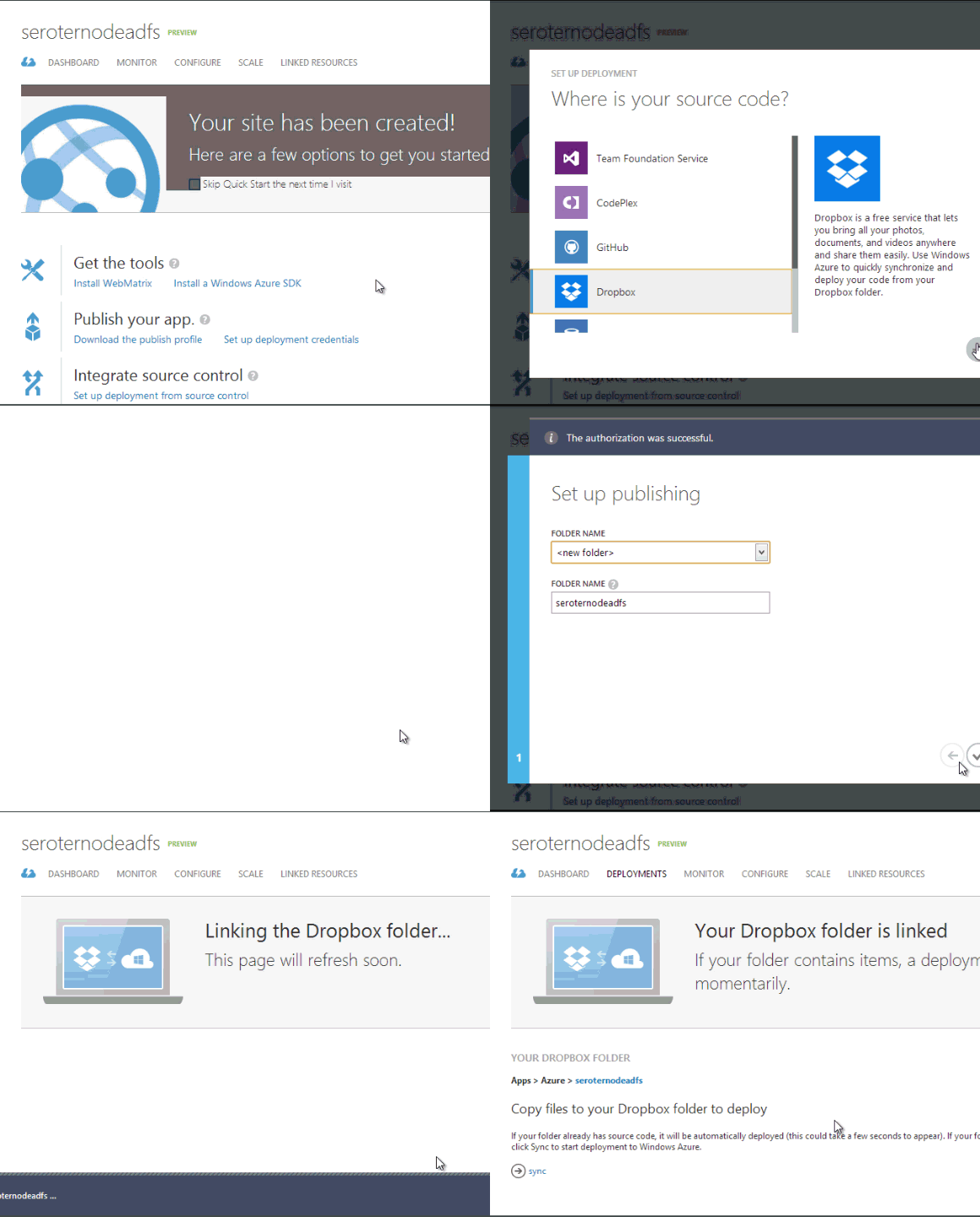
    Windows Azure Web Sites offer a really nice and easy way to host applications written in a variety of languages. It also supports a variety of ways to push code, including Git, GitHub, Team Foundation Service, Codeplex, and Dropbox. For simplicity sake (and because I hadn’t tried it yet), I chose to deploy via Dropbox.

    However, first I had to create my Windows Azure Web Site. I made sure to use the same name that I had specified in my AD FS relying party.

    2013.04.17adfs07

    Once the Web Site is set up (which takes only a few seconds), I could connect it to a source control repository.

    2013.04.17adfs08

    After a couple moments, a new folder hierarchy appeared in my Dropbox.
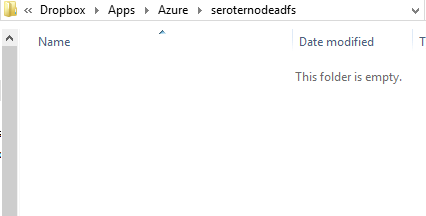
    2013.04.17adfs09

    I copied all the Node.js application source files into this folder. I then returned to the Windows Azure Management Portal and chose to Sync my Dropbox folder with my Windows Azure Web Site.
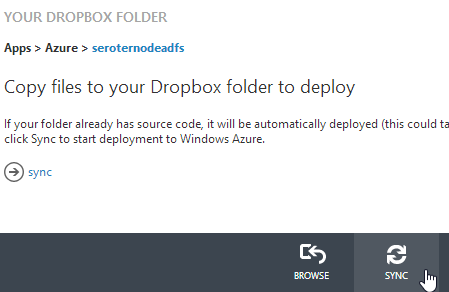
    2013.04.17adfs10

    Right away it starts synchronizing the application files. Windows Azure does a nice job of tracking my deployments and showing the progress.
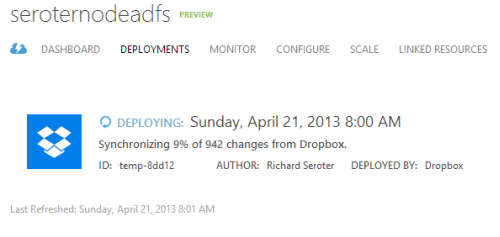
    2013.04.17adfs11

    In about a minute, my application was uploaded and ready to test.

    Testing the application

    The whole point of this application is to authenticate a user and return their Active Directory role collection. I created a “Richard Seroter” user in my Active Directory and put that user in a few different Active Directory Groups.
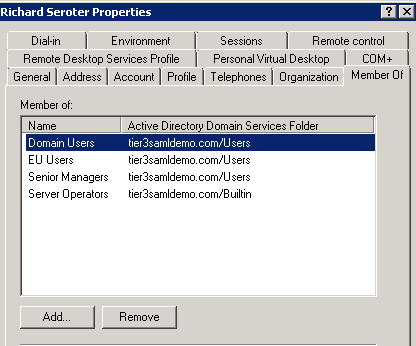
    2013.04.17adfs12

    I then browsed to my Windows Azure Website URL and was presented with my Node.js application interface.

    2013.04.17adfs13

    I plugged in my credentials and was immediately presented with the list of corresponding Active Directory user group membership information.

    2013.04.17adfs14

    Summary

    That was fun. AD FS is a fantastic way to extend your on-premises directory to applications hosted outside of your corporate network. In this case, we saw how to create  Node.js application that authenticated users against AD FS. While I deployed this sample application to Windows Azure Web Sites, I could have deployed this to ANY cloud that supports Node.js. Imagine having applications written in virtually any language, and hosted in any cloud, all using a single authentication endpoint. Powerful stuff!

  • Installing and Testing the New Service Bus for Windows

    Yesterday, Microsoft kicked out the first public beta of the Service Bus for Windows software. You can use this to install and maintain Service Bus queues and topics in your own data center (or laptop!). See my InfoQ article for a bit more info. I thought I’d take a stab at installing this software on a demo machine and trying out a scenario or two.

    To run the Service Bus for Windows,  you need a Windows Server 2008 R2 (or later) box, SQL Server 2008 R2 (or later), IIS 7.5, PowerShell 3.0, .NET 4.5, and a pony. Ok, not a pony, but I wasn’t sure if you’d read the whole list. The first thing I did was spin up a server with SQL Server and IIS.

    2012.07.17sb03

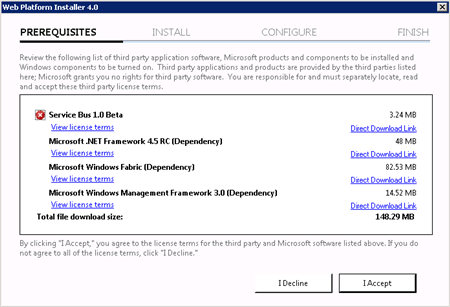
    Then I made sure that I installed SQL Server 2008 R2 SPI. Next, I downloaded the Service Bus for Windows executable from the Microsoft site. Fortunately, this kicks off the Web Platform Installer, so you do NOT have to manually go hunt down all the other software prerequisites.

    2012.07.17sb01

    The Web Platform Installer checked my new server and saw that I was missing a few dependencies, so it nicely went out and got them.

    2012.07.17sb02

    After the obligatory server reboots, I had everything successfully installed.

    2012.07.17sb04

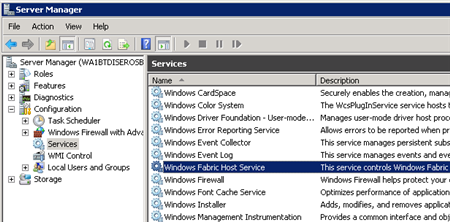
    I wanted to see what this bad boy installed on my machine, so I first checked the Windows Services and saw the new Windows Fabric Host Service.

    2012.07.17sb05

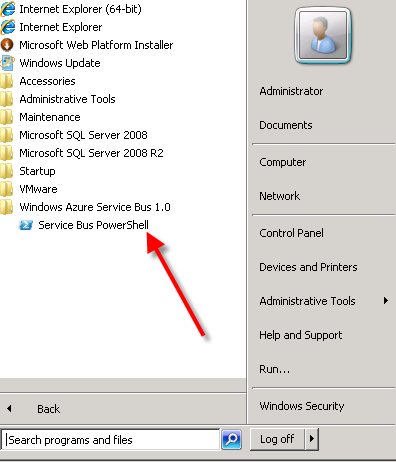
    I didn’t have any databases installed in SQL Server yet, no sites in IIS, but did have a new Windows permissions Group (WindowsFabricAllowedUsers) and a Service Bus-flavored PowerShell command prompt in my Start Menu.

    2012.07.17sb06

    Following the configuration steps outlined in the Help documents, I executed a series of PowerShell commands to set up a new Service Bus farm. The first command which actually got things rolling was New-SBFarm:

    $SBCertAutoGenerationKey = ConvertTo-SecureString -AsPlainText -Force -String [new password used for cert]
    
    New-SBFarm -FarmMgmtDBConnectionString 'Data Source=.;Initial Catalog=SbManagementDB;Integrated Security=True' -PortRangeStart 9000 -TcpPort 9354 -RunAsName 'WA1BTDISEROSB01\sbuser' -AdminGroup 'BUILTIN\Administrators' -GatewayDBConnectionString 'Data Source=.;Initial Catalog=SbGatewayDatabase;Integrated Security=True' -CertAutoGenerationKey $SBCertAutoGenerationKey -ContainerDBConnectionString 'Data Source=.;Initial Catalog=ServiceBusDefaultContainer;Integrated Security=True';
    

    When this finished running, I saw the confirmation in the PowerShell window:

    2012.07.17sb07

    But more importantly, I now had databases in SQL Server 2008 R2.

    2012.07.17sb08

    Next up, I needed to actually create a Service Bus host. According to the docs about the Add-SBHost command, the Service Bus farm isn’t considered running, and can’t offer any services, until a host is added. So, I executed the necessary PowerShell command to inflate a host.

    $SBCertAutoGenerationKey = ConvertTo-SecureString -AsPlainText -Force -String [new password used for cert]
    
    $SBRunAsPassword = ConvertTo-SecureString -AsPlainText -Force -String [password for sbuser account];
    
    Add-SBHost -FarmMgmtDBConnectionString 'Data Source=.;Initial Catalog=SbManagementDB;Integrated Security=True' -RunAsPassword $SBRunAsPassword -CertAutoGenerationKey $SBCertAutoGenerationKey;
    

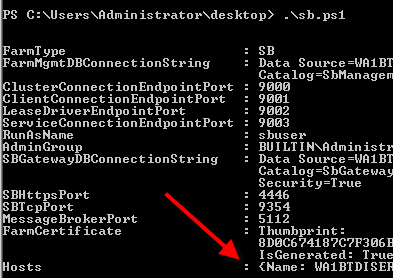
    A bunch of stuff started happening in PowerShell …

    2012.07.17sb09

    … and then I got the acknowledgement that everything had completed, and I now had one host registered on the server.

    2012.07.17sb10

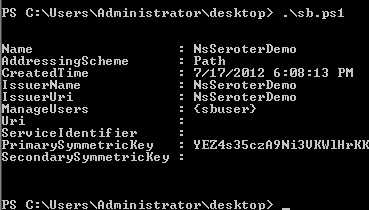
    I also noticed that the Windows Service (Windows Fabric Host Service) that was disabled before, was now in a Started state. Next I required a new namespace for my Service Bus host. The New-SBNamespace command generates the namespace that provides segmentation between applications. The documentation said that “ManageUser” wasn’t required, but my script wouldn’t work without it, So, I added the user that I created just for this demo.

    New-SBNamespace -Name 'NsSeroterDemo' -ManageUser 'sbuser';
    

    2012.07.17sb11

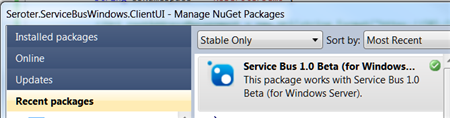
    To confirm that everything was working, I ran the Get-SbMessageContainer and saw an active database server returned. At this point, I was ready to try and build an application. I opened Visual Studio and went to NuGet to add the package for the Service Bus. The name of the SDK package mentioned in the docs seems wrong, and I found the entry under Service Bus 1.0 Beta .

    2012.07.17sb13

    In my first chunk of code, I created a new queue if one didn’t exist.

    //define variables
    string servername = "WA1BTDISEROSB01";
    int httpPort = 4446;
    int tcpPort = 9354;
    string sbNamespace = "NsSeroterDemo";
    
    //create SB uris
    Uri rootAddressManagement = ServiceBusEnvironment.CreatePathBasedServiceUri("sb", sbNamespace, string.Format("{0}:{1}", servername, httpPort));
    Uri rootAddressRuntime = ServiceBusEnvironment.CreatePathBasedServiceUri("sb", sbNamespace, string.Format("{0}:{1}", servername, tcpPort));
    
    //create NS manager
    NamespaceManagerSettings nmSettings = new NamespaceManagerSettings();
    nmSettings.TokenProvider = TokenProvider.CreateWindowsTokenProvider(new List() { rootAddressManagement });
    NamespaceManager namespaceManager = new NamespaceManager(rootAddressManagement, nmSettings);
    
    //create factory
    MessagingFactorySettings mfSettings = new MessagingFactorySettings();
    mfSettings.TokenProvider = TokenProvider.CreateWindowsTokenProvider(new List() { rootAddressManagement });
    MessagingFactory factory = MessagingFactory.Create(rootAddressRuntime, mfSettings);
    
    //check to see if topic already exists
    if (!namespaceManager.QueueExists("OrderQueue"))
    {
         MessageBox.Show("queue is NOT there ... creating queue");
    
         //create the queue
         namespaceManager.CreateQueue("OrderQueue");
     }
    else
     {
          MessageBox.Show("queue already there!");
     }
    

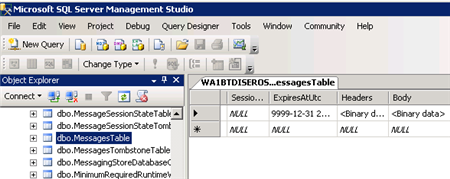
    After running this (directly on the Windows Server that had the Service Bus installed since my local laptop wasn’t part of the same domain as my Windows Server, and credentials would be messy), as my “sbuser” account, I successfully created a new queue. I confirmed this by looking at the relevant SQL Server database tables.

    2012.07.17sb14

    Next I added code that sends a message to the queue.

    //write message to queue
     MessageSender msgSender = factory.CreateMessageSender("OrderQueue");
    BrokeredMessage msg = new BrokeredMessage("This is a new order");
    msgSender.Send(msg);
    
     MessageBox.Show("Message sent!");
    

    Executing this code results in a message getting added to the corresponding database table.

    2012.07.17sb15

    Sweet. Finally, I wrote the code that pulls (and deletes) a message from the queue.

    //receive message from queue
    MessageReceiver msgReceiver = factory.CreateMessageReceiver("OrderQueue");
    BrokeredMessage rcvMsg = new BrokeredMessage();
    string order = string.Empty;
    rcvMsg = msgReceiver.Receive();
    
    if(rcvMsg != null)
    {
         order = rcvMsg.GetBody();
         //call complete to remove from queue
         rcvMsg.Complete();
     }
    
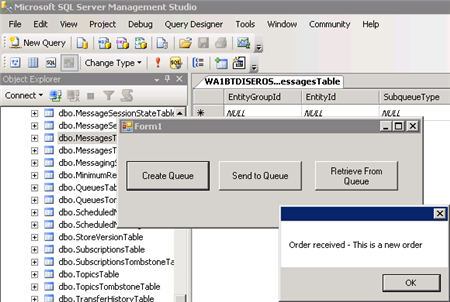
    MessageBox.Show("Order received - " + order);
    

    When this block ran, the application showed me the contents of the message, and upon looking at the MessagesTable again, I saw that it was empty (because the message had been processed).

    2012.07.17sb16

    So that’s it. From installation to development in a few easy steps. Having the option to run the Service Bus on any Windows machine will introduce some great scenarios for cloud providers and organizations that want to manage their own message broker.

  • Comparing Cloud Server Creation in Windows Azure and Tier 3 Cloud Platform

    Just because I work for Tier 3 now doesn’t mean that I’ll stop playing around with all sorts of technology and do nothing but write about my company’s products. Far from it. Microsoft has made a lot of recent updates to their stack, and I closely followed the just-concluded US TechEd conference which covered all the new Windows Azure stuff and also left time to breathe new life into BizTalk Server. I figured that it would be fun to end my first week at Tier 3 by looking at how to build a cloud-based machine in both the new Windows Azure Virtual Machines service and, in the Tier 3 Enterprise Cloud Platform.

    Creating a Windows Server using Windows Azure Virtual Machines

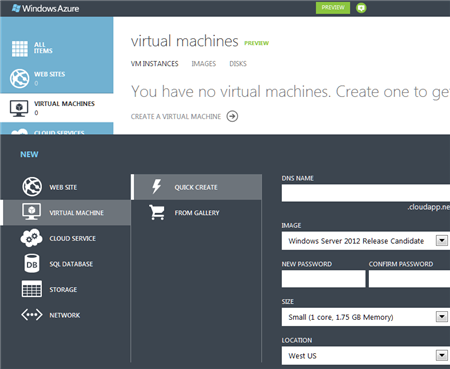
    First up, I went to the new http://manage.windowsazure.com portal where I could finally leave behind that old Silverlight portal experience. Because I already signed up for the preview of the new services, I could see the option to create a new virtual machine.

    2012.6.15azuretier3

    When I first selected the option, I got the option to quickly provision an instance without walking through a wizard. However, from here I only have the option of using one of three (Windows-based) templates.

    2012.6.15azuretier3-02

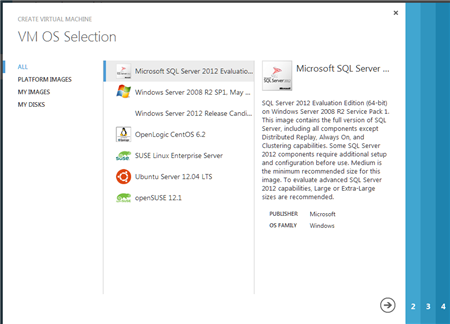
    I clicked the From Gallery option in the image above and was presented with a wizard for provisioning my VM. The first choice was which OS to select, and you can see the newfound love for Linux.

    2012.6.15azuretier3-03

    I chose the Windows Server 2008 R2 instance and on the next wizard page, gave the machine a name, password, and server size.

    2012.6.15azuretier3-04

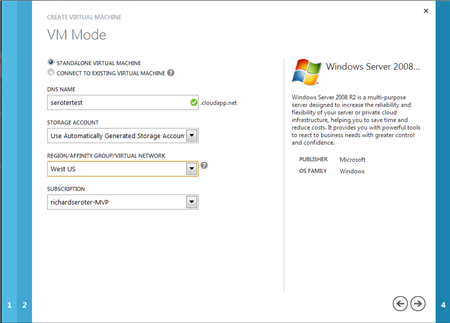
    On the next wizard, the VM Mode page, I selected the standalone VM  option (vs. linked VM for clustering scenarios), gave the server a DNS name, picked a location for my machine (US, Europe, Asia) and my Windows Azure subscription.

    2012.6.15azuretier3-05

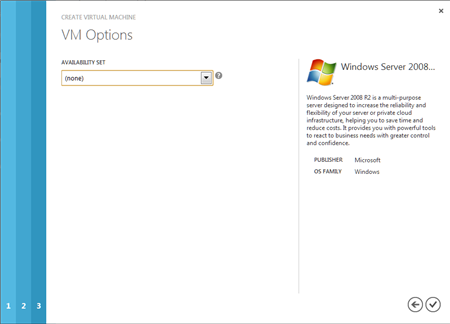
    On the final wizard page, I chose to not set up an Availability Set. Those are used for splitting the servers across racks in the data center.

    2012.6.15azuretier3-06

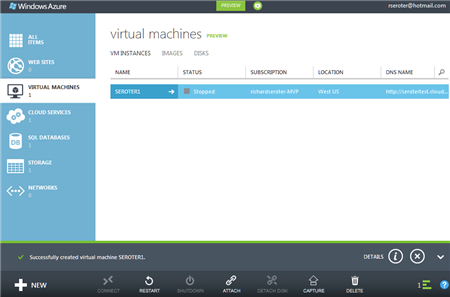
    Once I clicked the checkmark in the wizard, the machine started getting provisioned. I was a bit surprised I didn’t get a “summary” page and that it just jumped into the provisioning, but that’s cool. After a few minute, my machine appeared to be available.

    2012.6.15azuretier3-07

    Clicking on the arrow next to the VM name brought me to a page that showed statistics and details about this machine. From here I could open ports, scale up the machine to a different size, and observe its usage information.

    2012.6.15azuretier3-08

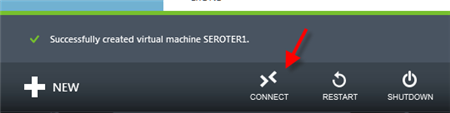
    At the bottom of each of these pages is a little navigation menu, and there’s an option here to Connect.

    2012.6.15azuretier3-09

    Clicking this button caused an RDP connection file to get downloaded, and upon opening it up and providing my credentials, I quickly got into my new server.

    2012.6.15azuretier3-10

    That was pretty straightforward. As simple as you might hope it would be.

    Creating a Windows Server using the Tier 3 Enterprise Cloud Platform

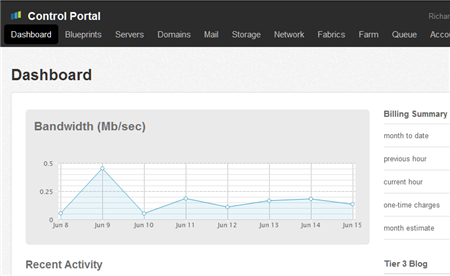
    I spent a lot of time in this environment this week just familiarizing myself with how everything works. The Tier 3 Control Panel is well laid out and I was able to find most everything to be where I expected it.
    2012.6.15azuretier3-11

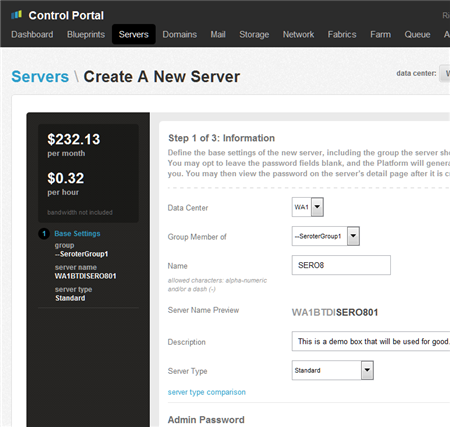
    First up, I chose to create a new server from the Servers menu at the top. This kicks off a simple wizard that keeps track of the estimated hourly charges of my configuration. From this page, I choose which data center to put my machine in, as well the server name and credentials. Also see that I choose a Group which is a super useful way to organize servers via (nestable) collections. On this page I also chose whether to use a Standard or Enterprise server. If I don’t need all the horsepower, durability and SLA of an enterprise-class machine, then I can go with the cheaper Standard option.

    2012.6.15azuretier3-12

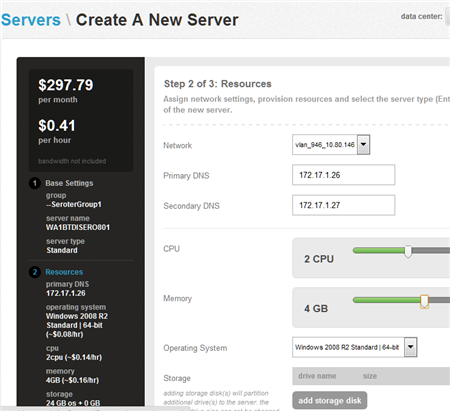
    On Step #2 of this process, I chose the network segment this machine would be part of, IP address, CPU, memory, OS and (optional) additional storage. We have a wide range of OS choices including multiple Linux distributions and Windows Server versions.

    2012.6.15azuretier3-13

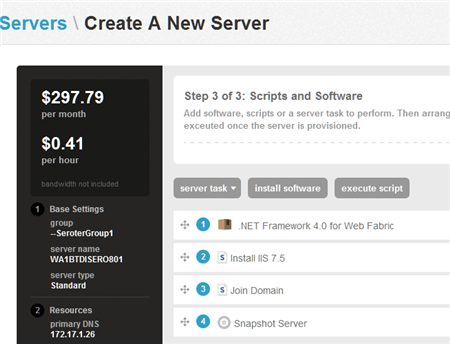
    Step #3 (Scripts and Software) is where things get wild. From here, I can define a sequence of steps that will be applied to the server after its built. The available Tasks include adding a public IP, rebooting the server and snapshotting the server. The existing pool of Software (and you can add your own) includes the .NET Framework, MS SQL Server, Cloud Foundry agents, and more. As for Scripts, you can install IIS 7.5, join a domain, or even install Active Directory. I love the fact that I don’t have to just end up with a VM, but one that gets fully loaded through a set of re-arrangable tasks. Below is an example sequence that I put together.

    2012.6.15azuretier3-14

    I finally clicked Create Server and was taken to a screen where I could see my machine’s build progress.

    2012.6.15azuretier3-15

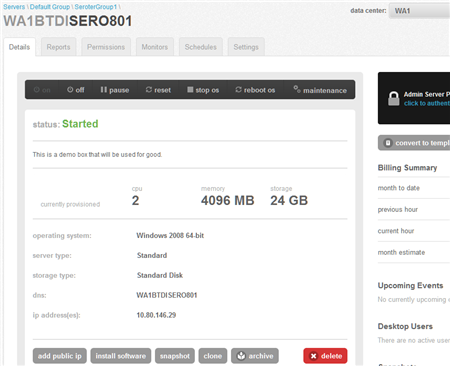
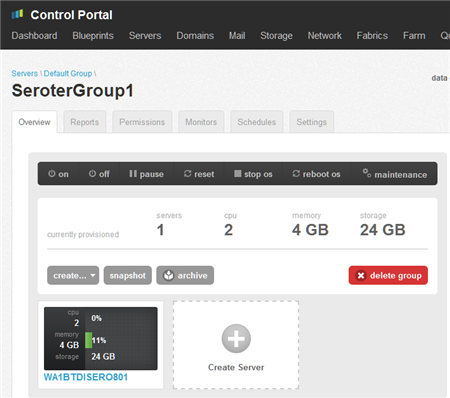
    Once that was done, I could go check out my management group and see my new server.

    2012.6.15azuretier3-16

    After selecting my new server, I have all sorts of options like creating monitoring thresholds, viewing usage reports, setting permissions, scheduling maintenance, increasing RAM/CPU/storage, creating a template from this server, and much more.

    2012.6.15azuretier3-17

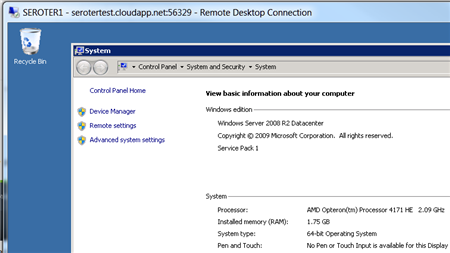
    To log into the machine, Tier 3 recommends a VPN instead of using public-facing RDP, for security reasons. So, I used OpenVPN to tunnel into my new server. Within moments, I was connected to the VPN with my cloud environment and could RDP into the machine.

    Summary

    It’s fun to see so much innovation in this space, particularly around usability. Both Microsoft and Tier 3 put a high premium of straightforward user interfaces, and I think that’s evident when you take a look at their cloud platform. The Windows Azure Virtual Machines provisioning process was very clean and required no real prep work. The Tier 3 process was also very simple and I like the fact that we show the pricing throughout the process, allow you to group servers for manageability purposes (more on that in a later post), and let you run a rich set of post-processing activities on the new server.

    If you have questions about the Tier 3 platform, never hesitate to ask! In the meantime, I’ll continue looking at everyone’s cloud offerings and seeing how to mix and match them.