Category: StreamInsight

  • Big Week of Releases: My Book and StreamInsight v1.2

    This week, Packt Publishing released the book BizTalk 2010: Line of Business Systems Integration. As I mentioned in an earlier post, I contributed three chapters to this book covering integration with Dynamics CRM 2011, Windows Azure AppFabric and Salesforce.com.  The lead author, Kent Weare wrote a blog post announcing the release, and you can also find it on Amazon.com now.  I hope you feel inclined to pick it up and find it useful.

    In other “neat stuff being released” news, the Microsoft StreamInsight team released version 1.2 of the software.  They’ve already updated the product samples on CodePlex and the driver for LINQPad.  I tried both the download, the samples and the LINQPad update this week and can attest to the fact that it installs and works just fine.  What’s cool and new?

    • Nested event types.  You can now do more than just define “flat” event payloads.  The SI team already put a blog post up on this.  You can also read about it in the Product Documentation.
    • LINQ improvements.  You can join multiple streams in a single LINQ statement, group by anonymous types, and more.
    • New performance counters.  PerMon counters can be used to watch memory being used, how many queries are running, average latency and more.
    • Resiliency. The most important improvement.  Now you can introduce checkpoints and provide some protection against event and state loss during outages.

    Also, I might as well make it known that I’m building a full StreamInsight course for Pluralsight based on version 1.2.  I’ll be covering all aspects of StreamInsight and even tossing in some version 1.2 and “Austin” tidbits.  Look for this to hit your Pluralsight subscription within the next two months.

  • Event Processing in the Cloud with StreamInsight Austin: Part II-Deploying to Windows Azure

    In my previous post, I showed how to build StreamInsight adapters that receive Azure AppFabric messages and send Azure AppFabric messages.  In this post, we see how to use these adapters to push events into a cloud-hosted StreamInsight application and send events back out.

    As a reminder, our final solution contains an on-premises consumer of an Azure AppFabric Service Bus endpoint and that event is relayed to StreamInsight Austin and output events are sent to an Azure AppFabric Service Bus endpoint that relays the event to an on-premises listener.

    2011.7.5streaminsight18

    In order to follow along with this post, you would need to be part of the early adopter program for StreamInsight “Austin”. If not, no worries as you can at least see here how to build cloud-ready StreamInsight applications.

    The StreamInsight “Austin” early adopter package contains a sample Visual Studio 2010 project which deploys an application to the cloud.  I reused the portions of that solution which provisioned cloud instances and pushed components to the cloud.  I changed that solution to use my own StreamInsight application components, but other than that, I made no significant changes to that project.

    Let’s dig in.  First, I logged into the Windows Azure Portal and found the Hosted Services section.

    2011.7.5streaminsight01

    We need a certificate in order to manage our cloud instance.  In this scenario, I am producing a certificate on my machine and sharing it with Windows Azure.  In a command prompt, I navigated to a directory where I wanted my physical certificate dropped.  I then executed the following command:

    makecert -r -pe -a sha1 -n "CN=Windows Azure Authentication Certificate" -ss My -len 2048 -sp "Microsoft Enhanced RSA and AES Cryptographic Provider" -sy 24 testcert.cer
    

    When this command completes, I have a certificate in my directory and see the certificate added to the “Current User” certificate store.

    2011.7.5streaminsight03

    Next, while still in the Certificate Viewer, I exported this certificate (with the private key) out as a PFX.  This file will be used with the Azure instance that gets generated by StreamInsight Austin.  Back in the Windows Azure Portal, I navigated to the Management Certificates section and uploaded the CER file to the Azure subscription associated with StreamInsight Austin.

    2011.7.5streaminsight04

    After this, I made sure that I had a “storage account” defined beneath my Windows Azure account.  This account is used by StreamInsight Austin and deployment fails if no such account exists.

    2011.7.5streaminsight17

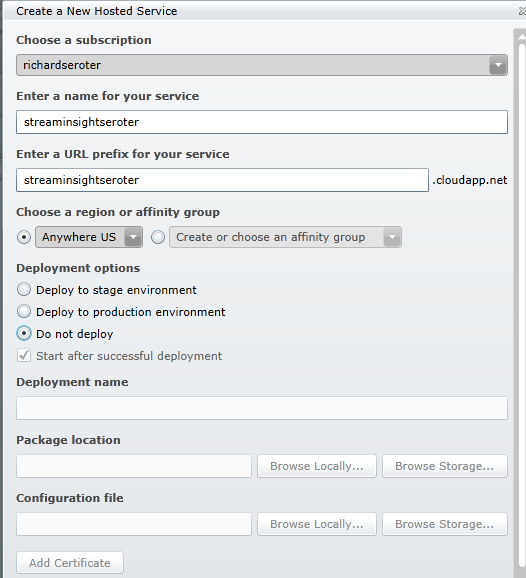
    Finally, I had to create a hosting service underneath my Azure subscription.  The window that pops up after clicking the New Hosted Service button on the ribbon lets you put a service under a subscription and define the deployment options and URL.  Note that I’ve chosen the “do not deploy” option since I have no package to upload to this instance.

    2011.7.5streaminsight05

    The last pre-deployment step is to associate the PFX certificate with this newly created Azure instance.  When doing so, you must provide the password set when exporting the PFX file.

    2011.7.5streaminsight16

    Next, I went to the Visual Studio solution provided with the StreamInsight Austin download.  There are a series of projects in this solution and the ones that I leveraged helped with provisioning the instance, deploying the StreamInsight application, and deleting the provisioned instance.  Note that there is a RESTful API for all of this and these Visual Studio projects just wrap up the operations into a C# API.

    The provisioning project has a configuration file that must contain references to my specific Azure account.  These settings include the SubscriptionId (GUID associated with my Azure subscription), HostedServiceName (matching the Azure service I created earlier), StorageAccountName (name of the storage account for the subscription), StorageAccountKey (giant value visible by clicking “View Access Keys” on the ribbon), ServiceManagementCertificateFilePath (location on local machine where PFX file sits), ServiceManagementCertificatePassword (password provided for PFX file), and ClientCertificatePassword (value used when the provisioning project creates a new certificate).

    Next, I ran the provisioning project which created a new certificate and invoked the StreamInsight Austin provisioning API that puts the StreamInsight binaries into an Azure instance.

    2011.7.5streaminsight06

    When the provisioning is complete, you can see the newly created instance and certificates.

    2011.7.5streaminsight08

    Neat.  It all completed in 5 or so minutes.  Also note that the newly created certificate is in the “My User” certificate store.

    2011.7.5streaminsight09

    I then switched to the “deployment” project provided by StreamInsight Austin.  There are new components that get installed with StreamInsight Austin, including a Package class.  The Package contains references to all of the components that must be uploaded to the Windows Azure instance in order for the query to run.  In my case, I need the Azure AppFabric adapter, my “shared” component, and the Microsoft.ServiceBus.dll that the adapters use.

    PKG.Package package = new PKG.Package("adapters");
    
    package.AddResource(@"Seroter.AustinWalkthrough.SharedObjects.dll");
    package.AddResource(@"Seroter.StreamInsight.AzureAppFabricAdapter.dll");
    package.AddResource(@"Microsoft.ServiceBus.dll");
    

    After updating the project to have the query from my previously built “onsite hosting” project, and updating the project’s configuration file to include the correct Azure instance URL and certificate password, I started up the deployment project.

    2011.7.5streaminsight10

    You can see that my deployment is successful and my StreamInsight query was started.  I can use the RESTful APIs provided by StreamInsight Austin to check on the status of my provisioned instance.  By hitting a specific URL (https://azure.streaminsight.net/HostedServices/{serviceName}/Provisioning), I see the details.

    2011.7.5streaminsight11

    With the query started, I turned on my Azure AppFabric listener service (who receives events from StreamInsight), and my service caller.  The data should flow to the Azure AppFabric endpoint, through StreamInsight Austin, and back out to an Azure AppFabric endpoint.

    2011.7.5streaminsight13

    Content that everything works, and scared that I’d incur runaway hosting charges, I ran the “delete” project with removed my Azure instance and all traces of the application.

    image

    All in all, it’s a fairly straightforward effort.  Your onsite StreamInsight application transitions seamlessly to the cloud.  As mentioned in the first post of the series, the big caveat is that you need event sources that are accessible by the cloud instance.  I leveraged Windows Azure AppFabric to receive events, but you could also do a batch load from an internet-accessible database or file store.

    When would you use StreamInsight Austin?  I can think of a few scenarios that make sense:

    • First and foremost, if you have a wide range of event sources, including cloud hosted ones, having your complex event processing engine close to the data and easily accessible is compelling.
    • Second, Austin makes good sense for variable workloads.  We can run the engine when we need to, and if it only operates on batch data, can shut it down when not in use.  This scenario will even more compelling once the transparent and elastic scale out of StreamInsight Austin is in place.
    • Third, we can use it for proof-of-concept scenarios without requiring on-premises hardware.  By using a service instead of maintaining on-site hardware you offload your management and maintenance to StreamInsight Austin.

    StreamInsight Austin is slated for a public CTP release later this year, so keep an eye out for more info.

  • Event Processing in the Cloud with StreamInsight Austin: Part I-Building an Azure AppFabric Adapter

    StreamInsight is Microsoft’s (complex) event processing engine which takes in data and does in-memory pattern matching with the goal of uncovering real-time insight into information.  The StreamInsight team at Microsoft recently announced their upcoming  capability (code named “Austin”) to deploy StreamInsight applications to the Windows Azure cloud.  I got my hands on the early bits for Austin and thought I’d walk through an example of building, deploying and running a cloud-friendly StreamInsight application.  You can find the source code here.

    You may recall that the StreamInsight architecture consists of input/output adapters and any number of “standing queries” that the data flows over.  In order for StreamInsight Austin to be effective, you need a way for the cloud instance to receive input data.  For instance, you could choose to poll a SQL Azure database or pull in a massive file from an Amazon S3 bucket.  The point is that the data needs to be internet accessible.  If you wish to push data into StreamInsight, then you must expose some sort of endpoint on the Azure instance running StreamInsight Austin.  Because we cannot directly host a WCF service on the StreamInsight Austin instance, our best bet is to use Windows Azure AppFabric to receive events.  In this post, I’ll show you how to build an Azure AppFabric adapter for StreamInsight.  In the next post, I’ll walk through the steps to deploy the on-premises StreamInsight application to Windows Azure and StreamInsight Austin.

    As a reference point, the final solution looks like the picture below.  I have a client application which calls an Azure AppFabric Service Bus endpoint started up by StreamInsight Austin, and then take the output of StreamInsight query and send it through an adapter to an Azure AppFabric Service Bus endpoint that relays the message to a subscribing service.

    2011.7.5streaminsight18

    I decided to use the product team’s WCF sample adapter as a foundation for my Azure AppFabric Service Bus adapter.  However, I did make a number of changes in order to simplify it a bit. I have one Visual Studio project that contains shared objects such as the input WCF contract, output WCF contract and StreamInsight Point Event structure.  The Point Event stores a timestamp and dictionary for all the payload values.

    [DataContract]
        public struct WcfPointEvent
        {
            ///
     /// Gets the event payload in the form of key-value pairs. ///
            [DataMember]
            public Dictionary Payload { get; set; }
    
            ///
     /// Gets the start time for the event. ///
            [DataMember]
            public DateTimeOffset StartTime { get; set; }
    
            ///
     /// Gets a value indicating whether the event is an insert or a CTI. ///
            [DataMember]
            public bool IsInsert { get; set; }
        }
    

    Each receiver of the StreamInsight event implements the following WCF interface contract.

    [ServiceContract]
        public interface IPointEventReceiver
        {
            ///
     /// Attempts to dequeue a given point event. The result code indicates whether the operation /// has succeeded, the adapter is suspended -- in which case the operation should be retried later -- /// or whether the adapter has stopped and will no longer return events. ///
            [OperationContract]
            ResultCode PublishEvent(WcfPointEvent result);
        }
    

    The service clients which send messages to StreamInsight via WCF must conform to this interface.

    [ServiceContract]
        public interface IPointInputAdapter
        {
            ///
     /// Attempts to enqueue the given point event. The result code indicates whether the operation /// has succeeded, the adapter is suspended -- in which case the operation should be retried later -- /// or whether the adapter has stopped and can no longer accept events. ///
            [OperationContract]
            ResultCode EnqueueEvent(WcfPointEvent wcfPointEvent);
        }
    

    I built a WCF service (which will be hosted through the Windows Azure AppFabric Service Bus) that implements the IPointEventReceiver interface and prints out one of the values from the dictionary payload.

    public class ReceiveEventService : IPointEventReceiver
        {
            public ResultCode PublishEvent(WcfPointEvent result)
            {
                WcfPointEvent receivedEvent = result;
                Console.WriteLine("Event received: " + receivedEvent.Payload["City"].ToString());
    
                result = receivedEvent;
                return ResultCode.Success;
            }
        }
    

    Now, let’s get into the StreamInsight Azure AppFabric adapter project.  I’ve defined a “configuration object” which holds values that are passed into the adapter at runtime.  These include the service address to host (or consume) and the password used to host the Azure AppFabric service.

    public struct WcfAdapterConfig
        {
            public string ServiceAddress { get; set; }
            public string Username { get; set; }
            public string Password { get; set; }
        }
    

    Both the input and output adapters have the required factory classes and the input adapter uses the declarative CTI model to advance the application time.  For the input adapter itself, the constructor is used to initialize adapter values including the cloud service endpoint.

    public WcfPointInputAdapter(CepEventType eventType, WcfAdapterConfig configInfo)
    {
    this.eventType = eventType;
    this.sync = new object();
    
    // Initialize the service host. The host is opened and closed as the adapter is started
    // and stopped.
    this.host = new ServiceHost(this);
    //define cloud binding
    BasicHttpRelayBinding cloudBinding = new BasicHttpRelayBinding();
    //turn off inbound security
    cloudBinding.Security.RelayClientAuthenticationType = RelayClientAuthenticationType.None;
    
    //add endpoint
    ServiceEndpoint endpoint = host.AddServiceEndpoint((typeof(IPointInputAdapter)), cloudBinding, configInfo.ServiceAddress);
    //define connection binding credentials
    TransportClientEndpointBehavior cloudConnectBehavior = new TransportClientEndpointBehavior();
    cloudConnectBehavior.CredentialType = TransportClientCredentialType.SharedSecret;
    cloudConnectBehavior.Credentials.SharedSecret.IssuerName = configInfo.Username;
    cloudConnectBehavior.Credentials.SharedSecret.IssuerSecret = configInfo.Password;
    endpoint.Behaviors.Add(cloudConnectBehavior);
    
    // Poll the adapter to determine when it is time to stop.
    this.timer = new Timer(CheckStopping);
    this.timer.Change(StopPollingPeriod, Timeout.Infinite);
    }
    

    On “Start()” of the adapter, I start up the WCF host (and connect to the cloud).  My Timer checks the state of the adapter and if the state is “Stopping”, the WCF host is closed.  When the “EnqueueEvent” operation is called by the service client, I create a StreamInsight point event and take all of the values in the payload dictionary and populate the typed class provided at runtime.

    foreach (KeyValuePair keyAndValue in payload)
     {
           //populate values in runtime class with payload values
           int ordinal = this.eventType.Fields[keyAndValue.Key].Ordinal;
           pointEvent.SetField(ordinal, keyAndValue.Value);
      }
     pointEvent.StartTime = startTime;
    
     if (Enqueue(ref pointEvent) == EnqueueOperationResult.Full)
     {
            Ready();
     }


    There is a fair amount of other code in there, but those are the main steps.  As for the output adapter, the constructor instantiates the WCF ChannelFactory for the IPointEventReceiver contract defined earlier.  The address passed in via the WcfAdapterConfig is applied to the Factory.  When StreamInsight invokes the Dequeue operation of the adapter, I pull out the values from the typed class and put them into the payload dictionary of the outbound message.

    // Extract all field values to generate the payload.
    result.Payload = this.eventType.Fields.Values.ToDictionary(
            f => f.Name,
            f => currentEvent.GetField(f.Ordinal));
    
    //publish message to service
    client = factory.CreateChannel();
    client.PublishEvent(result);
    ((IClientChannel)client).Close();
    

    I now have complete adapters to listen to the Azure AppFabric Service Bus and publish to endpoints hosted on the Azure AppFabric Service Bus.

    I’ll now build an on-premises host to test that it all works.  If it does, then the solution can easily be transferred to StreamInsight Austin for cloud hosting.  I first defined the typed class that defines my event.

    public class OrderEvent
        {
            public string City { get; set; }
            public string Product { get; set; }
        }
    

    Recall that my adapter doesn’t know about this class.  The adapter works with the dictionary object and the typed class is passed into the adapter and translated at runtime.  Next up is setup for the StreamInsight host.  After creating a new embedded application, I set up the configuration object representing both the input WCF service and output WCF service.

    //create reference to embedded server
    using (Server server = Server.Create("RSEROTER"))
    {
    
    		//create WCF service config
         WcfAdapterConfig listenWcfConfig = new WcfAdapterConfig()
          {
              Username = "ISSUER",
              Password = "PASSWORD",
              ServiceAddress = "https://richardseroter.servicebus.windows.net/StreamInsight/RSEROTER/InputAdapter"
           };
    
         WcfAdapterConfig subscribeWcfConfig = new WcfAdapterConfig()
         {
               Username = string.Empty,
               Password = string.Empty,
               ServiceAddress = "https://richardseroter.servicebus.windows.net/SIServices/ReceiveEventService"
         };
    
         //create new application on the server
         var myApp = server.CreateApplication("DemoEvents");
    
         //get reference to input stream
         var inputStream = CepStream.Create("input", typeof(WcfInputAdapterFactory), listenWcfConfig, EventShape.Point);
    
         //first query
         var query1 = from i in inputStream
                                select i;
    
         var siQuery = query1.ToQuery(myApp, "SI Query", string.Empty, typeof(WcfOutputAdapterFactory), subscribeWcfConfig, EventShape.Point, StreamEventOrder.FullyOrdered);
    
         siQuery.Start();
        Console.WriteLine("Query started.");
    
        //wait for keystroke to end
        Console.ReadLine();
    
        siQuery.Stop();
        host.Close();
        Console.WriteLine("Query stopped. Press enter to exit application.");
        Console.ReadLine();


    This is now a fully working, cloud-connected, onsite StreamInsight application.  I can take in events from any internal/external service caller and publish output events to any internal/external service.  I find this to be a fairly exciting prospect.  Imaging taking events from your internal Line of Business systems and your external SaaS systems and looking for patterns across those streams.

    Looking for the source code?  Well here you go.  You can run this application today, whether you have StreamInsight Austin or not.  In the next post, I’ll show you how to take this application and deploy it to Windows Azure using StreamInsight Austin.

  • Sending StreamInsight Events to a Windows Form Dashboard (Code Included)

    I get tired of showing Microsoft StreamInsight demos where my (complex) events get emitted to a console.  So, as part of a recent demonstration, I built a simple Windows Form dashboard that receives events and uses the built-in Windows Form Charting Controls to display the results.  In this post, I’ll show you the full solution that I built and provide a link to the download package so that you can run the whole thing yourself.

    If you’re not familiar with Microsoft StreamInsight, here’s a quick recap.  StreamInsight is a complex event processing engine that can receive high volumes of data via adapters and pass it through LINQ-authored queries.  The result is real-time intelligence about the pattern of events found in the engine.  You can read more about it on the Microsoft MSDN page for StreamInsight, my own blog posts on it, or pick up a book by a set of good-looking authors.

    Assuming you have StreamInsight 1.1 installed (download here) you can execute my solution, which has these Visual Studio projects:

    2011.4.18si01

    The first project, DataPublisher is my custom StreamInsight adapter that sends “call center” events to the StreamInsight engine.

    2011.4.18si02

    The CallCenterAdapterPoint.cs class is my actual input adapter that leverages the FakeDataSource.cs class which creates a new CallCenterRequestEventType every 500 milliseconds.  The CallCenterRequestEvenType has its properties (e.g. product, call type) randomly assigned upon creation.

    The next VS 2010 project that I’ll highlight is my web service adapter (which I describe in depth in this blog post).

    2011.4.18si03

    I’m going to use this adapter to send complex events from StreamInsight to my Windows Form.

    The next project is my Windows Form project, named EventReceiver.WinUI.

    2011.4.18si04

    This Windows Form hosts a WCF service that when invoked, updates the Chart control on the main form.

    2011.4.18si05

    I had to do some fun work with .NET delegates to successfully host a WCF and allow the service to update the chart.  Seems to work ok.

    The final project, and meatiest, is the StreamInsightQuery project.  This project starts up an embedded StreamInsight server, and has a set of six queries that you can play with.  The first five are meant to be output to the Tracer (console) adapter.  These queries show how to filter events, create tumbling windows, hopping windows and running totals.  If you set the one line of code here to the query you want and press F5, you can see StreamInsight in action.

    //start SI query for queries #1-5
    #region Tracer Adapter Query
    
     var siQuery = query4.ToQuery(myApp, "SI Query", string.Empty, typeof(TracerFactory), tracerConfig, EventShape.Point, StreamEventOrder.FullyOrdered);
    
    #endregion
    

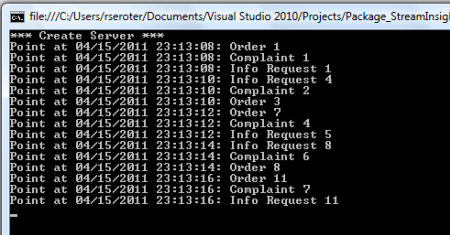
    2011.4.18si06

    Cool.  If you want to try out the Windows Form chart, simply comment out the previous siQuery variable and uncomment out the one that follows.

    //start SI query for query #6
     #region Web Adapter Query
    
    var siQuery = query6.ToQuery(myApp, "SI Query", string.Empty, typeof(WebOutputFactory), webAdapterConfig, EventShape.Point, StreamEventOrder.FullyOrdered);
    
     #endregion
    

    Now, you’ll want to go and manually start up the Windows Form console, click the Start Listening button, and make sure that the status of the service is Open.

    2011.4.18si07

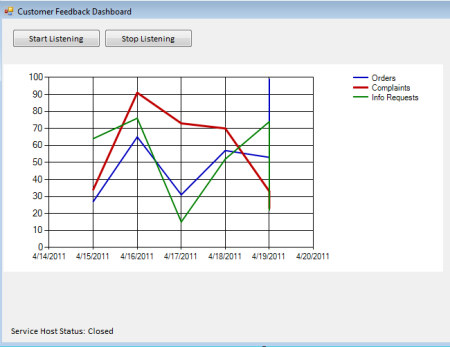
    We can now press F5 again within VS 2010 and start up our StreamInsight server.  Instead of writing events to the Console, StreamInsight is calling the Web adapter and sending messages to the web service hosted by our Windows Form.  Within a few seconds after starting the StreamInsight server, we should see our “running totals by call center type” complex events drawing on the Chart.

    2011.4.18si08

    When you’re finished being mildly impressed, you can shut down the StreamInsight server and then Stop Listening on the Windows Form.

    So that’s it.  You can download the full source code for this whole demo.  StreamInsight is a pretty cool technology and I hope that by making it easy to try it, I’ve motivated you to give it a whirl.

  • Implementing a Pub/Sub Event Distribution Model Using Microsoft StreamInsight

    Microsoft StreamInsight is a powerful tool for event stream processing and monitoring complex events.  To be sure, StreamInsight is not designed to be a message routing engine.  It’s primarily a foundation for real-time business intelligence where events are run through (temporal) queries and new insight is discovered.  To have a useful event-driven architecture (EDA), we want to be able to tap into the event cloud and siphon off the events flowing past.  StreamInsight has an interesting decoupled model that lets us publish events and have any number of targets tap into that event stream and do something else with it.  In this blog post, I’ll investigate this idea further.

    What’s the Goal?

    Todd Biske has recently written about the challenges of implementing an EDA and mentions the challenge of getting applications to share events.  That particular problem will be the topic of future posts and demonstrations.  Here, I’m looking to address the problem of how multiple applications receive events disseminated by other applications/devices/people/etc.  I want to publish a stream of events and let multiple different event targets operate against it.

    For instance, I may publish an event to StreamInsight whenever a customer makes a website or call center inquiry about a product.  I can then produce two distinct standing queries which operate on that raw event stream and could emit a subset of events to an interested system, correlate these events with an additional event stream, or include the events in a temporal aggregation.  In this way, I have a published event stream and allow multiple additional queries to execute against it.

    Setting It Up

    In reality, this is quite straightforward and utilizes standard StreamInsight behavior.  In this example, I have an input adapter that receives events from my call center.  In reality, this adapter just generates random call center event every so often and feeds them into the StreamInsight engine.  I also chose to use the Standalone StreamInsight server (vs. embedded one) so that my queries are owned by a centrally managed service.

    Let’s see some code.  First off, I connect to my standalone instance of StreamInsight.

    using (Server server = Server.Connect(new System.ServiceModel.EndpointAddress(@"http://SERVER:80/StreamInsight/RSEROTERv2")))
    {
    }
    

    Next up, I create an Application to host my StreamInsight queries.

    Application myApp;
    //create new application on the server
    myApp = server.CreateApplication("CallCenterEvents");
    

    After this, I create an input stream from my “Call Center” adapter.

    var inputStream = CepStream.Create("input", typeof(CallCenterAdapterFactory), config, EventShape.Point);
    

    At this point, I can write a very simple LINQ statement that emits every event from the stream.  As this is the initial query on the adapter, I’m not filtering or aggregating content in case a downstream event consumer wants to start with the raw stream.

    var allEvents = from ev in inputStream
                         select ev;
    

    I can now turn this statement into a standing query to deploy to the server.  However, notice that this query does NOT have an output adapter assigned to it.  Rather, I’m emitting events into the ether.  If no one is pulling the events off of this query, they simply get dropped.  This differs from a BizTalk Server model where any message in the bus that doesn’t find a subscriber will throw an error.

    var allQueryUnbound = allEvents.ToQuery(myApp, "All Events", string.Empty, EventShape.Point, StreamEventOrder.FullyOrdered);
    

    Since I’m using the standalone StreamInsight model, I don’t even have to start the query at this point.  Just running this code deploys the (stopped) query to StreamInsight.

    2011.3.3si01

    I can go ahead and start this query, and it runs perfectly fine.  At this point however, I have no listeners on this event stream, and the events just fall out.

    Let’s go ahead and consume this stream from two different StreamInsight queries.  In a different .NET application (signifying a different event consumer coming online at a later date), I connect to my StreamInsight standalone instance.

    using (Server server = Server.Connect(new System.ServiceModel.EndpointAddress(@"http://SERVER:80/StreamInsight/RSEROTERv2")))
      {}
    

    I acquire a reference to my application container, and then pull out the specific query that I’m interested in tapping into and convert it to a usable event stream.

    var myApp = server.Applications["CallCenterEvents"];
    
    var allEventsQuery = myApp.Queries["All Events"];
    
    var allEventsStream = allEventsQuery.ToStream();
    

    Next, I write a LINQ query that takes the output of that stream and applies a filter to it.  In this case, I only want the call center events that are related to a customer complaint.

    var complaints = from e in allEventsStream
                                  where e.RequestType == "Customer Complaint"
                                  select e;
    

    Finally, I build up a StreamInsight query and use the sample “Tracer” adapter to write the output to a file.

    var complaintsQuery = complaints.ToQuery(
        "Filtered Query",
         string.Empty,
         typeof(TracerFactory),
         new TracerConfig { DisplayCtiEvents = false, SingleLine = true, TraceName = @"C:\TEMP\Output_ComplaintsOnly.txt", TracerKind = TracerKind.File },
         EventShape.Point,
         StreamEventOrder.FullyOrdered);
    

    After building and deploying this, I added one more separate Visual Studio.NET project signifying yet another event target.  This code is similar to the previous, except that THIS query does an aggregation on the initial event stream.  Here, I have a hopping window that builds up a count of events over 30 second intervals and moves along the timeline every 1 second.

    var countByType =
                        from ev in allEventsStream
                        group ev by ev.RequestType into typeGroup
                        from win in typeGroup.HoppingWindow(
                        TimeSpan.FromSeconds(30), TimeSpan.FromSeconds(1),
                        HoppingWindowOutputPolicy.ClipToWindowEnd)
                        select new CallEventSummary
                        {
                            RequestType = typeGroup.Key,
                            TotalRequests = win.Count()
                        };
    

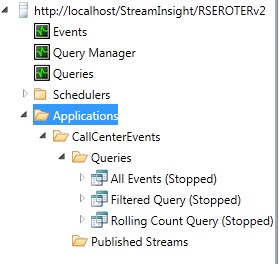
    With all of my queries deployed, I can now see three total queries in my StreamInsight application.

    2011.3.3si02

    I started the “All Events” query which creates the connection to my source adapter and starts processing events.  Next, I started my “Filtered Query” which taps into the first event stream and discards any events that aren’t customer complaints.  Finally, I started the “Rolling Count Query” which also listens on the first event stream and does some temporal aggregations.  Now, with the queries started, I can view the “Published Streams” and see two “subscribers” on the initial stream.

    2011.3.3si03

    On the file system, I have two files created by the two event targets.  The first contains all the individual events for customer complaints.  The second contains counts of event types.

    2011.3.3si04

    Conclusion

    If we are going to get a lot of traction evangelizing an event driven architecture, we have to make the event stream easy to tap into.  Microsoft StreamInsight has a pretty clean model for chaining together or aggregating event streams and hopefully the tooling will get better for managing and discovering these streams.

  • New Paper on Integrating SQL Server Integration Services with StreamInsight

    A paper was released today which outlines some scenarios for combining SSIS with StreamInsight.  In essence, they are trying to show the value of using a streaming, time-oriented engine alongside a data transformation and quality engine.

    They specifically call out two patterns: embedding StreamInsight within SSIS and embedding SSIS within StreamInsight.  The background discussion is a bit light and some points are covered only in passing. I would have liked to have seen more about how you decide to use which specific pattern.

    That said, the biggest value of this paper for me was reading through a few of the scenarios (in a telecommunications setting) and seeing examples of WHY you would combine these technologies.  Reading this paper may get your mind thinking about use cases for your own organization.

  • 2010 Year in Review

    I learned a lot this year and I thought I’d take a moment to share some of my favorite blog posts, books and newly discovered blogs.

    Besides continuing to play with BizTalk Server, I also dug deep into Windows Server AppFabric, Microsoft StreamInsight, Windows Azure, Salesforce.com, Amazon AWS, Microsoft Dynamics CRM and enterprise architecture.  I learned some of those technologies for my last book, some was for work, and some was for personal education.  This diversity was probably evident in the types of blog posts I wrote this year.  Some of my most popular, or favorite posts this year were:

    While I find that I use Twitter (@rseroter) instead of blog posts to share interesting links, I still consider blogs to be the best long-form source of information.  Here are a few that I either discovered or followed closer this year:

    I tried to keep up a decent pace of technical and non-technical book reading this year and liked these the most:

    I somehow had a popular year on this blog with 125k+ visits and really appreciate each of you taking the time to read my musings.  I hope we can continue to learn together in 2011.

  • 5 Quick Steps For Trying Out StreamInsight with LINQPad

    Sometimes I just want to quickly try out a technical idea and hate having to go through the process of building entire solutions (I’m looking at you, BizTalk).  Up until now, StreamInsight has also fallen into that category.  For a new product, that’s a dicey place to be.  Ideally, we should be able to try out a product, execute a scenario, and make a quick assessment.  For StreamInsight, this is now possible through the use of LINQPad.  This post will walk you through the very easy steps for getting components installed and using a variety of data sources to test StreamInsight queries.  As a bonus, I’ll also show you how to consume an OData feed and execute StreamInsight LINQ queries against it.

    Step 1: Install StreamInsight 1.1

       You need the second release of StreamInsight in order to use the LINQPad integration.  Grab the small installation bits for StreamInsight 1.1 from the Microsoft Download Center.  If you want to run an evaluation version, you can.  If you want to keep it around for a while, use a SQL Server 2008 R2 license key (found in the SQL Server installation media at x86\DefaultSetup.ini).

    Step 2: Install LINQPad 4.0

      You can run either a free version of LINQPad (download LINQPad here) or purchase a version that has built-in Intellisense. 

    Step 3:  Add the LINQPad drivers for StreamInsight

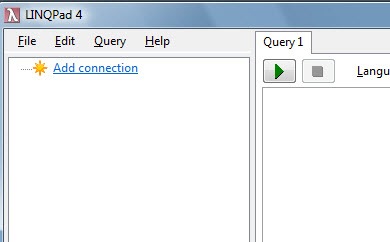
    When you launch LINQPad, you see an option to add a connection.

    2010.12.22si01

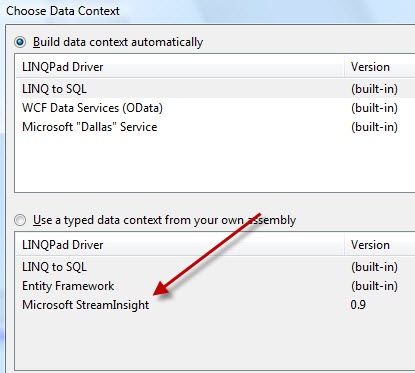
    You’ll see a number of built-in drivers for LINQ-to-SQL and OData.

    2010.12.22si02

    Click the View more drivers … button and you’ll see the new StreamInsight driver created by Microsoft.
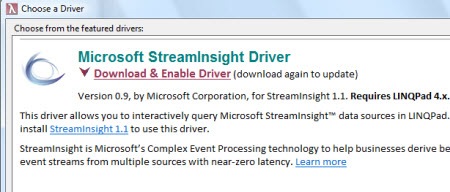
    2010.12.22si03

    The driver installs in about 200 milliseconds and then you’ll see it show up in the list of LINQPad drivers.

    2010.12.22si04

    Step 4: Create new connection with the StreamInsight driver

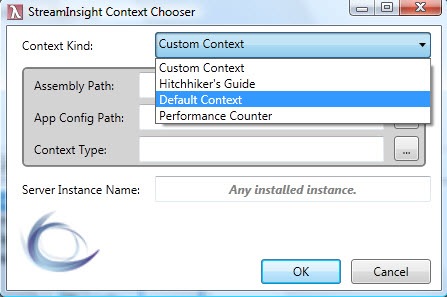
    Now we select that driver (if the window is still open, if not, back in LINQPad choose to Add connection) and click the Next button on the Choose Data Context wizard page.  At this point, we are prompted with a StreamInsight Context Chooser window where we can select from either data sets provided by Microsoft, or a new context.  I’ll pick the Default Context right now.

    2010.12.22si05

    Step 5: Write a simple query and test it

    At this point, we have a connection to the default StreamInsight context.  Make sure to flip the query’s Language value C# Statements and the Database to StreamInsight: Default Context.

    This default context doesn’t have an input data source, so we can create a simple collection of point events to turn into a stream for processing.  Our first query retrieves all events where the Count is greater than four. 

    //define event collection
    var source = new[]
    {
       PointEvent.CreateInsert(new DateTime(2010, 12, 1), new { ID = "ABC", Type="Customer", Count=4 }),
       PointEvent.CreateInsert(new DateTime(2010, 12, 2), new { ID = "DEF", Type="Customer", Count=9 }),
       PointEvent.CreateInsert(new DateTime(2010, 12, 3), new { ID = "GHI", Type="Partner", Count=5 })
    };
    
    //convert to stream
    var input = source.ToStream(Application,AdvanceTimeSettings.IncreasingStartTime);
    
    var largeCount = from i in input
           where i.Count > 4
           select i;
    
    //emit results to LINQPad
    largeCount.Dump();
    

    That query results in the output below.  Notice that only two of the records are emitted.
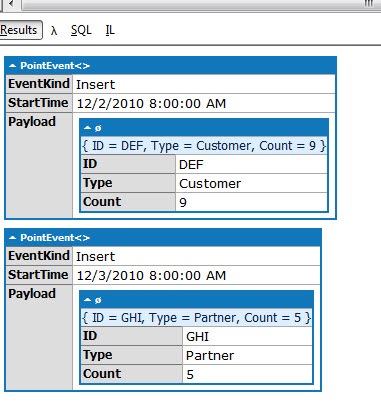
    2010.12.22si07

    To flex a bit more StreamInsight capability, I’ve created another query that creates a snapshot window over the three events (switched to the same day so as to have all point events in a single snapshot) and sum up the Count value per Type.

    var source = new[]
    {
       PointEvent.CreateInsert(new DateTime(2010, 12, 1), new { ID = "ABC", Type="Customer", Count=4 }),
       PointEvent.CreateInsert(new DateTime(2010, 12, 1), new { ID = "DEF", Type="Customer", Count=9 }),
       PointEvent.CreateInsert(new DateTime(2010, 12, 1), new { ID = "GHI", Type="Partner", Count=5 })
    };
    
    var input = source.ToStream(Application,AdvanceTimeSettings.IncreasingStartTime);
    
    var custSum = from i in input
              group i by i.Type into TypeGroups
              from window in TypeGroups.SnapshotWindow(SnapshotWindowOutputPolicy.Clip)
              select new { Type = TypeGroups.Key, TypeSum = window.Sum(e => e.Count) };
    
    custSum.Dump();
    

    This query also results in two messages but notice that the new TypeSum value is an aggregation of all events with a matching Type.

    2010.12.22si08

    In five steps (and hopefully about 8 minutes of your time), we got all the local components we needed and successfully tested a couple StreamInsight queries.

    I could end with that, but hey, let’s try something more interesting.  What if we want to use an existing OData source and run a query over that?  Here are three additional bonus steps that let us flex LINQPad and StreamInsight a bit further.

    Bonus Step #6: Create OData connection to Northwind items

    Click the Add connection button in LINQPad and choose the WCF Data Services (OData)  driver.  Select OData as the provider, and put the Northwind OData feed (http://services.odata.org/Northwind/Northwind.svc) in the URI box and click OK. In LINQPad you’ll see all the entities that the Northwind OData feed exposes.
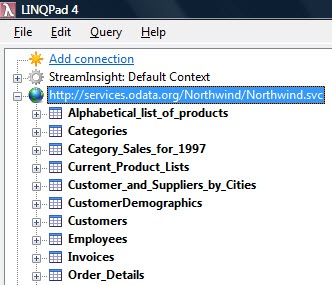
    2010.12.22si09

    Let’s now execute a very simple query.  This query looks through all Employee records and emits the employee ID, hire date and country for each employee.

    var emps = from e in Employees
    	     orderby e.HireDate ascending
    	     select new {
    	        HireDate = (DateTime)e.HireDate,
    	        EmpId = e.EmployeeID,
    	        Country = e.Country
    	};
    
     emps.Dump();
    

    The output of this service looks like this:
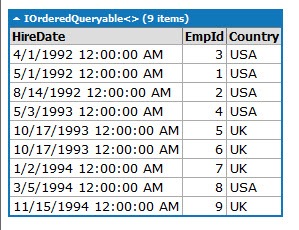
    2010.12.22si12

    Bonus Step #7: Add ability to do StreamInsight queries over Northwind data

    What if we want to look at employee hires by country over a specific window of time?  We could do this doing a straight LINQ query, but where’s the fun in that?  In seriousness, you can imagine some interesting uses of real-time analytics of employee data, but I’m not focusing on that here.

    LINQPad only allows one data context at a time, so in order to use both the OData feed AND StreamInsight queries, we have to do a bit of a workaround.  The spectacular Mark Simms has written an in depth post explaining this.  I’ll do the short version here.

    Right-click the LINQPad query tab that has the OData query and choose Query Properties.  We need to add additional references to the StreamInsight dlls.  Click Add on the Additional References tab and find/select the Microsoft.ComplexEventProcessing.dll and Microsoft.ComplexEventProcessing.Observable.dll (if you can’t see them, make sure to check the Show GAC Assemblies box).

    2010.12.22si10

    Switch over to the Additional Namespace Imports tab and hand-enter the namespaces we need for our query.

    2010.12.22si11

    Now we’re ready to build a query that leverages StreamInsight LINQ constructs against the OData source.

    Bonus Step #8: Write StreamInsight query against Northwind data

    I went ahead and “cloned” the previous query to start fresh but still copy the references and imports that we previously defined. 

    Below the previous query, I instantiated a StreamInsight “server” object to host our query.  Then I defined a StreamInsight application that contains the query.  Next up, I converted the OData results into a CEP stream.  After that, I created a StreamInsight query that leverages a Tumbling Window that emits a count of hires by country for each 60 day window.  Finally, I spit out the results to LINQPad.

    var emps = from e in Employees
        	     orderby e.HireDate ascending
    	     select new {
    		HireDate = (DateTime)e.HireDate,
    		EmpId = e.EmployeeID,
    		Country = e.Country
    	     };
    
    //define StreamInsight server
    using (Server siServer = Server.Create("RSEROTERv2"))
    {
    	//create StreamInsight app
    	Application empApp = siServer.CreateApplication("demo");
    
    	//map odata query to the StreamInsight input stream
    	var empStream = emps.ToPointStream(empApp, s => PointEvent.CreateInsert(s.HireDate, s), AdvanceTimeSettings.IncreasingStartTime);
    
    	var counts = from f in empStream
    	     	       group f by f.Country into CountryGroup
    		       from win in CountryGroup.TumblingWindow(TimeSpan.FromDays(60), HoppingWindowOutputPolicy.ClipToWindowEnd)
    		       select new { EmpCountry = CountryGroup.Key, Count = win.Count() };
    
    	//turn results into enumerable
    	var sink  = from g in counts.ToPointEnumerable()
    		     where g.EventKind == EventKind.Insert
    		     select new { WinStart = g.StartTime, Country = g.Payload.EmpCountry, Count = g.Payload.Count};
    
    	sink.Dump();
    }
    

    The output of the query looks like the image below.

    Conclusion

    There you have it.  You can probably perform the first five steps in under 10 minutes, and these bonus steps in another 5 minutes.  That’s a pretty fast, and low investment, way to get a taste for a powerful product.

  • My Co-Authors Interviewed on Microsoft endpoint.tv

    You want this book!

    -Ron Jacobs, Microsoft

    Ron Jacobs (blog, twitter) runs the Channel9 show called endpoint.tv and he just interviewed Ewan Fairweather and Rama Ramani who were co-authors on my book, Applied Architecture Patterns on the Microsoft Platform.  I’m thrilled that the book has gotten positive reviews and seems to fill a gap in the offerings of traditional technology books.

    Ron made a few key observations during this interview:

    • As people specialize, they lose perspective of other ways to solve similar problems, and this book helps developers and architects “fill the gaps.”
    • Ron found the dimensions our “Decision Framework” to be novel and of critical importance when evaluating technology choices.  Specifically, evaluating a candidate architecture against design, development, operational and organizational factors can lead you down a different path than you might have expected.  Ron specifically liked the “organizational direction” facet which can be overlooked but should play a key role in technology choice.
    • He found the technology primers and full examples of such a wide range of technologies (WCF, WF, Server AppFabric, Windows Azure, BizTalk, SQL Server, StreamInsight) to be among the unique aspects of the book.
    • Ron liked how we actually addressed candidate architectures instead of jumping directly into a demonstration of a “best fit” solution.

    Have you read the book yet?  If so, I’d love to hear your (good or bad) feedback.  If not, Christmas is right around the corner, and what better way to spend the holidays than curling up with a beefy technology book?

  • List of Currently Available StreamInsight Adapters

    Microsoft StreamInsight does not formally ship with any input or output adapters.  That team stresses the ease of adapter development using their framework. It is easier to connect to StreamInsight with the new IEnumerable and IObservable support in the StreamInsight 1.1 release.  All that said, it’s always easier to rely on previously-built adapters to either accelerate projects or use as a foundation for adapter extension.  There have been a few (unsupported) adapters produced by the StreamInsight team and community at large.

    Here’s the list (with the link pointing to where you can get it) …

    Creator Technology Type
    Microsoft CSV Input
    Microsoft Trace (Console/File) Output
    Microsoft Text Input
    Microsoft Text Output
    Microsoft SQL Server Input/Output
    Microsoft WCF Input/Output
    Microsoft Random Data Generator Input
    MatrikonOPC OPC Adapter for StreamInsight Input/Output
    OSIsoft PI adapter Input/Output
    Richard Seroter MSMQ Input
    Richard Seroter SOAP/REST Output
    Johan Åhlén Twitter Output


    You can put together some interesting solutions with those.  Glad to see the SQL Server adapter become available.  Have I missed anything?