Category: SQL Azure

  • Where the heck do I host my … cloud database?

    So far, I’ve looked at options for hosting .NET and Node.js applications in the cloud. But what about the  services that web applications rely on? It’s unlikely that your cloud application will use many on-premises services, so you’ll need things like databases nearby. There are a LOT of relational and NoSQL cloud databases out there. While it’s a perfectly reasonable choice to install and operate a database yourself on someone’s cloud VMs, this assessment looks at “managed” cloud databases. A managed cloud database typically takes care of underlying VM management as well as database tasks like backups.

    I’ve picked out 8 diverse choices (although MANY other interesting services exist), and evaluated them using the following criteria:

    • Type of offering (RDBMS, NoSQL)
    • Technology and versions supported
    • Scalability story
    • High availability options
    • Imposed constraints
    • Pricing plans
    • Administrative access
    • Support material offered

    There are other important factors to consider before actually selecting one of the services below. Make sure to look deeply at the feature set (and lack thereof), SLAs, and data privacy policies.

    Once again, I’m putting these in alphabetical order, which means that Amazon Web Services shows up first, and Windows Azure last. Just like that crafty Jeff Bezos wants.

    Amazon Web Services

    AWS has a variety of database services that offer excellent scale and innovative features.

    Type of Offering Tech and Versions Scalability High Availability
    Relational, NoSQL, and warehouse RDS uses MySQL (5.6.13 and lower), SQL Server (2012, 2008 R2), and Oracle (11.2)DynamoDB is proprietary NoSQL database.

    Redshift is a proprietary data warehouse platform.

    Manually scale RDS instances up and down with minimal downtime.DynamoDB scaling is done by increasing or decreasing the “provisioned throughput”  with impacting availability.

    Redshift scaling occurs by adding or removing nodes in the cluster.

    RDS instances scale up, but do support high availability through “Multi-AZ Deployments” for MySQL or Oracle.DynamoDB is built for high availability by default. Its data is spread across AZs in a region and can withstand server or AZ failure.

    Redshift replicates data across nodes in a (single AZ) cluster and constantly backs up to S3.


    Constraints Pricing Admin Access Support
    For RDS, MySQL or Oracle databases can be up to 3TB in size with 30k IOPS. SQL Server databases can be 1TB in size with up to 10k IOPS.DynamoDB supports up to 10k read/write capacity units (unless you receive special permission). Items can only be 64kb in size, but there is no size limit on an entire table.

    Redshift supports 16 XL nodes (2TB apiece) or 16 8XL nodes (16 TB apiece) per cluster.

    RDS pricing includes an hourly charge for the instance, primary storage, Multi-AZ storage, backup storage, and data transfer out.The pricing in DynamoDB is pretty simple. Pay for provisioned throughput units, storage, and data transfer out.

    For Redshift, you pay for capacity per hour, backup storage, and in some cases, data transfer.

    RDS users can create firewall policies that let them use standard client tools for connecting to DB instances.Few admin tasks exist for DynamoDB, but can use AWS Console and API.

    Access Redshift via API, and database/BI tools.

    For RDS, lots of documentation, some tutorials, support forums, and paid support.DynamoDB has documentation, forums, and paid support.

    Redshift is new, but you’ll find good documentation, forums, and paid support.

    Cloudant

    Cool provider of a distributed, cloud-scale JSON document database. Good when you need a high-performing, CouchDB-friendly environment.

    Type of Offering Tech and Versions Scalability High Availability
    NoSQL (document DB) Cloudant developed BigCouch which is a fork of CouchDB. Scaled horizontally by Cloudant. Run as shared (AWS, Azure, Joyent, Rackspace, SoftLayer) or dedicated (AWS, Rackspace, SoftLayer). Supports cross-data center, multiple writable masters.


    Constraints Pricing Admin Access Support
    No apparent limits on DB size. For shared hosting, pay for data volume and HTTP requests. Compatible with CouchDB API so admins can use other CouchDB-friendly tools. Most of the admin activities are performed by Cloudant. Some documentation, and 24×7 support.

    Engine Yard

    Long-time PaaS provider offers a handful of different managed databases. One of the rare Riak hosters online so far, Engine Yard is good bet for DB hosting if your app is running in their cloud.

    Type of Offering Tech and Versions Scalability High Availability
    Relational and NoSQL. Relational options include PostgreSQL (9.2.x) and MySQL (5.0.x).For NoSQL, EngineYard offers hosted Riak and supports all possible Riak storage backends.

    EngineYard databases run in AWS.

    Can scale PostgreSQL and MySQL servers up to larger server sizes.Riak is setup in a cluster, and it appears that clusters can be resized. PostgreSQL and MySQL can be set up with read replicas, and replication, but those appear to be only HA options.Riak cluster is set up in an AWS region, and balanced between AZs.


    Constraints Pricing Admin Access Support
    PostgreSQL and MySQL databases can be up to 1TB in size (EBS backed).Riak service appears to support up to 1TB per node. Hourly pricing (based on server size), with no extra charge for the database software. Also pay for backups and bandwidth. Access databases from the outside using SSH tunnels and then your preferred management tool. Offer knowledge base, ticketing system, and paid support plans.

    Google

    Google offers a couple different databases for cloud developers. The options differ in maturity, but both offer viable repositories.

    Type of Offering Tech and Versions Scalability High Availability
    Relational and NoSQL. Google Cloud SQL in based on MySQL (5.5).The Google Cloud Datastore is a preview service and came from the Google App Engine High Replication Datastore (BigTable). For Cloud SQL, users can switch between instance sizes to adjust capacity.Cloud Datastore writes scales automatically. Cloud SQL supports either sync or async replication to multiple geographic locations.Cloud Datastore is replicated (in real time) across data centers.


    Constraints Pricing Admin Access Support
    For Google Cloud SQL, Maximum request/response size is 16MB. Databases can be up to 100GB in size.The Cloud Datastore has no maximum amount of stored data, up to 200 indexes, and no limit on reads/writes. Google Cloud SQL can be paid for in package (per day) or per-use (hourly) billing plans. Per-use plans include additional per-hour charge for storage. Both plans requirement payment for outbound traffic.For the Cloud Datastore, you pay an hourly per-GB charge, plus a cost per 100k API operations. Use client tools that support a JDBC connection and Google Cloud SQL driver. Also supports a command line tool.Developers use a tool from Google (gcd) to manage the Cloud Datastore. For Google Cloud SQL, you’ll find documentation, discussion forums, and paid support.Support for the Cloud Datastore can be found in communities, documentation, and a free/paid ticketing system.

    NuoDB

    Offers a “newSQL” product which is an object-oriented, peer-to-peer, transactional database. Powerful choice for on-premises or cloud data storage.

    Type of Offering Tech and Versions Scalability High Availability
    Relational. Proprietary, patented technology base. Supports manual scale out of more hosts and can also apparently add capacity to existing hosts. Journaling ensures that writes are committed to disk, and they offer multiple ways to configure the hosts in a highly available (geo-distributed, multi-master) way.


    Constraints Pricing Admin Access Support
    Amazon-hosted version has 1TB of storage, although seemingly you could add more.They also list a handful of SQL-related limits for the platform. NuoDB has three editions. The developer edition is free, the Pro version is “pay as you scale”, and the cloud version is based on usage in AWS. See here for a comparison of each. Offer a handful of CLI tools, visual consoles, and integration with 3rd party management tools. NuoDB offers documentation, GitHub samples, and support forums.

    Rackspace

    This leading cloud provider sells their own managed cloud database, and recently acquired another. Good choice for apps running in the Rackspace cloud, or if you need a well-engineering MongoDB environment.

    Type of Offering Tech and Versions Scalability High Availability
    Relational and NoSQL (document) Cloud Databases run MySQL (5.1).ObjectRocket is based on MongoDB. Cloud Databases can be scaled up, but not out.ObjectRocket scales out to more sharded instances. Can happen automatically or manually. The Cloud Database relies on SAN-level replication of data, and not MySQL replication (unsupported).The ObjectRocket “pod” architecture makes it possible to replicate data easily. load balancers are in place, geo-redundancy is available, and backups are built in.


    Constraints Pricing Admin Access Support
    Looks like most Cloud Database interactions are through the API, and rate limits are applied. You are also able to have up to 25 instances, at 150GB each.CloudRocket offers unlimited data storage if you have defined shard keys. Contact them if you need more than 200k operations/second. Cloud Databases are charged per hour. Storage is charged at $0.75 per month.ObjectRocket has four different plans where you pay monthly, per-shard. Some Cloud Database admin functions are exposed through their Control Panel (e.g. provision, resize) and others through API (e.e. backup) or client tools (e.g. import). See more on how to access the DB instance itself. Rackspace provides lots of support options for Cloud Databases, including a ticketing system, community, help desk, and managed services.ObjectRocket support is done via email/chat/phone.

    Salesforce.com (Database.com)

    Recently made a standalone product after providing the backend to Salesforce.com for years, Database.com offers a feature-rich, metadata-driven database for cloud apps.

    Type of Offering Tech and Versions Scalability High Availability
    Relational Oracle underneath, but no exposure of direct capabilities. interact solely with Database.com interface. Pod architecture designed to scale up and out automatically based on demand. Geographically distinct data centers and near real-time replication between them.


    Constraints Pricing Admin Access Support
    No upper limit on storage. Does impose API limits. Free for 3 users, 100k records, 50k transactions. Pay for users, records, and transactions above that. Manage Database.com via web console, Workbench, SOAP/REST API, and platform SDKs. Offer a dev center, discussion boards, support tickets, and paid support plans.

    Windows Azure

    Microsoft has a set of database options that are similar in scope to what AWS offers. Great fit for shared databases between partners or as a companion to a web app running in Windows Azure.

    Type of Offering Tech and Versions Scalability High Availability
    Relational and NoSQL Windows Azure SQL Database runs SQL Server (2012).Windows Azure Table Storage provides a custom, schema-less repository. SQL Database servers can be scaled up. Can also scale usage out through Federations to shard data.Azure Table data is sharded according to a partition key and can support up to 20k transactions per second. For SQL Databases, backups are taken regularly. At least 3 replicas exist for each database.Azure Tables are replicated three times within a given data center.


    Constraints Pricing Admin Access Support
    SQL Databases can be up to 150GB in size. SQL Databases don’t support the full feature set of SQL Server 2012.Azure Table entities can be up to 1MB in size, and tables/accounts can store up to 200TB of data. Pay as you go for SQL Database instances. Different price for reserved capacity. Also pay for bandwidth consumption.Azure Table pricing is rolled up into “Storage” where you pay per GB/hr, and for bandwidth. SQL Databases via REST API, web Management Console, or client tools.Azure Tables can be accessed via REST API (OData) and platform SDKs. Whitepapers, documentation, community forums all free. Also offer paid support plans.

    Summary

    Clearly, there are a ton of choices when considering where to run a database in the cloud. You could choose to run a database yourself on a virtual machine (as all IaaS vendors promote), or move to a managed service where you give up some control, but get back time from offloading management tasks. Most of these services have straightforward web APIs, but do note that migration between each of them isn’t a one-click experience.

    Are there other cloud databases that you like? Add them to the comments below!

  • TechEd North America Session Recap, Recording Link

    Last week I had the pleasure of visiting New Orleans to present at TechEd North America. My session, Patterns of Cloud Integration, was recorded and is now available on Channel9 for everyone to view.

    I made the bold (or “reckless”, depending on your perspective) decision to show off as many technology demos as possible so that attendees could get a broad view of the options available for integrating applications, data, identity, and networks. Being a Microsoft conference, many of my demonstrations highlighted aspects of the Microsoft product portfolio – including one of the first public demos of Windows Azure BizTalk Services – but I also snuck in a few other technologies as well. My demos included:

    1. [Application Integration] BizTalk Server 2013 calls REST-based Salesforce.com endpoint and authenticates with custom WCF behavior. Secondary demo also showed using SignalR to incrementally return the results of multiple calls to Salesforce.com.
    2. [Application Integration] ASP.NET application running in Windows Azure Web Sites using the Windows Azure Service Bus Relay Service to invoke a web service on my laptop.
    3. [Application Integration] App running in Windows Azure Web Sites sending message to Windows Azure BizTalk Services. Message then dropped to one of three queues that was polled by Node.js application running in CloudFoundry.com.
    4. [Application Integration] App running in Windows Azure Web Sites sending message to Windows Azure Service Bus Topic, and polled by both a Node.js application in CloudFoundry.com, and a BizTalk Server 2013 server on-premises.
    5. [Application/Data Integration] ASP.NET application that uses local SQL Server database but changes connection string (only) to instead point to shared database running in Windows Azure.
    6. [Data Integration] Windows Azure SQL Database replicated to on-premises SQL Server database through the use of Windows Azure SQL Data Sync.
    7. [Data Integration] Account list from Salesforce.com copied into on-premises SQL Server database by running ETL job through the Informatica Cloud.
    8. [Identity Integration] Using a single set of credentials to invoke an on-premises web service from a custom VisualForce page in Salesforce.com. Web service exposed via Windows Azure Service Bus Relay.
    9. [Identity Integration] ASP.NET application running in Windows Azure Web Sites that authenticates users stored in Windows Azure Active Directory.
    10. [Identity Integration] Node.js application running in CloudFoundry.com that authenticates users stored in an on-premises Active Directory that’s running Active Directory Federation Services (AD FS).
    11. [Identity Integration] ASP.NET application that authenticates users via trusted web identity providers (Google, Microsoft, Yahoo) through Windows Azure Access Control Service.
    12. [Network Integration] Using new Windows Azure point-to-site VPN to access Windows Azure Virtual Machines that aren’t exposed to the public internet.

    Against all odds, each of these demos worked fine during the presentation. And I somehow finished with 2 minutes to spare. I’m grateful to see that my speaker scores were in the top 10% of the 350+ breakouts, and hope you’ll take some time to watch it. Feedback welcome!

  • My New Pluralsight Course – Patterns of Cloud Integration – Is Now Live

    I’ve been hard at work on a new Pluralsight video course and it’s now live and available for viewing. This course, Patterns of Cloud Integration,  takes you through how application and data integration differ when adding cloud endpoints. The course highlights the 4 integration styles/patterns introduced in the excellent Enterprise Integration Patterns book and discusses the considerations, benefits, and challenges of using them with cloud systems. There are five core modules in the course:

    • Integration in the Cloud. An overview of the new challenges of integrating with cloud systems as well as a summary of each of the four integration patterns that are covered in the rest of the course.
    • Remote Procedure Call. Sometimes you need information or business logic stored in an independent system and RPC is still a valid way to get it. Doing this with a cloud system on one (or both!) ends can be a challenge and we cover the technologies and gotchas here.
    • Asynchronous Messaging. Messaging is a fantastic way to do loosely coupled system architecture, but there are still a number of things to consider when doing this with the cloud.
    • Shared Database. If every system has to be consistent at the same time, then using a shared database is the way to go. This can be a challenge at cloud scale, and we review some options.
    • File Transfer. Good old-fashioned file transfers still make sense in many cases. Here I show a new crop of tools that make ETL easy to use!

    Because “the cloud” consists of so many unique and interesting technologies, I was determined to not just focus on the products and services from any one vendor. So, I decided to show off a ton of different technologies including:

    Whew! This represents years of work as I’ve written about or spoken on this topic for a while. It was fun to collect all sorts of tidbits, talk to colleagues, and experiment with technologies in order to create a formal course on the topic. There’s a ton more to talk about besides just what’s in this 4 hour course, but I hope that it sparks discussion and helps us continue to get better at linking systems, regardless of their physical location.

  • Interacting with Clouds From Visual Studio: Part 1 – Windows Azure

    Now that cloud providers are maturing and stabilizing their platforms, we’re seeing better and better dev tooling get released. Three major .NET-friendly cloud platforms (Windows Azure, AWS, and Iron Foundry) have management tools baked right into Visual Studio, and I thought it’d be fun to compare them with respect to completeness of functional coverage and overall usability. Specifically, I’m looking to see how well the Visual Studio plugins for each of these clouds account for browsing, deploying, updating, and testing services. To be sure, there are other tools that may help developers interact with their target cloud, but this series of posts is JUST looking at what is embedded within Visual Studio.

    Let’s start with the Windows Azure tooling for Visual Studio 2012. The table below summarizes my assessment. I’ll explain each rating in the sections that follow.

    Category

    Windows
    Azure

    Notes

    Browsing

    Web applications and files 1-4 Can view names and see instance counts, but that’s it. No lists of files, no properties of the application itself. Can initiate Remote Desktop command.
    Databases 4-4 No really part of the plugin (as its already in Server Explorer), but you get a rich view of Windows Azure SQL databases.
    Storage 1-4 No queues available, and no properties shown for tables and blobs.
    VM instances 2-4 Can see list of VMs and small set of properties. Also have the option to Remote Desktop into the server.
    Messaging components 3-4 Pretty complete story. Missing Service Bus relay component. Good view into Topics/Queues and informative set of properties.
    User accounts, permissions 0-4 No browsing of users or their permissions in Windows Azure.

    Deploying / Editing

    Web applications and files 0-4 No way to deploy new web application (instances) or update existing applications.
    Databases 4-4 Good story for adding new database artifacts and changing existing ones.
    Storage 0-4 No changes can be made to existing storage, and users can’t add new storage components.
    VM instances 0-4 Cannot alter existing VMs or deploy new ones.
    Messaging components 3-4 Nice ability to create and edit queues and topics. Cannot change existing topic subscriptions.
    User accounts, permissions 0-4 Cannot add or change user permissions.

    Testing

    Databases 4-4 Good testability through query execution.
    Messaging components 3-4 Nice ability to send and receive test messages, but lack of customization of message limits test cases.

    Setting up the Visual Studio Plugin for Windows Azure

    Before going to the functionality of the plugin interface, let’s first see how a developer sets up their workstation to use it. First, the developer must install the Windows Azure SDK for .NET. Among other things, this adds the ability to see and interact with a sub-set of Windows Azure from within Visual Studio’s existing Server Explorer window.

    2012.12.20vs01

    As you can see, it’s not a COMPLETE view of everything in the Windows Azure family (no Windows Azure Web Sites, Windows Azure SQL Database), but it’s got most of the biggies.

    Browsing Cloud Resources

    If the goal is to not only push apps to the cloud, but also manage them, then a decent browsing story is a must-have.  While Windows Azure offers a solid web portal – and programmatic interfaces ranging from PowerShell to a web service API – it’s nice to also be able to see your cloud components from within the same environment (Visual Studio) that you build them!
    What’s interesting to me is that each cloud function (Compute, Service Bus, Storage, VMs) requires a unique set of credentials to view the included resources. So no global “here’s my Windows Azure credentials … show me my stuff!” experience.

    Compute

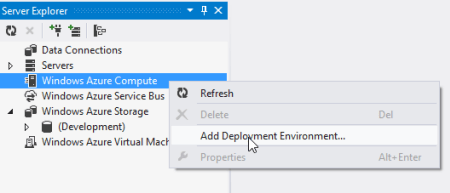
    For Compute, the very first time that I want to browse web applications, I need to add a Deployment Environment.

    2012.12.20vs02

    I’m then asked for which subscription to use, and if there are none listed, then I  am prompted to download a “publish settings” file from my Windows Azure account. Once I do that, I see my various subscriptions, and am asked to choose which one to show in the Visual Studio plugin.

    2012.12.20vs03

    Finally, I can see my deployed web applications.

    2012.12.20vs04

    Note however, that there are no “properties” displayed for any of the objects in this tree. So, I can’t browse the application settings or see how the web application was configured.

    Service Bus

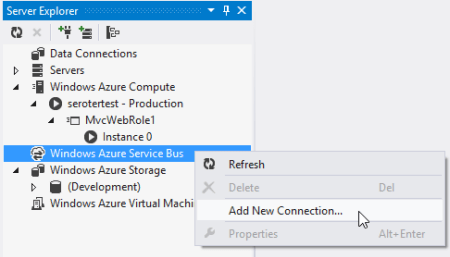
    To browse all the deployed bits for the Service Bus, I once again have to add a new connection.

    2012.12.20vs05

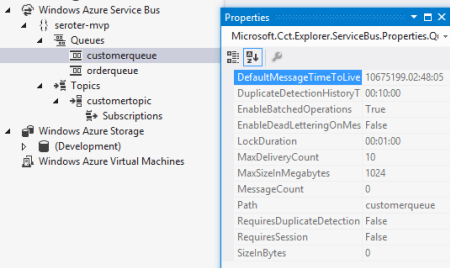
    After adding my Service Bus namespace, Issuer, and Key, I get all the Topics and Queues (not Relays, though) associated with this subscription.

    2012.12.20vs06

    Unlike the Compute tree nodes, all the Service Bus nodes reveal tidbits of information in the Properties window. For instance, clicking on the Service Bus subscription shows me the Issuer, Key, endpoints, and more. Clicking on an individual queue shows me a host of properties including message count, duplicate detection status, and more. Handy stuff.

    2012.12.20vs07

    Storage

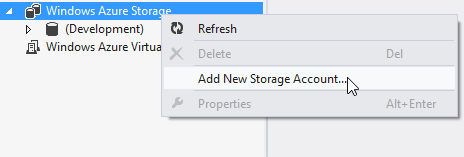
    To check out the storage (blob and table, no queues) artifacts in Windows Azure, I first have to add a connection to one of my storage accounts.

    2012.12.20vs08

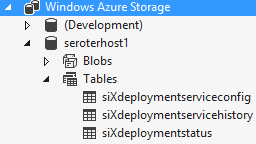
    After providing my account name and key, I’m shown everything that’s in this account.

    2012.12.20vs09

    Unfortunately, these seem to follow the same pattern as Compute and don’t present any values in the Properties window.

    Virtual Machines

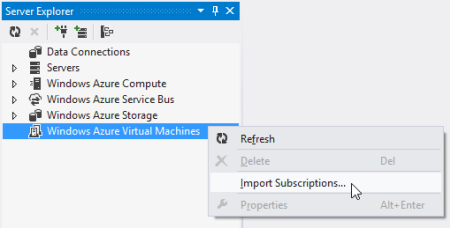
    How about the new, beta Windows Azure Virtual Machines? Like the other cloud resources exposed via this Visual Studio plugin, this one requires a one-time setup of a subscription.

    2012.12.20vs10

    After pointing it to my downloaded subscription file, I was shown a list of the VMs that I’ve deployed to Windows Azure.

    2012.12.20vs11

    When I click on a particular VM, the Visual Studio Properties window includes a few attributes such as VM size, status, and name. However, there’s no option to see networking settings or any other advanced VM environment settings.

    2012.12.20vs12

    Database

    While there’s not a specific entry for Windows Azure SQL Databases, I figured that I’d try and add it as a regular “data connection” within the Visual Studio plugin. After updating the Windows Azure portal to allow my IP address to access one of my Azure databases, and plugged in the address and credentials of my cloud database.

    2012.12.20vs13

    Once connected, I see all the artifacts in my Windows Azure SQL database.

    2012.12.20vs14

    Deploying and Updating Cloud Resources

    So what can you create or update directly from the plug-in? For the Windows Azure plugin, the answer is “not much.” The Compute node is for (limited) read only views and you cannot deploy new instances. The Storage node is read-only as well as users cannot created new tables/blobs. The Virtual Machines node is for browsing only as there is no way to initiate the VM-creation process or change existing VMs.

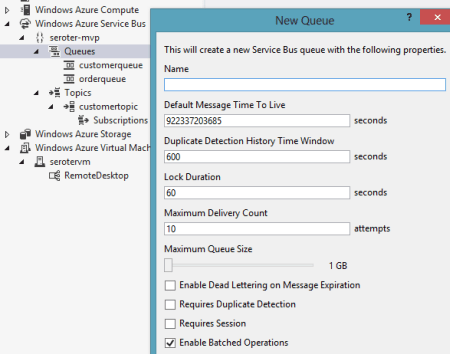
    There are some exceptions to this read-only world. The Service Bus portion of the plugin is pretty interactive. I can easily create brand new topics and queues.

    2012.12.20vs15

    However, I cannot change the properties of existing topics or queues. As for topic subscriptions, I am able to create both subscriptions and rules, but cannot change the rules after the fact.

    The options for Windows Azure SQL Databases are the most promising. Using the Visual Studio plugin, I can create new tables, stored procedures and the like, and can also add/change table data or update artifacts such as stored procedures.

    2012.12.20vs16

    Testing Cloud Resources

    As you might expect given the limited support for interacting with cloud resources, the Visual Studio plugin for Windows Azure only has a few testing-oriented capabilities. First, users of SQL databases can easily execute procedures and run queries from the plugin.

    2012.12.20vs17

    The Service Bus also has a decent testing story. From the plugin, I can send test messages to queues, and receive them.

    2012.12.20vs18

    However, it doesn’t appear that I can customize the message. Instead, a generic message is sent on my behalf. Similarly, when I choose to send a test message to a topic, I don’t have a chance to change it. However, it is nice to be able to easily send and receive messages.

    Summary

    Overall, the Visual Studio plugin for Windows Azure offers a decent, but incomplete experience. If it were only a read-only tool, I’d expect better metadata about the deployed artifacts. If it was an interactive tool that supported additions and changes, I’d expect many more exposed features. Clearly Microsoft expects developers to use a mix of the Windows Azure portal, and custom tools (like the awesome Service Bus Explorer), but I hope that future releases of this plugin have a more comprehensive coverage area.

    In the next post, I’ll look at what Amazon offers in their Visual Studio plugin.

  • Book’s Sample Chapter, Articles and Press Release

    The book is now widely available and our publisher is starting up the promotion machine.  At the bottom of this post is the publisher’s press release.  Also, we now have one sample chapter online (Mike Sexton’s Debatching Bulk Data) as well as two articles representing some of the material from my Content Based Routing chapter (Part 1 – Content Based Routing on the Microsoft Platform, Part II – Building the Content Based Routing Solution on the Microsoft Platform).  This hopefully provides a good sneak peak into the book’s style.

    ## PRESS RELEASE ##

    Solve business problems on the Microsoft application platform using Packt’s new book

     Applied Architecture Patterns on the Microsoft Platform is a new book from Packt that offers an architectural methodology for choosing Microsoft application platform technologies. Written by a team of specialists in the Microsoft space, this book examines new technologies such as Windows Server AppFabric, StreamInsight, and Windows Azure Platform, and their application in real-world solutions.

     Filled with live examples on how to use the latest Microsoft technologies, this book guides developers through thirteen architectural patterns utilizing code samples for a wide variety of technologies including Windows Server AppFabric, Windows Azure Platform AppFabric, SQL Server (including Integration Services, Service Broker, and StreamInsight), BizTalk Server, Windows Communication Foundation (WCF), and Windows Workflow Foundation (WF).

     This book is broken down into 4 different sections. Part 1 starts with getting readers up to speed with various Microsoft technologies. Part 2 concentrates on messaging patterns and the inclusion of use cases highlighting content-based routing. Part 3 digs into bulk data processing, and multi-master synchronization. Finally the last part covers performance-related patterns including low latency, failover to the cloud, and reference data caching.

     Developers can learn about the core components of BizTalk Server 2010, with an emphasis on BizTalk Server versus Windows Workflow and BizTalk Server versus SQL Server. They will not only be in a position to develop their first Windows Azure Platform AppFabric, and SQL Azure applications but will also learn to master data management and data governance of SQL Server Integration Services, Microsoft Sync Framework, and SQL Server Service Broker.

     Architects, developers, and managers wanting to get up to speed on selecting the most appropriate platform for a particular problem will find this book to be a useful and beneficial read. This book is out now and is available from Packt. For more information, please visit the site.

    [Cross posted on Book’s dedicated website]

  • And … The New Book is Released

    Nearly 16 months after a book idea was born, the journey is now complete.  Today, you can find our book, Applied Architecture Patterns on the Microsoft Platform, in stock at Amazon.com and for purchase and download at the Packt Publishing site.

    I am currently in Stockholm along with co-authors Stephen Thomas and Ewan Fairweather delivering a 2 day workshop for the BizTalk User Group Sweden.  We’re providing overviews of the core Microsoft application platform technologies and then excerpting the book to show how we analyzed a particular use case, chose a technology and then implemented it.  It’s our first chance to see if this book was a crazy idea, or actually useful.  So far, the reaction has been positive.  Of course, the Swedes are such a nice bunch that they may just be humoring me.

    I have absolutely no idea how this book will be received by you all.  I hope you find it to be a unique tool for evaluating architecture and building solutions on Microsoft technology.  If you DON’T like it, then I’ll blame this book idea on Ewan.

  • Using “Houston” to Manage SQL Azure Databases

    Up until now, your only option for managing SQL Azure cloud databases was using an on-premise SQL Server Management Console and pointing to your cloud database.  The SQL Azure team has released a CTP of “Houston” which is a web-based, Silverlight environment for doing all sorts of stuff with your SQL Azure database.  Instead of just telling you about it, I figured I’d show it.

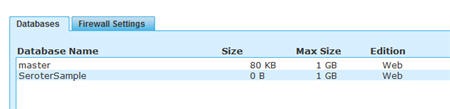
    First, you need to create a SQL Azure database (assuming that you don’t already have one).  Mine is named SeroterSample.  I’m feeling very inspired this evening.

    2010.07.22SqlAzure01

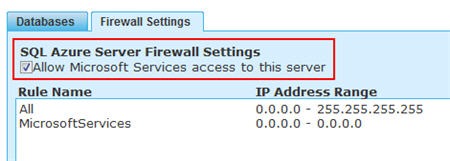
    Next up, we make sure to have a firewall rule allowing Microsoft services to access the database.

    2010.07.22SqlAzure02

    After this, we want to grab our database connection details via the button at the bottom of the Databases view.

    2010.07.22SqlAzure03

    Now go to the SQL Azure labs site and select the Project Houston CTP 1 tab.

    2010.07.22SqlAzure04

    We then see a futuristic console which either logs me into project Houston or launches a missile.

    2010.07.22SqlAzure05

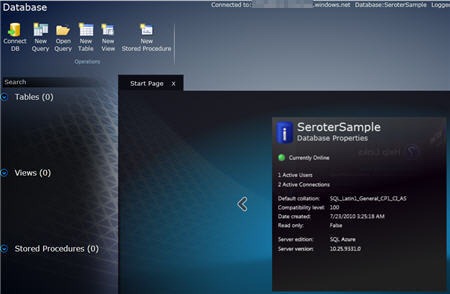
    If the login is successful, we get the management dashboard.  It contains basic management operations at the top (“new table”, “new stored procedure”, “open query”, etc), a summary of database schema objects on the left, and an unnecessary but interesting “cube of info” in the middle.

    2010.07.22SqlAzure06

    The section in the middle (aka “cube of info”) rotates as you click the arrows and shows various data points.  Hopefully a future feature includes a jack-in-the-box that pops out of the top.

    I chose to create a new table in my database.  We are shown an interface where we build up our table structure by choosing columns, data types, default values, data types and more.

    2010.07.22SqlAzure07

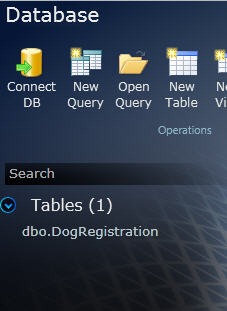
    After creating a few columns and renaming my table, I clicked the Save button on the top left of the screen to commit my changes.  I can now see my table in the list of artifacts belonging to my database.

    2010.07.22SqlAzure08

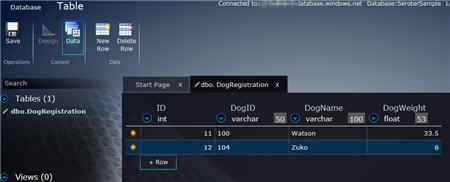
    It’s great to have a table, but let’s put some data into that bad boy.  Clicking the table name re-opens the design view by default.  We can select the Data view at the top to actually add rows to our table.

    2010.07.22SqlAzure10

    I’m not exactly sure how to delete artifacts except through manual queries.  For kicks and giggles I clicked the New View option, and when I canceled out of it, I still ended up with a view in the artifact list.  Right-clicking is not something that is available anywhere in the application, and there was no visible way to delete the view short of create a new Query and deleting it from there.  That said, when I logged out and logged back in, the view was no longer there.  So, because I didn’t explicitly save it, the view was removed when I disconnected.

    All in all, this is a fine, light-weight management interface for our cloud database.  It wasn’t until I was halfway through my demonstration that I realized that I did all my interactions on the portal through a Chrome browser.  Cross-browser stuff is much more standard now, but, still nice to see.

    Because I have no confidence that my Azure account is accurately tied to my MSDN Subscription, I predict that this demonstration has cost me roughly $14,000 in Azure data fees.  You all are worth it though.

    Share