Category: SharePoint

  • Interview Series: Four Questions With … Jon Fancey

    Welcome to the 29th interview in my never-ending series of chats with thought leaders in the “connected systems” space.  This month, I snagged the legendary Jon Fancey who is an instructor for Pluralsight, co-founder of UK-based consulting shop Affinus, Microsoft MVP, and a well-regarded speaker and author.

    On to the questions!

    Q: During the recent MVP Summit, you and I spoke about some use cases that you have seen for Windows Server AppFabric and the WCF Routing Service.  How do you see companies trying to leverage these technologies?

    A: I think both provide a really useful set of technologies for your toolbox. In particular I like the routing service as it can sometimes really get you out of a hole. A couple of examples to illustrate here of where its great. The first is where protocol translation is necessary, a subtle example of this is where perhaps you need your Silverlight-based app to call a back-end Web service that uses a binding Silverlight doesn’t support. Even though things improved a little in SL4, it still doesn’t support all of WCF’s bindings so you’re out of luck if you don’t own the service you need to call. Put the WCF routing service in as an intermediary however and it can happily solve this problem by binding basic http on the SL slide and anything you need for the service side. It also solves the issue of having to put files (such as the clientaccesspolicy.xml) in the IIS site’s root as this can be done on the routing Web server. Of course it won’t work in all circumstances but you’d be surprised how often it solves a problem. The second example is a common one I see where customers just want routing without all the bells and whistles of something like BizTalk. Routing services has some neat features around failures and retries as well as providing high-performance rules-based message routing. It even allows you to put your own logic in the router via filters as well if you need to.

    Q: You’ve been doing a fair amount of work with SharePoint in recent years.  In your experience, what are some of the most common types of “integrations” that people do from a SharePoint environment?  Where have you used BizTalk to accommodate these, and where do you use other technologies?

    A: One great example of BizTalk and SharePoint together is with BizTalk’s BAM (Business Activity Monitoring). Although BizTalk provides its own BAM portal it doesn’t really provide the functionality most customers require. The ability to create data mash-ups using out of the box Web parts in SharePoint 2010 and the Business Connectivity Services (BCS) feature is great. Not only that but in 2010 it’s also possible now to consume the BizTalk WCF adapters from SharePoint too, making connectivity to back end systems easier than ever for both read and write scenarios, even enabling off-lining of data to Office clients such as Outlook allowing client updates and resynchronization later to the back end system or data source.

    Q: In your experience as an instructor, would you say that BizTalk Server is one of the more daunting products for someone to learn?  If so, why is that? Are there other products from Microsoft with a similar learning curve?

    A:  I’d say that nothing should be daunting to learn with the right instructor and training materials ;). Seriously though, when I starting getting into WSS3.0/MOSS2007 it reminded me a lot of my first experiences with BizTalk Server 2004, not least because it was the third version of the product where everything traditionally all comes together into a great product. I found a dearth of good resources out there to help me and knowledge really was hard won. With 2010 things have improved enormously although the size of the SharePoint feature set does make it daunting to newcomers. The key with any new technology if you really want to be effective in it is to understand it from the ground up – to understand the “why” as well as the “how”. Certainly Pluralsight’s SharePoint Fundamentals course and the On Demand content we have take this approach.

    Q [stupid question]: My company recently barred people from smoking anywhere on the campus.  While I applaud the effort, it caused a nefarious, capitalist idea to spring to my mind.  I could purchase a small school bus to drive around our campus.  For $2, people can get on and smoke their brains out.  I call it the “Smoke Bus.”  Ignoring logistical challenges (e.g. the driver would probably die of cancer within a week), this seems like a moral loser, but money-making winner.  What ideas do you have for something that may be of questionable ethics but a sure fire success?

    A: How about giving all your employees unlimited free sugary caffeinated drinks – oh, wait a minute…

    Thanks for joining us, Jon!

  • System Integration with Nintex Workflow for SharePoint 2007 (Part III)

    [Series Overview: Part IPart II / Part III]

    In my first post of this series I looked at what Nintex workflow for SharePoint is.  The second post looked at its web service integration capabilities.  In this final post, we dig into the native BizTalk integration provided by the product.

    Let’s start out with the use case scenario.  Let’s say that I’ve got a new consultant on board and want to publish this employee’s information to the ESB and get back employee identifiers provisioned by downstream system.  So our SharePoint 2007 custom data list stores attributes that we’ll capture up front (e.g. vendor name, consultant name, start date) and has placeholders for values (e.g. employee ID, seating location, corporate laptop name) defined by our various onboarding applications.

    What we want is a workflow that can fire off once a new consultant is loaded into the SharePoint list.  This workflow shouldn’t be required to coordinate the various user provisioning systems, but rather, should communicate with our ESB (BizTalk Server 2006 R2) through a single interface.   In the previous post I showed how web services could be executed by a Nintex workflow.  While that is nice, I want a set of asynchronous interfaces where we can send a message to BizTalk and get something back whenever the user provisioning process is completed.

    My workflow starts out with the “Send/Receive BizTalk” activity that sends a message to BizTalk and is followed by a “Set Field Value” activity which flips the record’s status from “Pending” to “In Progress.”

    So what does this BizTalk activity look like?  First, we designate whether this is a “Send”, “Receive” or “Send/Receive” action.  The “Send/Receive” is used for synchronous transactions while the other two are the choices for asynchronous transmission.  Next we specify a “Message ID” which acts as the unique identifier for the message (e.g. correlation).   By default, this activity uses a GUID alongside the ID of the list row, but I changed mine to just be the organization ID (which I realize is not going to be unique to each transaction.  Sue me.).  Note that you can inject any value from the list or workflow variable into this “Message ID” identifier field.

    The next section of the configuration pane is the “BizTalk Web Service Endpoint Settings” which we don’t have yet.  That will come later, and is blank for now.  Following that section is the place where we define the data we wish to send to BizTalk.  There are two choices: (a) send the file being acted upon (in the case that this workflow runs from a document library), or (b) choose list properties that contain the relevant message payload information.


    Notice the “Export to XSD” link.  This link causes your previous list property selections to be loaded into an XSD file for BizTalk to consume.  So, this becomes your inbound message contract.  What about the response contract?   We configure this by adding another “Send/Receive BizTalk” activity to our workflow.  Because our provisioning action may take awhile, I used an asynchronous publication to BizTalk and now need a way to get the response back in.  The data received back from BizTalk must be stored in workflow variables (as opposed to taking the whole response document and putting it somewhere).  My workflow variables look like this:

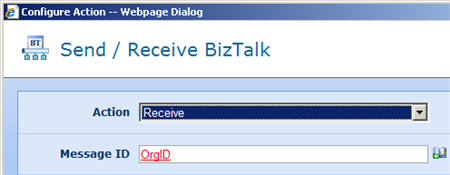
    Now let’s configure the response.  This time, my “Action” is set to “Receive” from BizTalk and I used the same “MessageID” as the “Send” activity.

    This shape also has its “BizTalk Web Service Endpoint Settings” left blank, but unlike the previous activity where we’ll fill this in later, this activity’s value always remains blank.  This is because the Nintex folks provide a single HTTP channel back into their workflow engine from BizTalk.

    Finally, we choose which available workflow variables we wish to populate with response data from BizTalk Server.

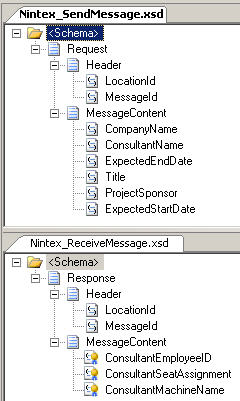
    Just like before, we can export this information out to an XSD.  I’ve gone ahead and exported both the request message (from list values) and response message (put back into workflow variables) and added them to a new BizTalk project in Visual Studio.NET.

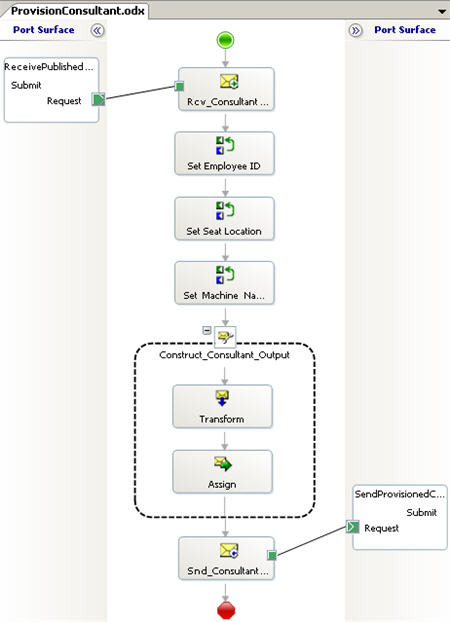
    Both the request and response message have a header added which includes routing information needed by Nintex to correlation inbound and outbound messages.  In my sample orchestration which coordinates employee provisioning activities, I receive a message in via a one-way port, call a few operations to generate an employee ID, set the office location and establish the laptop machine name, and finally send the message back out via a one-way port.

    After building and deploying this orchestration, I need to define the means by which Nintex sends a message into BizTalk.  As I mentioned in the previous post, Nintex does not currently support WCF, so you have to use the BizTalk Web Services Publishing Wizard to produce an ASMX service endpoint.  Once the wizard is complete, you have a valid service endpoint and a receive location that can be bound to the orchestration’s receive port.    What we need to manually create is the send port which sends our response message back to the running workflow.  The HTTP endpoint set up by Nintex is found at:

    http://<sharepoint server>/_layouts/nintexworkflow/BizTalkHandler.ashx

    Once that send port is bound to our orchestration, we’re ready to roll.  Now we can return to our SharePoint workflow and update the existing “Send to BizTalk” activity with the valid service connection details.

    Finally, I included a bunch of “Set field value” activities in the workflow which take the values from the workflow variables (set by the BizTalk response) and put them into the list values for the item.

    All that’s left to do is publish, and then trigger the workflow on our existing list item.  Sure enough, after launching the workflow, my item has its status set to “In Progress” and a couple of browser refreshes later, it displays the values returned by my BizTalk orchestration.

    Summary

    All in all, this was pretty easy to do.  It’s convenient that I can send either list data or entire documents into BizTalk, and it helps greatly that the tool produces valid XSD files (except there seems to be a bug where datetime fields in SharePoint lists don’t properly map to their XSD counterparts).  I’d choose the BizTalk integration vs. traditional web service integration when I want asynchronous interactions with my service or ESB.

    It’s a good toolset overall.  Definitely take a look.

    Technorati Tags: ,

  • System Integration with Nintex Workflow for SharePoint 2007 (Part II)

    [Series Overview: Part IPart II / Part III]

    In my previous post I briefly described what the workflow tool from Nintex looks like and how to use it within the SharePoint environment.  Now, let’s see how to actually perform our first system integration scenario through the use of web services.

    One big caveat before I start: Nintex currently only has support for consuming ASP.NET Web Services, not Windows Communication Foundation.  I consider this a pretty big gap, but for now, let’s work with what’s available.

    In this demonstrated scenario, I have a SharePoint 2007 list which holds all the vendors a company uses to provide IT services.  Because core vendor data is stored in a different CRM system, we want to store a minimum of information in the SharePoint list and retrieve critical data from the CRM system via a web service.  So, once I add a record to the SharePoint list, I want to look up the details for that vendor in the CRM system and put the vendor “contact name” into the SharePoint list.

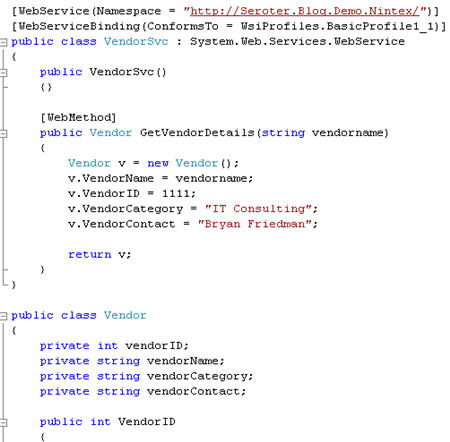
    I start out with a simple ASP.NET service which fronts the CRM system.  Because I’m writing a blog post and not a real system, I simply hard coded a response object.

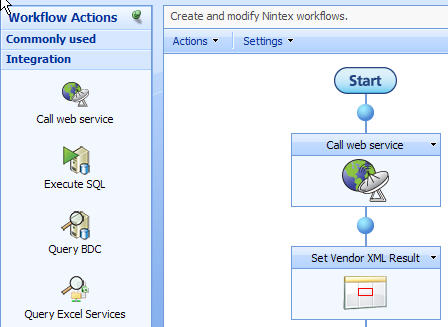
    In my SharePoint list, I added a new Nintex workflow and dragged a “Call web service” and “Set field value” activities to the flow.  On this first pass, I’m just going to dump the entire web service XML response value into a SharePoint list field.

    Note that the web service response has to go somewhere, so I first set up a workflow variable (VendorDetails) to hold the XML data.  I’ll use the other variable later to hold a specific value from the XML response.

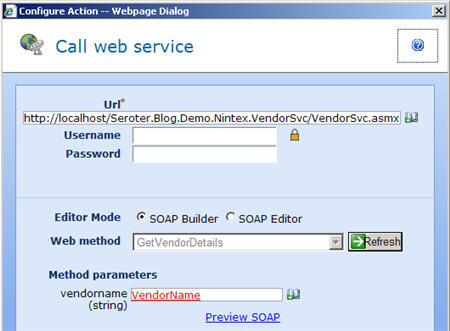
    The “Call web service” activity has a pretty comprehensive set of configuration options.   First you specify the endpoint URL.  The available service operations are then auto-populated in a list.  For dictating the service payload, you have two choices.  First, for services with simple type parameters, you can enter in each value from either list values or workflow variables using the SOAP Builder.

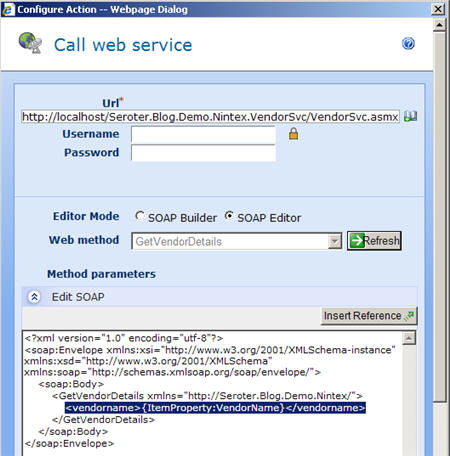
    The other option, which is handy, is the SOAP Editor where you can shape the SOAP content yourself.  Note that you can still insert values from either lists or workflow variables into this interface.

    As for the service response, you can choose to apply an XSLT transform and then select a workflow variable to stash the value.   You also get the option to catch exceptions and store those messages.

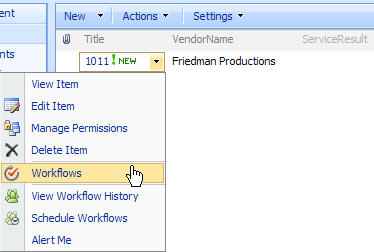
    After using the “Set field value” workflow activity to take the service result and copy it into the SharePoint list field, we’re ready to publish the workflow.  I added a new row to the list and kicked off the workflow.

    As we’d hope for, the full XML payload from the service is thrown into the SharePoint list field.

    Note that XML payloads are wrapped in an “<xml>” node by the workflow activity.  It’s great that we can call a service, but just dumping the XML result is not particularly friendly to someone who is viewing this information.  What we want to do is parse the XML response and yank out JUST the “VendorContact” node.  So, I went back to our existing workflow and added a new “Query XML” activity to the process.  This activity lets me parse XML content stored either in a URL, workflow variable or list field.

    You can process the XML via either XSLT or XPath.  In my case, I want to do an XPath query to find the node I’m looking for.  I then took the result of that query and stored it in a workflow variable.

    Finally, I have a “Set field value” activity which takes this new workflow variable and copies its data to the SharePoint list.  After once again publishing the workflow and kicking it off, we can see that not only do we have the XML blob, but now we have another field that just stores the name of the vendor contact person.

    Summary

    The ability to punch out to external systems is a valuable aspect of a full featured business process.  The Nintex workflow product does a fine job making service invocation a fairly straightforward task.  Now, the lack of WCF integration is a concern, but hopefully one being actively addressed.  However, because the “Query XML” activity can accept a URL, it seems possible that I could mash up RESTful services via this toolset.  I’ll have to try that.

    The final post in this series will cover the native BizTalk Server integration in the product.  Stay tuned.

    Technorati Tags:

  • System Integration with Nintex Workflow for SharePoint 2007 (Part I)

    [Series Overview: Part IPart II / Part III]

    If your organization uses MOSS 2007, hopefully you’ve taken a look at what the folks at Nintex have to offer.  My company recently deployed their workflow solution, and I thought I’d take a look at how to execute system integration scenarios as part of a Nintex Workflow.

    In this first post, I’ll take a short look at the general product toolset.  The second post will show off web services integration, and the final post will highlight their native BizTalk Server integration.

    First off, what is Nintex Workflow?  It’s a solution hosted within the SharePoint environment that allows you to graphically construct robust workflow solutions that play off of SharePoint lists and libraries.  While you can build workflows in SharePoint using either WF or SharePoint Designer, the former is purely a developer task and the latter really exposes a linear, wizard driven design model.  Where Nintex fits in is right in the middle: you get the business-friendly user experience alongside a rich set of workflow activities (including any custom ones you build in WF).

    Design Experience

    Once the Nintex module is installed and enabled in your SharePoint farm, then any list or library has a set of new options in the “Settings” menu.

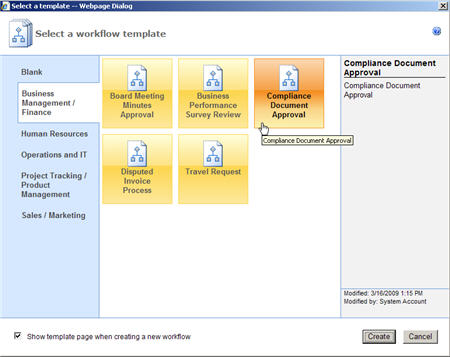
    If I choose to create a new workflow, then I am given the option to select a pre-defined template which has a default flow laid out for me.

    Once a template or blank workflow is chosen, I have a plethora of “Workflow Actions” available to sketch out my process.  For example, the Integration category has options such as “Call web service”, “Execute SQL”, “Query LDAP”, “Send/Receive BizTalk” and “Call Workflow.”

    There are nine categories of workflow activities in all, including:

    • Integration
    • Libraries and lists (e.g. “Check out item”, “Create list”, “Set field value”)
    • Logic and flow (e.g. “For each”, “Run parallel action”, “State machine”)
    • Operations (e.g. “Build dynamic string”, “Wait for an item to update”)
    •  Provisioning (e.g. “Add User to AD Group”, “Provision user on Exchange”)
    • Publishing (e.g. “Copy to SharePoint”)
    • SharePoint Profiles (e.g. “Query user profile”)
    • Sites and Workspaces (e.g. “Create a site”)
    • User Interactions (e.g. “Request approval”, “Send a notification”, “Task reminder”)

    Note that you can turn off any individual action you wish if the capability exposed is too risky for your particular organization.

    Using these activity shapes, I can draw out a simple process made up of decisions, notifications and approvals.

    Each activity can be configured (and re-labeled for later readability) per its function.  When an activity requires data to act upon (as most do), those values can often either be retrieved from (a) a hard coded value, (b) a workflow-specific variable, or (c) content from any list on the site.  For the “Request approval” activity, I have all sorts of options for choosing where to get the approver list from, which means of approval to require (all, single, first, vote) and where to store the assigned tasks.  What’s also cool is the “Lazy Approval” setting in Nintex which allows you to respond to a notification email with a single word or phrase to indicate your response.  In the image below, notice that I used a value from the list (in red text) as part of my task name.

    The configuration experience is pretty similar for each activity.  For the most part, I’ve found it to be fairly intuitive although I’ll admit to actually having to open the Help file a few times.

    Runtime Experience

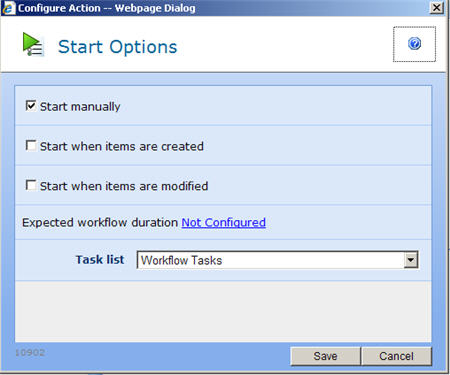
    You can choose what the start up option should be for the workflow.

    Then, from the “Actions” menu, you can publish the workflow and make it available for use.  Pretty darn easy.

    Then, when you add/change data in the list or library, the workflow is either automatically or manually triggered.  Just like with any SharePoint workflow, you have a column added to the list which keeps you up to date on the status of the workflow (which you can drill into).  Whatever task list is associated with the workflow is also populated with tasks assigned to individual users or groups.

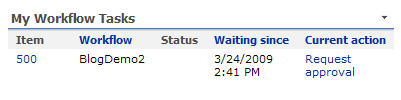
    Users can also add the “My Workflow Tasks” web part to a page which will show only the tasks for the active user.

    Users can also browse into the running workflow and graphically see what’s been completed so far, how long each step took, and what comes next.

    Analysis Experience

    Just like the previous image, we can drill into a completed workflow and analyze how it ran and the duration of a given step.

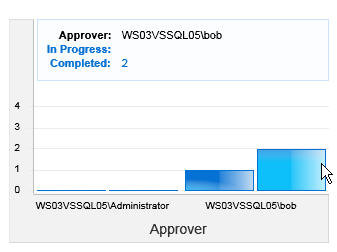
    As for reporting, the product comes with plenty of canned reports on a per-site or all-site basis that address topics such as: Approver Performance Statistics, Workflows in Progress, Workflow Performance and much more.

    You can display these reports either graphically or tabularly as a web part.  For the graphical reports, you can choose line, bar or pie chart.  The charts actually rely on Microsoft Silverlight (for the 2-D representation) and are pretty snazzy and configurable.

    Summary

    This was a very simple, but hopefully adequate, walkthrough to show you around the software.  This technology has lots to offer and integrates nicely with the Microsoft stack of products (including Live Communication Server).   Note that nothing I did here required a lick of programming or even a particularly technology-centric background.  And because the design surface is hosted within the SharePoint environment itself, you get a very rapid, accessible means for building and deploying functional workflows.

    If you have a SharePoint sandbox, consider downloading the free trial and playing around.

    In the next post, I’ll show you how to do some simple system integration via web service calls from a workflow.

    Technorati Tags: ,

  • Enabling Data-Driven Permissions in SharePoint Using Windows Workflow

    A group I’m working with was looking to use SharePoint to capture data entered by a number of international employees.  They asked if SharePoint could restrict access to a given list item based on the value in a particular column.  So, if the user created a line item designated for “Germany”, then automatically, the list item would only allow German users to read the line.  My answer was “that seems possible, but that’s not out of the box behavior.”  So, I went and built the necessary Windows Workflow, and thought I’d share it here.

    In my development environment, I needed Windows Groups to represent the individual countries.  So, I created users and groups for a mix of countries, with an example of one country (“Canada”) allowing multiple groups to have access to its items.

    Next, I created a new SharePoint list where I map the country to the list of Windows groups that I want to provide “Contributor” rights to.

    Next, I have the actual list of items, with a SharePoint “lookup” column pointing back to the “country mapping” list.

    If I look at any item’s permissions upon initial data entry, I can see that it inherits its permissions from its parent.

    So, what I want to do is break that inheritance, look up the correct group(s) associated with that line item, and apply those permissions.  Sounds like a job for Windows Workflow.

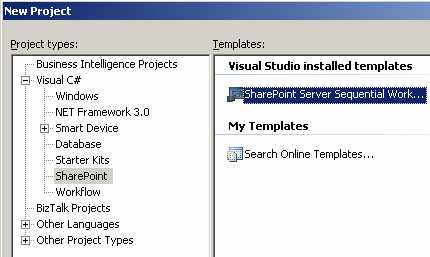
    After creating the new SharePoint Sequential Workflow, I strong named the assembly, and then built it (with nothing in it yet) and GAC-ed it so that I could extract the strong name key value.

    Next, I had to fill out the feature.xml, workflow.xml and modify the PostBuildActions.bat file.

    My feature.xml file looks like this (with values you’d have to change in bold) …

    <Feature Id=”18EC8BDA-46B2-4379-9ED1-B0CF6DE46C61″ Title=”Data Driven Permission Change Feature” Description=”This feature adds permissions” Version=”12.0.0.0″ Scope=”Site” ReceiverAssembly=”Microsoft.Office.Workflow.Feature, Version=12.0.0.0, Culture=neutral, PublicKeyToken=71e9bce111e9429c” ReceiverClass= “Microsoft.Office.Workflow.Feature. WorkflowFeatureReceiver” xmlns=”http://schemas.microsoft.com/sharepoint/”&gt; <ElementManifests> <ElementManifest Location=”workflow.xml” /> </ElementManifests> <Properties> <Property Key=”GloballyAvailable” Value=”true” /> <Property Key=”RegisterForms” Value=”*.xsn” /> </Properties> </Feature>

    So far so good.  Then my workflow.xml file looks like this …

    <Elements xmlns=”http://schemas.microsoft.com/sharepoint/”&gt; <Workflow Name=”Data Driven Permission Change Workflow” Description=”This workflow sets permissions” Id=”80837EFD-485E-4247-BDED-294C70F6C686″ CodeBesideClass= “DataDrivenPermissionWF.PermissionWorkflow” CodeBesideAssembly= “DataDrivenPermissionWF, Version=1.0.0.0, Culture=neutral, PublicKeyToken=111111111111″ StatusUrl=”_layouts/WrkStat.aspx”> <Categories/> <MetaData> <AssociateOnActivation>false</AssociateOnActivation> </MetaData> </Workflow> </Elements>

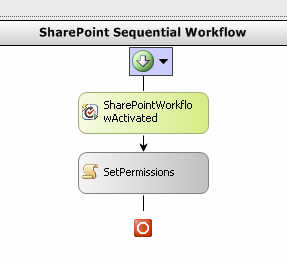
    After this, I had to change the PostBuildActions.bat file to actually point to my SharePoint site.  By default, it publishes to “http://localhost&#8221;.  Now I can actually build the workflow.  I’ve kept things pretty simple here.  After adding the two shapes, I set the token value and changed the names of the shapes.

    The “Activated” shape is responsible for setting member variables.

    private void SharePointWorkflowActivated_Invoked (object sender, ExternalDataEventArgs e) { //set member variable values from //the inbound list context webId = workflowProperties.WebId; siteId = workflowProperties.SiteId; listId = workflowProperties.ListId; itemId = workflowProperties.ItemId; }

    Make sure that you’re not an idiot like me and spend 30 minutes trying to figure out why all these “workflow properties” were empty before realizing that you haven’t told the workflow to populate it.

    The meat of this workflow now all rests in the next “code” shape.  I probably could have (and would) refactor this into more modular bits, but for now, it’s all in a single shape.

    I start off by grabbing fresh references to the SharePoint web, site, list and item by using the IDs captured earlier.  Yes, I know that the workflow properties collection has these as well, but I went this route.

    //all the id’s for the site, current list and item SPSite site = new SPSite(siteId); SPWeb web = site.OpenWeb(webId); SPList list = web.Lists[listId]; SPListItem listItem = list.GetItemById(itemId);

    Next, I can explicitly break the item’s permission inheritance.

    //break from parent permissions listItem.BreakRoleInheritance(false);

    Next, to properly account for updates, I went and removed all existing permissions. I needed this in the case that you pick one country value, and decide to change it later. I wanted to make sure that no stale or invalid permissions remained.

    //delete any existing permissions in the //case that this is an update to an item SPRoleAssignmentCollection currentRoles = listItem.RoleAssignments; foreach (SPRoleAssignment role in listItem.RoleAssignments) { role.RoleDefinitionBindings.RemoveAll(); role.Update(); }

    I need the country value actually entered in the line item, so I grab that here.

    //get country value from list item string selectedCountry = listItem[“Country”].ToString(); SPFieldLookupValue countryLookupField = new SPFieldLookupValue(selectedCountry);

    I used the SPFieldLookupValue type to be able to easily extract the country value. If read as a straight string, you get something like “1;#Canada” where it’s a mix of the field ID plus value.

    Now that I know which country was entered, I can query my country list to figure out what group permissions I can add.   So, I built up a CAML query using the “country” value I just extracted.

    //build query string against second list string queryString = “<Where><Eq> <FieldRef Name=’Title’ /> <Value Type=’Text’>”+ countryLookupField.LookupValue +”</Value> </Eq></Where>”; SPQuery countryQuery = new SPQuery(); countryQuery.Query = queryString; //perform lookup on second list Guid lookupListGuid = new Guid(“9DD18A79-9295-47BC-A4AA-363D53DA2336”); SPList groupList = web.Lists[lookupListGuid]; SPListItemCollection countryItemCollection = groupList.GetItems(countryQuery)

    We’re getting close.  Now that I have the country list item collection, I can yank out the country record, and read the associated Windows groups (split by a “;” delimiter).

    //get pointer to country list item SPListItem countryListItem = countryItemCollection[0]; string countryPermissions = countryListItem[“CountryPermissionGroups”].ToString(); char[] permissionDelimiter = { ‘;’ }; //get array of permissions for this country string[] permissionArray = countryPermissions.Split(permissionDelimiter);

    Now that I have an array of permission groups, I have to explicitly add them as “Contributors” to the list item.

    //add each permission for the country to the list item foreach (string permissionGroup in permissionArray) { //create”contributor” role SPRoleDefinition roleDef = web.RoleDefinitions.GetByType(SPRoleType.Contributor); SPRoleAssignment roleAssignment = new SPRoleAssignment( permissionGroup, string.Empty, string.Empty, string.Empty); roleAssignment.RoleDefinitionBindings.Add(roleDef); //update list item with new assignment listItem.RoleAssignments.Add(roleAssignment); }

    After all that, there’s only one more line of code.  And, it’s the most important one.

    //final update listItem.Update();

    Whew. Ok, when you build the project, by default, the solution isn’t deployed to SharePoint. When you’re ready to deploy to SharePoint, go ahead and view the project properties, look at the build events, and change the last part of the post build command line from NODEPLOY to DEPLOY. If you build again, your Visual Studio.NET output window should show a successful deployment of the feature and workflow.

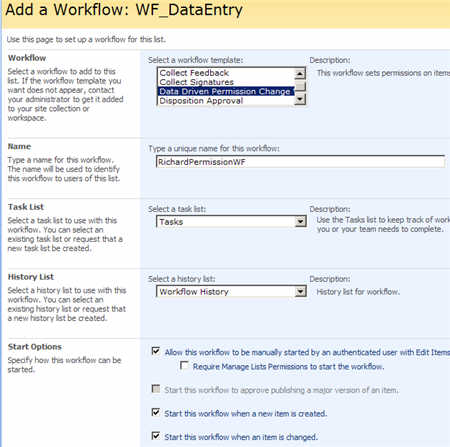
    Back in the SharePoint list where the data is entered, we can now add this new workflow to the list.  Whatever name you gave the workflow should show up in the choices for workflow templates.

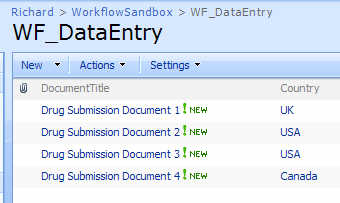
    So, if I enter a new list item, the workflow immediately fires and I can see that the permissions for the Canadian entry now has two permission groups attached.

    Also notice (in yellow) the fact that this list item no longer inherits permissions from its parent folder or list.  If I change this list item to now be associated with the UK, and retrigger the workflow, then I only have a single “UK” group there.

    So there you go.  Making data-driven permissions possible on SharePoint list items.  This saves a lot of time over manually going into each item and setting it’s permissions.

    Thoughts?  Any improvements I should make?

    Technorati Tags:

  • Building InfoPath Web Forms With Cascading Lists

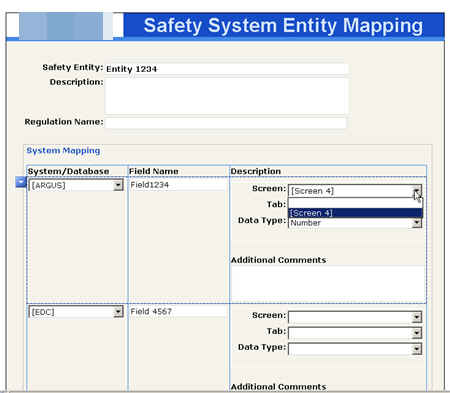
    We’re replacing one of our critical systems, and one of the system analysts was looking for a way to capture key data entities in the existing system, and every system/form/report that used each entity.  Someone suggested SharePoint and I got myself roped into prototyping a solution.

    Because of the many-to-one relationship being captured (e.g. one entity may map to fields in multiple systems), a straight out SharePoint list didn’t make sense.  I have yet to see a great way to do parent/child relationships in SharePoint lists.  So, I proposed an InfoPath form.

    I started by building up SharePoint lists of reference data.  For instance, I have one list with all the various impacted systems, another with the screens for a given system (using a lookup field to the first list), and another with tabs that are present on a given screen (with a lookup field to the second list).  In my InfoPath form, I’d like to pick a system, auto-populate a list of screens in that system, and if you pick a screen, show all the tabs.

    Using the InfoPath rich client, one can utilize the “filter” feature and create cascading drown downs by filtering the data source results based on a previously selected value.  However for InfoPath Form Services enabled forms, you see this instead:

    Son of a!  The suggestions I found to get around this included either (a) write custom code to filter the result set, or (b) use a web service.  I know that InfoPath Form Services is a limited version of the rich client, but I hate that the response to every missing feature is “write a web service.”  However, that’s still a better option than putting code in the form because I don’t want to deal with “administrator approved” forms in my environment.
    So, I wrote a freakin’ web service.  I have operations that take in a value (e.g. system), and uses the out-of-the-box SharePoint web services to return the results I want.  The code looks like this …

    Notice that I’m using the GetListItems method on the SharePoint WSDL.  I pass in a CAML statement to filter the results returned from my “system screens” SharePoint list.  Since I don’t like to complain about EVERYTHING, it is pretty cool that even though my operation returns a generic XMLDocument, InfoPath was smart enough to figure out the return schema when I added a data connection to the service.

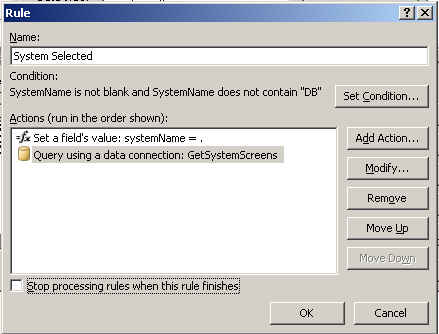
    What next?  Well, I have a drop down list bound to this web service data connection, but chose to NOT retrieve the information when the form opened.  It’s data is conditional based on which system was selected, so calling this web service is dependant on choosing a system.  So, on my “systems” drop down list, I have a rule that fires if the user actually selected a system.  The rule action first sets the input parameter of the web service schema to the value in the “systems” drop down list.  Next, it performs the “Query Using A Data Connection” function to call the custom web service.

    So what do I have?  I’ve got a nice form that gets all its data from external SharePoint lists, and cascades its drop downs like a mad man.

    Of course after I deployed this, I was asked about reporting/filtering on this data.  The tricky thing is, the list of system mappings is obviously a repeating field.  So when publishing this form to SharePoint, and asked to promote columns, I have to choose whether to pick the first, last, count or merge of system fields.

    I chose merge, because I want the data surfaced on a column.  However, the column type that gets created in the SharePoint list is a “multiple lines of text”, which cannot be sorted or filtered.

    So how to see a filtered view of this data?  What if the business person wants to see all entities that touch system “X”?  I considered about 72 different options (views, custom columns updated by WF on the list, connected web parts, data sheet view, etc) before deciding to build a new InfoPath form and new web service that could give me the filtered results.  My web service takes in all possible filter criteria (system name, system screen, system tab) and based on which values came into the operation, builds up the appropriate CAML statement.  Then, in my new form, I have all the search criteria in drop down lists (reusing my custom web service from above to cascade them), and puts the query results in a repeating table.  One table column is a hyperlink that takes the user to the InfoPath form containing the chosen entity.  Had to figure out that the hyperlink control’s data source had be specially formatted so that I could have a dynamic link:

    concat(http://sharepointsite/sites/IS/division/Program/IntakeDist/Safety%20Entity%20Definition%20List/, @ows_LinkFilename)

    This takes my static URL, and appends the InfoPath XML file name.  Now I have another form that can be opened up and used to query and investigate the data entities.

    That was a fun exercise.  I’m sure there’s probably a better way to do some of the things I did, so if you have suggestions, let me know.  I do really like InfoPath Form Services, but once you really start trying to meet very specific requirements, you have to start getting creative to work around the limitations.

    Technorati Tags: ,

  • Gracefully Uploading to SharePoint 2007 From BizTalk Server 2006 R1

    Scenario: I want to allow BizTalk Server 2006 (R1) to send XML (InfoPath forms) to a MOSS 2007 document library without resorting to hacks.

    Resolution: I can’t use the out-of-the-box BizTalk SharePoint adapter (only BizTalk Server 2006 R2 works natively with MOSS 2007) so I decided to utilize the available SharePoint web services to upload my file.  I wrote a wrapper web service to (a) encapsulate some additional logic (b) shield the BizTalk developer from understanding SharePoint services and (c) require no usage of the SharePoint 2007 object model.

    What did this solution look like?  I decided to use the CopyIntoItems method available on the SharePoint Copy web service.  This allows you to send a byte array of data to a document library and have it appear as a new document.  To hit the WSDL for this service, you’d go to:

    http://<your sharepoint base url>/sites/<site name>/_vti_bin/Copy.asmx

    Here you’ll see the CopyIntoItems operation.  My wrapper service starts with a couple “using” statements …

    using System.Net;   //for NetworkCredentials object
    using System.Text;  //for encoding bytes
    using System.IO;    //for stringwriter
    using System.Xml;

    Next I have my wrapper operation …

    [WebMethod]
    public string UploadXmlToSharePoint(string docToUpload,
    string siteRoot,
    string docLibrary,
    string fileName,
    string userName,
    string password,
    string domain)

    I’m taking the XML document input as a string in order to make the schema easier in BizTalk, and, ensure I don’t lose my InfoPath processing instructions when transporting over the wire (which seemed to be happening when I used an XmlDocument type input parameter).  Also note that I’m taking in a user/password/domain combo.  This is to allow for reuse later down the line.  The account used to call the SharePoint service MUST be a site administrator, so I’m making it an explicit parameter. The first thing I do inside my operation is build up the destination Uri based on the input parameters.

    //build full destination Url
    string destinationPath = siteRoot + "/" + docLibrary + "/" + fileName;

    Next I have to take the input string and convert it to the byte array required by the MOSS web service …

    //convert string to byte array
    byte[] fileIn = ConvertDocToBytes(docToUpload);
    ...
    private byte[] ConvertDocToBytes(string xmlString)
        {
            ASCIIEncoding encoding = new ASCIIEncoding();
    
            return encoding.GetBytes(xmlString);
        }

    Now I need to instantiate some values needed by the MOSS service. First we have the “result” object which conveys the state of the copy transaction. Then I have a “FieldInformation” array which can be used to pass in specific field values. Note that you CANNOT pass in a null value here, or else you get a cryptic error when calling the service. You can make it blank, but don’t use a null parameter in its place. Finally, I create a destination Uri array.

    //holds MOSS service response values
    SharePointSvc.CopyResult[] results;
    
    //required fieldinformation array
    SharePointSvc.FieldInformation fieldInfo =
        new SharePointSvc.FieldInformation();
    SharePointSvc.FieldInformation[] fieldInfoArray = { fieldInfo };
    
    //destination url (notice that it's an array, meaning
    //multiple sites COULD be targeted
    string[] destUri = { destinationPath };

    Now I can actually call this puppy. After instantiating the web service proxy class (generated by the Add Web Reference command), I need to provide explicit credentials.

    //create instance of web service proxy
    SharePointSvc.Copy copy = new SharePointSvc.Copy();
    
    //pass valid credentials
    copy.Credentials = new NetworkCredential(userName, password, domain);
    
    //call primary operation;  sourceUri, doesn't matter here
    copy.CopyIntoItems(
         "http://none",
         destUri,
         fieldInfoArray,
         fileIn,
         out results);

    The last step is to actually check the “result” object for errors and return any errors back to the caller.

    //check for error and return final result
    if (results[0].ErrorMessage != null)
      {
        return "Error: " + results[0].ErrorMessage;
      }
      else
      {
        return "Success";
      }

    Sweet.  After building and deploying this service, I can call it from any client, BizTalk (2004/06) included.  I’ll obviously want to securely store my credentials (using Enterprise Single Sign On) and not embed those in my client directly.

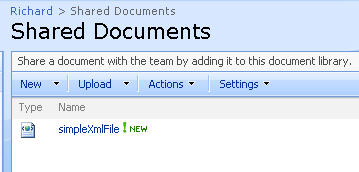
    So if I call my service, and pass in a plain old XML file, it shows up in my document library as expected.

    Now, if I send an InfoPath document to a Forms Library set up with an InfoPath template, the result is this …

    Nice! The document is recognized as an InfoPath document (see the icon), and, the promoted columns are properly loaded.

    So, if you’re interested in a fairly easy way to programmatically upload documents to a MOSS 2007 library, without having to use the SharePoint object model or BizTalk adapter, this web service might just work for you.

    Technorati Tags: ,

  • InfoPath 2007 Scenarios With BizTalk Server 2006 R2

    I’m a fan of InfoPath, but one barrier to entry has been the need to install the client software on user machines.  We have one deployed solution that uses it (as part of ESB Guidance), but I wanted to explore the new Forms Services capability and see how I can use that to simplify BizTalk workflow use cases.  In this post, I will examine a few common use cases, and demonstrate how I built them.  The theme of the solution is the workflow around system support incident management.

    InfoPath Setup

    To build this solution, first I needed schemas with which to generate the necessary InfoPath forms.  So, within a new BizTalk project I created an “Incident” schema that looked like this:

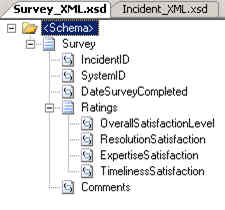
    Next, I have a “Survey” schema which the system owner will fill out after the incident has been successfully resolved.

    After deploying the BizTalk solution, I went ahead and built a Web Service using the BizTalk Web Services Publishing Wizard so that incidents can be sent from InfoPath directly back to the running BizTalk workflow process.

    Now, I can go ahead and build the necessary InfoPath forms.  When designing the form, I’ve chosen to support both the InfoPath rich client AND, InfoPath Forms Services.

    The form itself is fairly basic.  It simply uses the XSD schema as a data source and allows for capture of incident data.

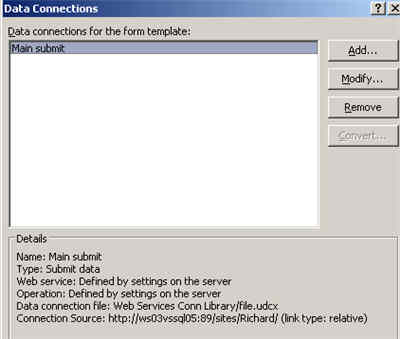
    The first tricky part was getting the “Submit” action to work.  On my first iteration building this, the rich client could submit to the web service just fine, but the Forms Services version kept giving me “an error occurred accessing the data source.”  So, I had to learn all about UDC files and SharePoint data connections (thanks to the InfoPath Team Blog and Mark Bower‘s posts).  So, my InfoPath form’s “submit action” now points to a SharePoint-managed data connection.

    I then deployed this Incident form to my SharePoint server.  When deploying forms in InfoPath 2007, you’ll see that Forms Services is mentioned.

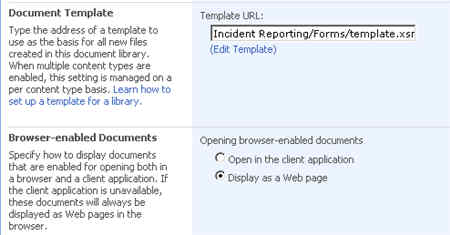
    Once deployed, I can go to the SharePoint document library’s Advanced Settings and set the form to open in the browser by default.

    Next I built and deployed the “Survey” form which will be saved directly to the SharePoint library, so no extra submit action is needed.

    BizTalk Setup

    On the BizTalk side, I built a simple workflow to demonstrate the following use cases:

    • Emailing a link to a InfoPath form existing in SharePoint
    • Receiving submitted feedback from InfoPath back into BizTalk
    • Emailing a link to a “new” document for someone to fill out and save in SharePoint

    Also, to deal with the ridiculous InfoPath/SharePoint namespace bug, I decided to build a Jeff Lynch-style map so that now my promoted columns show up in the SharePoint document library.

    To send the first email (asking the user to fill out the Incident Report), I need the correct URL to embed in the email message.  Since I clearly need a Incident to refer to in this hyperlink, I first send the Incident to the SharePoint library.  Because I dynamically set the file name, I have that value in my orchestration, and can use it for my email link.  The link looks like:

    http://myserver:89/sites/Richard/Incident%20Reporting/”+wssMessageName+&#8221;?OpenIn=Browser

    The next hyperlink I need is for the “Survey” so that I can ask someone to create an entirely new form (that doesn’t already exist in the SharePoint document library).  What does that look like?

    http://myserver:89/sites/Richard/Satisfaction%20Survey/Forms/template.xsn?
    SaveLocation=http://myserver:89/sites/Richard/Satisfaction%20Survey&
    Source=http://myserver:89/sites/Richard/Satisfaction%20Survey&
    OpenIn=Browser

    Running the Scenario

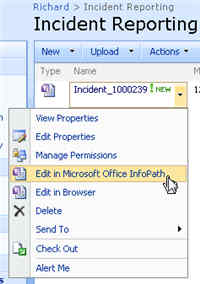
    Ok, so let’s kick this off and see how it looks.  When I drop a file (to signify a system sending an incident report), I expect to see a message sent to SharePoint, AND, an email with a link to the same document.  In my SharePoint library I see …

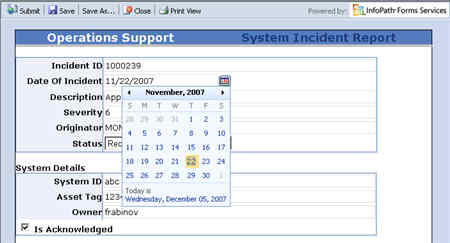
    Notice that a form can be viewed either in the rich client or browser.  In my email box I have a link to the web version of my Incident form.  Clicking that link brings me to the form served up by InfoPath Forms Services.

    Notice that I have both “save” and “submit” buttons available on the web form.  The “submit” button will trigger the default submit action, which in my case, calls my BizTalk-generated web service.

    Once the form submits, I then get a receipt (via my orchestration), and, a request to fill out a satisfaction survey.  The email link creates a new empty form, that when saved, will appear in my SharePoint document library.  Notice that I turned off “submit” in this form, since there is no submit action.

    Summary

    So, unlike with InfoPath 2003, InfoPath 2007 makes it very easy to design a form once, and have it surfaced up via the rich client, web browser, or mobile browser with no additional effort.  From a BizTalk perspective, instead of emailing forms around and trying to keep track of them, we can now send links to web forms and be confident that any user, regardless of platform or software install, can participate in our workflow.   This should make it much more compelling to use InfoPath + SharePoint in workflow solutions instead of doing custom development.

    Technorati Tags: , ,

  • Presentations Available Online for Microsoft SOA/BPM Conference

    If you missed the recent SOA & BPM Conference from Microsoft, you can now review nearly all of the presentation decks via the conference website.

    Visit the presentation download page to grab PDF versions of material.

    Technorati Tags:

  • Problem With InfoPath 2007 and SharePoint Namespace Handling

    I was working with some InfoPath 2007 + MOSS 2007 + BizTalk Server 2006 R2 scenarios, and accidentally came across a possible problem with how InfoPath is managing namespaces for promoted columns.

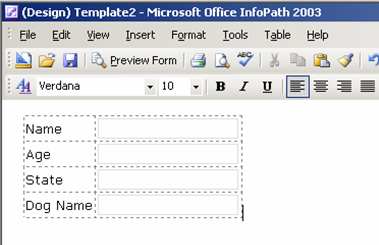
    Now I suspect the problem is actually “me”, since the scenario I’m outlining below seems to be too big of a problem otherwise. Let’s assume I have a very simple XSD schema which I will use to build an InfoPath form which in turn, is published to SharePoint. My schema looks like this …

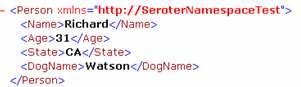
    Given that schema (notice ElementFormDefault is set to Qualified) the following two instances are considered equivalent.


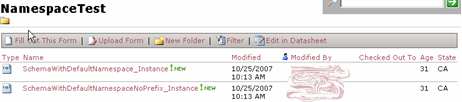
    Whether there’s a namespace prefix on the element or not doesn’t matter. And as with any BizTalk-developed schema, there is no default namespace prefix set on this XSD. Next, I went to my InfoPath 2003 + SharePoint 2003 + BizTalk Server 2006 environment to build an InfoPath form based on this schema.

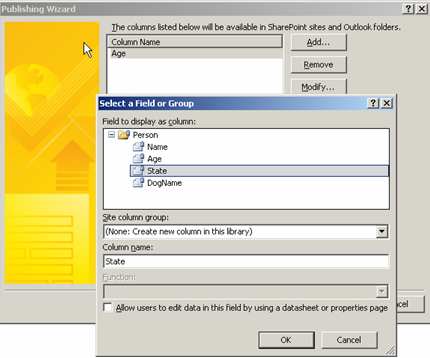
    During the publication of this form to SharePoint, I specified two elements from my XSD that I wish to display as columns in the SharePoint document library.

    Just to peek at how these elements are promoted, I decided to “unpack” the InfoPath form and look at the source files.

    If you look inside the manifest.xsf file, you’d fine a node where the promoted columns are referenced.

    <xsf:listProperties>
    	<xsf:fields>
    		<xsf:field name="Age" 
    		columnName="{...}" 
    		node="/ns1:Person/ns1:Age" type="xsd:string">
    		</xsf:field>
    		<xsf:field name="State" 
    		columnName="{...}" 
    		node="/ns1:Person/ns1:State" type="xsd:string">
    		</xsf:field>
    	</xsf:fields>
    </xsf:listProperties>
    

    A namespace prefix (defined at the top of the manifest file) is used here (ns1). If I upload the two XML files I showed above (one with a namespace prefix for the elements, the other without), I still get the promoted values I was seeking since a particular namespace prefix should be irrelevant.

    That’s the behavior that I’m used to, and have developed around. When BizTalk publishes these documents to this library, the same result (promoted columns) occurs.

    Now let’s switch to the InfoPath 2007 + MOSS 2007 environment and build the same solution. Taking the exact same XSD schema and XML instances, I went ahead and built an InfoPath 2007 form and selected to publish it to the MOSS server.

    While I have InfoPath Forms Server configured, this particular form was not set up to use it. Like my InfoPath 2003 form, this form has the same columns promoted.

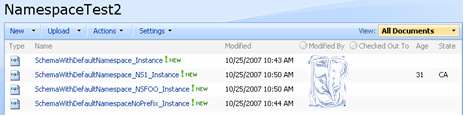
    However, after publishing to MOSS, and uploading my two XML instance files, I have NO promoted values!

    Just in case “ns0” is already used, I created two more instance files, one with a namespace prefix of “foo” and one with a namespace prefix of “ns1.” Only using a namespace prefix of ns1 results in the XML elements getting promoted.

    If I unpack the InfoPath 2007 form, the node in the manifest representing the promoted columns has identical syntax to the InfoPath 2003 form. If I fill out the InfoPath form from the MOSS document library directly, the columns ARE promoted, but peeking at the underlying XML shows that a default namespace of ns1 is used.

    So what’s going on here? I can’t buy that you HAVE to use “ns1” as the namespace prefix in order to promote columns in InfoPath 2007 + MOSS when InfoPath 2003 + SharePoint doesn’t require this (arbitrary) behavior. The prefix should be irrelevant.

    Did I miss a (new) step in the MOSS environment? Does my schema require something different? Does this appear to be an InfoPath thing or SharePoint thing? Am I just a monkey?

    I noticed this when publishing messages from BizTalk Server 2006 R2 to SharePoint and being unable to get the promoted values to show up. I really find it silly to have to worry about setting up explicit namespace prefixes. Any thoughts are appreciated.

    Technorati Tags: ,