Category: Node.js

  • Building a Node.js App to Generate Release Notes from Trello Cards

    One of the things that I volunteered for in my job as Product Manager at Tier 3 was the creation of release notes for our regular cloud software updates. It helps me stay up to date by seeing exactly what we’re pushing out. Lately we’ve been using Trello, the sweet project collaboration from Fog Creek software, to manage our product backlog and assign activities. To construct the August 1st release notes, I spent a couple hours scrolling through Trello “cards” (the individual items that are created for each “list” of activities) and formatting an HTML output. I figured that there was a more efficient way to build this HTML output, so I quickly built a Node.js application that leverages the Trello API to generate a scaffolding of software release notes.

    I initially started building this application as a C# WinForm as that’s been my default behavior for quick-and-dirty utility apps. However, after I was halfway through that exercise, I realized that I wanted a cleaner way to merge a dataset with an HTML template, and my WinForm app didn’t feel like the right solution. So, given that I had Node.js on my mind, I thought that its efficient use of templates would make for a more reusable solution. Here are the steps that I took to produce the application. You can grab the source code in my Github.

    First, I created an example Trello board (this is not real data) that I could try this against.

    2012.08.13notes01

    With that Trello board full of lists and cards, I created a new Node app that used the Express framework. Trello has a reasonably well documented API, and fortunately, there is also a Node module for Trello available. After creating an empty Express project and installing the Node module for Trello, I set out creating the views and controller necessary to collect input data and produce the desired HTML output.

    To call the Trello API, you need access to the board ID, application key, and a security token. The board ID can be acquired from the browser URL. You can generate the application key by logging into Trello and visiting this URL on the Trello site. A token is acquired by crafting and then visiting a special URL and having the board owner approve the application that wants to access the board. Instead of asking the user to figure out the token part, I added a “token acquisition” helper function. The first view of the application (home.jade) collects the board ID, key and token from the user.
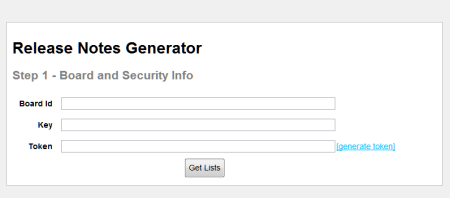
    2012.08.13notes02

    If the user clicks the “generate token” hyperlink, they are presented with a Trello page that asks them to authorize the application.

    2012.08.13notes03

    If access is allowed, then the user is given a lengthy token value to provide in the API requests. I could confirm that this application had access to my account by viewing my Trello account details page.
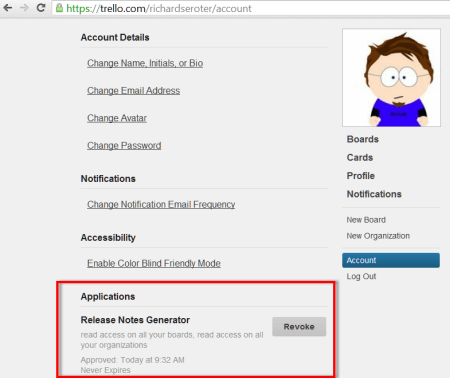
    2012.08.13notes04

    After taking the generated token value and plugging it into the textbox on the first page of my Node application, I clicked the Get Lists button which posts the form to the corresponding route and controller function. In the chooselist function of the controller, I take the values provided by the user and craft the Trello URL that gets me all the lists for the chosen Trello board. I then render the list view and pass in a set of parameters that are used to draw the page.

    2012.08.13notes05

    I render all of the board’s lists at the top. When the user selects the list that has the cards to include in the Release Notes, I set a hidden form field to the chosen list’s ID (a long GUID value) and switch the color of the “Lists” section to blue.
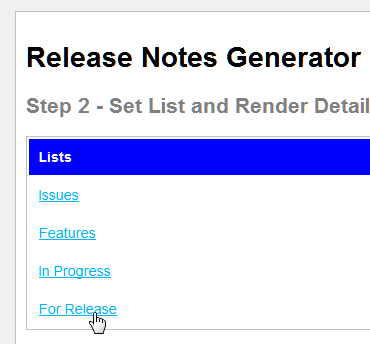
    2012.08.13notes06

    At the bottom of the form, I give the user the opportunity to either group the cards (“New Features”, “Fixes”) or create a flat list by not grouping the cards. Trello cards can have labels/colors assigned to them, so you can set which color signifies bug fixes and which color is used for new features. In my example board (see above), the color red is used for bugs and the color green represents new features.

    2012.08.13notes07

    When the Create Release Notes button is clicked, the form is posted and the destination route is handled by the controller. In the controller’s generatenotes function, I used the Trello module for Node to retrieve all the cards from the selected list, and then either (a) loop through the results (if card grouping was chosen) and return distinct objects for each group, or (b) return an object containing all the cards if the “non grouping” option was chosen. In the subsequent notes page (releasenotes.jade), which you could replace to fit your own formatting style, the cards are put into a bulleted list. In this example, since I chose to group the results, I see two sections of bulleted items and item counts for each.

    2012.08.13notes08

    Now all I have to do is save this HTML file and pop in descriptions of each item. This should save me lots of time! I don’t claim to have written wonderful Javascript here, and I could probably use jQuery to put the first two forms on the same page, but hey, it’s a start. If you want to, fork the repo, make some improvements and issue a pull request. I’m happy to improve this based on feedback.

  • Combining Clouds: Accessing Azure Storage from Node.js Application in Cloud Foundry

    I recently did a presentation (link here) on the topic of platform-as-a-service (PaaS) for my previous employer and thought that I’d share the application I built for the demonstration. While I’ve played with Node.js a bit before, I thought I’d keep digging in and see why @adron won’t shut up about it. I also figured that it’d be fun to put my application’s data in an entirely different cloud than my web application. So, let’s use Windows Azure for data storage and Cloud Foundry for application hosting. This simple application is a registry (i.e. CMDB) that an organization could use to track their active systems. This app (code) borrows heavily from the well-written tutorial on the Windows Azure Node.js Dev Center.

    First, I made sure that I had a Windows Azure storage account ready to go.

    2012.08.09paas01

    Then it was time to build my Node.js application. After confirming that I had the latest version of Node (for Windows) and npm installed, I went ahead and installed the Express module with the following command:

    2012.08.09paas02

    This retrieved the necessary libraries, but I now wanted to create the web application scaffolding that Express provides.

    2012.08.09paas03

    I then updated the package.json file added references to the helpful azure module that makes it easy for Node apps to interact with many parts of the Azure platform.

    {
    "name": "application-name",
      "version": "0.0.1",
      "private": true,
      "scripts":
    	{
        "start": "node app"
      },
        "dependencies":{
    		    "express": "3.0.0rc2"	,
             "jade": "*"	,
             "azure": ">= 0.5.3",
             "node-uuid": ">= 1.3.3",
             "async": ">= 0.1.18"
    	}
    }
    

    Then, simply issuing an npm install command will fetch those modules and make them available.

    2012.08.09paas04

    Express works in an MVC fashion, so I next created a “models” directory to define my “system” object. Within this directory I added a system.js file that had both a constructor and pair of prototypes for finding and adding items to Azure storage.

    var azure = require('azure'), uuid = require('node-uuid')
    
    module.exports = System;
    
    function System(storageClient, tableName, partitionKey) {
    	this.storageClient = storageClient;
    	this.tableName = tableName;
    	this.partitionKey = partitionKey;
    
    	this.storageClient.createTableIfNotExists(tableName,
    		function tableCreated(err){
    			if(err) {
    				throw error;
    			}
    		});
    };
    
    System.prototype = {
    	find: function(query, callback) {
    		self = this;
    		self.storageClient.queryEntities(query,
    			function entitiesQueried(err, entities) {
    				if(err) {
    					callback(err);
    				} else {
    					callback(null, entities);
    				}
    			});
    	},
    	addItem: function(item, callback) {
    		self = this;
    		item.RowKey = uuid();
    		item.PartitionKey = self.partitionKey;
    		self.storageClient.insertEntity(self.tableName, item,
    			function entityInserted(error) {
    				if(error) {
    					callback(error);
    				} else {
    					callback(null);
    				}
    			});
    	}
    }
    

    I next added a controller named systemlist.js to the Routes directory within the Express project. This controller used the model to query for systems that match the required criteria, or added entirely new records.

    var azure = require('azure')
      , async = require('async');
    
    module.exports = SystemList;
    
    function SystemList(system) {
      this.system = system;
    }
    
    SystemList.prototype = {
      showSystems: function(req, res) {
        self = this;
        var query = azure.TableQuery
          .select()
          .from(self.system.tableName)
          .where('active eq ?', 'Yes');
        self.system.find(query, function itemsFound(err, items) {
          res.render('index',{title: 'Active Enterprise Systems ', systems: items});
        });
      },
    
       addSystem: function(req,res) {
        var self = this
        var item = req.body.item;
        self.system.addItem(item, function itemAdded(err) {
          if(err) {
            throw err;
          }
          res.redirect('/');
        });
      }
    }
    

    I then went and updated the app.js which is the main (startup) file for the application. This is what starts the Node web server and gets it ready to process requests. There are variables that hold the Windows Azure Storage credentials, and references to my custom model and controller.

    
    /**
     * Module dependencies.
     */
    
    var azure = require('azure');
    var tableName = 'systems'
      , partitionKey = 'partition'
      , accountName = 'ACCOUNT'
      , accountKey = 'KEY';
    
    var express = require('express')
      , routes = require('./routes')
      , http = require('http')
      , path = require('path');
    
    var app = express();
    
    app.configure(function(){
      app.set('port', process.env.PORT || 3000);
      app.set('views', __dirname + '/views');
      app.set('view engine', 'jade');
      app.use(express.favicon());
      app.use(express.logger('dev'));
      app.use(express.bodyParser());
      app.use(express.methodOverride());
      app.use(app.router);
      app.use(express.static(path.join(__dirname, 'public')));
    });
    
    app.configure('development', function(){
      app.use(express.errorHandler());
    });
    
    var SystemList = require('./routes/systemlist');
    var System = require('./models/system.js');
    var system = new System(
        azure.createTableService(accountName, accountKey)
        , tableName
        , partitionKey);
    var systemList = new SystemList(system);
    
    app.get('/', systemList.showSystems.bind(systemList));
        app.post('/addsystem', systemList.addSystem.bind(systemList));
    
    app.listen(process.env.port || 1337);
    

    To make sure the application didn’t look like a complete train wreck, I styled the index.jade file (which uses the Jade module and framework) and corresponding CSS. When I executed node app.js in the command prompt, the web server started up and I could then browse the application.

    2012.08.09paas05

    I added a new system record, and it immediately showed up in the UI.

    2012.08.09paas06

    I confirmed that this record was added to my Windows Azure Storage table by using the handy Azure Storage Explorer tool. Sure enough, the table was created (since it didn’t exist before) and a single row was entered.

    2012.08.09paas07

    Now this app is ready for the cloud. I had a little bit of a challenge deploying this app to a Cloud Foundry environment until Glenn Block helpfully pointed out that the Azure module for Node required a relatively recent version of Node. So, I made sure to explicitly choose the Node version upon deployment. But I’m getting ahead of myself. First, I had to make a tiny change to my Node app to make sure that it would run correctly. Specifically, I changed the app.js file so that the “listen” command used a Cloud Foundry environment variable (VCAP_APP_PORT) for the server port.

    app.listen(process.env.VCAP_APP_PORT || 3000);
    

    To deploy the application, I used vmc to target the CloudFoundry.com environment. Note that vmc works for any Cloud Foundry environment, including my company’s instance, called Web Fabric.

    2012.08.09paas08

    After targeting this environment, I authenticated using the vmc login command. After logging in, I confirmed that Cloud Foundry supported Node.

    2012.08.09paas09

    I also wanted to see which versions of Node were supported. The vmc runtimes command confirmed that CloudFoundry.com is running a recent Node version.

    2012.08.09paas10

    To push my app, all I had to do was execute the vmc push command from the directory holding the Node app.  I kept all the default options (e.g. single instance, 64 MB of RAM) and named my app SeroterNode. Within 15 seconds, I had my app deployed and publicly available.

    2012.08.09paas11

    With that, I had a Node.js app running in Cloud Foundry but getting its data from a Windows Azure storage table.

    2012.08.09paas12

    And because it’s Cloud Foundry, changing the resource profile of a given app is simple. With one command, I added a new instance of this application and the system took care of any load balancing, etc.

    2012.08.09paas13

    Node has an amazing ecosystem and its many modules make application mashups easy. I could choose to use the robust storage options of something AWS or Windows Azure while getting the powerful application hosting and portability offered by Cloud Foundry. Combining application services is a great way to build cool apps and Node makes that a pretty easy to do.