Category: .NET

  • What happens to sleeping instances when you update long-running AWS Lambdas, Azure Functions, and Azure Logic Apps?

    What happens to sleeping instances when you update long-running AWS Lambdas, Azure Functions, and Azure Logic Apps?

    Serverless things don’t always complete their work in milliseconds. With the introduction of AWS Step Functions and Azure Durable Functions, we have compute instances that exist for hours, days, or even months. With serverless workflow tools like Azure Logic Apps, it’s also easy to build long-running processes. So in this world of continuous delivery and almost-too-easy update processes, what happens when you update the underlying definition of things that have running instances? Do they use the version they started with? Do they pick up changes and run with those after waking up? Do they crash and cause the heat death of the universe? I was curious, so I tried it out.

    Azure Durable Functions

    Azure Durable Functions extends “regular” Azure Functions. They introduce a stateful processing layer by defining an “orchestrator” that calls Azure Functions, checkpoints progress, and manages intermediate state.

    Let’s build one, and then update it to see what happens to the running instances.

    First, I created a new Function App in the Azure Portal. A Function App holds individual functions. This one uses the “consumption plan” so I only pay for the time a function runs, and contains .NET-based functions. Also note that it provisions a storage account, which we’ll end up using for checkpointing.

    Durable Functions are made up of a client function that create an orchestration, orchestration functions that coordinate work, and activity functions that actually do the work. From the Azure Portal, I could see a template for creating an HTTP client (or starter) function.
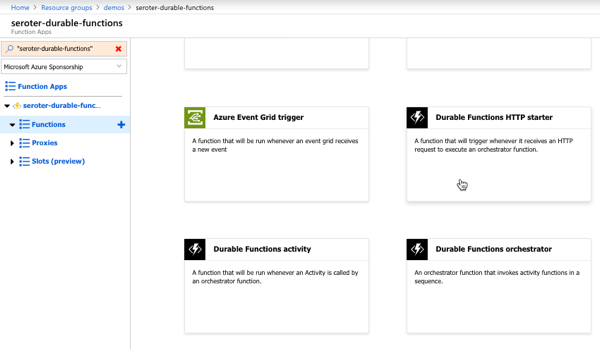
    The function code generated by the template works as-is.

    #r "Microsoft.Azure.WebJobs.Extensions.DurableTask"
    #r "Newtonsoft.Json"
    
    using System.Net;
    
    public static async Task<HttpResponseMessage> Run(
        HttpRequestMessage req,
        DurableOrchestrationClient starter,
        string functionName,
        ILogger log)
    {
        // Function input comes from the request content.
        dynamic eventData = await req.Content.ReadAsAsync<object>();
    
        // Pass the function name as part of the route 
        string instanceId = await starter.StartNewAsync(functionName, eventData);
    
        log.LogInformation($"Started orchestration with ID = '{instanceId}'.");
    
        return starter.CreateCheckStatusResponse(req, instanceId);
    }

    Next I created the activity function. Like with the client function, the Azure Portal generates a working function from the template. It simply takes in a string, and returns a polite greeting.

    #r "Microsoft.Azure.WebJobs.Extensions.DurableTask"
    
    public static string Run(string name)
    {
        return $"Hello {name}!";
    }

    The final step was to create the orchestrator function. The template-generated code is below. Notice that our orchestrator calls the “hello” function three times with three different inputs, and aggregates the return values into a single output.

    #r "Microsoft.Azure.WebJobs.Extensions.DurableTask"
    
    public static async Task<List<string>> Run(DurableOrchestrationContext context)
    {
        var outputs = new List<string>();
    
        outputs.Add(await context.CallActivityAsync<string>("Hello", "Tokyo"));
        outputs.Add(await context.CallActivityAsync<string>("Hello", "Seattle"));
        outputs.Add(await context.CallActivityAsync<string>("Hello", "London"));
    
        // returns ["Hello Tokyo!", "Hello Seattle!", "Hello London!"]
        return outputs;

    After saving this function, I went back to the starter/client function and clicked the “Get function URL” link to get the URL I need to invoke to instantiate this orchestrator. Then, I plugged that into Postman, and submitted a POST request.
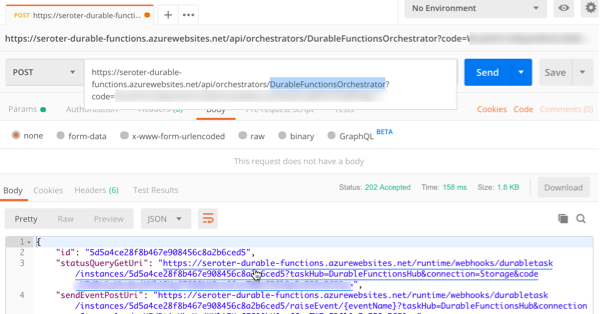
    Since the Durable Function is working asynchronously, I get back URIs to check the status, or terminate the orchestrator. I invoked the “get status” endpoint, and saw the aggregated results returned from the orchestrator function.

    So it all worked. Terrific. Next I wanted to add a delay in between activity function calls to simulate a long-running process. What’s interesting with Durable Functions is that every time it gets results back from an async call (or timer), it reruns the entire orchestrator from scratch. Now, it checks the execution log to avoid calling the same operation again, but this made me wonder how it would respond if I added *new* activities in the mix, or deleted activities.

    First, I added some instrumentation to the orchestrator function (and injected function input) so that I could see more about what was happening. In the code below, if we’re not replaying activities (so, first time it’s being called), it traces out a message.

    public static async Task<List<string>> Run(DurableOrchestrationContext context, ILogger log)
    {
        var outputs = new List<string>();
    
        outputs.Add(await context.CallActivityAsync<string>("Hello", "Tokyo"));
        if (!context.IsReplaying) log.LogInformation("Called function once.");
    
        outputs.Add(await context.CallActivityAsync<string>("Hello", "Seattle"));
        if (!context.IsReplaying) log.LogInformation("Called function twice.");
    
        outputs.Add(await context.CallActivityAsync<string>("Hello", "London"));
        if (!context.IsReplaying) log.LogInformation("Called function thrice.");
    
        // returns ["Hello Tokyo!", "Hello Seattle!", "Hello London!"]
        return outputs;
    }

    After saving this update, I triggered the client function again, and with the streaming “Logs” view open in the Portal. Here, I saw trace statements for each call to an activity function.

    A durable function supports Timers that pause processing for up to seven days. I added the following code between the second and third function calls. This pauses the function for 30 seconds.

        if (!context.IsReplaying) log.LogInformation("Starting delay.");
        DateTime deadline = context.CurrentUtcDateTime.Add(TimeSpan.FromSeconds(30));
        await context.CreateTimer(deadline, System.Threading.CancellationToken.None);
        if (!context.IsReplaying) log.LogInformation("Delay finished.");

    If you trigger the client function again, it will take 30-ish seconds to get results back, as expected.

    Next I tested three scenarios to see how Durable Functions handled them:

    1. Wait until the orchestrator hits the timer, and change the payload for an activity function call that executed before the timer started. What happens when the framework tries to re-run a step that’s changed? I changed the first function’s payload from “Tokyo” to “Mumbai” after the function instance had already passed the first call, and was paused at the timer. After the function resumed from the timer, the orchestrator failed with a message of: “Non-Deterministic workflow detected: TaskScheduledEvent: 0 TaskScheduled Hello.” Didn’t like that. Changing the call signature, or apparently even the payload is a no-no if you don’t want to break running instances.
    2. Wait until the orchestrator hits the timer, and update the function to introduce a new activity function call in code above the timer. Does the framework execute that new function call when it wakes up and re-runs, or ignore it? Indeed, it runs it. So after the timer wrapped up, the NEW, earlier function call got invoked, AND it ran the timer again before continuing. That part surprised me, and it only kinda worked. Instead of returning the expected value from the activity function, I got a “2” back. And some times when I tested this, I got the above “non-deterministic workflow” error. So, your mileage may vary.
    3. Add an activity call after the timer, and see if it executes it after the delay is over. Does the orchestrator “see” the new activity call I added to the code after it woke back up? The first time I tried this, I again got the “non-deterministic workflow” error, but with a few more tests, I saw it actually executed the new function after waking back up, AND running the timer a second time.

    What have we learned? The “version” a Durable Function starts with isn’t serialized and used for the entirety of the execution. It’s picking up things changing along the way. Be very aware of side effects! For a number of these tests, I also had to “try again” and would see different results. I feel like I was breaking Azure Functions!

    What’s the right way to version these? Microsoft offers some advice, which ranges from “do nothing and let things fail” to “deploy an entirely new function.” But from these tests, I’d advise against changing function definitions outside of explicitly deploying new versions.

    Azure Logic Apps

    Let’s take a look at Logic Apps. This managed workflow service is designed for constructing processes that integrate a variety of sources and targets. It supports hundreds of connectors to things likes Salesforce.com, Amazon Redshift, Slack, OneDrive, and more. A Logic App can run for 90 days in the multi-tenant environment, and up to a year in the dedicated environment. So, most users of Logic Apps are going to have instances in-flight when it comes time to deploy updates.

    To test this out, I first created a couple of Azure Functions that Logic Apps could call. These JavaScript functions are super lame, and just return a greeting.
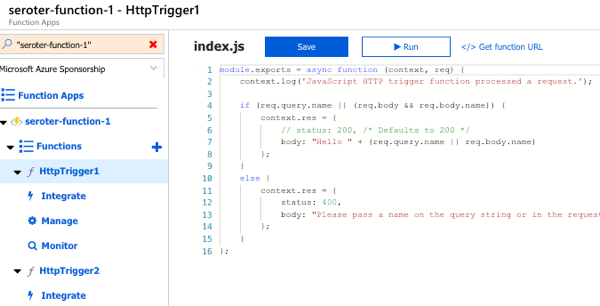
    Next up, I created a Logic App. It’s easy.
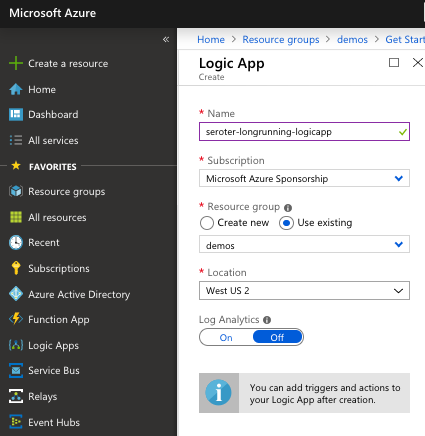
    After a few moments, I could jump in and start designing my workflow. As a “serverless” service, Logic Apps only run when invoked, and start with a trigger. I chose the HTTP trigger.
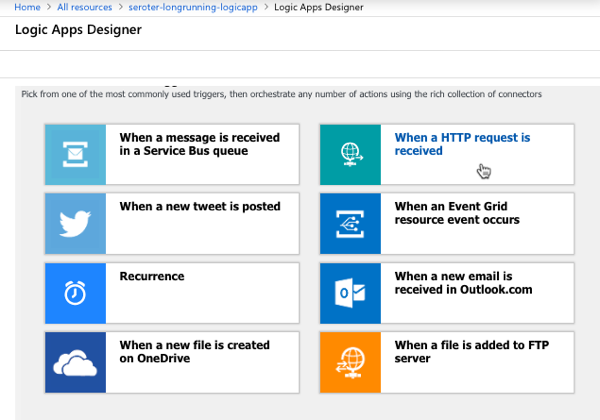
    My Logic App takes in an HTTP request, has a 45 second “delay” (which could represent waiting for new input, or a long-running API call) before invoke our simple Azure Function.

    I saved the Logic App, called the HTTP endpoint via Postman, and waited. After about 45 seconds, I saw that everything succeeded.

    Next, I kicked off another instance, and quickly went in and added another Function call after the first one. What would Logic Apps do with that after the delay was over? It ignored the new function call. Then I kicked off another Logic Apps instance, and quickly deleted the second function call. Would the instance wake up and now only call one Function? Nope, it called them both.

    So it appears that Logic Apps snapshot the workflow when it starts, and it executes that version, regardless of what changes in the underlying definition after the fact. That seems good. It results in a more consistent, predictable process. Logic Apps does have the concept of versioning, and you can promote previous versions to the active one as needed.

    AWS Step Functions

    AWS doesn’t have something exactly like Logic Apps, but AWS Step Functions is somewhat similar to Azure Durable Functions. With Step Functions, you can chain together a series of AWS services into a workflow. It basically builds a state machine that you craft in their JSON-based Amazon State Language. A given Step Function can be idle for up to a year, so again. you’ll probably have long-running instances going at all times!

    I jumped into the AWS console and started with their “hello world” template.

    This state machine has a couple basic states that execute immediately. Then I added a 20 second wait.

    After deploying the Step Function, it was easy to see that it ran everything quickly and successfully.

    Next, I kicked off a new instance, and added a new step to the state machine while the instance was waiting. The Step Function that was running ignored it.

    When I kicked off another Step Function and removed the step after the wait step, it also ignored it. It seems pretty clear that AWS Step Functions snapshot the workflow at the start proceed with that snapshot, even if the underlying definition changes. I didn’t find much documentation around formally versioning Step Functions, but it seems to keep you fairly safe from side effects.

    With all of these, it’s important to realize that you also have to consider versioning of downstream calls. I could have an unchanged Logic App, but the function or API it invokes had its plumbing entirely updated after the Logic App started running. There’s no way to snapshot the state of all the dependencies! That’s normal in a distributed system. But, something to remember.

    Have you observed any different behavior with these stateful serverless products?
  • Want to yank configuration values from your .NET Core apps? Here’s how to store and access them in Azure and AWS.
    Want to yank configuration values from your .NET Core apps? Here’s how to store and access them in Azure and AWS.

    Creating new .NET apps, or modernizing existing ones? If you’re following the 12-factor criteria, you’re probably keeping your configuration out of the code. That means not stashing feature flags in your web.config file, or hard-coding connection strings inside your classes. So where’s this stuff supposed to go? Environment variables are okay, but not a great choice; no version control or access restrictions. What about an off-box configuration service? Now we’re talking. Fortunately AWS, and now Microsoft Azure, offer one that’s friendly to .NET devs. I’ll show you how to create and access configurations in each cloud, and as a bonus, throw out a third option.

    .NET Core has a very nice configuration system that makes it easy to read configuration data from a variety of pluggable sources. That means that for the three demos below, I’ve got virtually identical code even though the back-end configuration stores are wildly different.

    AWS

    Setting it up

    AWS offers a parameter store as part of the AWS Systems Manager service. This service is designed to surface information and automate tasks across your cloud infrastructure. While the parameter store is useful to support infrastructure automation, it’s also a handy little place to cram configuration values. And from what I can tell, it’s free to use.

    To start, I went to the AWS Console, found the Systems Manager service, and chose Parameter Store from the left menu. From here, I could see, edit or delete existing parameters, and create new ones.

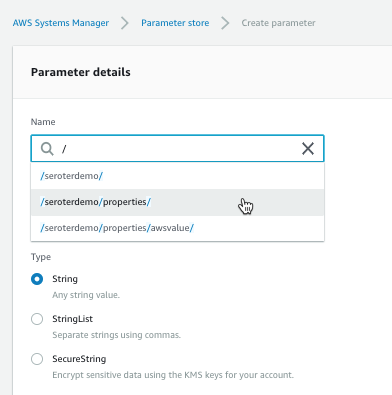
    Each parameter gets a name and value. For the name, I used a “/” to define a hierarchy. The parameter type can be a string, list of strings, or encrypted string.

    The UI was smart enough that when I went to go add a second parameter (/seroterdemo/properties/awsvalue2), it detected my existing hierarchy.

    Ok, that’s it. Now I was ready to use it my .NET Core web app.

    Using from code

    Before starting, I installed the AWS CLI. I tried to figure out where to pass credentials into the AWS SDK, and stumbled upon some local introspection that the SDK does. Among other options, it looks for files in a local directory, and those files get created for you when you install the AWS CLI. Just a heads up!

    I created a new .NET Core MVC project, and added the Amazon.Extensions.Configuration.SystemsManager package. Then I created a simple “Settings” class that holds the configuration values we’ll get back from AWS.

    public class Settings
    {
    public string awsvalue { get; set; }
    public string awsvalue2 { get; set; }
    }

    In the appsettings.json file, I told my app which AWS region to use.

    {
    "Logging": {
    "LogLevel": {
    "Default": "Warning"
    }
    },
    "AllowedHosts": "*",
    "AWS": {
    "Profile": "default",
    "Region": "us-west-2"
    }
    }

    In the Program.cs file, I updated the web host to pull configurations from Systems Manager. Here, I’m pulling settings that start with /seroterdemo.

    public class Program
    {
    public static void Main(string[] args)
    {
    CreateWebHostBuilder(args).Build().Run();
    }

    public static IWebHostBuilder CreateWebHostBuilder(string[] args) =>
    WebHost.CreateDefaultBuilder(args)
    .ConfigureAppConfiguration(builder =>
    {
    builder.AddSystemsManager("/seroterdemo");
    })
    .UseStartup<Startup>();
    }

    Finally, I wanted to make my configuration properties available to my app code. So in the Startup.cs file, I grabbed the configuration properties I wanted, inflated the Settings object, and made it available to the runtime container.

    public void ConfigureServices(IServiceCollection services)
    {
    services.Configure<Settings>(Configuration.GetSection("properties"));

    services.Configure<CookiePolicyOptions>(options =>
    {
    options.CheckConsentNeeded = context => true;
    options.MinimumSameSitePolicy = SameSiteMode.None;
    });
    }

    Last step? Accessing the configuration properties! In my controller, I defined a private variable that would hold a local reference to the configuration values, pulled them in through the constructor, and then grabbed out the values in the Index() operation.

            private readonly Settings _settings;

    public HomeController(IOptions<Settings> settings)
    {
    _settings = settings.Value;
    }

    public IActionResult Index()
    {
    ViewData["configval"] = _settings.awsvalue;
    ViewData["configval2"] = _settings.awsvalue2;

    return View();
    }

    After updating my View to show the two properties, I started up my app. As expected, the two configuration values showed up.

    What I like

    You gotta like that price! AWS Systems Manager is available at no cost, and there appears to be no cost to the parameter store. Wicked.

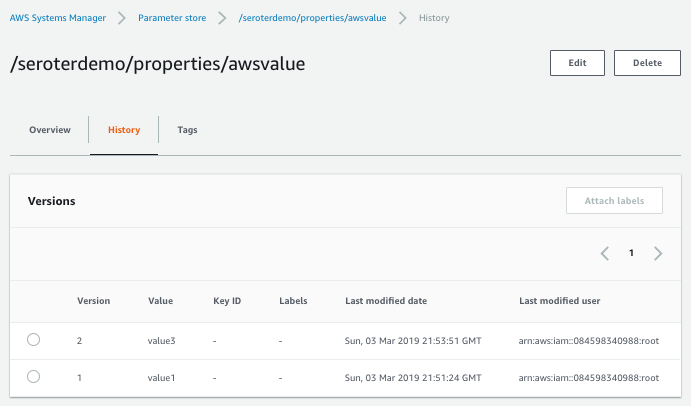
    Also, it’s cool that you have an easily-visible change history. You can see below that the audit trail shows what changed for each version, and who changed it.

    The AWS team built this extension for .NET Core, and they added capabilities for reloading parameters automatically. Nice touch!

    Microsoft Azure

    Setting it up

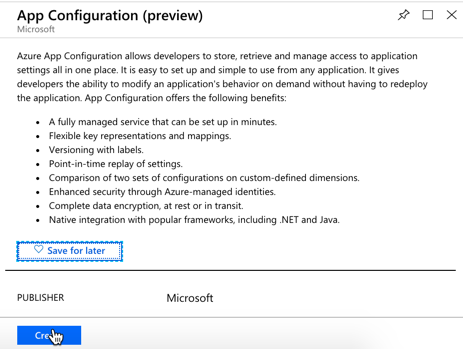
    Microsoft just shared the preview release of the Azure App Configuration service. This managed service is specifically created to help you centralize configurations. It’s brand new, but seems to be in pretty good shape already. Let’s take it for a spin.

    From the Microsoft Azure Portal, I searched for “configuration” and found the preview service.

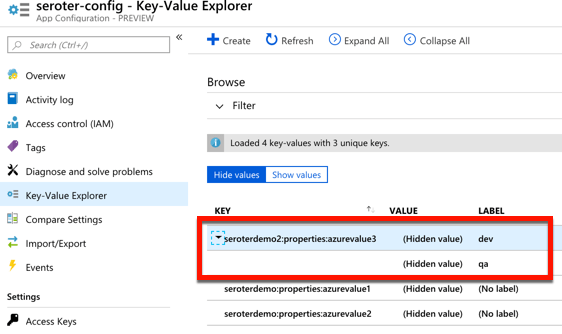
    I named my resource seroter-config, picked a region and that was it. After a moment, I had a service instance to mess with. I quickly added two key-value combos.

    That was all I needed to do to set this up.

    Using from code

    I created another new .NET Core MVC project and added the Microsoft.Extensions.Configuration.AzureAppConfiguration package. Once again I created a Settings class to hold the values that I got back from the Azure service.

    public class Settings
    {
    public string azurevalue1 { get; set; }
    public string azurevalue2 { get; set; }
    }

    Next up, I updated my Program.cs file to read the Azure App Configuration. I passed the connection string in here, but there are better ways available.

    public class Program
    {
    public static void Main(string[] args)
    {
    CreateWebHostBuilder(args).Build().Run();
    }

    public static IWebHostBuilder CreateWebHostBuilder(string[] args) =>
    WebHost.CreateDefaultBuilder(args)
    .ConfigureAppConfiguration((hostingContext, config) => {
    var settings = config.Build();
    config.AddAzureAppConfiguration("[con string]");
    })
    .UseStartup<Startup>();
    }

    I also updated the ConfigureServices() operation in my Startup.cs file. Here, I chose to only pull configurations that started with seroterdemo:properties.

     public void ConfigureServices(IServiceCollection services)
    {
    //added
    services.Configure<Settings>(Configuration.GetSection("seroterdemo:properties"));

    services.Configure<CookiePolicyOptions>(options =>
    {
    options.CheckConsentNeeded = context => true;
    options.MinimumSameSitePolicy = SameSiteMode.None;
    });
    }

    To read those values in my controller, I’ve got just about the same code as in the AWS example. The only difference was what I called my class members!

    private readonly Settings _settings;

    public HomeController(IOptions<Settings> settings)
    {
    _settings = settings.Value;
    }

    public IActionResult Index()
    {
    ViewData["configval"] = _settings.azurevalue1;
    ViewData["configval2"] = _settings.azurevalue2;

    return View();
    }

    I once again updated my View to print out the configuration values, and not shockingly, it worked fine.

    What I like

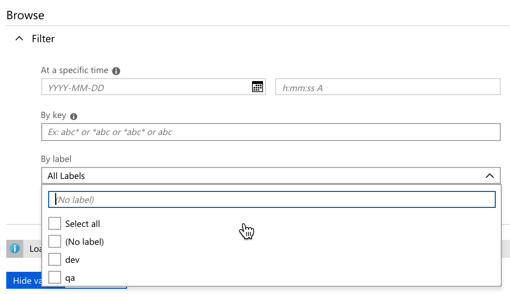
    For a new service, there’s a few good things to like here. The concept of labels is handy, as it lets me build keys that serve different environments. See here that I created labels for “qa” and “dev” on the same key.

    I saw a “compare” feature which looks handy. There’s also a simple search interface here too, which is valuable.

    Pricing isn’t yet available, no I’m not clear as to how I’d have to pay for this.

    Spring Cloud Config

    Setting it up

    Both of the above service are quite nice. And super convenient if you’re running in those clouds. You might also want a portable configuration store that offers its own pluggable backing engines. Spring Cloud Config makes it easy to build a config store backed by a file system, git, GitHub, Hashicorp Vault, and more. It’s accessible via HTTP/S, supports encryption, is fully open source, and much more.

    I created a new Spring project from start.spring.io. I chose to include the Spring Cloud Config Server and generate the project.

    Literally all the code required is a single annotation (@EnableConfigServer).

     @EnableConfigServer
    @SpringBootApplication
    public class SpringBlogConfigServerApplication {

    public static void main(String[] args) {
    SpringApplication.run(SpringBlogConfigServerApplication.class, args);
    }
    }

    In my application properties, I pointed my config server to the location of the configs to read (my GitHub repo), and which port to start up on.

    server.port=8888
    spring.cloud.config.server.encrypt.enabled=false
    spring.cloud.config.server.git.uri=https://github.com/rseroter/spring-demo-configs

    My GitHub repo has a configuration file called blogconfig.properties with the following content:

    With that, I started up the project, and had a running configuration server.

    Using from code

    To talk to this configuration store from my .NET app, I used the increasingly-popular Steeltoe library. These packages, created by Pivotal, bring microservices patterns to your .NET (Framework or Core) apps.

    For the last time, I created a .NET Core MVC project. This time I added a dependency to Steeltoe.Extensions.Configuration.ConfigServerCore. Again, I added a Settings class to hold these configuration properties.

    public class Settings
    {
    public string property1 { get; set; }
    public string property2 { get; set; }
    public string property3 { get; set; }
    public string property4 { get; set; }
    }

    In my appsettings.json, I set my application name (to match the config file’s name I want to access) and URI of the config server.

    {
    "Logging": {
    "LogLevel": {
    "Default": "Warning"
    }
    },
    "AllowedHosts": "*",
    "spring": {
    "application": {
    "name": "blogconfig"
    },
    "cloud": {
    "config": {
    "uri": "http://localhost:8888"
    }
    }
    }
    }

    My Program.cs file has a “using” statement for the Steeltoe.Extensions.Configuration.ConfigServer package, and then used the “AddConfigServer” operation to add the config server as a source.

    public class Program
    {
    public static void Main(string[] args)
    {
    CreateWebHostBuilder(args).Build().Run();
    }

    public static IWebHostBuilder CreateWebHostBuilder(string[] args) =>
    WebHost.CreateDefaultBuilder(args)
    .AddConfigServer()
    .UseStartup<Startup>();
    }

    I once again updated the Startup.cs file to load the target configurations into my typed object.

    public void ConfigureServices(IServiceCollection services)
    {
    services.Configure<CookiePolicyOptions>(options =>
    {
    options.CheckConsentNeeded = context => true;
    options.MinimumSameSitePolicy = SameSiteMode.None;
    });

    services.Configure<Settings>(Configuration);
    }

    My controller pulled the configuration object, and I used it to yank out values to share with the View.

    public HomeController(IOptions<Settings> mySettings) {
    _mySettings = mySettings.Value;
    }
    Settings _mySettings {get; set;}

    public IActionResult Index()
    {
    ViewData["configval"] = _mySettings.property1;
    return View();
    }

    Updating the view, and starting the .NET Core app yielded the expected results.

    What I like

    Spring Cloud Config is a very mature OSS project. You can deliver this sort of microservices machinery along with your apps in your CI/CD pipelines — these components are software that you ship versus services that need to be running — which is powerful. It offers a variety of backends, OAuth2 for security, encryption/decryption of values, and much more. It’s a terrific choice for a consistent configuration store on every infrastructure.

    But realistically, I don’t care which of the above you use. Just use something to extract environment-specific configuration settings from your .NET apps. Use these robust external stores to establish some rigor around these values, and make it easier to share configurations, and keep them in sync across all of your application instances.

  • Eight things your existing ASP.NET apps should get for “free” from a good platform

    Eight things your existing ASP.NET apps should get for “free” from a good platform

    Of all the app modernization strategies, “lift and shift” is my least favorite. To me, picking up an app and dropping it onto a new host is like transferring your debt to a new credit card with a lower interest rate. It’s better, but mostly temporary relief. That said, if your app can inherit legitimate improvements without major changes by running on a new platform, you’d be crazy to not consider it.

    Examples? Here are eight things I think you should expect of a platform that runs your existing .NET apps. And when I say “platform”, I don’t mean an infrastructure host or container runtime. Rather, I’m talking about application-centric platform that supplies what’s needed for a fully configured, routable app. I’ll use Azure Web Apps (part of Azure App Service) and Pivotal Cloud Foundry (PCF) as the demo platforms for this post.

    #1 Secure app packaging

    First, a .NET-friendly app platform should package up my app for me. Containers are cool. I’ll be happy if I never write another Dockerfile, though. Just get me from source-to-runnable-artifact as easily as possible. This can be a BIG value-add for existing .NET apps where getting them to production is a pain in the neck.

    Both Azure Web Apps and PCF do this for me.

    I built a “classic” ASP.NET Web Service to simulate a legacy app that I want to run on one of these new-fangled platforms. The source code is in GitHub, so you can follow along. This SOAP web service returns a value, and also does things like pull values from environment variables, and writes out log statements.

    To deploy it to Azure Web Apps using the Azure CLI, I followed a few steps, none of which required up-front containerization. First, I created a “plan” for my app, which can include things like a resource group, data center location, and more.

    az appservice plan create -g demos -n BlogPlan 

    Next, I created the actual Web App. For the moment, I didn’t point to source code, but just provisioned the environment. In reality, this creates lightweight Windows Server VMs. Microsoft did recently add experimental support for Windows Containers, but I’m not using that here.

    az webapp create -g demos -p BlogPlan -n aspnetservice

    Finally, I pointed my web app to the source code. There are a number of options here, and I chose the option to pull from GitHub.

    az webapp deployment source config -n aspnetservice -g
    demos --repo-url https://github.com/rseroter/classic-aspnet-web-service
    --branch master --repository-type github

    After a few minutes, I saw everything show up in the Azure portal. Microsoft took care of the packaging of my application and properly laying it atop a managed runtime. I manually went into the “Application Settings” properties for my Web App and added environment variables too.

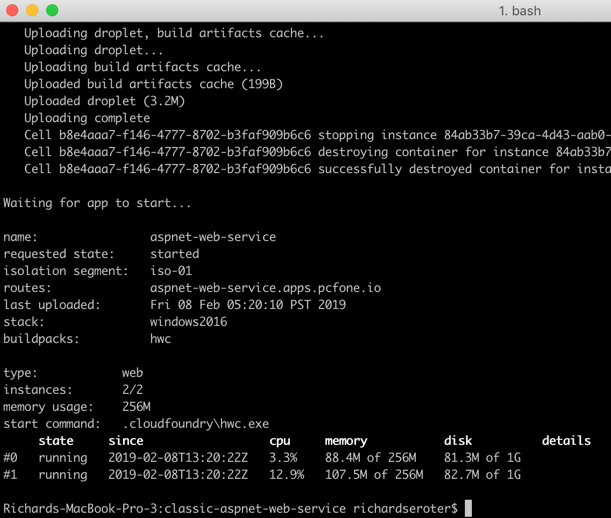
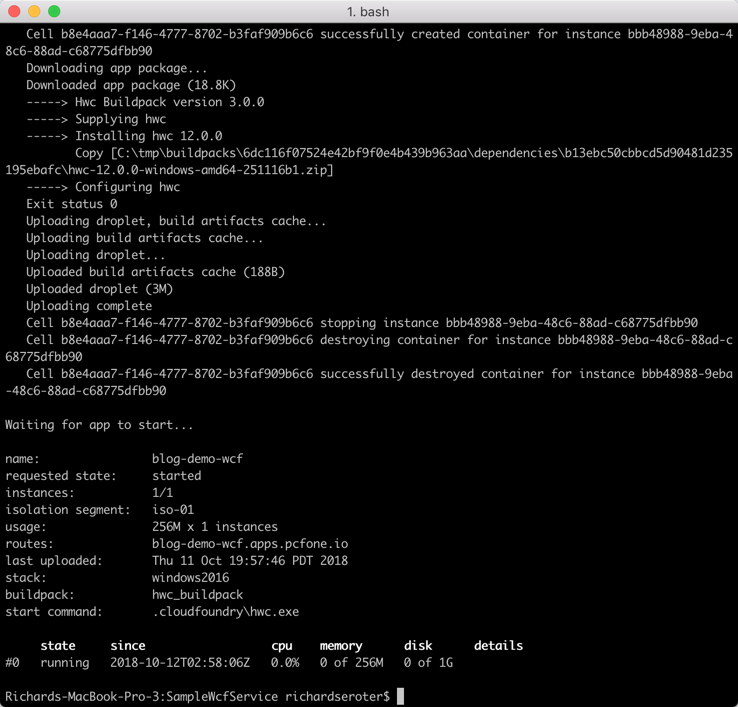
    PCF (and Pivotal Application Service, specifically) is similar, and honestly a bit easier. While I could have published this .NET Framework project completely as-is to PCF, I did add a manifest.yml file to the project. This file simply tells Cloud Foundry what to name the app, how many instances to run, and such. From the local git repo, I used the Cloud Foundry CLI to simply cf push. This resulted in my app artifacts getting uploaded, a buildpack compiling and packaging the app, and a Windows Container spinning up on the platform. Yes, it’s a full-on Windows Server Container, built on your behalf, and managed by the platform.

    When I built this project using Visual Studio for Mac, I could only push the app to PCF. Azure kept gurgling about a missing build profile. Once I built the app using classic Visual Studio on Windows, it all worked. Probably user error.

    Either way, both platforms took care of building up the runnable artifact. No need for me to find the right Windows base image, and securely configure the .NET runtime. That’s all taken care of by a good platform.

    #2 Routable endpoints

    A web app needs to be reachable. SHOCKING, I KNOW. Simply deploying an application to a VM or container environment isn’t the end state. A good platform also ensures that my app has a routable endpoint that humans or machines can access. Again, for existing .NET apps, if you have a way to speed up the path to production by making apps reachable in seconds, that’s super valuable.

    For Azure Web Apps, this is built-in. When I deployed the app above, I immediately got a URL back from the platform. Azure Web Apps automatically takes care of getting me an HTTP/S endpoint.

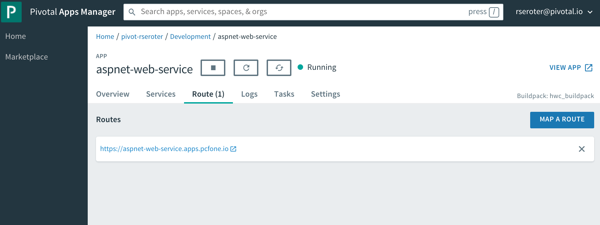
    Same for PCF. When you push an app to PCF, you immediately get a load balanced network route. And you have complete control over DNS names, etc. And you can easily set up TCP routes in addition to HTTP/S ones.

    It’s one thing to get app binaries onto a host. For many, it’s a whole DIFFERENT task to get routable IPs, firewalls opened up, load balancers configured, and all that gooey networking stuff required to call an app “ready.” A good application platform does that, especially for .NET apps.

    #3 Log aggregation

    As someone who had to spend lots of time scouring Windows Event Logs to troubleshoot, I’m lovin’ the idea of something that automatically collects application logs from all the hosts. If you have existing .NET apps and don’t like spelunking around for logs, a good application platform should help.

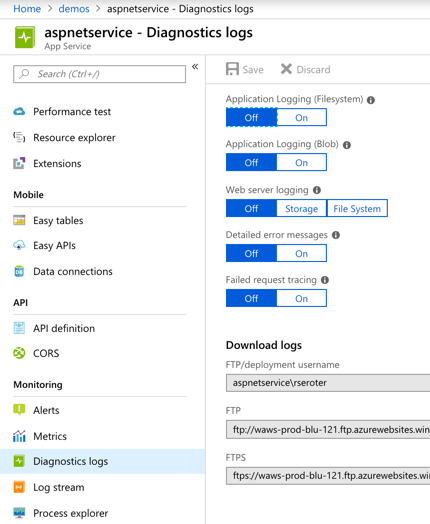
    Azure Web Apps offers built-in log collection and log streaming. These are something you turn on (after picking where to store the logs), but it’s there.

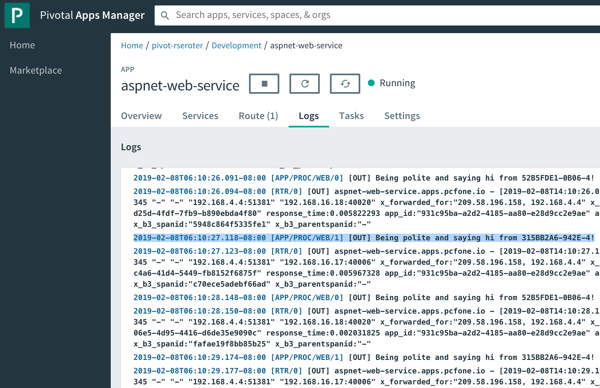
    PCF immediately starts streaming application logs when you deploy an app, and also has collectors for things like the Windows Event Log. As you see below, after calling my ASP.NET Web Service a few times, I see the log output, and the reference to the individual hosts each instance is running on (pulled from the environment and written to the log). You can pipe these aggregated logs to off-platform environments like Splunk or even Azure Log Analytics.

    Log aggregation is one of those valuable things you may not consider up front, but it’s super handy if the platform does it for you automatically.

    #4 App metrics collection and app monitoring

    No matter how great, no platform will magically light up your existing apps with unimaginable telemetry. But, a good application platform does automatically capture infrastructure and application metrics and correlate them. And preferably, such a platform does it without requiring you to explicitly add monitoring agents or code to your existing app. If your .NET app can instantly get high quality, integrated monitoring simply by running somewhere else, that’s good, right?

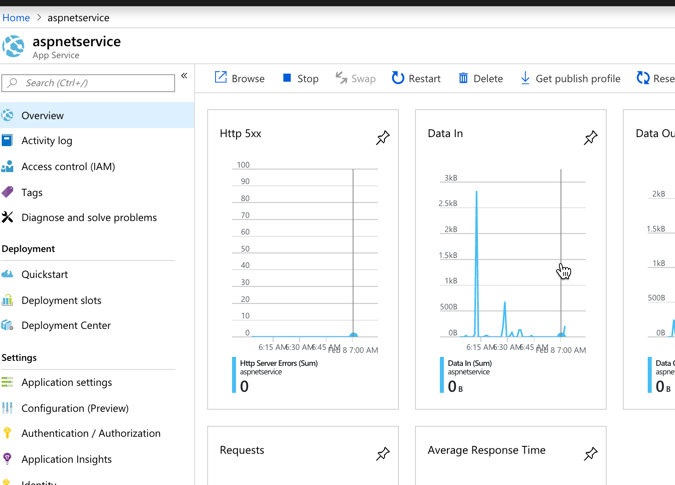
    Does Azure Web Apps do this? You betcha. By default, you get some basic traffic-in/traffic-out sort of metrics on the Web Apps dashboard in the Azure Portal.

    Once you flip on Application Insights (not on by default), you get a much, much deeper look at your running application. This seems pretty great, and it “just works” with my old-and-busted ASP.NET Web Service.

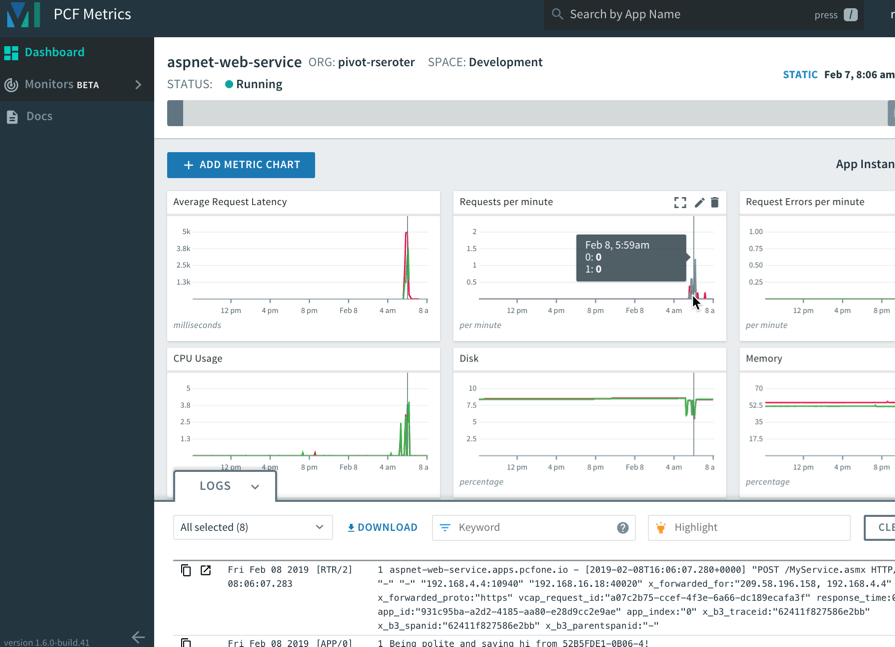
    Speaking of “just works”, the same applies to PCF and your .NET Framework apps. After I pushed the ASP.NET Web Service to PCF, I automatically saw a set of data points, thanks to the included, integrated PCF Metrics service.

    It’s simple to add, remove, or change charts based on included or your own custom metrics. And the application logs get correlated here, so clicking on a time slice in the chart also highlights logs from that time period.

    For either Azure or PCF, you can use best-of-breed application performance monitoring tools like New Relic too. Whatever you do, expect that your .NET applications get native access to at-scale monitoring capabilities.

    #5 Manual or auto-scaling

    An application platform knows how to scale apps. Up or down, in or out. Manually or automatically. If “file a ticket” is your scaling strategy, maybe it’s time for a new one?

    As you’d expect, both Azure and PCF make app scaling easy, even on Windows Server. Azure Web Apps let you scale the amount of allocated resources (up or down) and number of instances (in or out). Because I was a cheapskate with my Azure Web App, I chose a tier that didn’t support autoscaling. So, know ahead of time what you’ve chosen as it can impact how much you can scale.

    For PCF, there aren’t any “plans” that constrain features. So I can either manually scale resource allocation or instance count, or define an auto-scale policy that triggers based on resource consumption, queue depth, or HTTP traffic.

    Move .NET apps to a platform that improve app resilience. One way you get that is through easy, automated scaling.

    #6 Fault detection and recovery

    If you’re lifting-and-shifting .NET apps, you’re probably not going back and fixing a lot of stuff. Maybe your app has a memory leak and crashes every 14 hours. And maybe you wrote a Windows Scheduled Task that bounces the web server’s app pool every 13 hours to prevent the crash. NO ONE IS JUDGING YOU. A good platform knows that things went wrong, and automatically recovers you to a good state.

    Now, most of the code I write crashes on its own, but I wanted to be even more explicit to see how each platform handles unexpected failures. So, I did a VERY bad thing. I created a SOAP endpoint that violently aborts the thread.

    [WebMethod]
    public void CrashMe()
    {
        System.Threading.Thread.CurrentThread.Abort();
    }

    After calling that endpoint on the Azure Web Apps-hosted service, the instance crashed, and Azure resurrected after a minute or two. Nice!

    In PCF, things worked the same way. Since we’re dealing with Windows Server Containers in PCF, the recovery was faster. You can see in the screenshot below that the app instance crashed, and a new instance immediately spawned to replace it.

    Cool. My classic .NET Framework app gets auto-recovery in these platforms. This is an underrated feature, but one you should demand.

    #7 Underlying infrastructure access

    One of the biggest benefits of PaaS is that developers can stop dealing with infrastructure. FINALLY. The platform should do all the things above so that I never mess with servers, networking, agents, or anything that makes me sad. That said, sometimes you do want to dip into the infrastructure. For a legacy .NET app, maybe you want to inspect a temporary log file written to disk, see what got installed into which directories, or even to download extra bits after deploying the app. I’d barely recommend doing any of those things on ephemeral instances, but sometimes the need is there.

    Both Azure and PCF make it straightforward to access the application instances. From the Azure portal, I can dip into a console pointing at the hosting VM.

    I can browse elsewhere on the hosting VM, but only have r/w access to the directory the console drops me into.

    PCF uses Windows Server Containers, so I could SSH right into it. Once I’m in this isolated space, I have r/w access to lots of things. And can trigger PowerShell commands and more.

    If infrastructure access is REQUIRED to deploy and troubleshoot your app, you’re not using an application platform. And that may be fine, but you should expect more. For those cases when you WANT to dip down to the host, a platform should offer a pathway.

    #8 Zero-downtime deployment

    Does your .NET Framework app need to be rebuilt to support continuous updates? Not necessarily. In fact, a friendly .NET app platform makes it possible to keep updating the app in production without taking downtime.

    Azure Web Apps offers deployment slots. This makes it possible to publish a new version, and swap it out for what’s already running. It’s a cool feature that requires a “standard” or “premium” plan to use.

    PCF supports rolling deployments for apps written in any language, to Windows or Linux. Let’s say I have four instances of my app running. I made a small code change to my ASP.NET Web Service and did a cf v3-zdt-push aspnet-web-service. This command did a zero-downtime push, which means that new instances of the app replaced old instances, without disrupting traffic. As you can see below, 3 of the instances were swapped out, and the fourth one was coming online. When the fourth came online, it replaced the last remaining “old” instance of the app.

    Over time, you should probably replatform most .NET Framework apps to .NET Core. It makes sense for many reasons. But that journey may take a decade. Find platforms that treat Windows and Linux, .NET Framework and .NET Core the same way. Expect all these 8 features in your platform of choice so that you get lots of benefits for “free” until you can do further modernization.

  • My new book on modernizing .NET applications is now available!

    My new book on modernizing .NET applications is now available!

    I might be the first person to write a technical book because of peer pressure. Let me back up. 

    I’m fortunate to be surrounded by smart folks at Pivotal. Many of them write books. We usually buy copies of them to give out at conferences. After one of conferences in May, my colleague Nima pointed out that folks wanted a book about .NET. He then pushed all the right buttons to motivate me.

    So, I signed a contract with O’Reilly Media in June, started writing in July, and released the book yesterday.

    Modernizing .NET Applications is a 100-page book that for now, is free from Pivotal. At some point soon, O’Reilly will put it on Safari (and other channels). So what’s in this book, before you part with your hard-earned email address?

    Chapter 1 looks at why app modernization actually matters. I define “modernization” and give you a handful of reasons why you should do it. Chapter 2 offers an audit of what .NET software you’re running today, and why you’re motivated to upgrade it. Chapter 3 takes a quick look at the types of software your stakeholders are asking you to create now. Chapter 4 defines “cloud-native” and explains why you should care. I also define some key characteristics of cloud-native software and what “good” looks like. 

    Chapter 5 helps you decide between using the .NET Framework or .NET Core for your applications. Then in Chapter 6, I lay out the new anti-patterns for .NET software and what things you have to un-learn. Chapter 7 calls out some of the new components that you’ll want to introduce to your modernized .NET apps. Chapter 8 helps you decide where you should run your .NET apps, with an assessment of all the various public/private software abstractions to choose from. Chapter 9 digs into five specific recipes you should follow to modernize your apps. These include event storming, externalized configuration, remote session stores, token-based security schemes, and apps on pipelines. Finally, Chapter 10 leaves you with some next steps.

    I’ve had the pleasure/pain of writing books before, and have held off doing it again since our tech information consumption patterns have changed. But, it seems like there’s still a hunger for long-form content, and I’m passionate about .NET developers. So, I invested in a topic I care about, and hopefully wrote a book in a way that you find enjoyable to read.

    Go check it out, and tell me what you think!

  • Wait, THAT runs on Pivotal Cloud Foundry? Part 5 – .NET Framework apps

    Wait, THAT runs on Pivotal Cloud Foundry? Part 5 – .NET Framework apps

    Looking for a host suitable for .NET Framework apps? Windows Server virtual machines are almost your only option. The only public cloud PaaS product that offers a higher abstraction than virtual machines is Azure’s App Service. And that’s not really meant to run an entire enterprise portfolio. So … what to do? Don’t say “switch to .NET Core and run on all the Linux-based platforms” because that’s cheating. What can you do today? The best option you don’t know about is Pivotal Cloud Foundry (PCF). In this post, I’ll show you how to easily deploy and operate .NET apps in PCF on any infrastructure.

    This is part five of a five part series. Hopefully you’ve enjoyed my exploration of workloads you might not expect to see on a cloud-native platform like PCF.

    About PAS for Windows

    Quickly, I want to tell you about Pivotal Application Service (PAS) for Windows. Recall that PCF is really made up of two software abstractions atop a sophisticated infrastructure management platform (BOSH): Pivotal Application Service (for apps) and Pivotal Container Service (for raw containers). PAS for Windows extends PAS with managed Windows Server instances. As an operator, you can deploy, patch, upgrade, and operate Windows Server instances entirely through automation. For developers, you get a on-demand, scalable host that supports remote debugging and much more. I feel pretty safe saying that this is better than whatever you’re doing today for Windows workloads!

    PAS for Windows extends PAS and uses all the same machinery

    Deploying a WCF application to PCF

    Let’s do this. First, I confirmed that I had a Windows “stack” available to me. In my PCF environment, I ran a cf stacks command.

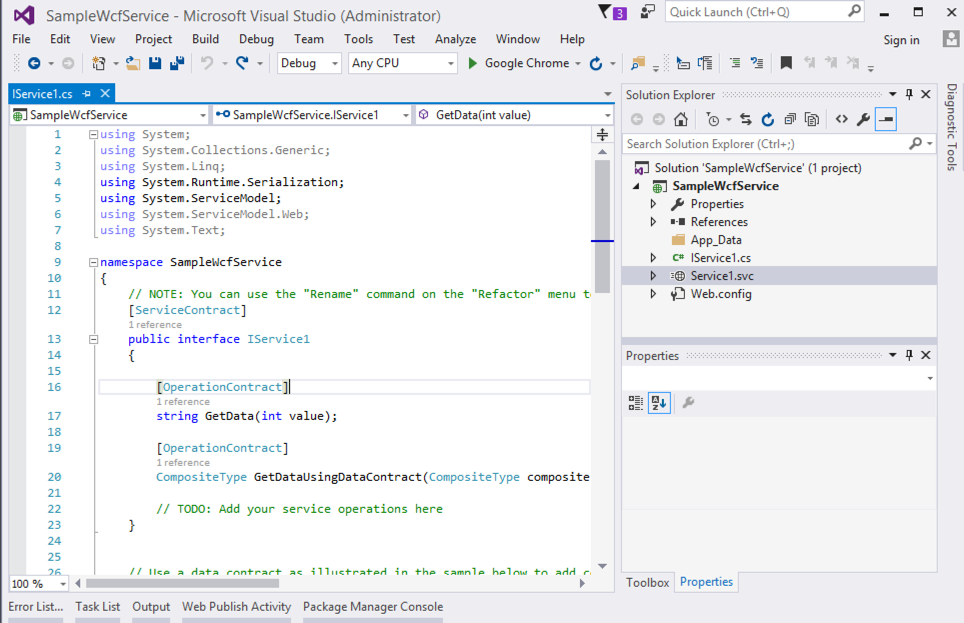
    Yup, all good. I created a new Windows Communication Foundation (WCF) application targeting .NET Framework 4.0. All of your apps aren’t using the latest framework, so why should my sample? Note that you can run all types of classic .NET projects in PCF: ASP.NET Web Forms, MVC, Web API, WCF, console, and more.

    My WCF service doesn’t need to change at all to run in PCF. To publish to PCF, I just need to provide a set of command line parameters, or, write a manifest with those parameters. My manifest looked like this:

    ---
    applications:
    - name: blog-demo-wcf
    memory: 256M
    instances: 1
    buildpack: hwc_buildpack
    stack: windows2016
    env:
    betaflag: on

    There’s a buildpack just for .NET apps on Windows and all I have to do is push the code itself. About fifteen seconds after typing cf push, my WCF service was packaged up and loaded into a Windows Server container.

    Browsing the endpoint returned that familiar page of WCF service metadata. 

    Operating your .NET app on PCF

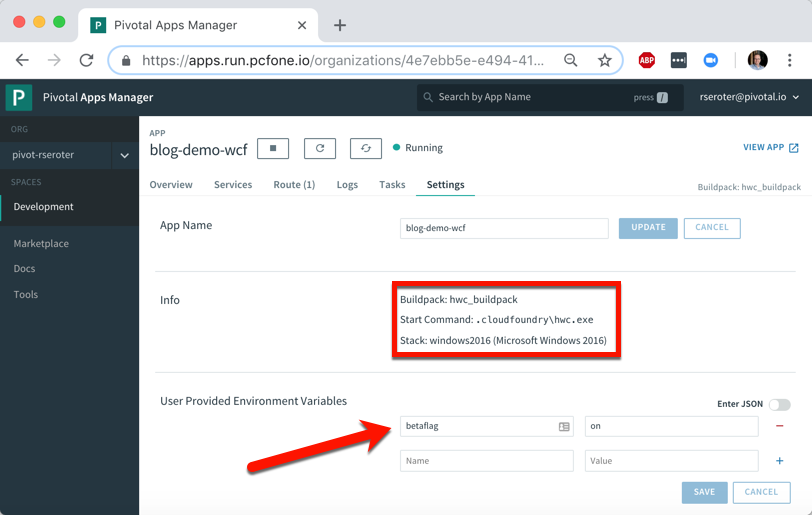
    It’s one thing to deploy an app, it’s another thing to manage it. PCF makes that pretty easy. After deploying a .NET app, I see some helpful metadata. It shows me the stack, buildpack, and any environment variables visible to the app.

    How long does it take you to get a new instance of your .NET app into production today? Weeks? Months? I just scaled up from one to three Windows container instances in less than ten seconds. I just love that.

    Any app written in any language gets access to the same set of PCF functionality. Your .NET Framework apps get built-in log aggregation, metrics and monitoring, autoscaling, and more. All in a multi-tenant environment. And with straightforward access to anything in the marketplace through the Service Broker interface. Want your .NET Framework app to talk to Azure’s Cosmos DB or Google Cloud Spanner? Just use the broker.

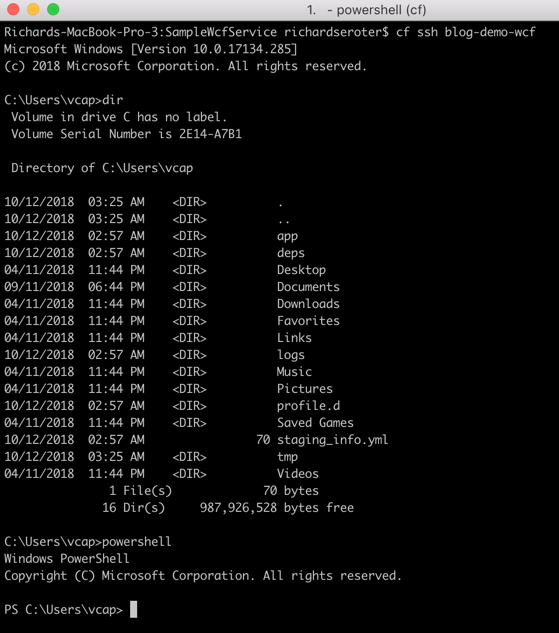
    Oh, and don’t forget that because PAS for Windows uses legit Windows Server containers, each app instance gets its own copy of the file system, registry, and GAC. You can see this by SSH-ing into the container. Yes, I said you could SSH in. It’s just a cf ssh command.

    That’s a full Windows file system, and I can even spin up Powershell in there. Crazy times.

  • Wait, THAT runs on Pivotal Cloud Foundry? Part 3 – Background, batch, and scheduled jobs

    Wait, THAT runs on Pivotal Cloud Foundry? Part 3 – Background, batch, and scheduled jobs

    So far in this series of posts, we’ve seen that Pivotal Cloud Foundry (PCF) runs a lot more than just web applications. Not every app has a user-facing front-end component. Some of your systems run in the background or on a schedule and perform a variety of important tasks. In this post, I’ll take a look at how to deploy background workers, on-demand batch tasks, and scheduled jobs.

    This is the third in a five part series of posts:

    Deploying and running background workers

    Pivotal Cloud Foundry makes it easy to run workers that don’t have a routable address. These background jobs might listen to a database and respond to data changes, or respond to messages in a work queue. Let’s demonstrate the latter. 

    I built a .NET Core console app that’s responsible for pulling “loan” records from RabbitMQ and processing them. You can built these background jobs is any programming language supported by Cloud Foundry.

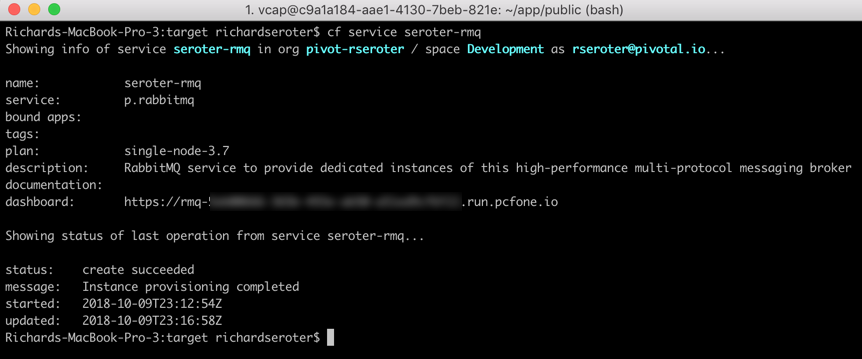
    What’s nice is that background jobs have access to all the useful PCF capabilities that web apps do. One such capability? Service Brokers! Devs love using Service Brokers to provision and access backing services. My background job needs access to RabbitMQ and I don’t want to hard-code any connection details. No big deal. I first spun up an on-demand RabbitMQ instance via the PCF Service Broker.

    My .NET Core app uses the Steeltoe Service Connector (and the RabbitMQ .NET Client) to load service broker connection info and talk to my instance.

    static void Main(string[] args){            
    //pull service broker configuration
    var builder = new ConfigurationBuilder()
    .AddEnvironmentVariables()
    .AddCloudFoundry();

    var configuration = builder.Build();
    //get our fully loaded service
    var services = new ServiceCollection();
    services.AddRabbitMQConnection(configuration);
    var provider = services.BuildServiceProvider();
    ConnectionFactory f = provider.GetService<ConnectionFactory>();

    //connect to RMQ
    using (var connection = f.CreateConnection())
    using (var channel = connection.CreateModel())
    {
    channel.QueueDeclare(queue: "loans", durable: true, exclusive: false, autoDelete: false, arguments: null);
    var consumer = new EventingBasicConsumer(channel);

    //fire up when a new message comes in
    consumer.Received += (model, ea) => {
    var body = ea.Body;
    var message = Encoding.UTF8.GetString(body);
    Console.WriteLine("[x] Received loan data: {0}", message);
    };
    channel.BasicConsume(queue: "loans", autoAck: true, consumer: consumer);
    Console.ReadLine();
    }
    }

    Apps deployed to Cloud Foundry are typically accompanied by a YAML manifest. You can provide the parameters on the CLI, but versioned, source-controlled manifests are a better way to go. For these background jobs, the manifests are simple. Note two key things: the no-route parameter is “true” so that we don’t get a route assigned, and the health-check-type is set to “process” so that the orchestrator monitors process availability and doesn’t try to ping a non-existent web endpoint. Also notice that I bound my app to the previously-created RabbitMQ service instance.

    ---  
    applications:
    - name: core-demo-background
    memory: 256M
    no-route: true
    health-check-type: process
    services:
    - seroter-rmq

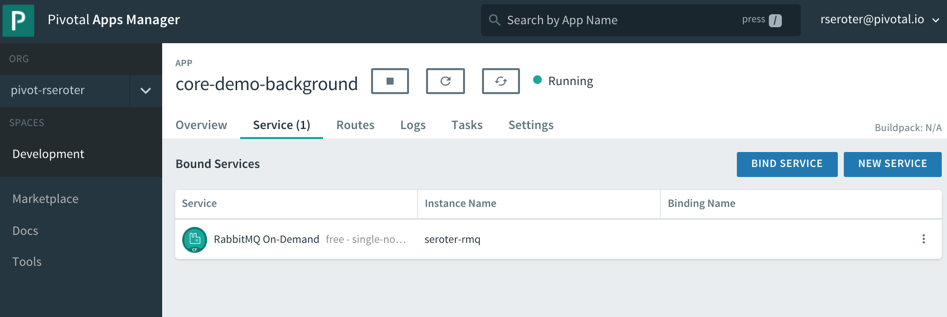
    After a quick cf push, my background app was running, and bound to the RabbitMQ instance.

    This job quietly sits and waits for work to do. What’s neat is this can also take advantage of PCF’s autoscale capability, and scale by monitoring RabbitMQ queue depth, for example. For now, one instance is plenty. I logged into RabbitMQ and sent in a couple sample “loan” messages.

    Sure enough, when I viewed the aggregated application logs for my background job, I saw the content of each read message printed out. 

    These sorts of workers are a useful part of most systems, and PCF offers a resilient, manageable place to run them.

    Deploying and running on-demand batch tasks

    How many useful, random scripts do your system administrators have sitting around? You know, the ones that create users, reset demo environments, or purge FTP shares. Instead of having those scripts buried on administrator desktops, you can run these one-off batch jobs in PCF.

    I created another .NET Core console application. This one pretends to sweep expired files from a shared folder. I deployed this application to PCF with a –no-start command since I want to trigger it on demand.

    cf push --no-start

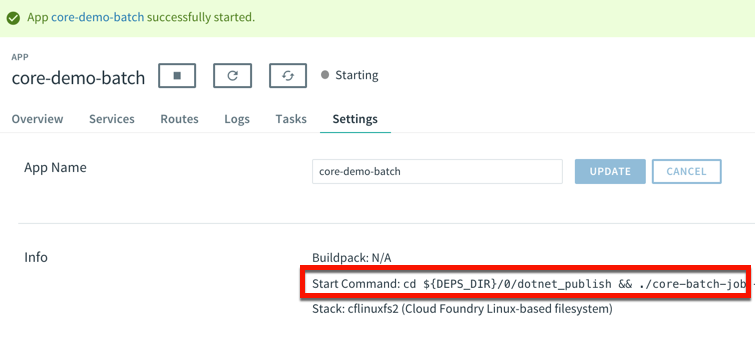
    Now, to trigger the job, I need to know the start command. This depends on how you deployed it. Since I used the .NET Core buildpack, I want to start up the app one time to discover how PCF starts up the app.

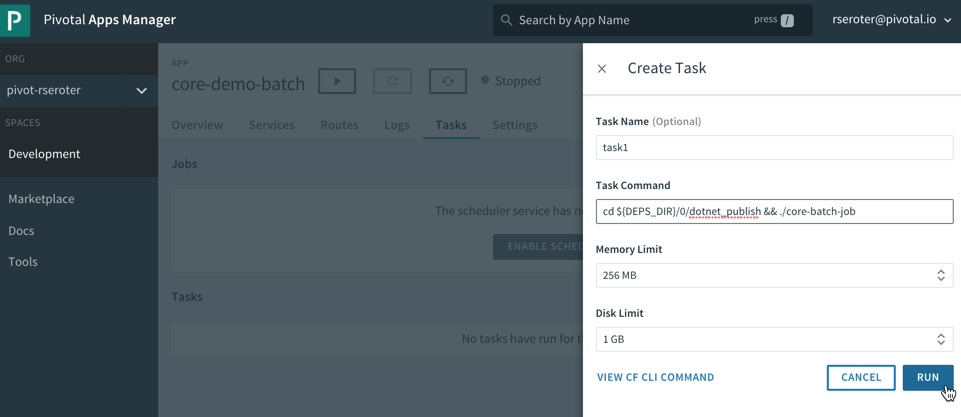
    That command showed me where the .NET Core executable lives in the container. I stopped the app again, and switched over the “Tasks” view in the PCF Apps Manager interface. I can do all these things via the CLI as well, but I’m a sucker for a nice UX. There’s a “run task” button that lets me define a one-off task definition.

    Here I gave the task a name, pasted the start command I found above, and that was it! When I hit, “run”, PCF instantiated a new container instance and shut down the container when the task was complete. And that’s what I saw. There was a log entry indicating a successful job run, and the application logs showed the output of the task. Nice!

    This is a great option for one-off jobs and scripts. Consolidate them in PCF, and get all the availability and auditing you need.

    Deploying and running scheduled jobs

    Finally, some of those one-off jobs may not be as one-off as you thought! Instead of asking your admin to trigger a task once a day to purge expired files, how about you schedule the job to run on a schedule? 

    PCF also offers a scheduling component to trigger tasks (or API calls!) on a recurring basis. On the same “tasks” tab of the PCF Apps Manager UX, there’s a “jobs” section for scheduled tasks. Besides giving the job a name and a command (the same as the task command above), you enter a Cron expression for the schedule itself. The expression is in a MIN HOUR DAY-OF-MONTH MONTH DAY-OF-WEEK format. For example “15 * ? * * *” means you should run the job every 15 minutes, and “30 10 * * 5” means you should run the job at 10:30am every Friday. My job below is set to run every minute.

    We’re all building lots of web apps nowadays, but you have lots of need for event-driven or scheduled background work. PCF may surprise you as an entirely suitable platform for those workloads.

  • Creating a continuous integration pipeline in Concourse for a test-infused ASP.NET Core app

    Creating a continuous integration pipeline in Concourse for a test-infused ASP.NET Core app

    Trying to significantly improve your company’s ability to build and run good software? Forget Docker, public cloud, Kubernetes, service meshes, Cloud Foundry, serverless, and the rest of it. Over the years, I’ve learned the most important place you should start: continuous integration and delivery pipelines. Arguably, “apps on pipeline” is the most important “transformation” metric to track. Not “deploys per day” or “number of microservices.” It’s about how many apps you’ve lit up for repeatable, automated deployment. That’s a legit measure of how serious you are about being responsive and secure.

    All this means I needed to get smarter with Concourse, one of my favorite tools for CI (and a little CD). I decided to build an ASP.NET Core app, and continuously integrate and deliver it to a Cloud Foundry environment running in AWS. Let’s go!

    First off, I needed an app. I spun up a new ASP.NET Core Web API project with a couple REST endpoints. You can grab the source code here. Most of my code demos don’t include tests because I’m in marketing now, so YOLO, but a trustworthy pipeline needs testable code. If you’re a .NET dev, xUnit is your friend. It’s maintained by my friend Brad, so I basically chose it because of peer pressure. My .csproj file included a few references to bring xUnit into my project:

    • “Microsoft.NET.Test.Sdk” Version=”15.7.0″
    • “xunit” Version=”2.3.1″
    • “xunit.runner.visualstudio” Version=”2.3.1″

    Then, I created a class to hold the tests for my web controller. I included one test with a basic assertion, and another “theory” with an input data set. These are comically simple, but prove the point!

       public class TestClass {
            private ValuesController _vc;
    public TestClass() {
                _vc = new ValuesController();
            }
    
            [Fact]
            public void Test1(){
                Assert.Equal("pivotal", _vc.Get(1));
            }
    
            [Theory]
            [InlineData(1)]
            [InlineData(3)]
            [InlineData(20)]
            public void Test2(int value) {
                Assert.Equal("public", _vc.GetPublicStatus(value));
            }
        }
    

    When I ran dotnet test against the above app, I got an expected error because the third inline data source led to a test failure, since my controller only returns “public” companies when the input value is between 1 and 10. Commenting the offending inline data source led to a successful test run.

    2018.06.06-concourse-02

    Ok, the app was done. Now, to put it on a pipeline. If you’ve ever used shameful swear words when wrangling your CI server, maybe it’s worth joining all the folks who switched to Concourse. It’s a pretty straightforward OSS tool that uses a declarative model and containers for defining and running pipelines, respectively. Getting started is super simple. If you’re running Docker on your desktop, that’s your easiest route. Just grab this Docker Compose file from the Concourse GitHub repo. I renamed mine to docker-compose.yml, jumped into a Terminal session, switched to the folder holding this YAML file, and ran docker-compose up -d. After a second or two, I had a PostgreSQL server (for state) and a Concourse server. PROVE IT, you say. Hit localhost:8080, and you’ll see the Concourse dashboard.

    2018.06.06-concourse-01

    Besides this UX, we interface with Concourse via a CLI tool called fly. I downloaded it from here. I then used fly to add my local environment as a “target” to manage. Instead of plugging in the whole URL every time I interacted with Concourse, I created an alias (“rs”) using fly -t rs login -c http://localhost:8080. If you get a warning to sync your version of fly with your version of Concourse, just enter fly -t rs sync and it gets updated. Neato.

    Next up? The pipeline. Pipelines are defined in YAML and are made up of resources and jobs. One of the great things about a declarative model, is that I can run my CI tests against any Concourse by just passing in this (source-controlled) pipeline definition. No point-and-ciick configurations, no prerequisite components to install. Love it. First up, I defined a couple resources. One was my GitHub repo, the second was my target Cloud Foundry environment. In the real world, you’d externalize the Cloud Foundry credentials, and call out to files to build the app, etc. For your benefit, I compressed to a single YAML file.

    resources:
    - name: seroter-source
      type: git
      source:
        uri: https://github.com/rseroter/xunit-tested-dotnetcore
        branch: master
    - name: pcf-on-aws
      type: cf
      source:
        api: https://api.run.pivotal.io
        skip_cert_check: false
        username: XXXXX
        password: XXXXX
        organization: seroter-dev
        space: development
    

    Those resources tell Concourse where to get the stuff it needs to run the jobs. The first job used the GitHub resource to grab the source code. Then it used the Microsoft-provided Docker image to run the dotnet test command.

    jobs:
    - name: aspnetcore-unit-tests
      plan:
        - get: seroter-source
          trigger: true
        - task: run-tests
          privileged: true
          config:
            platform: linux
            inputs:
            - name: seroter-source
            image_resource:
                type: docker-image
                source:
                  repository: microsoft/aspnetcore-build
            run:
                path: sh
                args:
                - -exc
                - |
                    cd ./seroter-source
                    dotnet restore
                    dotnet test
    

    Concourse isn’t really a CD tool, but it does a nice basic job of getting code to a defined destination. The second job deploys the code to Cloud Foundry. It also uses the source code resource and only fires if the test job succeeds. This ensures that only fully-tested code makes its way to the hosting environment. If I were being more responsible, I’d take the results of the test job, drop it into an artifact repo, and then use that artifact for deployment. But hey, you get the idea!

    jobs:
    - name: aspnetcore-unit-tests
      [...]
    - name: deploy-to-prod
      plan:
        - get: seroter-source
          trigger: true
          passed: [aspnetcore-unit-tests]
        - put: pcf-on-aws
          params:
            manifest: seroter-source/manifest.yml
    

    That was it! I was ready to deploy the pipeline (pipeline.yml) to Concourse. From the Terminal, I executed fly -t rs set-pipeline -p test-pipeline -c pipeline.yml. Immediately, I saw my pipeline show up in the Concourse Dashboard.

    2018.06.06-concourse-03

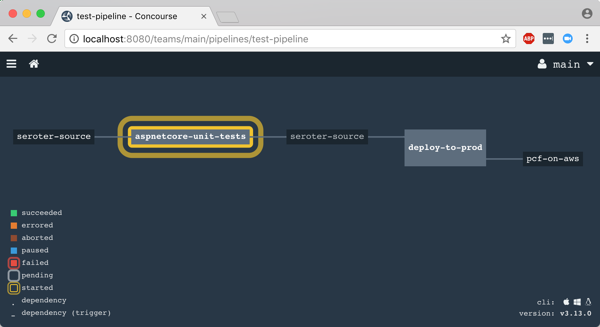
    After I unpaused my pipeline, it fired up automatically.

    2018.06.06-concourse-05

    Remember, my job specified a Microsoft-provided container for building the app. Concourse started this job by downloading the Docker image.

    2018.06.06-concourse-04

    After downloading the image, the job kicked off the dotnet test command and confirmed that all my tests passed.

    2018.06.06-concourse-06

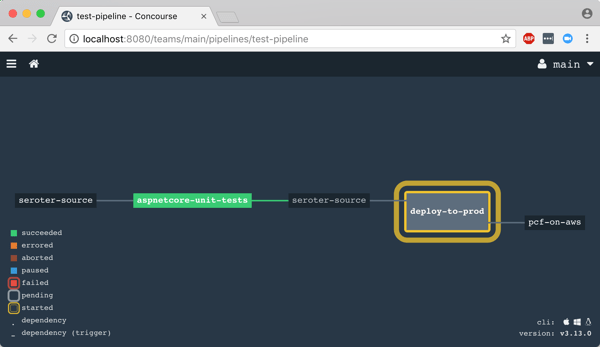
    Terrific. Since my next job was set to trigger when the first one succeeded, I immediately saw the “deploy” job spin up.

    2018.06.06-concourse-07

    This job knew how to publish content to Cloud Foundry, and used the provided parameters to deploy the app in a few seconds. Note that there are other resource types if you’re not a Cloud Foundry user. Nobody’s perfect!

    2018.06.06-concourse-08

    The pipeline run was finished, and I confirmed that the app was actually deployed.

    2018.06.06-concourse-09

    Finished? Yes, but I wanted to see a failure in my pipeline! So, I changed my xUnit tests and defined inline data that wouldn’t pass. After committing code to GitHub, my pipeline kicked off automatically. Once again it was tested in the pipeline, and this time, failed. Because it failed, the next step (deployment) didn’t happen. Perfect.

    2018.06.06-concourse-10

    If you’re looking for a CI tool that people actually like using, check out Concourse. Regardless of what you use, focus your energy on getting (all?) apps on pipelines. You don’t do it because you have to ship software every hour, as most apps don’t need it. It’s about shipping whenever you need to, with no drama. Whether you’re adding features or patching vulnerabilities, having pipelines for your apps means you’re actually becoming a customer-centric, software-driven company.

  • My latest Pluralsight course—Architecting for High Availability in Microsoft Azure—is out!

    Imagine that someone asks you to build a cloud-hosted app. So far so good. And that app should be resilient against any glitches within the data center. Um, ok. And the app should stay online even if a whole region goes offline. Wait, what? While public clouds make it easier to build highly available systems, it’s not automatic. How do you set it up? What’s your responsibility, and what does the cloud provider do for you? I answer this, and more, in my new Pluralsight course: Architecting for High Availability in Microsoft Azure.

    This course is a four hour tour through the core Azure services, and how to configure each for high availability. Along the way, we discuss general resilience patterns. To prove how things work, we also build out a reference app that shows how everything works. At the end of the course, you’ll have a good idea of how to use Azure, and configure it effectively.

    2018-05-18-pluralsight

    The six course modules are:

    Patterns for High Availability in the Cloud. Here we discuss some core ideas around highly available distributed systems, and patterns you should know.

    Provisioning Durable Azure Storage. In this module, we check out Azure Storage and how Blob, File, and Disk storage works.

    Configuring Resilient Azure Databases. Databases can be a vulnerable part of your architecture, so you need to pay special attention here. We’ll look at Azure SQL Database, Cosmos DB, Redis Cache, and more.

    Deploying Redundant Azure Compute. This is arguably what cloud was first famous for, and here we’ll play around with Azure Virtual Machines, Azure App Service, and Azure Functions.

    Scale Processing via Azure Integration Capabilities. Messaging is so hot right now! A bulletproof integration tier is critical, so we’ll dig into how to set up Azure Service Bus, Azure Event Hubs, and Azure Logic Apps for resilience.

    Configuring Uninterrupted Traffic with Azure Networking. If your assets aren’t routable, it doesn’t matter how resilient they are! In this module, we explore Azure networking services like Virtual Networks, Load Balancing, App Gateway, and Traffic Manager.

    I hope you watch this course and enjoy it. It took me months to put together, but the final result should be worth it!

  • Creating an Azure VM Scale Set from a legacy, file-sharing, ASP.NET app

    Creating an Azure VM Scale Set from a legacy, file-sharing, ASP.NET app

    In an ideal world, all your apps have good test coverage, get deployed continuously via pipelines, scale gracefully, and laugh in the face of component failure. That is decidedly not the world we live in. Yes, cloud-native apps are the goal for many, but that’s not what most people have stashed in their data center. Can those apps take some advantage of cloud platforms? For example, what if I had a classic ASP.NET Web Forms app that depends on local storage, but needs better scalability? I could refactor the app—and that might be the right thing to do—or do my best to take advantage of VM-level scaling options in the public cloud. In this demo, I’ll take the aforementioned app, and get it running Azure VM Scale Sets without any code changes.

    I’ve been messing with Azure VM Scale Sets as part of a new Pluralsight course that I’m almost done building. The course is all about creating highly-available architectures on Microsoft Azure. Scale Sets make it easy to build and manage fleets of identical virtual machines. In our case here, I want to take an ASP.NET app and throw it into a Scale Set. This exercise requires four steps:

    1. Create and configure a Windows virtual machine in Microsoft Azure. Install IIS, deploy the app, and make sure everything works.
    2. Turn the virtual machine into an image. Sysprep the machine and create an image in Azure for the Scale Set to use.
    3. Create the Azure VM Scale Set. Run a command, watch it go. Configure the load balancer to route traffic to the fleet.
    4. Create a custom extension to update the configuration on each server in the fleet. IIS gets weird on sysprep, so we need Azure to configure each existing (and new) server.

    Ok, let’s do this.

    Step 1: Create and configure a Windows virtual machine in Microsoft Azure.

    While I could take a virtual machine from on-premises and upload it, let’s start from scratch and build a fresh environment.

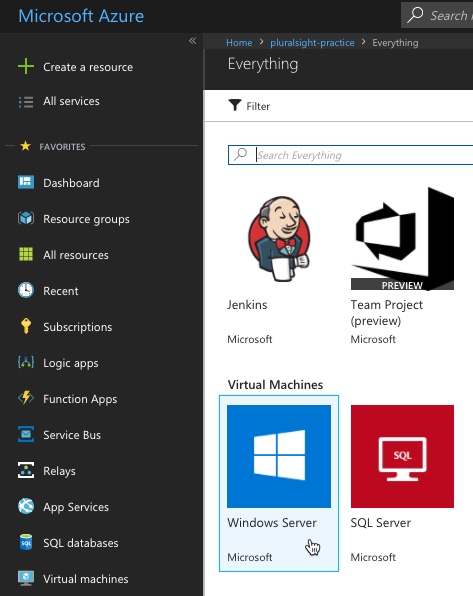
    First off, I went to the Microsoft Azure portal and initiated the build of a new Windows Server VM.

    2018.04.17-azvmss-01

    After filling out the required fields and triggering the build, I had a snazzy new VM after a few minutes. I clicked the “connect” button on the portal to get a local RDP file with connection details.

    2018.04.17-azvmss-04

    Before connecting the VM, I needed to set up a file share. This ASP.NET app reads files from a file location, then submits the content to an endpoint. If the app uses local storage, then that’s a huge problem for scalability. If that VM disappears, so does the data! So we want to use a durable network file share that a bunch of VMs can share. Fortunately, Azure has such a service.

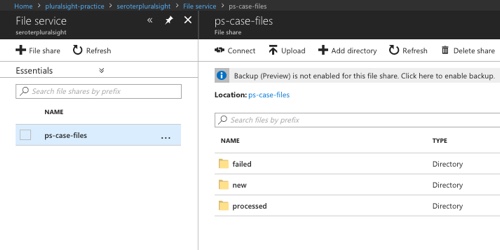
    I went into the Azure Portal and provisioned a new storage account, and then set up the file structure that my app expects.

    2018.04.17-azvmss-03

    How do I get my app to use this? My ASP.NET app gets its target file location from a configuration property in its web.config file. No need to chase down source code to use a network file share instead of local storage! We’ll get to that shortly.

    With my storage set up, I proceeded to connect to my virtual machine. Before starting the RDP session, I added a link to my local machine so that I could transfer the app’s code to the server.

    2018.04.17-azvmss-05

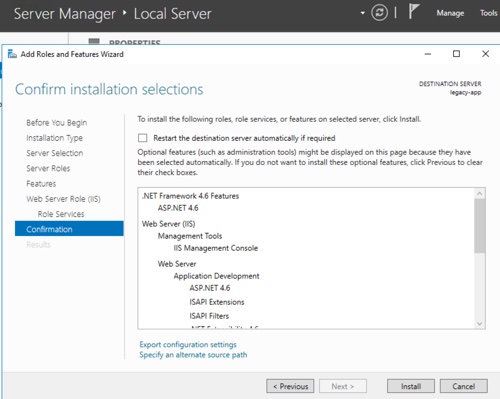
    Once connected, I proceeded to install the IIS web server onto the box. I also made sure to add ASP.NET support to the web server, which I forget to do roughly 84% of the time.

    2018.04.17-azvmss-07

    Now I had a web server ready to go. Next up? Copying files over. Here, I just took content from a local folder and put it into the wwwroot folder on the server.

    2018.04.17-azvmss-08

    My app was almost ready to go, but I still needed to update the web.config to point to my Azure file storage.

    2018.04.17-azvmss-09

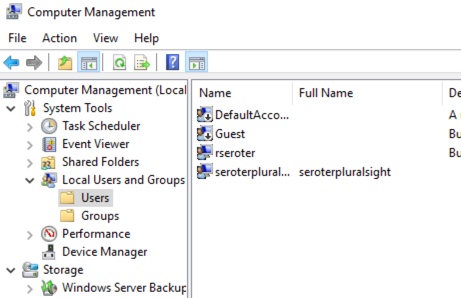
    Now, how does my app authenticate with this secure file share? There’s a few ways you could try and do it. I chose to create a local user with access to the file share, and run my web app in an application pool acting as that user. That user was named seroterpluralsight.

    2018.04.17-azvmss-10

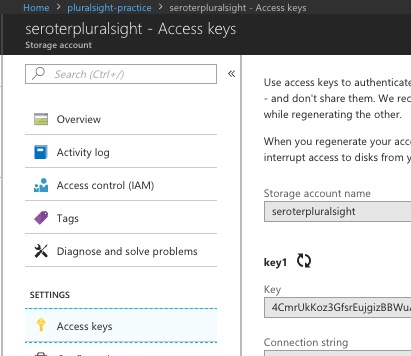
    What are the credentials? The name of the user should be the name of the Azure storage account, and the user’s password is the account key.

    2018.04.17-azvmss-11

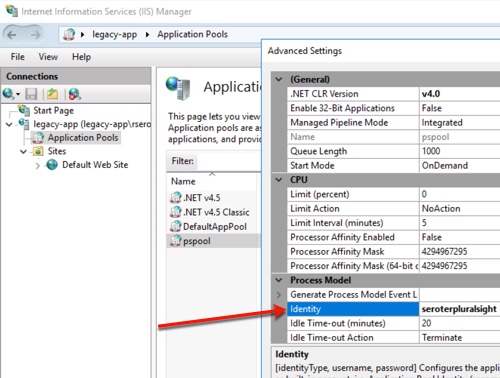
    Finally, I created a new IIS application pool (pspool) and set the identity to the serverpluralsight user.

    2018.04.17-azvmss-12

    With that, I started up the app, and sure enough, was able to browse the network file share without any issue.

    2018.04.17-azvmss-13

    Step 2: Turn the virtual machine into an image

    The whole point of a Scale Set is that I have a scalable set of uniform servers. When the app needs to scale up, Azure just adds another identical server to the pool. So, I need a template!

    Note: There are a couple ways to approach this feature. First, you could just build a Scale Set from a generic OS image, and then bootstrap it by running installers to prepare it for work. This means you don’t have to build and maintain a pre-built image. However, it also means it takes longer for the new server to become a useful member of the pool. Bootstrapping or pre-building images are both valid options. 

    To create a template from a Windows machine, I needed to sysprep it. Doing this removes lots of user specific things, including mapped drives. So while I could have created a mapped drive from Azure File Storage and accessed files from the ASP.NET app that way, the drive goes away when I sysprep. I decided to just access the file share via the network path and not deal with a mapped drive.

    2018.04.17-azvmss-14

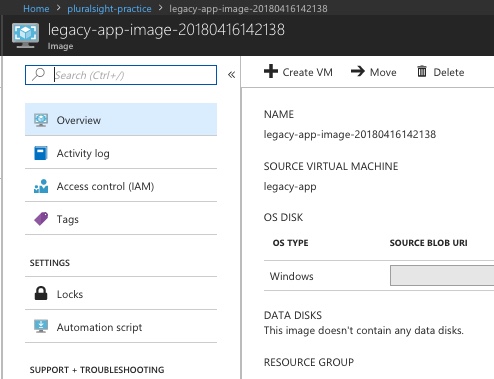
    With the machine now generalized and shut down, I returned to the Azure Portal and clicked the “capture” button. This creates an Azure image from the VM and (optionally) destroys the original VM.

    2018.04.17-azvmss-15

    Step #3: Create the Azure VM Scale Set

    I now had everything needed to build the Scale Set. If you’re bootstrapping a server (versus using a pre-built image) you can create a Scale Set from the Azure Portal. Since I am using a pre-built image, I had to dip down to the CLI. To make it more fun, I used the baked-in Azure Cloud Shell instead of the console on my own machine. Before crafting the command to create the Scale Set, I grabbed the ID of the VM template. You can get this by copying the Resource ID from the Azure image page on the Portal.

    2018.04.17-azvmss-16

    With that ID, I put together the command for instantiating the Scale Set.

    
    az vmss create -n psvmss -g pluralsight-practice --instance-count 2 --image /subscriptions/[subscription id]/resourceGroups/pluralsight-practice/providers/Microsoft.Compute/images/[image id] --authentication-type password --admin-username legacyuser --admin-password [password] --location eastus2 --upgrade-policy-mode Automatic --load-balancer ps-loadbalancer --backend-port 3389


    Let’s unpack that. I specified a name for my Scale Set (“psvmss”) told it which resource group to add this to (“pluralsight-practice”), set a default number of VM instances, pointed it to my pre-built image, set password authentication for the VMs and provided credentials, set the geographic location, told the Scale Set to automatically apply changes, and defined a load balancer (“ps-loadbalancer”). After a few minutes, I had a Scale Set.

    2018.04.17-azvmss-19

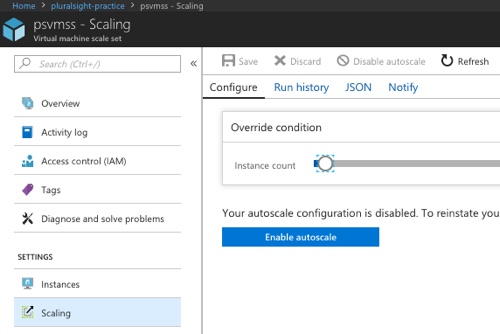
    Neato. Once that Scale Set is in place, I could still RDP into individual boxes, but they’re meant to be managed as a fleet.

    Step #4: Create a custom extension to update the configuration on each server in the fleet.

    As I mentioned earlier, we’re not QUITE done yet. When you sysprep a Windows box that has an IIS app pool with a custom user, the server freaks out. Specifically, it still shows that user as the pool’s identity, but the password gets corrupted. Seems like a known thing. I could cry about it, or do something to fix it. Fortunately, Azure VMs (and Scale Sets) have the idea of “custom script extensions.” These are scripts that can apply to one or many VMs. In my case, what I needed was a script that reset the credentials of the application pool user.

    First, I created a new Powershell script (“config-app-pool.ps1”) that set the pool’s identity.

    
    Import-Module WebAdministration
    
    Set-ItemProperty IIS:\AppPools\pspool -name processModel -value @{userName="seroterpluralsight"; password="[password]";identitytype=3}


    I uploaded that file to my Azure Storage account. This gives me a storage location that the Scale Set can use to retrieve these settings later.

    Next, I went back to the Cloud Shell to create couple local files used by the extension command. First, I created a file called public-settings.json that stored the location of the above Powershell script.

    
    {
    
    "fileUris": ["https://seroterpluralsight.blob.core.windows.net/scripts/config-app-pool.ps1"]
    
    }


    Then I created a protected-settings.json file. These values get encrypted are only decrypted on the VM when the script runs.

    
    {
    
    "commandToExecute": "powershell -ExecutionPolicy Unrestricted -File config-app-pool.ps1", "storageAccountName": "seroterpluralsight", "storageAccountKey": "[account key]"
    
    }


    That file tells the extension what to actually do with the file it downloaded from Azure Storage, and what credentials to use to access Azure Storage.

    Ok, now I could setup the extension. Once the extension is in place, it applies to every VM in the Scale Set now, or in the future.

    
    az vmss extension set --resource-group pluralsight-practice --vmss-name psvmss --name customScriptExtension --publisher Microsoft.Compute --settings ./public-settings.json --protected-settings ./protected-settings.json


    Note that if you’re doing this against Linux boxes, the “name” and “publisher” have different values.

    That’s pretty much it. Once i extended the generated load balancer with rules to route on port 80, I had everything I needed.

    2018.04.17-azvmss-20

    After pinging the load balanced URL, I saw my “legacy” ASP.NET application served up from multiple VMs, all with secure access to the same file share. Terrific!

    2018.04.17-azvmss-21

    Long term, you’ll be better off refactoring many of your apps to take advantage of what the cloud offers. A straight up lift-and-shift often resembles transferring debt from one credit card to another. But, some apps don’t need many changes at all to get some incremental benefits from cloud, and Scale Sets could be a useful route for you.

  • 2017 in Review: Reading and Writing Highlights

    kid-3What a fun year. Lots of things to be grateful for. Took on some more responsibility at Pivotal, helped put on a couple conferences, recorded a couple dozen podcast episodes, wrote news/articles/eMags for InfoQ.com, delivered a couple Pluralsight courses (DevOps, and Java related), received my 10th straight Microsoft MVP award, wrote some blog posts, spoke at a bunch of conferences, and added a third kid to the mix.

    Each year, I like to recap some of the things I enjoyed writing and reading. Enjoy!

    Things I Wrote

    I swear that I’m writing as much as I ever have, but it definitely doesn’t all show up in one place anymore! Here are a few things I churned out that made me happy.

    Things I Read

    I plowed through thirty four books this year, mostly on my wonderful Kindle. As usual, I choose a mix of biographies, history, sports, religion, leadership, and mystery/thriller. Here’s a handful of the ones I enjoyed the most.

    • Apollo 8: The Thrilling Story of the First Mission to the Moon, by Jeffrey Kluger (@jeffreykluger). Brilliant storytelling about our race to the moon. There was a perfect mix of character backstory, science, and narrative. Really well done.
    • Boyd: The Fighter Pilot Who Changed the Art of War, by Robert Coram (@RobertBCoram). I had mixed feelings after finishing this. Boyd’s lessons on maneuverability are game-changing. His impact on the world is massive. But this well-written story also highlights a man obsessed; one who grossly neglected his family. Important book for multiple reasons.
    • The Game: Inside the Secret World of Major League Baseball’s Power Brokers, by Jon Pessah (@JonPessah). Gosh, I love baseball books. This one highlights the Bud Selig era as commissioner, the rise of steroid usage, complex labor negotiations, and the burst of new stadiums. Some amazing behind-the-scenes insight here.
    • Not Forgotten: The True Story of My Imprisonment in North Korea, by Kenneth Bae. One might think that an American held in captivity by North Koreans longer than anyone since the Korean War would be angry. Rather, Bae demonstrates sympathy and compassion for people who aren’t exposed to a better way. Good story.
    • Shoe Dog: A Memoir by the Creator of Nike, by Phil Knight (@NikeUnleash). I went and bought new Nikes after this. MISSION ACCOMPLISHED PHIL KNIGHT. This was a fantastic book. Knight’s passion and drive to get Blue Ribbon (later, Nike) off the ground was inspiring. People can create impactful businesses even if they don’t feel an intense calling, but there’s something special about those that do.
    • Dynasty: The Rise and Fall of the House of Cesar, by Tom Holland (@holland_tom). This is somewhat of a “part 2” from Holland’s previous work. Long, but engaging, this book tells the tale of the first five emperors. It’s far from a dry history book, as Holland does a admirable job weaving specific details into an overarching story. Books like this always remind me that nothing happens in politics today that didn’t already happen thousands of years ago.
    • Avenue of Spies: A True Story of Terror, Espionage, and One American Family’s Heroic Resistance in Nazi-Occupied Paris, by Alex Kershaw (@kershaw_alex). Would you protect the most vulnerable, even if your life was on the line as a result? Many during WWII faced that choice. This book tells the story of one family’s decision, the impact they had, and the hard price they paid.
    • Stalling for Time: My Life as an FBI Hostage Negotiator, by Gary Noesner. Fascinating book that explains the principles of hostage negotiation, but also lays out the challenge of introducing it to an FBI conditioned to respond with force. Lots of useful nuggets in here for people who manage complex situations and teams.
    • The Things Our Fathers Saw: The Untold Stories of the World War II Generation from Hometown, USA, by Matthew Rozell (@marozell). Intensely personal stories from those who fought in WWII, with a focus on the battles in the Pacific. Harrowing, tragic, inspiring. Very well written.
    • I Don’t Have Enough Faith to Be an Atheist, by Norman Geisler (@NormGeisler) and Frank Turek (@Frank_Turek). Why are we here? Where did we come from? This book outlines the beautiful intersection of objective truth, science, philosophy, history, and faith. It’s a compelling arrangement of info.
    • The Late Show, by Michael Connelly (@Connellybooks). I’d read a book on kangaroo mating rituals if Connelly wrote it. Love his stuff. This new cop-thriller introduced a multi-dimensional lead character. Hopefully Connelly builds a new series of books around her.
    • The Toyota Way: 14 Management Principles from the World’s Greatest Manufacturer, by Jeffrey Liker. Ceremonies and “best practices” don’t matter if you have the wrong foundation. Liker’s must-read book lays out, piece by piece, the fundamental principles that help Toyota achieve operational excellence. Everyone in technology should read this and absorb the lessons. It puts weight behind all the DevOps and continuous delivery concepts we debate.
    • One Mission: How Leaders Build a Team of Teams, by Chris Fussell (@FussellChris). I read, and enjoyed, Team of Teams last year. Great story on the necessity to build adaptable organizations. The goal of this book is to answer *how* you create an adaptable organization. Fussell uses examples from both military and private industry to explain how to establish trust, create common purpose, establish a shared consciousness, and create spaces for “empowered execution.”
    • Win Bigly: Persuasion in a World Where Facts Don’t Matter, by Scott Adams (@ScottAdamsSays). What do Obama, Steve Jobs, Madonna, and Trump have in common? Remarkable persuasion skills, according to Adams. In his latest book, Adams deconstructs the 2016 election, and intermixes a few dozen persuasion tips you can use to develop more convincing arguments.
    • Value Stream Mapping: How to Visualize Work and Align Leadership for Organizational Transformation, by Karen Martin (@KarenMartinOpEx) and Mike Osterling (@leanmike). How does work get done, and are you working on things that matter? I’d suspect that most folks in IT can’t confidently answer either of those questions. That’s not the way IT orgs were set up. But I’ve noticed a change during the past year+, and there’s a renewed focus on outcomes. This book does a terrific job helping you understand how work flows, techniques for mapping it, where to focus your energy, and how to measure the success of your efforts.
    • The Five Dysfunctions of a Team, by Patrick Lencioni (@patricklencioni). I’ll admit that I’m sometimes surprised when teams of “all stars” fail to deliver as expected. Lencioni spins a fictitious tale of a leader and her team, and how they work through the five core dysfunctions of any team. Many of you will sadly nod your head while reading this book, but you’ll also walk away with ideas for improving your situation.
    • Setting the Table: The Transforming Power of Hospitality in Business, by Danny Meyer (@dhmeyer). How does your company make people feel? I loved Meyer’s distinction between providing a service and displaying hospitality in a restaurant setting, and the lesson is applicable to any industry. A focus on hospitality will also impact the type of people you hire. Great book that that leaves you hungry and inspired.
    • Extreme Ownership: How U.S. Navy SEALs Lead and Win, by Jocko Willink (@jockowillink) and Leif Babin (@LeifBabin). As a manager, are you ready to take responsibility for everything your team does? That’s what leaders do. Willink and Babin explain that leaders take extreme ownership of anything impacting their mission. Good story, with examples, of how this plays out in reality. Their advice isn’t easy to follow, but the impact is undeniable.
    • Strategy: A History, by Sir Lawrence Freedman (@LawDavF). This book wasn’t what I expected—I thought it’d be more about specific strategies, not strategy as a whole. But there was a lot to like here. The author looks at how strategy played a part in military, political, and business settings.
    • Radical Candor: Be a Kick-Ass Boss Without Losing Your Humanity, by Kim Scott (@kimballscott). I had a couple hundred highlights in this book, so yes, it spoke to me. Scott credibly looks at how to guide a high performing team by fostering strong relationships. The idea of “radical candor” altered my professional behavior and hopefully makes me a better boss and colleague.
    • The Lean Startup: How’s Today’s Entrepreneurs Use Continuous Innovation to Create Radically Successful Businesses, by Eric Ries (@ericries). A modern classic, this book walks entrepreneurs through a process for validated learning and figuring out the right thing to build. Ries sprinkles his advice with real-life stories as proof points, and offers credible direction for those trying to build things that matter.
    • Hooked: How to Build Habit-Forming Products, by Nir Eyal (@nireyal). It’s not about tricking people into using products, but rather, helping people do things they already want to do. Eyal shares some extremely useful guidance for those building (and marketing) products that become indispensable.
    • The Art of Action: How Leaders Close the Gap between Plans, Actions, and Results, by Stephen Bungay. Wide-ranging book that covers a history of strategy, but also focuses on techniques for creating an action-oriented environment that delivers positive results.

    Thank you all for spending some time with me in 2017, and I look forward to learning alongside you all in 2018.