Category: Dynamics CRM

  • My New Pluralsight Course – Patterns of Cloud Integration – Is Now Live

    I’ve been hard at work on a new Pluralsight video course and it’s now live and available for viewing. This course, Patterns of Cloud Integration,  takes you through how application and data integration differ when adding cloud endpoints. The course highlights the 4 integration styles/patterns introduced in the excellent Enterprise Integration Patterns book and discusses the considerations, benefits, and challenges of using them with cloud systems. There are five core modules in the course:

    • Integration in the Cloud. An overview of the new challenges of integrating with cloud systems as well as a summary of each of the four integration patterns that are covered in the rest of the course.
    • Remote Procedure Call. Sometimes you need information or business logic stored in an independent system and RPC is still a valid way to get it. Doing this with a cloud system on one (or both!) ends can be a challenge and we cover the technologies and gotchas here.
    • Asynchronous Messaging. Messaging is a fantastic way to do loosely coupled system architecture, but there are still a number of things to consider when doing this with the cloud.
    • Shared Database. If every system has to be consistent at the same time, then using a shared database is the way to go. This can be a challenge at cloud scale, and we review some options.
    • File Transfer. Good old-fashioned file transfers still make sense in many cases. Here I show a new crop of tools that make ETL easy to use!

    Because “the cloud” consists of so many unique and interesting technologies, I was determined to not just focus on the products and services from any one vendor. So, I decided to show off a ton of different technologies including:

    Whew! This represents years of work as I’ve written about or spoken on this topic for a while. It was fun to collect all sorts of tidbits, talk to colleagues, and experiment with technologies in order to create a formal course on the topic. There’s a ton more to talk about besides just what’s in this 4 hour course, but I hope that it sparks discussion and helps us continue to get better at linking systems, regardless of their physical location.

  • ETL in the Cloud with Informatica: Part 3 – Sending Dynamics CRM Online Data to Local Database

    In Part 1 and Part 2 of this series, I’ve taken a look at doing Extract-Transform-Load (ETL) operations using the Informatica Cloud. This platform looks like a great choice for bulk movement of data between cloud or on-premises systems. So far we’ve seen how to move data from on-premises to the cloud, and then between clouds. In this post, I’ll show you how you can transfer data from a cloud application (Dynamics CRM Online) to a SQL Server database running onsite.

    As a reminder, in this four-part blog series, I am walking through the following scenarios:

    Scenario Summary

    For this demo, I’ll be building a solution that looks like this:

    2012.03.26informatica29

    For this case, I (1) build the ETL package using the Informatica Cloud’s web-based designer, (2) the Cloud Secure Agent retrieves the ETL details when the task is triggered, (3) the data is retrieved from Dynamics CRM Online, and (4) the data is loaded into a SQL Server database.

    You can probably think of many scenarios where this situation will apply. For example, good practices for cloud applications often state that you keep onsite backups of your data. This is one way to do that on a daily schedule. In another case, you may have very complex reporting needs and cannot accomplish them using Dynamic CRM Online’s built in reporting capability, so a local, transformed replica makes sense.

    Let’s see how to make this happen.

    Setting up the Target Database

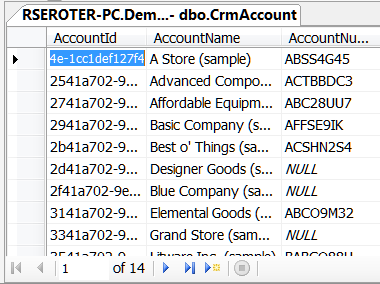
    First up, I created a database table in my SQL Server 2008 R2 instance. This table, called CrmAccount holds a few of the attributes that reside in the Dynamics CRM Online “Account” entity.

    2012.03.26informatica30

    Next, I added a new Login to my Instance and switched my server to accept both Windows Authentication *and* SQL Server authentication. Why? During some trial runs with this, I couldn’t seem to get integrated authentication to work in the Informatica Cloud designer. When I switched to a local DB account, the connection worked fine.

    After this, I confirmed that I had TCP/IP enabled since the Cloud Secure Agent uses this port for connecting to my server.

    2012.03.26informatica31

    Building the ETL Package

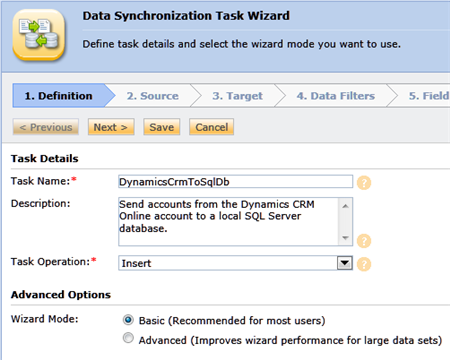
    With all that set up, now we can build our ETL task in the Informatica Cloud environment. The first step in the Data Synchronization wizard is to provide a name for my task and choose the type of operation (e.g. Insert, Update, Upsert, Delete).

    2012.03.26informatica32

    Next, I’ll chose my Source. In this step, I reused the Dynamics CRM Online connection that I created in the first post of the series. After choosing that connection, I selected the Account entity as my Source Object. A preview of the data was then automatically shown.

    2012.03.26informatica33

    With my source in place, I moved on to define my target. In this case, my target is going to involve a new SQL Server connection. To create this connection, I supplied the name of my server, instance (if applicable), database, credentials (for the SQL Server login account) and port number.

    2012.03.26informatica34

    Once I defined the connection, the drop down list (Target Object) was auto-populated with the tables in my database. I selected CrmAccount and saw a preview of my (empty) table.

    2012.03.26informatica35

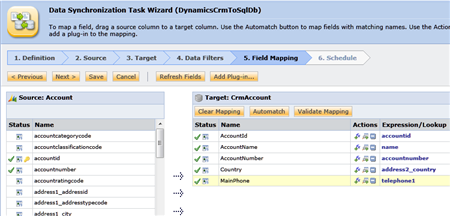
    On the next wizard page, I decided to not apply any filters on the Dynamics CRM Online data. So, ALL accounts should be copied over to my database table. I was now ready for the data mapping exercise. The following wizard page let me drag-and-drop fields from the source (Dynamics CRM Online) to the target (SQL Server 2008 R2).

    2012.03.26informatica36

    On the last page of the wizard, I chose to NOT run this task on a schedule. I could set this run every five minutes, or once a week. There’s lots of flexibility in this.

    Testing the ETL

    Let’s test this out. In my list of Data Synchronization Tasks I can see the tasks from the last two posts, and a new tasks representing what we created above.

    2012.03.26informatica37

    By clicking the green Run Now button, I can kick off this ETL. As an aside, the Informatica Cloud exposes a REST API where among other things, you can make a web request that kicks off a task on demand. That’s a neat feature that can come in handy if you have an ETL that runs infrequently, but a need arises for it to run RIGHT NOW. In this case, I’m going with the Run Now button.

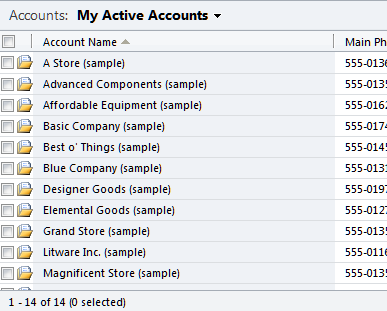
    To compare results, I have 14 account records in my Dynamics CRM Online organization.

    2012.03.26informatica38

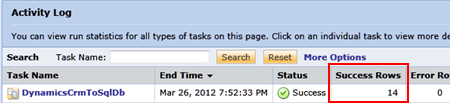
    I can see in my Informatica Cloud Activity Log that the ETL task completed and 14 records moved over.

    2012.03.26informatica39

    To be sure, I jumped back to my SQL Server database and checked out my table.

    2012.03.26informatica40

    As I expected,  I can see 14 new records in my table. Success!

    Summary

    Sending data from a cloud application to an on-premises database is a realistic use case and hopefully this demo showed how easily it can be accomplished with the Informatica Cloud. The database connection is relatively straightforward and the data mapping tool should satisfy most ETL needs.

    In the next post of this series, I’ll show you how to send data, in real-time, from Salesforce.com to a SQL Server database.

  • ETL in the Cloud with Informatica: Part 2 – Sending Salesforce.com Data to Dynamics CRM Online

    In my last post, we saw how the Informatica Cloud lets you create bulk data load (i.e. ETL) tasks using a web-based designer and uses a lightweight local machine agent to facilitate the data exchange. In this post, I’ll show you how to transfer data from Salesforce.com to Dynamics CRM Online using the Informatica Cloud.

    In this four-part blog series, I will walk through the following scenarios:

    Scenario Summary

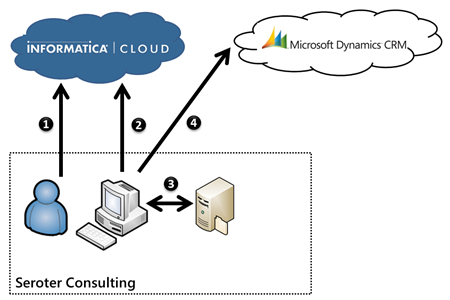
    In this post, I’ll build the following solution.

    2012.03.26informatica17

    In this solution, (1) I leverage the web-based designer to craft the ETL between Salesforce.com and Dynamics CRM Online, (2) use a locally installed Secure Cloud Agent to retrieve ETL details, (3) pull data from Salesforce.com, and finally (4) move that data into Dynamics CRM Online.

    What’s interesting is that even though this is a “cloud only” ETL, the Informatica Cloud solution still requires the use of the Cloud Secure Agent (installed on-premises) to facilitate the actual data transfer.

    To view some of the setup steps (such as signing up for services and installing required software), see the first post in this series.

    Building the ETL Package

    To start with, I logged into the Informatica Cloud and created a new Data Synchronization task.

    2012.03.26informatica18

    On the next wizard page, I created a new connection type for Salesforce.com and provided all the required credentials.

    2012.03.26informatica19

    With that in place, I could select that connection, the entity (“Contact”) to pull data from, and see a quick preview of that data in my Salesforce.com account.

    2012.03.26informatica20

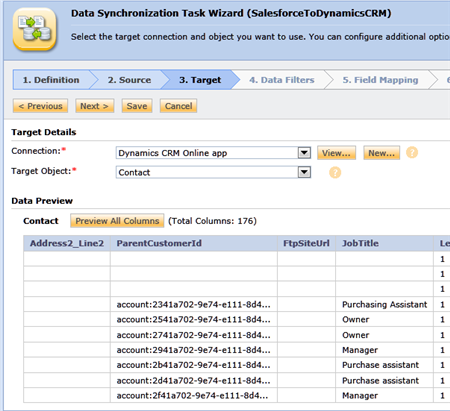
    On the next wizard page, I configured a connection to my ETL target. I chose an existing Dynamics CRM Online connection, and selected the “Contact” entity.

    2012.03.26informatica21

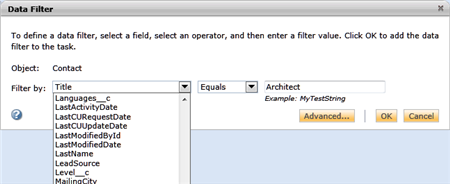
    Instead of transferring all the data from my Salesforce.com organization to my Dynamics CRM Online organization, I  used the next wizard page to define a data filter. In my case, I’m only going to grab Salesforce.com contacts that have a title of “Architect”.

    2012.03.26informatica22

    For the data mapping exercise, it’s nice that the Informatica tooling automatically links fields through its Automatch capability. In this scenario, I didn’t do any manual mapping and relied solely on Automatch.

    2012.03.26informatica23

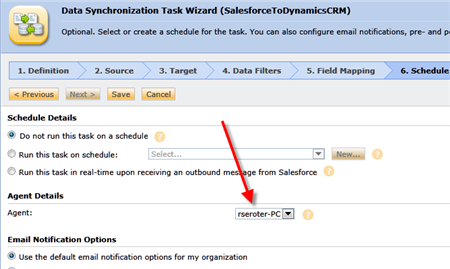
    While, like in my first post, I chose not to schedule this task, you’ll notice here that I *have* to select a Secure Cloud Agent. The agent is responsible for executing the ETL task after retrieving the details of the task from the Informatica Cloud.

    2012.03.26informatica24

    This ETL is now complete.

    Testing the ETL

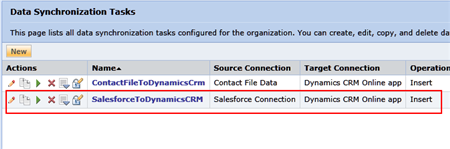
    In my list of Data Synchronization Tasks list, I can see my new task. The green Run Now button will trigger the task.

    2012.03.26informatica25

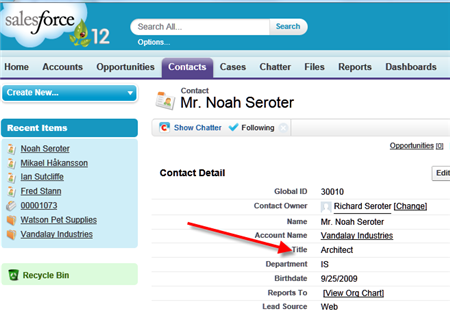
    I have this record in my Salesforce.com application. Notice the “title” of Architect.

    2012.03.26informatica26

    After a few moments, the task runs and I could see in the Informatica Cloud’s Activity Log that this task completed successfully.

    2012.03.26informatica27

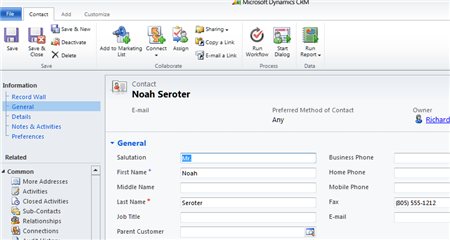
    To be absolutely sure, I logged into my Dynamics CRM Online account, and sure enough, I now have that one record added.

    2012.03.26informatica28

    Summary

    There are lots of reasons to do ETL between cloud applications. While Salesforce.com and Dynamics CRM Online are competing products, many large organizations are going to likely leverage both platforms for different reasons. Maybe you’ll have your sales personnel use Salesforce.com for traditional sales functions, and use Dynamics CRM Online for something like partner management. Either way, it’s great to have the option to easily move data between these environments without having to install and manage enterprise software on site.

    Next up, I’ll show you how to take Dynamics CRM Online data and push it to an on-premises database.

  • ETL in the Cloud with Informatica: Part 1 – Sending File Data to Dynamics CRM Online

    The more software systems that we deploy to cloud environments, the greater the need will be to have an efficient integration strategy. Integration through messaging is possible through something like an on-premises integration server, or via a variety of cloud tools such as queues hosted in AWS or something like the Windows Azure Service Bus Relay. However, what if you want to do some bulk data movement with Extract-Transform-Load (ETL) tools that cater to cloud solutions? One of the market leaders in the overall ETL market, Informatica, has also established a strong integration-as-a-service offering with its Informatica Cloud. They recently announced support for Dynamics CRM Online as a source/destination for ETL operations, so I got inspired to give their platform a whirl.

    Informatica Cloud supports a variety of sources/destinations for ETL operations and leverages a machine agent (“Cloud Secure Agent”) for securely connecting on-premises environments to cloud environments. Instead of installing any client development tools, I can design my ETL process entirely through their hosted web application. When the ETL process executes, the Cloud Secure Agent retrieves the ETL details from the cloud and runs the task. There is  no need to install or maintain a full server product for hosting and running these tasks. The Informatica Cloud doesn’t actually store any transactional data itself, and acts solely as a passthrough that executes the package (through the Cloud Secure Agent) and moves data around. All in all, neat stuff.

    In this four-part blog series, I will walk through the following scenarios:

    Scenario Summary

    So what are we building in this post?

    2012.03.26informatica01

    What’s going to happen is that (1) I’ll use the Informatica Cloud to define an ETL that takes a flat file from my local machine and copies the data to Dynamics CRM Online, (2) the Secure Cloud Agent will communicate with the Informatica Cloud to get the ETL details, (3) the Secure Cloud Agent retrieves the flat file from my local machine, and finally (4) the package runs and data is loaded into Dynamics CRM Online.

    Sound good? Let’s jump in.

    Setup

    In this first post of the blog series, I’ll outline a few of the setup steps that I followed to get everything up and running. In subsequent posts, I’ll skip over this. First, I used my existing, free, Salesforce.com Developer account. Next, I signed up for a 30-day free trial of Dynamics CRM Online. After that, I signed up for a 30-day free trial of the Informatica Cloud.

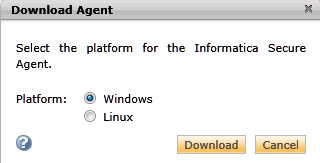
    Finally, I downloaded the Informatica agent to my local machine.

    2012.03.26informatica02

    Once the agent is installed, I can manage it through a simple console.

    2012.03.26informatica03

    Building the ETL Package

    To get started, I logged into my Informatica Cloud account and walked through their Data Synchronization wizard. In the first step, I named my Task and chose to do an Insert operation.

    2012.03.26informatica04

    Next, I chose to create a “flat file” connection type. This requires my Agent to have permissions on my file system, so I set the Agent’s Windows Service to run as a trusted account on my machine.

    2012.03.26informatica05

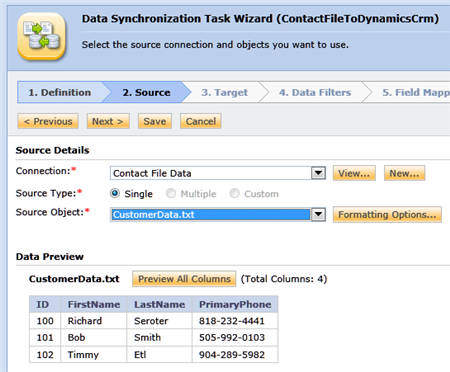
    With the connection defined, I could then choose to use a comma delimited formatter, and chose the text file in the “temp” directory I had selected above. I can immediately see a preview that showed how my data was parsed.

    2012.03.26informatica06

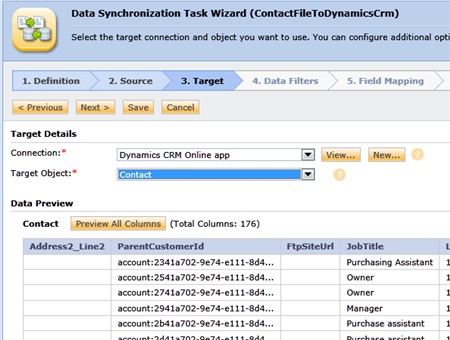
    On the next wizard page, I chose to create a new target connection. Here I selected Dynamics CRM Online as my destination system, and filled out the required properties (e.g. user ID, password, CRM organization name).

    2012.03.26informatica07

    Note that the Organization Name above is NOT the Organization Unique Name that is part of the Dynamics CRM Online account and viewable from the Customizations -> Developer Resources page.

    2012.03.26informatica08

    Rather, this is the Organization Name that I set up when signed up for my free trial. Note that this value is also case sensitive. Once I set this connection, an automatic preview of the data in that Dynamics CRM entity was shown.

    2012.03.26informatica09

    On the next wizard page, I kept the default options and did NOT add any filters to the source data.

    2012.03.26informatica10

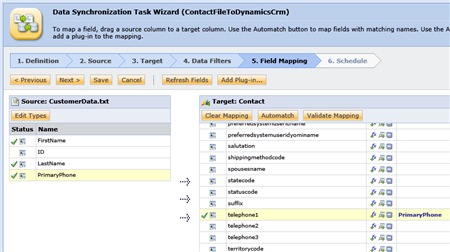
    Now we get to the fun part. The Field Mapping page is where I set which source fields go to which destination fields. The interface supports drag and drop between the two sides.

    2012.03.26informatica11

    Besides straight up one-to-one mapping, you can also leverage Expressions when conditional logic or field manipulation is needed. In the picture below, you can see that I added a concatenation function to combine the FirstName and LastName fields and put them into a FullName field.

    2012.03.26informatica12

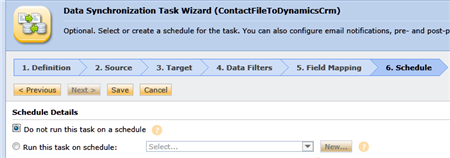
    In addition to Expressions, we also have the option of adding Lookups to the mapping. A lookup allows us to pull in one value (e.g. City) based on another (e.g. Zip) that may be in an entirely different source location. The final step of the wizard involves defining a schedule for running this task. I chose to have “no schedule” which means that this task is run manually.
    2012.03.26informatica13

    And that’s it! I now have an Informatica package that can be run whenever I want.

    Testing the ETL

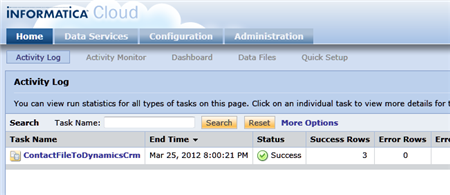
    We’re ready to try this out. The Tasks page shows all my available tasks, and the green Run Now button will kick the ETL off. Remember that my Cloud Secure Agent must be up and running for this to work. After starting up the job, I was told that it make take a few minutes to launch and run. Within a couple minutes, I saw a “success” message in my Activity Log.

    2012.03.26informatica15

    But that doesn’t prove anything! Let’s look inside my Dynamics CRM Online application and locate one of those new records.

    2012.03.26informatica16

    Success! My three records came across, and in the record above, we can see that the first name, last name and phone number were transferred over.

    Summary

    That was pretty straightforward. As you can imagine, these ETLs can get much more complicated as you have related entities and such. However, this web-based ETL designer means that organizations will have a much simpler maintenance profile since they don’t have to host and run these ETLs using on-premises servers.

    Next up, I’ll show you how you can move data between two entirely cloud-based environments: Salesforce.com and Dynamics CRM Online.

  • Microsoft Dynamics CRM Online: By the Numbers

    I’ve enjoyed attending Microsoft’s 2012 Convergence Conference, and one action item for me is to take another look at Dynamics CRM Online. Now, one reason that I spend more time playing with Salesforce.com instead of Dynamics CRM Online is because Salesforce.com has a free tier, and Dynamics CRM Online only has a 30 day trial. They really need to change that. Regardless, I’ve also focused more on Salesforce.com because of their market leading position and the perceived immaturity of Microsoft’s business solutions cloud. After attending a few different sessions here, I have to revisit that opinion.

    I sat through a really fascinating breakout session about how Microsoft operates its (Dynamics) cloud business. The speaker sprinkled various statistics throughout his presentation, so I gathered them all up and have included them here.

    30,000. Number of engineers at Microsoft doing cloud-related work.

    2,000. Number of people managing Microsoft online services.

    1,000. Number of servers that power Dynamics CRM Online.

    99.9%. Guaranteed uptime per month (44 minutes of downtime allowed). Worst case, there is 5-15 minutes worth of data loss (RPO).

    41. Number of global markets in which CRM Online is available for use.

    40+. Number of different cloud services managed by Microsoft Global Foundation Services (GFS). The GFS site says “200 online services and web portal”, but maybe they use different math.

    30. Number of days that the free trial lasts. Seriously, fix this.

    19. Number of servers in each rack that make up “pod.” Each “scale group” (which contains all the items needed for a CRM instance) is striped across server racks, and multiple scale groups are collected into pods. While CRM app/web servers may be multi-tenet, each customer’s database is uniquely provisioned and not shared.

    8. Number of months it took the CRM Online team to devise and deliver a site failover solution that requires a single command. Impressive. They make heavy use of SQL Server 2012 “always on” capabilities for their high availability and disaster recovery strategy.

    5. Copies of data that exist for a given customer. You have (1) your primary organization database, (2) a synchronous snapshot database (which is updated at the same time as the primary), (3)(4) asynchronous copies made in the alternate data center (for a given region), and finally, (5) a daily backup to an offsite location. Whew!

    6. Number of data centers that have CRM Online available (California, Virginia, Dublin, Amsterdam, Hong Kong and Singapore).

    0. Amount of downtime necessary to perform all the upgrades in the environment. These include daily RFCs, 0-3 out-of-band releases per month, monthly security patches, bi-monthly update rollups, password changes every 70 days, and twice-yearly service updates. It sounds pretty darn complicated to handle both backwards and forwards compatibility while keeping customers online during upgrades, but it sounds like they pull it off.

    Overall? That’s pretty hearty stuff. Recent releases are starting to bring CRM Online within shouting distance of its competitors and for some scenarios, it may even be a better choice that Salesforce.com. Either way, I have a newfound understanding about the robustness of the platform and will look to incorporate CRM Online into a few more of my upcoming demos.

  • I’m at the Microsoft Convergence conference this week

    From Monday through Wednesday of this week, I’ll be at Microsoft’s Convergence conference in Houston, Texas. This is Microsoft’s annual conference for the Dynamics product line, and this year I’ll be attending as a speaker.

    I’m co-delivering a session entitled Managing Complex Implementations of Microsoft Dynamics CRM. I now have a bit of experience with this because of my day job, so it should be fun to share some of the learnings. We’re going to cover all the things that make a CRM project (or any complex project, for that matter) complex, including “introducing new technology”, “multi-source data migration”, “industry regulations” and more. We’ll then cover some lessons learned from project scoping/planning/estimation exercises and conclude by looking at the ideal team makeup for complex projects.

    All in all, should be a good time. If you happen to be attending this year, stop on by!

  • Adding Dynamics CRM 2011 Records from a Windows Workflow Service

    I’ve written a couple blog posts (and even a book chapter!) on how to integrate BizTalk Server with Microsoft Dynamics CRM 2011, and I figured that I should take some of my own advice and diversify my experiences.  So, I thought that I’d demonstrate how to consume Dynamics CRM 2011 web services from a .NET 4.0 Workflow Service.

    First off, why would I do this?  Many reasons.  One really good one is the durability that WF Services + Server AppFabric offers you.  We can create a Workflow Service that fronts the Dynamics CRM 2011 services and let upstream callers asynchronously invoke our Workflow Service without waiting for a response or requiring Dynamics CRM to be online. Or, you could use Workflow Services to put a friendly proxy API in front of the notoriously unfriendly CRM SOAP API.

    Let’s dig in.  I created a new Workflow Services project in Visual Studio 2010 and immediately added a service reference.

    2011.8.30crm01

    After adding the reference, I rebuilt the Visual Studio project and magically got Workflow Activities that match all the operations exposed by the Dynamics CRM service.

    2011.8.30crm02

    A promising start.  Next I defined a C# class to represent a canonical “Customer” object.  I sketched out a simple Workflow Service that takes in a Customer object and returns a string value indicating that the Customer was received by the service.

    2011.8.30crm04

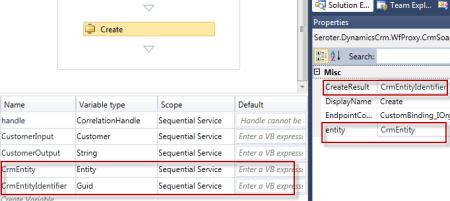
    I then added two more variables that are needed for calling the “Create” operation in the Dynamics CRM service. First, I created a variable for the “entity” object that was added to the project from my service reference, and then I added another variable for the GUID response that is returned after creating an entity.

    2011.8.30crm05

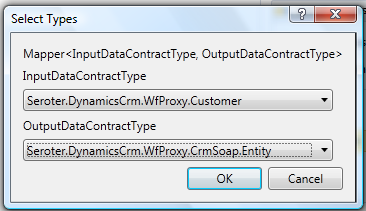
    Now I need to instantiate the “CrmEntity” variable.  Here’s where I can use the BizTalk Mapper shape that comes with the LOB adapter installation and BizTalk Server 2010. I dragged the Mapper shape from the Widows Workflow toolbox and get asked for the source and destination data types.

    2011.8.30crm06

    I then created a new Map.

    2011.8.30crm07

    I then built a map using the strategy I employed in previous posts.  Specifically, I copied each source node to a Looping functoid, and then connected each source to Scripting functoid with an XSLT Call Template inside that contained the script to create the key/value pair structure in the destination.

    2011.8.30crm10

    After saving and building the Workflow Service, I invoked the service via the WCF Test Client. I sent in some data and hoped to see a matching record in Dynamics CRM.

    2011.8.30crm08

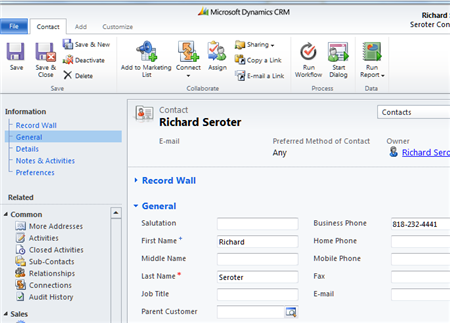
    If I go to my Dynamics CRM 2011 instance, I can find a record for my dog, Watson.

    2011.8.30crm09

    So, that was pretty simple.  You can use the ease of creation and deployment of Workflow Services while combining the power of the BizTalk Mapper.

  • Sending Messages from Salesforce.com to BizTalk Server Through Windows Azure AppFabric

    In a very short time, my latest book (actually Kent Weare’s book) will be released.  One of my chapters covers techniques for integrating BizTalk Server and Salesforce.com.  I recently demonstrated a few of these techniques for the BizTalk User Group Sweden, and I thought I’d briefly cover one of the key scenarios here.  To be sure, this is only a small overview of the pattern, and hopefully it’s enough to get across the main idea, and maybe even encourage to read the book to learn all the gory details!

    I’m bored with the idea that we can only get data from enterprise applications by polling them.  I’ve written about how to poll Salesforce.com from BizTalk, and the topic has been covered quite well by others like Steef-Jan Wiggers and Synthesis Consulting.  While polling has its place, what if I want my application to push a notification to me?  This capability is one of my favorite features of Salesforce.com.  Through the use of Outbound Messaging, we can configure Salesforce.com to call any HTTP endpoint when a user-specified scenario occurs.  For instance, every time a contact’s address changes, Salesforce.com could send a message out with whichever data fields we choose.  Naturally this requires a public-facing web service that Salesforce.com can access.  Instead of exposing a BizTalk Server to the public internet, we can use Azure AppFabric to create a proxy that relays traffic to the internal network.  In this blog post, I’ll show you that Salesforce.com Outbound Messages can be sent though the AppFabric Service Bus to an on-premises BizTalk Server. I haven’t seen anyone try integrating Salesforce.com with Azure AppFabric yet, so hopefully this is the start of many more interesting examples.

    First, a critical point.  Salesforce.com Outbound Messaging is awesome, but it’s fairly restrictive with regards to changing the transport details.  That is, you plug in a URL and have no control over the HTTP call itself.  This means that you cannot inject Azure AppFabric Access Control tokens into a header.  So, Salesforce.com Outbound Messages can only point to an Azure AppFabric service that has its RelayClientAuthenticationType set to “None” (vs. RelayAccessToken).  This means that we have to validate the caller down at the BizTalk layer.  While Salesforce.com Outbound Messages are sent with a client certificate, it does not get passed down to the BizTalk Server as the AppFabric Service Bus swallows certificates before relaying the message on premises.  Therefore, we’ll get a little creative in authenticating the Salesforce.com caller to BizTalk Server. I solved this by adding a token to the Outbound Message payload and using a WCF behavior in BizTalk to match it with the expected value.  See the book chapter for more.

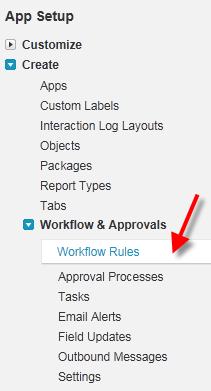
    Let’s get going.  Within the Salesforce.com administrative interface, I created a new Workflow Rule.  This rule checks to see if an Account’s billing address changed.

    1902_06_025

    The rule has a New Outbound Message action which doesn’t yet have an Endpoint address but has all the shared fields identified.

    1902_06_028

    When we’re done with the configuration, we can save the WSDL that complies with the above definition.
    1902_06_029

    On the BizTalk side, I ran the Add Generated Items wizard and consumed the above WSDL.  I then built an orchestration that used the WSDL-generated port on the RECEIVE side in order to expose an orchestration that matched the WSDL provided by Salesforce.com.  Why an orchestration?  When Salesforce.com sends an Outbound Message, it expects a single acknowledgement to confirm receipt.

    1902_06_032

    After deploying the application, I created a receive location where I hosted the Azure AppFabric service directly in BizTalk Server.

    1902_06_033

    After starting the receive location (whose port was tied to my orchestration), I retrieved the Service Bus address and plugged it back into my Salesforce.com Outbound Message’s Endpoint URL.  Once I change the billing address of any Account in Salesforce.com, the Outbound Message is invoked and a message is sent from Salesforce.com to Azure AppFabric and relayed to BizTalk Server.

    I think that this is a compelling pattern.  There are all sorts of variations that we can come up with.  For instance, you could choose to send only an Account ID to BizTalk and then have BizTalk poll Salesforce.com for the full Account details.  This could be helpful if you had a high volume of Outbound Messages and didn’t want to worry about ordering (since each event simply tells BizTalk to pull the latest details).

    If you’re in the Netherlands this week, don’t miss Steef-Jan Wiggers who will be demonstrating this scenario for the local user group.  Or, for the price of one plane ticket from the U.S. to Amsterdam, you can buy 25 copies of the book!

  • Packt Books Making Their Way to the Amazon Kindle

    Just a quick FYI that my last book, Applied Architecture Patterns on the Microsoft Platform, is now available on the Amazon Kindle.  Previously, you could pull the eBook copy over to the device, but that wasn’t ideal.  Hopefully my newest book, Microsoft BizTalk 2010: Line of Business Systems Integration will be Kindle-ready shortly after it launches in the coming weeks.

    While I’ve got a Kindle and use it regularly, I’ll admit that I don’t read technical books on it much.  What about you all?  Do you read electronic copies of technical books or do you prefer the “dead trees” version?

  • New Book Coming, Trip to Stockholm Coming Sooner

    My new book will be released shortly and next week I’m heading over to the BizTalk User Group Sweden to chat about it.

    The book, Microsoft BizTalk 2010: Line of Business Systems Integration (Packt Publishing, 2011) was conceived by BizTalk MVP Kent Weare and somehow he suckered me into writing a few chapters.  Actually, the reason that I keep writing books is because it offers me a great way to really dig into a technology and try to uncover new things.  In this book, I’ve contributed chapters about integrating with the following technologies:

    • Windows Azure AppFabric.  In this chapter I talk about how to integrate BizTalk with Windows Azure AppFabric and show a number of demos related to securely receiving and sending messages.
    • Salesforce.com.  Here I looked at how to both send to, and receive data from the software-as-a-service CRM leader.  I’ve got a couple of really fun demos here that show things that no one else has tried yet.  That either makes me creative or insane.  Probably both.
    • Microsoft Dynamics CRM.  This chapter shows how to create and query records in Dynamics CRM and explains one way of pushing data from Dynamics CRM to BizTalk Server.

    In next week’s trip with Kent to Stockholm, we will cover a number of product-neutral tips for integrating with Line of Business systems.  I’ve baked up a few new demos with the above mentioned technologies in order to talk about strategies and options for integration.

    As an aside, I think I’m done with writing books for a while.  I’ve enjoyed the process, but in this ever-changing field of technology it’s so difficult to remain relevant when writing over a 12 month period.  Instead, I’ve found that I can be more timely by publishing training for Pluralsight, writing for InfoQ.com and keeping up with this blog. I hope to see some of you next week in Stockholm and look forward to your feedback on the new book.