Are you still reading technology books? Or do you get your short-form insights from blogs and long-form perspectives from YouTube videos? While I buy fewer books about specific technologies—the landscape changes so fast!—I still regularly pick up tech and business books that explore a particular topic in depth. So when Gene Kim reached out to me in October about reading and reviewing his upcoming book, it was an easy “yes.”
You know Gene, right? Wrote the Phoenix Project?Unicorn Project? DevOps Handbook? I’ve always enjoyed his writing style and his way of using analogies and storytelling to make complex topics feel more approachable. Gene’s new book, written with Steven J Spear, is called Wiring the Winning Organization. This book isn’t for everyone, and that’s ok. Here were my five major takeaways after reading this book, and hopefully this helps you decide if you should pick up a copy.
The book could have been a 2-page paper, but I’m glad it wasn’t. The running joke with most business-focused books is that they contain a single good idea that somehow bloats to three hundred pages. Honestly, this book could have been delivered as a long online article. The idea is fairly straightforward: great organizational performance is tied to creating conditions for folks to do their best work, and this is done by creating efficient “social circuitry” that uses three key practices for solving problems. To be sure, Gene’s already published some articles containing bits from the book on topics like layers of work, social circuitry, and what “slowification” means. He could have stopped there. But this topic feels new to me, and it benefitted from the myriad case studies the authors used to make their case. Was it repetitive at times? Sure. But I think that was needed and it helped establish the framework.
I wouldn’t have liked this book fifteen years ago. Books like the Phoenix Project are for anyone. It doesn’t matter if you’re an architect, program lead, developer, sysadmin, or whatever, there’s something for you. And, it reads like a novel, so even if you don’t want to “learn” anything, it’s still entertaining. Wiring the Winning Organization is different. There are no heroes and villains. It’s more “study guide” than “beach read.” The book is specifically for those leading teams or those in horizontal roles (e.g. architects, security teams) that impact how cross-team work gets done. If I had started reading this when I was an individual contributor, I wouldn’t have liked it. Today, as a manager, it was compelling to me.
I have a new vocabulary to use. Every industry, company, and person has words or phrases of their own. And in tech, we’re particularly awful about over-using or mis-using terms so that they no longer mean anything. I’m looking at you, “DevOps”, “cloud”, and now “observability.” But I hope that a lot of folks read this book and start using a few of its terms. Social circuitry is a great one. The authors use this to refer to the “wiring” of a team and how knowledge and ideas flow. I’ve used this term a dozen times at work in the past month. The triplet of practices called out in the book—amplification (where are the problems) which results in slowificaion (create space for problem solving) and simplification (make problems themselves easier to solve)—should become common as well. The book introduced a handful of other phrasings that may catch on as well. That’s the hallmark of an impactful book.
A business strategy without a corresponding change in social circuitry is likely flawed. Early in the book, the authors make the point that we’ve been trained to think that competitive advantage comes from creating an unfair playing field resulting from superior understanding of Porter’s five forces. Or from having a better map of the territory than anyone else. Those things are important, but the book reinforces that you need leaders who “wire” the organization for success. Having the right people, the right tools, and a differentiated strategy may not be enough to win if the circuitry is off. What this tells me is that if companies announce big strategic pivots without a thoughtful change in org structure and circuitry, it’s unlikely to succeed.
Good management is deliberate. My biggest mistake (of many) in the early years of my management career was undervaluing the “management” aspect. Management isn’t a promotion for a job well done as an individual contributor; it’s a new job with entirely different responsibilities. Good managers activate their team, and constantly assess the environment for roadblocks. This book reminded me to think about how to create better amplification channels for my team so that we hear about problems sooner. It reminded me to embrace slowification and define space for thinking and experimentation outside of the regular operating channels. And it reminded me to ruthlessly pursue simplification and make it easier for my team to solve problems. The most important thing managers do is create conditions for great work!
I enjoyed the book. It changed some of my thinking and impacted how I work. If you grab a copy let me know!
We can all agree that DevOps is a “thing” now, right? It’s no longer something that only snazzy digital native companies do. I see all sorts of organizations evolving their IT departments to orient more around the customer and getting software to production faster.
“DevOps” is definitely not a noun or a product you can buy—looking at you, Microsoft—but rather, it’s all the wonderful activities that turn technology into an asset for a company, instead of a cost center. If you’re at the start of your DevOps journey, you might enjoy my brand new Pluralsight course. It’s part of the terrific “DevOps Foundations” learning path at Pluralsight, and called DevOps Foundations: Planning and Implementing a DevOps Strategy. It’s a mouthful, I know.
The course has three modules and runs about 90 minutes total. The first module helps you audit your current state so that you start your journey on the right foot. Here, we talk about questions to ask about your company’s readiness, existing skills, and value streams.
The second module is all about the pilot effort. It’s tempting to try and standardize on a bunch of stuff before starting your journey, but you need to resist that temptation! In this module, we talk about things you want to prove in your pilot, how to staff your first team, how to approach version control, automation that matters, and more.
The final module is all about scaling. How do you take what you learned in the pilot and expand that to the whole company? We talk about some of the challenges you’ll face, what things you might start standardizing on, why you’ll want to build a platform team, how to shift left on security, and much more.
This was a fun course to put together, and represents lots of things I’ve learned from others, and done myself. I hope you enjoy it!
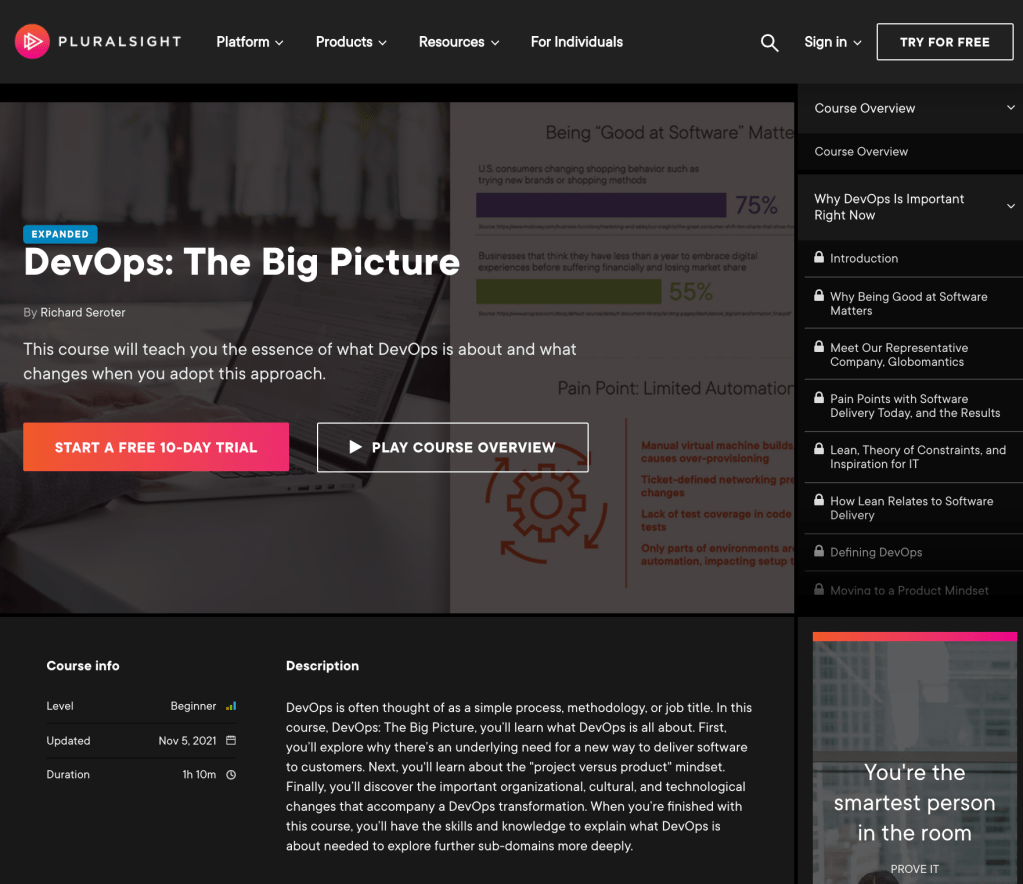
I’ve been teaching to empty classrooms for a decade now. It’s weird. I record a lecture and demos from my home office, edit it, give it to Pluralsight, and it shows up on the Internet. And then I hope somebody watches it. I’ve had some hits and misses with the twenty four Pluralsight courses I’ve created. One of those courses, DevOps: The Big Picture, clearly resonated. 169,642 people have watched it, which is bonkers.
When Pluralsight reached out to me and asked for a full refresh, I jumped at the chance to revisit the industry landscape and infuse this material with updated perspectives. And the updated course is now live.
This hour+ course covers a few things:
What’s hard about delivering software
Things we can learn from the Lean movement
How smart folks have “defined” DevOps
What DevOps is NOT
The cultural and organizational changes that come with DevOps
The technological changes that are part of DevOps
If you happened to watch this course in the past, give it another listen and tell me what you think! If you never consume v1 of a product, then your wait for v2 has paid off.
I’m seeing the usual blitz of articles that predict what’s going to happen this year in tech. I’m not smart enough to make 2021 predictions, but one thing that seems certain is that most every company is deploying more software to more places more often. Can we agree on that? Companies large and small are creating and buying lots of software. They’re starting to do more continuous integration and continuous delivery to get that software out the door faster. And yes, most companies are running that software in multiple places—including multiple public clouds.
So we have an emerging management problem, no? How do I create and maintain software systems made up of many types of components—virtual machines, containers, functions, managed services, network configurations—while using different clouds? And arguably the trickiest part isn’t building the system itself, but learning and working within each cloud’s tenancy hierarchy, identity system, administration tools, and API model.
Most likely, you’ll use a mix of different build orchestration tools and configuration management tools based on each technology and cloud you’re working with. Can we unify all of this without forcing a lowest-common-denominator model that keeps you from using each cloud’s unique stuff? I think so. In this post, I’ll show an example of how to provision and manage infrastructure, apps, and managed services in a consistent way, on any cloud. As a teaser for what we’re building here, see that we’ve got a GitHub repo of configurations, and 1st party cloud managed services deployed and configured in Azure and GCP as a result.
Before we start, let’s define a few things. GitOps—a term coined by Alexis and championed by the smart folks at Weaveworks—is about declarative definitions of infrastructure, stored in a git repo, and constantly applied to the environment so that you remain in the desired state.
@kelseyhightower discusses all things #GitOps with a personal twist in his latest talk delivered at @GitHub Universe 2020. If you're looking for a clear explanation of GitOps that includes an equally simple demo, this is it. https://t.co/umAqItpnsW
Next, let’s talk about the Kubernetes Resource Model (KRM). In Kubernetes, you define resources (built in, or custom) and the system uses controllers to create and manage those resources. It treats configurations as data without forcing you to specify *how* to achieve your desired state. Kubernetes does that for you. And this model is extendable to more than just containers!
Infrastructure-as-Code isn't enough. There are challenges to an imperative model for building infrastructure.
The final thing I want you to know about is Google Cloud Anthos. That’s what’s tying all this KRM and GitOps stuff together. Basically, it’s a platform designed to create and manage distributed Kubernetes clusters that are consistent, connected, and application ready. There are four capabilities you need to know to grok this KRM/GitOps scenario we’re building:
Anthos clusters and the cloud control plane. That sounds like the title of a terrible children’s book. For tech folks, it’s a big deal. Anthos deploys GKE clusters to GCP, AWS, Azure (in preview), vSphere, and bare metal environments. These clusters are then visible to (and configured by) a control plane in GCP. And you can attach any existing compliant Kubernetes cluster to this control plane as well.
Config Connector. This is a KRM component that lets you manage Google Cloud services as if they were Kubernetes resources—think BigQuery, Compute Engine, Cloud DNS, and Cloud Spanner. The other hyperscale clouds liked this idea, and followed our lead by shipping their own flavors of this (Azure version, AWS version).
Environs. These are logical groupings of clusters. It doesn’t matter where the clusters physically are, and which provider they run on. An environ treats them all as one virtual unit, and lets you apply the same configurations to them, and join them all to the same service mesh. Environs are a fundamental aspect of how Anthos works.
Config Sync. This Google Cloud components takes git-stored configurations and constantly applies them to a cluster or group of clusters. These configs could define resources, policies, reference data, and more.
Now we’re ready. What are we building? I’m going to provision two Anthos clusters in GCP, then attach an Azure AKS cluster to that Anthos environ, apply a consistent configuration to these clusters, install the GCP Config Connector and Azure Service Operators into one cluster, and use Config Sync to deploy cloud managed services and apps to both clouds. Why? Once I have this in place, I have a single way to create managed services or deploy apps to multiple clouds, and keep all these clusters identically configured. Developers have less to learn, operators have less to do. GitOps and KRM, FTW!
Step 1: Create and Attach Clusters
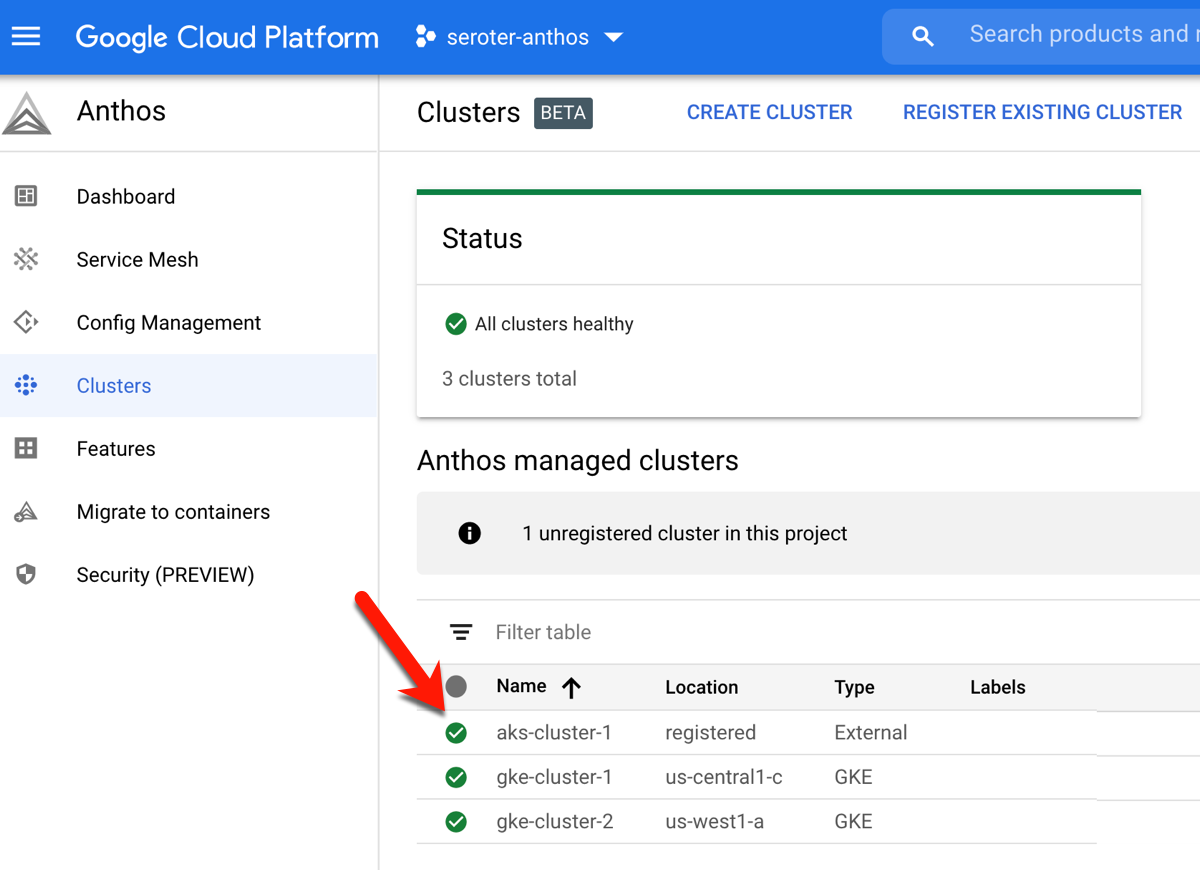
I started by creating two GKE clusters in GCP. I can do this via the Console, CLI, Terraform, and more. Once I created these clusters (in different regions, but same GCP project), I registered both to the Anthos control plane. In GCP, the “project” (here, seroter-anthos) is also the environ.
Next, I created a new AKS cluster via the Azure Portal.
In 2020, our Anthos team added the ability to attach existing clusters an an Anthos environ. Before doing anything else, I created a new minimum-permission GCP service account that the AKS cluster would use, and exported the JSON service account key to my local machine.
From the GCP Console, I followed the option to “Add clusters to environ” where I provided a name, and got back a single command to execute against my AKS cluster. After logging into my AKS cluster, I ran that command—which installs the Connect agent—and saw that the AKS cluster connected successfully to Anthos.
I also created a service account in my AKS cluster, bound it to the cluster-admin role, and grabbed the password (token) so that GCP could log into that cluster. At this point, I can see the AKS cluster as part of my environ.
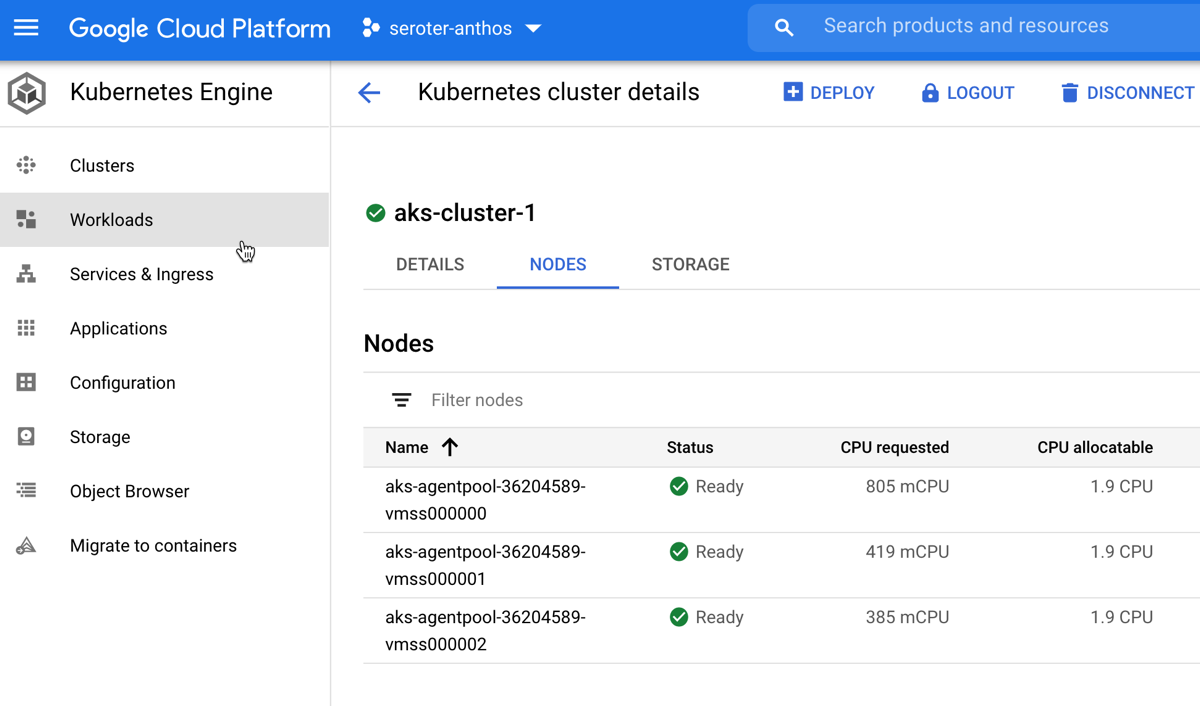
You know what’s pretty awesome? Once this AKS cluster is connected, I can view all sorts of information about cluster nodes, workloads, services, and configurations. And, I can even deploy workloads to AKS via the GCP Console. Wild.
But I digress. Let’s keep going.
Step 2: Instantiate a Git Repo
GitOps requires … a git repo. I decided to use GitHub, but any reachable git repository works. I created the repo via GitHub, opened it locally, and initialized the proper structure using the nomos CLI. What does a structured repo look like and why does the structure matter? Anthos Config Management uses this repo to figure out the clusters and namespaces for a given configuration. The clusterregistry directory contains ClusterSelectors that let me scope configs to a given cluster or set of clusters. The cluster directory holds any configs that you want applied to entire clusters versus individual namespaces. And the namespaces directory holds configs that apply to a specific namespace.
Now, I don’t want all my things deployed to all the clusters. I want some namespaces that span all clusters, and others that only sit in one cluster. To do this, I need ClusterSelectors. This lets me define labels that apply to clusters so that I can control what goes where.
For example, here’s my cluster definition for the AKS cluster (notice the “name” matches the name I gave it in Anthos) that applies an arbitrary label called “cloud” with a value of “azure.”
And here’s the corresponding ClusterSelector. If my namespace references this ClusterSelector, it’ll only apply to clusters that match the label “cloud: azure.”
After creating all the cluster definitions and ClusterSelectors, I committed and published the changes. You can see my full repo here.
Step 3: Install Anthos Config Management
The Anthos Config Management (ACM) subsystem lets you do a variety of things such as synchronize configurations across clusters, apply declarative policies, and manage a hierarchy of namespaces.
Enabling and installing ACM on GKE clusters and attached clusters is straightforward. First, we need credentials to talk to our git repo. One option is to use an SSH keypair. I generated a new keypair, and added the public key to my GitHub account. Then, I created a secret in each Kubernetes cluster that references the private key value.
With that done, I went through the GCP Console (or you can do this via CLI) to add ACM to each cluster. I chose to use SSH as the authentication mechanism, and then pointed to my GitHub repo.
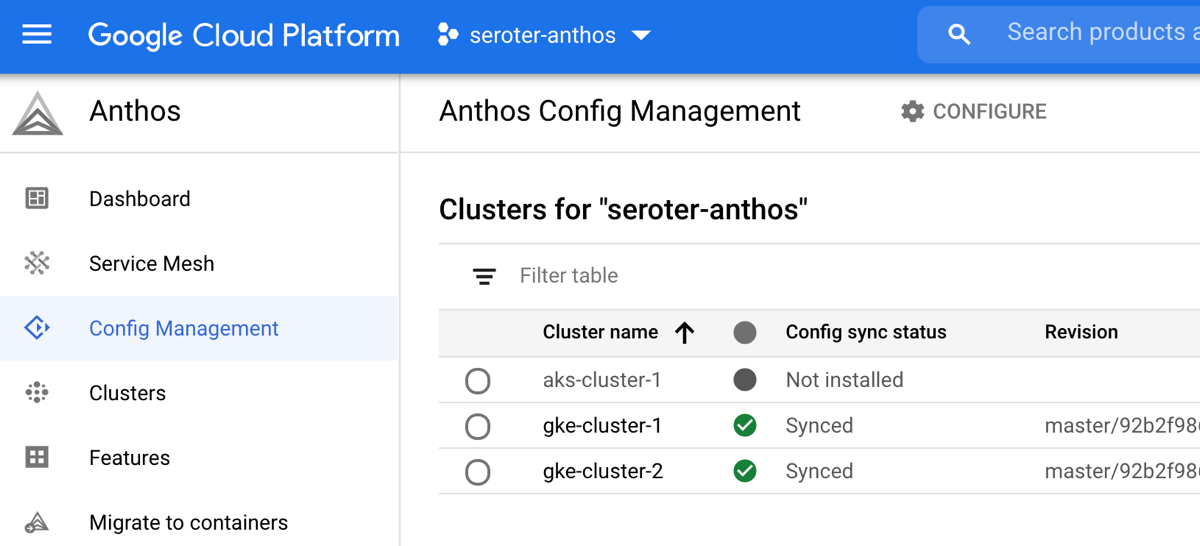
After walking through the GKE clusters, I could see that ACM was installed and configured. Then I installed ACM on the AKS cluster too, all from the GCP Console.
With that, the foundation of my multi-cloud platform was all set up.
Step 4: Install Config Connector and Azure Service Operator
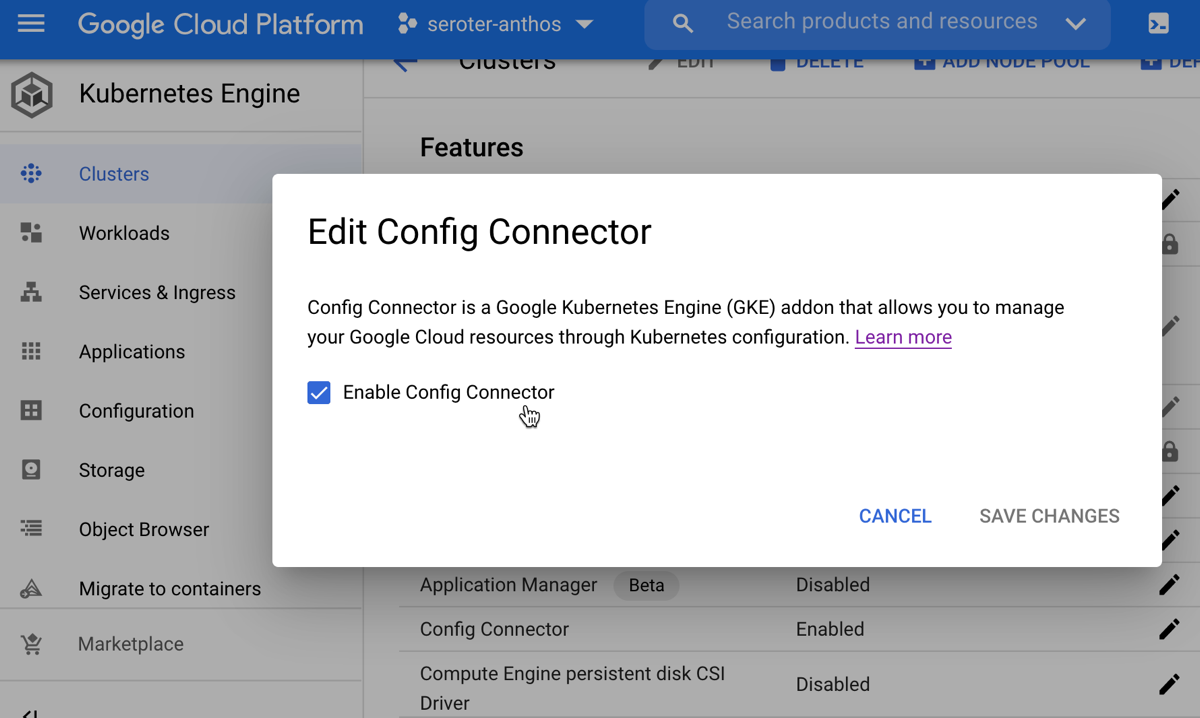
As mentioned earlier, the Config Connector helps you treat GCP managed services like Kubernetes resources. I only wanted the Config Connector on a single GKE cluster, so I went to gke-cluster-2 in the GCP Console and “enabled” Workload Identity and the Config Connector features. Workload Identity connects Kubernetes service accounts to GCP identities. It’s pretty cool. I created a new service account (“seroter-cc”) that Config Connector would use to create managed services.
To confirm installation, I ran a “kubectl get crds” command to see all the custom resources added by the Config Connector.
There’s only one step to configure the Config Connector itself. I created a single configuration that referenced the service account and GCP project used by Config Connector.
# configconnector.yaml
apiVersion: core.cnrm.cloud.google.com/v1beta1
kind: ConfigConnector
metadata:
  # the name is restricted to ensure that there is only one
  # ConfigConnector instance installed in your cluster
  name: configconnector.core.cnrm.cloud.google.com
spec:
 mode: cluster
 googleServiceAccount: "seroter-cc@seroter-anthos.iam.gserviceaccount.com"
I ran “kubectl apply -f configconnector.yaml” for the configuration, and was all set.
Since I also wanted to provision Microsoft Azure services using the same GitOps + KRM mechanism, I installed the Azure Service Operators. This involved installing a cert manager, installing Helm, creating an Azure Service Principal (that has rights to create services), and then installing the operator.
Step 5: Check-In Configs to Deploy Managed Services and Applications
The examples for the Config Connector and Azure Service Operator talk about running “kubectl apply” for each service you want to create. But I want GitOps! So, that means setting up git directories that hold the configurations, and relying on ACM (and Config Sync) to “apply” these configurations on the target clusters.
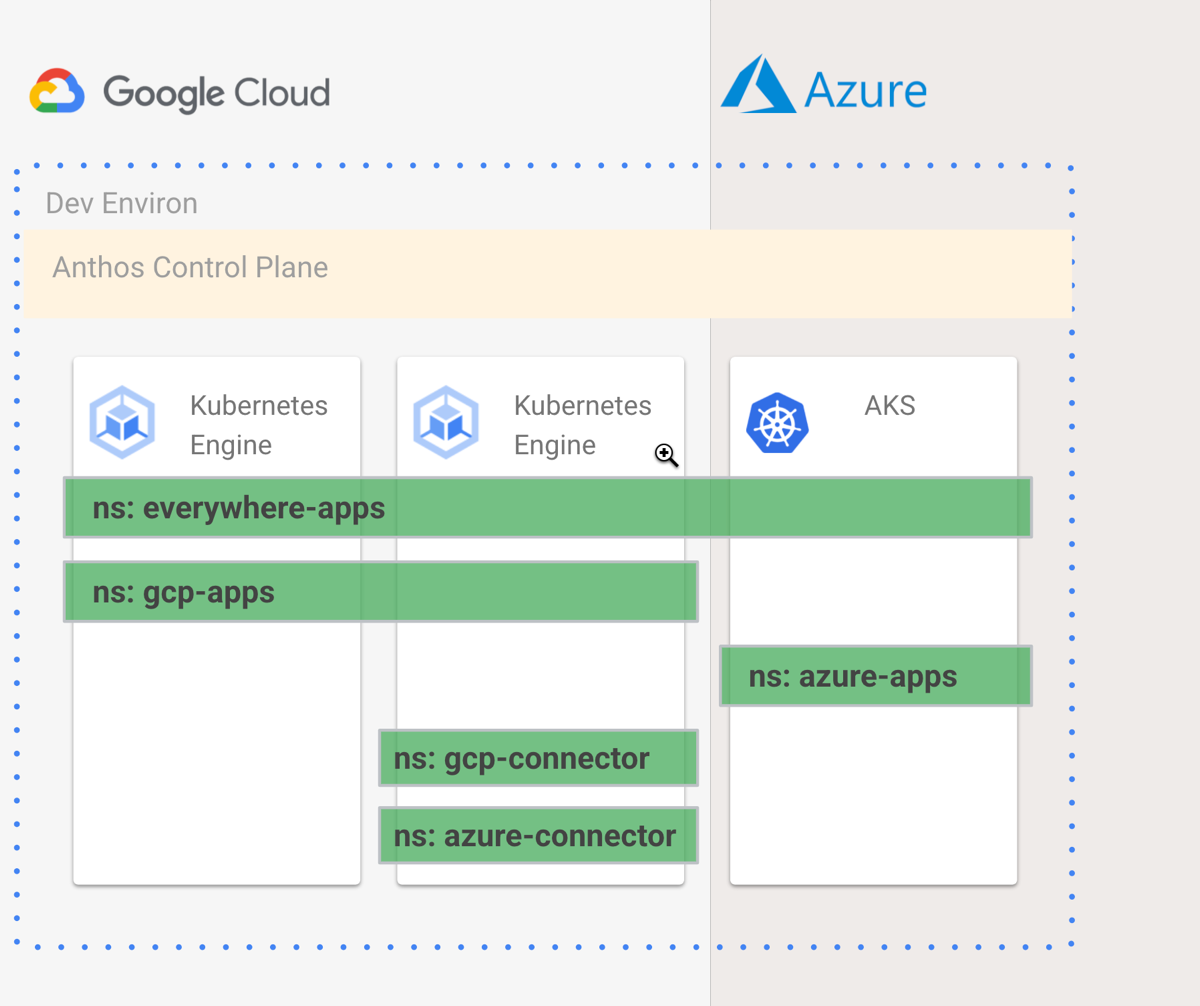
I created five namespace directories in my git repo. The everywhere-apps namespace applies to every cluster. The gcp-apps namespace should only live on GCP. The azure-apps namespace only runs on Azure clusters. And the gcp-connector and azure-connector namespaces should only live on the cluster where the Config Connector and Azure Service Operator live. I wanted something like this:
How do I create configurations that make that above image possible? Easy. Each “namespace” directory in the repo has a namespace.yaml file. This file provides the name of the namespace, and optionally, annotations. The annotation for the gcp-connector namespace used the ClusterSelector that only applied to gke-cluster-2. I also added a second annotation that told the Config Connector which GCP project hosted the generated managed services.
I added namespace.yaml files for each other namespace, with ClusterSelector annotations on all but the everywhere-apps namespace, since that one runs everywhere.
Now, I needed the actual resource configurations for my cloud managed services. In GCP, I wanted to create a Cloud Storage bucket. With this “configuration as data” approach, we just define the resource, and ask Anthos to instantiate and manage it. The Cloud Storage configuration looks like this:
The Azure example really shows the value of this model. Instead of programmatically sequencing the necessary objects—first create a resource group, then a storage account, then a storage blob—I just need to define those three resources, and Kubernetes reconciles each resource until it succeeds. The Storage Blob resource looks like:
apiVersion: azure.microsoft.com/v1alpha1
kind: BlobContainer
metadata:
  name: blobcontainer-sample
spec:
  location: westus
  resourcegroup: resourcegroup-operators
  accountname: seroterstorageaccount
  # accessLevel - Specifies whether data in the container may be accessed publicly and the level of access.
  # Possible values include: 'Container', 'Blob', 'None'
  accesslevel: Container
The image below shows my managed-service-related configs. I checked all these configurations into GitHub.
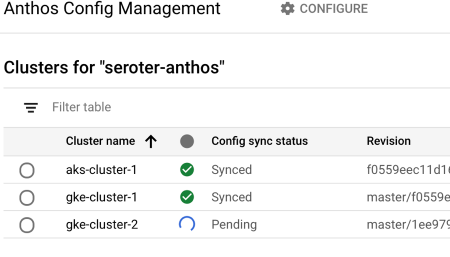
A few seconds later, I saw that Anthos was processing the new configurations.
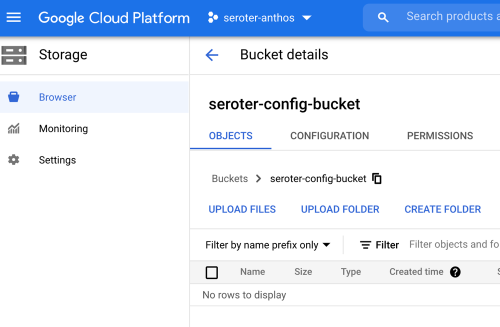
Ok, it’s the moment of truth. First, I checked Cloud Storage and saw my brand new bucket, provisioned by Anthos.
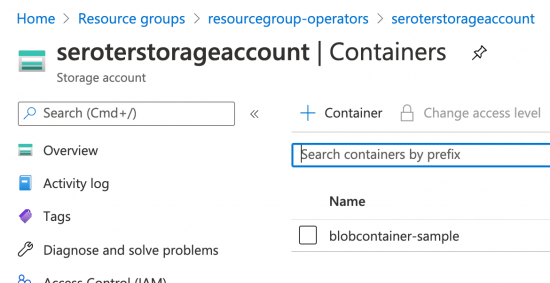
Switching over to the Azure Portal, I navigated to Storage area and saw my new account and blob container.
How cool is that? Now i just have to drop resource definitions into my GitHub repository, and Anthos spins up the service in GCP or Azure. And if I delete that resource manually, Anthos re-creates it automatically. I don’t have to learn each API or manage code that provisions services.
Finally, we can also deploy applications this way. Imagine using a CI pipeline to populate a Kubernetes deployment template (using kpt, or something else) and dropping it into a git repo. Then, we use the Kubernetes resource model to deploy the application container. In the gcp-apps directory, I added Kubernetes deployment and service YAML files that reference a basic app I containerized.
As you might expect, once the repo synced to the correct clusters, Anthos created a deployment and service that resulted in a routable endpoint. While there are tradeoffs for deploying apps this way, there are some compelling benefits.
Step 6: “Move” App Between Clouds by Moving Configs in GitHub
This last step is basically my way of trolling the people who complain that multi-cloud apps are hard. What if I want to take the above app from GCP and move it to Azure? Does it require a four week consulting project and sacrificing a chicken? No. I just have to copy the Kubernetes deploy and service YAML files to the azure-apps directory.
After committing my changes to GitHub, ACM fired up and deleted the app from GCP, and inflated it on Azure, including an Azure Load Balancer instance to get a routable endpoint. I can see all of that from within the GCP Console.
Now, in real life, apps aren’t so easily portable. There are probably sticky connections to databases, and other services. But if you have this sort of platform in place, it’s definitely easier.
Thanks to deep support for GitOps and the KRM, Anthos makes it possible to manage infrastructure, apps, and managed services in a consistent way, on any cloud. Whether you use Anthos or not, take a look at GitOps and the KRM and start asking your preferred vendors when they’re going to adopt this paradigm!
Real developers use the CLI, or so I’m told. That probably explains why I mostly use the portal experiences of the major cloud providers. But judging from the portal experiences offered by most clouds, they prefer you use the CLI too. So let’s look at the CLIs.
Specifically, I evaluated the cloud CLIs with an eye on five different areas:
API surface and patterns. How much of the cloud was exposed via CLI, and is there a consistent way to interact with each service?
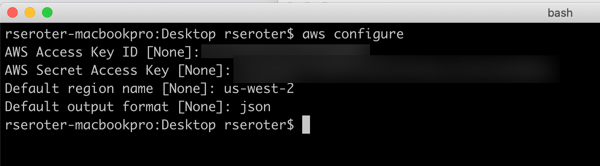
Authentication. How do users identify themselves to the CLI, and can you maintain different user profiles?
Creating and viewing services. What does it feel like to provision instances, and then browse those provisioned instances?
CLI sweeteners. Are there things the CLI offers to make using it more delightful?
Utilities. Does the CLI offer additional tooling that helps developers build or test their software?
Let’s dig in.
Disclaimer: I work for Google Cloud, so obviously I’ll have some biases. That said, I’ve used AWS for over a decade, was an Azure MVP for years, and can be mostly fair when comparing products and services. Please call out any mistakes I make!
AWS
You have a few ways to install the AWS CLI. You can use a Docker image, or install directly on your machine. If you’re installing directly, you can download from AWS, or use your favorite package manager. AWS warns you that third party repos may not be up to date. I went ahead and installed the CLI on my Mac using Homebrew.
API surface and patterns
As you’d expect, the AWS CLI has wide coverage. Really wide. I think there’s an API in there to retrieve the name of Andy Jassy’s favorite jungle cat. The EC2 commands alone could fill a book. The documentation is comprehensive, with detailed summaries of parameters, and example invocations.
The command patterns are relatively consistent, with some disparities between older services and newer ones. Most service commands look like:
aws [service name] [action] [parameters]
Most “actions” start with create, delete, describe, get, list, or update.
S3 is one of the original AWS services, and its API is different. It uses commands like cp, ls, and rm. Some services have modify commands, others use update. For the most part, it’s intuitive, but I’d imagine most people can’t guess the commands.
The CLI supports “profiles” which seems important when you may have different access to default values based on what you’re working on.
Creating and viewing service instances
By default, everything the CLI does occurs in the region of the active profile. You can override the default region by passing in a region flag to each command. See below that I created a new SQS queue without providing a region, and it dropped it into my default one (us-west-2). By explicitly passing in a target region, I created the second queue elsewhere.
The AWS Console shows you resources for a selected region. I don’t see obvious ways to get an all-up view. A few services, like S3, aren’t bound by region, and you see all resources at once. The CLI behaves the same. I can’t view all my SQS queues, or databases, or whatever, from around the world. I can “list” the items, region by region. Deletion behaves the same. I can’t delete the above SQS queue without providing a region flag, even though the URL is region-specific.
Overall, it’s fast and straightforward to provision, update, and list AWS services using the CLI. Just keep the region-by-region perspective in mind!
CLI sweeteners
The AWS CLI gives you control over the output format. I set the default for my profile to json, but you can also do yaml, text, and table. You can toggle this on a request by request basis.
You can also take advantage of command completion. This is handy, given how tricky it may be to guess the exact syntax of a command. Similarly, I really like you can be prompted for parameters. Instead of guessing, or creating giant strings, you can go parameter by parameter in a guided manner.
The AWS CLI also offers select opportunities to interact with the resources themselves. I can send and receive SQS messages. Or put an item directly into a DynamoDB table. There are a handful of services that let you create/update/delete data in the resource, but many are focused solely on the lifecycle of the resource itself.
Finally, I don’t see a way to self-update from within the CLI itself. It looks like you rely on your package manager or re-download to refresh it. If I’m wrong, tell me!
Utilities
It doesn’t look like the CLI ships with other tools that developers might use to build apps for AWS.
Microsoft Azure
The Microsoft Azure CLI also has broad coverage and is well documented. There’s no shortage of examples, and it clearly explains how to use each command.
az [service name] [object] create | list | delete | update [parameters]
Let’s look at a few examples:
az ad app create --display-name my-ad-app
az cosmosdb list --resource-group group1
az postgres db show --name mydb --resource-group group1 --server-name myserver
az service bus queue delete --name myqueue --namespace-name mynamespace --resource-group group1
I haven’t observed much inconsistency in the CLI commands. They all seem to follow the same basic patterns.
Authentication
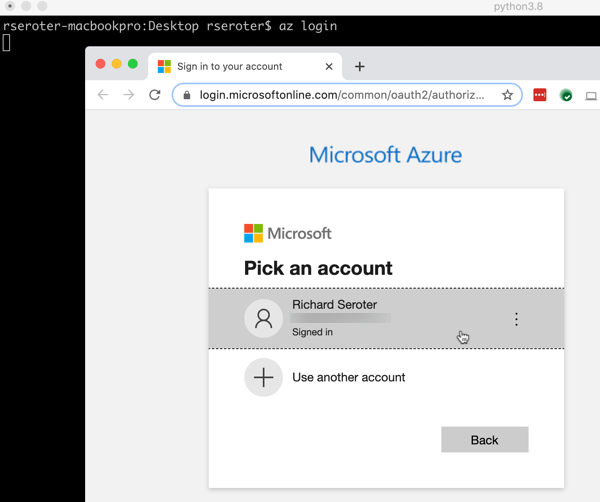
Logging into the CLI is easy. You can simply do az login as I did below—this opens a browser window and has you sign into your Azure account to retrieve a token—or you can pass in credentials. Those credentials may be a username/password, service principal with a secret, or service principal with a client certificate.
Once you log in, you see all your Azure subscriptions. You can parse the JSON to see which one is active, and will be used as the default. If you wish to change the default, you can use az account set --subscription [name] to pick a different one.
There doesn’t appear to be a way to create different local profiles.
Creating and viewing service instances
It seems that most everything you create in Azure goes into a resource group. While a resource group has a “location” property, that’s related to the metadata, not a restriction on what gets deployed into it. You can set a default resource group (az configure --defaults group=[name]) or provide the relevant input parameter on each request.
Unlike other clouds, Azure has a lot of nesting. You have a root account, then a subscription, and then a resource group. And most resources also have parent-child relationships you must define before you can actually build the thing you want.
For example, if you want a service bus queue, you first create a namespace. You can’t create both at the same time. It’s two calls. Want a storage blob to upload videos into? Create a storage account first. A web application to run your .NET app? Provision a plan. Serverless function? Create a plan. This doesn’t apply to everything, but just be aware that there are often multiple steps involved.
The creation activity itself is fairly simple. Here are commands to create Service Bus namespace and then a queue
az servicebus namespace create --resource-group mydemos --name seroter-demos --location westus
az servicebus queue create --resource-group mydemos --namespace-name seroter-demos --name myqueue
Like with AWS, some Azure assets get grouped by region. With Service Bus, namespaces are associated to a geo. I don’t see a way to query all queues, regardless of region. But for the many that aren’t, you get a view of all resources across the globe. After I created a couple Redis caches in my resource group, a simple az redis list --resource-group mydemos showed me caches in two different parts of the US.
Depending on how you use resource groups—maybe per app or per project, or even by team—just be aware that the CLI doesn’t retrieve results across resource groups. I’m not sure the best strategy for viewing subscription-wide resources other than the Azure Portal.
CLI sweeteners
The Azure CLI has some handy things to make it easier to use.
There’s a find function for figuring out commands. There’s output formatting to json, tables, or yaml. You’ll also find a useful interactive mode to get auto-completion, command examples, and more. Finally, I like that the Azure CLI supports self-upgrade. Why leave the CLI if you don’t have to?
Utilities
I noticed a few things in this CLI that help developers. First, there’s an az rest command that lets you call Azure service endpoints with authentication headers taken care of for you. That’s a useful tool for calling secured endpoints.
Azure offers a wide array of extensions to the CLI. These aren’t shipped as part of the CLI itself, but you can easily bolt them on. And you can create your own. This is a fluid list, but az extension list-available shows you what’s in the pool right now. As of this writing, there are extensions for preview AKS capabilities, managing Azure DevOps, working with DataBricks, using Azure LogicApps, querying the Azure Resource Graph, and more.
Google Cloud Platform
I’ve only recently started seriously using the GCP CLI. What’s struck me most about the gcloud tool is that it feels more like a system—dare I say, platform—than just a CLI. We’ll talk more about that in a bit.
Like with other clouds, you can use the SDK/CLI within a supported Docker image, package manager, or direct download. I did a direct download, since this is also a self-updating CLI, so I didn’t want to create a zombie scenario with my package manager.
API surface and patterns
The gcloud CLI has great coverage for the full breadth of GCP. I can’t see any missing services, including things launched two weeks ago. There is a subset of services/commands available in the alpha or beta channels, and are fully integrated into the experience. Each command is well documented, with descriptions of parameters, and example calls.
All the GCP services I’ve come across follow the same patterns. It’s also logical enough that I even guessed a few without looking anything up.
Authentication
A gcloud auth logincommand triggers a web-based authorization flow.
Once I’m authenticated, I set up a profile. It’s possible to start with this process, and it triggers the authorization flow. Invoking the gcloud init command lets me create a new profile/configuration, or update an existing one. A profile includes things like which account you’re using, the “project” (top level wrapper beneath an account) you’re using, and a default region to work in. It’s a guided processes in the CLI, which is nice.
And it’s a small thing, but I like that when it asks me for a default region, it actually SHOWS ME ALL THE REGION CODES. For the other clouds, I end up jumping back to their portals or docs to see the available values.
Creating and viewing service instances
As mentioned above, everything in GCP goes into Projects. There’s no regional affinity to projects. They’re used for billing purposes and managing permissions. This is also the scope for most CLI commands.
Provisioning resources is straightforward. There isn’t the nesting you find in Azure, so you can get to the point a little faster. For instance, provisioning a new PubSub topic looks like this:
gcloud pubsub topics create richard-topic
It’s quick and painless. PubSub doesn’t have regional homing—it’s a global service, like others in GCP—so let’s see what happens if I create something more geo-aware. I created two Spanner instances, each in different regions.
It takes seconds to provision, and then querying with gcloud spanner instances list gives me all Spanner database instances, regardless of region. And I can use a handy “filter” parameter on any command to winnow down the results.
The default CLI commands don’t pull resources from across projects, but there is a new command that does enable searching across projects and organizations (if you have permission). Also note that Cloud Storage (gsutil) and Big Query (bq) use separate CLIs that aren’t part of gcloud directly.
CLI sweeteners
I used one of the “sweeteners” before: filter. It uses a simple expression language to return a subset of results. You’ll find other useful flags for sorting and limiting results. Like with other cloud CLIs, gcloud lets you return results as json, table, csv, yaml, and other formats.
There’s also a full interactive shell with suggestions, auto-completion, and more. That’s useful as you’re learning the CLI.
gcloud has a lot of commands for interacting with the services themselves. You can publish to a PubSub topic, execute a SQL statement against a Spanner database, or deploy and call a serverless Function. It doesn’t apply everywhere, but I like that it’s there for many services.
The GCP CLI also self-updates. We’ll talk about it more in the section below.
Utilities
A few paragraphs ago, I said that the gcloud CLI felt more like a system. I say that, because it brings a lot of components with it. When I type in gcloud components list, I see all the options:
We’ve got the core SDK and other GCP CLIs for Big Query, but also a potpourri of other handy tools. You’ve got Kubernetes development tools like minikube, Skaffold, Kind, kpt, and kubectl. And you get a stash of local emulators for cloud services like Bigtable, Firestore, Spanner, PubSub and Spanner.
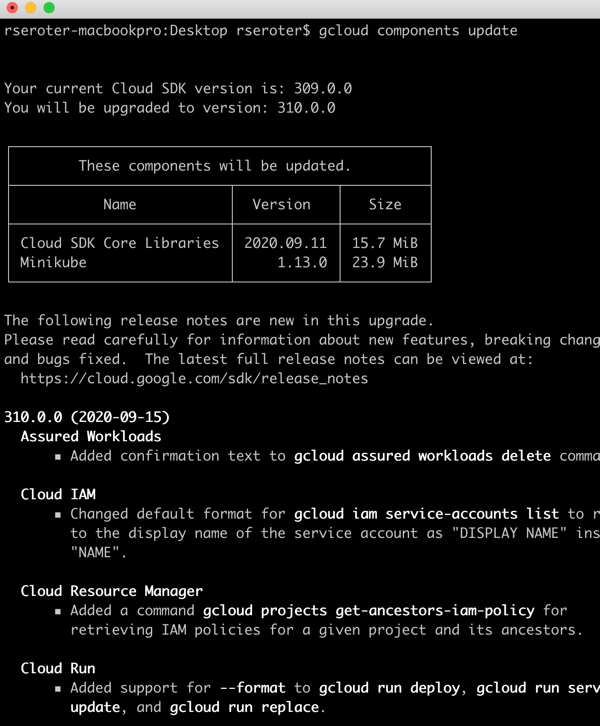
I can install any or all of these, and upgrade them all from here. A gcloud components update command update all of them, and, shows me a nice change log.
There are other smaller utility functions included in gcloud. I like that I have commands to configure Docker to work with Google Container Registry, Or fetch Kubernetes cluster credentials and put them into my active profile. And print my identity token to inject into the auth headers of calls to secure endpoints.
Wrap
To some extent, each CLI reflects the ethos of their cloud. The AWS CLI is dense, powerful, and occasionally inconsistent. The Azure CLI is rich, easy to get started with, and 15% more complicated than it should be. And the Google Cloud CLI is clean, integrated, and evolving. All of these are great. You should use them and explore their mystery and wonder.
When you think about “events” in an event-driven architecture, what comes to mind? Maybe you think of business-oriented events like “file uploaded”, “employee hired”, “invoice sent”, “fraud detected”, or “batch job completed.” You might emit (or consume) these types of events in your application to develop more responsive systems.
What I find even more interesting right now are the events generated by the systems beneath our applications. Imagine what your architects, security pros, and sys admins could do if they could react to databases being provisioned, users getting deleted, firewall being changed, or DNS zone getting updated. This sort of thing is what truly enables the “trust, but verify” approach for empowered software teams. Let those teams run free, but “listen” to things that might be out of compliance.
This week, the Google Cloud team announced Events for Cloud Run, in beta this September. What this capability does is let you trigger serverless containers when lifecycle events happen in most any Google Cloud service. These lifecycle events are in the CloudEvents format, and distributed (behind the scenes) to Cloud Run via Google Cloud PubSub. For reference, this capability bears some resemblance to AWS EventBridge and Azure Event Grid. In this post, I’ll give you a look at Events for Cloud Run, and show you how simple it is to use.
Code and deploy the Cloud Run service
Developers deploy containers to Cloud Run. Let’s not get ahead of ourselves. First, let’s build the app. This app is Seroter-quality, and will just do the basics. I’ll read the incoming event and log it out. This is a simple ASP.NET Core app, with the source code in GitHub.
I’ve got a single controller that responds to a POST command coming from the eventing system. I take that incoming event, serialize from JSON to a string, and print it out. Events for Cloud Run accepts either custom events, or CloudEvents from GCP services. If I detect a custom event, I decode the payload and print it out. Otherwise, I just log the whole CloudEvent.
namespace core_sample_api.Controllers
{
    [ApiController]
    [Route("")]
    public class Eventsontroller : ControllerBase
    {
        private readonly ILogger<Eventsontroller> _logger;
        public Eventsontroller(ILogger<Eventsontroller> logger)
        {
            _logger = logger;
        }
        [HttpPost]
        public void Post(object receivedEvent)
        {
            Console.WriteLine("POST endpoint called");
            string s = JsonSerializer.Serialize(receivedEvent);
            //see if custom event with "message" root property
            using(JsonDocument d = JsonDocument.Parse(s)){
                JsonElement root = d.RootElement;
                if(root.TryGetProperty("message", out JsonElement msg)) {
                    Console.WriteLine("Custom event detected");
                    JsonElement rawData = msg.GetProperty("data");
                    //decode
                    string data = System.Text.Encoding.UTF8.GetString(Convert.FromBase64String(rawData.GetString()));
                    Console.WriteLine("Data value is: " + data);
                }
            }
            Console.WriteLine("Data: " + s);
        }
    }
}
After checking all my source code into GitHub, I was ready to deploy it to Cloud Run. Note that you can use my same repo to continue on this example!
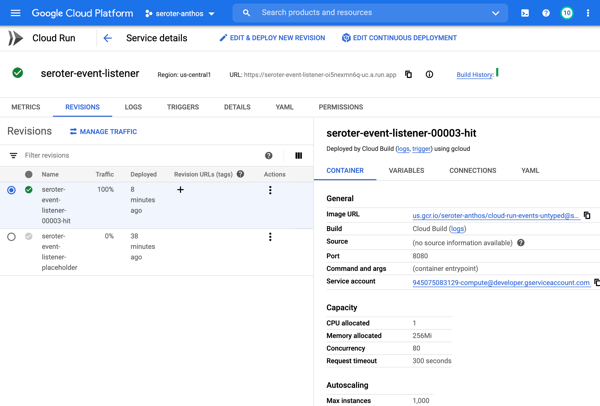
I switched over to the GCP Console, and chose to create a new Cloud Run service. I picked a region and service name. Then I could have chosen either an existing container image, or, continuous deployment from a git repo. I chose the latter. First I picked my GitHub repo to get source from.
Then, instead of requiring a Dockerfile, I picked the new Cloud Buildpacks support. This takes my source code and generates a container for me. Sweet.
After choosing my code source and build process, I kept the default HTTP trigger. After a few moments, I had a running service.
Add triggers to Cloud Run
Next up, adding a trigger. By default, the “triggers” tab shows the single HTTP trigger I set up earlier.
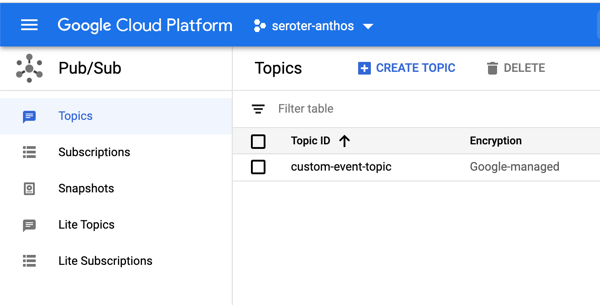
I wanted to show custom events in addition to CloudEvents ones, so I went to the PubSub dashboard and created a new queue that would trigger Cloud Run.
Back in the Cloud Run UX, I added a new trigger. I chose the trigger type of “com.google.cloud.pubsub.topic.publish” and picked the Topic I created earlier. After saving the trigger, I saw it show up in the list.
After this, I wanted to trigger my Cloud Run service with CloudEvents. If you’re receiving events from Google Cloud services, you’ll have to enable Data Access Logs so that events can be spun up from Cloud Logs. I’m going to listen for events from Cloud Storage and Cloud Build, so I turned on audit logging for each.
All that was left to define the final triggers. For Cloud Storage, I chose the storage.create.bucket trigger.
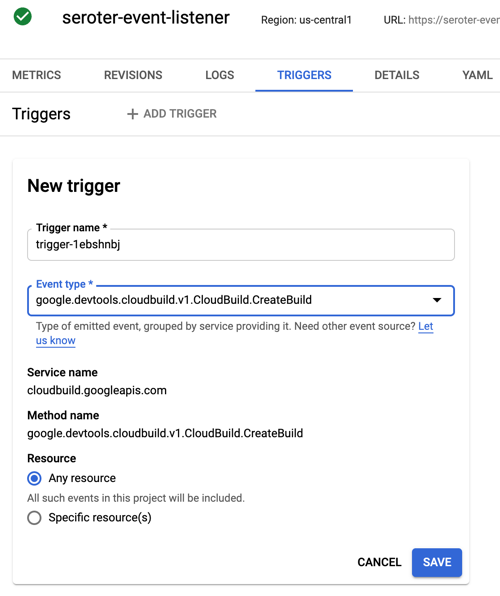
I wanted to react to Cloud Build, so that I could see whenever a build started.
Terrific. Now I was ready to test. I sent in a message to PubSub to trigger the custom event.
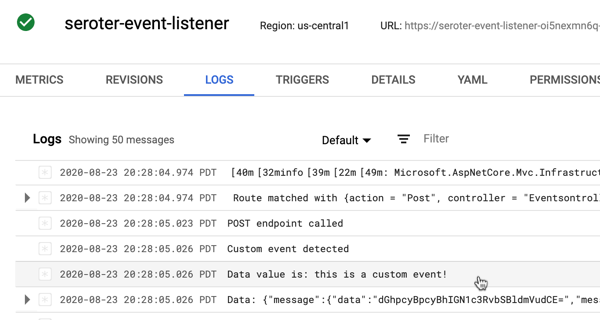
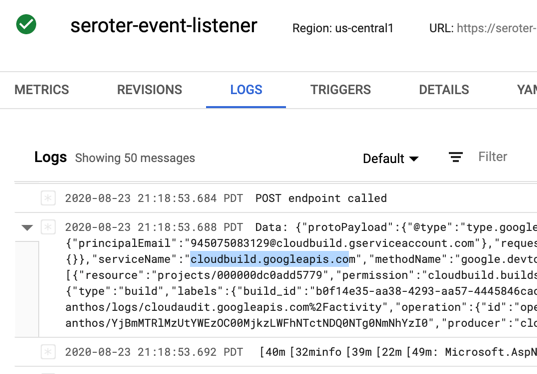
I checked the logs for Cloud Run, and almost immediately saw that the service ran, accepted the event, and logged the body.
Next, I tested Cloud Storage by adding a new bucket.
Almost immediately, I saw a CloudEvent in the log.
Finally, I kicked off a new Build pipeline, and saw an event indicating that Cloud Run received a message, and logged it.
If you care about what happens inside the systems your apps depend on, take a look at the new Events for Cloud Run and start tapping into the action.
It’s here. After six weeks of OTHER topics, we’re up to week seven of Google Cloud Next OnAir, which is all about my area: app modernization. The “app modernization” bucket in Google Cloud covers lots of cool stuff including Cloud Code, Cloud Build, Cloud Run, GKE, Anthos, Cloud Operations, and more. It basically addresses the end-to-end pipeline of modern apps. I recently sketched it out like this:
I think this the biggest week of Next, with over fifty breakout sessions. I like that most of the breakouts so far have been ~20 minutes, meaning you can log in, set playback speed to 1.5x, and chomp through lots of topic quickly.
Here are eight of the sessions I’m looking forward to most:
GKE Turns 5: What’s New? All Kubernetes aren’t the same. GKE stands apart, and the team continues solving customer problems in new ways. This should be a great look back, and look ahead.
Cloud Run: What’s New? To me, Cloud Run has the best characteristics of PaaS, combined with the the event-driven, scale-to-zero of serverless functions. This is the best place I know of to run custom-built apps in the Google Cloud (or anywhere, with Anthos).
Modernize Legacy Java Apps Using Anthos. Whoever figures out how to unlock value from existing (Java) apps faster, wins. Here’s what Google Cloud is doing to help customers improve their Java apps and run them on a great host.
I’m looking forward to this week. We’re sharing lots of fun progress, and demonstrating some fresh perspectives on what app modernization should look like. Enjoy watching!
I feel silly admitting that I barely understand what happens in the climactic scene of the 80s movie Trading Places. It has something to do with short-selling commodities—in this case, concentrated orange juice. Let’s talk about commodities, which Investopedia defines as:
a basic good used in commerce that is interchangeable with other goods of the same type. Commodities are most often used as inputs in the production of other goods or services. The quality of a given commodity may differ slightly, but it is essentially uniform across producers.
Our industry has rushed to declare Kubernetes a commodity, but is it? It is now a basic good used as input to other goods and services. But is uniform across producers? It seems to me that the Kubernetes API is commoditized and consistent, but the platform experience isn’t. Your Kubernetes experience isn’t uniform across Google Kubernetes Engine (GKE), AWS Elastic Kubernetes Service (EKS), Azure Kubernetes Service (AKS), VMware PKS, Red Hat OpenShift, Minikube, and 130+ other options. No, there are real distinctions that can impact your team’s chance of success adopting it. As you’re choosing a Kubernetes product to use, pay upfront attention to provisioning, upgrades, scaling/repair, ingress, software deployment, and logging/monitoring.
I work for Google Cloud, so obviously I’ll have some biases. That said, I’ve used AWS for over a decade, was an Azure MVP for years, and can be mostly fair when comparing products and services.
1. Provisioning
Kubernetes is a complex distributed system with lots of moving parts. Multi-cluster has won out as a deployment strategy (versus one giant mega cluster segmented by namespace), which means you’ll provision Kubernetes clusters with some regularity.
What do you have to do? How long does it take? What options are available? Those answers matter!
Kubernetes offerings don’t have identical answers to these questions:
Do you want clusters in a specific geography?
Should clusters get deployed in an HA fashion across zones?
Can you build a tiny cluster (small machine, single node) and a giant cluster?
Can you specify the redundancy of the master nodes? Is there redundancy?
Do you need to choose a specific Kubernetes version?
Are worker nodes provisioned during cluster build, or do you build separately and attach to the cluster?
Will you want persistent storage for workloads?
Are there “special” computing needs, including large CPU/memory nodes, GPUs, or TPUs?
Are you running Windows containers in the cluster?
As you can imagine, since GKE is the original managed Kubernetes, there’s lots of options for you when building clusters. Or, you can do a one-click install of a “starter” cluster, which is pretty great.
2. Upgrades
You got a cluster running? Cool! Day 2 is usually where the real action’s at. Let’s talk about upgrades, which are a fact of life for clusters. What gets upgraded? Namely the version of Kubernetes, and the configuration/OS of the nodes themselves. The level of cluster management amongst the various providers is not uniform.
GKE supports automated upgrades of everything in the cluster, or you can trigger it manually. Either way, you don’t do any of the upgrade work yourself. Release channels are pretty cool, too. DigitalOcean looks somewhat similar to GKE, from an upgrade perspective. AKS offers manually triggered upgrades. AWS offers kinda automated or extremely manual (i.e. creating new node groups or using Cloud Formation), depending on whether you used managed or unmanaged worker nodes.
3. Scaling / Repairs
Given how many containers you can run on a good-sized cluster, you may not have to scale your cluster TOO often. But, you may also decide to act in a “cloudy” way, and purposely start small and scale up as needed.
Like with most any infrastructure platform, you’ll expect to scale Kubernetes environments (minus local dev environments) both vertically and horizontally. Minimally, demand that your Kubernetes provider can scale clusters via manual commands. Increasingly, auto-scaling of the cluster is table-stakes. And don’t forget scaling of the pods (workloads) themselves. You won’t find it everywhere, but GKE does support horizontal pod autoscaling and vertical pod autoscaling too.
Also, consider how your Kubernetes platform handles the act of scaling. It’s not just about scaling the nodes or pods. It’s how well the entire system swells to absorb the increasing demand. For instance, Bayer Crop Science worked with Google Cloud to run a 15,000 node cluster in GKE. For that to work, the control planes, load balancers, logging infrastructure, storage, and much more had to “just work.” Understand those points in your on-premises or cloud environment that will feel the strain.
Finally, figure out what you want to happen when something goes wrong with the cluster. Does the system detect a down worker and repair/replace it? Most Kubernetes offerings support this pretty well, but do dig into it!
4. Ingress
I’m not a networking person. I get the gist, and can do stuff, but I quickly fall into the pit of despair. Kubernetes networking is powerful, but not simple. How do containers, pods, and clusters interact? What about user traffic in and out of the cluster? We could talk about service meshes and all that fun, but let’s zero in on ingress. Ingress is about exposing “HTTP and HTTPS routes from outside the cluster to services within the cluster.” Basically, it’s a Layer 7 front door for your Kubernetes services.
If you’re using Kubernetes on-premises, you’ll have some sort of load balancer configuration setup available, maybe even to use with an ingress controller. Hopefully! In the public cloud, major providers offer up their load-balancer-as-a-service whenever you expose a service of type “LoadBalancer.” But, you get a distinct load balancer and IP for each service. When you use an ingress controller, you get a single route into the cluster (still load balanced, most likely) and the traffic is routed to the correct pod from there. Microsoft, Amazon, and Google all document their way to use ingress controllers with their managed Kubernetes.
Make sure you investigate the network integrations and automation that comes with your Kubernetes product. There are super basic configurations (that you’ll often find in local dev tools) all the way to support for Istio meshes and ingress controllers.
5. Software Deployment
How do you get software into your Kubernetes environment? This is where the commoditization of the Kubernetes API comes in handy! Many software products know how to deploy containers to a Kubernetes environment.
Two areas come to mind here. First, deploying packaged software. You can use Helm to deploy software to most any Kubernetes environment. But let’s talk about marketplaces. Some self-managed software products deliver some form of a marketplace, and a few public clouds do. AWS has the AWS Marketplace for Containers. DigitalOcean has a nice little marketplace for Kubernetes apps. In the Google Cloud Marketplace, you can filter by Kubernetes apps, and see what you can deploy on GKE, or in Anthos environments. I didn’t notice a way in the Azure marketplace to find or deploy Kubernetes-targeted software.
The second area of software deployment I think about relates to CI/CD systems for custom apps. Here, you have a choice of 3rd party best-of-breed tools, or whatever your Kubernetes provider bakes in. AWS CodePipeline or CodeDeploy can deploy apps to ECS (not EKS, it seems). Azure Pipelines looks like it deploys apps directly to AKS. Google Cloud Build makes it easy to deploy apps to GKE, App Engine, Functions, and more.
When thinking about software deployment, you could also consider the app platforms that run atop a Kubernetes foundation, like Knative and in the future, Cloud Foundry. These technologies can shield you from some of the deployment and configuration muck that’s required to build a container, deploy it, and wire it up for routing.
6. Logging/Monitoring
Finally, take a look at what you need from a logging and monitoring perspective. Most any Kubernetes system will deliver some basic metrics about resource consumption—think CPU, memory, disk usage—and maybe some Kubernetes-specific metrics. From what I can tell, the big 3 public clouds integrate their Kubernetes services with their managed monitoring solutions. For example, you get visibility into all sorts of GKE metrics when clusters are configured to use Cloud Operations.
Then there’s the question of logging. Do you need a lot of logs, or is it ok if logs rotate often? DigitalOcean rotates logs when they reach 10MB in size. What kind of logs get stored? Can you analyze logs from many clusters? As always, not every Kubernetes behaves the same!
Plenty of other factors may come into play—things like pricing model, tenancy structure, 3rd party software integration, troubleshooting tools, and support community come to mind—when choosing a Kubernetes product to use, so don’t get lulled into a false sense of commoditization!
Earlier this year, I took a look at how Microsoft Azure supports Java/Spring developers. With my change in circumstances, I figured it was a good time to dig deep into Google Cloud’s offerings for Java developers. What I found was a very impressive array of tools, services, and integrations. More than I thought I’d find, honestly. Let’s take a tour.
Local developer environment
What stuff goes on your machine to make it easier to build Java apps that end up on Google Cloud?
Cloud Code extension for IntelliJ
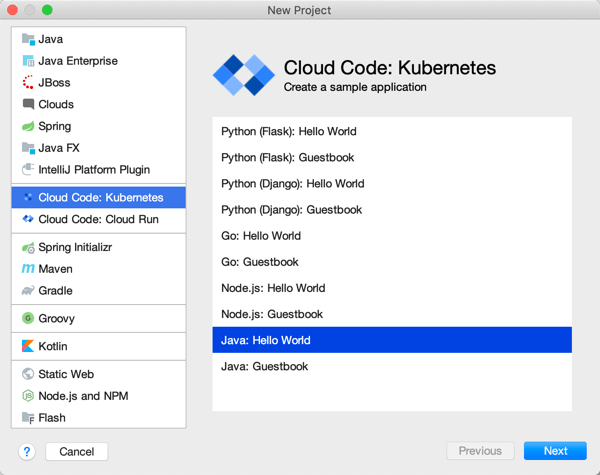
Cloud Code is a good place to start. Among other things, it delivers extensions to IntelliJ and Visual Studio Code. For IntelliJ IDEA users, you get starter templates for new projects, snippets for authoring relevant YAML files, tool windows for various Google Cloud services, app deployment commands, and more. Given that 72% of Java developers use IntelliJ IDEA, this extension helps many folks.
Cloud Code in VS Code
The Visual Studio Code extension is pretty great too. It’s got project starters and other command palette integrations, Activity Bar entries to manage Google Cloud services, deployment tools, and more. 4% of Java devs use Visual Studio Code, so, we’re looking out for you too. If you use Eclipse, take a look at the Cloud Tools for Eclipse.
The other major thing you want locally is the Cloud SDK. Within this little gem you get client libraries for your favorite language, CLIs, and emulators. This means that as Java developers, we get a Java client library, command line tools for all-up Google Cloud (gcloud), Big Query (bq) and Storage (gsutil), and then local emulators for cloud services like Pub/Sub, Spanner, Firestore, and more. Powerful stuff.
App development
Our machine is set up. Now we need to do real work. As you’d expect, you can use all, some, or none of these things to build your Java apps. It’s an open model.
Java devs have lots of APIs to work with in the Google Cloud Java client libraries, whether talking to databases or consuming world-class AI/ML services. If you’re using Spring Boot—and the JetBrains survey reveals that the majority of you are—then you’ll be happy to discover Spring Cloud GCP. This set of packages makes it super straightforward to interact with terrific managed services in Google Cloud. Use Spring Data with cloud databases (including Cloud Spanner and Cloud Firestore), Spring Cloud Stream with Cloud Pub/Sub, Spring Caching with Cloud Memorystore, Spring Security with Cloud IAP, Micrometer with Cloud Monitoring, and Spring Cloud Sleuth with Cloud Trace. And you get the auto-configuration, dependency injection, and extensibility points that make Spring Boot fun to use. Google offers Spring Boot starters, samples, and more to get you going quickly. And it works great with Kotlin apps too.
Emulators available via gcloud
As you’re building Java apps, you might directly use the many managed services in Google Cloud Platform, or, work with the emulators mentioned above. It might make sense to work with local emulators for things like Cloud Pub/Sub or Cloud Spanner. Conversely, you may decide to spin up “real” instance of cloud services to build apps using Managed Service for Microsoft Active Directory, Secret Manager, or Cloud Data Fusion. I’m glad Java developers have so many options.
Where are you going to store your Java source code? One choice is Cloud Source Repositories. This service offers highly available, private Git repos—use it directly or mirror source code code from GitHub or Bitbucket—with a nice source browser and first-party integration with many Google Cloud compute runtimes.
Building and packaging code
After you’ve written some Java code, you probably want to build the project, package it up, and prepare it for deployment.
Artifact Registry
Store your Java packages in Artifact Registry. Create private, secure artifact storage that supports Maven and Gradle, as well as Docker and npm. It’s the eventual replacement of Container Registry, which itself is a nice Docker registry (and more).
Looking to build container images for your Java app? You can write your own Dockerfiles. Or, skip docker build|push by using our open source Jib as a Maven or Gradle plugin that builds Docker images. Jib separates the Java app into multiple layers, making rebuilds fast. A new project is Google Cloud Buildpacks which uses the CNCF spec to package and containerize Java 8|11 apps.
Odds are, your build and containerization stages don’t happen in isolation; they happen as part of a build pipeline. Cloud Build is the highly-rated managed CI/CD service that uses declarative pipeline definitions. You can run builds locally with the open source local builder, or in the cloud service. Pull source from Cloud Source Repositories, GitHub and other spots. Use Buildpacks or Jib in the pipeline. Publish to artifact registries and push code to compute environments.
Application runtimes
As you’d expect, Google Cloud Platform offers a variety of compute environments to run your Java apps. Choose among:
Bare Metal. Choose a physical machine to host your Java app. Choose from machine sizes with as few as 16 CPU cores, and as many as 112.
Google Kubernetes Engine. The first, and still the best, managed Kubernetes service. Get fully managed clusters that are auto scaled, auto patched, and auto repaired. Run stateless or stateful Java apps.
App Engine. One of the original PaaS offerings, App Engine lets you just deploy your Java code without worrying about any infrastructure management.
Cloud Functions. Run Java code in this function-as-a-service environment.
Cloud Run. Based on the open source Knative project, Cloud Run is a managed platform for scale-to-zero containers. You can run any web app that fits into a container, including Java apps.
Google Cloud VMware Engine. If you’re hosting apps in vSphere today and want to lift-and-shift your app over, you can use a fully managed VMware environment in GCP.
Running in production
Regardless of the compute host you choose, you want management tools that make your Java apps better, and help you solve problems quickly.
You might stick an Apigee API gateway in front of your Java app to secure or monetize it. If you’re running Java apps in multiple clouds, you might choose Google Cloud Anthos for consistency purposes. Java apps running on GKE in Anthos automatically get observability, transport security, traffic management, and SLO definition with Anthos Service Mesh.
You probably have lots of existing Java apps. Some are fairly new, others were written a decade ago. Google Cloud offers tooling to migrate many types of existing VM-based apps to container or cloud VM environments. There’s good reasons to do it, and Java apps see real benefits.
Migrate for Anthos takes an existing Linux or Windows VM and creates artifacts (Dockerfiles, Kubernetes YAML, etc) to run that workload in GKE. Migrate for Compute Engine moves your Java-hosting VMs into Google Compute Engine.
All-in-all, there’s a lot to like here if you’re a Java developer. You can mix-and-match these Google Cloud services and tools to build, deploy, run, and manage Java apps.
I rarely enjoy the last mile of work. Sure, there’s pleasure in seeing something reach its conclusion, but when I’m close, I just want to be done! For instance, when I create a Pluralsight course—my new one, Cloud Foundry: The Big Picture just came out—I enjoy the building part, and dread the record+edit portion. Same with writing software. I like coding an app to solve a problem. Then, I want a fast deployment so that I can see how the app works, and wrap up. Ideally, each app I write doesn’t require a unique set of machinery or know-how. Thus, I wanted to see if I could create a *single* Google Cloud Build deployment pipeline that shipped any custom app to the serverless Google Cloud Run environment.
Cloud Build is Google Cloud’s continuous integration and delivery service. It reminds me of Concourse in that it’s declarative, container-based, and lightweight. It’s straightforward to build containers or non-container artifacts, and deploy to VMs, Kubernetes, and more. The fact that it’s a hosted service with a great free tier is a bonus. To run my app, I don’t want to deal with configuring any infrastructure, so I chose Google Cloud Run as my runtime. It just takes a container image and offers a fully-managed, scale-to-zero host. Before getting fancy with buildpacks, I wanted to learn how to use Build and Run to package up and deploy a Spring Boot application.
First, I generated a new Spring Boot app from start.spring.io. It’s going to be a basic REST API, so all I needed was the Web dependency.
I’m not splitting the atom with this Java code. It simply returns a greeting when you hit the root endpoint.
@RestController
@SpringBootApplication
public class HelloAppApplication {

	public static void main(String[] args) {
		SpringApplication.run(HelloAppApplication.class, args);
	}

	@GetMapping("/")
	public String SayHello() {
		return "Hi, Google Cloud Run!";
	}
}
Now, I wanted to create a pipeline that packaged up the Boot app into a JAR file, built a Docker image, and deployed that image to Cloud Run. Before crafting the pipeline file, I needed a Dockerfile. This file offers instructions on how to assemble the image. Here’s my basic one:
FROM openjdk:11-jdk
ARG JAR_FILE=target/hello-app-0.0.1-SNAPSHOT.jar
COPY ${JAR_FILE} app.jar
ENTRYPOINT ["java", "-Djava.security.edg=file:/dev/./urandom","-jar","/app.jar"]
On to the pipeline. A build configuration isn’t hard to understand. It consists of a series of sequential or parallel steps that produce an outcome. Each step runs in its own container image (specified in the name attribute), and if needed, there’s a simple way to transfer state between steps. My cloudbuild.yaml file for this Spring Boot app looked like this:
steps:
# build the Java app and package it into a jar
- name: maven:3-jdk-11
  entrypoint: mvn
  args: ["package", "-Dmaven.test.skip=true"]
# use the Dockerfile to create a container image
- name: gcr.io/cloud-builders/docker
  args: ["build", "-t", "gcr.io/$PROJECT_ID/hello-app", "--build-arg=JAR_FILE=target/hello-app-0.0.1-SNAPSHOT.jar", "."]
# push the container image to the Registry
- name: gcr.io/cloud-builders/docker
  args: ["push", "gcr.io/$PROJECT_ID/hello-app"]
#deploy to Google Cloud Run
- name: 'gcr.io/cloud-builders/gcloud'
  args: ['run', 'deploy', 'seroter-hello-app', '--image', 'gcr.io/$PROJECT_ID/hello-app', '--region', 'us-west1', '--platform', 'managed']
images: ["gcr.io/$PROJECT_ID/hello-app"]
You’ll notice four steps. The first uses the Maven image to package my application. The result of that is a JAR file. The second step uses a Docker image that’s capable of generating an image using the Dockerfile I created earlier. The third step pushes that image to the Container Registry. The final step deploys the container image to Google Cloud Run with an app name of seroter-hello-app. The final “images” property puts the image name in my Build results.
As you can imagine, I can configure triggers for this pipeline (based on code changes, etc), or execute it manually. I’ll do the latter, as I haven’t stored this code in a repository anywhere yet. Using the terrific gcloud CLI tool, I issued a single command to kick off the build.
gcloud builds submit --config cloudbuild.yaml .
After a minute or so, I have a container image in the Container Registry, an available endpoint in Cloud Run, and a full audit log in Cloud Build.
Container Registry:
Cloud Run (with indicator that app was deployed via Cloud Build:
Cloud Build:
I didn’t expose the app publicly, so to call it, I needed to authenticate myself. I used the “gcloud auth print-identity-token” command to get a Bearer token, and plugged that into the Authorization header in Postman. As you’d expect, it worked. And when traffic dies down, the app scales to zero and costs me nothing.
So this was great. I did all this without having to install build infrastructure, or set up an application host. But I wanted to go a step further. Could I eliminate the Dockerization portion? I have zero trust in myself to build a good image. This is where buildpacks come in. They generate well-crafted, secure container images from source code. Google created a handful of these using the CNCF spec, and we can use them here.
My new cloudbuild.yaml file looks like this. See that I’ve removed the steps to package the Java app, and build and push the Docker image, and replaced them with a single “pack” step.
steps:
# use Buildpacks to create a container image
- name: 'gcr.io/k8s-skaffold/pack'
  entrypoint: 'pack'
  args: ['build', '--builder=gcr.io/buildpacks/builder', '--publish', 'gcr.io/$PROJECT_ID/hello-app-bp:$COMMIT_SHA']
#deploy to Google Cloud Run
- name: 'gcr.io/cloud-builders/gcloud'
  args: ['run', 'deploy', 'seroter-hello-app-bp', '--image', 'gcr.io/$PROJECT_ID/hello-app-bp:latest', '--region', 'us-west1', '--platform', 'managed']
With the same gcloud command (gcloud builds submit --config cloudbuild.yaml .) I kicked off a new build. This time, the streaming logs showed me that the buildpack built the JAR file, pulled in a known-good base container image, and containerized the app. The result: a new image in the Registry (21% smaller in size, by the way), and a fresh service in Cloud Run.
I started out this blog post saying that I wanted a single cloudbuild.yaml file for *any* app. With Buildpacks, that seemed possible. The final step? Tokenizing the build configuration. Cloud Build supports “substitutions” which lets you offer run-time values for variables in the configuration. I changed my build configuration above to strip out the hard-coded names for the image, region, and app name.
steps:
# use Buildpacks to create a container image
- name: 'gcr.io/k8s-skaffold/pack'
  entrypoint: 'pack'
  args: ['build', '--builder=gcr.io/buildpacks/builder', '--publish', 'gcr.io/$PROJECT_ID/$_IMAGE_NAME:$COMMIT_SHA']
#deploy to Google Cloud Run
- name: 'gcr.io/cloud-builders/gcloud'
  args: ['run', 'deploy', '$_RUN_APPNAME', '--image', 'gcr.io/$PROJECT_ID/$_IMAGE_NAME:latest', '--region', '$_REGION', '--platform', 'managed']
Before trying this with a new app, I tried this once more with my Spring Boot app. For good measure, I changed the source code so that I could confirm that I was getting a fresh build. My gcloud command now passed in values for the variables:
After a minute, the deployment succeeded, and when I called the endpoint, I saw the updated API result.
For the grand finale, I want to take this exact file, and put it alongside a newly built ASP.NET Core app. I did a simple “dotnet new webapi” and dropped the cloudbuild.yaml file into the project folder.
After tweaking the Program.cs file to read the application port from the platform-provided environment variable, I ran the following command:
A few moments later, I had a container image built, and my ASP.NET Core app listening to requests in Cloud Run.
Calling that endpoint (with authentication) gave me the API results I expected.
Super cool. So to recap, that six line build configuration above works for your Java, .NET Core, Python, Node, and Go apps. It’ll create a secure container image that works anywhere. And if you use Cloud Build and Cloud Run, you can do all of this with no mess. I might actually start enjoying the last mile of app development with this setup.
























 Richard Seroter's Architecture Musings