Month: June 2022

  • This might be the cleanest way I’ve seen parallel processing done in a (serverless) workflow engine

    This might be the cleanest way I’ve seen parallel processing done in a (serverless) workflow engine

    I have a love/hate relationship with workflow technologies after 20+ years of working with them. On the plus side, these technologies often provide a good way to quickly model a process without having to code a bunch of boilerplate stuff. And a good workflow runtime handles the complex stuff like starting up a workflow instance, saving state when the workflow is long-running, and enabling things like retries for failed instances. The downside of workflow tech? You’re often wrangling clumsy design interfaces, stitching together multiple components to achieve something you could have solved with a single line of code, and stuck using unique domain-specific languages (DSLs) with zero (or limited) portability. I get why some folks build workflow solutions out of databases and background workers! But maybe there’s something better.

    Last year, Google Cloud (where I work) shipped Cloud Workflows. It’s a fully managed design and runtime service where you only pay when a workflow is running. Basically, you’d use Cloud Workflows to run event-based or scheduled processes that coordinate web endpoints (serverless functions, REST APIs) or managed services (databases, AI/ML services). It’s similar to AWS Step Functions, and somewhat like Azure Logic Apps. We just added support for parallel processing, and it’s a very smart implementation. Let’s take a look at examples that you can try out for free.

    First, here are five things that I like about Cloud Workflows:

    1. Declarative format. Write Workflows in YAML or JSON and get a visual representation. I like this model versus fighting a graphical UI that buries settings or overwhelms the user with millions of options.
    2. Event-driven triggers. Cloud Workflows integrates with Eventarc, the eventing subsystem that sends messages based on things happening within Google Cloud (e.g. object loaded into storage bucket, database backup completed).
    3. Built-in connectors. A connector makes it easier to talk to Google Cloud services from a Workflow. Set a few properties on a connector without learning the full service API.
    4. Production-ready serverless. Cloud Workflows is compliant with a number of certifications and standards. Like Step Functions, Cloud Workflows is a purely managed service that’s pay-as-you-go and scales automatically. Azure Logic Apps offers this approach as well (“consumption plan”), but only recommends it for dev/test. Rather, they encourage single tenancy for their service.
    5. A mix of sophisticated and basic operations. Cloud Workflows does some powerful things like automatic type conversion, callbacks for long-running processes, handling errors and retries, and even invoking private endpoints. But it also does things that SHOULD be easy (but aren’t always easy in other workflow engines), like defining and using variables and writing out logs. You can do a lot before you HAVE to jump into code.

    One of those sophisticated operations in a workflow is parallel processing. That is, executing more than one blocking call at the same time. This is a sneaky-hard problem to solve in a workflow engine, especially when it comes to shared data. Can both parallel branches see and access the same data? How to avoid collisions? With AWS Step Functions, they’ve gotten around this problem by passing data by value (not reference) into a branch and not allowing state transfers between branches. Cloud Workflows takes a different approach to data in parallel branches. With our implementation, you define “shared variables” that are available to any and all branches that run concurrently. We handle the atomic updates for you and data changes are immediately available to other branches. Pretty cool!

    Example #1 – Basic Cloud Workflow

    How about we start out with something straightforward. Here, I declared a few variables up front, added a log message, then a switch statement which called one of two steps before sending a result.

    #basic starter workflow
    - step1:
       #define and assign variables for use in the workflow
       assign:
        - var1: 100           #can be numbers
        - var2: "Richard"     #can be text
        - var3: "SAN"
        - var4:               #can be instantiated as null
        - var5: ~             #this is null as well
        - varlist: ["item1"]  #how about a list too?
    - step2:
       call: sys.log          #call to standard library to write a log message
       args:
         data: ${var2}
    - step3:
       switch:                #control flow example
         - condition: ${var3 == "SAN"}
           next: dostuff1
         - condition: true
           next: dostuff2
       next: final
    - dostuff1:
       assign: 
         - var4: "full-time employee"
         - varlist: ${list.concat(varlist, "item2")}  #add item to list
       next: final
    - dostuff2:
       assign:
         - var4: "part-time employee"
         - varlist: ${list.concat(varlist, "item3")}  #add item to list
       next: final
    - final:
       return: ${varlist}     #the result of the workflow itself
    

    Here’s the generated visual representation of this workflow.

    After deploying the workflow, I chose the in-console option to execute the workflow. You can see that I have the option to provide input values. And I chose to log all the calls, which makes it easier to trace what’s going on.

    When I execute the workflow, I get a live update to the logs, and the output itself. It’s a helpful interface.

    Example #2 – Workflow with parallel processing and read-only variables

    How about we try a workflow with concurrent branches? It uses the “parallel” control flow action, and I defined a pair of branches that each log a message. Notice that each one can access the “var1” variable. Read-only access to a global variable doesn’t require anything special.

    # basic parallel steps that work, can read variables without marking as shared
    - step1:
       assign:
        - var1: 100
        - var2: 200
    - step2:
       call: sys.log
       args:
         data: ${var1}
    - step3:
       parallel:              #indicate parallel processing ahead
         branches:
           - branch1:         #first branch which can access var1 declared above
               steps:
                 - dostuff:
                    call: sys.log
                    args:
                      text: ${"log message " + string(var1)}
           - branch2:         #second branch which access the same variable
               steps:
                 - dostuff2:
                    call: sys.log
                    args:
                      data: ${var1}        
    - final:
       return: ${var1}
    

    The visual representation of parallel branches looks like this.

    Example #3 – Workflow with shared, writable variable

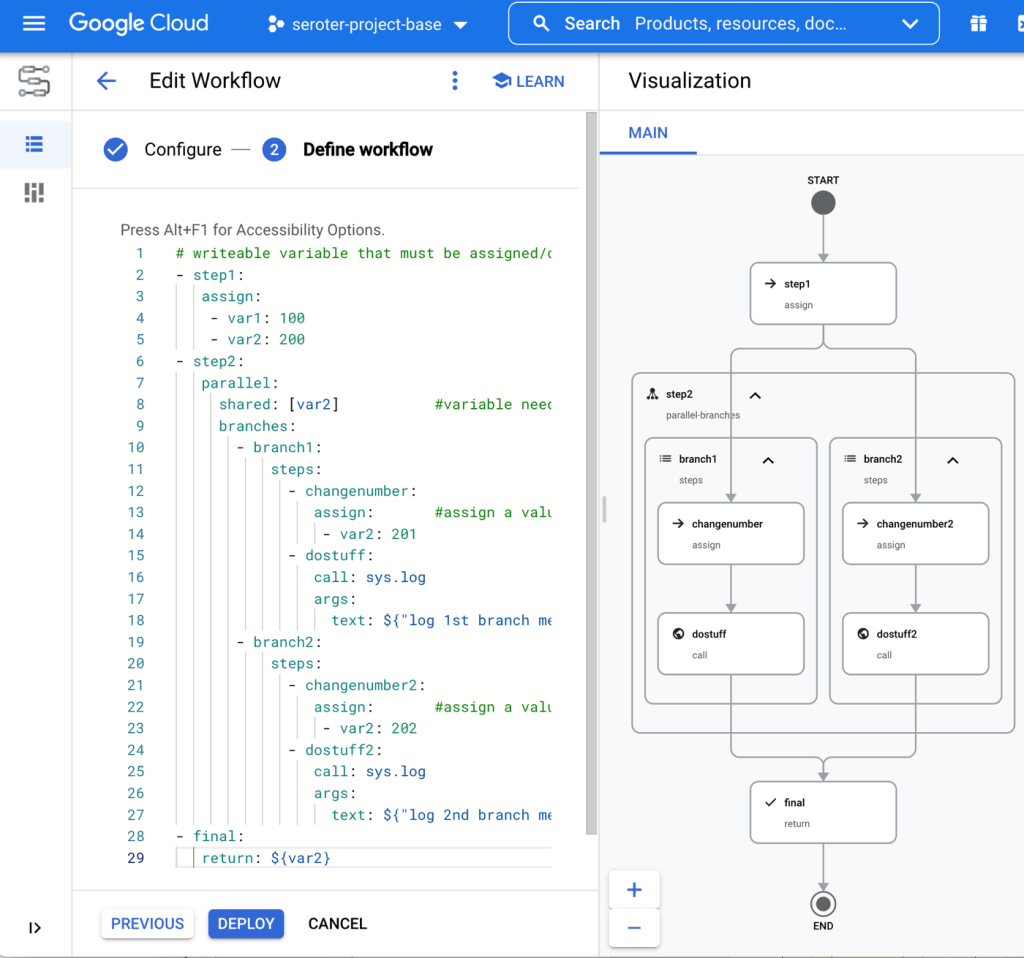
    The above workflow throws an error if I try to assign a value to that global variable from within a branch. What if I want one or more branches to update a shared variable? It could be a counter, an array, or something else. In this scenario, each branch sets a value. These branches aren’t guaranteed to run in any particular order, so if you run this workflow a few times, you’ll see different final values for “var2.”

    # writeable variable that must be assigned/declared first before indicated as "shared"
    - step1:
       assign:
        - var1: 100
        - var2: 200
    - step2:
       parallel:
         shared: [var2]           #variable needs to be declared earlier to be "shared" here
         branches:
           - branch1:
               steps:
                 - changenumber:
                    assign:       #assign a value to the shared variable
                     - var2: 201
                 - dostuff:
                    call: sys.log
                    args:
                      text: ${"log 1st branch message " + string(var2)}
           - branch2:
               steps:
                 - changenumber2:
                    assign:       #assign a value to the shared variable
                     - var2: 202
                 - dostuff2:
                    call: sys.log
                    args:
                      text: ${"log 2nd branch message " + string(var2)}      
    - final:
       return: ${var2}
    

    The workflow looks like this when visualized. You can see the multiple actions per branch.

    Example #4 – Workflow with shared array that’s updated within each parallel branch

    An array is a type of variable in a Cloud Workflow. What if you wanted to append an item to an array from within each branch of an array? That might be tricky with some engines, but it’s straightforward here.

    # writeable array
    - step1:
       assign:
        - var1: 100
        - var2: 200
        - names: []         #declare array
    - step2:
       parallel:
         shared: [names]    #array variable is shared with parallel branches
         branches:
           - branch1:
               steps:
                 - addname:
                    assign:
                     - names: ${list.concat(names, "Richard")}  #add to the array
                 - dostuff:
                    call: sys.log
                    args:
                      text: ${"log 1st branch message "}
           - branch2:
               steps:
                 - addname2:
                    assign:
                     - names: ${list.concat(names, "Kris")}     #add to the array
                 - dostuff2:
                    call: sys.log
                    args:
                      text: ${"log 2nd branch message "}      
    - final:
       return: ${names}
    

    The representation is similar to the one above, but we can see when executing the workflow that the output array has a pair of names added to it.

    This is a relatively simple way to append data to a shared object, even when running in a distributed, parallelized workflow.

    Example #5 – Workflow with map updated with values from each parallel branch

    There’s another way to do this. If you wanted to collect different data points from each branch, and then smash them into a composite object when all the branches complete, it’s not too hard. Here, I scatter and then gather.

    # separate messages per branch, joined at the end
    - step1:
       assign:
        - var1: ~
        - var2: ~
        - var3: {} #declare a map
    - step2:
       parallel:
         shared: [var1, var2]  #still need shared variables in order to be writable in a branch
         branches:
           - branch1:
               steps:
                 - getval1:
                    assign:
                     - var1: "value1"
                 - log1:
                    call: sys.log
                    args:
                      text: ${"log 1st branch message "}
           - branch2:
               steps:
                 - getval2:
                    assign:
                     - var2: "value2"
                 - log2:
                    call: sys.log
                    args:
                      text: ${"log 2nd branch message "}      
    - gathervalues:
       assign:                 #set key/value pairs on the map object
          - var3.val1: ${var1}
          - var3.val2: ${var2}
    - final:
       return: ${var3}
    

    This could be useful in a few cases, and you can see the visual representation here.

    When I call this workflow, I get back a map with a pair of key/value properties.

    Example #6 – Workflow with parallel loop that updates a map variable with each iteration

    You can do more than just parallel branches in a Cloud Workflow. You can also do parallelized loops. That means that multiple iterations can execute concurrently. Neat!

    For this scenario, let’s imagine that I want to pull employee data from three different systems, and return it all as one composite object. To stub this out, I built a Cloud Function that takes in “system ID” via the querystring and returns some fixed data based on which system ID comes in. It’s contrived, but does the job.

    exports.systemLookup = (req, res) => {
    
      var systemid = req.query.id;
      var payload;
    
      switch(systemid) {
        case "e1":
          payload = {name: "Richard Seroter", location: "SAN"};
          break;
        case "d1":
          payload = {department: "PM", tenure: "2.2yrs"};
          break;
        case "r1":
          payload = {latestperfrating: "3"};
          break;
        default:
          payload = {type: "employee"}
          break;
      }
      res.status(200).send(payload);
    };
    

    After I deployed this function, I built this workflow which loops through a list of employee system names and calls this Function for each one. And then takes the result and adds it to the map variable.

    # parallel loop that calls a function and builds up a composite object
    - step1:
       assign:
        - systemlist: ["e1", "d1", "r1"]   #list of employee systems to retrieve data from
        - employeemap: {}                  #map that holds composite result
    - step2:
       parallel:
         shared: [systemlist, employeemap] #still need shared variables in order to be writable in a branch
         for:            #loop
          value: systemid
          in: ${systemlist}
          steps:
             - getEmpDetails:
                call: http.get    #call function
                args:
                   url: ${"https://[host]/function-lookupfromworkflow?id=" + systemid}
                result: payload
             - logmsg:
                call: sys.log
                args:
                   text: ${"log loop message " + systemid}  
             - append:
                assign:           #assign the result to the map
                   - employeemap[systemid]: ${payload.body}
    - final:
       return: ${employeemap}
    

    Such a workflow is visualized as such.

    The result? I get a composite object back, and it happened super fast since the engine made Function calls in parallel!

    Summary

    Cloud Workflows are new in town, but they’re already a solid option. The DSL is powerful and yet elegantly solves tricky distributed systems problems like shared variables. I think you can run all the examples above within the confines of our free tier, which makes it simple to experiment further. Let me know what you think, and what else you’d like to see us add to Cloud Workflows.
  • Running serverless web, batch, and worker apps with Google Cloud Run and Cloud Spanner

    Running serverless web, batch, and worker apps with Google Cloud Run and Cloud Spanner

    If it seems to you that cloud providers offer distinct compute services for every specific type of workload, you’re not imagining things. Fifteen years ago when I was building an app, my hosting choices included a virtual machine or a physical server. Today? You’ll find services targeting web apps, batch apps, commercial apps, containerized apps, Windows apps, Spring apps, VMware-based apps, and more. It’s a lot. So, it catches my eye when I find a modern cloud service that support a few different types of workloads. Our serverless compute service Google Cloud Run might be the fastest and easiest way to get web apps running in the cloud, and we just added support for background jobs. I figured I’d try out Cloud Run for three distinct scenarios: web app (responds to HTTP requests, scales to zero), job (triggered, runs to completion), and worker (processes background work continuously).

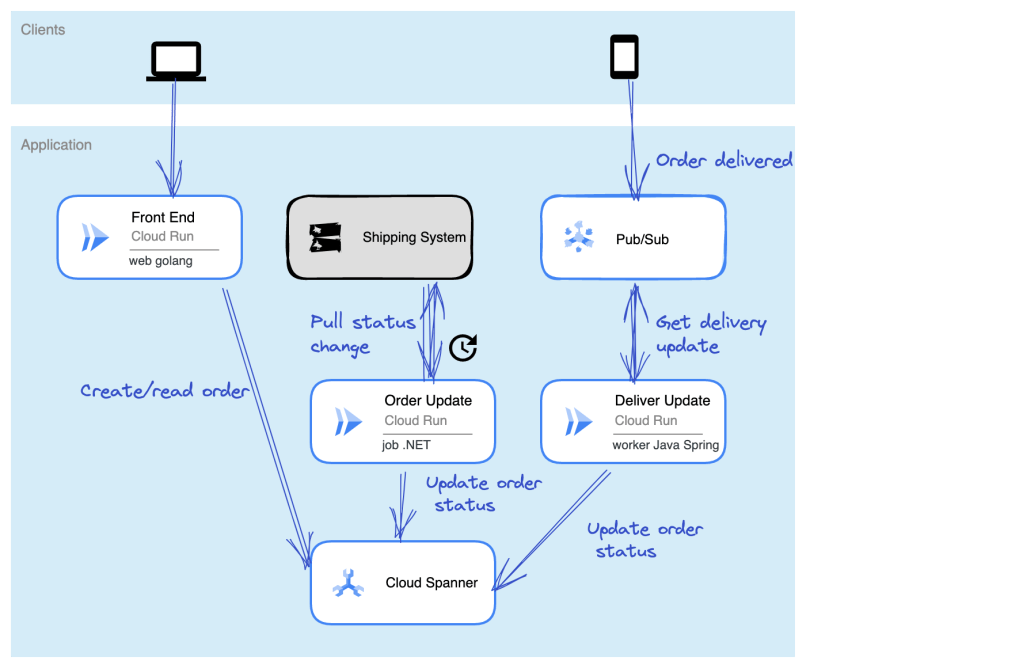
    Let’s make this scenario come alive. I want a web interface that takes in “orders” and shows existing orders (via Cloud Run web app). There’s a separate system that prepares orders for delivery and we poll that system occasionally (via Cloud Run job) to update the status of our orders. And when the order itself is delivered, the mobile app used by the delivery-person sends a message to a queue that a worker is constantly listening to (via Cloud Run app). The basic architecture is something like this:

    Ok, how about we build it out!

    Setting up our Cloud Spanner database

    The underlying database for this system is Cloud Spanner. Why? Because it’s awesome and I want to start using it more. Now, I should probably have a services layer sitting in front of the database instead of doing direct read/write, but this is my demo and I’ll architect however I damn well please!

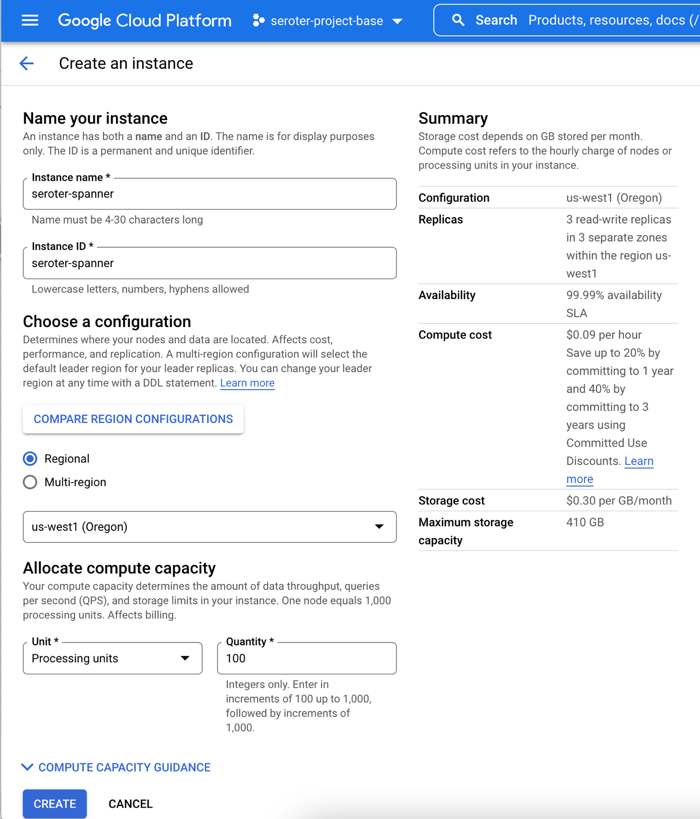
    I started by creating a Spanner instance. We’ve recently made it possible to create smaller instances, which means you can get started at less cost, without sacrificing resilience. Regardless of the number of “processing units” I choose, I get 3 replicas and the same availability SLA. The best database in the cloud just got a lot more affordable.

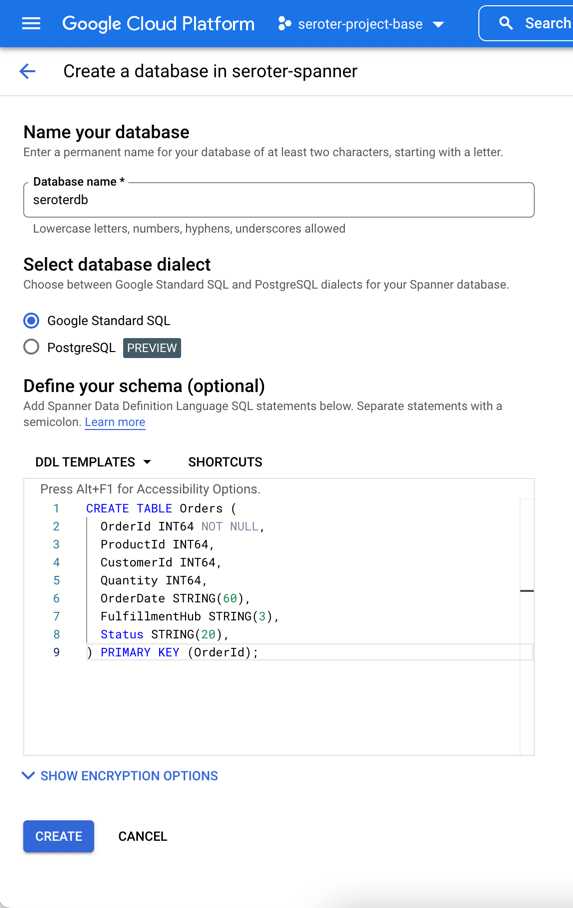
    Next, I add a database to this instance. After giving it a name, I choose the “Google Standard SQL” option, but I could have also chosen a PostgreSQL interface. When defining my schema, I like that we offer script templates for actions like “create table”, “create index”, and “create change stream.” Below, you see my table definition.

    With that, I have a database. There’s nothing left to do, besides bask in the glory of having a regionally-deployed, highly available relational database instance at my disposal in about 60 seconds.

    Creating the web app in Go and deploying to Cloud Run

    With the database in place, I can build a web app with read/write capabilities.

    This app is written in Go and uses the echo web framework. I defined a basic struct that matches the fields in the database.

    package model
    
    type Order struct {
    	OrderId        int64
    	ProductId      int64
    	CustomerId     int64
    	Quantity       int64
    	Status         string
    	OrderDate      string
    	FulfillmentHub string
    }
    

    I’m using the Go driver for Spanner and the core of the logic consists of the operations to retrieve Spanner data and create a new record. I need to be smarter about reusing the connection, but I’ll refactor it later. Narrator: He probably won’t refactor it.

    package web
    
    import (
    	"context"
    	"log"
    	"time"
    	"cloud.google.com/go/spanner"
    	"github.com/labstack/echo/v4"
    	"google.golang.org/api/iterator"
    	"seroter.com/serotershop/model"
    )
    
    func GetOrders() []*model.Order {
    
    	//create empty slice
    	var data []*model.Order
    
    	//set up context and client
    	ctx := context.Background()
    	db := "projects/seroter-project-base/instances/seroter-spanner/databases/seroterdb"
    	client, err := spanner.NewClient(ctx, db)
    	if err != nil {
    		log.Fatal(err)
    	}
    
    	defer client.Close()
        //get all the records in the table
    	iter := client.Single().Read(ctx, "Orders", spanner.AllKeys(), []string{"OrderId", "ProductId", "CustomerId", "Quantity", "Status", "OrderDate", "FulfillmentHub"})
    
    	defer iter.Stop()
    
    	for {
    		row, e := iter.Next()
    		if e == iterator.Done {
    			break
    		}
    		if e != nil {
    			log.Println(e)
    		}
    
    		//create object for each row
    		o := new(model.Order)
    
    		//load row into struct that maps to same shape
    		rerr := row.ToStruct(o)
    		if rerr != nil {
    			log.Println(rerr)
    		}
    		//append to collection
    		data = append(data, o)
    
    	}
    	return data
    }
    
    func AddOrder(c echo.Context) {
    
    	//retrieve values
    	orderid := c.FormValue("orderid")
    	productid := c.FormValue("productid")
    	customerid := c.FormValue("customerid")
    	quantity := c.FormValue("quantity")
    	status := c.FormValue("status")
    	hub := c.FormValue("hub")
    	orderdate := time.Now().Format("2006-01-02")
    
    	//set up context and client
    	ctx := context.Background()
    	db := "projects/seroter-project-base/instances/seroter-spanner/databases/seroterdb"
    	client, err := spanner.NewClient(ctx, db)
    	if err != nil {
    		log.Fatal(err)
    	}
    
    	defer client.Close()
    
    	//do database table write
    	_, e := client.Apply(ctx, []*spanner.Mutation{
    		spanner.Insert("Orders",
    			[]string{"OrderId", "ProductId", "CustomerId", "Quantity", "Status", "FulfillmentHub", "OrderDate"},
    			[]interface{}{orderid, productid, customerid, quantity, status, hub, orderdate})})
    
    	if e != nil {
    		log.Println(e)
    	}
    }
    

    Time to deploy! I’m using Cloud Build to generate a container image without using a Dockerfile. A single command triggers the upload, build, and packaging of my app.

    gcloud builds submit --pack image=gcr.io/seroter-project-base/seroter-run-web
    

    After a moment, I have a container image ready to go. I jumped in the Cloud Run experience and chose to create a new service. After picking the container image I just created, I kept the default autoscaling (minimum of zero instances), concurrency, and CPU allocation settings.

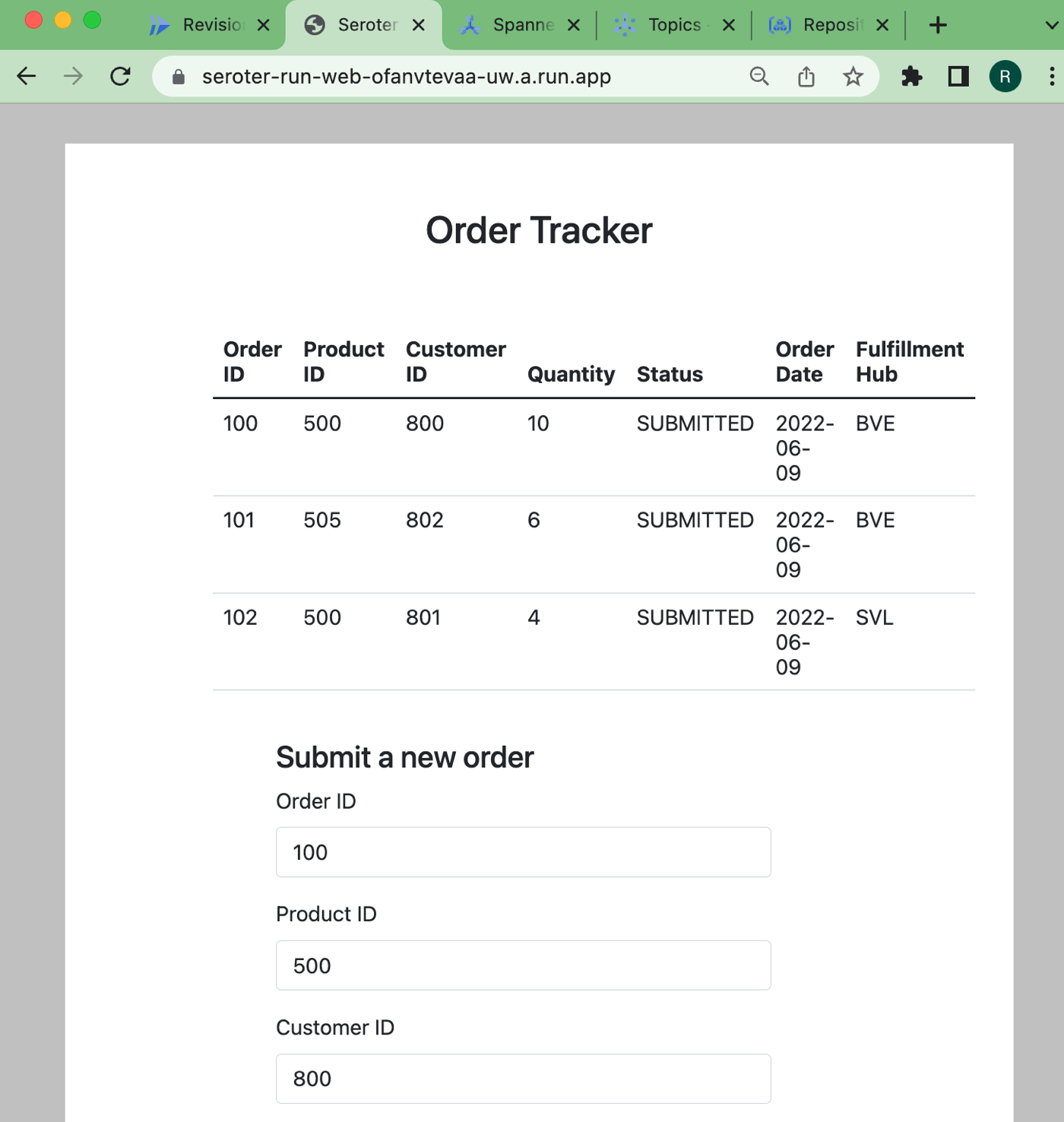
    The app started in seconds, and when I call up the URL, I see my application. And I went ahead and submitted a few orders, which then show up in the list.

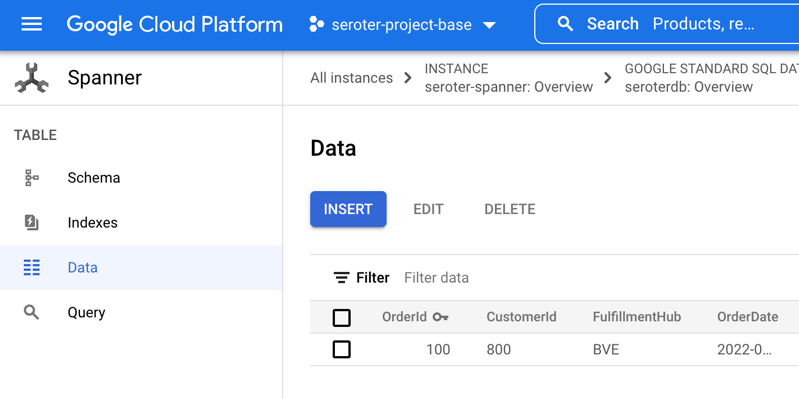
    Checking Cloud Spanner—just to ensure this wasn’t only data sitting client-side—shows that I have rows in my database table.

    Ok, my front end web application is running (when requests come in) and successfully talking to my Cloud Spanner database.

    Creating the batch processor in .NET and deploying to Cloud Run jobs

    As mentioned in the scenario summary, let’s assume we have some shipping system that prepares the order for delivery. Every so often, we want to poll that system for changes, and update the order status in the Spanner database accordingly.

    Until lately, you’d run these batch jobs in App Engine, Functions, a GKE pod, or some other compute service that you could trigger on a schedule. But we just previewed Cloud Run jobs which offers a natural choice moving forward. Here, I can run anything that can be containerized, and the workload runs until completion. You might trigger these via Cloud Scheduler, or kick them off manually.

    Let’s write a .NET console application that does the work. I’m using the new minimal API that hides a bunch of boilerplate code. All I have is a Program.cs file, and a package dependency on Google.Cloud.Spanner.Data. Because I don’t like you THAT much, I didn’t actually create a stub for the shipping system, and decided to update the status of all the rows at once.

    using Google.Cloud.Spanner.Data;
    
    Console.WriteLine("Starting job ...");
    
    //connection string
    string conn = "Data Source=projects/seroter-project-base/instances/seroter-spanner/databases/seroterdb";
    
    using (var connection = new SpannerConnection(conn)) {
    
        //command that updates all rows with the initial status
        SpannerCommand cmd = connection.CreateDmlCommand("UPDATE Orders SET Status = 'SHIPPED' WHERE Status = 'SUBMITTED'");
    
        //execute and hope for the best
        cmd.ExecuteNonQuery();
    }
    
    //job should end after this
    Console.WriteLine("Update done. Job completed.");


    Like before, I use a single Cloud Build command to compile and package my app into a container image: gcloud builds submit --pack image=gcr.io/seroter-project-base/seroter-run-job

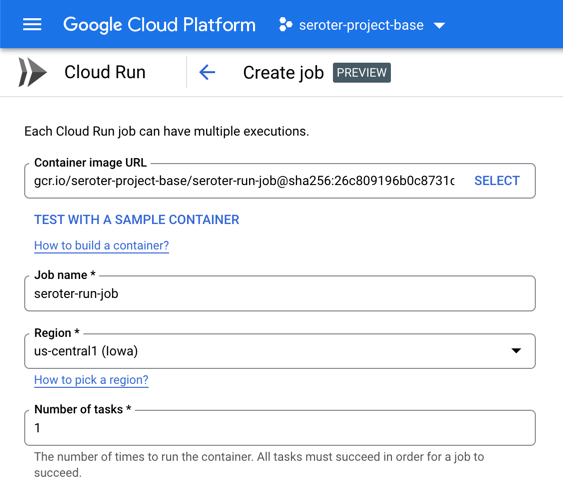
    Let’s go back into the Cloud Run interface, where we just turned on a UI for creating and managing jobs. I start by choosing my just-now-created container image and keeping the “number of tasks” to 1.

    For reference, there are other fun “job” settings. I can allocate up to 32GB of memory and 8 vCPUs. I can set the timeout (up to an hour), choose how much parallelism I want, and even select the option to run the job right away.

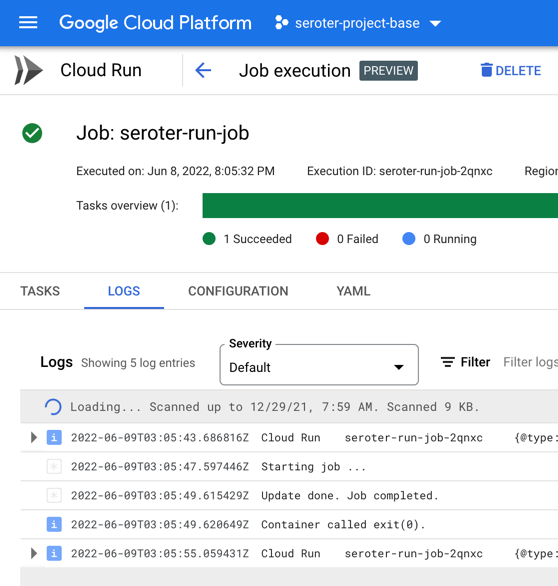
    After creating the job, I click the button that says “execute” and run my job. I see job status and application logs, updated live. My job succeeded!

    Checking Cloud Spanner confirms that my all table rows were updated to a status of “SHIPPED”.

    It’s great that I didn’t have to leave the Cloud Run API or interface to build this batch processor. Super convenient!

    Creating the queue listener in Spring and deploying to Cloud Run

    The final piece of our architecture requires a queue listener. When our delivery drivers drop off a package, their system sends a message to Google Cloud Pub/Sub, our pretty remarkable messaging system. To be sure, I could trigger Cloud Run (or Cloud Functions) automatically whenever a message hits Pub/Sub. That’s a built-in capability. I don’t need to use a processor that directly pulls from the queue.

    But maybe I want to control the pull from the queue. I could do stateful processing over a series of messages, or pull batches instead of one-at-a-time. Here, I’m going to use Spring Cloud Stream which talks to any major messaging system and triggers a function whenever a message arrives.

    Also note that Cloud Run doesn’t explicitly support this worker pattern, but you can make it work fairly easily. I’ll show you.

    I went to start.spring.io and configured my app by choosing a Spring Web and GCP Support dependency. Why “web” if this is a background worker? Cloud Run still expects a workload that binds to a web port, so we’ll embed a web server that’s never used.

    After generating the project and opening it, I deleted the “GCP support” dependency (I just wanted an auto-generated dependency management value) and added a couple of POM dependencies that my app needs. The first is the Google Cloud Pub/Sub “binder” for Spring Cloud Stream, and the second is the JDBC driver for Cloud Spanner.

    <dependency>
    	<groupId>org.springframework.cloud</groupId>
    	<artifactId>spring-cloud-gcp-pubsub-stream-binder</artifactId>
    	<version>1.2.8.RELEASE</version>
    </dependency>
    <dependency>
    	<groupId>com.google.cloud</groupId>
    	<artifactId>google-cloud-spanner-jdbc</artifactId>
    </dependency>
    

    I then created an object definition for “Order” with the necessary fields and getters/setters. Let’s review the primary class that does all the work. The way Spring Cloud Stream works is that reactive functions annotated as beans are invoked when a message comes in. The Spring machinery wires up the connection to the message broker and does most of the work. In this case, when I get an order message, I update the order status in Cloud Spanner to “DELIVERED.”

    package com.seroter.runworker;
    
    
    import java.util.function.Consumer;
    import org.springframework.boot.SpringApplication;
    import org.springframework.boot.autoconfigure.SpringBootApplication;
    import org.springframework.context.annotation.Bean;
    import reactor.core.publisher.Flux;
    import java.sql.Connection;
    import java.sql.DriverManager;
    import java.sql.Statement;
    import java.sql.SQLException;
    
    @SpringBootApplication
    public class RunWorkerApplication {
    
    	public static void main(String[] args) {
    		SpringApplication.run(RunWorkerApplication.class, args);
    	}
    
    	//takes in a Flux (stream) of orders
    	@Bean
    	public Consumer<Flux<Order>> reactiveReadOrders() {
    
    		//connection to my database
    		String connectionUrl = "jdbc:cloudspanner:/projects/seroter-project-base/instances/seroter-spanner/databases/seroterdb";
    		
    		return value -> 
    			value.subscribe(v -> { 
    				try (Connection c = DriverManager.getConnection(connectionUrl); Statement statement = c.createStatement()) {
    					String command = "UPDATE Orders SET Status = 'DELIVERED' WHERE OrderId = " + v.getOrderId().toString();
    					statement.executeUpdate(command);
    				} catch (SQLException e) {
    					System.out.println(e.toString());
    				}
    			});
    	}
    }
    

    My corresponding properties file has the few values Spring Cloud Stream needs to know about. Specifically, I’m specifying the Pub/Sub topic, indicating that I can take in batches of data, and setting the “group” which corresponds to the topic subscription. What’s cool is that if these topics and subscriptions don’t exist already, Spring Cloud Stream creates them for me.

    server.port=8080
    spring.cloud.stream.bindings.reactiveReadOrders-in-0.destination=ordertopic
    spring.cloud.stream.bindings.reactiveReadOrders-in-0.consumer.batch-mode=true
    spring.cloud.stream.bindings.reactiveReadOrders-in-0.content-type=application/json
    spring.cloud.stream.bindings.reactiveReadOrders-in-0.group=orderGroup
    

    For the final time, I run the Cloud Build command to build and package my Java app into a container image: gcloud builds submit --pack image=gcr.io/seroter-project-base/seroter-run-worker

    With this container image ready to go, I slide back to the Cloud Run UI and create a new service instance. This time, after choosing my image, I choose “always allocated CPU” to ensure that the CPU stays on the whole time. And I picked a minimum instance of one so that I have a single always-on worker pulling from Pub/Sub. I also chose “internal only” traffic and require authentication to make this harder for someone to randomly invoke.

    My service quickly starts up, and upon initialization, creates both the topic and queue for my app.

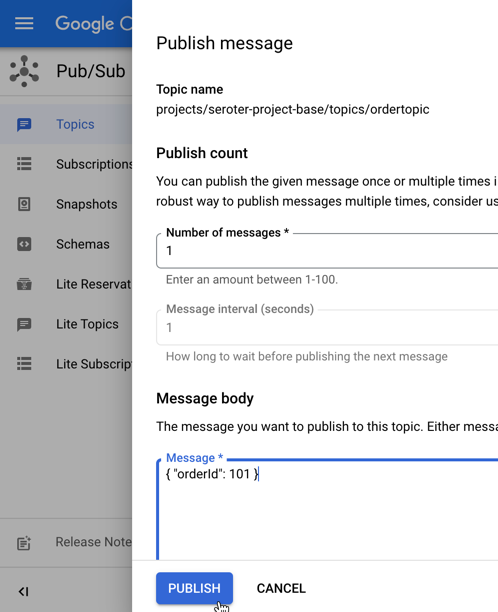
    I go into the Pub/Sub UI where I can send a message directly into a topic. All I need to send in is a JSON payload that holds the order ID of the record to update.

    The result? My database record is updated, and I see this by viewing my web application and noticing the second row has a new “status” value.

    Wrap up

    Instead of using two or three distinct cloud compute services to satisfy this architecture, I used one. Cloud Run defies your expectations of what serverless can be, especially now that you can run serverless jobs or even continuously-running apps. In all cases, I have no infrastructure to provision, scale, or manage.

    You can use Cloud Run, Pub/Sub, and Cloud Build with our generous free tier, and Spanner has never been cheaper to try out. Give it a whirl, and tell me what you think of Cloud Run jobs.