I’ve written a couple blog posts (and even a book chapter!) on how to integrate BizTalk Server with Microsoft Dynamics CRM 2011, and I figured that I should take some of my own advice and diversify my experiences. So, I thought that I’d demonstrate how to consume Dynamics CRM 2011 web services from a .NET 4.0 Workflow Service.
First off, why would I do this? Many reasons. One really good one is the durability that WF Services + Server AppFabric offers you. We can create a Workflow Service that fronts the Dynamics CRM 2011 services and let upstream callers asynchronously invoke our Workflow Service without waiting for a response or requiring Dynamics CRM to be online. Or, you could use Workflow Services to put a friendly proxy API in front of the notoriously unfriendly CRM SOAP API.
Let’s dig in. I created a new Workflow Services project in Visual Studio 2010 and immediately added a service reference.

After adding the reference, I rebuilt the Visual Studio project and magically got Workflow Activities that match all the operations exposed by the Dynamics CRM service.

A promising start. Next I defined a C# class to represent a canonical “Customer” object. I sketched out a simple Workflow Service that takes in a Customer object and returns a string value indicating that the Customer was received by the service.

I then added two more variables that are needed for calling the “Create” operation in the Dynamics CRM service. First, I created a variable for the “entity” object that was added to the project from my service reference, and then I added another variable for the GUID response that is returned after creating an entity.
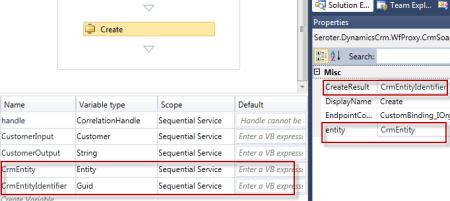
Now I need to instantiate the “CrmEntity” variable. Here’s where I can use the BizTalk Mapper shape that comes with the LOB adapter installation and BizTalk Server 2010. I dragged the Mapper shape from the Widows Workflow toolbox and get asked for the source and destination data types.
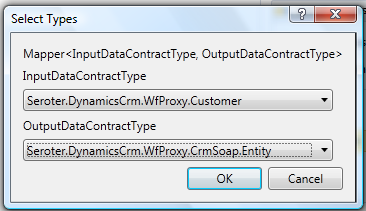
I then created a new Map.

I then built a map using the strategy I employed in previous posts. Specifically, I copied each source node to a Looping functoid, and then connected each source to Scripting functoid with an XSLT Call Template inside that contained the script to create the key/value pair structure in the destination.

After saving and building the Workflow Service, I invoked the service via the WCF Test Client. I sent in some data and hoped to see a matching record in Dynamics CRM.

If I go to my Dynamics CRM 2011 instance, I can find a record for my dog, Watson.

So, that was pretty simple. You can use the ease of creation and deployment of Workflow Services while combining the power of the BizTalk Mapper.
 Richard Seroter's Architecture Musings
Leave a comment